Page 229 of 453
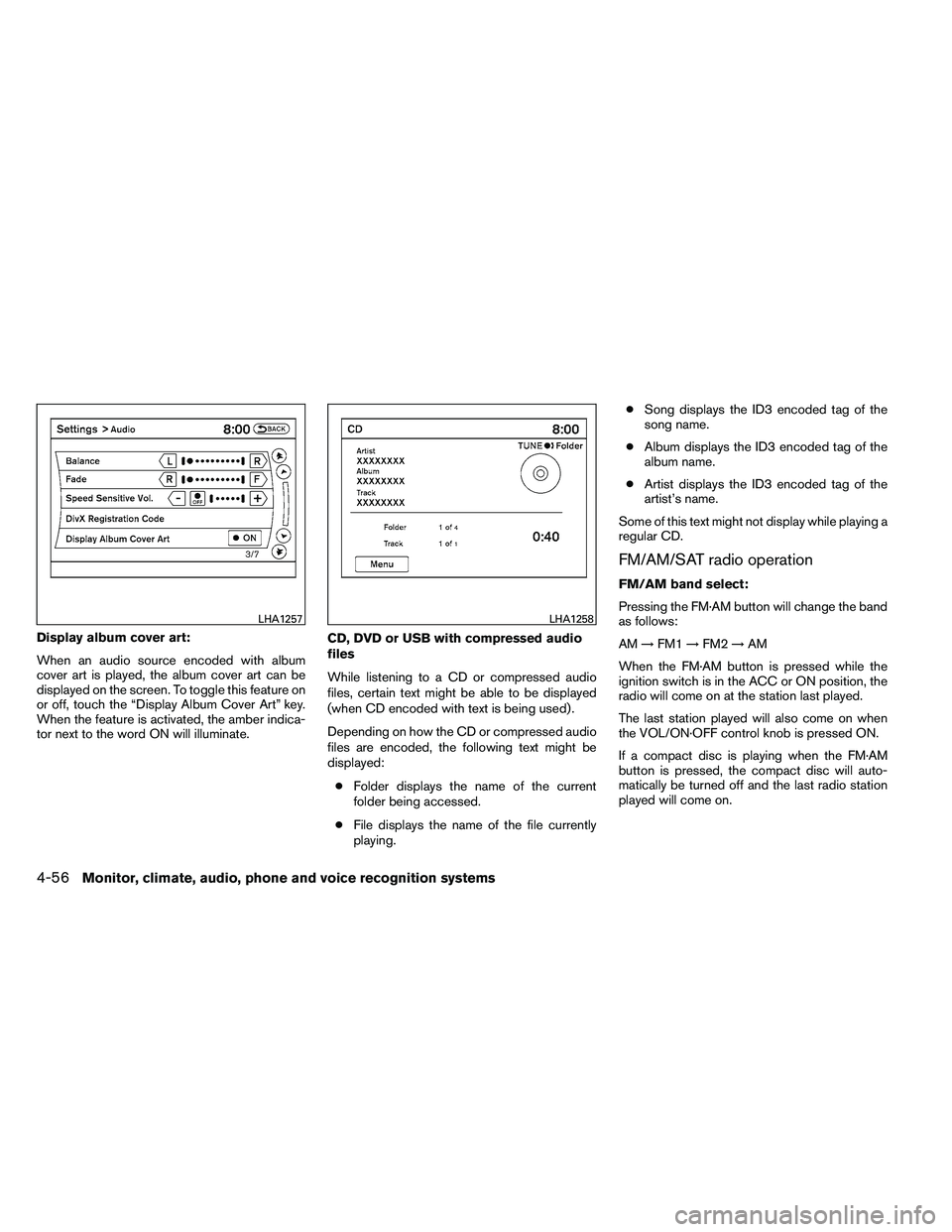
Display album cover art:
When an audio source encoded with album
cover art is played, the album cover art can be
displayed on the screen. To toggle this feature on
or off, touch the “Display Album Cover Art” key.
When the feature is activated, the amber indica-
tor next to the word ON will illuminate.CD, DVD or USB with compressed audio
files
While listening to a CD or compressed audio
files, certain text might be able to be displayed
(when CD encoded with text is being used) .
Depending on how the CD or compressed audio
files are encoded, the following text might be
displayed:
● Folder displays the name of the current
folder being accessed.
● File displays the name of the file currently
playing. ●
Song displays the ID3 encoded tag of the
song name.
● Album displays the ID3 encoded tag of the
album name.
● Artist displays the ID3 encoded tag of the
artist’s name.
Some of this text might not display while playing a
regular CD.
FM/AM/SAT radio operation
FM/AM band select:
Pressing the FM·AM button will change the band
as follows:
AM →FM1 →FM2 →AM
When the FM·AM button is pressed while the
ignition switch is in the ACC or ON position, the
radio will come on at the station last played.
The last station played will also come on when
the VOL/ON·OFF control knob is pressed ON.
If a compact disc is playing when the FM·AM
button is pressed, the compact disc will auto-
matically be turned off and the last radio station
played will come on.
Page 230 of 453

The FM stereo indicator STEREO will illuminate
during FM stereo reception. When the stereo
broadcast signal is weak, the radio will automati-
cally change from stereo to monaural reception.
XM band select:
Press the XM button to change the band as
follows:
XM1*→XM2* →XM3* →XM1 (satellite, if so
equipped)
When the XM button is pressed while the ignition
switch is in the ACC or ON position, the radio will
come on at the station last played.
The last station played will also come on when
the VOL/ON·OFF control knob is pressed ON.
*When the XM button is pressed, the satellite
radio reception will not be available unless an
optional satellite receiver and antenna are in-
stalled and an XM� satellite radio service sub-
scription is active. Satellite radio is not available
in Alaska, Hawaii and Guam.
If a compact disc is playing when the XM button
is pressed, the compact disc will automatically be
turned off and the last radio station played will
come on. TUNE/FOLDER (Tuning) knob:
To manually tune the radio, turn the
TUNE/FOLDER knob to the right or left.
Page 231 of 453
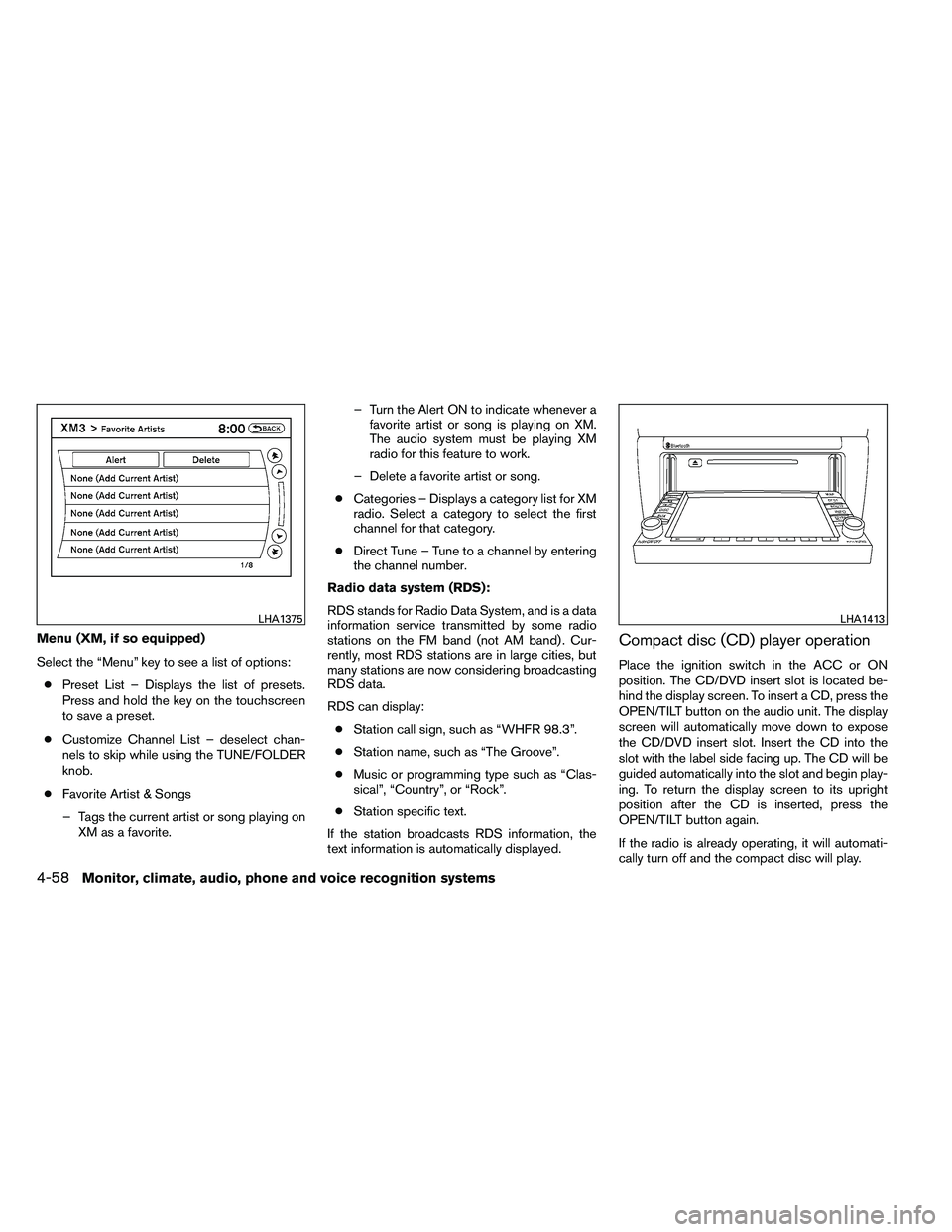
Menu (XM, if so equipped)
Select the “Menu” key to see a list of options:● Preset List – Displays the list of presets.
Press and hold the key on the touchscreen
to save a preset.
● Customize Channel List – deselect chan-
nels to skip while using the TUNE/FOLDER
knob.
● Favorite Artist & Songs
– Tags the current artist or song playing on XM as a favorite. – Turn the Alert ON to indicate whenever a
favorite artist or song is playing on XM.
The audio system must be playing XM
radio for this feature to work.
– Delete a favorite artist or song.
● Categories – Displays a category list for XM
radio. Select a category to select the first
channel for that category.
● Direct Tune – Tune to a channel by entering
the channel number.
Radio data system (RDS):
RDS stands for Radio Data System, and is a data
information service transmitted by some radio
stations on the FM band (not AM band) . Cur-
rently, most RDS stations are in large cities, but
many stations are now considering broadcasting
RDS data.
RDS can display: ● Station call sign, such as “WHFR 98.3”.
● Station name, such as “The Groove”.
● Music or programming type such as “Clas-
sical”, “Country”, or “Rock”.
● Station specific text.
If the station broadcasts RDS information, the
text information is automatically displayed.Compact disc (CD) player operation
Place the ignition switch in the ACC or ON
position. The CD/DVD insert slot is located be-
hind the display screen. To insert a CD, press the
OPEN/TILT button on the audio unit. The display
screen will automatically move down to expose
the CD/DVD insert slot. Insert the CD into the
slot with the label side facing up. The CD will be
guided automatically into the slot and begin play-
ing. To return the display screen to its upright
position after the CD is inserted, press the
OPEN/TILT button again.
If the radio is already operating, it will automati-
cally turn off and the compact disc will play.
Page 240 of 453
Audio file operation
AUX button:
Place the ignition switch in the ON or ACC
position and press the AUX button to switch to
the USB input mode. If another audio source is
plugged in through the AUX IN jack on the radio,
the AUX button toggles between the two
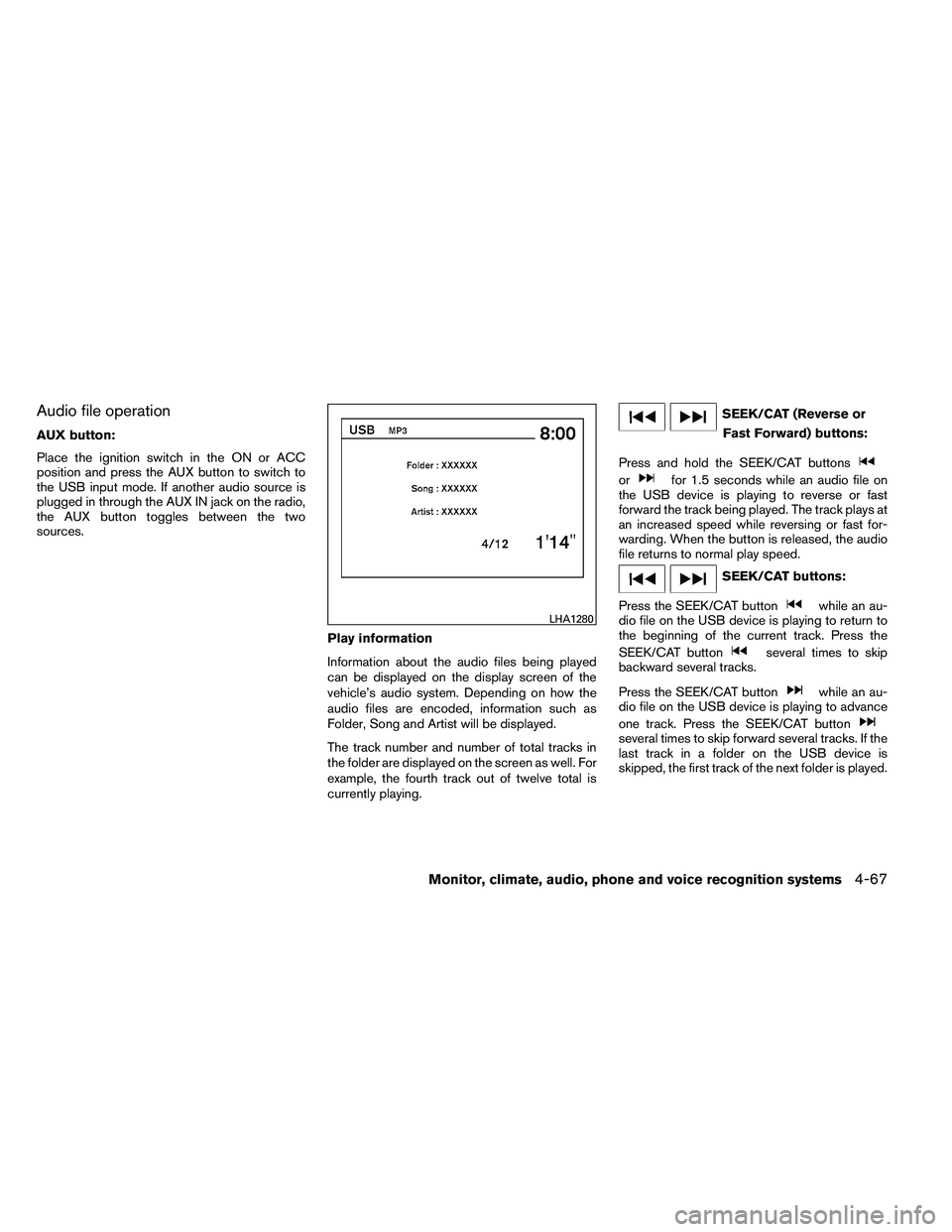
sources.Play information
Information about the audio files being played
can be displayed on the display screen of the
vehicle’s audio system. Depending on how the
audio files are encoded, information such as
Folder, Song and Artist will be displayed.
The track number and number of total tracks in
the folder are displayed on the screen as well. For
example, the fourth track out of twelve total is
currently playing.
Page 242 of 453
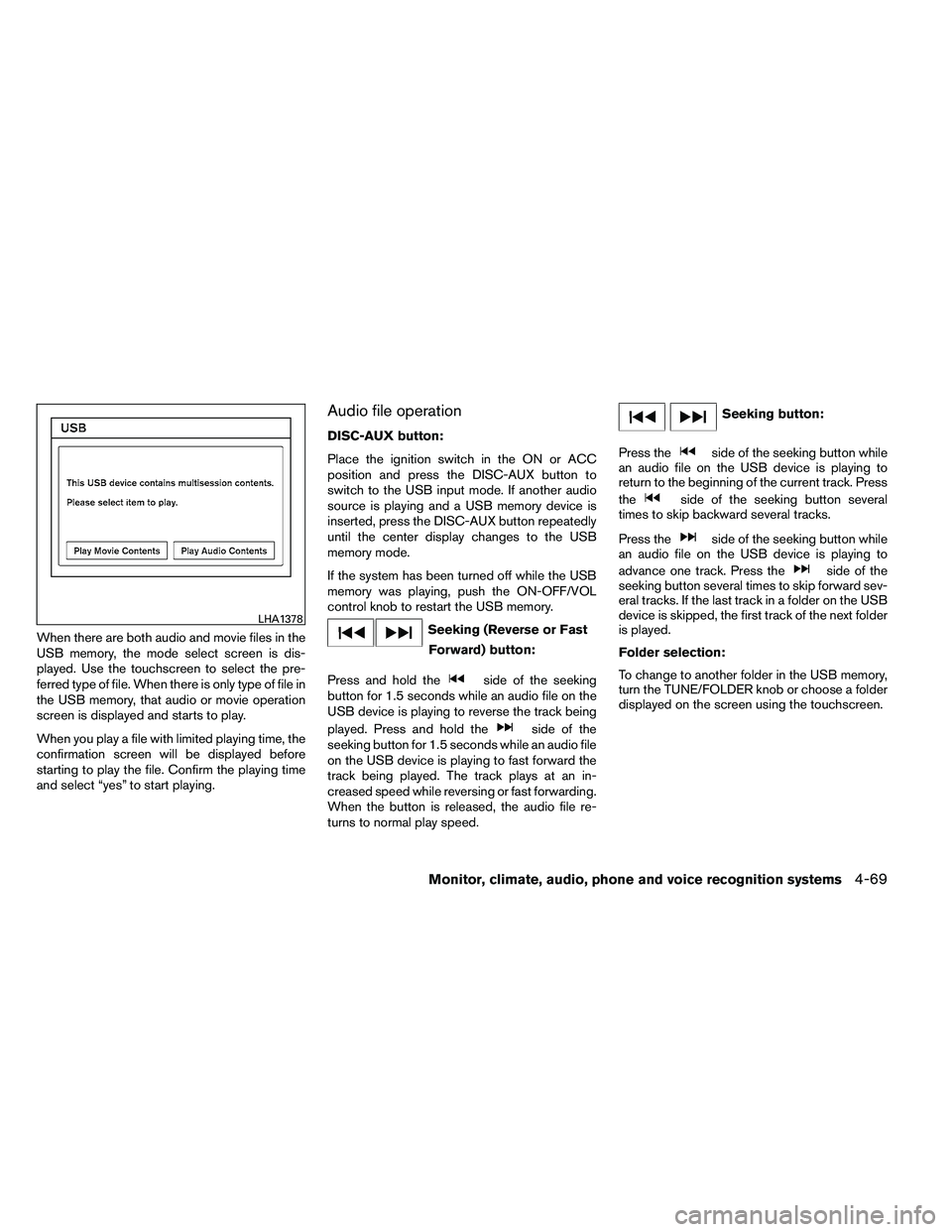
When there are both audio and movie files in the
USB memory, the mode select screen is dis-
played. Use the touchscreen to select the pre-
ferred type of file. When there is only type of file in
the USB memory, that audio or movie operation
screen is displayed and starts to play.
When you play a file with limited playing time, the
confirmation screen will be displayed before
starting to play the file. Confirm the playing time
and select “yes” to start playing.
Audio file operation
DISC-AUX button:
Place the ignition switch in the ON or ACC
position and press the DISC-AUX button to
switch to the USB input mode. If another audio
source is playing and a USB memory device is
inserted, press the DISC-AUX button repeatedly
until the center display changes to the USB
memory mode.
If the system has been turned off while the USB
memory was playing, push the ON-OFF/VOL
control knob to restart the USB memory.
Page 245 of 453
●10 Key Search
Select the “10 Key Search” key to open the
number entry screen. Input the number you
want to search for and the specified file or
folder will be played.
● Display
Adjust the image quality of the screen.
● DRC
DRC (Dynamic Range Compression) auto-
matically adjusts the soundtrack volume
level to maintain a more even sound to the
speakers.
● Audio
Choose the preferred language of the audio.
● Subtitle
Choose the preferred language of the sub-
titles.
● Display Mode
Choose between the “Normal”, “Wide”,
“Cinema” or “Full” display modes.
iPod�* PLAYER OPERATION
WITHOUT NAVIGATION SYSTEM (if
so equipped)
Connecting iPod�
To connect an iPod� to the vehicle so that the
iPod� can be controlled with the audio system
controls and display screen, use the USB jack
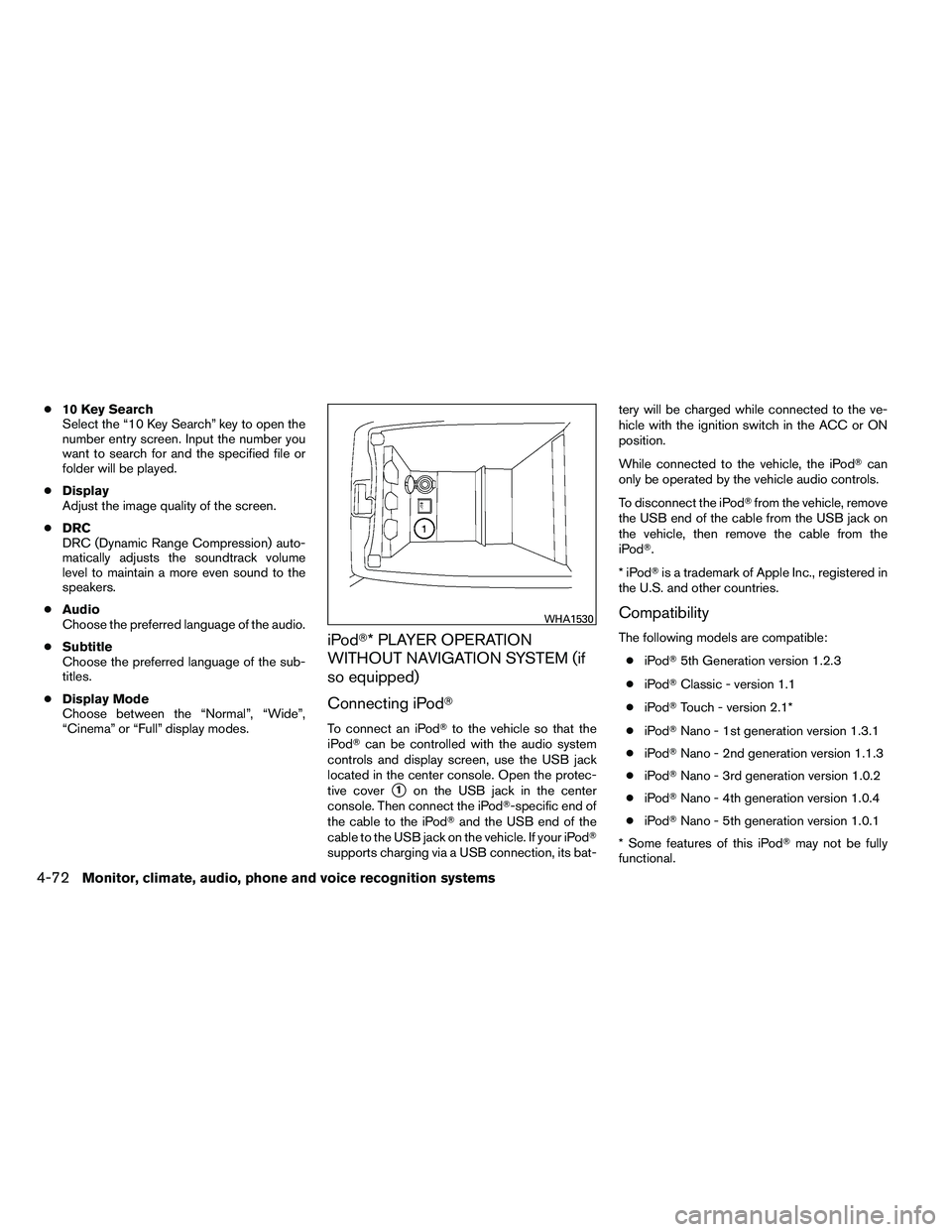
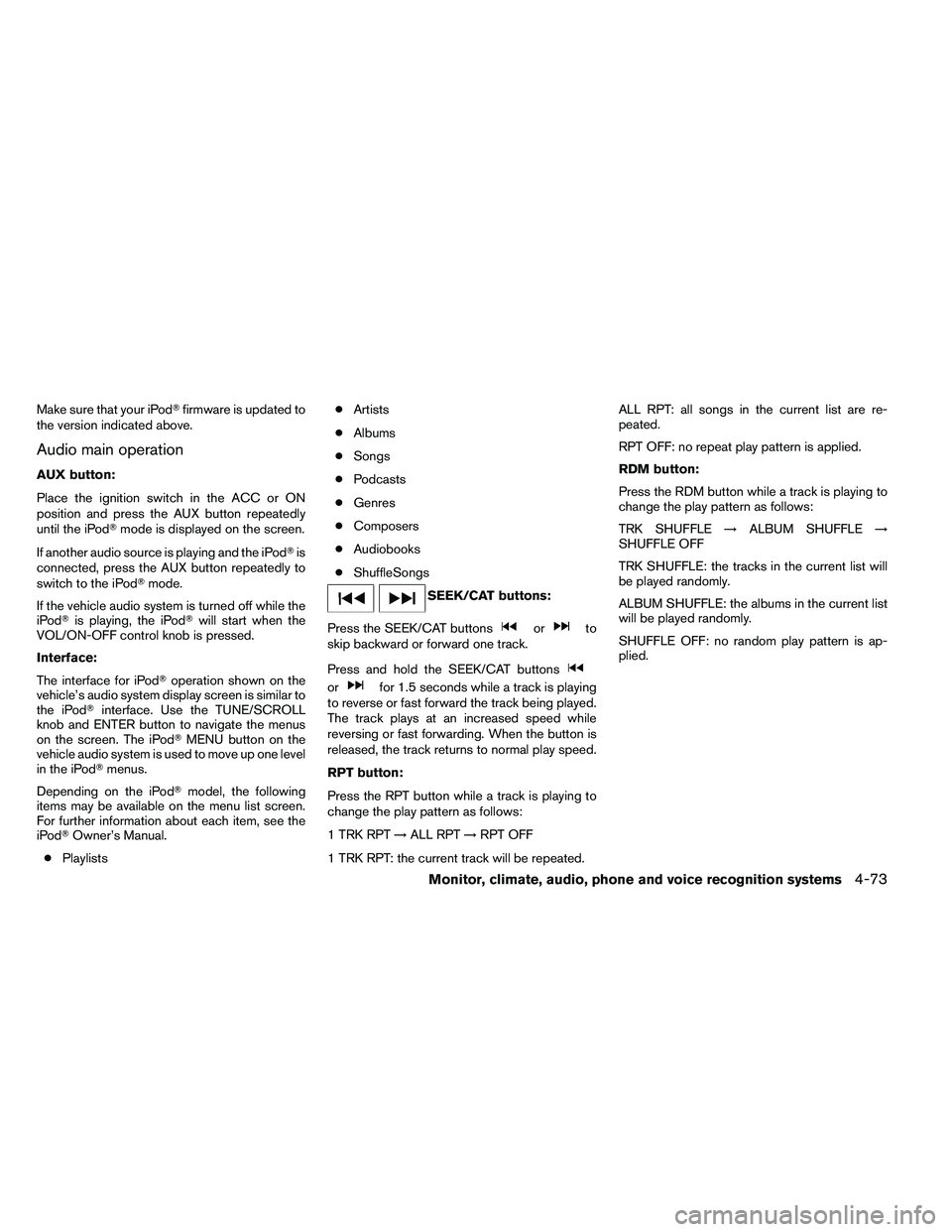
located in the center console. Open the protec-
tive cover
�1on the USB jack in the center
console. Then connect the iPod�-specific end of
the cable to the iPod� and the USB end of the
cable to the USB jack on the vehicle. If your iPod�
supports charging via a USB connection, its bat- tery will be charged while connected to the ve-
hicle with the ignition switch in the ACC or ON
position.
While connected to the vehicle, the iPod�
can
only be operated by the vehicle audio controls.
To disconnect the iPod� from the vehicle, remove
the USB end of the cable from the USB jack on
the vehicle, then remove the cable from the
iPod�.
*iPod �is a trademark of Apple Inc., registered in
the U.S. and other countries.
Compatibility
The following models are compatible:
● iPod� 5th Generation version 1.2.3
● iPod� Classic - version 1.1
● iPod� Touch - version 2.1*
● iPod� Nano - 1st generation version 1.3.1
● iPod� Nano - 2nd generation version 1.1.3
● iPod� Nano - 3rd generation version 1.0.2
● iPod� Nano - 4th generation version 1.0.4
● iPod� Nano - 5th generation version 1.0.1
* Some features of this iPod� may not be fully
functional.
Page 246 of 453
Make sure that your iPod�firmware is updated to
the version indicated above.
Audio main operation
AUX button:
Place the ignition switch in the ACC or ON
position and press the AUX button repeatedly
until the iPod� mode is displayed on the screen.
If another audio source is playing and the iPod� is
connected, press the AUX button repeatedly to
switch to the iPod� mode.
If the vehicle audio system is turned off while the
iPod� is playing, the iPod� will start when the
VOL/ON-OFF control knob is pressed.
Interface:
The interface for iPod� operation shown on the
vehicle’s audio system display screen is similar to
the iPod� interface. Use the TUNE/SCROLL
knob and ENTER button to navigate the menus
on the screen. The iPod� MENU button on the
vehicle audio system is used to move up one level
in the iPod� menus.
Depending on the iPod� model, the following
items may be available on the menu list screen.
For further information about each item, see the
iPod� Owner’s Manual.
● Playlists ●
Artists
● Albums
● Songs
● Podcasts
● Genres
● Composers
● Audiobooks
● ShuffleSongs
Page 247 of 453
iPod�* PLAYER OPERATION WITH
NAVIGATION SYSTEM (if so
equipped)
Connecting iPod�
To connect an iPod�to the vehicle so that the
iPod� can be controlled with the audio system
controls and display screen, use the USB jack
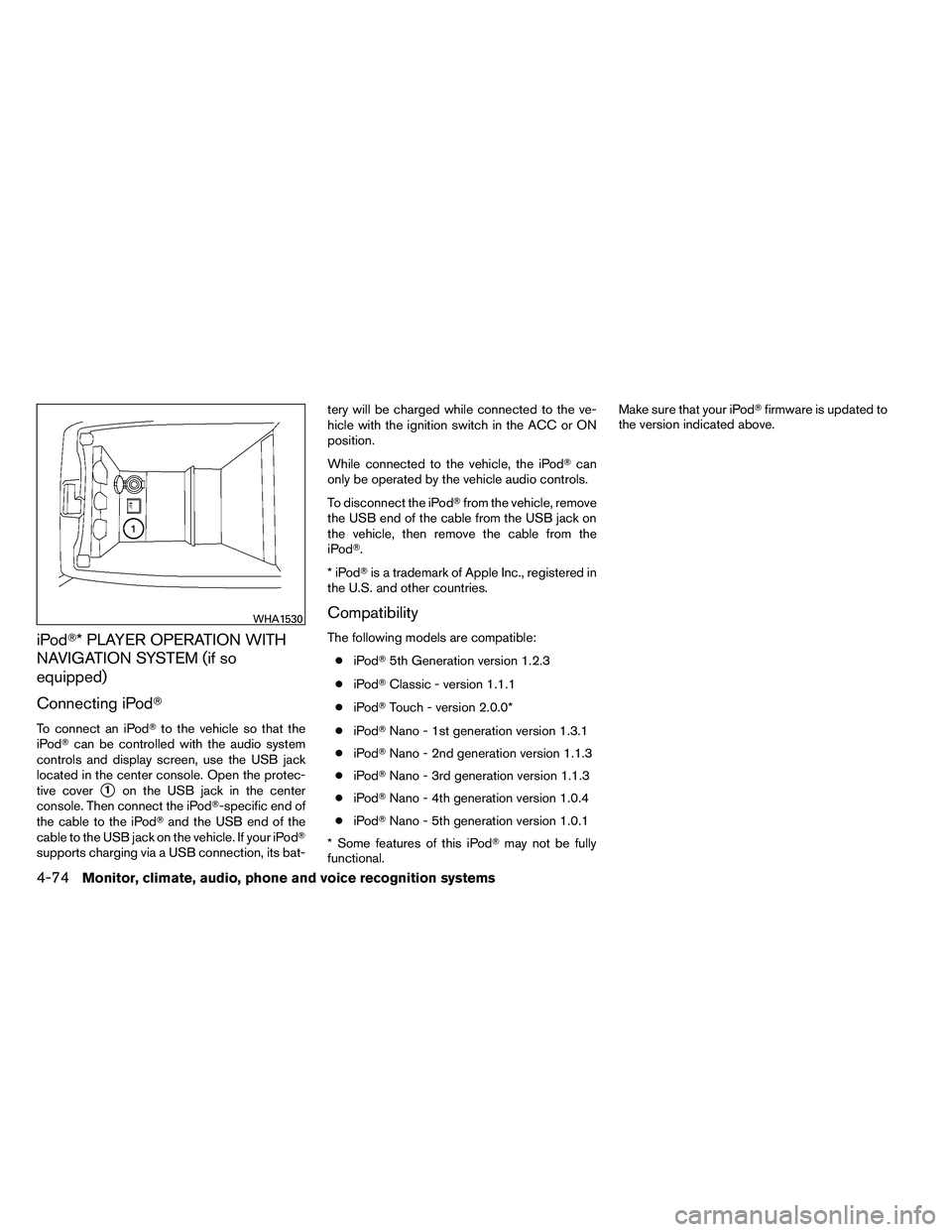
located in the center console. Open the protec-
tive cover
�1on the USB jack in the center
console. Then connect the iPod�-specific end of
the cable to the iPod� and the USB end of the
cable to the USB jack on the vehicle. If your iPod�
supports charging via a USB connection, its bat- tery will be charged while connected to the ve-
hicle with the ignition switch in the ACC or ON
position.
While connected to the vehicle, the iPod�
can
only be operated by the vehicle audio controls.
To disconnect the iPod� from the vehicle, remove
the USB end of the cable from the USB jack on
the vehicle, then remove the cable from the
iPod�.
*iPod �is a trademark of Apple Inc., registered in
the U.S. and other countries.
Compatibility
The following models are compatible:
● iPod� 5th Generation version 1.2.3
● iPod� Classic - version 1.1.1
● iPod� Touch - version 2.0.0*
● iPod� Nano - 1st generation version 1.3.1
● iPod� Nano - 2nd generation version 1.1.3
● iPod� Nano - 3rd generation version 1.1.3
● iPod� Nano - 4th generation version 1.0.4
● iPod� Nano - 5th generation version 1.0.1
* Some features of this iPod� may not be fully
functional. Make sure that your iPod�
firmware is updated to
the version indicated above.