2012 MINI COUPE ROADSTER CONVERTIBLE language
[x] Cancel search: languagePage 23 of 283
AT A GLANCELetters and numbers
22
Letters and numbers
Vehicle equipment
In this chapter, all production, country, and
optional equipment that is offered in the model
range is described. Equipment is also described
that is not available because of, for example,
selected options or coun try version. This also
applies to safety relate d functions and systems.
Entering letters and
numbers
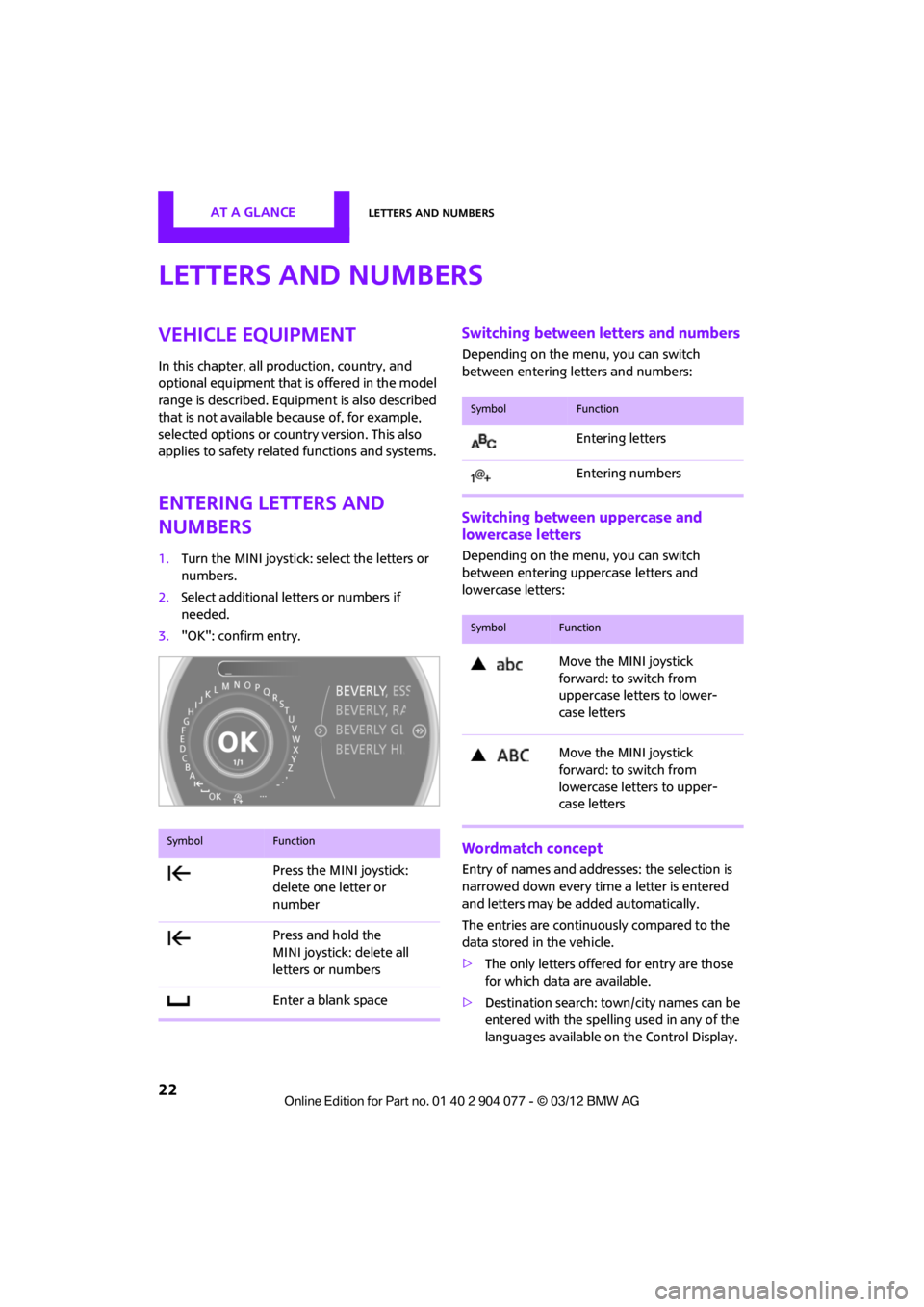
1.Turn the MINI joystick: select the letters or
numbers.
2. Select additional letters or numbers if
needed.
3. "OK": confirm entry.
Switching between letters and numbers
Depending on the menu, you can switch
between entering letters and numbers:
Switching between uppercase and
lowercase letters
Depending on the menu, you can switch
between entering uppercase letters and
lowercase letters:
Wordmatch concept
Entry of names and addre sses: the selection is
narrowed down every time a letter is entered
and letters may be added automatically.
The entries are continuously compared to the
data stored in the vehicle.
> The only letters offered for entry are those
for which data are available.
> Destination search: town/city names can be
entered with the spelling used in any of the
languages available on the Control Display.
SymbolFunction
Press the MINI joystick:
delete one letter or
number
Press and hold the
MINI joystick: delete all
letters or numbers
Enter a blank space
SymbolFunction
Entering letters
Entering numbers
SymbolFunction
Move the MINI joystick
forward: to switch from
uppercase letters to lower-
case letters
Move the MINI joystick
forward: to switch from
lowercase letters to upper-
case letters
00320051004F004C00510048000300280047004C0057004C005200510003
Page 24 of 283
Voice activation systemAT A GLANCE
23
Voice activation system
Vehicle equipment
In this chapter, all production, country, and
optional equipment that is offered in the model
range is described. Equipment is also described
that is not available because of, for example,
selected options or count ry version. This also
applies to safety related functions and systems.
The concept
> By using the voice activation system, individ-
ual functions that are displayed on the
Control Display can be operated via voice
commands. The system supports the entry
process by means of announcements.
> Functions that can only be used while the
vehicle is not moving cannot be operated via
the voice activation system.
> The system includes a special microphone in
the vicinity of the rearview mirror.
Prerequisite
So that voice commands can be identified, set a
language on the Control Display that is sup-
ported by the voice activation system.
To set the language, see page 80.
Symbols in the Owner's Manual
Saying commands
Activating voice activation system
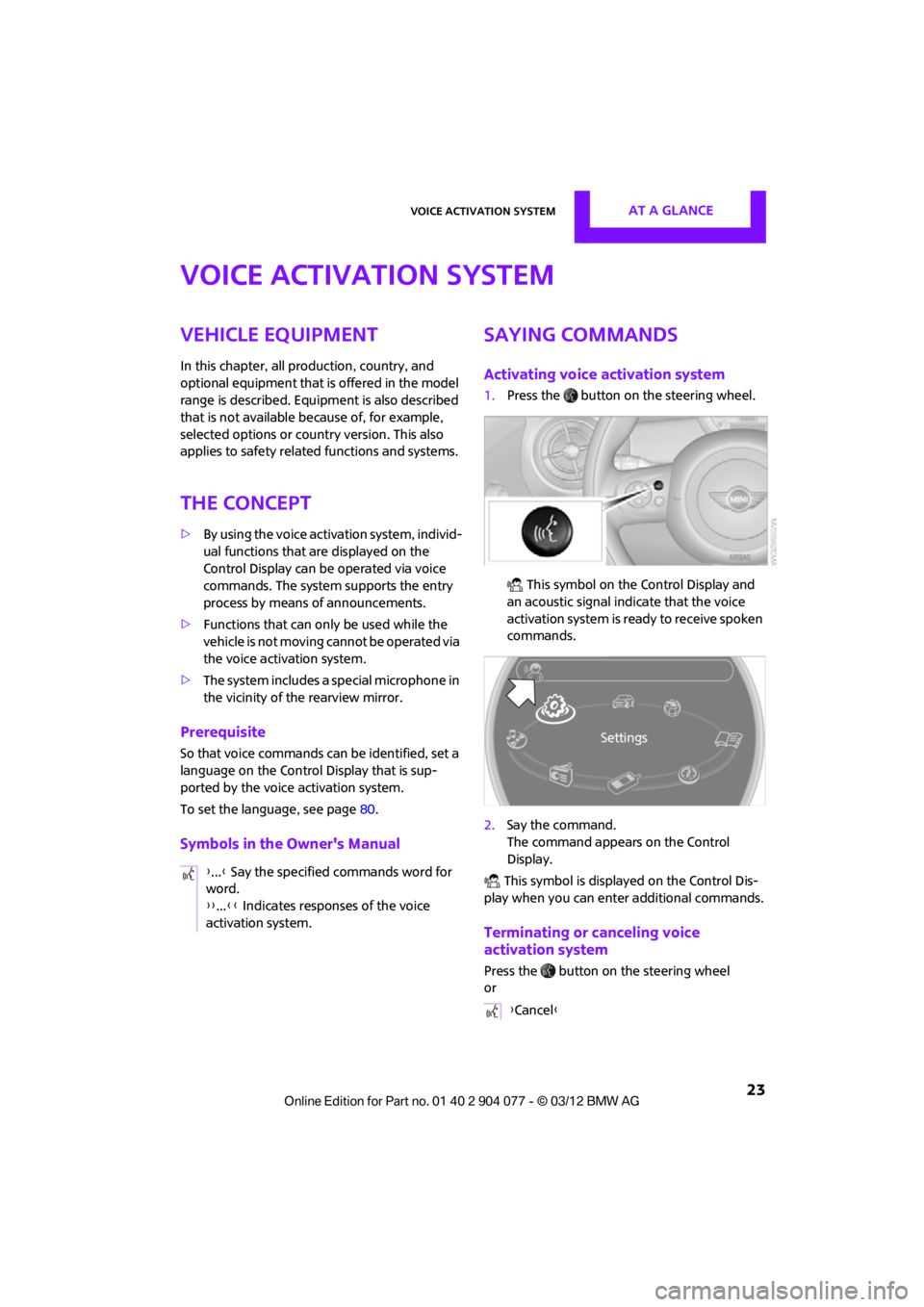
1.Press the button on the steering wheel.
This symbol on the Control Display and
an acoustic signal indicate that the voice
activation system is ready to receive spoken
commands.
2. Say the command.
The command appears on the Control
Display.
This symbol is displayed on the Control Dis-
play when you can ente r additional commands.
Terminating or canceling voice
activation system
Press the button on the steering wheel
or
{
...} Say the specified commands word for
word.
{{ ...}} Indicates responses of the voice
activation system.
{ Cancel }
00320051004F004C00510048000300280047004C0057004C005200510003
Page 25 of 283
AT A GLANCEVoice activation system
24
Commands
Individual menu items on the Control Display
can be voiced as commands.
The commands that are possible depend upon
which menu is currently shown on the Control
Display.
There are short commands for functions in the
main menu.
Some list items, for example telephone book
listings, can also be selected using the voice acti-
vation system. In particular, say the list items
exactly as they are displayed in the respective
list.
Having the possible commands
read aloud
Having the possible co mmands read aloud:
For example if you have selected "CD" the sys-
tem will read aloud the possible commands for
operating the CD player.
Help for the voice activation system
Calling up Help:
Additional commands for Help:
> {Help with examples }: information about
the current operating options and the most
important commands for them are
announced.
> {Help with voice activation }: information
regarding the principles behind the voice
activation system is announced.
Using alternative commands
There are often a number of commands to run a
function, e.g.:
Carrying out functions through short
commands
Main menu functions can be executed immedi-
ately by short commands, almost regardless
of which menu item is selected, e.g., {Vehicle
status }.
List of voice activation system short commands,
see page 260.
Opening the main menu
Example: selecting the track of a CD
1.Switch on Entertainment sound output if
necessary.
2. Press the button on the steering wheel.
Setting the voice dialog
You can set whether the voice activation system
uses the standard dialog or the short version.
With the short version of the spoken dialog, the
requests and responses of the voice activation
system are shortened.
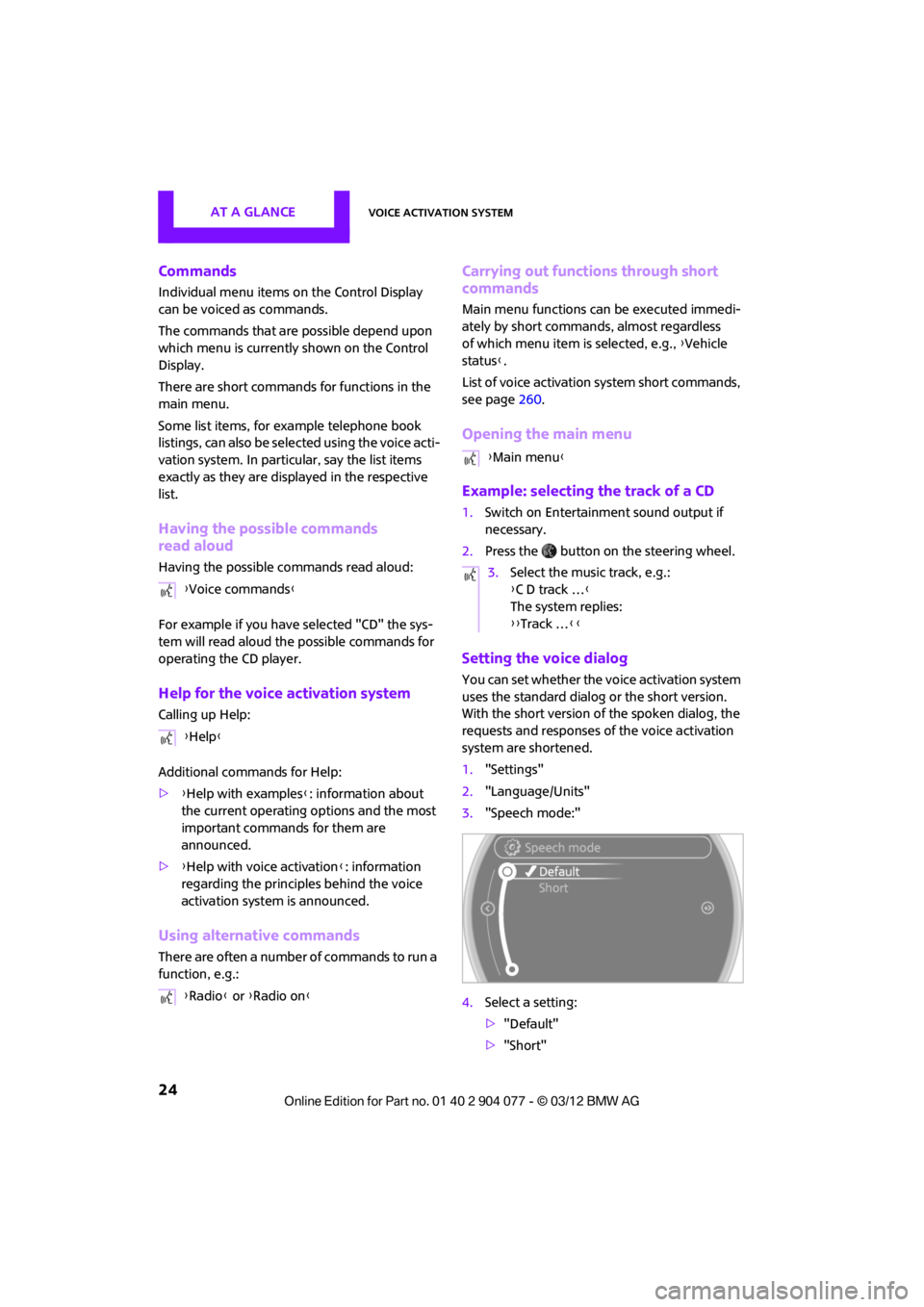
1."Settings"
2. "Language/Units"
3. "Speech mode:"
4. Select a setting:
>"Default"
> "Short"
{
Voice commands }
{ Help }
{ Radio } or {Radio on }
{Main menu }
3. Select the music track, e.g.:
{C D track … }
The system replies:
{{ Track … }}
00320051004F004C00510048000300280047004C0057004C005200510003
Page 26 of 283
Voice activation systemAT A GLANCE
25
Notes
For voice commands, bear in mind the
following:
> Do not use the voice activation system to
initiate an emergency call. In stressful
situations, the voice and vocal pitch can
change. This can unnecessarily delay the
establishment of a telephone connection.
> Pronounce the commands and digits
smoothly and at norm al volume, avoiding
excessive emphases and pauses. The same
applies to spelling wh en entering a destina-
tion for navigation.
> Always speak the commands in the
language of the voice activation system.
> When selecting a radio station, use the
standard pronunciation of the station name.
{ Select station } e.g. WPLJ
> Keep the doors and windows closed to
prevent interference from outside noise.
> Avoid ambient noise in the vehicle while
speaking.
00320051004F004C00510048000300280047004C0057004C005200510003
Page 30 of 283

Opening and closingCONTROLS
29
This means that your settings will be activated
for you, even if in the meantime your car was
used by someone else with another remote
control and the corresponding settings.
At most three remote co ntrols can be set for
three different people. A prerequisite is that
each person uses a separate remote control.
Personal Profile settings
For more information on specific settings, refer
to the specified pages.
> Response of the central locking system
when the car is being unlocked 30
> Automatic locking of the vehicle 33
> Triple turn signal activation 65
> Settings for the displays on the onboard
computer, in the speedometer and in the
tachometer:
>12 h/24 h mode of the clock 76
> Date format 77
> Brightness of the Control Display 80
> Language on the Control Display 80
> Units of measure for fuel consumption,
distance covered/re maining distances
and temperature 74
> Light settings:
>Pathway lighting 97
> Daytime running lights 97
> Automatic climate control: activating/
deactivating the AUTO program, setting the
temperature, air volume and air
distribution 103
> Entertainment:
>Tone control 147
> Adjusting vo lume levels 147
Central locking system
The concept
The central locking system is ready for operation
whenever the driver's door is closed.
The system simultaneously engages and
releases the locks on the following:
>Doors
> Tailgate
> Fuel filler flap
Operating from outside
>Via the remote control
> Using the door lock
> In cars with Comfor t Access, via the door
handles on the driver's and passenger's
sides
The anti-theft system is also operated at the
same time. It prevents the doors from being
unlocked using the lock buttons or door han-
dles. The remote control can also be used to
switch on/off the welcome lamps and interior
lamps. The alarm system is also activated or
deactivated, page 34.
Operating from inside
Button for central locking system, page 32.
In the event of a sufficiently severe accident,
the central locking system unlocks automati-
cally. In addition, the hazard warning flashers
and interior lamps come on.
Opening and closing:
from outside
Persons or animals in a parked vehicle
could lock the doors from the inside. Take
the key with you when you leave the vehicle
so that the vehicle can be opened from the
outside. <
00320051004F004C00510048000300280047004C0057004C005200510003
Page 75 of 283

CONTROLSControls overview
74
1Button for:
>Selecting display
> Setting values
> Confirming selected display or set values
> Calling up computer information 71
Exiting displays
1.Press the button in the turn signal lever
repeatedly until "HOME" is displayed.
2. Press the button for a longer period.
Current vehicle speed is once again displayed.
Displays are also exited if no entries are made
for approx. 8 seconds.
Next setting or item of information
1. While in a setting or information item, press
the button in the turn signal indicator
repeatedly until "NEXT" is displayed.
2. Press the button for a longer period.
The display changes direct ly to the next setting
or item of information.
Units of measure
To set the units of measure. The settings are
stored for the remote co ntrol currently in use,
refer also to Personal Profile on page 28.
1. "Settings"
2. "Language/Units"
3. Select the desired menu item.
4. Select the desired unit.
SymbolFunction
Adjusting rain sensor 66
Calling up Check
Control 77
Exiting the menu
00320051004F004C00510048000300280047004C0057004C005200510003
Page 81 of 283
CONTROLSControls overview
80
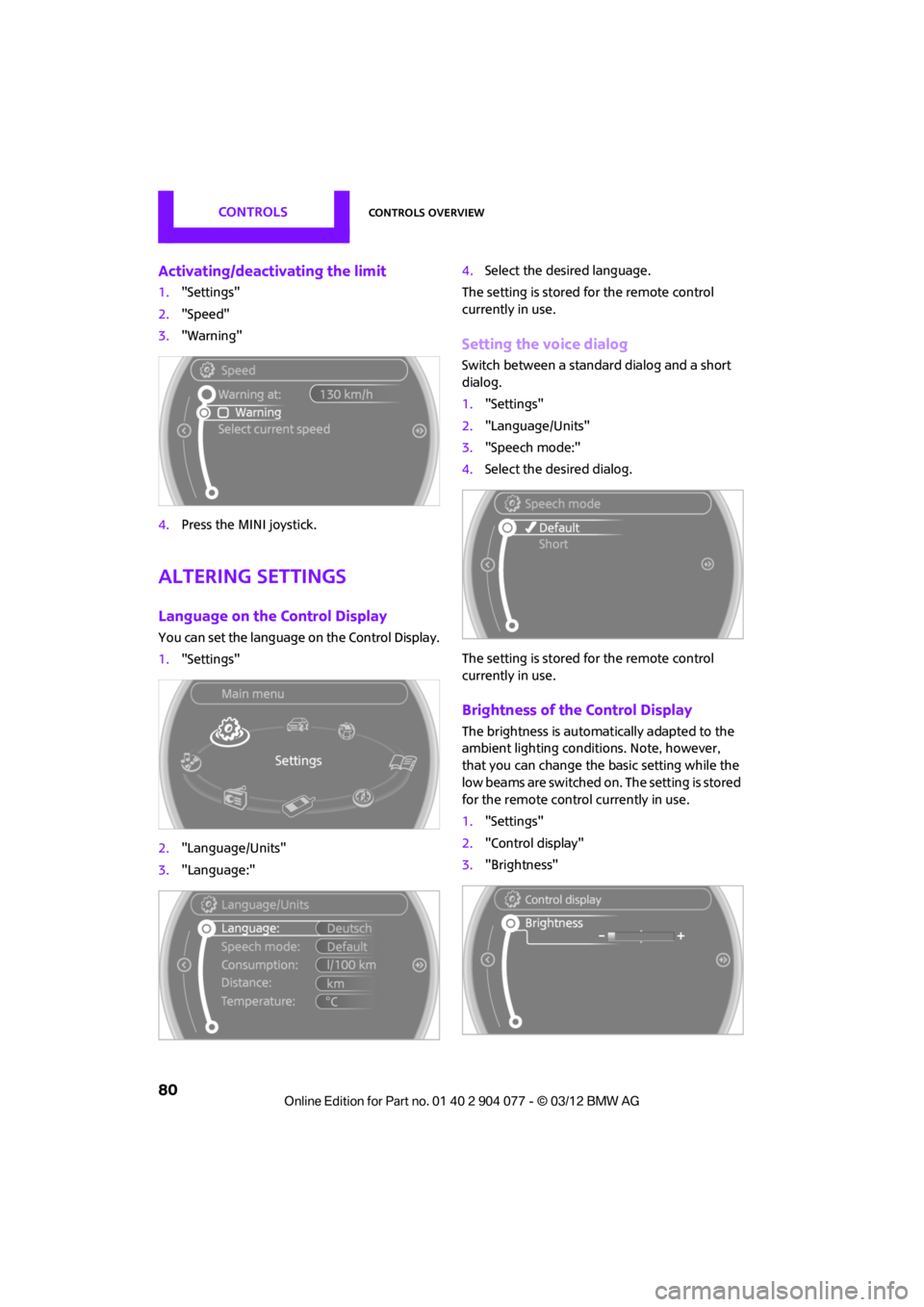
Activating/deactivating the limit
1."Settings"
2. "Speed"
3. "Warning"
4. Press the MINI joystick.
Altering settings
Language on the Control Display
You can set the language on the Control Display.
1."Settings"
2. "Language/Units"
3. "Language:" 4.
Select the desired language.
The setting is stored for the remote control
currently in use.
Setting the voice dialog
Switch between a standa rd dialog and a short
dialog.
1. "Settings"
2. "Language/Units"
3. "Speech mode:"
4. Select the desired dialog.
The setting is stored for the remote control
currently in use.
Brightness of the Control Display
The brightness is automa tically adapted to the
ambient lighting conditions. Note, however,
that you can change the basic setting while the
low beams are switched on. The setting is stored
for the remote control currently in use.
1. "Settings"
2. "Control display"
3. "Brightness"
00320051004F004C00510048000300280047004C0057004C005200510003
Page 133 of 283
NAVIGATIONDestination entry
132
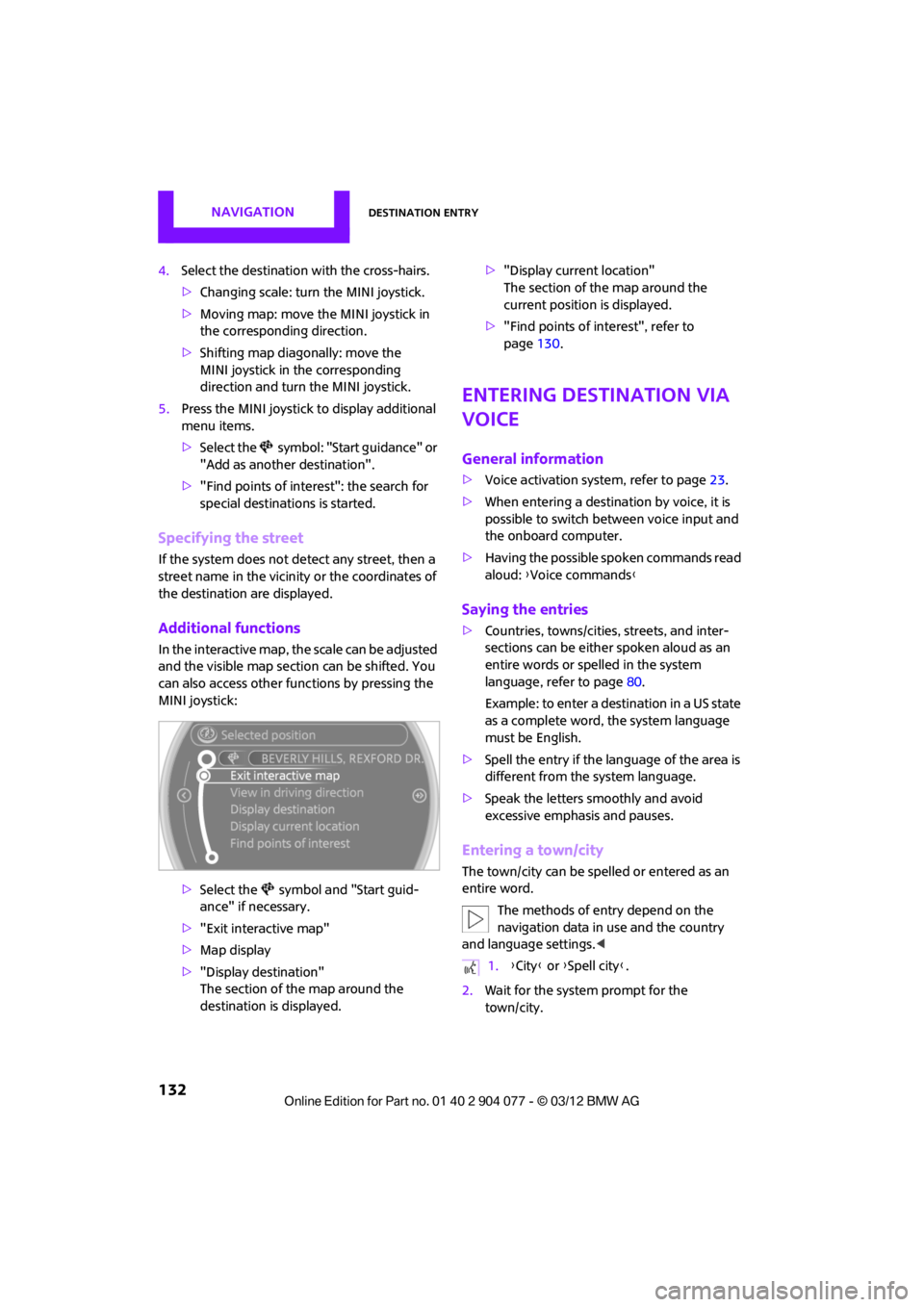
4.Select the destination with the cross-hairs.
> Changing scale: turn the MINI joystick.
> Moving map: move the MINI joystick in
the corresponding direction.
> Shifting map diag onally: move the
MINI joystick in the corresponding
direction and turn the MINI joystick.
5. Press the MINI joystick to display additional
menu items.
>Select the symbol: "Start guidance" or
"Add as another destination".
> "Find points of interest": the search for
special destinations is started.
Specifying the street
If the system does not detect any street, then a
street name in the vicinity or the coordinates of
the destination are displayed.
Additional functions
In the interactive map, th e scale can be adjusted
and the visible map sectio n can be shifted. You
can also access other func tions by pressing the
MINI joystick:
>Select the symbol and "Start guid-
ance" if necessary.
> "Exit interactive map"
> Map display
> "Display destination"
The section of the map around the
destination is displayed. >
"Display current location"
The section of the map around the
current position is displayed.
> "Find points of interest", refer to
page 130.
Entering destination via
voice
General information
>Voice activation system, refer to page 23.
> When entering a destinat ion by voice, it is
possible to switch between voice input and
the onboard computer.
> Having the possible spoken commands read
aloud: {Voice commands }
Saying the entries
>Countries, towns/cities , streets, and inter-
sections can be either spoken aloud as an
entire words or spelled in the system
language, refer to page 80.
Example: to enter a destination in a US state
as a complete word, the system language
must be English.
> Spell the entry if the language of the area is
different from the system language.
> Speak the letters smoothly and avoid
excessive emphasis and pauses.
Entering a town/city
The town/city can be spelled or entered as an
entire word.
The methods of entry depend on the
navigation data in use and the country
and language settings. <
2. Wait for the system prompt for the
town/city.
1.{City} or { Spell city}.
00320051004F004C00510048000300280047004C0057004C005200510003