2012 MINI COUPE ROADSTER CONVERTIBLE light
[x] Cancel search: lightPage 189 of 283
COMMUNICATIONSMobile phone preparation Bluetooth
188
2.Select the symbol. Contact with more than
one phone number. Select phone number,
the connection is established.
Call not possible, the mobile phone has no
reception or network.
Editing a contact
Changing entries in the "Contacts" menu. If a
contact is changed, the changes are not stored
in the mobile phone. A copy of the entry is
stored in the vehicle.
1. Highlight the contact.
2. Open "Options".
3. "Edit entry"
The contact can be edited.
Redialing
General information
The list of dialed numbers in the telephone are
transferred to the vehicle, depending on the
mobile phone. The last 20 phone numbers
dialed are displayed. The sorting of the phone
numbers depends on the mobile phone.
Selecting the number using the onboard
computer
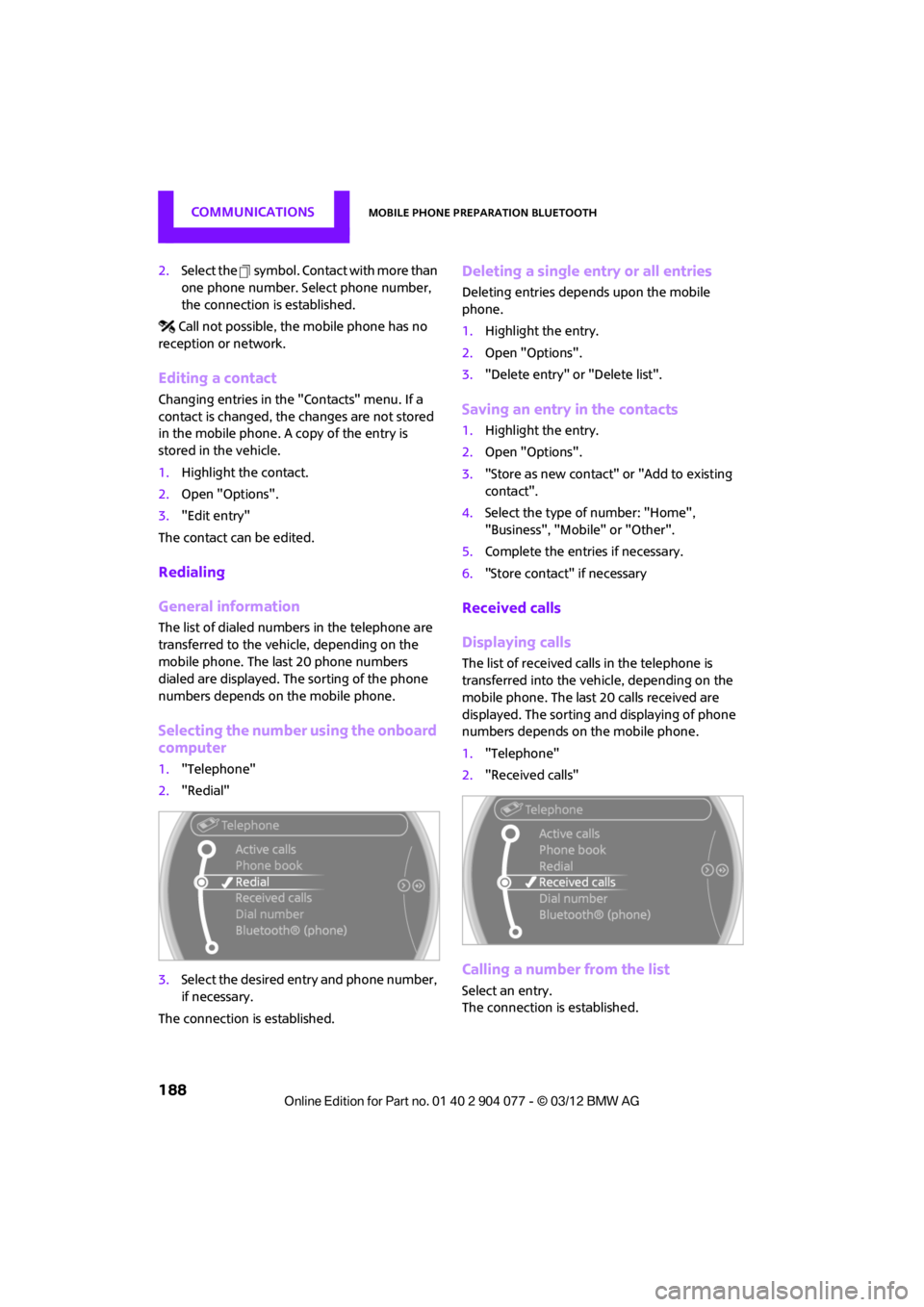
1. "Telephone"
2. "Redial"
3. Select the desired entry and phone number,
if necessary.
The connection is established.
Deleting a single entry or all entries
Deleting entries depends upon the mobile
phone.
1. Highlight the entry.
2. Open "Options".
3. "Delete entry" or "Delete list".
Saving an entry in the contacts
1.Highlight the entry.
2. Open "Options".
3. "Store as new contact" or "Add to existing
contact".
4. Select the type of number: "Home",
"Business", "Mobile" or "Other".
5. Complete the entries if necessary.
6. "Store contact" if necessary
Received calls
Displaying calls
The list of received calls in the telephone is
transferred into the vehi cle, depending on the
mobile phone. The last 20 calls received are
displayed. The sorting an d displaying of phone
numbers depends on the mobile phone.
1. "Telephone"
2. "Received calls"
Calling a number from the list
Select an entry.
The connection is established.
00320051004F004C00510048000300280047004C0057004C005200510003
Page 190 of 283
Mobile phone preparation BluetoothCOMMUNICATIONS
189
Deleting a single entry or all entries
Deleting entries depends upon the mobile
phone.
1.Highlight the entry.
2. Open "Options".
3. "Delete entry" or "Delete list".
Saving an entry in the contacts
1.Highlight the entry.
2. Open "Options".
3. "Store as new contact" or "Add to existing
contact".
4. Select the type of number: "Home",
"Business", "Mobile" or "Other".
5. Complete the entries if necessary.
6. "Store contact" if necessary
Hands-free system
General information
Calls being conducted using the hands-free sys-
tem can be continued using the mobile phone
and vice versa.
From the mobile phone to the hands-
free system
Calls that have been initiated from outside the
Bluetooth range of the vehicle can be continued
using the hands-free system if the ignition is
switched on.
Depending on the mobile phone, the call is
automatically switched to hands-free mode.
If the switch does not occur automatically, then
follow the instructions that appear on the
display of the mobile phone, also refer to the
Owner's Manual for the mobile phone.
From hands-free system to mobile
phone
Calls being conducted using the hands-free
system can also be continued using the mobile
phone if so desired, depending on the mobile
phone. At this point, follow the
instructions that appear
on the display of the mobile phone, also refer to
the Owner's Manual for the mobile phone.
Operation by voice
Equipped with voice activation system: opera-
tion, refer to page 23. For the list with the short
commands, refer to page 260, does not apply
for this type of voice operation.
Equipped without voice activation system:
Depending upon the equipment, the mobile
phone can be voice-operated as described
below.
The concept
> The mobile phone can be operated without
removing your hand from the steering
wheel.
> In many cases, the entry process is
supported by means of announcements or
questions.
> {...} Verbal instructions to use with the voice
operation system.
> {{...}} Identifies the answers generated by
the voice operation system.
Voice commands
Activating voice activation system
1. Briefly press the button on the steering
wheel.
2. Say the command.
Finishing voice input
Press the button on the steering wheel
briefly
or
{Cancel }.
00320051004F004C00510048000300280047004C0057004C005200510003
Page 196 of 283
OfficeCOMMUNICATIONS
195
Checking the address as a destination
An address that is to be used in route guidance
must correspond to the navigation data stored
in the vehicle. The address can be checked to
ensure this.
1.Select the desired contact and highlight the
address.
2. Open "Options".
3. "Check as destination"
4. Correct and store the address, if necessary.
If the address is corrected and stored, a copy of
it is stored in the vehicle. The address is not
changed on the mobile phone.
New contact
A contact can be associated with up to 8 phone
numbers, 2 addresses, 3 e-mail addresses, and
one Internet address.
1. "Office"
2. "Contacts"
3. Open "Options".
4. "New contact"
5. If input boxes are already filled with previous
entries: "Delete input fields"
6. To fill in the entry fields: select the symbol
next to the entry field.
7. Enter text and assign a contact type, refer to
page 195.
8. When equipped with a navigation system:
Enter address. It is only possible to enter
addresses that are cont ained in the naviga- tion data stored in the vehicle. This ensures
that route guidance is possible for all
addresses.
9. "Accept address" if necessary
10. "Store contact in vehicle"
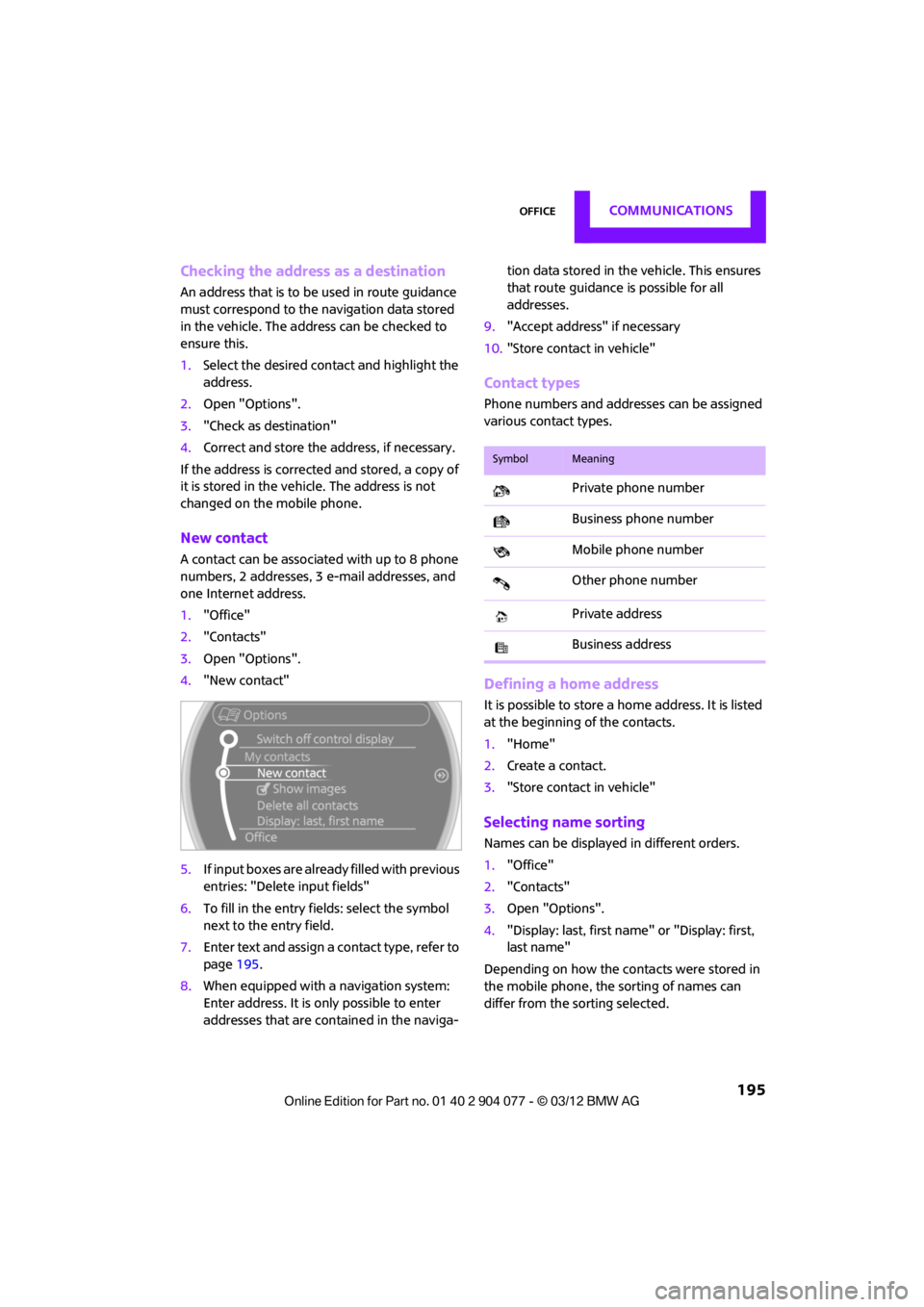
Contact types
Phone numbers and addresses can be assigned
various contact types.
Defining a home address
It is possible to store a ho me address. It is listed
at the beginning of the contacts.
1. "Home"
2. Create a contact.
3. "Store contact in vehicle"
Selecting name sorting
Names can be displayed in different orders.
1."Office"
2. "Contacts"
3. Open "Options".
4. "Display: last, first name " or "Display: first,
last name"
Depending on how the contacts were stored in
the mobile phone, the sorting of names can
differ from the sorting selected.
SymbolMeaning
Private phone number
Business phone number
Mobile phone number
Other phone number
Private address
Business address
00320051004F004C00510048000300280047004C0057004C005200510003
Page 197 of 283
COMMUNICATIONSOffice
196
Displaying contact pictures
Pictures stored with contacts are stored in the
vehicle when the mobile phone is connected to
the vehicle. The number of pictures transmitted
depends on the mobile phone. The mobile
phone must support this function.
1."Office"
2. "Contacts"
3. Open "Options".
4. "Configure Bluetooth®"
5. "Show images"
The display of all contact pictures is activated or
deactivated.
Deleting contacts
Only contacts that are stored in the vehicle are
deleted. The contacts on the mobile phone
cannot be deleted.
1. "Office"
2. "Contacts"
3. Highlight the contact.
4. "Options"
5. "Delete contact" or "Delete all contacts".
Messages
General information
The displaying of text messages and e-mails
depends on whether the mobile phone supports
transmission to the vehicle. Text messages and
e-mails may not be supported by the service
provider or the function may have to be sepa-
rately activated. After a mobile phone is paired
for the first time, the transmission may take sev-
eral minutes. Messages are only displayed com-
pletely when the vehicle is stopped. Messages
from the auxiliary phone are not transmitted.
Displaying messages
1."Office"
2. "Messages"
Message type
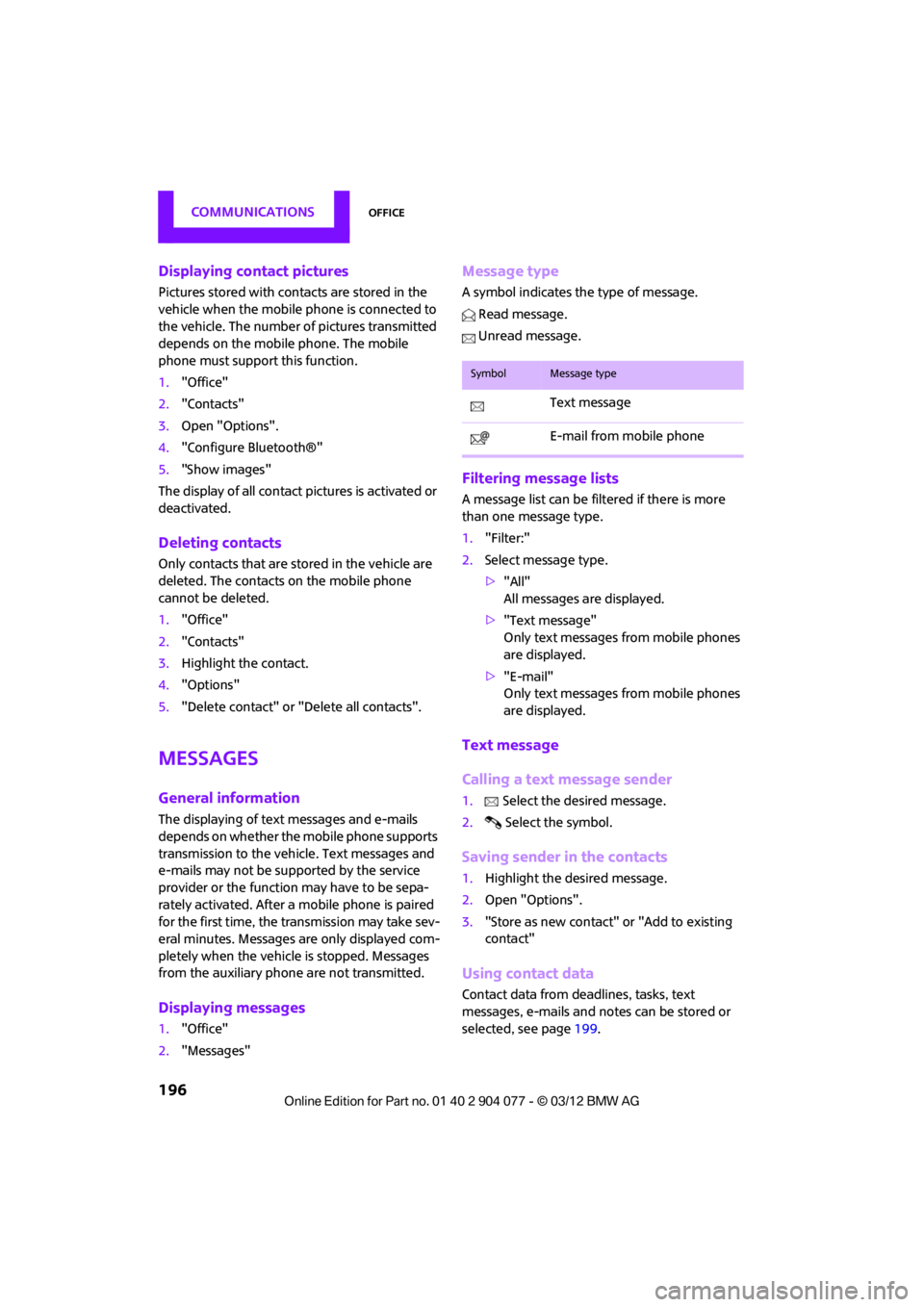
A symbol indicates the type of message.
Read message.
Unread message.
Filtering message lists
A message list can be filtered if there is more
than one message type.
1. "Filter:"
2. Select message type.
>"All"
All messages are displayed.
> "Text message"
Only text messages from mobile phones
are displayed.
> "E-mail"
Only text messages from mobile phones
are displayed.
Text message
Calling a text message sender
1. Select the desired message.
2. Select the symbol.
Saving sender in the contacts
1.Highlight the desired message.
2. Open "Options".
3. "Store as new contact" or "Add to existing
contact"
Using contact data
Contact data from deadlines, tasks, text
messages, e-mails and notes can be stored or
selected, see page 199.
SymbolMessage type
Text message
E-mail from mobile phone
00320051004F004C00510048000300280047004C0057004C005200510003
Page 200 of 283
OfficeCOMMUNICATIONS
199
Using contact data
Overview
Contact data from deadlines, tasks, text
messages, e-mails and notes can be stored or
selected.
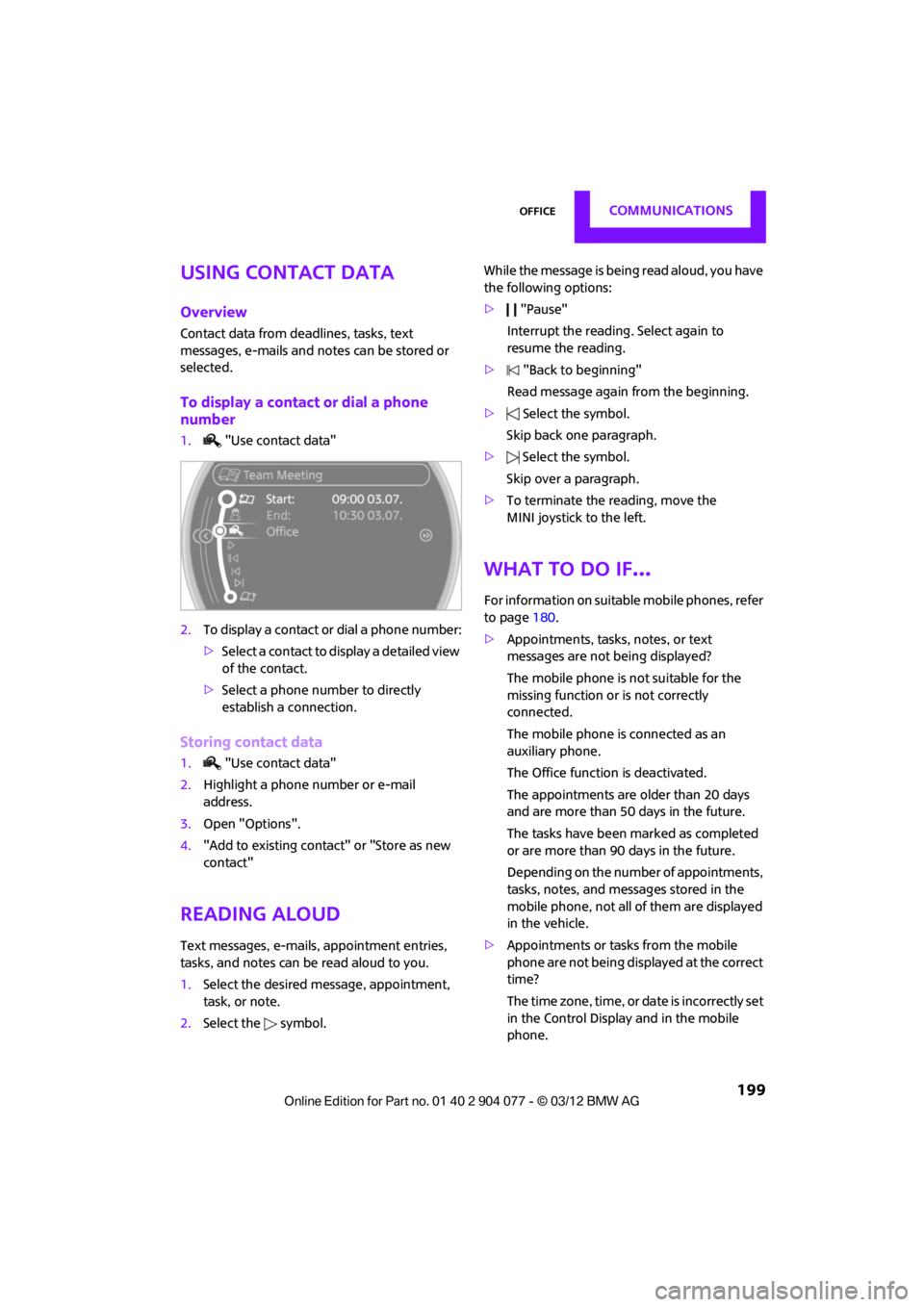
To display a contact or dial a phone
number
1. "Use contact data"
2. To display a contact or dial a phone number:
>Select a contact to display a detailed view
of the contact.
> Select a phone number to directly
establish a connection.
Storing contact data
1. "Use contact data"
2. Highlight a phone number or e-mail
address.
3. Open "Options".
4. "Add to existing contact" or "Store as new
contact"
Reading aloud
Text messages, e-mails, appointment entries,
tasks, and notes can be read aloud to you.
1. Select the desired message, appointment,
task, or note.
2. Select the symbol. While the message is being read aloud, you have
the following options:
>
"Pause"
Interrupt the reading. Select again to
resume the reading.
> "Back to beginning"
Read message again from the beginning.
> Select the symbol.
Skip back one paragraph.
> Select the symbol.
Skip over a paragraph.
> To terminate the reading, move the
MINI joystick to the left.
What to do if…
For information on suitable mobile phones, refer
to page 180.
> Appointments, tasks, notes, or text
messages are not being displayed?
The mobile phone is not suitable for the
missing function or is not correctly
connected.
The mobile phone is connected as an
auxiliary phone.
The Office function is deactivated.
The appointments are older than 20 days
and are more than 50 days in the future.
The tasks have been marked as completed
or are more than 90 days in the future.
Depending on the number of appointments,
tasks, notes, and mess ages stored in the
mobile phone, not all of them are displayed
in the vehicle.
> Appointments or tasks from the mobile
phone are not being displayed at the correct
time?
The time zone, time, or date is incorrectly set
in the Control Display and in the mobile
phone.
00320051004F004C00510048000300280047004C0057004C005200510003
Page 221 of 283
MOBILITYWheels and tires
220
Special characteristics of winter tires
The manufacturer of your MINI recommends the
use of winter tires on snowy roads or if temper-
atures drop below 457/ +7 6. Although all-
season M+S tires provide better winter traction
than summer tires, they generally fail to provide
the same levels of cold-weather performance as
winter tires.
Pay attention to speed
Always comply with the speed limit for the
winter tires mounted on your car; failure
to do so could result in tire damage and
accidents. <
If the car is capable of speeds higher than that
permitted for the winter tires, a label stating the
maximum permitted speed for the mounted
tires must be displayed in your field of view. This
label is available at your tire dealer or MINI
dealer.
Storage
Always store wheels and tires in a cool, dry place
with as little exposure to light as possible.
Always protect tires agains t all contact with oil,
grease and fuels.
Do not exceed the maximum tire inflation
pressure indicated on the sidewall of the tire.
Swapping wheels among the axles
Depending on the individual use, front and rear
tires may exhibit different wear and tear.
In order to maintain an even wear and tear, the
wheels may be rotated between the axles. Your
MINI dealer will be glad to advise you.
Always check the inflation pressure after the tire
rotation, if necessary change the pressure.
Snow chains
Only certain types of fine-link snow chains have
been tested by the manufacturer of your MINI,
classified as road-safe and recommended.
Contact your MINI deal er for more details.
Only attach snow chains in pairs to the front
wheels with the following tires.
> 175/65 R 15 M+S
> 175/60 R 16 M+S
John Cooper Works:
> 185/50 R 17 86 H M+S XL RSC
Observe the manufacturer's instructions when
mounting snow chains. Do not exceed a speed
of 30 mph or 50 km/h. Do not initialize the Flat Tire Monitor if
snow chains are mounted; otherwise, the
instrument might issue an incorrect reading.
When driving with snow ch ains, it can be useful
to briefly deactivate DSC or activate DTC, refer to
page 84.<
00320051004F004C00510048000300280047004C0057004C005200510003
Page 227 of 283
MOBILITYMaintenance
226
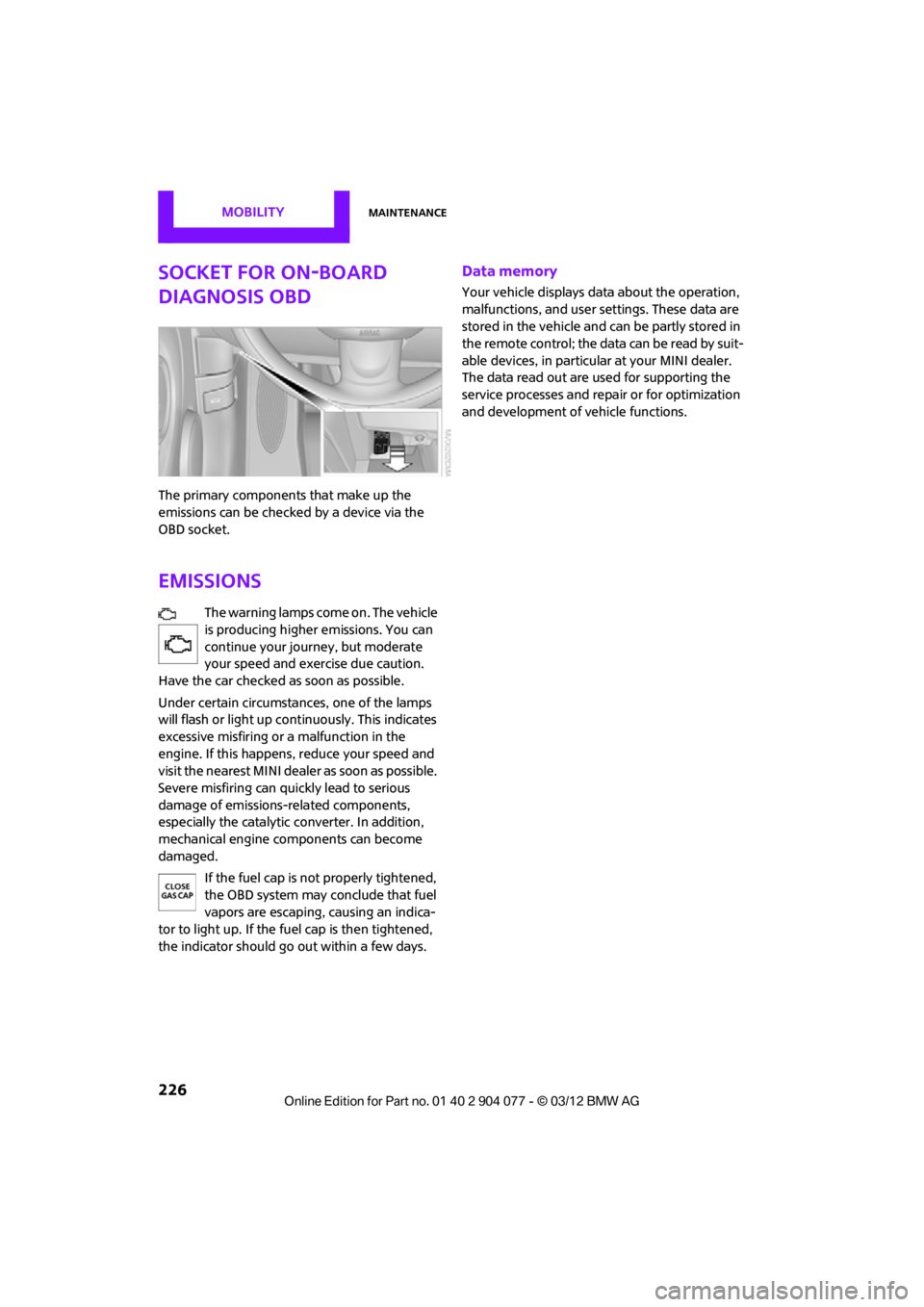
Socket for On-Board
Diagnosis OBD
The primary components that make up the
emissions can be checked by a device via the
OBD socket.
Emissions
The warning lamps come on. The vehicle
is producing higher emissions. You can
continue your journey, but moderate
your speed and exercise due caution.
Have the car checked as soon as possible.
Under certain circumstances, one of the lamps
will flash or light up cont inuously. This indicates
excessive misfiring or a malfunction in the
engine. If this happens, reduce your speed and
visit the nearest MINI dealer as soon as possible.
Severe misfiring can quickly lead to serious
damage of emissions-related components,
especially the catalytic converter. In addition,
mechanical engine components can become
damaged.
If the fuel cap is not properly tightened,
the OBD system may conclude that fuel
vapors are escaping, causing an indica-
tor to light up. If the fuel cap is then tightened,
the indicator should go out within a few days.
Data memory
Your vehicle displays data about the operation,
malfunctions, and user settings. These data are
stored in the vehicle and can be partly stored in
the remote control; the data can be read by suit-
able devices, in particul ar at your MINI dealer.
The data read out are used for supporting the
service processes and repair or for optimization
and development of vehicle functions.
00320051004F004C00510048000300280047004C0057004C005200510003
Page 229 of 283

MOBILITYCare
228
Automatic transmission
Before driving into the car wash, make sure that
the vehicle can roll:
1.Place the remote control, even with Comfort
Access, in the ignition lock.
2. Move the selector lever to position N.
3. Release the parking brake.
4. Switch off the engine.
5. Insert the remote control in the ignition lock
so that the vehicle can roll.
Steam jets/high-pressure washers
When using steam jets or high-pressure
washers, make sure that you maintain
sufficient distance from the vehicle and do not
exceed a maximum temperature of 140 7/
60 6 .
If the distance is too close, the pressure too high,
or the temperature too high, parts of the vehicle
can be damaged, or water can penetrate.
Observe the operating instructions for high-
pressure washers. <
Do not spray sensors, such as the Park Dis-
tance Control, with high-pressure washers
for a long time or at a distance of less than 1 ft/
30 cm. <
Manual washing
Use a great deal of water and, if necessary, car
shampoo when washing your car by hand. Clean
the vehicle with a sponge or a washing brush
applying a slight amount of pressure.
Before cleaning the windshield, deacti-
vate the rain sensor or turn off the ignition
to prevent unintentional wiping. <
Observe local regulations regarding wash-
ing vehicles by hand. <
Headlamps
Do not wipe dry and do not use abrasive or
corrosive cleaning agen ts. Remove dirt and
contamination, such as in sects, by soaking with
shampoo and then washing with plenty of
water.
Do not remove accumulated ice and snow with
an ice scraper; use window deicers instead.
Windows
Clean the outside and inside of the windows and
mirrors with a window cleaner.
Do not clean the mirrors with cleaners
containing quartz. <
Wiper blades
Clean with soapy water and change regularly to
prevent the formation of streaks.
Wax, preservatives and dirt on the win-
dows cause streaks wh en the windshield
wipers are on, and can cause premature wear
of the wiper blades and interfere with the rain
sensor. <
Care of the convertible top
The appearance and service life of the convert-
ible top largely depends on its proper care and
operation.
Please follow these instructions:
>Never attempt to fold and stow the convert-
ible top in the convertible compartment
when the top is wet or frozen. Otherwise,
water stains, mildew, and chafe marks may
occur.
> If water spots occur on the inside headliner
despite precautions, remove them using a
microfiber cloth and interior cleaner.
> If the vehicle is parked in an enclosed area
for a longer period of time, make sure that
there is sufficient ventilation.
> Remove any bird droppings immediately,
since they have corrosive properties which
will corrode the conver tible top and damage
the rubber seals.
00320051004F004C00510048000300280047004C0057004C005200510003