2012 MINI COUPE ROADSTER CONVERTIBLE light
[x] Cancel search: lightPage 132 of 283
Destination entryNAVIGATION
131
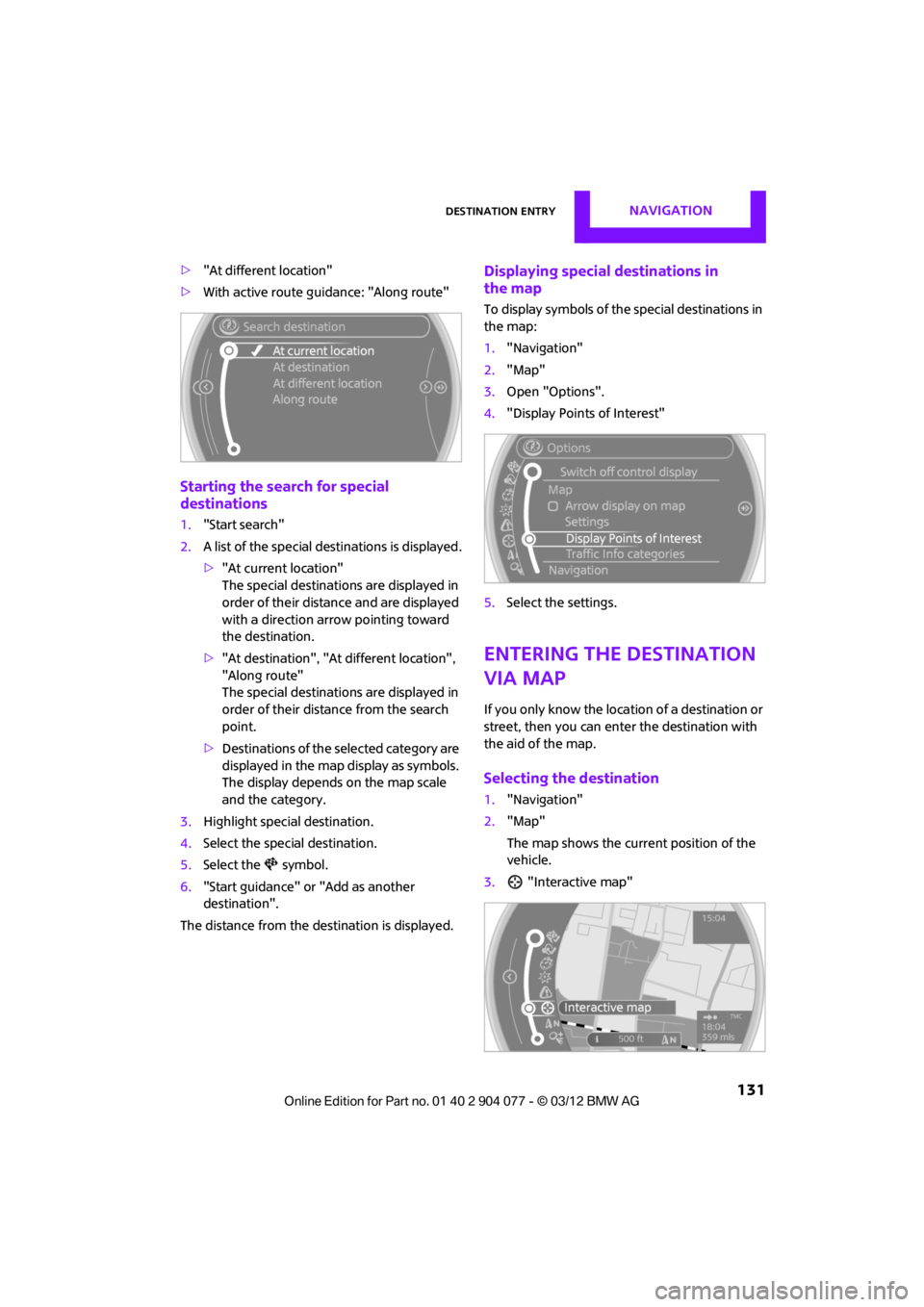
>"At different location"
> With active route guidance: "Along route"
Starting the search for special
destinations
1."Start search"
2. A list of the special destinations is displayed.
>"At current location"
The special destinations are displayed in
order of their distance and are displayed
with a direction arro w pointing toward
the destination.
> "At destination", "At different location",
"Along route"
The special destinations are displayed in
order of their distance from the search
point.
> Destinations of the se lected category are
displayed in the map display as symbols.
The display depends on the map scale
and the category.
3. Highlight special destination.
4. Select the special destination.
5. Select the symbol.
6. "Start guidance" or "Add as another
destination".
The distance from the de stination is displayed.
Displaying special destinations in
the map
To display symbols of the special destinations in
the map:
1. "Navigation"
2. "Map"
3. Open "Options".
4. "Display Points of Interest"
5. Select the settings.
Entering the destination
via map
If you only know the loca tion of a destination or
street, then you can enter the destination with
the aid of the map.
Selecting the destination
1. "Navigation"
2. "Map"
The map shows the curre nt position of the
vehicle.
3. "Interactive map"
00320051004F004C00510048000300280047004C0057004C005200510003
Page 137 of 283
NAVIGATIONRoute guidance
136
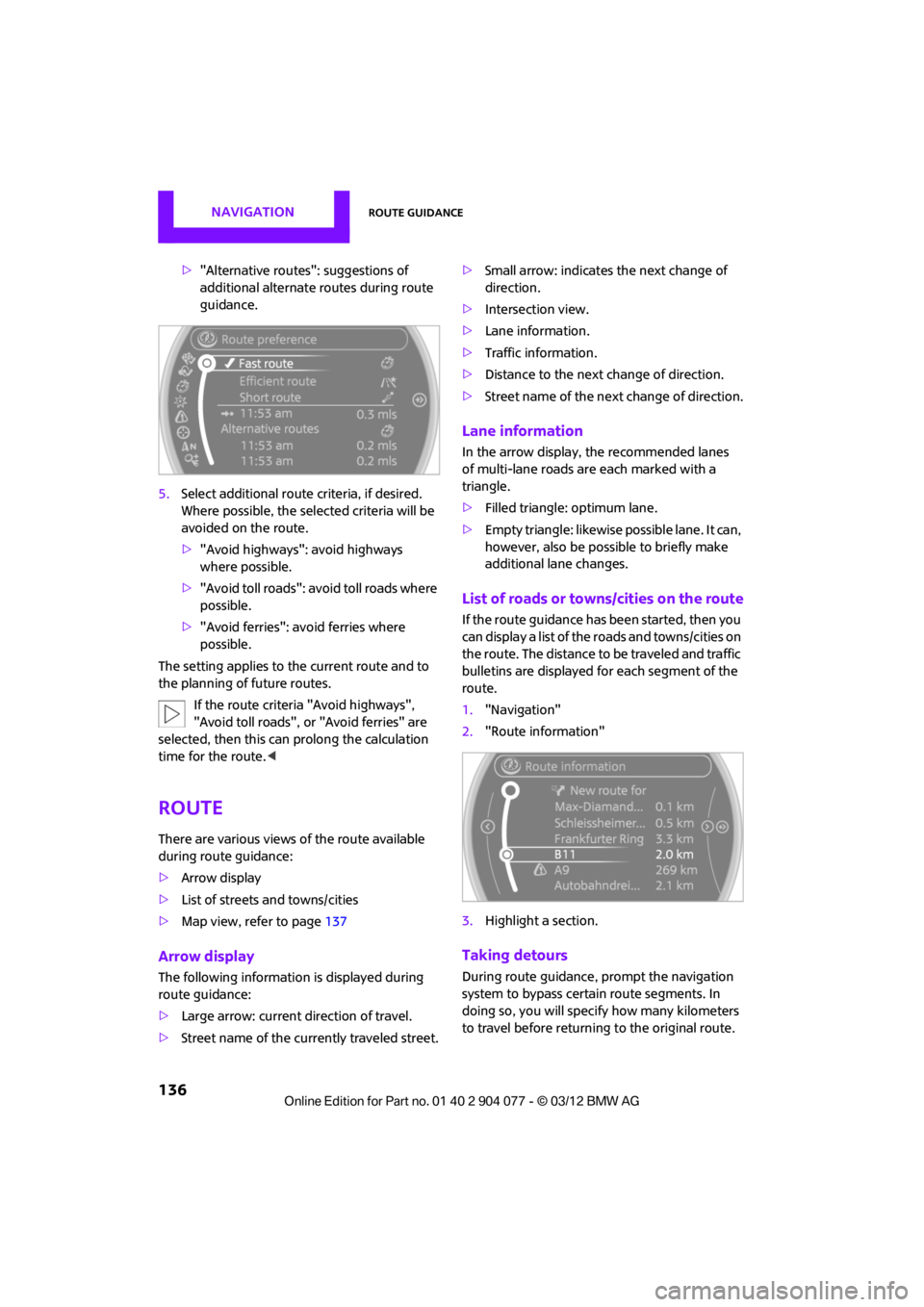
>"Alternative routes": suggestions of
additional alternate routes during route
guidance.
5. Select additional route criteria, if desired.
Where possible, the selected criteria will be
avoided on the route.
>"Avoid highways": avoid highways
where possible.
> "Avoid toll roads": avoid toll roads where
possible.
> "Avoid ferries": avoid ferries where
possible.
The setting applies to the current route and to
the planning of future routes.
If the route criteria "Avoid highways",
"Avoid toll roads", or "Avoid ferries" are
selected, then this can prolong the calculation
time for the route. <
Route
There are various views of the route available
during route guidance:
>Arrow display
> List of streets and towns/cities
> Map view, refer to page 137
Arrow display
The following information is displayed during
route guidance:
>Large arrow: current direction of travel.
> Street name of the currently traveled street. >
Small arrow: indicates the next change of
direction.
> Intersection view.
> Lane information.
> Traffic information.
> Distance to the next change of direction.
> Street name of the next change of direction.
Lane information
In the arrow display, the recommended lanes
of multi-lane roads are each marked with a
triangle.
>Filled triangle: optimum lane.
> Empty triangle: likewise possible lane. It can,
however, also be possi ble to briefly make
additional lane changes.
List of roads or towns/cities on the route
If the route guidance has been started, then you
can display a list of the roads and towns/cities on
the route. The distance to be traveled and traffic
bulletins are displayed fo r each segment of the
route.
1. "Navigation"
2. "Route information"
3. Highlight a section.
Taking detours
During route guidance, prompt the navigation
system to bypass certai n route segments. In
doing so, you will specif y how many kilometers
to travel before returning to the original route.
00320051004F004C00510048000300280047004C0057004C005200510003
Page 139 of 283
NAVIGATIONRoute guidance
138
Planned route
After route guidance is started, the planned
route is displayed on the map.
Status boxes
Show/hide: press the MINI joystick.
>Upper status box: time, phone details, and
entertainment details.
> Lower status box: symb ol for active route
guidance, traffic inform ation status, arrival
time, and distance from destination.
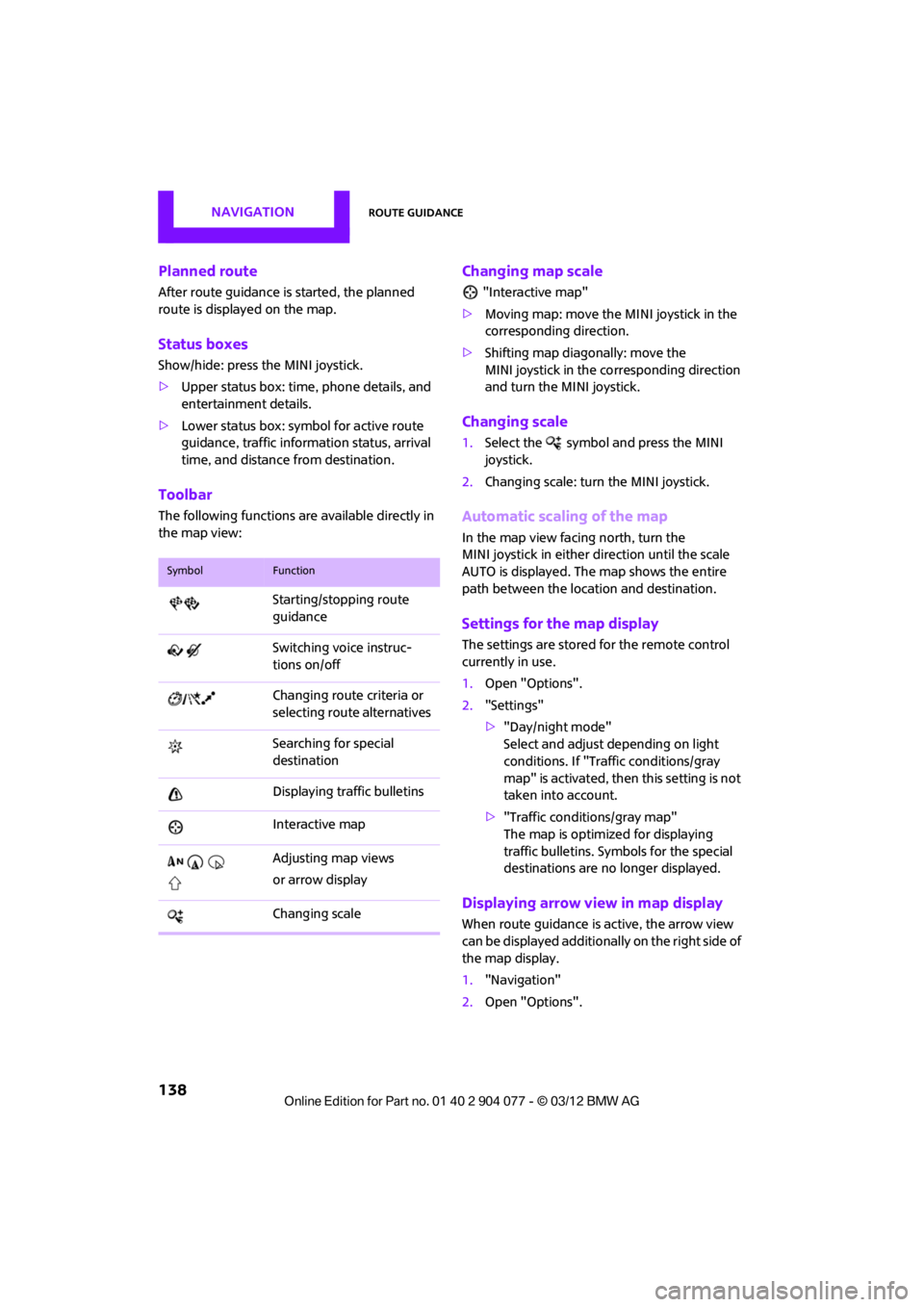
Toolbar
The following functions ar e available directly in
the map view:
Changing map scale
"Interactive map"
> Moving map: move the MINI joystick in the
corresponding direction.
> Shifting map diagonally: move the
MINI joystick in the co rresponding direction
and turn the MINI joystick.
Changing scale
1. Select the symbol and press the MINI
joystick.
2. Changing scale: turn the MINI joystick.
Automatic scaling of the map
In the map view facing north, turn the
MINI joystick in either direction until the scale
AUTO is displayed. The map shows the entire
path between the location and destination.
Settings for the map display
The settings are stored for the remote control
currently in use.
1.Open "Options".
2. "Settings"
>"Day/night mode"
Select and adjust depending on light
conditions. If "Traffic conditions/gray
map" is activated, then this setting is not
taken into account.
> "Traffic conditions/gray map"
The map is optimize d for displaying
traffic bulletins. Symbols for the special
destinations are no longer displayed.
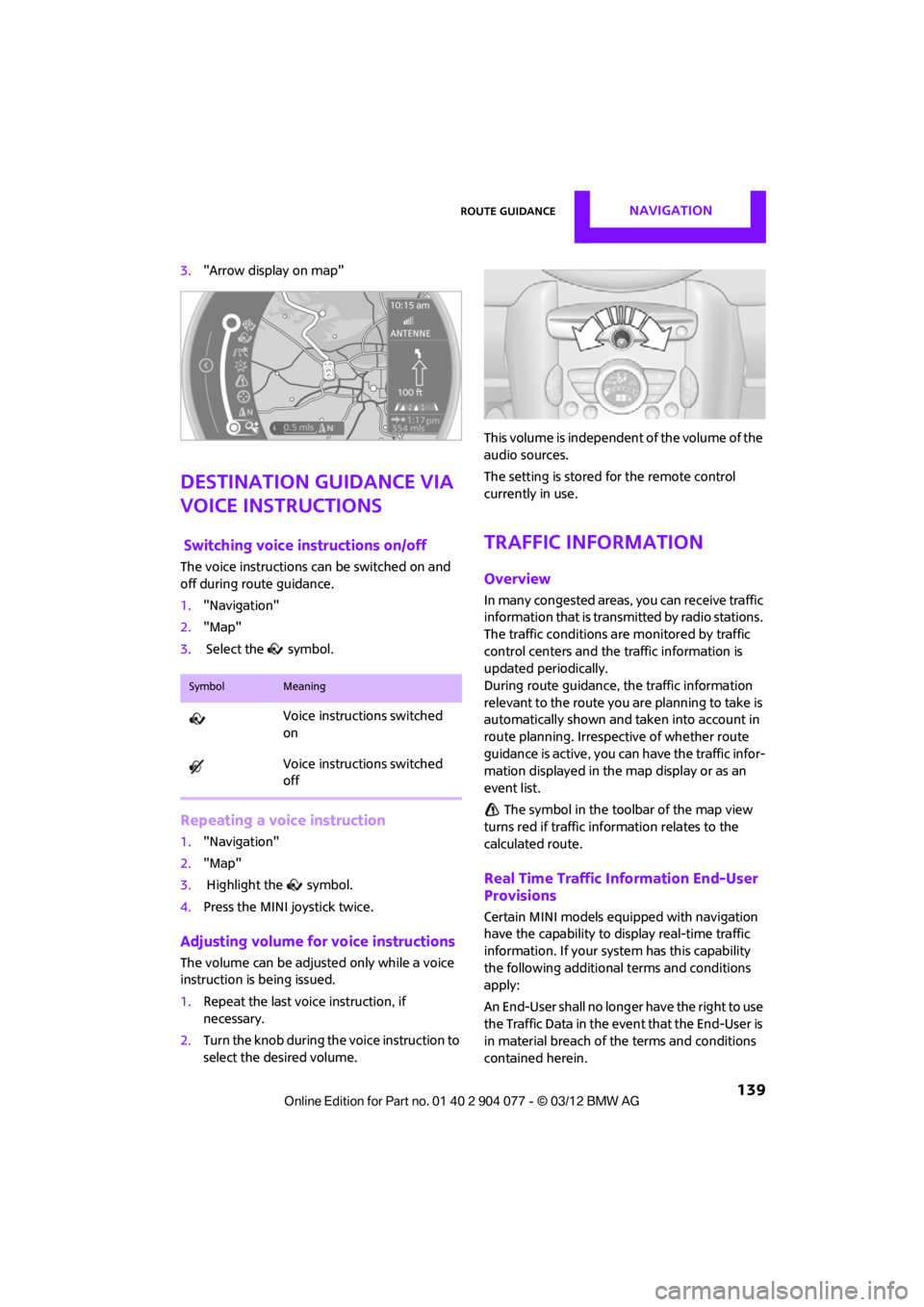
Displaying arrow view in map display
When route guidance is active, the arrow view
can be displayed additionally on the right side of
the map display.
1. "Navigation"
2. Open "Options".
SymbolFunction
Starting/stopping route
guidance
Switching voice instruc-
tions on/off
Changing route criteria or
selecting route alternatives
Searching for special
destination
Displaying traffic bulletins
Interactive map
Adjusting map views
or arrow display
Changing scale
00320051004F004C00510048000300280047004C0057004C005200510003
Page 140 of 283
Route guidanceNAVIGATION
139
3."Arrow display on map"
Destination guidance via
voice instructions
Switching voice in structions on/off
The voice instructions ca n be switched on and
off during route guidance.
1. "Navigation"
2. "Map"
3. Select the symbol.
Repeating a voice instruction
1."Navigation"
2. "Map"
3. Highlight the symbol.
4. Press the MINI joystick twice.
Adjusting volume for voice instructions
The volume can be adjust ed only while a voice
instruction is being issued.
1. Repeat the last voice instruction, if
necessary.
2. Turn the knob during th e voice instruction to
select the desired volume. This volume is independent of the volume of the
audio sources.
The setting is stored for the remote control
currently in use.
Traffic information
Overview
In many congested areas,
you can receive traffic
information that is transm itted by radio stations.
The traffic conditions are monitored by traffic
control centers and the traffic information is
updated periodically.
During route guidance, the traffic information
relevant to the route you are planning to take is
automatically shown and taken into account in
route planning. Irrespective of whether route
guidance is active, you can have the traffic infor-
mation displayed in the map display or as an
event list.
The symbol in the toolbar of the map view
turns red if traffic info rmation relates to the
calculated route.
Real Time Traffic Information End-User
Provisions
Certain MINI models equipped with navigation
have the capability to display real-time traffic
information. If your system has this capability
the following additional terms and conditions
apply:
An End-User shall no longer have the right to use
the Traffic Data in the event that the End-User is
in material breach of the terms and conditions
contained herein.
SymbolMeaning
Voice instructions switched
on
Voice instructions switched
off
00320051004F004C00510048000300280047004C0057004C005200510003
Page 154 of 283
RadioENTERTAINMENT
153
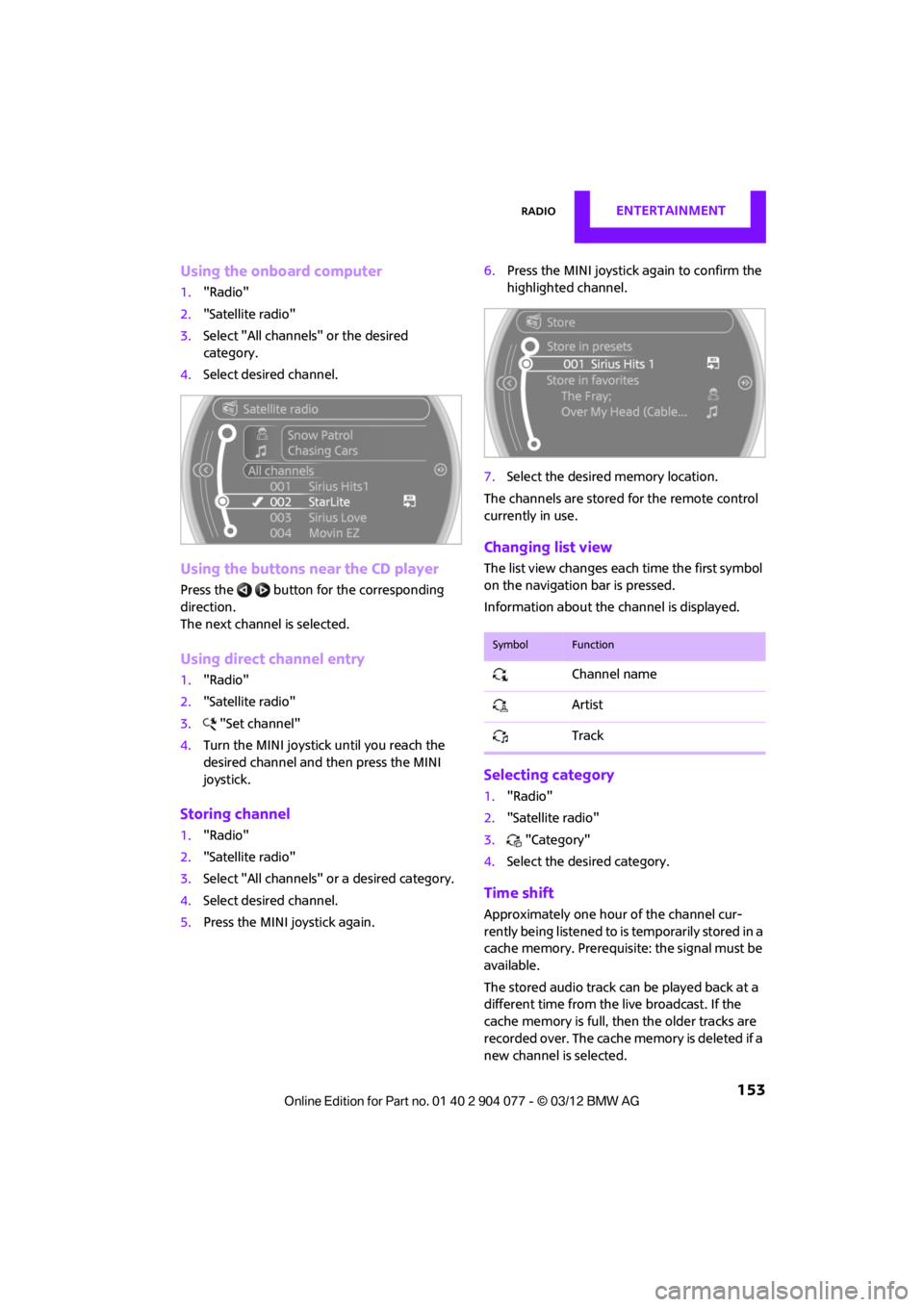
Using the onboard computer
1."Radio"
2. "Satellite radio"
3. Select "All channels" or the desired
category.
4. Select desired channel.
Using the buttons near the CD player
Press the button for the corresponding
direction.
The next channel is selected.
Using direct channel entry
1."Radio"
2. "Satellite radio"
3. "Set channel"
4. Turn the MINI joystick until you reach the
desired channel and then press the MINI
joystick.
Storing channel
1."Radio"
2. "Satellite radio"
3. Select "All channels" or a desired category.
4. Select desired channel.
5. Press the MINI joystick again. 6.
Press the MINI joystick again to confirm the
highlighted channel.
7. Select the desired memory location.
The channels are stored for the remote control
currently in use.
Changing list view
The list view changes each time the first symbol
on the navigation bar is pressed.
Information about the channel is displayed.
Selecting category
1. "Radio"
2. "Satellite radio"
3. "Category"
4. Select the desired category.
Time shift
Approximately one hour of the channel cur-
rently being listened to is temporarily stored in a
cache memory. Prerequisite: the signal must be
available.
The stored audio track ca n be played back at a
different time from the live broadcast. If the
cache memory is full, then the older tracks are
recorded over. The cache memory is deleted if a
new channel is selected.
SymbolFunction
Channel name
Artist
Track
00320051004F004C00510048000300280047004C0057004C005200510003
Page 156 of 283
RadioENTERTAINMENT
155
Storing league or team
Leagues or teams can be added to the favorites
from a selection list.
1."Radio"
2. "Satellite radio"
3. "Manage favorites"
4. "Add sports information"
5. Select the desired league.
6. Select "Add all teams" or a desired team.
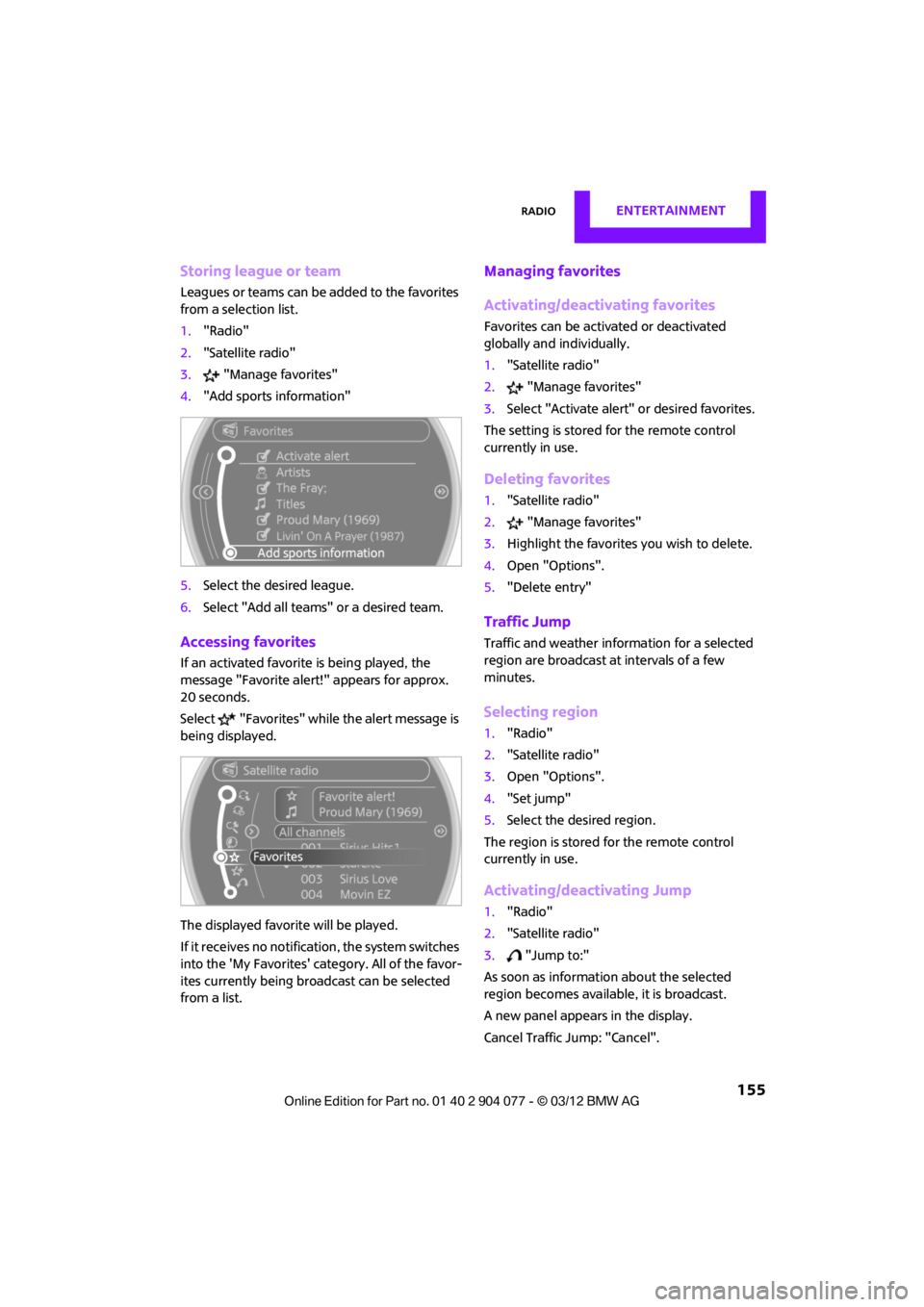
Accessing favorites
If an activated favorite is being played, the
message "Favorite alert! " appears for approx.
20 seconds.
Select "Favorites" while the alert message is
being displayed.
The displayed favorite will be played.
If it receives no notification, the system switches
into the 'My Favorites' category. All of the favor-
ites currently being broadcast can be selected
from a list.
Managing favorites
Activating/deactivating favorites
Favorites can be activated or deactivated
globally and individually.
1. "Satellite radio"
2. "Manage favorites"
3. Select "Activate alert" or desired favorites.
The setting is stored for the remote control
currently in use.
Deleting favorites
1. "Satellite radio"
2. "Manage favorites"
3. Highlight the favorites you wish to delete.
4. Open "Options".
5. "Delete entry"
Traffic Jump
Traffic and weather information for a selected
region are broadcast at intervals of a few
minutes.
Selecting region
1."Radio"
2. "Satellite radio"
3. Open "Options".
4. "Set jump"
5. Select the desired region.
The region is stored for the remote control
currently in use.
Activating/deactivating Jump
1. "Radio"
2. "Satellite radio"
3. "Jump to:"
As soon as information about the selected
region becomes available, it is broadcast.
A new panel appears in the display.
Cancel Traffic Jump: "Cancel".
00320051004F004C00510048000300280047004C0057004C005200510003
Page 166 of 283

External devicesENTERTAINMENT
165
4.Select the symbol.
5. Select the desired track from the list.
Playback menu
Depending on the device, all functions may not
be available.
Track search
Depending on the device, it is possible to search
by track.
1."CD/Multimedia"
2. "External devices"
3. Select the symbol.
4. "Search device content"
5. "A-Z search"
6. Select desired entry or directory.
Player program
Depending on the device, there may be various
programs for playing music files.
1."CD/Multimedia"
2. "External devices"
3. Select the symbol.
4. Open "Options".
5. "Select player"
6. Select the desired program.
Disconnecting an audio connection
1."CD/Multimedia"
2. "Bluetooth® (audio)"
3. Select the desired device from the list of
connected devices.
4. Open "Options".
5. "Configure phone"
6. Deactivate "Audio".
7. "OK"
With a mobile phone, only the audio connection
is disconnected. All ot her connections remain
active.
Unpairing device
1. "CD/Multimedia"
2. "Bluetooth® (audio)"
3. "Bluetooth® audio" if applicable
4. Highlight the device to be unpaired.
5. Open "Options".
6. "Remove phone from list"
SymbolFunction
Next track
Fast forward: press and hold the
symbol.
Previous track
Reverse: press and hold the
symbol.
00320051004F004C00510048000300280047004C0057004C005200510003
Page 173 of 283
COMMUNICATIONSHands-free device Bluetooth
172
>After identification, phone book entries are
imported from the mobile phone and/or SIM
card of the telephone, depending on the
telephone.
> Four mobile phones can be paired.
> Specific settings may be necessary in some
mobile phones, e.g. authorization or a
secure connection, re fer to the Owner's
Manual for the mobile phone.
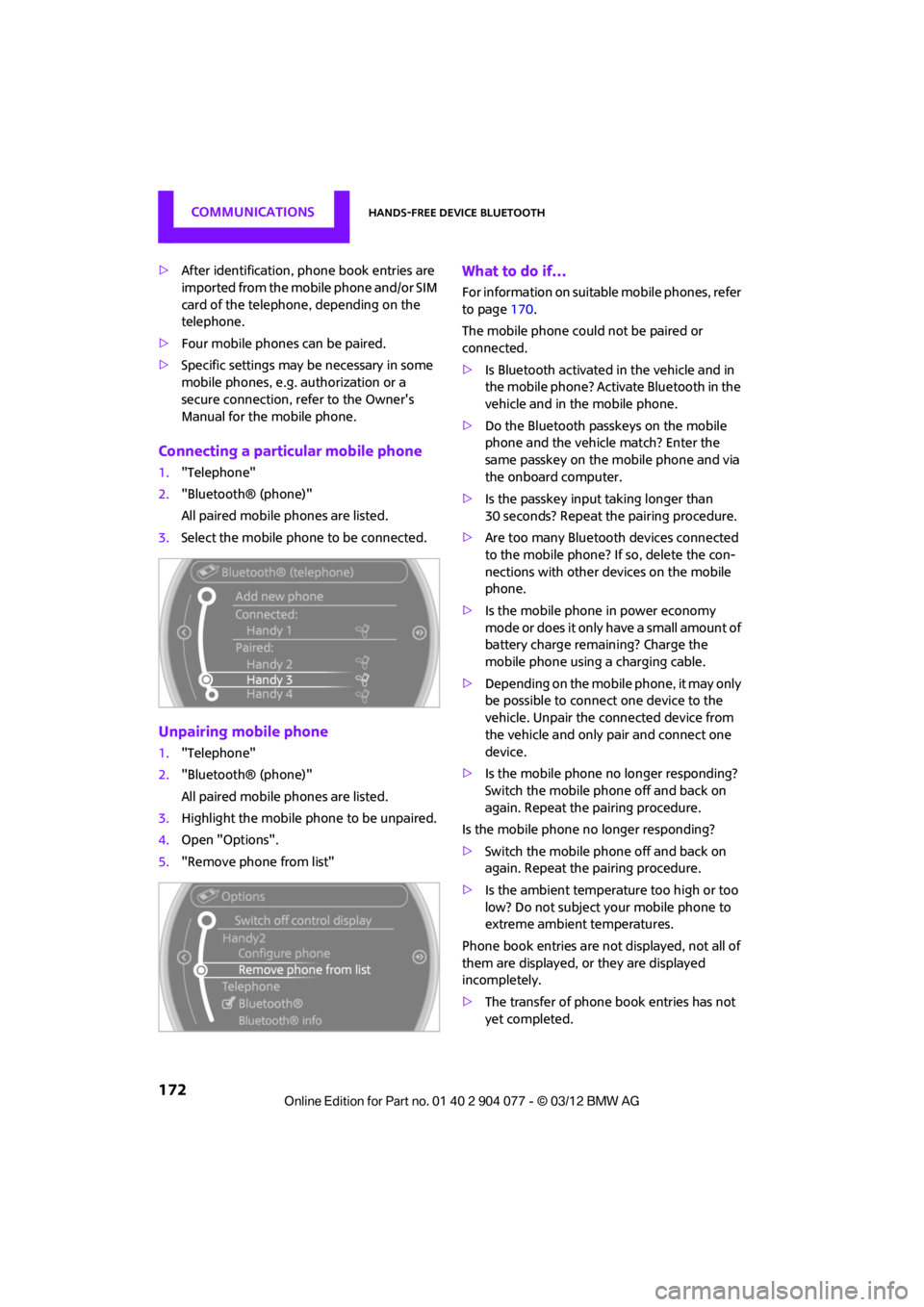
Connecting a particular mobile phone
1. "Telephone"
2. "Bluetooth® (phone)"
All paired mobile phones are listed.
3. Select the mobile phone to be connected.
Unpairing mobile phone
1."Telephone"
2. "Bluetooth® (phone)"
All paired mobile phones are listed.
3. Highlight the mobile phone to be unpaired.
4. Open "Options".
5. "Remove phone from list"
What to do if…
For information on suitab le mobile phones, refer
to page 170.
The mobile phone could not be paired or
connected.
> Is Bluetooth activated in the vehicle and in
the mobile phone? Activate Bluetooth in the
vehicle and in the mobile phone.
> Do the Bluetooth passkeys on the mobile
phone and the vehicle match? Enter the
same passkey on the mobile phone and via
the onboard computer.
> Is the passkey input taking longer than
30 seconds? Repeat th e pairing procedure.
> Are too many Bluetoot h devices connected
to the mobile phone? If so, delete the con-
nections with other devices on the mobile
phone.
> Is the mobile phone in power economy
m o d e o r d o e s i t o n l y have a small amount of
battery charge remaining? Charge the
mobile phone using a charging cable.
> Depending on the mobile phone, it may only
be possible to connect one device to the
vehicle. Unpair the connected device from
the vehicle and only pair and connect one
device.
> Is the mobile phone no longer responding?
Switch the mobile phone off and back on
again. Repeat the pairing procedure.
Is the mobile phone no longer responding?
> Switch the mobile phone off and back on
again. Repeat the pairing procedure.
> Is the ambient temperature too high or too
low? Do not subject your mobile phone to
extreme ambient temperatures.
Phone book entries are not displayed, not all of
them are displayed, or they are displayed
incompletely.
> The transfer of phone book entries has not
yet completed.
00320051004F004C00510048000300280047004C0057004C005200510003