2012 MERCEDES-BENZ SLK-Class cd change
[x] Cancel search: cd changePage 170 of 234
X
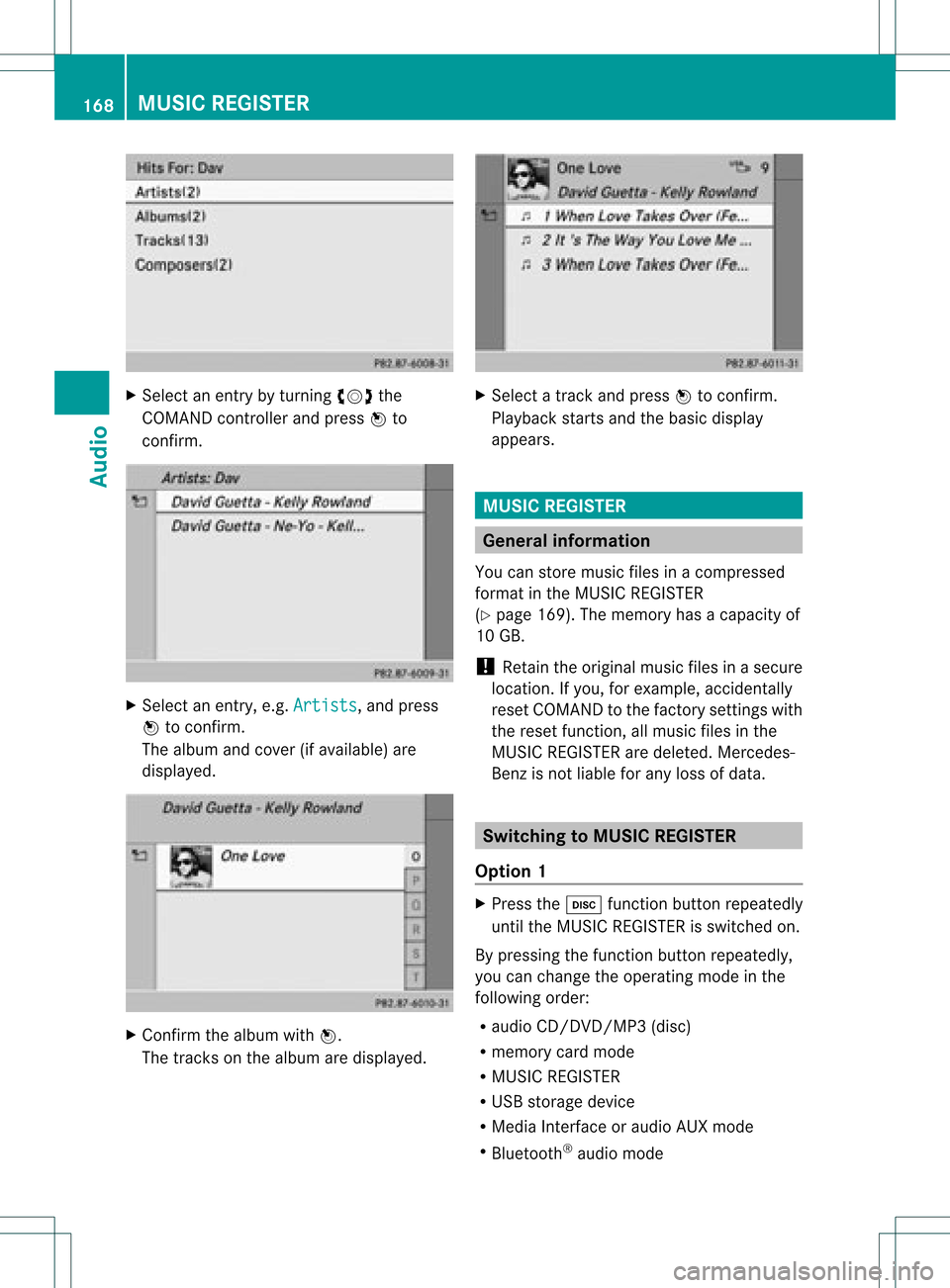
Sel ect anentry byturni ngcVd the
CO MAND controllera nd pre ssW to
confi rm. X
Sel ect anentry ,e.g .Art ists ,
and press
W toconfi rm.
The albu ma ndcove r(ifavailable) are
displayed. X
Conf irmthealbum withW.
The track son the album aredisplayed. X
Selec ta track and press Wtocon firm .
Playback start sand thebasic display
appears. MUSIC
REGISTER Gener
alinfor mation
You canstore music filesinacom press ed
for mat inthe MUS ICREGIS TER
(Y page 169).The memo ryhas acapac ityof
10 GB.
! Retain theorigin almusic filesinasecur e
locat ion.Ifyou, forexam ple,accident ally
reset COMA NDtothe fact orysettings with
the reset function,all music filesinthe
MUS ICREGIS TERaredelet ed.Merc edes-
Ben zisnot liablefor any loss ofdata. Switching
toMUSIC REGISTER
Option 1 X
Press theh function buttonrepeatedly
until theMUSIC REGISTER isswitched on.
By pressing thefunction buttonrepeatedly ,
you can change theoperating modeinthe
followi ngorder:
R audi oCD/DVD /MP3(disc)
R memory cardmode
R MUSIC REGISTER
R USB storage device
R Media Interfaceoraudi oAUX mode
R Bluetooth ®
audi omode 168
MUSIC
REGISTERAudio
Page 171 of 234
If
music filesareavai lable,pla yba ckbegi nsat
the point lastlistened to.
If there arenomusic files,you willsee a
messag eto this effect.
X Confirm themessag eby pressi ngW the
COMAND controller andcopy themusic
files (Ypage 169).
Option 2 X
Select Audio in
the main function barby
slid ing ZV andturning cVdtheCOMAND
controller andpress Wtoconfirm.
If MUSIC REGISTER wasthelast mode
selected, itis now switched on.
If another audiosource isswitched on,you
can now switch onthe MUSIC REGISTER in
the audiomenu.
X Select Audio by
slid ing ZV andturning
cVd theCOMAND controller andpress
W toconfirm.
The audiomenu appears.
X Select Music Register and
press Wto
confirm.
Option 3 X
Press ther number key(DVD changer).
The MUSIC REGISTER isswitched on. Importing
musicfiles
Introductio n You
cancopy music filesinthe fileformats
MP3, WMA andAAC (withthe file
extensions .m4p,.m4a,.m4band.aac) from
the follo wing media :
R discs inthe DVD changer
R memory card
R USB storage device
i CDinformation suchasalb um name, disc
name, artistandtrack isprovide dby the
Gracenote MediaDataba se(Ypage 161). X
Switch onaud ioCD mode (Ypage 157).
X With anaud ioCD inserted, selectREC in
the
CD basi cdisplay byslidin gVÆ andturnin g
cVd theCOMA NDcontroller andpress
W tocon firm .
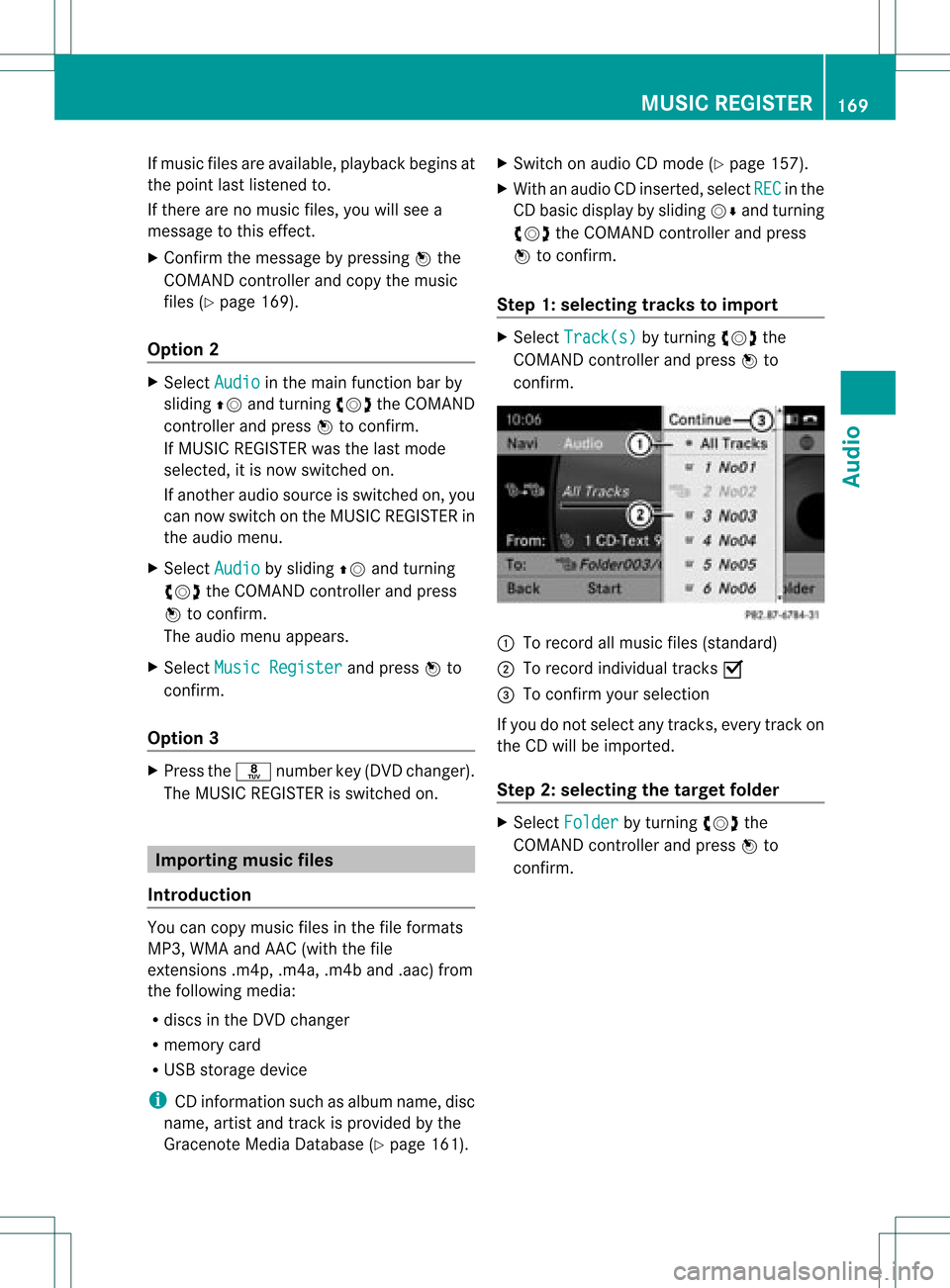
Step 1:selecting tracks toimp ort X
Selec tTrac k(s) by
turnin gcVd the
COMA NDcontroller andpress Wto
con firm . :
Torec ord allmusic files(standard )
; Torec ord indiv idual track sO
= Tocon firm your selec tion
If you donot selec tany trac ks,eve rytrac kon
the CDwillbe impo rted .
Ste p2:selectin gth eta rget folder X
Sele ctFol der by
turnin gcVd the
COMA NDcontroller andpres sW to
con firm. MUSIC
REGISTER
169Audio Z
Page 173 of 234
R
MUSIC REGISTER
R USB storage device
X Switch toMUSIC REGISTER (Ypage 168).
X Select Search by
sliding VÆandturning
cVd theCOMAND controller andpress
W toconfirm .
The category listappea rs.
X Select atrack inacategory (Ypage 165).
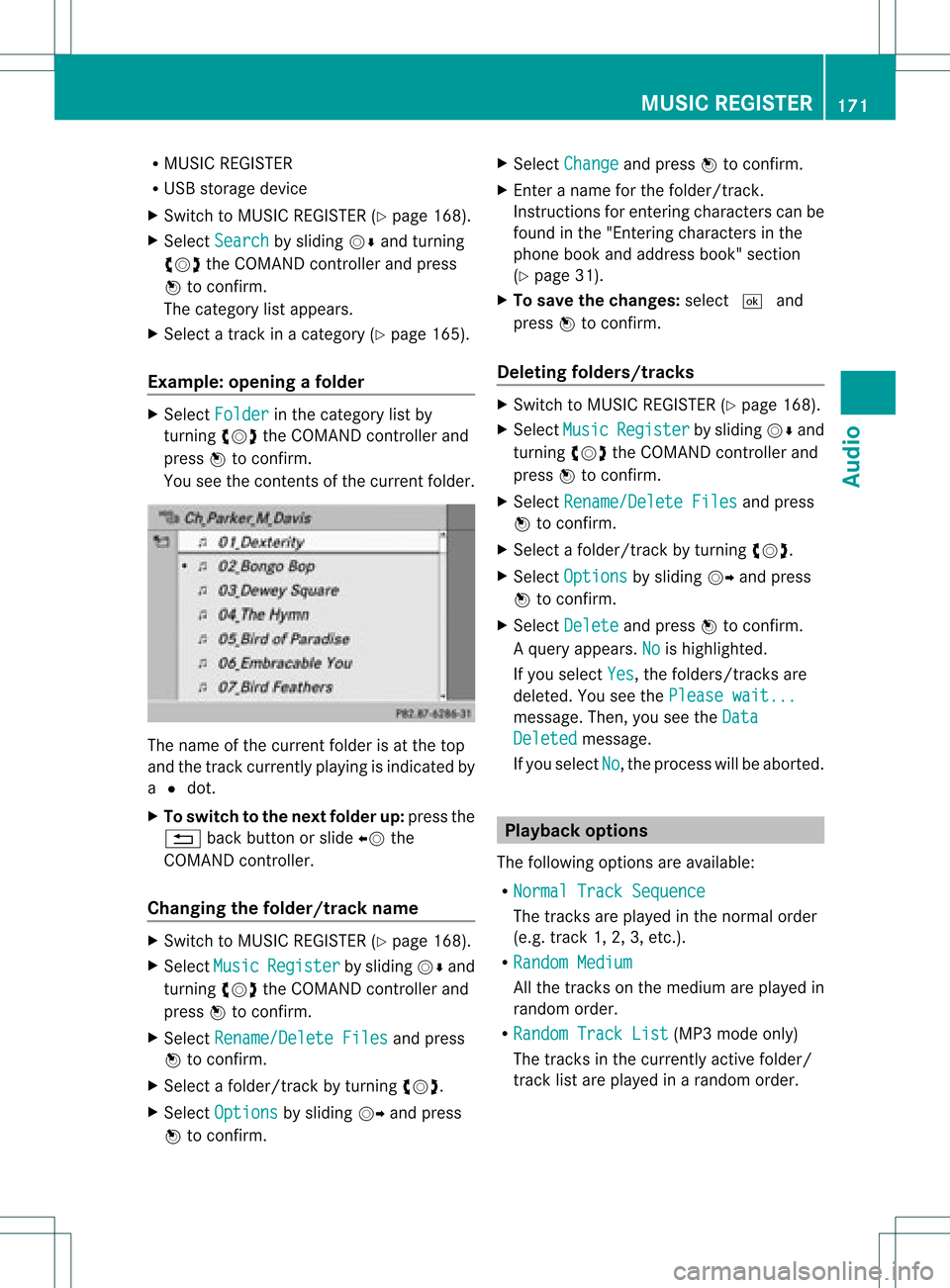
Example: openingafolder X
Sele ctFol der in
thecat egor ylist by
tur nin gcVd theCOMA NDcontroller and
pres sW tocon firm.
You seethecon tent sof thecur ren tfolder. The
name ofthe current folderisat the top
and thetrack current lyplayi ngisindicated by
a # dot.
X To switch tothe next folder up:press the
% backbutton orslide XVthe
COMAND controller.
Changing thefolder/tr ackname X
Switch toMUSIC REGISTER (Ypage 168).
X Select Music Register by
sliding VÆand
turnin gcVd theCOMAND controller and
press Wtoconf irm.
X Select Rename/Delet eFiles and
press
W toconf irm.
X Select afolder/t rackbyturnin gcVd.
X Select Options by
sliding VYandpress
W toconf irm. X
Select Change and
press Wtoconf irm.
X En ter aname forthe folder/t rack.
Inst ruction sfor enter ingcharact erscan be
found inthe "Ent ering charact ersinthe
phone bookandaddress book"section
(Y page 31).
X To save thechanges: select¬and
press Wtoconf irm.
Dele ting folders/tr acks X
Switch toMUSIC REGISTER (Ypage 168).
X Select Music Register by
sliding VÆand
turnin gcVd theCOMAND controller and
press Wtoconf irm.
X Select Rename/Delet eFiles and
press
W toconf irm.
X Select afolder/t rackbyturnin gcVd.
X Select Options by
sliding VYandpress
W toconf irm.
X Select Delete and
press Wtoconf irm.
Aq uery appear s.No is
high light ed.
If you selectYes ,
th efol der s/track sare
delet ed.You seethePle ase wait... mes
sage .Then, youseetheData Deleted message.
If you select No ,
the process willbeaborted. Playback
options
The following optionsareavaila ble:
R Normal TrackSequence The
track sare play edinthe normal order
(e.g. track 1,2,3, etc. ).
R Random Medium All
the track son the medium areplay edin
random order.
R Random TrackList (MP3
mode only)
The track sin the current lyactive folder/
track listare play edinarandom order. MUSIC
REGISTER
171Audio Z
Page 174 of 234
X
To select opti ons:sw itch tothe MUSI C
REG ISTER (Ypage 168) .
X Sel ect Mus ic Reg
ister by
slid ing VÆ and
tur ning cVd theCOMAND controller and
pre ssW toconfi rm.
The optio ns list appe ars. The #dot
ind icates the optio ns elected.
X Select anoption andpress Wtocon firm.
The option isswitch edon. For alloption s
exc ept Normal TrackSequenc e ,
you will
see acorr espondin gdisplay inthe display/
select ionwindow.
i The Normal TrackSequenc e option
is
automatic allyselect edwhen youchange
the disc youarecurren tlylisten ingtoor
when youselect adifferen tmedium. Ifan
option isselect ed,itremains selectedafter
COMAND isswitch edon oroff. Bluet
ooth®
aud iomode Connecting
Bluetooth®
aud iodevices
Conditions Bluet
ooth®
aud iodevice
Bluetoot h®
audio mode requires a
Bluetoot h®
-c apable audiodevice.
i Not allBluetoot h®
audio devices available
on the market areequally suitable. For
more detailed information onsuitable
Bluetoot h®
audio devices andon
con nectingBluetoot h®
audio devices to
COMAND ,visit
htt p://ww w.mbu sa-mobile.com (for
USA ).Alt ernat ively, calltheMercedes- Benz
Customer AssistanceCenter at
1-8 00- FOR-ME RCedes (1-800-367 -6372)
(for USA )or Customer Relationsat
1-8 00- 387 -0100(for Canada). Befor
eusing Bluetoot h®
audio mode, you
should checkyour Bluetooth ®
audio device
for the following (seetheBluetooth ®
audio
device's operating instructions):
R Bluetooth ®
audio profile
The Bluetooth ®
audio device mustsupport
the A2D Pand AVRCP Bluetooth ®
audio
profiles.
R Bluetooth ®
visibility
On cert ainBluetooth ®
audio devices, as
well asactivatin gthe Bluetooth ®
funct ion,
the device itselfmust alsobemade
"visible" toother devices (seethe
Bluetooth ®
audio device's operating
instr uctions).
R Bluetooth ®
device name
This device nameispredetermin edbut can
usual lybe changed. Tomake aclear
selection ofthe Bluetooth ®
device
possible, Mercedes-B enzrecomm ends
that youcustomiz ethe device name(see
the Bluetooth ®
audio device's operating
instr uctions).
i A2D P(Advanced AudioDistribution
Profile): Bluetooth ®
audio profile foraudio
data trans mission
AVRCP (AudioVideoRemote Control
Profile): Bluetooth ®
audio profile foraudio
data playb ack
X Act ivate Bluetooth ®
and Bluetooth ®
visibility onthe Bluetooth ®
audio device.
On COMAND
X Act ivate theBluetooth ®
funct ionin
COMAND (Ypage 45).
General information Before
usingyourBluetooth ®
audio device
with COMAND forthe first time, youwillneed
to authorize it.
When youauthorize anew Bluetooth ®
audio
device, itis conn ected automatically.
Connect ioninvolves firstsearching fora 172
Bluetooth ®
aud iomodeAudio
Page 177 of 234

Disp
laying details X
Se lec taBl uetooth ®
au dio dev iceinthe
Blu etoo th®
dev icelist.
X Sele ctthe symbo lto the right ofthe
Blu etoo th®
au dio dev icebysliding VY the
CO MAND controllera nd pre ssW to
confi rm.
X Sel ect Detail s and
pressW toconfi rm.
The followi ng info rma tionc oncer ningthe
selected mobilephoneisshown:
R Bluetooth ®
name
R Bluetooth ®
address
R availa bilitystatus (shown afteran
update)
R authorization status
X To close thedetailed view:turncVd or
slide XVY theCOMAND controller.
De-author izing(de-registering) a
Bluetooth ®
audio device X
Select aBluetooth ®
audio device inthe
Bluetooth ®
device list.
X Select thesymbol tothe right ofthe
Bluetooth ®
audio device bysliding VYthe
COMAND controller andpress Wto
conf irm.
X Select De-Authorize and
press Wto
conf irm.
Ap rompt appears asking whethe ryou
really wishtode-authorize thisdevice.
X Select Yes or
No .
If you select Yes ,
the device willbedeleted
from theBluetooth ®
device list.
If you select No ,
the process willbeaborted.
i Before re-authoriz ingthe Bluetooth ®
audio device, youshould alsodelete the
device nameMBBluetooth from
your
Bluetooth ®
audio device's Bluetooth ®
list
(see theBluetooth ®
audio device's
operating instructions). Switching
toBluetooth ®
audio mode
Option 1 X
Connect (Ypage 172)orrecon nect
(Y page 174)aBluetooth ®
audio device.
COMAND activatestheBluetooth ®
audio
device. Thebasic display appears andthe
device startsplayi ng.
Option 2 X
Press theh functionbutton oneormore
times.
i Bypressing thefunct ionbutton
repeatedly, youcan change theoperating
mode inthe following order:
R audio CD/DVD/MP3 (disc)
R memory cardmode
R MUSIC REGISTER
R USB storage device
R Media Interface oraudio AUXmode
R Bluetooth ®
audio mode
Option 3 X
Select Bluetooth Audio (Y
page 159)in
the media listbyturnin gcVd theCOMAND
cont roller andpress Wtoconf irm.
COMAND activatestheconn ected device.
You willsee amessage tothis effect .The
basic displa ythen appea rs. Bluetooth
®
aud iomode 175Audio Z
Page 181 of 234

i
The separate USBconn ection ensures
quick access andexpanded mediacontent
options.
i Consult anauthorized Mercedes-Benz
Center ifyou have further questions. Switching
toMedia Interfa cemode
General information In
extr eme cases, startingupindividual
funct ionscantake uptoseveral minutes –
this depends onthe exter naldevice andits
cont ent(e.g. video podcasts).
Only usetheoriginal software tosave fileson
iPods orMP3 players. Otherwise, someorall
funct ionsmay notbeavailab le.
Option 1 X
Connec tan exter naldevice (Ypage 178).
COMAND activatesthe device. Thebasic
display thenappears.
Option 2 The
exter naldevice isconn ected tothe Media
Int erface.
X Press theh functionbutton oneormore
times.
By pressing thefunct ionbutton repeatedly,
you can change theoperating modeinthe
following order:
R audio CD/DVD/MP3 (disc)
R memory cardmode
R MUSIC REGISTE R
R USB storage device
R Media Interface oraudio AUXmode
R Bluetoot h®
audio mode
Option 3 X
Press thei number button.
This selects theconn ected externalaudio
device directly. Option
4 X
In the media list(Ypage 159), select the
ent ryat position 0by turnin gcVd the
COMAND controller andpress Wto
conf irm.
COMAND activatesthe conn ected device.
You willsee amessage tothis effect .The
basic displa ythen appea rs.
If no device isconn ected, youwillsee the
Media Int. entr
yinstead ofadevice
name. Media
Interface mode (iPod®
mode) when
equippe dwith aDVD changer
: Type ofdata medium
; Track number
= Elapsed tracktime(also informat
00:0 0:00 foraudi obooks)
? Track name
A Graphic timedispla y
B Graphic trackdispla y
C Sound settings
D Media list
E Album name(ifavaila ble)
F Music search
G Position inthe media list
H Artist (ifavaila ble)
I Play back options
Type ofdevice :conn ected isindicated by
the corresponding symbolforiPod ®
or MP3
play er. Media
Interface mode
179Audio Z
Page 188 of 234

COMAN
Dfea tures
Thes eOper atingIn st ruc tions desc ribeall
st andar dand optionalequipm enta vail able
for you rCOMAND systematthe time of
purcha se.Cou ntry-specifi cdeviation sare
possible. Pleasenotethat your COMAND
system maynotbeequipped withallthe
features described. General
information Autom
aticpictu reshut off
The video image isonly displayed ifthe
select orlever ofthe tran smission isin
position P.
If the select orlever ofthe tran smission is
changed fromposition P,the In order not
to
distrac tyou from thetraffic situati
on, the picture is faded out
while
thevehicle isinmotion. message
appears
As soon asthe select orlever ofthe
tran smission isreturn edtoposition P,the
video image isshown. Basic
settings Pictur
esettings
Adju sting thebright ness,contra stor
color X
Press Wthe COMAND controller toshow
the menu.
X Select DVD-Vid eo by
sliding VÆand
turn ingcVd theCOMAND controller and
press Wtocon firm.
Am enu appears.
X Select Brightn ess ,
Contras t or
Color by
turn ingcVd theCOMAND controller and
press Wtocon firm. Changing
thepictu reform at X
Press Wthe COMAND controller toshow
the menu.
X Select DVD-Vid eo by
sliding VÆand
turn ingcVd theCOMAND controller and
press Wtocon firm.
Am enu appears.
X Select 16:9Optimiz ed ,
4:3 or
Widescr een and
press Wtocon firm.
The dotinfron tof the entryindicat esthe
curren tlyselect edformat .
X Select asett ingbyturn ingcVd the
COMAND controller andpress Wto
con firm. Video
DVDmode Safet
ynotes G
WARN
ING
COMAND isclassified asaClass 1laser
prod uct.You must notopen thecasing. Ifyou
open thecasing, orifthe casing isfaulty or
damaged, thereisarisk ofexposure to
invisible laserradiation. Thismay damage
your eyes, orthose ofothers.
COMAND doesnotcont ainany parts thatcan
be serviced bythe user. Forsafety reasons,
all mainten ancework must becarried outby
quali fiedaftersales technicians. G
WARNING
Only when thevehicle isstation aryshould
you:
R load adisc
R eject adisc
There isarisk ofbeing distract edfrom the
road andtraffic conditionsifthis isdone while
the vehicle isin motion . 186
Video
DVDmodeVideo
Page 189 of 234
Note
sabo utdis cs
Pl ay ba ck pro blems mayoccu rwhen playing
copied discs.Therearealarge variety of
discs, DVDauthoring software,writing
software andwriters available.This variety
means thatthere isno guarantee thatthe
system willbeable toplay discs thatyouhave
copied yourself.
! Donot affix stick ersorlabel sto the discs,
as they could peeloffand damage
COMAND. Stickers cancause thedisc to
bend, which canresult inread errors and
disc recognit ionproblems.
! COMAND isdesigned toaccommodate
discs which comply withtheEN60908
standard. Youcantherefore onlyusediscs
with amaximum thickness of1.3 mm.
If you insert thickerdiscs, e.g.those that
cont aindata onboth sides (DVD onone
side andaudiodata onthe other), they
cannot beeject edand candamage
COMAND.
Use round discswithadiameter of12 cm.
Do not use discs withadiameter of8cm,
even withanadapter. DVD
playback conditions
If video DVDsdon otconf orm tothe NTSC or
PAL TVstandards, theymaycreate picture,
sound orother problems duringplayback.
COMAND canplay back video DVDs
produced according tothe following
standards:
R region code1orregion code0(no reg ion
cod e)
R PAL orNTSC standa rd
Yo uwi llge nera lly find thereleva ntdetai ls
ei ther onthe DVD itselfor on the DVD case.
i Ifyo uins ert avid eo DVD with adi ffe rent
reg ionc ode, youwillsee amessage tothis
effect . i
COMAND isset toregion code1at the
factor y.This settingcan bechanged atan
authorized Mercedes-B enzCenter. Thiswill
allow youtoplay video DVDswith a
different regioncode,provided thatthey
are produced inaccordanc ewith thePAL
or NTSC standard. Theregion codecanbe
changed uptofive times. Function
restrictions
Dependin gon the DVD ,it is possible that
cert ainfunct ionsoractions willbe
temporarily blockedormay notfunct ionatall.
As soon asyou trytoactivate thesefunctions
or actions ,you willsee theKsymbol inthe
display . Inserting
andremoving DVDs
X Proceed asdescribed inthe "Insert ingand
eject ingCDs andDVD s"section
(Y page 154). Switching
tovideo DVDmode
Option 1 X
DVD changer: insertavideo DVD.
X Press theh functionbutton orthe
% backbutton .
COMAND loadsthemedium insertedand
start sto play it.
Option 2 X
Press theh functionbutton oneormore
times.
COMAND switchestothe previous disc
operating mode. Video
DVDmode
187Video Z