2012 MERCEDES-BENZ SLK-Class cd change
[x] Cancel search: cd changePage 97 of 234
i
Ifyou have notyetentered any
characters, theMyAddress entry
is
automa ticallyhighl ighted inthe selection
list.
If no home address hasbeen stored yet,you
can now assignanadd ress book entry. Ifa
home address already exists, itis disp layed
and youcan alter it.
i Ifyou select NewEntry ,
you arealso
offered theoption ofentering thehome
add ress forthe first time. Youcanthen
save thehome address withou thavin gto
st art rout eguidan ce.
X To ent ertheh ome address forthef irst
tim e:select Assignto Addre ssBook Entry and
press Wtocon firm .
X Choose Home ,
Work or
Not Class ified and
press Wtocon firm .
X To change thehom ead dress: select
Chang e and
press Wtocon firm .
X Selec tAssig nto Addre ssBook Entry and
press Wtocon firm .
i Ifyou select NewEntry ,
you arealso
offe red theoptio nofchanging thehome
address byenterin gan address. Youcan
then save thehome address withouthaving
to start route guidance.
X Choose Home ,
Work or
Not Classified and
press Wtoconfirm .
In both cases, youwillsee theaddress book
either withthecharacter baroras a
selection list.
X To selec tan addr essbook entry:
proceed asdescribed inthe "Searching for
an address bookentry"section
(Y page 136).
X To confirm theselec tion:press Wthe
COMAND controller.
If no home address hasbeen stored,
COMAND savestheentr y.You willsee a
message andthen theaddress menuwith
the selected address. Start is
highlighted
automatically . If
ahome address hasalready beenstored,
you willsee aprompt askingyouwhether
the MyAddress entr
yshould be
overwritten .
X Select Yes or
No and
press Wtoconfirm .
If you select Yes ,
COMAND overwrites the
destination. Youwillsee amessage and
then theaddress menuwiththeselected
address. Start is
highlighted
automatically .
If you select No ,
the listwill appea ragain.
Selec tingthehome address forrout e
guidance X
Proceed asdescribed inthe "Selectin ga
destination fromthedestination memory"
section (Ypage 60). Storing
adesti nation inthe
dest inationmem ory
Not es This
function also stores thedest inationin
th eaddre ssbook .
When theaddre ssbook isfull, nodest inations
can besaved inthedest inationmem ory.You
must first delet eaddre ssbook entries
(Y page 137).
Aft erdest inationentr y X
The dest inationhas been entered andis
shown intheaddre ssent rymen u
(Y page 57).
X Sele ctSav e by
slidin gVÆ andturnin g
cVd theCOMA NDcontroller andpres s
W tocon firm.
You cannowselec tstora geoptio ns
(Y page 96) .
Du ringrou tegui danc e X
To sho wthe men u:pre ssW the COMAND
contr oller. Dest
inationmemo ry
95Navi gatio n Z
Page 103 of 234
COMA
NDcontrol ler and pressW to
co nfirm .
A # dot indicat esthene wset ting.
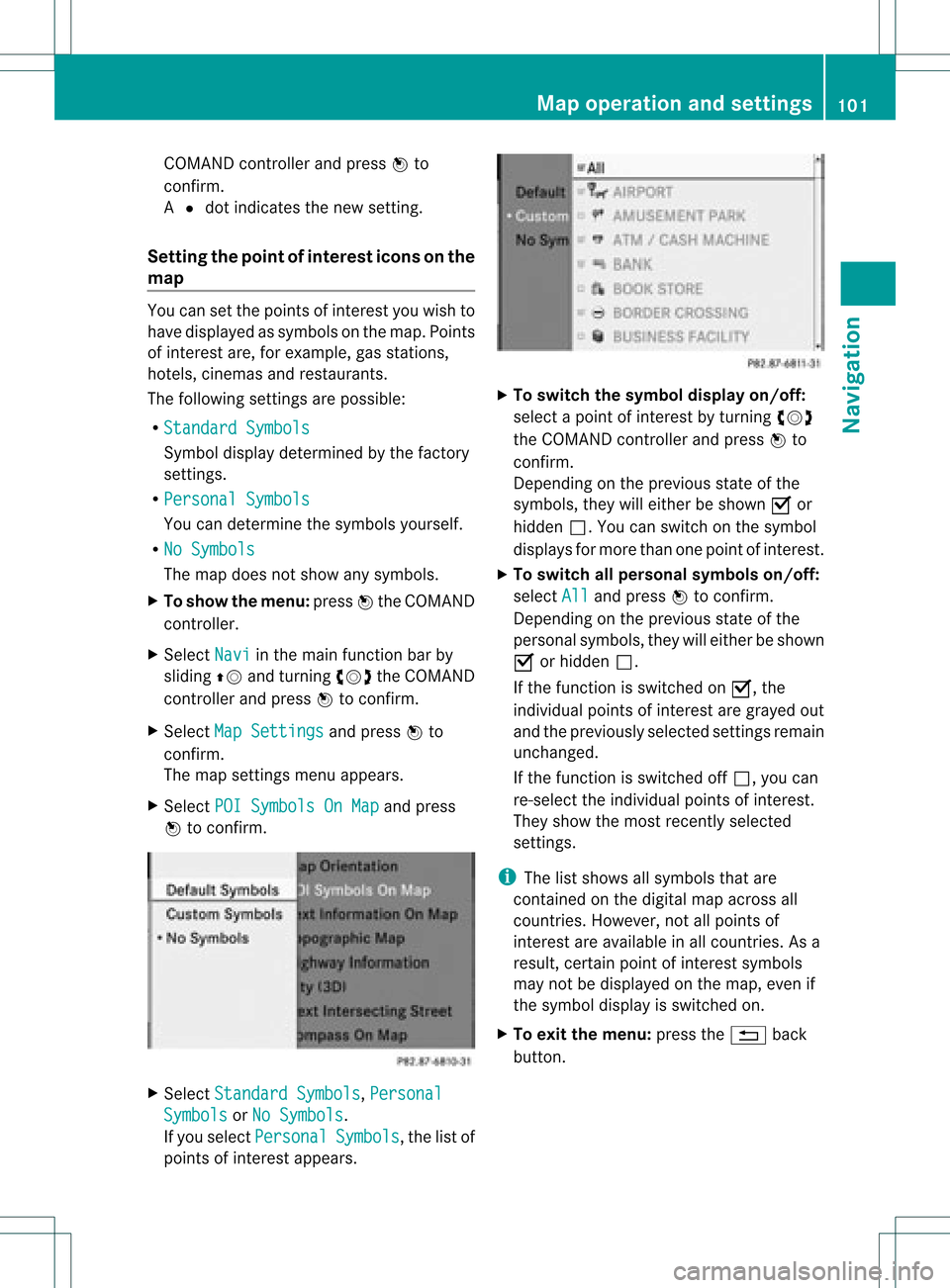
Set tingth epoin tofinterest iconsonthe
map You
cansetthe point sof int erest youwish to
have displayed assymbols onthe map. Points
of interest are,forexample, gasstations,
hotels, cinemasand restaurants.
The following settings arepossible:
R Standar dSymbols Symbol
displaydeterminedbythe factory
sett ings.
R Persona lSymbols You
candeterm inethe symbols yourself.
R No Symbols The
map does notshow anysymbols.
X To show themenu: pressWthe COMAND
con troller.
X Select Navi in
the main function barby
sliding ZVandturningcVd theCOMAND
con troller andpress Wtocon firm.
X Select MapSetting s and
press Wto
con firm.
The map settings menu appears.
X Select POISymbols OnMap and
press
W tocon firm. X
Select Standar dSymbols ,
Persona l Symbols or
No Symbols .
If you select Persona l Symbols ,
the listof
point sof interest appears. X
To switch thesymbol displayon/off:
select apoint ofinterest byturn ingcVd
the COMAND controller andpress Wto
con firm.
Depen dingonthe previous stateof the
symbols, theywilleither beshown Oor
hidden ª.Youcan switch onthe symbol
display sfor more thanonepoint ofinteres t.
X To switch allpersonal symbolson/off:
select All and
press Wtoconf irm.
Dependin gon the previous stateofthe
personal symbols, theywilleither beshown
O orhidden ª.
If the funct ionisswitched onO, the
individual pointsofinteres tare gray edout
and theprevi ouslysele cted settings remain
unchange d.
If the function isswi tched offª, you can
re-sele ctthe indivi dualpoints ofinterest.
They show themost recently selected
settings.
i The listshow sall symb olsthat are
contained onthe digitalmap across all
countries. However,not allpoints of
interest areavailable inall countries. Asa
resu lt,certain pointofinterest symbols
may notbedisp layed on the map, evenif
the symb oldisp layisswi tched on.
X To exitthe menu: pressthe% back
button. Map
operation andsetting s
101Navigatio n Z
Page 109 of 234
X
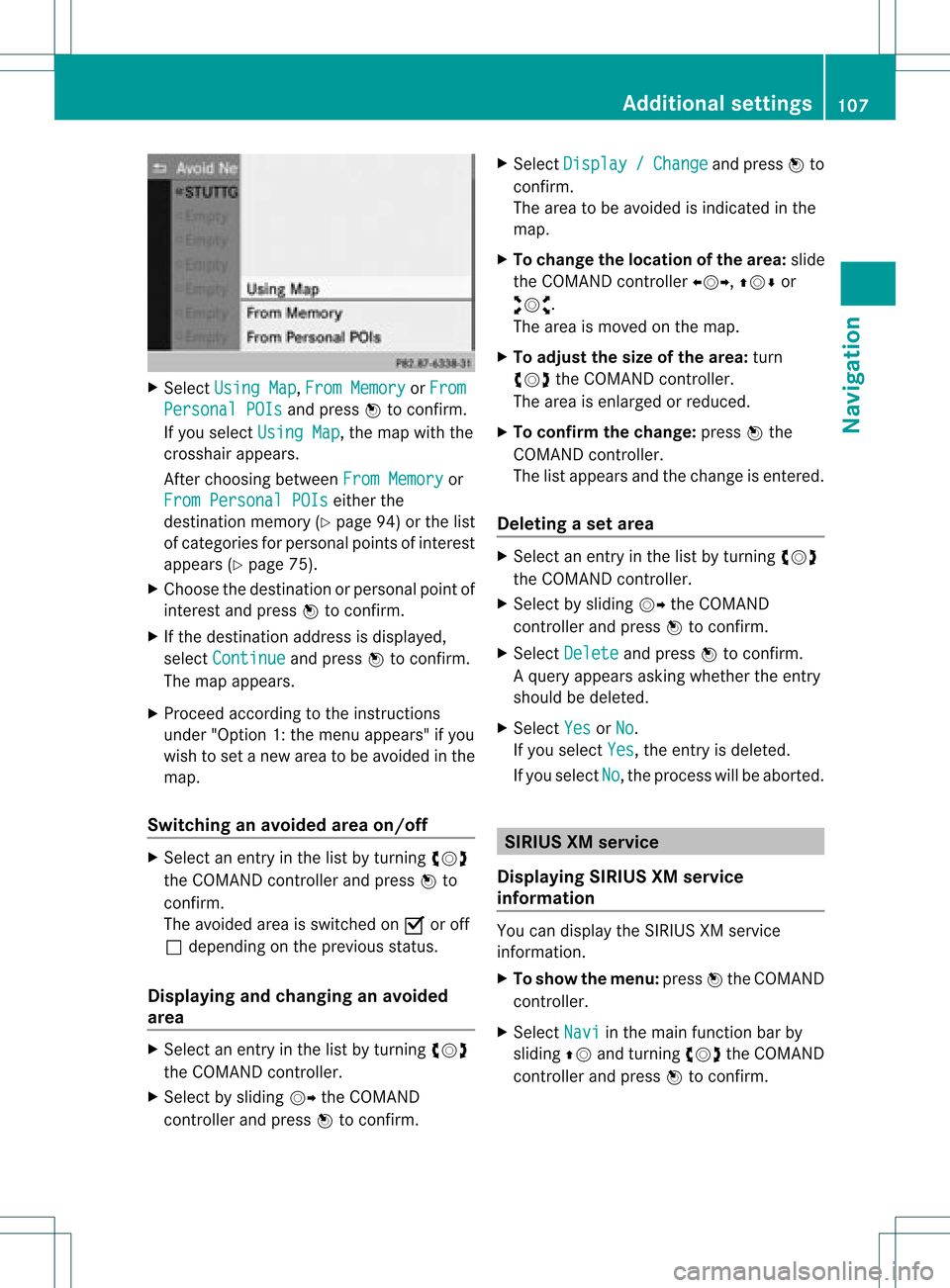
Sel ect UsingMap ,
Fro mMem ory or
Fro m Per
sonalPOI s and
pressW toconfi rm.
If yo usel ect UsingMap ,
the map with the
cros shairap pe ars .
After choosingbetwe enFro mMem ory or
Fro mPer son alPOIs ei
ther the
de stina tionmemo ry(Y page 94) orthe list
of cate goriesfor persona lpoi nts ofinter est
ap pe ars (Ypage 75).
X Ch oos ethe destina tionorpersona lpoi ntof
inter estand pressW toconfi rm.
X Ifthe destina tionaddre ssisdispl ayed ,
sel ect Continue and
pressW toconfi rm.
The map appe ars .
X Pro cee dacco rding tothe instr uctions
und er"Opti on 1:the menu appe ars "if yo u
wi sh toset anew areato be avo ided inthe
map .
Sw itchin gan avo idedarea on/o ff X
Sel ect anentr yin the list by turning cVd
the COMAND controllera nd pre ssW to
confi rm.
The avoide dar ea issw itch edon O oroff
ª depe ndi ng on the previous sta tus .
Di spl aying and chang ingan avo ided
area X
Sel ect anentry inthe list by turning cVd
the COMAND controller.
X Sel ect byslid ing VY theCOMAND
contro ller and pressW toconfi rm. X
Sel ect Dis play / Cha
nge and
pressW to
confi rm.
The area tobe avoide dis ind icated inthe
ma p.
X To chang ethe locati onofthe area :sl id e
the COMAND controller XVY ,ZVÆ or
aVb .
The area ismov edon the map.
X To adjust thesize ofthe area :tur n
cVd theCOMAND controller.
The area isenl arge dor red uce d.
X To confi rm the chang e:pre ssW the
CO MAND controller.
The list ap pe arsand thechange isente red.
De letin gas etarea X
Sele ctan ent ryinthelist byturnin gcVd
th eCOMA NDcontroller .
X Sele ctby slidin gVY theCOMA ND
con troller andpres sW tocon firm.
X Sele ctDel ete and
pres sW tocon firm.
Aq uery appear sask ing whet hertheen try
sho uld bedelet ed.
X Se lec tYes or
No .
If you selectYes ,
th een try is delet ed.
If you sele ctNo ,
th epro ces swill beabor ted. SIR
IUS XMservice
Disp laying SIRIUS XMservice
info rmation You
candisplaytheSI RIUS XMservice
inf orm ation.
X To show themen u:pre ssW theCOMA ND
co ntrol ler.
X Se lec tNav i in
themain function bar by
slidi ngZV andturnin gcVd theCOMA ND
co ntrol ler and pressW toconfirm . Add
itiona lset tings
107Navigatio n Z
Page 111 of 234
Upd
ating the digit alma p
Intr oduct ion The
digital mapsgeneratedbythe map
soft ware becom eoutdate din the same way
as con vent ional roadmaps. Optimalroute
guidance canonly beprovided by
the navigat ionsystem incon junction with the
most up-to-dat emap software.
Inf ormat ionabout newversion sof the digital
map canbeobtain edfrom anauthoriz ed
Merc edes-B enzCent er.You canhave the
digital mapupdated therewith aDVD ,or you
can update ityourself.
i The update processcan takealong time
(over anhour), dependingonthe size ofthe
digit almap. During this time,you willonly
be able toswitc hon radio mode andto
acc ept incomin gcalls. Theupdate willbe
com plete dmor equick lyifthe vehic leis
st ation ary.
If you carryout theupdate withtheengine
switc hedoffand thestart erbatt eryhas
insuf ficient power, COMANDmay
autom atically switc hoff durin gthe proc ess
in order toprot ectthe batt ery. Ifthis
occ urs, restartthe update withtheengine
runn ing. G
WARN
ING
Neve rleave theengine runninginan enclos ed
space. Theexhaust gasescontain carbon
monox ide.Inhaling exhaustgasesconstitutes a
health hazard andcould leadtoloss of
con sciousnes sor even death.
Upda tingprocess X
Inser tthe DVD intotheDVD changer
(Y page 154).
COMAND checkswhether thedigital map
on the DVD iscompat iblewith the
navigation systemandsystem software.
Ap rompt thenappears asking ifyou want
to install thedata base.Versio nsofthe
data basecurrently installedand the
data basethat isto be install edare
disp layed.
X Select Yes or
No and
press Wtoconfirm.
After selecting Yes ,
an activa tioncode
must beentered wheninstall ingadata base
for the first time. Youwillreceive the
activati oncode when youbuy the
naviga tionDVD.
If you sele ctNo ,
the process willbe abo rted.
X Enter theactiva tioncode.
After entering theactivati oncode
correctly, COMAND startsupdating the
digi talmap. Once theupdate isfinishe d,
you willsee amessa ge.
X To confirm themessage :press Wthe
COMAND controller.
X Take theDVD outofthe slot.
Whil ethe update isrunning, youwillsee a
messa getothis effect andaprogre ssbar. The
naviga tionsystem isnot opera tional untilthe
upd ate iscomple te.
i You cannot ejecttheDVD duringthe
upd ate. Ifyou switch offCOMAND during
the update, theupdate isinterrup ted.It
then continues fromwhere itwa s
interrup tedwhen thesystem isrestarted.
COMAND mayprompt youtochange theDVD
duri ngthe update.
X Press theV load/eject button.
X Take theDVD outofthe slot. Additio
nalsetting s
109Navigatio n Z
Page 117 of 234

press
W.
R pressin gthe 6 or~ buttonand
using thetelephon ekeypad onCOMAND
R pressin gthe 6 or~ buttonon the
multifun ction steer ingwheel
R using theVoice Control(see theseparate
Voice Controloperatin ginst ruct ions)
Unless statedother wise, thedescript ionsand
illustration sin this sect ionrefer toCOMAND . Function
restrictions
The telephon eis not ready foruse inthe
following situations:
R the telephon eautomatic allytries tolog on
to anet work. Ifno net work isavailable, you
may notbeable tomake a"911"
emergen cycall. Ifyou attempt tomake an
outgoin gcall, theNo Servic
e message
will
appear forashort while. 911
emergency call G
WARN
ING
The 911 emergen cycall system isapublic
servic e.Using itwithout duecause isa
crimin aloffen se.
The following requiremen tsmust befulfilled
for a911 emergen cycall:
R the mobile phonemustbeswitc hedon.
R anet work must beavailable.
R avalid andoperation alSIM card must be
insert edinthe mobile phone.
R the mobile phoneiscon nected toCOMAND
via Bluetoot h®
.
If you cann otmake anemergen cycall, you
must arrange rescuemeasures yourself.
X En ter numbers onCOMAND (Ypage 121).
X Press the6 button.
The telephon emakes theconnection .
X Wait forthe emergen cycall centerto
respon dand then describe theemergen cy. Teleph
onyviathe Bluet ooth®
inter face Conditions
On the mobile phone For
telephon yvia COMAND 'sBluetoot h®
int erface, aBluetoot h®
-c apable mobile
phone isrequired.
i Not allmobile phones available onthe
mark etare equally suitable. Moredetailed
infor mation onsuitable mobilephones and
on con nectingBluetoot h®
-c apable mobile
phones withCOMAND canbefound onthe
Int ernet at
htt p://www .mbusa- mobile.com.
Alt ernat ively, calltheMercede s-Benz
Customer AssistanceCente rat
1-800-FOR-MERC edes(1-800-367-6372)
(for USA) orCu stomer Relatio nsat
1-800-387-0100 (forCanada ).
The battery ofthe mobi lephone should
al wa ysbe kept sufficiently chargedinorde r
to preve ntmal functions.
In prep aration fortelep honing viathe
Blue tooth ®
interfa ce,you shou ldcheck the
foll owi ngitems onyou rmobile phone (seethe
mobile phoneoperating instructions):
R Hands- FreeProfile
The mobile phonemustsupport Hands-
Free Profile 1.0orabove.
R Bluetooth ®
visibility
On cert ainmobile phones, thedevice itself
must bemade "visible" toother devices, as
well asactivatin gthe Bluetooth ®
funct ion
(see themobile phoneoperating
instr uctions).
R Bluetooth ®
device name
Every Bluetooth ®
device hasitsown
Bluetooth ®
device name.Thisdevice name
is freely definable, butcan beidentical for
all devices fromthesame manufacturer .It
is therefor erecomm endedthatyouchange
this name sothat youcan easily recogn ize Telephony
viathe Bluetooth ®
interfa ce115Telephone Z
Page 125 of 234
Switching
thehands- freemicrophone
on/off This
funct ionisalso availa bleduring anactive
phone call.
X Call upthe telephone basicmenu
(Y page 119).
X To switch off:select MikeOff and
press
W toconf irm.
If the microphone isswitched off,the
display showstheQicon andtheThe microphone is off message
appearsfor
a short period.
X To switch on:select MikeOn and
press
W toconf irm.
The Qsymbol disappea rs.You willbriefly
see theThe microphone is on message.
Ending anactive call X
Select ¢inthe telephone basicmenu and
press Wtoconf irm.
or
X Press the~ button onCOMAND oron
the multifunct ionsteering wheel.
The callonhold isactivated.
Rejecting oraccepting awaitin gcal l The
callwaiting function mustbesup ported
by the mobi lephone network providerand be
enab led.Depending onthe mobile phone
used, thesystem behavior differswhen
accept ingacall (option 1and 2).
If yo uha ve acal lin pro gressand rece ive
ano ther call,a new windo wap pe arsin the
di spl ay.Y ou also hear aton e.You canaccept
or rejec tthe call.
X To reject: selectReject and
press Wto
conf irm.
or
X Press the~ button onCOMAND oron
the multifunct ionsteerin gwheel. X
To accept: selectAccept and
press Wto
conf irm.
or
X Press the6 button onCOMAND oron
the multifunct ionsteerin gwheel.
Option 1:ifyou accept thewaiting call,the
active callisended.
The active callwillalso beended ifyou
accept thewaiting callusing theVoice
Control System (seetheseparate
operating instructions).
Option 2:ifyou accept thewaiting call,the
active callisput onhold. Youcanthen
switch backandforthbetween bothcalls
(toggling) (Ypage 124).
i The second optionisavaila bleifyour
mobile phonesupports thetoggling
funct ion(via Bluetooth ®
).
Valid forboth options: ifyou accept the
waiting callusing themobile phone, theactive
call isput onhold. Youthen have twocalls.
The callyou have justaccepted isactive.
The COMAND displaychanges. Ifyou
cont inue tooperate functionsonthe mobile
phone, theCOMAND displaymaydiffer from
that ofthe mobile phone.
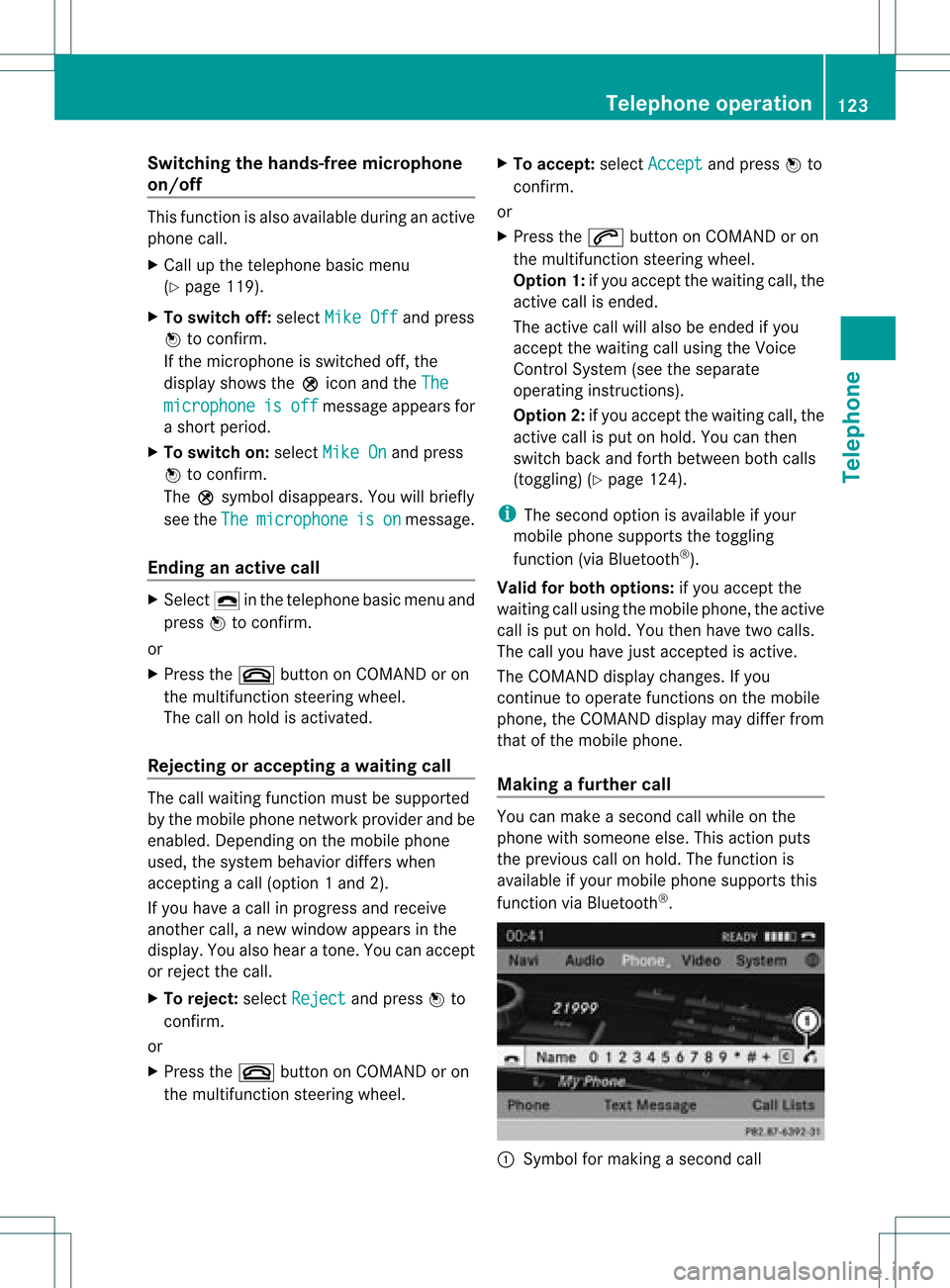
Making afur ther call You
canmake asecond callwhile onthe
phone withsomeone else.Thisaction puts
the previous callonhold. Thefunct ionis
availa bleifyour mobile phonesupports this
funct ionviaBluetooth ®
. :
Symbol formaking asecond call Telephone
operation
123Telephone Z
Page 128 of 234

Symbol
overview Icon Explanation
Æ
Address
bookentrythat hasbeen entered orchanged viaCOMAND
Imported contactthat hasbeen saved inthe phone oraddress book \
Address
bookentrywith voice tag
i These entrieshave alsobeen assigned avoice tag.Voice tagsareavaila ble
in vehicles withtheVoice Control System (seetheseparate operating
instruc tions). Ã
Contact
thathasbeen imported fromamobile phonethatsupports PBAP ¯
Ent
rythat hasbeen imported fromthememory cardorUSB device ®
Ent
ryimported viathe Bluetooth ®
interf ace Searching
foraphone bookentry
Using thecharact erbar You
determine thefirst letter ofthe entr yyou
are looking forwith thefirst character you
enter.
X Select acharacter byturnin gcVd the
COMAND controller andpress Wto
conf irm.
The first entryin the listthat starts withthe
letter selected ishighlighted. Ifthere are
similar entries,thenext different character
is shown. Forexample, withentriessuch as
Christel and
Christine ,
the beginnings
of the names aresimilar. Inthis case, you
will beoffered achoice between E and
I .
X Select thecharacters ofthe entr yyou are
searching forone byone andpress Wto
conf irm.
When theselection isclear, COMAND
switches automatically tothe selection list.
X To complete thesearch: switchfromthe
phone bookwiththecharacter bartothe
selection list(Ypage 127).
The lastlistentr yis automatically
highlighted. Using
thenumber keypad Altern
atively, youcan also enter digits using
the number keypad(directentry)
(Y page 29).
Dele ting charact ers X
To delete anindividual character:select
the 2 symbol byturnin gcVd the
COMAND controller andpress Wbriefly.
or
X Briefly pressthe2 button
Each timeacharacter isdeleted, theentr y
most closely resembling theremaining
characters isshown atthe top ofthe list.
X To delete anentry: selectthe2
symbol byturnin gcVd theCOMAND
cont roller andpress Wuntil theentr yis
deleted.
or
X Press andhold the2 button untilthe
entire entryis deleted.
Changing thelanguage ofthe charact er
bar X
Select Bandpress W.
X Select thedesired language. 126
Using
thephone bookTelephone
Page 129 of 234
Cha
nging thecha racter setofthe
cha racter bar X
Sel ect p andpres sW toconfirm .
The charac ters et changes eachtimeyou
make thisselect ion.
Selecting anentry directly fromthelist You
canswitch tothe listatany time during
charact erent ry.
X Slide VZtheCOMAND controller
repeatedly orpress andhold Wuntil the
charact erbar disappears.
or
X Select ¬andpress Wtocon firm.
X To select anentry :turn cVd the
COMAND controller untilthedesired entry
is highlighted andpress Wtocon firm.
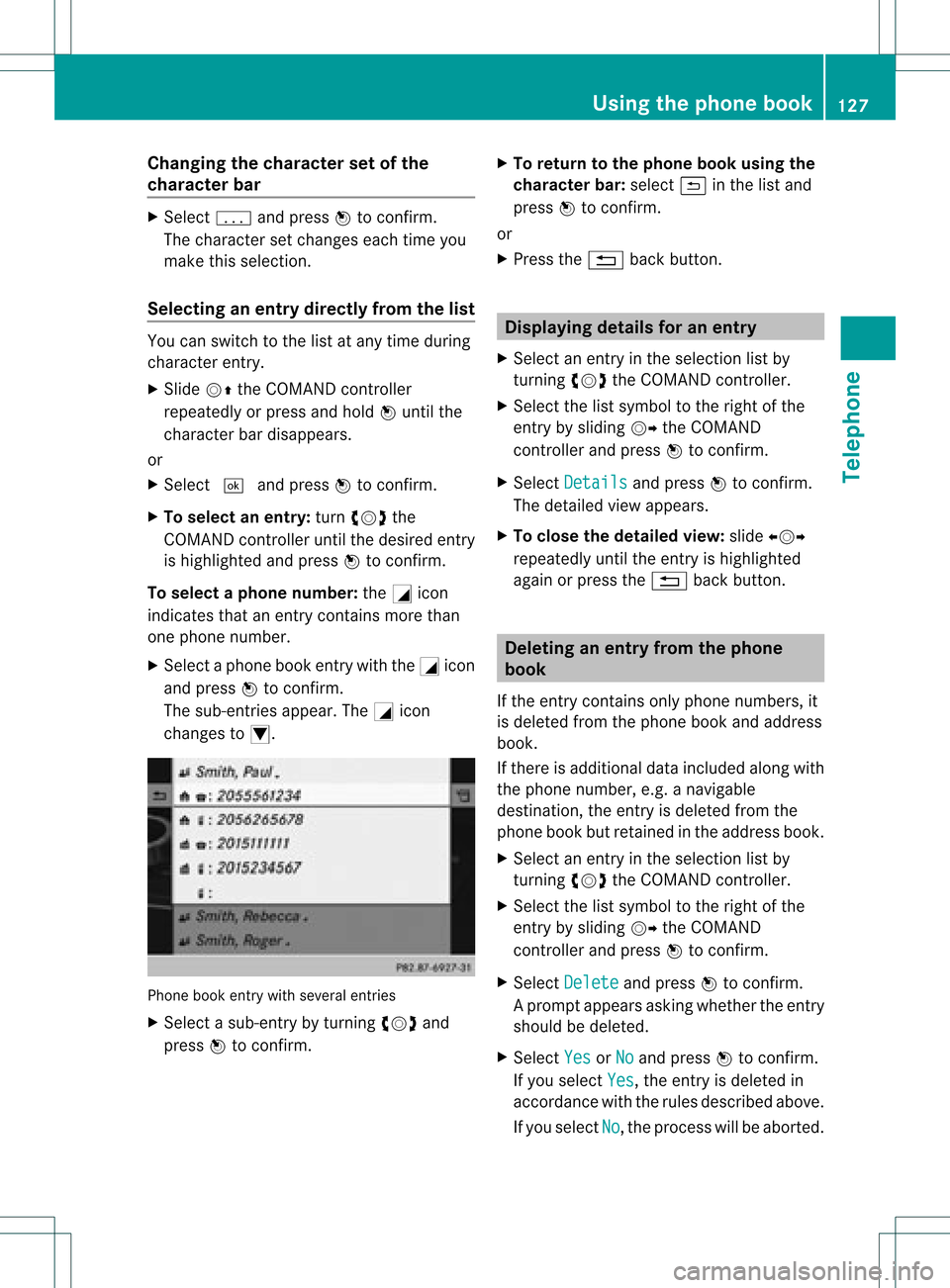
To select aphone number: theGicon
indi cates thatanentry contains morethan
one phone numbe r.
X Select aphone bookentry withtheGicon
and press Wtoconfirm.
The sub-entries appear. TheGicon
changes toI. Phone
bookentry withsevera lentries
X Select asub -entry byturning cVdand
press Wtoconfirm. X
To return tothe phone bookusin gthe
characte rbar: select& inthe listand
press Wtoconfirm.
or
X Press the% backbutton. Di
splayi ngdetails foranentry
X Select anentry inthe sele ction listby
turning cVdtheCOMAND controller.
X Select thelists ymbo lto therig ht ofthe
en try by slid ing VY theCOMA ND
co ntrol ler and pressW toconfirm .
X Se lec tDet ails and
pressW toconfirm .
The detailed viewappe ars.
X To close thedet ailed view: slideXVY
rep eatedly untilth een tryi shighlig hted
agai norpress the% backbutton. De
leti nganentry fromthephone
boo k
If the entry contains onlyphone numbers ,it
is del eted from thephone bookandaddress
book.
If there isadd itiona ldata includ edalong with
the phone number, e.g.anaviga ble
destina tion,theentry isdel eted from the
phone bookbutretained inthe add ress book.
X Select anentry inthe sele ction listby
turning cVdtheCOMAND controller.
X Select thelists ymbo lto therig ht ofthe
en try by slid ing VY theCOMA ND
co ntrol ler and pressW toconfirm .
X Se lec tDel ete and
pressW toconfirm .
Ap rompt appears asking whethe rthe entr y
should bedeleted.
X Select Yes or
No and
press Wtoconfirm .
If you select Yes ,
the entr yis deleted in
accordance withtherules described above.
If you select No ,
the process willbeaborted. Using
thephone book
127Telephone Z