2012 MERCEDES-BENZ S-Class Ata
[x] Cancel search: AtaPage 213 of 536

Adding a phone number to an address
book entryXOpen a call list and select an entry
( Y page 209).XSelect Options by sliding VY the
COMAND controller and press W to
confirm.XSelect Save Number and press W to
confirm.XSelect Add and press W to confirm.
The search menu for address book entries
appears.XSearch for the desired entry ( Y page 205).XPress W when you have finished searching.XSelect a category for the number, e.g.
Home , and press W to confirm.XSelect a category for the phone, e.g.
Cellular Phone Number , and press W to
confirm.XSelect Next (save) and press W to
confirm.
COMAND stores the data if there are fewer
than five numbers assigned to the entry you
are searching for.
You will see a message to this effect.
If five numbers are stored for the entry you
are searching for, a prompt will appear
asking whether you wish to overwrite one
of the existing numbers.XSelect Yes or No and press W to confirm.
If you select Yes, a selection list with the
five existing numbers appears.
If you select No, the process will be aborted.XSelect the number to be overwritten in the
list by turning cVd the COMAND controller
and press W to confirm.
COMAND overwrites the selected number
with the new data.Audio
Radio mode
General information
i Portable electronic devices in the vehicle
may seriously impair radio reception.
Switching to radio mode
Option 1
XPress R the function button.
The radio display appears. You will hear the
last station played on the last waveband.
Option 2
XSelect Audio in the main function bar by
sliding ZV and turning cVd the COMAND
controller and press W to confirm.
If radio mode was the last mode selected,
it will now be active.
If another audio mode is switched on, you
can now switch to radio mode in the audio
menu.XSelect Audio by sliding ZV the COMAND
controller and pressing W to confirm.
The audio menu appears.
Example display: audio menu
:Current audio operating mode;Main function bar=Audio menuXSelect FM/AM radio by turning cVd the
COMAND controller and press W to
confirm.Audio211COMANDZ
Page 217 of 536

Displaying program information
This function is only available for analog FM
and digital AM/FM programs (HD Radio).
Information relevant to the current station is
shown in the display window.
XSelect Info in the radio display by sliding
V Æ and turning cVd the COMAND
controller and press W to confirm.
Information on the currently selected
station is displayed. The contents and
purpose of the information depend on the
HD Radio station.
HD Radio
Important notes
The "HD Radio" section provides detailed
information on the following:
R special functions available exclusively for
HD Radio when compared with analog AM
and FM radio
R selecting an HD Radio station
R displaying program information
i Optional HD Radio equipment is required
to make use of the HD Radio functions
described here. Registration is not
required.
i HD Radio functions offer:
R digital transmission on the same
wavebands as analog AM/FM. The
analog AM/FM stations remain in the
same position when selecting a station.
R the ability to broadcast several program
streams over a single AM/FM frequency
(e.g. HD1, HD2 etc.)
R clear, interference free reception
R on FM stations: CD quality sound; on AM
stations: analog FM station sound quality
R a wide range of data services, text-based
information – name of artist, name of
song etc. – on the display.
For further information on HD Radio, visit
http://www.hdradio.com .
i Please note that sub-programs and
program information shown in the
illustrations are dependent on the program
broadcast by the respective radio station.
The program contents may vary. The sub-
programs and programs shown in the
illustrations in this manual may therefore
differ from the sub-programs and programs
broadcast by radio stations.
Switching on HD Radio
i As HD Radio stations are broadcast in the
AM/FM wavebands, operating HD Radio is
very similar to operating analog AM/FM
radio. This section describes only those
functions that differ from standard FM
radio functions.
Operating analog FM/AM radio is described
in the "Radio" section ( Y page 211).
You can deactivate HD Radio for the selected
frequency in the radio submenu.
XSelect Audio in the main function bar by
sliding ZV and turning cVd the COMAND
controller and press W to confirm.XSelect FM/AM Radio by sliding ZV the
COMAND controller and press W to
confirm.
The audio menu appears.XSelect Radio by sliding ZV the COMAND
controller and press W to confirm.
HD Radio is deactivated if the c check
box is empty.Audio215COMANDZ
Page 218 of 536

You hear the analog program of this
frequency.
As soon as you change to another HD Radio
frequency, the HD Radio is reactivated.
HD Radio display
1Display/selection window with frequency
display2Preset number3Name of the selected station with HD icon
and program number4Station frequency5Sound settings6FM, AM or WB radio7Program information8Station presets9Radio functions
Switching wavebands
See "Switching wavebands" in the radio mode
section ( Y page 212).
Selecting a station
You can select an HD Radio station in the
same way as selecting a standard FM radio
station. After setting an HD Radio frequency,
you will briefly hear the analog station until
the digital data has been decoded. You will
then be listening to digital radio and be able
to switch to a sub-program (-HD2).
See "Selecting stations" in the Radio mode
section ( Y page 212).
Storing stations
See "Storing stations" in the Radio mode
section ( Y page 213).
Displaying program information
XSelect Audio in the main function bar by
sliding ZV and turning cVd the COMAND
controller and press W to confirm.XSelect Audio by sliding ZV the COMAND
controller and pressing W to confirm.
The audio menu appears.XSelect HD Radio by sliding ZV the
COMAND controller and press W to
confirm.XSelect Info in the HD Radio display by
sliding ZV the COMAND controller and
press W to confirm.
Information on the currently selected
station is displayed. The contents and
purpose of the information depend on the
HD Radio station.
Satellite radio
Important notes
This section provides detailed information on
the following topics:
R selecting a channel and program category
R memory functions
R sound settings
i The satellite radio mode described below
requires optionally available satellite radio
equipment and registration with a satellite
radio provider.
i Note that the categories and channels
shown in the illustrations depend on the
program content offered by the provider.
The program contents may vary. The
illustrations and descriptions in these
operating instructions may therefore differ
from the channels and categories offered
by the provider.
216AudioCOMAND
Page 226 of 536
Selecting CD/audio DVD/MP3 discs
Selecting via the media list
XIn CD/audio DVD and MP3 mode: select
Media by sliding VÆ or turning cVd the
COMAND controller and press W to
confirm.
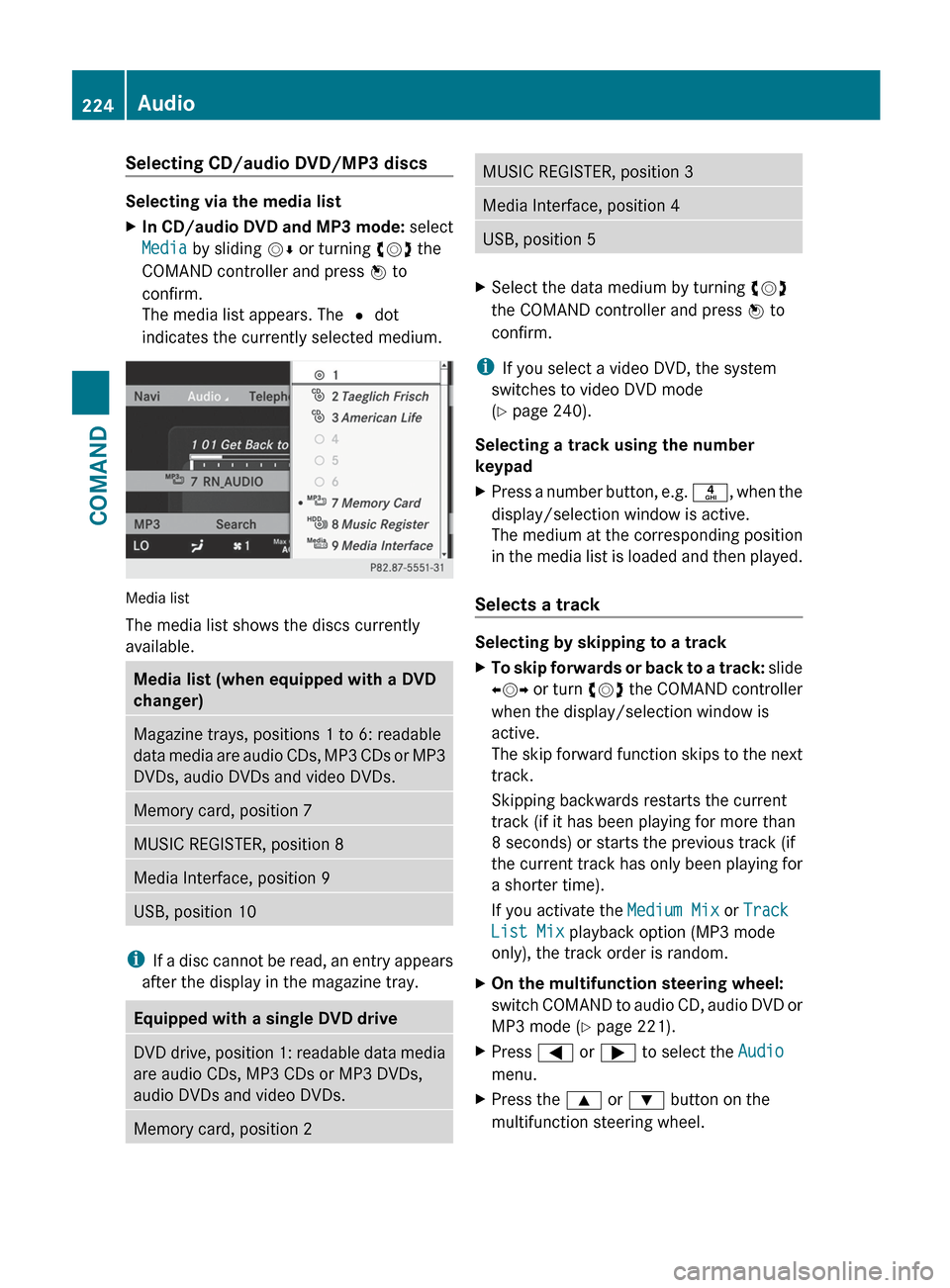
The media list appears. The # dot
indicates the currently selected medium.
Media list
The media list shows the discs currently
available.
Media list (when equipped with a DVD
changer)Magazine trays, positions 1 to 6: readable
data media are audio CDs, MP3 CDs or MP3
DVDs, audio DVDs and video DVDs.Memory card, position 7MUSIC REGISTER, position 8Media Interface, position 9USB, position 10
i If a disc cannot be read, an entry appears
after the display in the magazine tray.
Equipped with a single DVD driveDVD drive, position 1: readable data media
are audio CDs, MP3 CDs or MP3 DVDs,
audio DVDs and video DVDs.Memory card, position 2MUSIC REGISTER, position 3Media Interface, position 4USB, position 5XSelect the data medium by turning cVd
the COMAND controller and press W to
confirm.
i If you select a video DVD, the system
switches to video DVD mode
( Y page 240).
Selecting a track using the number
keypad
XPress a number button, e.g. n, when the
display/selection window is active.
The medium at the corresponding position
in the media list is loaded and then played.
Selects a track
Selecting by skipping to a track
XTo skip forwards or back to a track: slide
XVY or turn cVd the COMAND controller
when the display/selection window is
active.
The skip forward function skips to the next
track.
Skipping backwards restarts the current
track (if it has been playing for more than
8 seconds) or starts the previous track (if
the current track has only been playing for
a shorter time).
If you activate the Medium Mix or Track
List Mix playback option (MP3 mode
only), the track order is random.XOn the multifunction steering wheel:
switch COMAND to audio CD, audio DVD or
MP3 mode ( Y page 221).XPress = or ; to select the Audio
menu.XPress the 9 or : button on the
multifunction steering wheel.224AudioCOMAND
Page 227 of 536
Selecting by track listXIn audio mode, select Search by sliding
V Æ or turning cVd the COMAND
controller and press W to confirm.XSelect Current Track List .
or
XPress W the COMAND controller in audio
mode when the display/selection window
is active.XSelect Current Track List by turning
cVd the COMAND controller and press
W to confirm.XSelect the track by turning cVd and press
W to confirm.
i
In MP3 mode, the list shows all the tracks
in alphabetical order.
XOn the multifunction steering wheel:
switch COMAND to audio CD, audio DVD or
MP3 mode ( Y page 221).XPress = or ; to select the Audio
menu.XPress and hold the 9 or : button
until the desired track has been reached.
If you hold down 9 or : , the system
runs through the list more quickly. Not all
audio drives or data carriers support this
function.
If track information is stored on the audio
drive or data storage device, the
multifunction display shows the number and
name of the track.
Selecting a track using the number
keypad
XPress the Ä button on the number
keypad.
A numerical entry field appears. The
number of positions offered corresponds to
the number of tracks on the CD/DVD. Only
numbers that correspond to a track
number on the CD/DVD can be entered.XEnter the desired track number using the
number keys.Fast forward/rewindXWhile the display/selection window is
active, slide XVY and hold the COMAND
controller until the desired position has
been reached.
Music search
You can use the following characteristics to
search music:
R Keyword search
R Playlist
R Artists
R Albums
R Tracks
R Genres
R Year
XIn audio mode, select Search by sliding
V Æ or turning cVd the COMAND
controller and press W to confirm.
A selection list appears.XSelect the desired characteristic by sliding
V Æ and turning cVd the COMAND
controller and press W to confirm.
For the search, the media inserted is scanned
and the music track data is stored in a
COMAND database. A medium that has
already been scanned is not scanned again if
another search is carried out. The scanning
process may take some time for media with
a large capacity. The search can be carried
out after the scanning process is finished.
Selecting a folder
This function is only available in MP3 mode.
XSwitch on MP3 mode ( Y page 221).XSelect Search by sliding VÆ and turning
cVd the COMAND controller and press
W to confirm.XSelect Folder by sliding VÆ and turning
cVd the COMAND controller and press
W to confirm.
You will see the tracks in the folder.Audio225COMANDZ
Page 228 of 536

XSelect a track by turning cVd and press
W to confirm.
The track is played and the corresponding
folder is now the active folder.
Copying music files from audio CDs to
the hard disk
Audio files can be copied from CD to
COMAND's hard disk.
XSelect Audio by sliding VÆ and turning
cVd the COMAND controller and press
W to confirm.XSwitch on CD/audio DVD or MP3 mode
( Y page 221).XSelect a medium ( Y page 224).
The audio CD is played.XTo copy all music tracks: select REC by
sliding VÆ and turning cVd and confirm
with W.:Audio source;Destination=Total length of all tracks from the audio
source?Title selectionATo start the copying processBName of the copied dataCCancel procedure without copying filesDMedia position in the media listXSelect START by sliding VÆ and turning
cVd and confirm with W.
All music tracks from the audio CD are
copied to COMAND's MUSIC REGISTER as
MP3 files.XTo copy individual music tracks: select
Track Select. by sliding VÆ and turning
cVd and confirm with W.
The track list appears.XSelect individual tracks by turning cVd
and confirm with W.XSelect START by turning cVd and confirm
with W.
The selected music tracks from the audio
CD are copied to COMAND's MUSIC
REGISTER as MP3 files.
If the audio CD contains CD text or
Gracenote ®
data, this will be used for naming
when the tracks are copied. The data is then
copied to the MUSIC REGISTER in the
following structure: artist/album/track. The
copied titles can then be selected and played
using the music search in the MUSIC
REGISTER.
XTo delete music files: (Y page 233).
Gracenote Media Database
Introduction
This function is only available in audio CD
mode.
There is a version of the music recognition
software from Gracenote ®
, Emeryville,
California, USA on the hard disk. You will
recognize this by the logo which can be seen
in the bottom right-hand corner of certain
audio displays.
226AudioCOMAND
Page 229 of 536

Many audio CDs contain CD text. COMAND
uses the information contained therein to
display the artist, album and track name.
If the audio CD does not contain any CD text
information, COMAND can use the Gracenote
Media Database to identify unknown audio
tracks when running in audio CD mode. This
is only possible if the relevant information is
saved in the Gracenote Media Database and
if the "Gracenote Media Database" function
is activated.
If this is the case, COMAND will display the
corresponding data such as artist, album and
track name in the relevant displays and lists.
If COMAND accesses the Gracenote Media
Database when reading an audio CD, you will
see the following message:
Selecting Gracenote ®
data to be displayed
If the inserted CD does not contain any
Gracenote ®
data, the Gracenote Media
Database menu item is shown in gray and
cannot be selected.
XSwitch on audio CD mode ( Y page 221).XSelect CD by sliding VÆ and turning cVd
the COMAND controller and press W to
confirm.XSelect Gracenote Media Database by
turning cVd the COMAND controller and
press W to confirm.
Switch the function on O or off ª.
Updating Gracenote ®
music recognition
technology and the Gracenote Media
Database
The digital data on the Gracenote Media
Database becomes obsolete due to the
release of new CDs. Optimum functionality
can only be attained with up-to-date
Gracenote ®
music recognition technology.
Information about new versions can be
obtained from an authorized Mercedes-Benz
Center.
You can have your music recognition
software updated there with a DVD, or you
can update it yourself.
i The Gracenote Media Database is
updated in conjunction with the navigation
system's digital map ( Y page 188).
Setting the audio format
You can only set the audio format in audio
DVD mode. The number of audio formats
available depends on the DVD. The content of
an audio DVD is called an "album", and this
can be divided into up to nine groups. A group
can contain music in different sound qualities
(stereo and multichannel formats, for
example), or bonus tracks. Each group can
contain up to 99 tracks. If an audio DVD only
contains one audio format, the "Group" menu
item(s) cannot be selected.
XSwitch on audio DVD mode ( Y page 221).XSelect DVD-A by sliding VÆ and turning
cVd the COMAND controller and press
W to confirm.Audio227COMANDZ
Page 230 of 536

XSelect Group by turning cVd and press
W to confirm.
The list of available groups appears. The
# dot indicates the group currently
selected.XTo exit the menu: slide XVY the COMAND
controller or press the % button.
Playback options
The following options are available to you:
R Normal Track Sequence
The tracks are played in the normal order
(e.g. track 1, 2, 3, etc.).
In MP3 mode, the track order is determined
by the order in which the tracks are written
to the MP3 data carrier when it is created.
Alphabetical order is the most common.
Once all the tracks in a folder have been
played, the tracks in the next folder are
played.
R Medium Mix
All the tracks on the medium are played in
random order (e.g. track 3, 8, 5 etc.).
R Track List Mix (MP3 mode only)
All the tracks that are listed in the current
track list are played in random order.
XTo select options: switch on audio CD/
DVD or MP3 mode ( Y page 221).XSelect CD, DVD-A or MP3 by sliding VÆ and
turning cVd the COMAND controller and
press W to confirm.
The options list appears. The # dot
indicates the option selected.XSelect an option by turning cVd and press
W to confirm.
The option is switched on. For all options
except "Normal track sequence", you will
see a corresponding display in the display/
selection window. See the example of the
display in audio CD mode ( Y page 221).
i
The "Normal track sequence" option is
automatically selected when you change
the medium you are currently listening to
or when you select a different medium. If
an option is selected, it remains selected
after COMAND is switched on or off.
Notes on MP3 mode
Permissible discs
R CD-R and CD-RW
R DVD+R and DVD+RW
R DVD-R and DVD-RW
R SD memory card:
R USB stick
R iPod ®
R MP3 player
Permissible file systems
R ISO 9660/Joliet standard for CDs
R UDF for audio and video DVDs
R FAT16 or FAT32 for storage media
Multisession CDs
For multisession CDs, the content of the first
session determines how COMAND will
process the CD. COMAND plays only one
session and gives priority to the audio CD
session.
If possible, use COMAND to play only CDs
which have been written in one session.
File structure of a data carrier
When you create a disc with compressed
music files, the tracks can be organized in
folders. A folder may also contain subfolders.
A disc can contain a maximum of 255 folders.
Each folder can contain a maximum of
255 tracks and 255 subfolders.
The disc may contain no more than eight
directory levels. Files beyond the eighth level
will not be recognized by the system.
Track and file names
When you create a disc with compressed
music files, you can assign names to the
tracks and folders.
COMAND uses these names accordingly for
the display. Folders which contain data other
228AudioCOMAND