Page 350 of 681

This f unction samples the tracks in
the current search mode in the order
that they were recorded.
To activate scan, push the interface
selector down during track playback.
Turn the interf ace dial to select Scan
on the HDD AUDIO MENU, and
press ENTER on the interf ace
selector.Turn the interface dial to select the
scan icon. Press ENTER on the
interf ace selector. You will hear a 10-
second sampling of each track in the
current search mode.
TheHDDhastwotypesof the
playlists: original playlist and user
playlist. On the original playlist, the
music CD is recorded automatically
when it is played. In addition, you
can create up to six user playlists on
the HDD. In each playlist, you can
store a desired music data f rom the
original playlists or music CDs.
You can also select the scan feature
with the SCAN button on the control
panel. Press and release the SCAN
button.
To turn this feature off, press the
SCAN button again, or turn the
interf ace dial to select the OFF icon,
andpressENTERontheinterface
selector. The system begins to play
the last track sampled.
CONT INUED
Scan Playback
Making a User Playlist
Playing Hard Disc Drive (HDD) Audio (Models with navigation syst em)
Features
343
SCAN OFF ICON
SCAN ICON
Main MenuTable of Contents
Page 351 of 681
While playing music in the HDD
playback screen, push the interf ace
selector up to select MUSIC
SEARCH. You can search a track by
album, artist, track, playlist, genre,
or album record date, or you can
shuf f le all tracks.
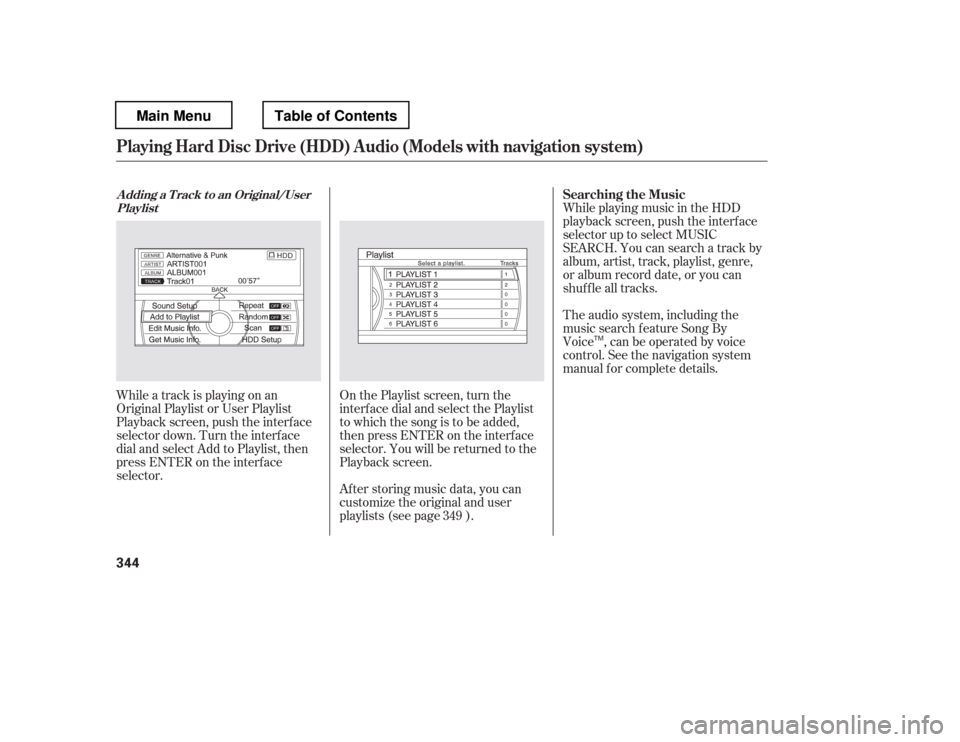
While a track is playing on an
Original Playlist or User Playlist
Playback screen, push the interf ace
selector down. Turn the interf ace
dial and select Add to Playlist, then
press ENTER on the interf ace
selector. After storing music data, you can
customize the original and user
playlists (see page ).
On the Playlist screen, turn the
interf ace dial and select the Playlist
to which the song is to be added,
then press ENTER on the interf ace
selector. You will be returned to the
Playback screen. The audio system, including the
music search f eature Song By
Voice , can be operated by voice
control. See the navigation system
manual f or complete details.
349 Searching the Music
A dding a T rack t o an Original/User
Playlist
Playing Hard Disc Drive (HDD) Audio (Models with navigation syst em)
344
TM
Main MenuTable of Contents
Page 356 of 681
The f irst track on the selected album
begins to play.After storing the data, you can
change some items: name of an artist,
play list name, track title, music
genre, order of the tracks on the
original/user playlist. You can also
delete the track or the album from
the playlist.
You cannot change the artist name,
original play list name (album name),
track name, and music genre unless
you change them on the original play
list. On the HDD audio screen, push
up the interf ace selector to select
MUSIC SEARCH. Select Albums
or Playlists by turning the
interf ace dial, then press ENTER.
Turn the interf ace dial to select
the album list or the playlist, then
press ENTER.
Push the interf ace selector down
to display the AUDIO MENU for
the playlist.
1. 2. 3.
CONT INUED
Customizing Original/User
PlaylistChanging the Order of Tracks of the
Original Playlist or User Playlist
Playing Hard Disc Drive (HDD) Audio (Models with navigation syst em)
Features
349
Main MenuTable of Contents
Page 363 of 681
On the HDD playback screen of
the album in which you want to
delete, push the interface selector
down to display the AUDIOMENU.When you delete the Original
Playlist, any tracks stored in a
User Playlist are also deleted.
Even if all the tracks are deleted
from the User Playlist, the data
f older f or that playlist cannot be
deleted, and their names (playlist
and artist) are lef t. You can store
tracks again on that playlist.
On the ‘‘Edit music Inf o.
Page 364 of 681
Select the track with the interface
dial f rom the playback screen
while it is playing. Push the
interf ace selector down to display
the AUDIO MENU.
Turn the interf ace dial and select
‘‘Edit Music Inf o.,
Page 365 of 681
You can update the Gracenote
Album Inf o (GracenoteMedia
Database) that is included with the
navigation system.
Insert the update disc into the disc
slot, or connect the USB f lash
memory device that includes the
update.
To check the HDD audio capacity,
push the interf ace selector down to
display the AUDIO MENU. Turn the
interf ace dial to select HDD Setup,
then press ENTER.
You can check the HDD Audio
capacity and remaining space as well
as the Gracenote Music Recognition
Service (CDDB) version included
with the navigation system on the
HDD Setup screen.
Push the interf ace selector down
to display the AUDIO MENU.
Turn the interf ace dial and select
Get Music Inf o., then press
ENTER.
On the ‘‘Select an Album
Page 366 of 681
Push the interf ace selector down
to select AUDIO MENU in the
HDD playback screen or CD
playback screen.
Turn the interf ace dial to select
HDD Setup, then press ENTER on
the interf ace selector.Any music, data, calendar entries,
etc. that have been stored on the
HDD can be deleted.
Press the INFO button, rotate the
interf ace dial to select ‘‘Set up,
Page 370 of 681
Playing an iPod(Models wit h navigat ion syst em)
Features
Wit hout rear ent ert ainment syst em Wit h rear ent ert ainment syst em
363
POWER/
VOLUMEKNOB
AUDIO
BUTTONINTERFACE DIAL
SKIP BAR USB/AUX
BUTTON
CANCEL
BUTTON ALBUM ART
AUDIO SCREEN
POWER/
VOLUME KNOB
AUDIO
BUTTON
SKIP BAR USB/AUX
BUTTON
CANCEL
BUTTON INTERFACE DIAL
Main MenuTable of Contents


