Page 332 of 681

The scan f unction samples all tracks
on the disc in the order they are
recordedonthedisc.
To activate scan, press the SCAN
button, or push the interf ace selector
down while playing a disc. Turn the
interf ace dial to select Scan on the
AUDIO MENU, and press ENTER
on the interf ace selector.Turn the interface dial to select the
Scan icon, and press ENTER on the
interf ace selector. You will hear a 10-
second sampling of each track on the
disc. When you return to disc mode,
the disc will begin playing f rom
where it lef t of f .
To turn this feature off, press the
SCAN button again, or turn the
interf ace dial to select the OFF icon,
andpressENTERontheinterface
selector. The system begins to play
the last track sampled.
To take the system out of the disc
mode, press one of the other source
buttons than the CD button.
You can also press the MODE
buttononthesteeringwheelto
change modes.
If you turn the system of f while a
disc is playing, either with the
power/volume knob or the ignition
switch, play will continue at the same
point when you turn it back on.
Track Scan
To Stop Playing a Disc
Playing a Disc (Models with navigation syst em)
Features
325
SCAN ICON
Main MenuTable of Contents
Page 334 of 681

Changing and Selecting the Folders/Files
Using the interf ace selector, you can
see the list of all the f olders within a
disc. While playing an MP3/WMA/
AAC disc, push the interf ace selector
up. The f older list in the currently
playing disc will appear on the screen.
If the root f older has some additional
f olders in the lower layer, they will
belistedonthescreen. Select a desired f older by turning the
interf ace dial, then press ENTER.
The screen will change to the f ile list.
Select a desired f ile and press
ENTER. The selected f ile begins to
play.
To change a f ile, turn the interf ace
dial to select a desired f ile, then
press ENTER. This f eature, when activated, replays
all f iles on the selected f older in the
order they are compressed. To
activate f older repeat play, push the
interf ace selector down while playing
a disc. Turn the interf ace dial to
select Repeat on the AUDIO MENU,
andpressENTERontheinterface
selector. Turn the interf ace dial to
select the f older repeat icon, and
press ENTER on the interf ace
selector.
CONT INUED
Folder Repeat
Playing a Disc (Models with navigation syst em)
Features
327
FOLDER LIST FOLDER REPEAT INDICATOR
FOLDER REPEAT ICON
REPEAT OFF ICON
FILE LIST
Main MenuTable of Contents
Page 335 of 681
To turn this feature off, turn the
interf ace dial to select the OFF icon,
andpressENTERontheinterface
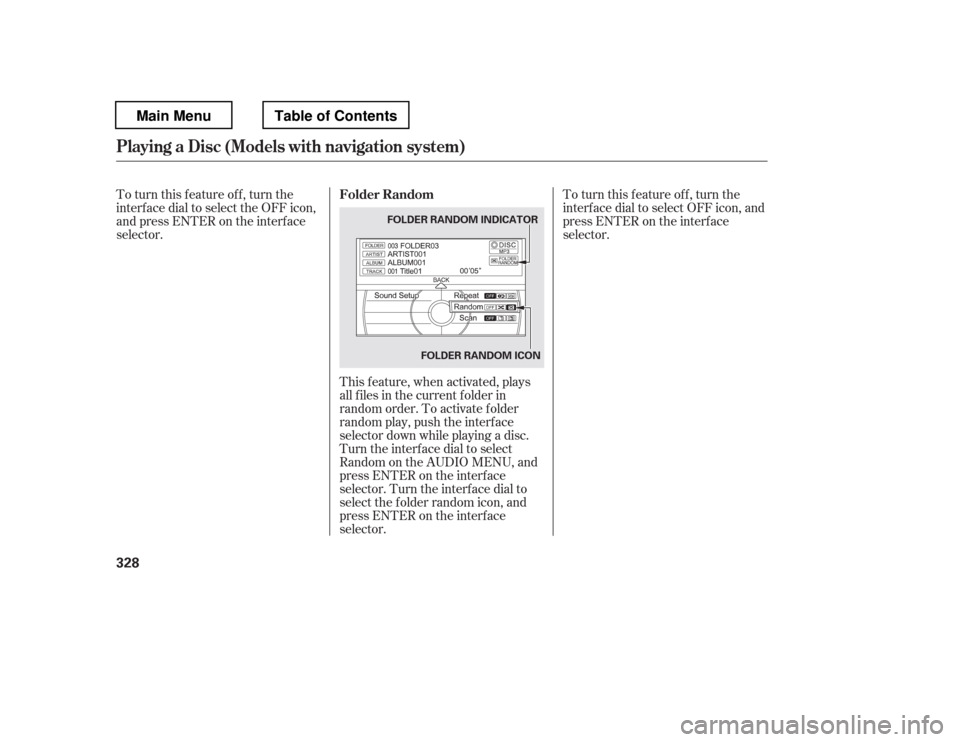
selector.This f eature, when activated, plays
all f iles in the current f older in
random order. To activate f older
random play, push the interf ace
selector down while playing a disc.
Turn the interf ace dial to select
Random on the AUDIO MENU, and
press ENTER on the interf ace
selector. Turn the interf ace dial to
select the f older random icon, and
press ENTER on the interf ace
selector. To turn this feature off, turn the
interf ace dial to select OFF icon, and
press ENTER on the interf ace
selector.
Folder Random
Playing a Disc (Models with navigation syst em)
328
FOLDER RANDOM INDICATOR
FOLDER RANDOM ICON
Main MenuTable of Contents
Page 336 of 681

This feature samples all files in the
selectedfolderintheordertheyare
stored. To activate this f eature, press
the SCAN button. You can also
select the SCAN icon with the
interf ace dial. Push the selector
down, turn the dial to select Scan on
the AUDIO MENU, then press
ENTER. Turn the dial to select the
scan icon, then press ENTER. The
system begins to play a f ile f or about
10 seconds, and continues to samplethe remaining f iles.
To turn this feature off, press and
hold the SCAN button for more than
2 seconds, or turn the interf ace dial
to select the OFF icon, and press
ENTER on the interf ace selector.
This feature, when activated,
samples the f irst f ile of each f older
f or 10 seconds. To scan a f older,
press the SCAN button repeatedly.
Or, push the interf ace selector down
while playing a disc. Turn the
interf ace dial to select Scan on the
AUDIO MENU, and press ENTER
on the interf ace selector. Turn the
interf ace dial to select the f older
scan icon, and press ENTER on the
interf ace selector.
CONT INUED
Folder Scan
File Scan
Playing a Disc (Models with navigation syst em)
Features
329
SCAN OFF ICON
FOLDER SCAN ICON
FILE SCAN ICON
Main MenuTable of Contents
Page 338 of 681

Thechartontherightexplainsthe
error messages you may see in the
center display while playing a disc.
If you see an error message in the
center display while playing a disc,
press the eject button. Af ter ejecting
the disc, check it f or damage or
deformation. If there is no damage,
insert the disc again.
Insert a dif f erent disc. If the new
disc plays, there is a problem with
the f irst disc. If the error message
cycle repeats and you cannot clear it,
take your vehicle to a dealer.
Theaudiosystemwilltrytoplaythe
disc. If there is still a problem, the
error message will reappear. Press
the eject button, and pull out the disc.
For additional information on
damaged discs, see page . Error Message Cause Solution
333
High Temperature
Track/File format not
supported
Mechanical Error
Servo Error Will disappear when the temperature returns to
normal.
Current track will be skipped. The next
supported track or file plays automatically.
Press the EJECT button and pull out the disc.
Check the disc f or serious damage, signs of
def ormation, excessive scratches, and/or dirt
(see page 333). Insert the disc again. If the code
does not disappear, or the disc cannot be
removed, consult your dealer. Do not try to
f orce the disc out of the player.
Disc Player Error Messages (Models with navigation syst em)
Features
331
HEAT ERROR
UNSUPPORTED
BAD DISC
PLEASE CHECK OWNER’S
MANUAL PUSH EJECT
BAD DISC
PLEASE CHECK OWNER’S
MANUAL
Main MenuTable of Contents
Page 339 of 681

When recording a CD-R, the
recording must be closed f or it to
be used.
CD-RW discs will not work in this
unit.
When using CD-R discs, use only
high quality discs labeled f or audiouse.
Play only standard round discs.
Odd-shaped CDs may jam in the
driveorcauseotherproblems.
Handle your discs properly to
prevent damage and skipping. When a disc is not being played,
store it in its case to protect it f rom
dust and other contamination. To
prevent warpage, keep discs out of
direct sunlight and extreme heat.
A new disc may be rough on the
inner and outer edges. The small
plastic pieces causing this roughness
can f lake of f and f all on the
recording surf ace of the disc,
causing skipping or other problems.
Remove these pieces by rubbing the
inner and outer edges with the side
of a pencil or pen.
Handle a disc by its edges; never
touch either surf ace. Do not place
stabilizer rings or labels on the disc.
These, along with contamination
f rom f ingerprints, liquids, and f elt-tip
pens, can cause the disc to not play
properly, or possibly jam in the drive.
To clean a disc, use a clean sof t cloth.
Wipe across the disc f rom the center
to the outside edge.
Never try to insert f oreign objects in
the disc player.
General Inf ormation Protecting Discs
Protecting Your Discs
332
Main MenuTable of Contents
Page 340 of 681
Examples of these discs are shown
to the right:Bubbled, wrinkled, labeled, and excessively thick discs
Damaged discs Poor quality discs
The in-dash disc player has a
sophisticated and delicate
mechanism. If you insert a damaged
disc as indicated in this section, it
maybecomestuckinsideand
damage the audio unit.
1.
2. 3.
CONT INUED
Additional Inf ormation on
Recommended Discs
Protecting Your Discs
Features
333
Sealed
Warped Burrs
Chipped/ Cracked With Label/Sticker
With Plastic
Ring
Using Printer
Label Kit
Bubbled/
Wrinkled
Main MenuTable of Contents
Page 341 of 681
Small, irregular shaped discs Discs with scratches, dirty discsCD-R or CD-RW may not play due
to the recording conditions.
Scratches and f ingerprints on the
discs may cause the sound to skip.Recommended discs are printed
with the f ollowing logo.
Audio unit may not play the
following formats.
This audio unit cannot play a Dual- disc
.
4.
5.
Protecting Your Discs
334
Fingerprints, scratches, etc.
3-inch (8-cm) CD Triangle Shape
Arrow Shape
Can Shape
Main MenuTable of Contents