Page 351 of 396
349
The system is coded in such a way that it will only
operate in your vehicle.
AUDIO SYSTEM/BLUETOOTH
01 First steps
For safety reasons, the driver must only carry out
operations which require prolonged attention while the
vehicle is stationary.
When the engine is switched o
ff and to prevent
discharging of the battery, the audio system may switch off after a few minutes.
CONTENTS
02 Steering mounted controls
03 Main menu
04 Audio
05 Using the telephone
06 Audio settings
07 Configuration
08 Screen menu maps
Frequently asked questions p.
p.
p.
p.
p.
p.
p.
p.
p.
0
351
352
35
3
363
371
372
37
3
375
Page 352 of 396
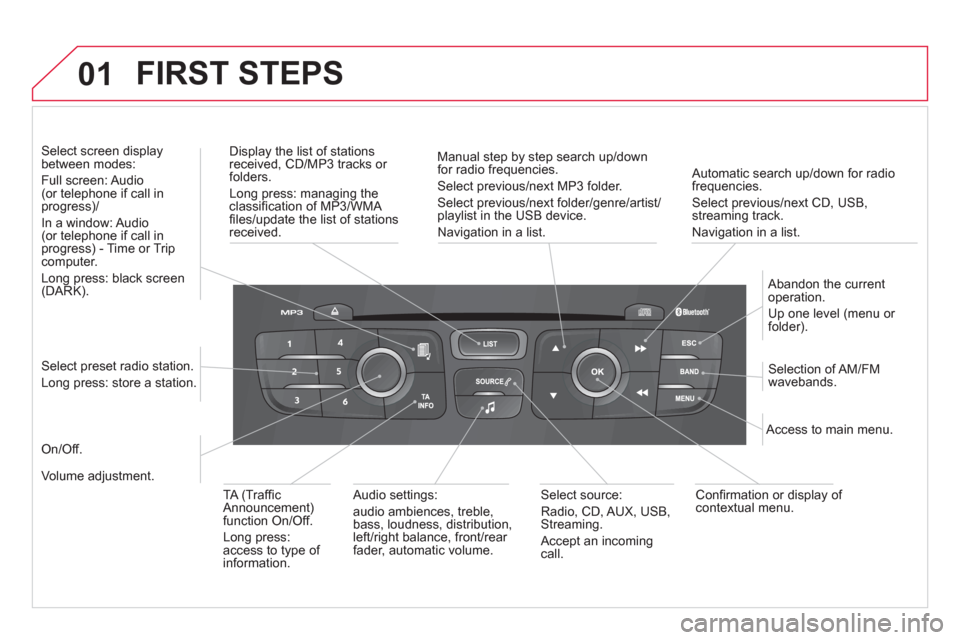
01 FIRST STEPS
Automatic search up/down for radiofrequencies.
Select previous/next CD, USB,streaming track.
Navi
gation in a list.
Displa
y the list of stationsreceived, CD/MP3 tracks or folders.
Lon
g press: managing the classifi cation of MP3/WMA fi les/update the list of stationsreceived.
Abandon the current
operation.
Up one level (menu or folder).
On/Off.
Selection of AM/FM wavebands.Select preset radio station.
Long press: store a station.
Select screen display between modes:
Full screen: Audio(or telephone if call in
progress)/
In a window: Audio (or telephone if call in
progress) - Time or Tripcomputer.
Long press: black screen (DARK).
Audio settings:
audio ambiences, treble,
bass, loudness, distribution,
le
ft/right balance, front/rear fader, automatic volume.
Access to main menu.
TA
(Traffi cAnnouncement) function On/Off.
Lon
g press:
access to type of
information.
Select source:
Radio, CD, AUX, USB,Streaming.
Accept an incomin
gcall.
Confi rmation or display of contextual menu.
Manual step b
y step search up/downfor radio frequencies.
Select previous/next MP3 folder.
Select previous/next folder/genre/artist/playlist in the USB device.
Navigation in a list.
Volume ad
justment.
Page 353 of 396
02
351
STEERING MOUNTED CONTROLS
- Change the audio source.
Lon
g press: mute.
- In
crease volume.
- D
ecrease volume.
- Radio: displa
y the list of stations.
Media: displa
y the list of tracks.
Lon
g press: update the list of stations received.
- R
otation:
Radio: search for the
previous/nextstation.
Media: previous
/next track.
Pr
ess: confi rmation. -
Access to telephone menu:
Dial
/Directory/Calls list/Voice mail box.
- M
ove in the menus.
Pr
ess: confi rmation.
- Abandon the current operation.
Page 354 of 396
03
"Multimedia": Media parameters, Radio parameters.
"Trip computer ": Warning log. r
For a detailed global view of the menusavailable, refer to "Screen menu map"in this section.
"Bluetooth connection
": Connections management, Search for a device.
" Telephone
": Call, Directorymanagement, Telephone management, Hang up.
MAIN MENU
"Personalisation-confi guration": Defi ne the vehicle parameters, Choice of language, Display confi guration, Choice of units, Date andtime adjustment. > SCREEN C
Page 364 of 396
04
1
2
1
2
3
4
5
AUDIO
STREAMING - PLAYING AUDIO FILES
VIA BLUETOOTH
Depending on the compatibility of the phone
Pair
/connect the telephone: see the "USING THE
TELEPHONE" section.
Streaming allows music fi les on a telephone to be heard via the
vehicle's speakers.
The telephone must support the appropriate bluetooth pro
fi les (Profi les A2DP/AV RCP).
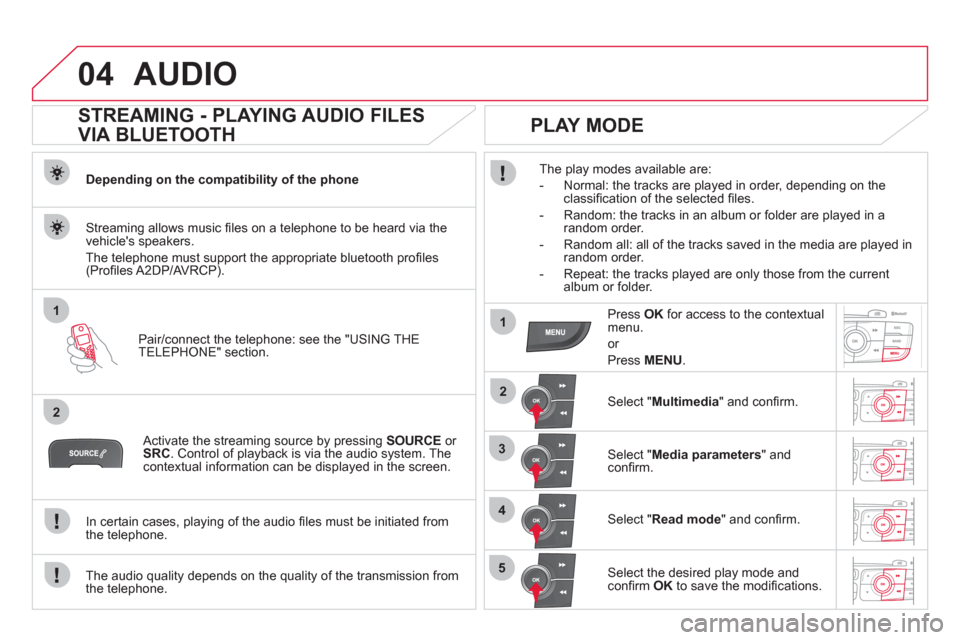
Activate the streaming source by pressing SOURCEor
SRC
. Control of playback is via the audio system. Thecontextual information can be displayed in the screen.
In certain cases, pla
ying of the audio fi les must be initiated from
the telephone.
The audio quality depends on the quality o
f the transmission from
the telephone.
PLAY MODE
The play modes available are:
- Normal: the tracks are pla
yed in order, depending on theclassifi cation of the selected fi les.
- Random: the tracks in an album or
folder are played in arandom order.
- Random all: all o
f the tracks saved in the media are played inrandom order.
- Repeat: the tracks pla
yed are only those from the currentalbum or folder.
Press OKfor access to the contextualmenu.
or
Pr
ess MENU.
Select "Multimedia" and confi rm.
Select "Media parameters
" and confi rm.
Select "Read mode
" and confi rm.
Select the desired play mode and confi rm OKto save the modifi cations.
Page 365 of 396
363
05
1
25
3
4
6
USING THE TELEPHONE
PAIRING A TELEPHONE
FIRST CONNECTION
The services offered depend on the network, the SIM card and the compatibility of the Bluetooth telephone used.
Consult
your telephone's manual and your operator to fi nd out which services are available to you.
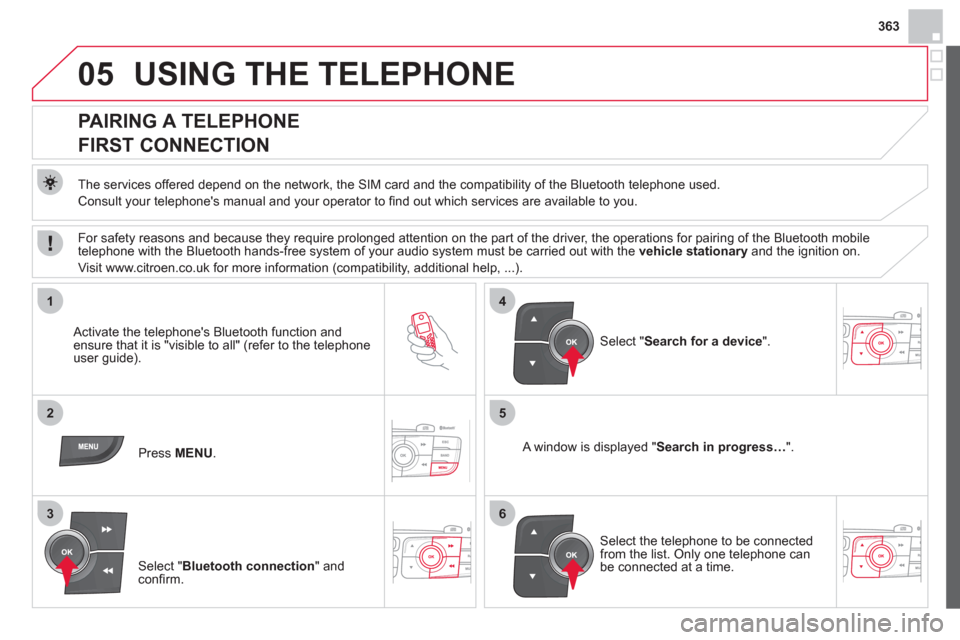
Activate the telephone's Bluetooth function andensure that it is "visible to all" (refer to the telephone
user guide).
Pr
ess MENU . A window is displayed "Search in progress…".
Select the telephone to be connected from the list. Only one telephone can be connected at a time.
Select " Search for a device".
For safety reasons and because they require prolonged attention on the part of the driver, the operations for pairing of the Bluetooth mobile
telephone with the Bluetooth hands-free system of your audio system must be carried out with the vehicle stationaryand the ignition on.
Visit www.citroen.co.uk for more information
(compatibility, additional help, ...).
Select " Bluetooth connection" andconfi rm.
Page 366 of 396
05
7
8
Saisir code authentification
01
OK Del23456789 _
9
10
USING THE TELEPHONE
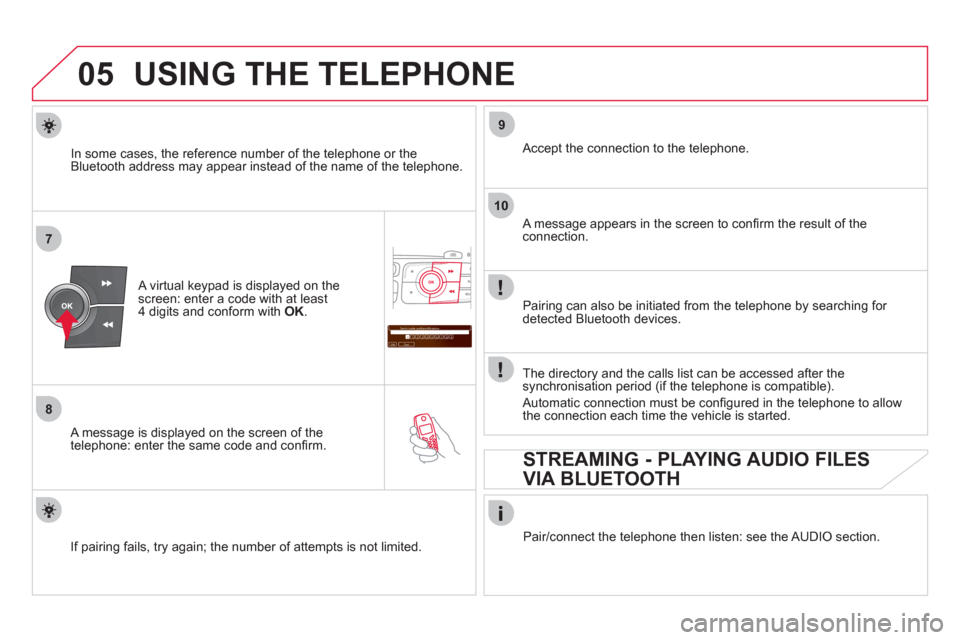
A virtual keypad is displayed on the screen: enter a code with at least
4 digits and conform with OK .
A message is displayed on the screen of the
telephone: enter the same code and confi rm.
A message appears in the screen to confi rm the result of the connection.
Pairin
g can also be initiated from the telephone by searching for detected Bluetooth devices.
Accept the connection to the telephone.
I
f pairing fails, try again; the number of attempts is not limited. The director
y and the calls list can be accessed after thesynchronisation period (if the telephone is compatible).
Automatic connection must be confi gured in the telephone to allow
the connection each time the vehicle is started.
In some cases, the reference number of the tele
phone or the
Bluetooth address may appear instead of the name of the telephone.
Pair
/connect the telephone then listen: see the AUDIO section.
STREAMING - PLAYING AUDIO FILES
VIA BLUETOOTH
Page 367 of 396
365
1
2
3
4
05
5
USING THE TELEPHONE
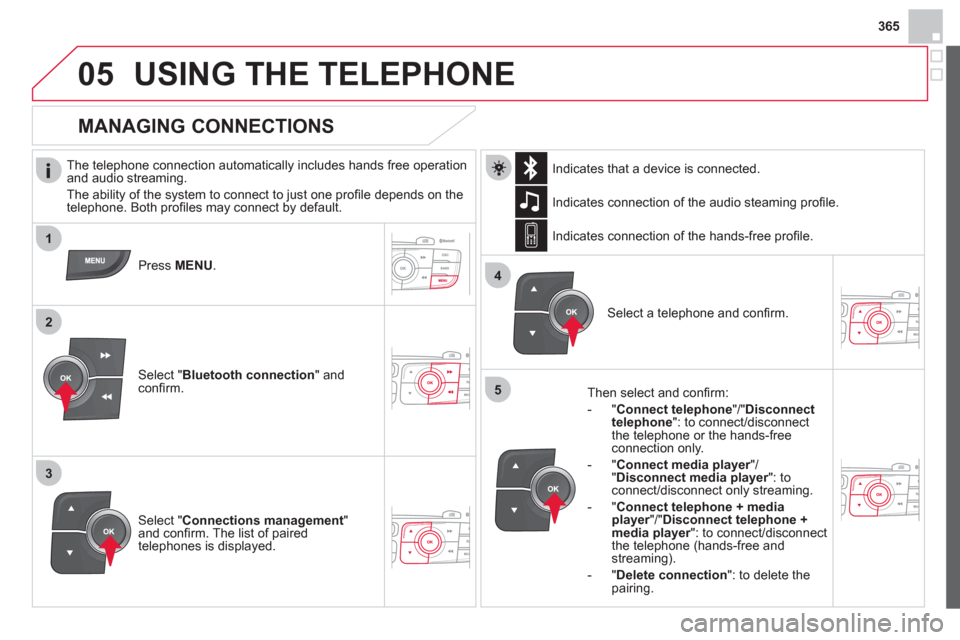
The telephone connection automatically includes hands free operation
and audio streaming.
The ability o
f the system to connect to just one profi le depends on the
telephone. Both profi les may connect by default.
Press MENU .
Select " Bluetooth connection" andconfi rm. Indicates connection of the audio steamin
g profi le.
MANAGING CONNECTIONS
Select " Connections management"and confi rm. The list of paired
telephones is displayed.
Select a telephone and confi rm. Indicates connection o
f the hands-free profi le.
Th
en select and confi rm:
- " Connect telephon
e
"/"Disconnect
telephone ": to connect/disconnect
the telephone or the hands-free
connection only.
-
"Connect media player"/r" Disconnect media player": to rconnect/disconnect only streaming.
- " Connect tele
phone + mediaplayer
"/"rDisconnect telephone +media player
": to connect/disconnect rthe telephone (hands-free andstreaming).
-
"Delete connection ": to delete the pairing. In
dicates that a device is connected.


