Page 358 of 396
04
1
2
3
AUDIO
AUDIO CD
Insert 12 cm diameter circular compact discs only.
Some anti-piratin
g systems, on original discs or CDs copied using apersonal recorder, may cause faults which are no refl ection on thequality of the original player.
Without pressing the EJECT
button, insert a CD in the player, playbegins automatically.
To play a disc which has already beeninserted, press the SOURCEor SRCbutton several times in succession and select " CD".
Pr
ess one of the buttons to select a
track on the CD.
PLAYING A CD
Pr
ess LIST
to display the list of trackson the CD.
Pr
ess and hold one of the buttons for fast forward or backward.
Page 359 of 396

357
04AUDIO
CD, USB
INFORMATION AND ADVICE
On a single disc, the CD player can read up to 255 MP3 fi les spread
over 8 directory levels. However, it is recommended that this be kept
to 2 levels so as to limit the time taken to access and play the CD.
Durin
g play, the folder structure is not observed.
In order to be able to pla
y a recorded CDR or CDRW, when recordingit is preferable to select standards ISO 9660 level 1.2 or Joliet.
If the disc is recorded in another format, it ma
y not be played correctly.
It is recommended that the same recording standard is always usedfor an individual disc, with as low a speed as possible (4x maximum)for optimum sound quality.
In the particular case o
f a multi-session CD, the Joliet standard is
recommended.
Do not connect a hard disk or U
SB device other than audio players to
the USB port. This may cause damage to your installation.
The audio system will only play
fi les with extension ".mp3" or ".wma"
and a compression rate that is constant or variable between 32 Kbps
and 320 Kbps.
It is advisable to restrict fi le names to 20 characters without usin
gspecial characters (e.g. " ? ; ù) to avoid any playing or displaying problems.
The pla
ylists accepted are types .m3u and .pls.
The number o
f fi les is limited to 5 000 in 500 directories on a maximum of 8 levels.
Page 360 of 396

04
1
3
2
4
5
CD, USB
AUDIO
PLAYING A COMPILATION
Insert an MP3 compilation in the
CD player or connect a memory stick to the USB port, directly or
via an extension lead.
The s
ystem creates playlists (temporary memory) the creation time
for which can take from a few seconds to several minutes.
The pla
ylists are updated every time the ignition is switched off or aUSB memory stick is connected.
Pla
y starts automatically after a period which depends on the capacity of the USB memory stick.
At a fi rst connection, the order suggested is by folder.When connecting again, the order previously chosen is retained.
To play a disc or memory stick whichhas already been inserted, press
SOURCE
or SRC
several times insuccession and select " CD" or "USB".
Pr
ess one of the buttons to select the next or previous track.
Pr
ess one of the buttons to select the next or previous folder in the order chosen.
Pr
ess and hold one of the buttons for
fast forwards or backwards.
Press LISTto display the menu of folders in the compilation.
Page 361 of 396
359
7
6
8
9
2
1
04
Select a line in the list.
Select a track or a folder.
Jump a pa
ge. Up a level in the menu.
AUDIO
USB MEMORY STICK - FILE
CLASSIFICATION
Having selected the desired classifi cation (" By folders", " By artists", " By genres", " Byplaylists
") press OK.
Then confi rm OKto save the modifi cations.
-
By folders: all folders containing audiofi les recognised on the peripheral device, in alphabetical order without following the folder structure.
-
By artists
: all of the artist names defi ned in the ID3 Tags, in alphabetical order.
-By genres
: all of the genres defi ned in the ID3 Tags.
-
By playlists
: if playlists have been saved.
Make a long press on LISTor press
MENU , select " Multimedia
", then
" Media parameters" and fi nally "Choice of track listing
" to display the differentclassifi cations.
Page 362 of 396
04AUDIO
APPLE ®
PLAYERS or PORTABLE PLAYER
Management of the device is via the audio system controls.
The audio
fi les on a Mass Storage portable player *
can
be heard through the vehicle's speakers by connectingit to the USB port (cable not supplied).
If the portable pla
yer is not recognised by the USB port,connect it to the auxiliary Jack socket.The Apple
Æ player must be updated regularly for the bestÆ
connection.
The pla
ylists are those defi ned in the Apple Æplayer.
The Apple
Æplayer must be generation 5 or later.
*
Check your player's manual.
Page 363 of 396
361
3
2
4
04
1
AUDIO
AUXILIARY SOCKET (AUX)
AUXILIARY JACK SOCKET
Do not connect a device to the USB port and to the auxiliar
yJack socket at the same time. The auxiliar
y Jack socket permits the connection of a portable
non-mass storage device or an Apple® player if not recognised ®
by the USB port.
Connect the portable device to the auxiliary Jack socket using a suitable cable (not supplied). Pr
ess the SOURCEor SRCbutton several times in succession and select "AUX".
First adjust the volume on your portable device.
Then ad
just the volume of the audio
system.
The displa
y and management of controls is on theportable device.
Page 364 of 396
04
1
2
1
2
3
4
5
AUDIO
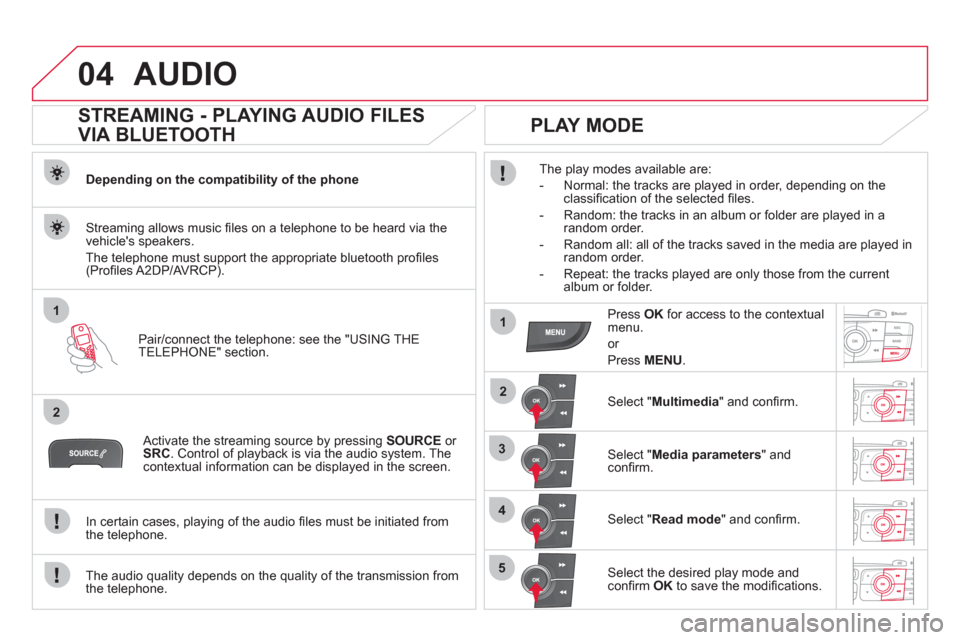
STREAMING - PLAYING AUDIO FILES
VIA BLUETOOTH
Depending on the compatibility of the phone
Pair
/connect the telephone: see the "USING THE
TELEPHONE" section.
Streaming allows music fi les on a telephone to be heard via the
vehicle's speakers.
The telephone must support the appropriate bluetooth pro
fi les (Profi les A2DP/AV RCP).
Activate the streaming source by pressing SOURCEor
SRC
. Control of playback is via the audio system. Thecontextual information can be displayed in the screen.
In certain cases, pla
ying of the audio fi les must be initiated from
the telephone.
The audio quality depends on the quality o
f the transmission from
the telephone.
PLAY MODE
The play modes available are:
- Normal: the tracks are pla
yed in order, depending on theclassifi cation of the selected fi les.
- Random: the tracks in an album or
folder are played in arandom order.
- Random all: all o
f the tracks saved in the media are played inrandom order.
- Repeat: the tracks pla
yed are only those from the currentalbum or folder.
Press OKfor access to the contextualmenu.
or
Pr
ess MENU.
Select "Multimedia" and confi rm.
Select "Media parameters
" and confi rm.
Select "Read mode
" and confi rm.
Select the desired play mode and confi rm OKto save the modifi cations.
Page 369 of 396
367
1
2
1
4
2
3
05USING THE TELEPHONE
Repeat the previous step 1to display
the " TELEPHONE" menu.
Select "Directory
" and confi rm.
An incoming call is announced by a ring and a superimposed displayin the multifunction screen.
M
obile
(depending on the informationavailable in the contact records of
the telephone connected).
"YES " to accept the call is selected by default.
Pr
ess OK
to accept the call.
Select " NO
" and confi rm to reject thecall.
or
Press one of these buttons to accept
t
he call.
MAKING A CALL - FROM THE DIRECTORY
Select a contact then confi rm.
RECEIVING A CALL
Select the number and confi rm.
A long press on ESC
or on TEL ,
SOURCEor SRCalso rejects an
incoming call.
Business
Home


