Page 275 of 340

273
The MyWay is protected in such a way that it will only
operate in your vehicle. If it is to be installed in another
vehicle, contact a CITROËN dealer for confi guration of
the system.
Certain functions described in this handbook will
become available during the year.
MYWAY
For safety reasons, the driver must carry out operations
which require prolonged attention while the vehicle is
stationary.
When the engine is switched off and to prevent
discharging of the battery, the MyWay switches off
following the activation of the Energy Economy mode.
MULTIMEDIA AUDIO SYSTEM/BLUETOOTH TELEPHONE
SATELLITE NAVIGATION SYSTEM FOR EUROPE BY SD CARD
01 First steps
CONTENTS
02 Steering mounted controls
03 General operation
04 Navigation - Guidance
05 Traffic information
06 Radio
07 Music media players
08 Bluetooth telephone
09 Configuration
10 Trip computer p.
p.
p.
p.
p.
p.
p.
p.
p.
p.
11 Screen menu map
Frequently asked questions p.
p. 274
275
276
279
287
289
290
293
295
296
297
301
Page 276 of 340

01
1
5
10 234 6
1311
9
14 157812 16
274
1. Engine not running
- Short press: on/off.
- Long press: CD pause, mute for the radio.
Engine running
- Short press: CD pause, mute for the radio.
- Long press: reinitialisation of the system.
2.
Volume adjustment (each source is
independent, including also navigation
messages and alerts).
3. Access to the "Radio" Menu. Display the list of
stations.
4. Access to the "Music" Menu. Display the tracks.
5. Access to the "SETUP" menu.
Long press: access to the GPS coverage and the
demonstration mode.
6. Access to the "Phone" Menu. Display the call list.
7. Access to the "MODE" menu.
Selection of the successive display of:
Radio, Map, NAV (if navigation is in progress),
Telephone (if a conversation is in progress),
Trip computer.
Long press: display of a black screen (DARK).
8. Access to the "Navigation" Menu. Display the last
destinations.
9. Access to the "Traffi c" Menu. Display the current
traffi c alerts.
10. ESC: abandon the operation in progress.
11 . CD eject.
12. Selection of the previous/next radio station from
the list.
Selection of the previous/next MP3 folder.
Selection of the previous/next page of a list.
13. Selection of the previous/next radio station.
Selection of the previous/next CD or MP3 track.
Selection of the previous/next line of a list.
14. Buttons 1 to 6:
Selection of the stored radio station.
Long press: store the current radio station.
15. SD card reader (navigation SD card only).
16. Dial for selection of the screen display and
according to the context of the menu
Short press: contextual menu or confi rmation.
Long press: contextual menu specifi c to the
list displayed.
FIRST STEPS
MyWay CONTROL PANEL
3 - 4. Long press: access to the audio settings:
front/rear fader and left/right balance, bass/
treble, equaliser, loudness, automatic volume
adjustment, initialise the settings.
Page 277 of 340

02
LISTMENU
1
2
4
3
5
6
7
8
9
10
11
275
STEERING MOUNTED CONTROLS
1. Successive presses: "Black
Panel" mode - black screen
(night driving).
2. Short press to make a telephone call.
Pick up/Hang up.
Access the telephone menu.
Display the calls list.
Long press to reject an incoming call.
3. Rotation: provides access to the short-cut menus depending on
the display on the screen.
Short press: confi rm the choice displayed on the screen.
Long press: return to the main menu.
4. Short press: abandon the current operation.
Reject an incoming call.
Long press: return to the initial display.
5. Menu: provides access to the main menu.
6. VOL +: volume increase.
7. VOL -: volume decrease.
8. Successive presses: mute/restore sound.
9. Short press: Radio: higher frequency.
Music players: next track.
Long press for fast play.
10. Short press: Radio: lower frequency.
Music players: previous track.
Long press for fast play.
11. Short press: display the list of radio frequencies available or
the list of tracks, albums, folders.
Long press: update the list of stations received.
Press: repeat the current
navigation instruction.
Successive presses: selection
of the type of information
present on the screen.
Page 278 of 340
03
276
GENERAL OPERATION
For a detailed global view of the menus available, refer to the
"Screen menu map" section.
Press the MODE button several times in succession for access to the following menus:
For cleaning the screen, the use of a soft, non-abrasive cloth
(spectacles cloth) is recommended, with no additional product.
RADIO /
MUSIC MEDIA
PLAYERS
TELEPHONE
(If a conversation is in progress)
FULL SCREEN MAP
NAVIGATION
(If guidance is in progress)
SETUP:
system language * , date and time * , display,
vehicle settings * , unit and system settings,
"Demo mode".
TRAFFIC:
TMC information and messages.
*
Available according to model.
TRIP COMPUTER
Page 280 of 340
03
278
GENERAL OPERATION
DISPLAY ACCORDING TO THE CONTEXT
FULL SCREEN MAP:
Abort guidance /Resume guidance
Set destination
POIs nearby
Position info
Map settings
Zoom/Scroll
1
1
1
1
1
1
RADIO:
In FM mode
Traffi c info (TA)
RDS
Radiotext
Regional prog.
In AM mode AM
TA
Refresh AM list
FM
1
2
1
2
2
2
2
2
2
2
Page 290 of 340
05
2 1
3
2 1
288
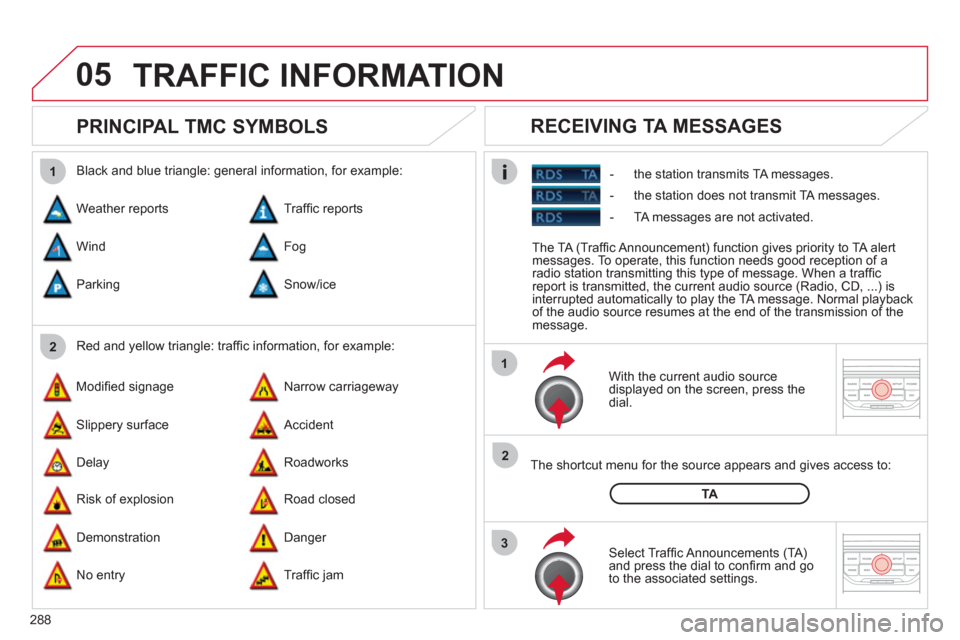
PRINCIPAL TMC SYMBOLS
With the current audio source
displayed on the screen, press the
dial.
The shortcut menu for the source appears and gives access to:
Select Traffi c Announcements (TA)
and press the dial to confi rm and go
to the associated settings.
TA
- the station transmits TA messages.
RECEIVING TA MESSAGES
Red and yellow triangle: traffi c information, for example:
Black and blue triangle: general information, for example:
Weather reports
Modifi ed signage
Risk of explosion Traffi c reports
Narrow carriageway
Road closed Wind
Slippery surface
Demonstration Fog
Accident
Danger Parking
Delay
No entry Snow/ice
Roadworks
Traffi c jam
TRAFFIC INFORMATION
The TA (Traffi c Announcement) function gives priority to TA alert
messages. To operate, this function needs good reception of a
radio station transmitting this type of message. When a traffi c
report is transmitted, the current audio source (Radio, CD, ...) is
interrupted automatically to play the TA message. Normal playback
of the audio source resumes at the end of the transmission of the
message.
- the station does not transmit TA messages.
- TA messages are not activated.
Page 291 of 340
06
3 2 1 1
289
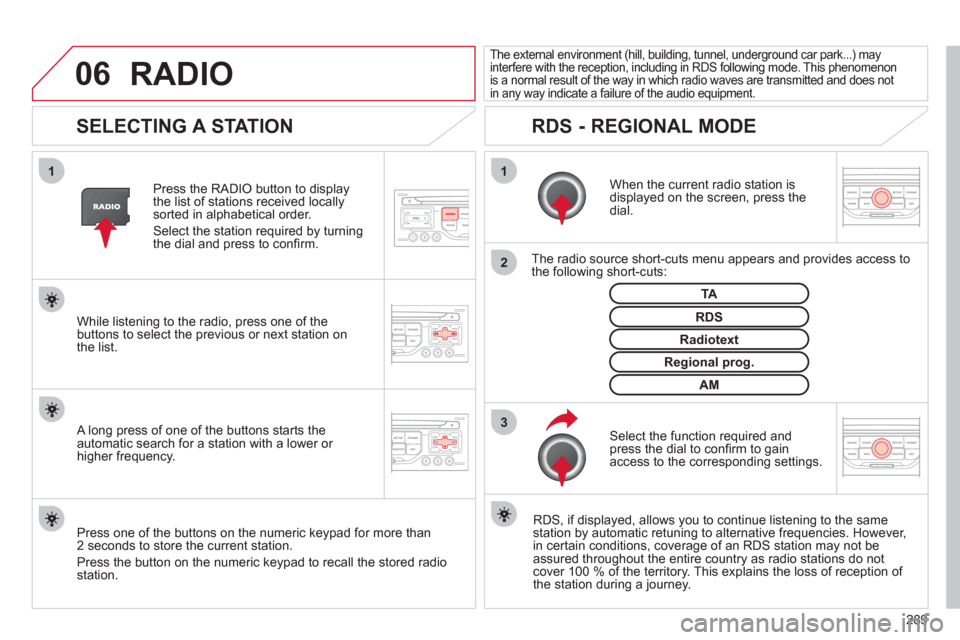
SELECTING A STATION
When the current radio station is
displayed on the screen, press the
dial.
The radio source short-cuts menu appears and provides access to
the following short-cuts:
Select the function required and
press the dial to confi rm to gain
access to the corresponding settings.
TA
RDS, if displayed, allows you to continue listening to the same
station by automatic retuning to alternative frequencies. However,
in certain conditions, coverage of an RDS station may not be
assured throughout the entire country as radio stations do not
cover 100 % of the territory. This explains the loss of reception of
the station during a journey.
The external environment (hill, building, tunnel, underground car park...) may
interfere with the reception, including in RDS following mode. This phenomenon
is a normal result of the way in which radio waves are transmitted and does not
in any way indicate a failure of the audio equipment.
RDS - REGIONAL MODE
Press the RADIO button to display
the list of stations received locally
sorted in alphabetical order.
Select the station required by turning
the dial and press to confi rm.
Regional prog.
Radiotext
RDS
While listening to the radio, press one of the
buttons to select the previous or next station on
the list.
Press one of the buttons on the numeric keypad for more than
2 seconds to store the current station.
Press the button on the numeric keypad to recall the stored radio
station.
AM
A long press of one of the buttons starts the
automatic search for a station with a lower or
higher frequency.
RADIO
Page 299 of 340
11
RADIO
297
SCREEN MENU MAP
"Traffic" Menu
Messages on route
Only warnings on route
All warning messages
All messages
Within
2 miles (3 km)
Geo. Filter
Within
3 miles (5 km)
Within
6 miles (10 km)
Within
30 miles (50 km)
Within 60 miles (100 km)
"Music" Menu
Select music
Sound settings
Balance/Fader
Bass/Treble
Linear
Equalizer
Classic
Jazz
Rock/Pop
Techno Vocal
Loudness
Speed dependent volume
Reset sound settings
"Radio" Menu
Waveband
AM
Linear
FM
Manual tune
Sound settings
Balance/Fader
Bass/Treble
Equalizer
MAIN FUNCTION
OPTION A
option A1
option A2
OPTION B...
1
2
3
1
2
4
1
2
3
4
3
3
3
3
2
2
2
2
4
4
4
4
4
3
3
3
3
3
2
3
2
2
3
3
3
3
1
2
3
2
3


