2012 Citroen C5 RHD radio
[x] Cancel search: radioPage 303 of 340

301
FREQUENTLY ASKED QUESTIONS
QUESTION
ANSWER
SOLUTION
There is a difference in
sound quality between
the different audio
sources (radio, CD...). For optimum sound quality, the audio settings (Volume, Bass, Treble,
Ambience, Loudness) can be adapted to the different sound sources,
which may result in audible differences when changing source
(radio, CD...). Check that the audio settings (Volume, Bass,
Treble, Ambience, Loudness) are adapted to
the sources listened to. It is advisable to set
the AUDIO functions (Bass, Treble, Front-Rear
Balance, Left-Right Balance) to the middle
position, select the Linear musical ambience and
set the loudness correction to the "Active" position
in CD mode or to the "Inactive" position in radio
mode.
The CD is ejected
automatically or is not
played by the player. The CD is inserted upside down, is unplayable, does not contain any
audio data or contains an audio format which the player cannot play.
The CD is protected by an anti-pirating protection system which is not
recognised by the audio equipment.
- Check that the CD is inserted in the player
the right way up.
- Check the condition of the CD: the CD cannot
be played if it is too damaged.
- Check the content in the case of a recorded
CD: consult the advice in the Audio section.
- The audio equipment's CD player does not
play DVDs.
- Because of their quality level, certain
writeable CDs will not be played by the audio
system.
The CD player sound is
poor. The CD used is scratched or of poor quality. Insert good quality CDs and store them in suitable
conditions.
The audio equipment settings (bass, treble, ambiences) are unsuitable. Set the treble or bass level to 0, without selecting
an ambience.
Page 304 of 340
302
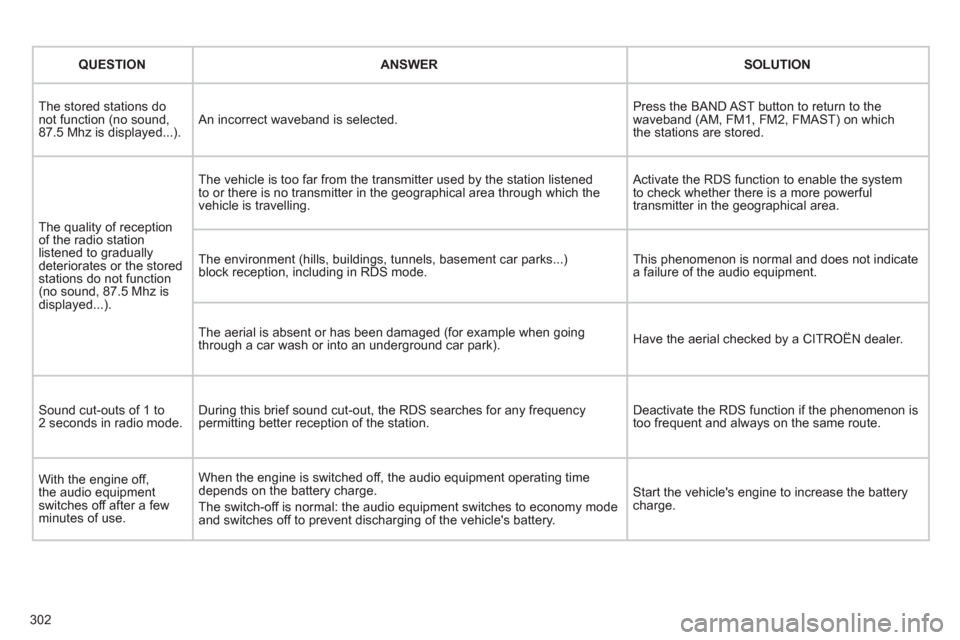
QUESTION
ANSWER
SOLUTION
The stored stations do
not function (no sound,
87.5 Mhz is displayed...). An incorrect waveband is selected. Press the BAND AST button to return to the
waveband (AM, FM1, FM2, FMAST) on which
the stations are stored.
The quality of reception
of the radio station
listened to gradually
deteriorates or the stored
stations do not function
(no sound, 87.5 Mhz is
displayed...). The vehicle is too far from the transmitter used by the station listened
to or there is no transmitter in the geographical area through which the
vehicle is travelling. Activate the RDS function to enable the system
to check whether there is a more powerful
transmitter in the geographical area.
The environment (hills, buildings, tunnels, basement car parks...)
block reception, including in RDS mode. This phenomenon is normal and does not indicate
a failure of the audio equipment.
The aerial is absent or has been damaged (for example when going
through a car wash or into an underground car park). Have the aerial checked by a CITROËN dealer.
Sound cut-outs of 1 to
2 seconds in radio mode. During this brief sound cut-out, the RDS searches for any frequency
permitting better reception of the station. Deactivate the RDS function if the phenomenon is
too frequent and always on the same route.
With the engine off,
the audio equipment
switches off after a few
minutes of use. When the engine is switched off, the audio equipment operating time
depends on the battery charge.
The switch-off is normal: the audio equipment switches to economy mode
and switches off to prevent discharging of the vehicle's battery. Start the vehicle's engine to increase the battery
charge.
Page 308 of 340
306
01
1 2
1011
13 14 153456 789
12
FIRST STEPS
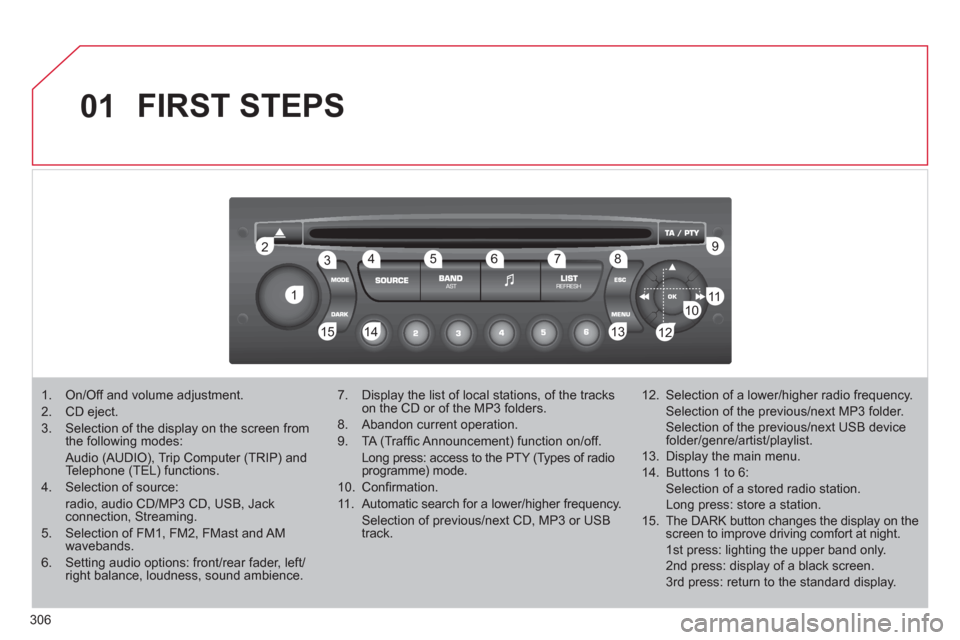
1. On/Off and volume adjustment.
2. CD eject.
3. Selection of the display on the screen from
the following modes:
Audio (AUDIO), Trip Computer (TRIP) and
Telephone (TEL) functions.
4. Selection of source:
radio, audio CD/MP3 CD, USB, Jack
connection, Streaming.
5. Selection of FM1, FM2, FMast and AM
wavebands.
6. Setting audio options: front/rear fader, left/
right balance, loudness, sound ambience.
7. Display the list of local stations, of the tracks
on the CD or of the MP3 folders.
8. Abandon current operation.
9. TA (Traffi c Announcement) function on/off.
Long press: access to the PTY (Types of radio
programme) mode.
10. Confi rmation.
11. Automatic search for a lower/higher frequency.
Selection of previous/next CD, MP3 or USB
track.
12. Selection of a lower/higher radio frequency.
Selection of the previous/next MP3 folder.
Selection of the previous/next USB device
folder/genre/artist/playlist.
13. Display the main menu.
14. Buttons 1 to 6:
Selection of a stored radio station.
Long press: store a station.
15. The DARK button changes the display on the
screen to improve driving comfort at night.
1st press: lighting the upper band only.
2nd press: display of a black screen.
3rd press: return to the standard display.
Page 309 of 340
307
02
LISTMENU
1
2
4
3
5
6
7
8
9
9
10
STEERING MOUNTED CONTROLS
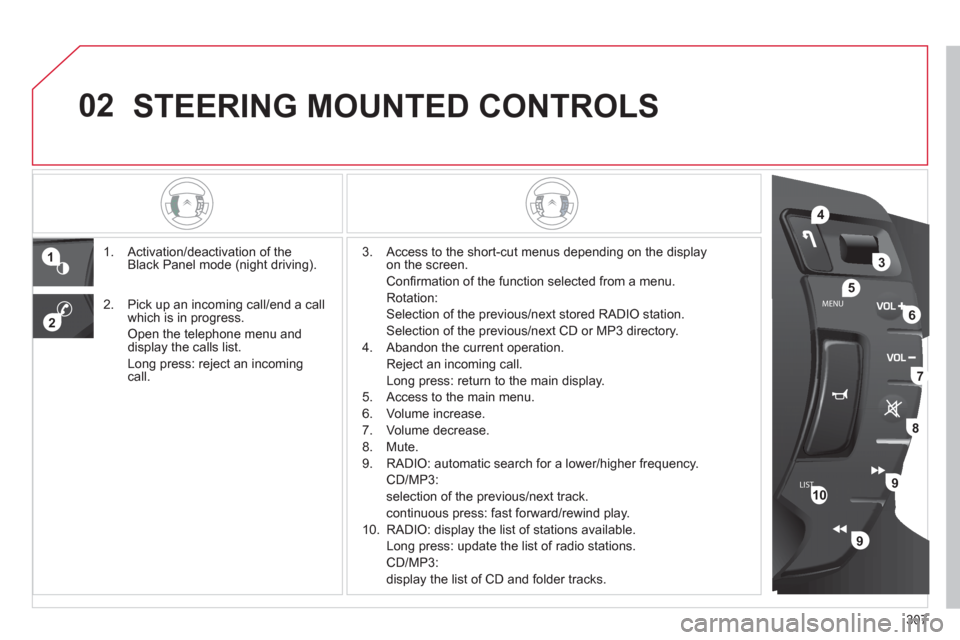
1. Activation/deactivation of the
Black Panel mode (night driving).
3. Access to the short-cut menus depending on the display
on the screen.
Confi rmation of the function selected from a menu.
Rotation:
Selection of the previous/next stored RADIO station.
Selection of the previous/next CD or MP3 directory.
4. Abandon the current operation.
Reject an incoming call.
Long press: return to the main display.
5. Access to the main menu.
6. Volume increase.
7. Volume decrease.
8. Mute.
9. RADIO: automatic search for a lower/higher frequency.
CD/MP3:
selection of the previous/next track.
continuous press: fast forward/rewind play.
10. RADIO: display the list of stations available.
Long press: update the list of radio stations.
CD/MP3:
display the list of CD and folder tracks.
2. Pick up an incoming call/end a call
which is in progress.
Open the telephone menu and
display the calls list.
Long press: reject an incoming
call.
Page 310 of 340

308
03 MAIN MENU
AUDIO FUNCTIONS
: radio,
CD, USB, options.
TRIP COMPUTER
: entering of
distances, alerts, status of functions.
TELEPHONE
: Bluetooth
hands-free, pairing,
management of a call.
PERSONALISATION-
CONFIGURATION
: vehicle
parameters, display, languages.
> MONOCHROME SCREEN C
> MONOCHROME SCREEN A
For a detailed global view of the
menus available, refer to the
"Screen menu map" section.
Page 311 of 340
309
04
1
2
3
4
1
2
3
4
AUDIO
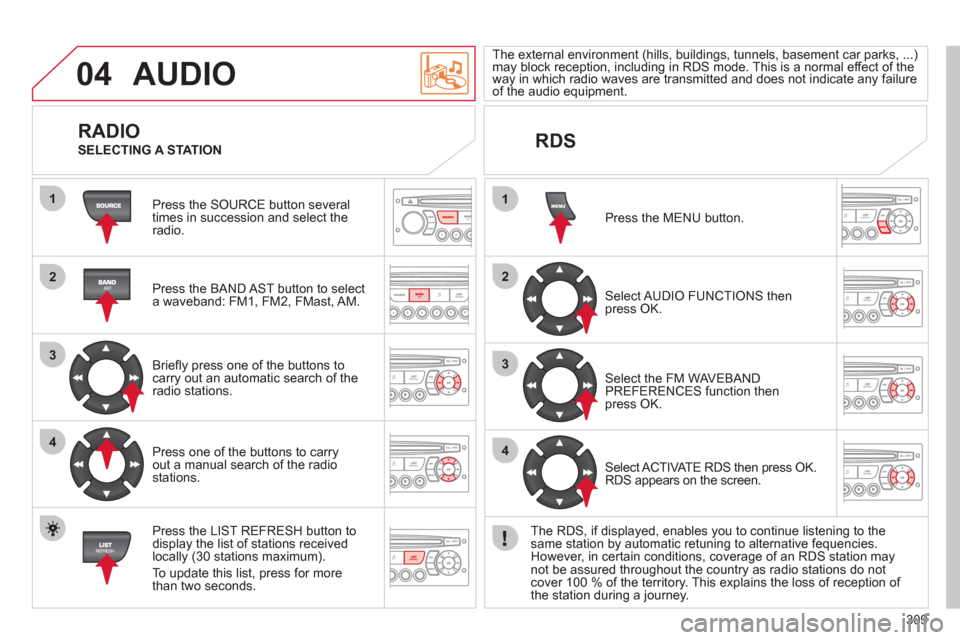
Press the SOURCE button several
times in succession and select the
radio.
Press the BAND AST button to select
a waveband: FM1, FM2, FMast, AM.
Briefl y press one of the buttons to
carry out an automatic search of the
radio stations.
Press one of the buttons to carry
out a manual search of the radio
stations.
Press the LIST REFRESH button to
display the list of stations received
locally (30 stations maximum).
To update this list, press for more
than two seconds.
The external environment (hills, buildings, tunnels, basement car parks, ...)
may block reception, including in RDS mode. This is a normal effect of the
way in which radio waves are transmitted and does not indicate any failure
of the audio equipment.
RDS
RADIO
SELECTING A STATION
Select AUDIO FUNCTIONS then
press OK. Press the MENU button.
Select ACTIVATE RDS then press OK.
RDS appears on the screen. Select the FM WAVEBAND
PREFERENCES function then
press OK.
The RDS, if displayed, enables you to continue listening to the
same station by automatic retuning to alternative fequencies.
However, in certain conditions, coverage of an RDS station may
not be assured throughout the country as radio stations do not
cover 100 % of the territory. This explains the loss of reception of
the station during a journey.
Page 312 of 340
310
04
1
2
3
1
AUDIO
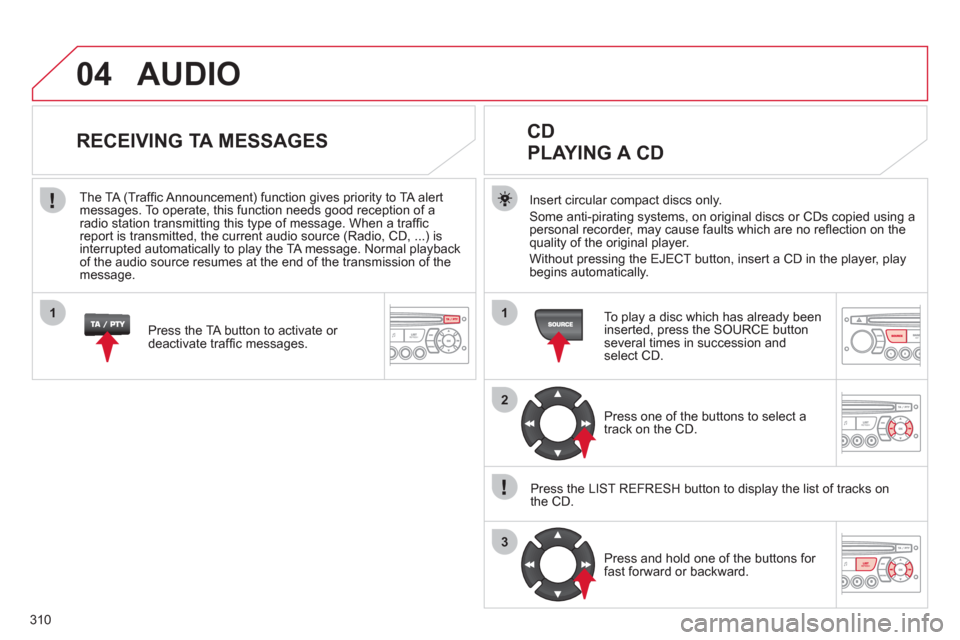
Insert circular compact discs only.
Some anti-pirating systems, on original discs or CDs copied using a
personal recorder, may cause faults which are no refl ection on the
quality of the original player.
Without pressing the EJECT button, insert a CD in the player, play
begins automatically.
CD
PLAYING A CD
To play a disc which has already been
inserted, press the SOURCE button
several times in succession and
select CD.
Press one of the buttons to select a
track on the CD.
Press the LIST REFRESH button to display the list of tracks on
the CD.
Press and hold one of the buttons for
fast forward or backward.
RECEIVING TA MESSAGES
Press the TA button to activate or
deactivate traffi c messages.
The TA (Traffi c Announcement) function gives priority to TA alert
messages. To operate, this function needs good reception of a
radio station transmitting this type of message. When a traffi c
report is transmitted, the current audio source (Radio, CD, ...) is
interrupted automatically to play the TA message. Normal playback
of the audio source resumes at the end of the transmission of the
message.
Page 318 of 340
316
06
1
2
1
2
1
2
3
RECEIVING A CALL
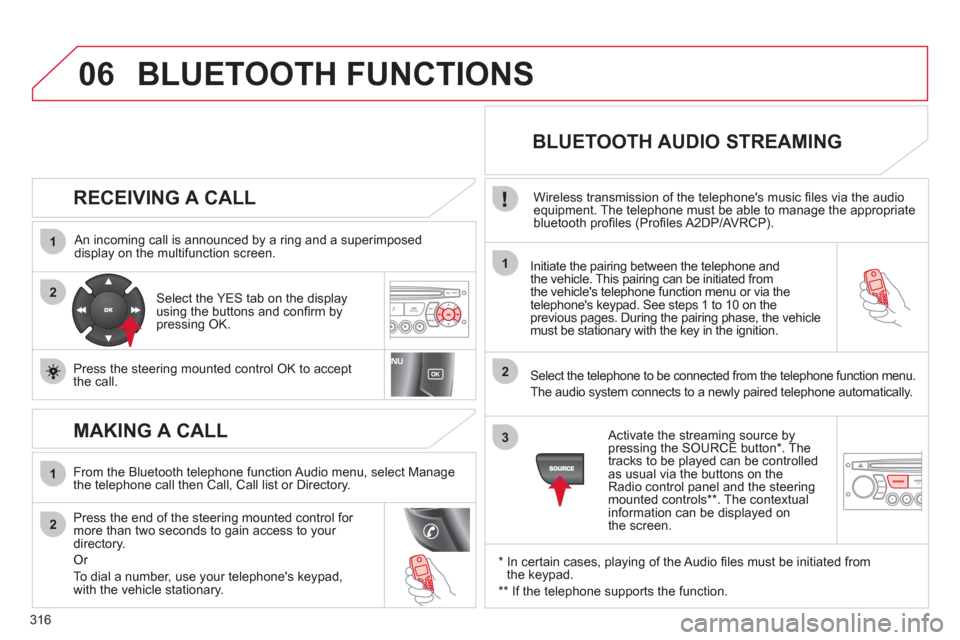
An incoming call is announced by a ring and a superimposed
display on the multifunction screen.
Initiate the pairing between the telephone and
the vehicle. This pairing can be initiated from
the vehicle's telephone function menu or via the
telephone's keypad. See steps 1 to 10 on the
previous pages. During the pairing phase, the vehicle
must be stationary with the key in the ignition.
Select the telephone to be connected from the telephone function menu.
The audio system connects to a newly paired telephone automatically.
Select the YES tab on the display
using the buttons and confi rm by
pressing OK.
Press the steering mounted control OK to accept
the call.
From the Bluetooth telephone function Audio menu, select Manage
the telephone call then Call, Call list or Directory.
Press the end of the steering mounted control for
more than two seconds to gain access to your
directory.
Or
To dial a number, use your telephone's keypad,
with the vehicle stationary.
MAKING A CALL
BLUETOOTH AUDIO STREAMING
Wireless transmission of the telephone's music fi les via the audio
equipment. The telephone must be able to manage the appropriate
bluetooth profi les (Profi les A2DP/AVRCP).
*
In certain cases, playing of the Audio fi les must be initiated from
the keypad.
**
If the telephone supports the function.
Activate the streaming source by
pressing the SOURCE button * . The
tracks to be played can be controlled
as usual via the buttons on the
Radio control panel and the steering
mounted controls ** . The contextual
information can be displayed on
the screen.
BLUETOOTH FUNCTIONS