2012 Citroen C5 RHD radio
[x] Cancel search: radioPage 259 of 340
257
08
1
2ABC3DEF5JKL4GHI6MNO8TUV7PQRS9WXYZ0*#
1RADIO MEDIANAV ESC TRAFFIC
SETUPADDR
BOOK
2
2ABC3DEF5JKL4GHI6MNO8TUV7PQRS9WXYZ0*#
1RADIO MEDIANAV ESC TRAFFIC
SETUPADDR
BOOK
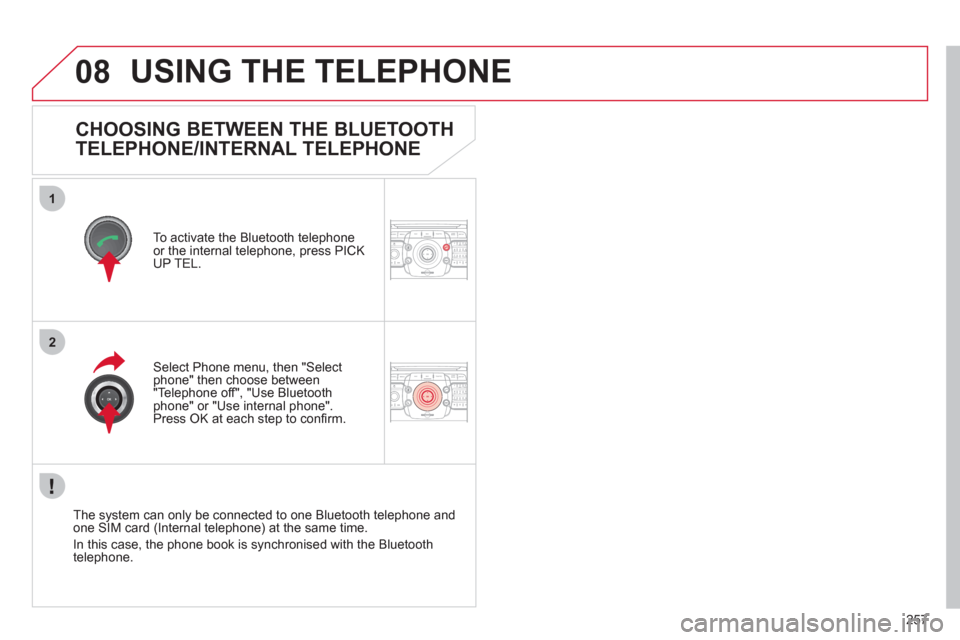
CHOOSING BETWEEN THE BLUETOOTH
TELEPHONE/INTERNAL TELEPHONE
To activate the Bluetooth telephone
or the internal telephone, press PICK
UP TEL.
USING THE TELEPHONE
Select Phone menu, then "Select
phone" then choose between
"Telephone off", "Use Bluetooth
phone" or "Use internal phone".
Press OK at each step to confi rm.
The system can only be connected to one Bluetooth telephone and
one SIM card (Internal telephone) at the same time.
In this case, the phone book is synchronised with the Bluetooth
telephone.
Page 260 of 340
258
08
1
4
5
2ABC3DEF5JKL4GHI6MNO8TUV7PQRS9WXYZ0*#
1RADIO MEDIANAV ESC TRAFFIC
SETUPADDR
BOOK
2ABC3DEF5JKL4GHI6MNO8TUV7PQRS9WXYZ0*#
1RADIO MEDIANAV ESC TRAFFIC
SETUPADDR
BOOK
32ABC3DEF5JKL4GHI6MNO8TUV7PQRS9WXYZ0*#
1RADIO MEDIANAV ESC TRAFFIC
SETUPADDR
BOOK
22ABC3DEF5JKL4GHI6MNO8TUV7PQRS9WXYZ0*#
1RADIO MEDIANAV ESC TRAFFIC
SETUPADDR
BOOK
2ABC3DEF5JKL4GHI6MNO8TUV7PQRS9WXYZ0*#
1RADIO MEDIANAV ESC TRAFFIC
SETUPADDR
BOOK
2ABC3DEF5JKL4GHI6MNO8TUV7PQRS9WXYZ0*#
1RADIO MEDIANAV ESC TRAFFIC
SETUPADDR
BOOK
*
The services available via the telephone depend on the network, the
SIM card and the compatibility of the Bluetooth equipment used. Refer to
your telephone's manual and your operator to check which services you
have access to. A list of mobile telephones which offer the best range of
services is available from dealers.
USING THE TELEPHONE
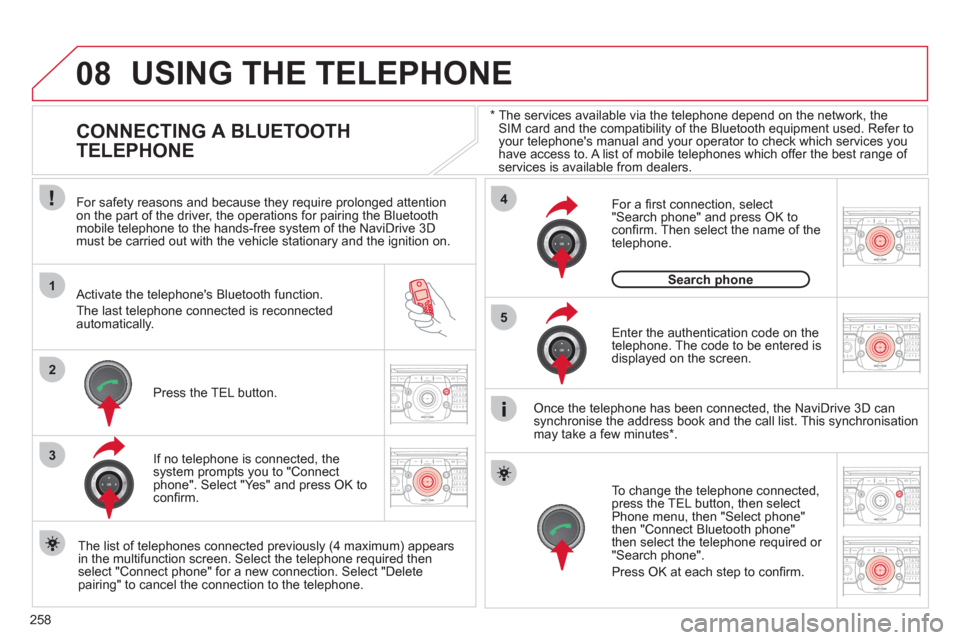
CONNECTING A BLUETOOTH
TELEPHONE
For safety reasons and because they require prolonged attention
on the part of the driver, the operations for pairing the Bluetooth
mobile telephone to the hands-free system of the NaviDrive 3D
must be carried out with the vehicle stationary and the ignition on.
Activate the telephone's Bluetooth function.
The last telephone connected is reconnected
automatically.
If no telephone is connected, the
system prompts you to "Connect
phone". Select "Yes" and press OK to
confi rm.
Enter the authentication code on the
telephone. The code to be entered is
displayed on the screen.
To change the telephone connected,
press the TEL button, then select
Phone menu, then "Select phone"
then "Connect Bluetooth phone"
then select the telephone required or
"Search phone".
Press OK at each step to confi rm.
Once the telephone has been connected, the NaviDrive 3D can
synchronise the address book and the call list. This synchronisation
may take a few minutes * .
The list of telephones connected previously (4 maximum) appears
in the multifunction screen. Select the telephone required then
select "Connect phone" for a new connection. Select "Delete
pairing" to cancel the connection to the telephone.
Press the TEL button.
For a fi rst connection, select
"Search phone" and press OK to
confi rm. Then select the name of the
telephone.
Search phone
Page 261 of 340
259
08
14
5
2ABC3DEF5JKL4GHI6MNO8TUV7PQRS9WXYZ0*#
1NAV ESC TRAFFICADDR
BOOK2ABC3DEF5JKL4GHI6MNO8TUV7PQRS9WXYZ0*#
1SETUP2ABC3DEF5JKL4GHI6MNO8TUV7PQRS9WXYZ0*#
1
3
2ABC3DEF5JKL4GHI6MNO8TUV7PQRS9WXYZ0*#
1RADIO MEDIANAV ESC TRAFFIC
SETUPADDR
BOOK
2
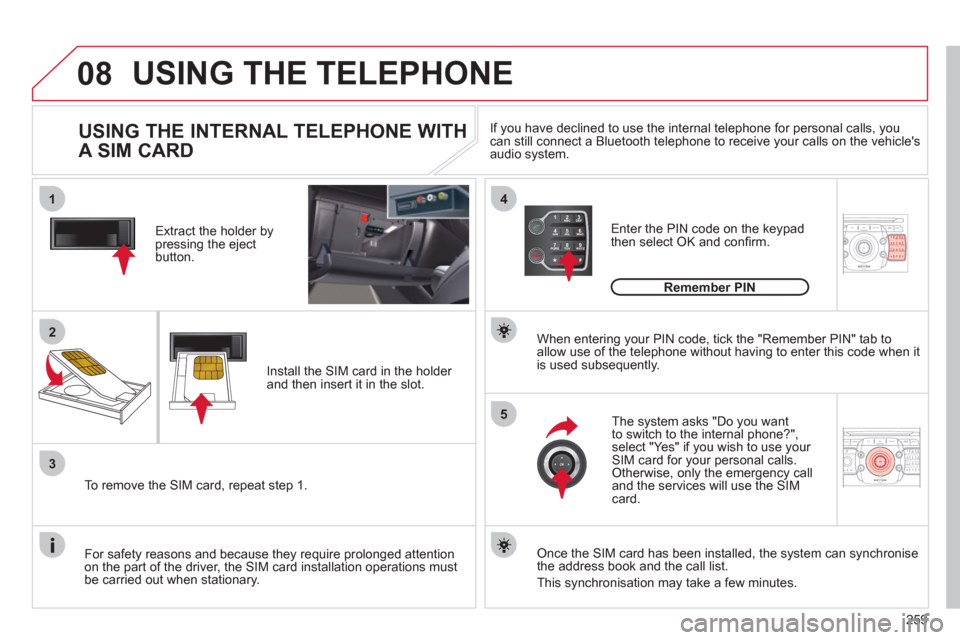
Extract the holder by
pressing the eject
button.
Install the SIM card in the holder
and then insert it in the slot.
To remove the SIM card, repeat step 1.
For safety reasons and because they require prolonged attention
on the part of the driver, the SIM card installation operations must
be carried out when stationary.
Enter the PIN code on the keypad
then select OK and confi rm.
The system asks "Do you want
to switch to the internal phone?",
select "Yes" if you wish to use your
SIM card for your personal calls.
Otherwise, only the emergency call
and the services will use the SIM
card.
Remember PIN
When entering your PIN code, tick the "Remember PIN" tab to
allow use of the telephone without having to enter this code when it
is used subsequently.
USING THE INTERNAL TELEPHONE WITH
A SIM CARD
USING THE TELEPHONE
Once the SIM card has been installed, the system can synchronise
the address book and the call list.
This synchronisation may take a few minutes.
If you have declined to use the internal telephone for personal calls, you
can still connect a Bluetooth telephone to receive your calls on the vehicle's
audio system.
Page 262 of 340
260
E
08
4
52ABC3DEF5JKL4GHI6MNO8TUV7PQRS9WXYZ0*#
1RADIO MEDIANAV ESC TRAFFIC
SETUPADDR
BOOK
2ABC3DEF5JKL4GHI6MNO8TUV7PQRS9WXYZ0*#
1RADIO MEDIANAV ESC TRAFFIC
SETUPADDR
BOOK
2ABC3DEF5JKL4GHI6MNO8TUV7PQRS9WXYZ0*#
1RADIO MEDIANAV ESC TRAFFIC
SETUPADDR
BOOK
6
1
3
2ABC3DEF5JKL4GHI6MNO8TUV7PQRS9WXYZ0*#
1RADIO MEDIANAV ESC TRAFFIC
SETUPADDR
BOOK2
2ABC3DEF5JKL4GHI6MNO8TUV7PQRS9WXYZ0*#
1RADIO MEDIANAV ESC TRAFFIC
SETUPADDR
BOOK
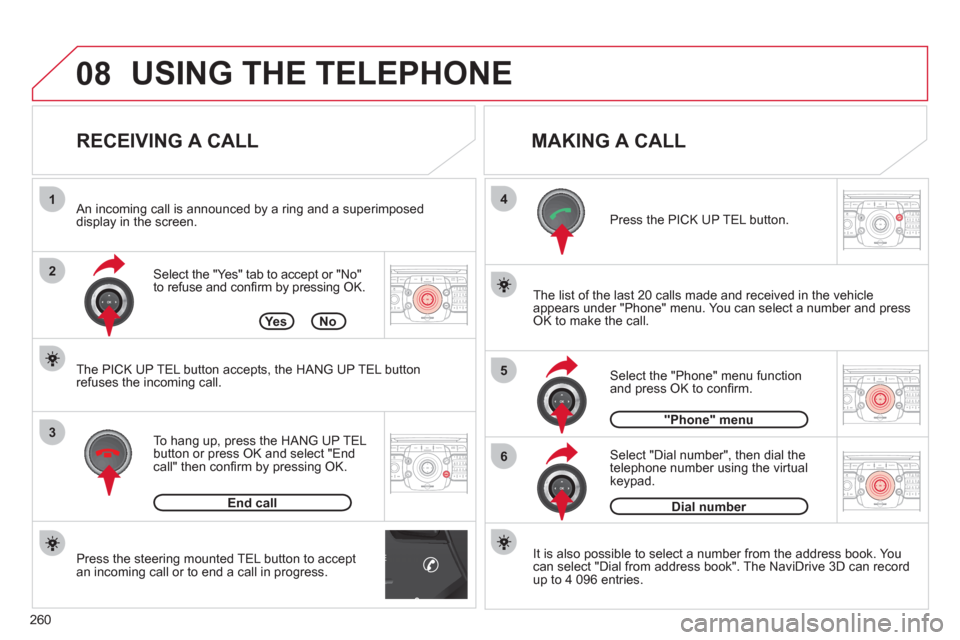
Press the steering mounted TEL button to accept
an incoming call or to end a call in progress. Select the "Yes" tab to accept or "No"
to refuse and confi rm by pressing OK.
RECEIVING A CALL
MAKING A CALL
An incoming call is announced by a ring and a superimposed
display in the screen.
To hang up, press the HANG UP TEL
button or press OK and select "End
call" then confi rm by pressing OK.
End call
Press the PICK UP TEL button.
It is also possible to select a number from the address book. You
can select "Dial from address book". The NaviDrive 3D can record
up to 4 096 entries. Select "Dial number", then dial the
telephone number using the virtual
keypad.
Select the "Phone" menu function
and press OK to confi rm.
Dial number
"Phone" menu
The list of the last 20 calls made and received in the vehicle
appears under "Phone" menu. You can select a number and press
OK to make the call.
Ye s N o
The PICK UP TEL button accepts, the HANG UP TEL button
refuses the incoming call.
USING THE TELEPHONE
Page 263 of 340
261
09
1
4
1
2ABC3DEF5JKL4GHI6MNO8TUV7PQRS9WXYZ0*#
1RADIO MEDIANAV ESC TRAFFIC
SETUPADDR
BOOK
3
2ABC3DEF5JKL4GHI6MNO8TUV7PQRS9WXYZ0*#
1RADIO MEDIANAV ESC TRAFFIC
SETUPADDR
BOOK
2ABC3DEF5JKL4GHI6MNO8TUV7PQRS9WXYZ0*#
1NAV ESC TRAFFICADDR
BOOKSETUPSETUP
2ABC3DEF5JKL4GHI6MNO8TUV7PQRS9WXYZ0*#
1RADIO MEDIANAV ESC TRAFFIC
SETUPADDR
BOOK22
2ABC3DEF5JKL4GHI6MNO8TUV7PQRS9WXYZ0*#
1RADIO MEDIANAV ESC TRAFFIC
SETUPADDR
BOOK
2ABC3DEF5JKL4GHI6MNO8TUV7PQRS9WXYZ0*#
1RADIO MEDIANAV ESC TRAFFIC
SETUPADDR
BOOK
CONFIGURATION
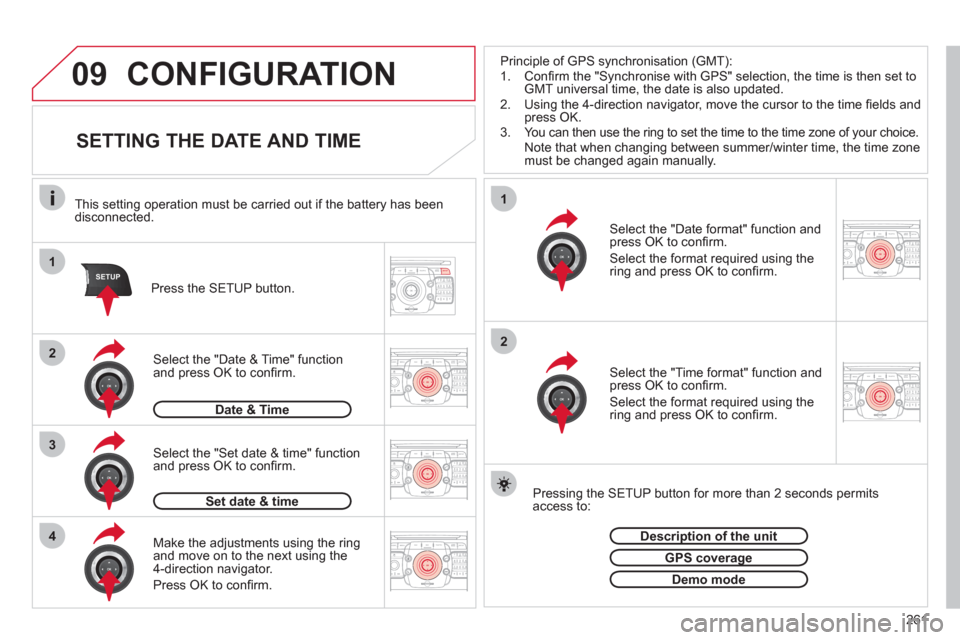
SETTING THE DATE AND TIME
Make the adjustments using the ring
and move on to the next using the
4-direction navigator.
Press OK to confi rm.
Select the "Date format" function and
press OK to confi rm.
Select the format required using the
ring and press OK to confi rm.
Select the "Set date & time" function
and press OK to confi rm.
Pressing the SETUP button for more than 2 seconds permits
access to:
This setting operation must be carried out if the battery has been
disconnected.
Press the SETUP button.
Select the "Time format" function and
press OK to confi rm.
Select the format required using the
ring and press OK to confi rm.
Set date & time
Select the "Date & Time" function
and press OK to confi rm.
Description of the unit
GPS coverage
Demo mode
Date & Time
Principle of GPS synchronisation (GMT):
1. Confi rm the "Synchronise with GPS" selection, the time is then set to
GMT universal time, the date is also updated.
2. Using the 4-direction navigator, move the cursor to the time fi elds and
press OK.
3. You can then use the ring to set the time to the time zone of your choice.
Note that when changing between summer/winter time, the time zone
must be changed again manually.
Page 265 of 340

263
NAV
RADIO
AUX standard
3
Reset video settings
3
Off/Audio/Audio and Video (AV)
Ext. Device (Aux) management
2
3
"Radio" Menu
FM
Waveband
1
2
3
AM
3
Manual tune 2
Refer to the "
Sound settings
" menu below.
Sound settings
2
3
"Sound settings" Menu
Balance/Fader
1
2
Bass/Treble 2
Equalizer 2
Linear
3
Classic
3
Jazz
3
Rock/Pop
3
Techno
3
Vocal
3
Mute rear speakers 2
Loudness 2
Speed dependent volume 2
Reset sound settings
2
"Navigation" Menu
Abort guidance/Resume guidance
1
2
Destination input 2
Address input
3
Country 4
City 4
Street 4
House number 4
Start route guidance 4
Postal code 4
Save to address book 4
Intersection 4
City district 4
Geo position 4
Map 4
Navigate HOME
3
Choose from last destinations
3
Choose from address book
3
Stopovers 2
Add stopover
3
Address input 4
Navigate HOME 4
Choose from address book 4
Choose from last destinations 4
Rearrange route
3
Replace stopover
3
Delete stopover
3
Page 269 of 340

267
The table below groups together the answers to the most frequently asked questions concerning the NaviDrive 3D.
FREQUENTLY ASKED QUESTIONS
QUESTION
ANSWER
SOLUTION
There is a difference in
sound quality between
the different audio
sources (radio, CD...).
For optimum sound quality, the audio settings (Volume, Bass, Treble,
Ambience, Loudness) can be adapted to the different sound sources,
which may result in audible differences when changing source (radio,
CD...).
Check that the audio settings (Volume, Bass,
Treble, Ambience, Loudness) are adapted to
the sources listened to. It is advisable to set
the AUDIO functions (Bass, Treble, Front-Rear
Balance, Left-Right Balance) to the middle
position, select the musical ambience "Linear" and
set the loudness correction to the "Active" position
in CD mode or to the "Inactive" position in radio
mode.
The CD is ejected
automatically or is not
played by the player. The CD is inserted upside down, is unplayable, does not contain any
audio data or contains an audio format which the player cannot play.
The CD is protected by an anti-pirating protection system which is not
recognised by the audio equipment.
- Check that the CD is inserted in the player the
right way up.
- Check the condition of the CD: the CD cannot
be played if it is too damaged.
- Check the content in the case of a recorded
CD: consult the advice in the "Audio" section.
- The audio equipment's CD player does not
play DVDs.
- Due to inadequate quality, certain recorded
CDs will not be played by the audio system.
The CD player sound is
poor. The CD used is scratched or of poor quality. Insert good quality CDs and store them in suitable
conditions.
The audio equipment settings (bass, treble, ambiences) are unsuitable. Set the treble or bass level to 0, without selecting
an ambience.
Page 270 of 340

268
QUESTION
ANSWER
SOLUTION
The stored stations do
not function (no sound,
87.5 Mhz is displayed...). An incorrect waveband is selected. Press RADIO, select Radio Menu then
"Waveband" to return to the waveband on which
the stations are stored.
The quality of reception
of the radio station
listened to gradually
deteriorates or the stored
stations do not function
(no sound, 87.5 Mhz is
displayed...). The vehicle is too far from the transmitter used by the station listened
to or there is no transmitter in the geographical area through which the
vehicle is travelling. Activate the "RDS" function by means of the
short-cut menu to enable the system to check
whether there is a more powerful transmitter in the
geographical area.
The environment (hills, buildings, tunnels, basement car parks...) block
reception, including in RDS mode. This phenomenon is normal and does not indicate
a failure of the audio equipment.
The aerial is absent or has been damaged (for example when going
through a car wash or into an underground car park). Have the aerial checked by a CITROËN dealer.
Sound cut-outs of 1 to
2 seconds in radio mode. During this brief sound cut-out, the RDS searches for any frequency
permitting better reception of the station. Deactivate the "RDS" function by means of the
short-cut menu if the phenomenon is too frequent
and always on the same route.
With the engine off, the
system switches off after
a few minutes of use. When the engine is switched off, the system's operating time depends on
the battery charge.
The switch-off is normal: the system switches to economy mode and
switches off to prevent discharging of the vehicle's battery. Start the vehicle's engine to increase the battery
charge.