Page 134 of 557
NOTE:
•The first number encountered for that contact will be
sent. All other numbers entered for that contact will be
ignored.
•You may not hear all of the tones due to mobile phone
network configurations. This is normal.
•Some paging and voice mail systems have system time
out settings that are too short and may not allow the
use of this feature.
•Pauses, wait or other characters that are supported by
some phones are not supported over Bluetooth�.
These additional symbols will be ignored in the dial-
ing a numbered sequence.
Barge In — Overriding Prompts
Thebutton can be used when you wish to skip part
of a prompt and issue your voice command immediately.
For example, if a prompt is asking “There are 2 numbers
with the name John. Say the full name” you could press the
button and say, “John Smith” to select that option
without having to listen to the rest of the voice prompt.
Voice Response Length
It is possible for you to choose between Brief and
Detailed Voice Response Length.
•Touch the “More” soft-key, then touch the “Settings”
soft-key,
•Touch the “Display” soft-key, then scroll down to
Voice Response Length,
•Select either “Brief” or “Detailed” by touching the box
next to the selection. A check-mark will appear to
show your selection.
132 UNDERSTANDING THE FEATURES OF YOUR VEHICLE
Page 135 of 557
Phone And Network Status Indicators
Uconnect™ Phone will provide notification to inform
you of your phone and network status when you are
attempting to make a phone call using Uconnect™
Phone. The status is given for network signal strength
and phone battery strength.
Dialing Using The Mobile Phone Keypad
You can dial a phone number with your mobile phone
keypad and still use the Uconnect™ Phone (while dialing
via the mobile phone keypad, the user must exercise
caution and take precautionary safety measures). By
dialing a number with your paired Bluetooth�mobile
phone, the audio will be played through your vehicle’s
audio system. The Uconnect™ Phone will work the same
as if you dial the number using voice command. NOTE:
Certain brands of mobile phones do not send the
dial ring to the Uconnect™ Phone to play it on the vehicle
audio system, so you will not hear it. Under this situa-
tion, after successfully dialing a number the user may feel
that the call did not go through even though the call is in
progress. Once your call is answered, you will hear the
audio.Mute/Un-Mute (Mute OFF)
When you mute the Uconnect™ Phone, you will still be
able to hear the conversation coming from the other
party, but the other party will not be able to hear you. In
order to mute the Uconnect™ Phone simply touch the
Mute button on the Phone main screen.
3
UNDERSTANDING THE FEATURES OF YOUR VEHICLE 133
Page 136 of 557
Advanced Phone Connectivity
Transfer Call To And From Mobile Phone
The Uconnect™ Phone allows ongoing calls to be trans-
ferred from your mobile phone to the Uconnect™ Phone
without terminating the call. To transfer an ongoing call
from your Uconnect™ Phone paired mobile phone to the
Uconnect™ Phone or vice versa, press the Transfer
button on the Phone main screen.
Connect Or Disconnect Link Between The
Uconnect™ Phone And Mobile Phone
If you would like to connect or disconnect the Bluetooth�
connection between a Uconnect™ Phone paired mobile
phone and the Uconnect™ Phone, follow the instructions
described in your mobile phone User’s Manual.
Things You Should Know About Your Uconnect™
Phone
Voice Command
•
For best performance, adjust the rearview mirror to
provide at least12in (1 cm) gap between the overhead
console (if equipped) and the mirror.
•Always wait for the beep before speaking.
•Speak normally, without pausing, just as you would
speak to a person sitting a few feet/meters away from
you.
•Make sure that no one other than you is speaking
during a voice command period.
134 UNDERSTANDING THE FEATURES OF YOUR VEHICLE
Page 139 of 557
SMS
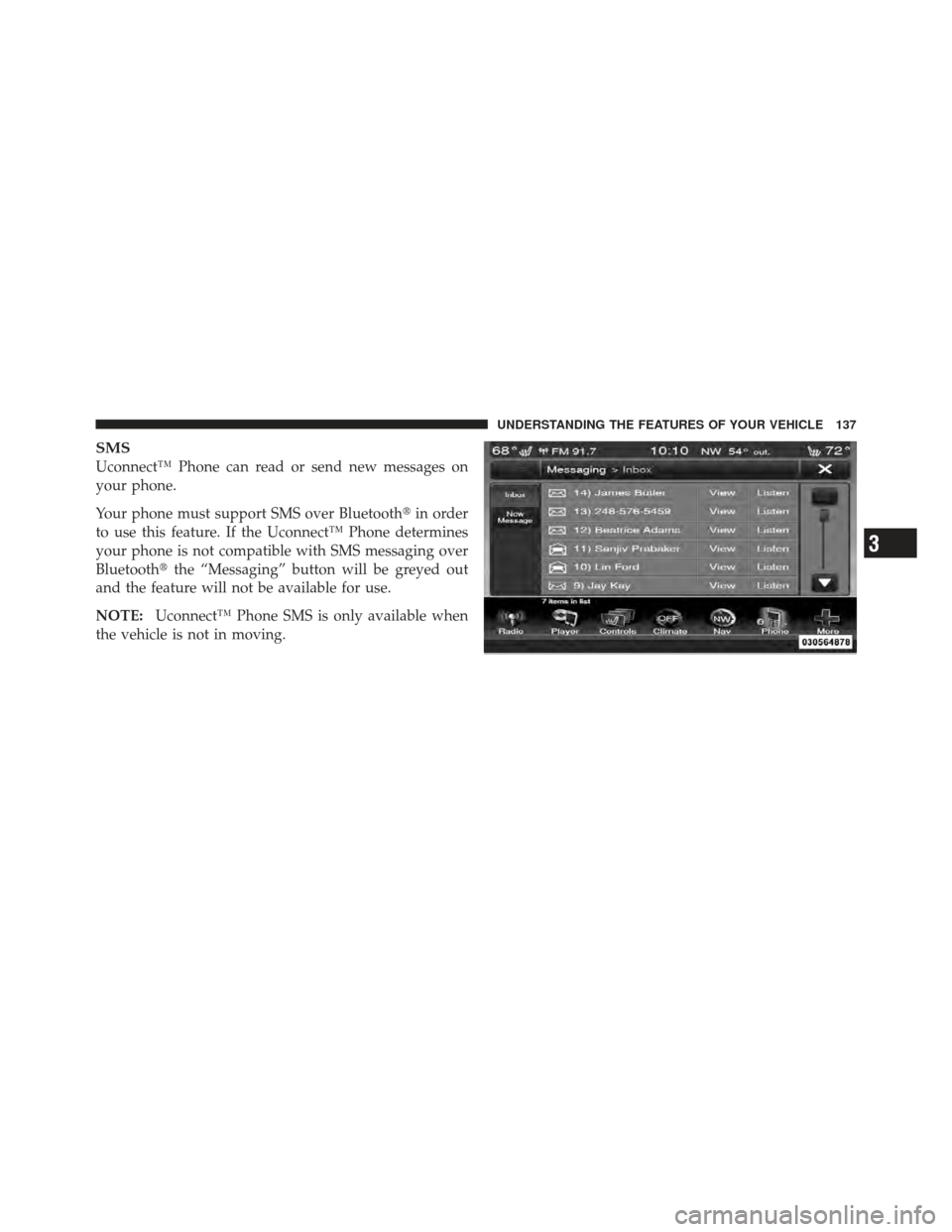
Uconnect™ Phone can read or send new messages on
your phone.
Your phone must support SMS over Bluetooth�in order
to use this feature. If the Uconnect™ Phone determines
your phone is not compatible with SMS messaging over
Bluetooth� the “Messaging” button will be greyed out
and the feature will not be available for use.
NOTE: Uconnect™ Phone SMS is only available when
the vehicle is not in moving.
3
UNDERSTANDING THE FEATURES OF YOUR VEHICLE 137
Page 141 of 557
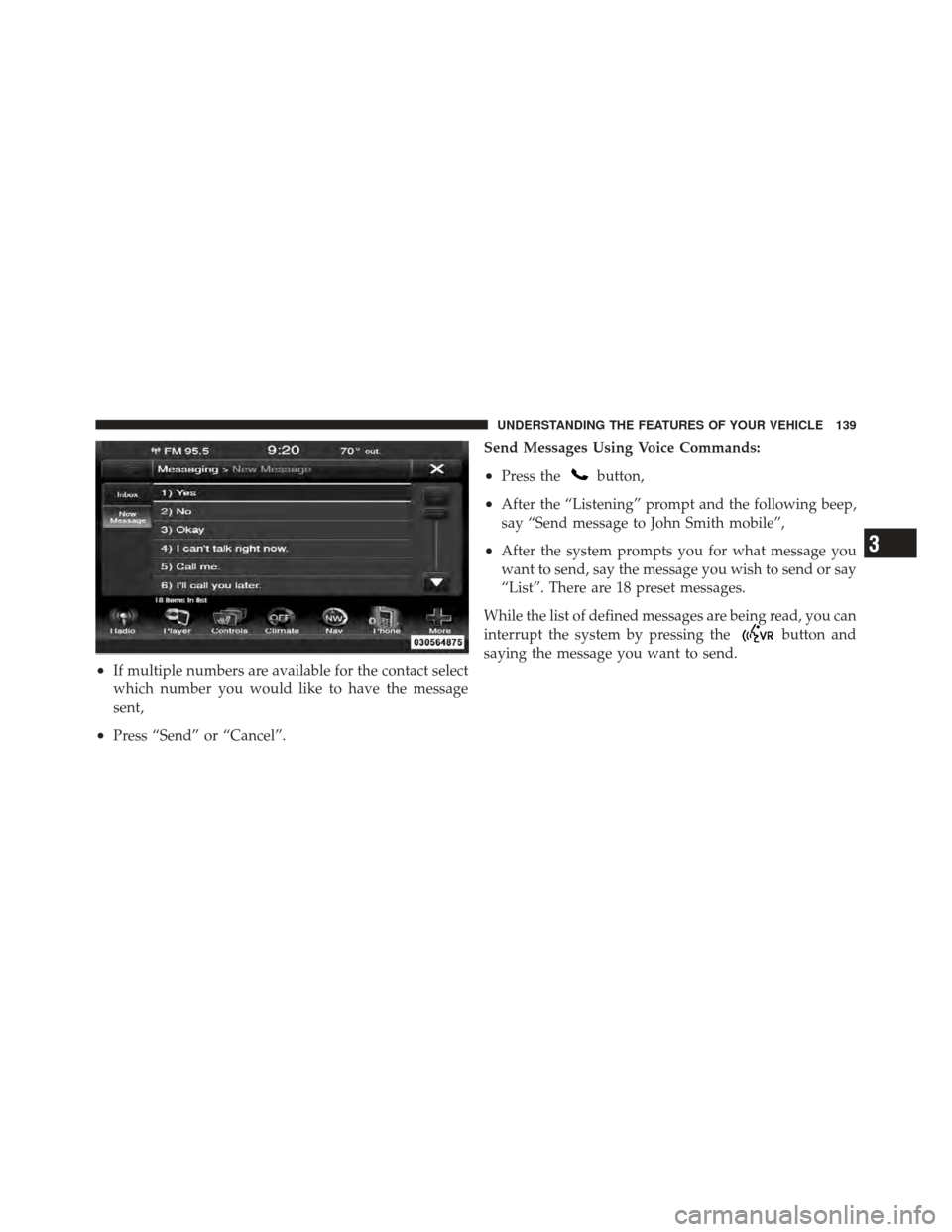
•If multiple numbers are available for the contact select
which number you would like to have the message
sent,
•Press “Send” or “Cancel”.Send Messages Using Voice Commands:
•Press thebutton,
•After the “Listening” prompt and the following beep,
say “Send message to John Smith mobile”,
•After the system prompts you for what message you
want to send, say the message you wish to send or say
“List”. There are 18 preset messages.
While the list of defined messages are being read, you can
interrupt the system by pressing the
button and
saying the message you want to send.
3
UNDERSTANDING THE FEATURES OF YOUR VEHICLE 139
Page 149 of 557
When you press the Uconnect™ Voice Command
button, you will hear a beep. The beep is your signal to
give a command.
If no command is spoken the system will say one of two
responses:
•I didn’t understand
•I didn’t get that, etc.,
If a command is not spoken a second time, the system
will respond with an error and give some direction as
what can be said based on the context you are in. After
three consecutive failures of a spoken command the VR
session with end.
Pressing the Uconnect™ Voice Command
button
while the system is speaking is known as “barging in.”
The system will be interrupted, and after the beep, you
can say a command. This will become helpful once you
start to learn the options. NOTE:
At any time, you can say the words “Cancel” or
“Help”.
These commands are universal and can be used from any
menu. All other commands can be used depending upon
the active application.
When using this system, you should speak clearly and at
a normal speaking volume.
The system will best recognize your speech if the win-
dows are closed, and the heater/air conditioning fan is
set to low.
At any point, if the system does not recognize one of your
commands, you will be prompted to repeat it.
To hear available commands, press the Uconnect™ Voice
Command
button and say “Help”. You will hear
available commands for the screen displayed.
3
UNDERSTANDING THE FEATURES OF YOUR VEHICLE 147
Page 150 of 557
Natural Speech
Natural speech allows the user to speak commands in
phrases or complete sentences. The system filters out
certain non-word utterances and sounds such as “ah”
and “eh”. The system handles fill-in words such as “I
would like to”.
The system handles multiple inputs in the same phrase
or sentence such as “make a phone call” and “to Kelly
Smith”. For multiple inputs in the same phrase or sen-
tence, the system identifies the topic or context and
provides the associated follow-up prompt such as “Who
do you want to call?” in the case where a phone call was
requested but the specific name was not recognized.The system utilizes continuous dialog; when the system
requires more information from the user it will ask a
question to which the user can respond without pressing
the Uconnect™ Voice Command
button.
Uconnect™ Voice Commands
The Uconnect™ Voice Command system understands
two types of commands. Universal commands are avail-
able at all times. Local commands are available if the
supported radio mode is active.
Start a dialogue by pressing the Uconnect™ Voice Com-
mand
button.
148 UNDERSTANDING THE FEATURES OF YOUR VEHICLE
Page 151 of 557
Changing the Volume
1. Start a dialogue by pressing the Voice Command
button.
2. Say a command (e.g., “Help”).
3. Use the ON/OFF VOLUME rotary knob to adjust the
volume to a comfortable level while the Voice Command
system is speaking. Please note the volume setting for
Voice Command is different than the audio system.
Starting Voice Recognition (VR) Session in
Radio/Player Modes
In this mode, you can say the following commands:
NOTE: The commands can be said on any screen when
a call is not active after pushing the Uconnect™ Voice
Command
button.
Disc
To switch to the disc mode, say “Change source to Disc”.
This command can be given in any mode or screen:
•“Track” (#) (to change the track)
3
UNDERSTANDING THE FEATURES OF YOUR VEHICLE 149