2012 CHEVROLET SILVERADO ECO mode
[x] Cancel search: ECO modePage 182 of 584

Black plate (44,1)Chevrolet Silverado Owner Manual - 2012
5-44 Instruments and Controls
PASSENGER DOOR OPEN
This message displays and a chime
may sound if the front passenger
door is not fully closed and the
vehicle is shifted out of P (Park).
Stop and turn off the vehicle, check
the door for obstructions, and close
the door again. Check to see if the
message still appears on the DIC.
RIGHT REAR DOOR OPEN
(Crew Cab)
This message displays and a chime
may sound if the passenger side
rear door is not fully closed and the
vehicle is shifted out of P (Park).
Stop and turn off the vehicle, check
the door for obstructions, and close
the door again. Check to see if the
message still appears on the DIC.
Engine Cooling System
Messages
ENGINE HOT A/C
(Air Conditioning)
TURNED OFF
This message displays when the
engine coolant becomes hotter than
the normal operating temperature.
SeeEngine Coolant Temperature
Gauge on page 5‑17. To avoid
added strain on a hot engine,
the air conditioning compressor
automatically turns off. When the
coolant temperature returns to
normal, the air conditioning
compressor turns back on. You can
continue to drive your vehicle.
If this message continues to appear,
have the system repaired by your
dealer as soon as possible to avoid
damage to the engine.
ENGINE OVERHEATED IDLE
ENGINE
Notice: If you drive the vehicle
while the engine is overheating,
severe engine damage may
occur. If an overheat warning
appears on the instrument panel
cluster and/or DIC, stop the
vehicle as soon as possible.
See Engine Overheating on
page 10‑23 for more information.
This message displays when the
engine coolant temperature is too
hot. Stop and allow the vehicle to
idle until it cools down. See Engine
Coolant Temperature Gauge on
page 5‑17.
See Overheated Engine Protection
Operating Mode on page 10‑26 for
information on driving to a safe
place in an emergency.
Page 202 of 584
Black plate (64,1)Chevrolet Silverado Owner Manual - 2012
5-64 Instruments and Controls
3. From inside your vehicle,first firmly press all three buttons
at the same time for about
three seconds. Release the
buttons to put the Universal
Home Remote into
programming mode.
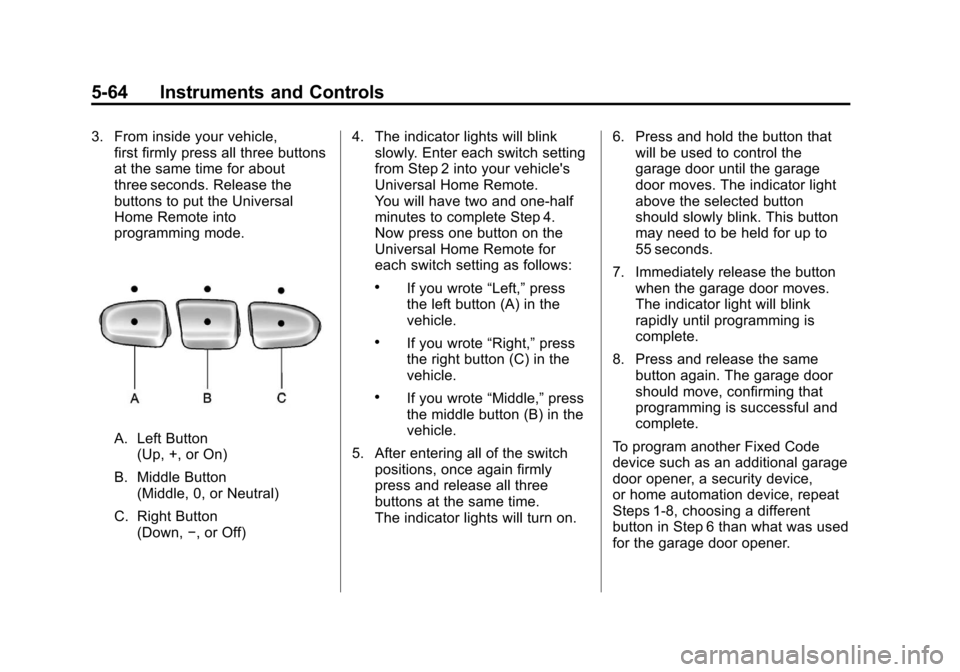
A. Left Button
(Up, +, or On)
B. Middle Button (Middle, 0, or Neutral)
C. Right Button (Down, −, or Off) 4. The indicator lights will blink
slowly. Enter each switch setting
from Step 2 into your vehicle's
Universal Home Remote.
You will have two and one-half
minutes to complete Step 4.
Now press one button on the
Universal Home Remote for
each switch setting as follows:
.If you wrote “Left,”press
the left button (A) in the
vehicle.
.If you wrote “Right,”press
the right button (C) in the
vehicle.
.If you wrote “Middle,”press
the middle button (B) in the
vehicle.
5. After entering all of the switch positions, once again firmly
press and release all three
buttons at the same time.
The indicator lights will turn on. 6. Press and hold the button that
will be used to control the
garage door until the garage
door moves. The indicator light
above the selected button
should slowly blink. This button
may need to be held for up to
55 seconds.
7. Immediately release the button when the garage door moves.
The indicator light will blink
rapidly until programming is
complete.
8. Press and release the same button again. The garage door
should move, confirming that
programming is successful and
complete.
To program another Fixed Code
device such as an additional garage
door opener, a security device,
or home automation device, repeat
Steps 1-8, choosing a different
button in Step 6 than what was used
for the garage door opener.
Page 210 of 584

Black plate (6,1)Chevrolet Silverado Owner Manual - 2012
6-6 Lighting
Turn and Lane-Change
Signals
An arrow on the instrument panel
cluster flashes in the direction of the
turn or lane change.
Move the lever all the way up or
down to signal a turn.
Raise or lower the lever for less
than one second until the arrow
starts to flash to signal a lane
change. This causes the turn
signals to automatically flash
three times. It will flash six times
if Tow/Haul Mode is active.Holding the turn signal lever for
more than one second will cause
the turn signals to flash until you
release the lever.
The lever returns to its starting
position whenever it is released.
If after signaling a turn or a lane
change the arrows flash rapidly or
do not come on, a signal bulb could
be burned out.
Have the bulbs replaced. If the bulb
is not burned out, check the fuse.
See
Fuses and Circuit Breakers on
page 10‑47.
Turn Signal On Chime
If the turn signal is left on for more
than 1.2 km (0.75 mi), a chime
sounds at each flash of the turn
signal, if the vehicle has a radio.
The message TURN SIGNAL ON
will also appear in the Driver
Information Center (DIC). To turn
the chime and message off, move
the turn signal lever to the off
position.
Fog Lamps
For vehicles with fog lamps, the
control is located next to the exterior
lamps control on the instrument
panel, to the left of the steering
column.
The ignition must be in the
ON/RUN position for the fog lamps
to come on.
Page 223 of 584
Black plate (9,1)Chevrolet Silverado Owner Manual - 2012
Infotainment System 7-9
display and artist information
displays on the bottom line.
When information is not available,
“NO INFO”displays.
Finding a Station
BAND:Press to switch between
AM, FM, or XM™, if equipped.
f(Tune): Turn to manually select
radio stations.
©SEEK: Press to seek the
previous radio station. Press and
hold for a few seconds until a
beep sounds to scan for radio
stations in descending order; press
the
©SEEK button again to stop
scanning radio stations. The radio
only seeks and scans stations
with a strong signal that are in the
selected band.
For the AM-FM Radio, press and
hold the
©SEEK for four seconds
until a double beep sounds to scan
the preset stations. The station
frequency flashes while the radio is
in the scan mode.
¨SEEK: Press to seek the next
radio station. Press and hold for a
few seconds until a beep sounds to
scan for radio stations in ascending
order; press the
¨SEEK button
again to stop scanning radio
stations. The radio only seeks and
scans stations with a strong signal
that are in the selected band.
For the AM-FM Radio, press and
hold the
¨SEEK for four seconds
until a double beep sounds to scan
the preset stations. The station
frequency flashes while the radio is
in the scan mode.
sREV: Press to manually tune to
a radio station in descending order.
\FWD: Press to manually tune to
a radio station in ascending order.
FAV (Favorites): Press to select
different favorites pages for stored
radio stations.
Storing Radio Stations
Drivers are encouraged to store the
radio station while the vehicle is
parked; see Defensive Driving on
page 9‑3. Tune to stored radio
stations using the presets, favorites
button, and steering wheel controls,
if the vehicle has this feature.
Radios that have a FAV button store
radio stations as favorites. Up to
36 stations can be programmed as
favorites using the six softkeys
below the radio station frequency
tabs and by using the FAV button.
Press the FAV button to go through
up to six pages of favorites, each
having six favorite stations available
per page. Each page of favorites
can contain any combination of AM,
FM, or XM, if equipped, stations.
Radios that do not have a FAV
button store radio stations as
presets. Up to 18 stations
(6 FM1, 6 FM2, and 6 AM),
can be programmed on the
six numbered pushbuttons.
Page 233 of 584
Black plate (19,1)Chevrolet Silverado Owner Manual - 2012
Infotainment System 7-19
For the Radio with USB and
Six-Disc CD (MP3):
1. Press the softkey positionedunder the RDM tab until
Randomize All Discs displays to
play tracks from all CDs loaded
in random order.
2. Press the softkey positioned under the RDM tab until Random
Current Disc displays to play
tracks from a single CD in
random order.
3. Press the same softkey again to turn off random play.
MP3‐Supported Files
The Radio with CD (MP3), Radio
with USB and CD (MP3), and Radio
with USB and Six-Disc CD (MP3)
have the capability of playing an
MP3 CD-R or CD-RW disc. Format
Radios that have the capability of
playing MP3s can play .mp3 or
.wma files that were recorded onto a
CD-R or CD-RW disc. The files can
be recorded with the following fixed
bit rates: 32 kbps, 40 kbps, 56 kbps,
64 kbps, 80 kbps, 96 kbps, 112 kbps,
128 kbps, 160 kbps, 192 kbps,
224 kbps, 256 kbps, and 320 kbps or
a variable bit rate.
Compressed Audio or Mixed
Mode Discs
The radio can play discs that
contain both uncompressed CD
audio and MP3 files. If both formats
are on the disc, the radio reads
all MP3 files first, then the
uncompressed CD audio files.
CD‐R‐
or CD‐RW‐Supported File
and Folder Structure
The radio supports:
.Up to 50 folders.
.Up to 8 folders in depth.
.Up to 50 playlists.
.Up to 255 files.
.Playlists with an .m3u or .wpl
extension.
.Files with an .mp3, .wma, or .cda
file extension.
Root Directory
The root directory is treated as a
folder. Files are stored in the root
directory when the disc or storage
device does not contain folders.
Files accessed from the root
directory of a CD display as
F1 ROOT.
Page 236 of 584
Black plate (22,1)Chevrolet Silverado Owner Manual - 2012
7-22 Infotainment System
h(Music Navigator):Press the
softkey below the
htab to play
the files in order by artist or album.
The player scans the disc to sort the
files by artist and album ID3 tag
information. It can take several
minutes to scan the disc depending
on the number of files on the disc.
The radio may begin playing while it
is scanning in the background.
When the scan is finished, the disc
begins playing files in order by
artist. The current artist playing is
shown on the second line of the
display. Once all songs by that artist
are played, the player moves to the
next artist in alphabetical order and
begins playing files by that artist.
To listen to files by another artist,
press the softkey located below
either arrow tab. The disc goes to
the next or previous artist in
alphabetical order. Continue
pressing either softkey below the
arrow tab until the desired artist
displays. To change from playback by artist to
playback by album:
1. Press the softkey located below
the Sort By tab.
2. Press one of the softkeys below the Album tab from the sort
screen.
3. Press the softkey below the Back tab to return to the main
music navigator screen.
The album name displays on the
second line between the arrows,
and songs from the current album
begin to play. Once all songs from
that album have played, the player
moves to the next album in
alphabetical order on the CD and
begins playing MP3s from that
album.
To exit music navigator mode, press
the softkey below the Back tab to
return to normal MP3 playback.
CD Player Messages
CHECK DISC: If this message
displays and/or the CD ejects, it
could be for one of the following
reasons:
.It is very hot. When the
temperature returns to normal,
the CD should play.
.The road is very rough.
When the road becomes
smoother, the CD should play.
.The CD is dirty, scratched, wet,
or upside down.
.The air is very humid. If so,
wait about an hour and try again.
.There was a problem while
burning the CD.
.The label is caught in the
CD player.
If the CD is not playing correctly,
for any other reason, try a known
good CD.
Page 240 of 584
Black plate (26,1)Chevrolet Silverado Owner Manual - 2012
7-26 Infotainment System
4(Information):Press to display
additional text information related to
the current song. If information is
available, the song title information
displays on the top line of the
display and artist information
displays on the bottom line.
When information is not available,
“NO INFO” displays.
f(Tune):Turn to select tracks on
the disc that is currently playing.
©SEEK: Press to go to the start
of the current track, if more than
five seconds on the CD have
played.
Press to go to the previous track if
less than five seconds on the CD
have played.
Press and hold, or press multiple
times, to continue moving backward
through the tracks on the CD.
¨SEEK: Press to go to the next
track.
Press and hold, or press multiple
times, to continue moving forward
through the tracks on the CD.
sREV (Fast Reverse): Press
and hold to reverse playback quickly
within a track.
\FWD (Fast Forward): Press
and hold to advance playback
quickly within a track.
RDM (Random): Press to listen
to tracks in random, rather than
sequential order. To use random:
1. Press the softkey under the RDM tab until Random Current
Disc displays.
2. Press the softkey again to turn off random play.
MP3 and WMA Supported Files
Format
The radio can play .mp3 or .wma
files that were recorded onto a
CD-R or CD-RW disc.
Compressed Audio or Mixed
Mode Discs
The radio plays discs that contain
both uncompressed CD audio and
MP3/WMA files depending on which
slot the disc is loaded into.
The DVD player only reads
uncompressed audio and ignores
MP3/WMA files on a mixed
mode disc.
The CD player reads both
uncompressed audio and
MP3/WMA files on a mixed
mode disc. Uncompressd audio
is played before MP3/WMA files.
Press the CAT (category) button
to toggle between uncompressed
audio and MP3/WMA files.
Page 242 of 584
Black plate (28,1)Chevrolet Silverado Owner Manual - 2012
7-28 Infotainment System
Tracks are played in the following
order:
.Play begins from the first track in
the first playlist and continues
sequentially through all tracks in
each playlist. When the last
track of the last playlist has
played, play continues from the
first track of the first playlist.
.Play begins from the first track
in the first folder and continues
sequentially through all tracks in
each folder. When the last track
of the last folder has played,
play continues from the first
track of the first folder.
When play enters a new folder, the
display does not automatically show
the new folder name unless the
folder mode has been chosen as
the default display. The new track
name displays. File System and Naming
The song name that displays is the
song name that is contained in the
ID3 tag. If the song name is not
present in the ID3 tag, then the
radio displays the file name without
the extension (such as .mp3) as the
track name.
Track names longer than
32 characters or 4 pages are
shortened. Parts of words on the
last page of text and the extension
of the file name do not display.
Preprogrammed Playlists
Preprogrammed playlists that
were created using WinAmp™,
MusicMatch™, or Real Jukebox™
software can be accessed; however,
they cannot be edited using the
radio. These playlists are treated
as special folders containing
compressed audio song files.
Playlists that have an .m3u or .pls
file extension and are stored on a
USB device may be supported by
the radio with a USB port.
Playing an MP3 or WMA
(in Either the DVD or CD Slot)
If a disc is inserted into the top DVD
slot, the rear seat operator can turn
on the video screen and use the
remote control to navigate the CD
(tracks only).
f(Tune):
Turn to select MP3/WMA
files.
©SEEK: Press to go to the start of
the track, if more than five seconds
have played. Press and hold or
press multiple times, if less than
five seconds have played, to
continue moving backward through
tracks.
¨SEEK: Press to go to the next
track.
Press and hold, or press multiple
times, to continue moving forward
through tracks.
sREV (Reverse): Press and hold
to reverse playback quickly.