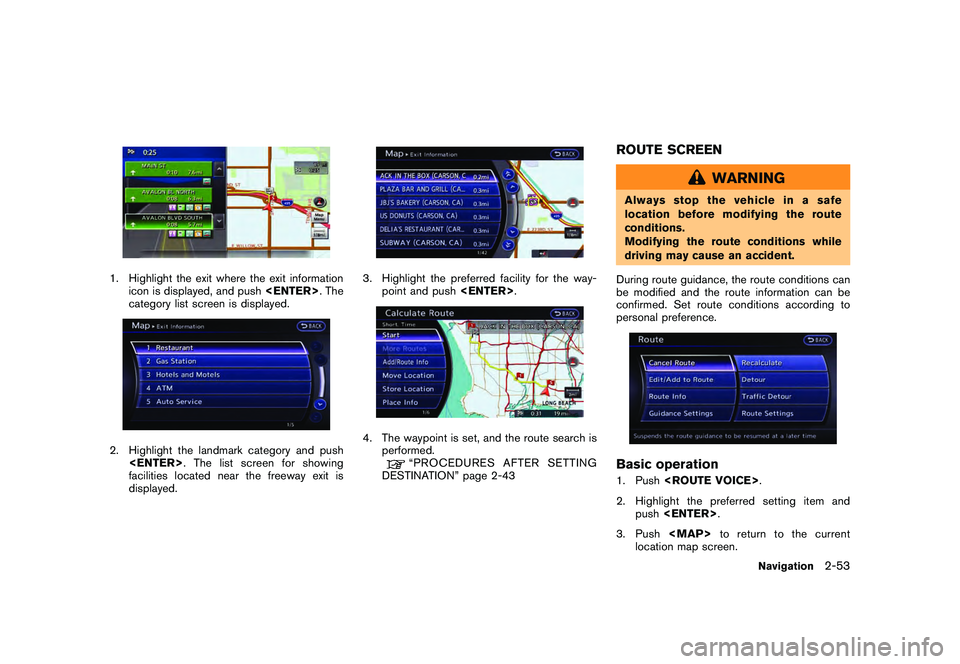
Page 79 of 312
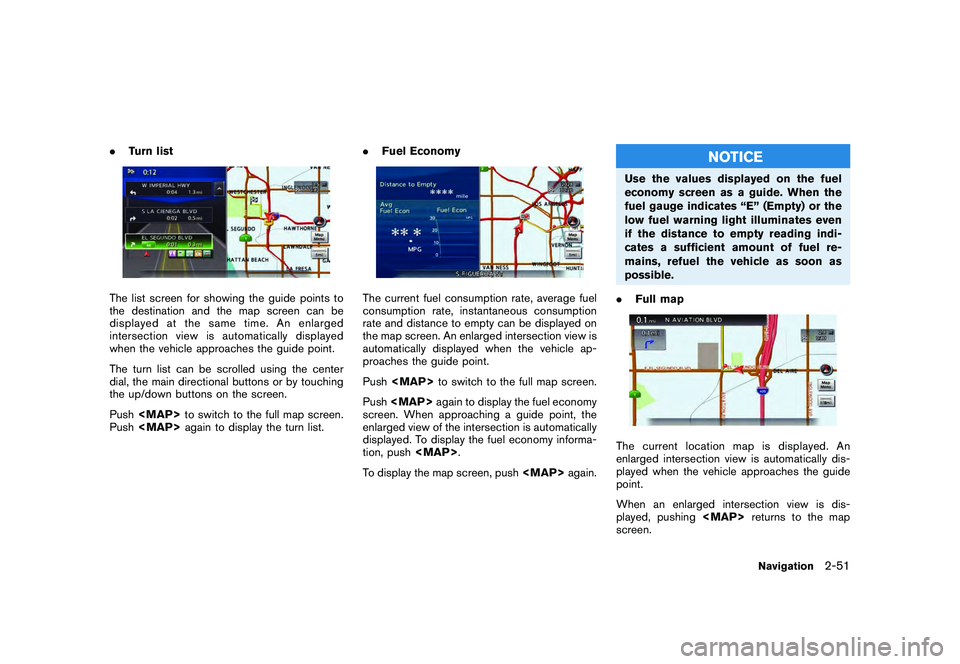
Black plate (77,1)
Model "R35-N" EDITED: 2009/ 10/ 30
.Turn listThe list screen for showing the guide points to
the destination and the map screen can be
displayed at the same time. An enlarged
intersection view is automatically displayed
when the vehicle approaches the guide point.
The turn list can be scrolled using the center
dial, the main directional buttons or by touching
the up/down buttons on the screen.
Push
Page 80 of 312

Black plate (78,1)
Model "R35-N" EDITED: 2009/ 10/ 30
Show exit information on freeways:When the vehicle travels on a highway or a toll
road, the display automatically provides exit
information in the turn list.1. Push while the current location
map screen is displayed.
2. Highlight [Map View] and push .3. Highlight [Map Settings] and push
TER>.
4. Highlight [Show all Freeway Exits on Route] or [Auto. Show Turn List on Freeway] and
push . The indicator illuminates
when the item is set.
5. Push
Page 81 of 312
Black plate (79,1)
Model "R35-N" EDITED: 2009/ 10/ 30
1. Highlight the exit where the exit informationicon is displayed, and push . The
category list screen is displayed.2. Highlight the landmark category and push . The list screen for showing
facilities located near the freeway exit is
displayed.
3. Highlight the preferred facility for the way- point and push .4. The waypoint is set, and the route search is
performed.
“PROCEDURESAFTERSETTING
DESTINATION” page 2-43
ROUTE SCREEN
WARNING
Always stop the vehicle in a safe
location before modifying the route
conditions.
Modifying the route conditions while
driving may cause an accident.
During route guidance, the route conditions can
be modified and the route information can be
confirmed. Set route conditions according to
personal preference.Basic operation1. Push .
2. Highlight the preferred setting item and push .
3. Push
Page 82 of 312
![NISSAN GT-R 2011 Owners Manual Black plate (80,1)
Model "R35-N" EDITED: 2009/ 10/ 30
Available setting items
.[Cancel Route/Resume Route]:
Cancels the current route guidance. A
canceled route can also be reactivated. If
the suggest](/manual-img/5/58175/w960_58175-81.png "NISSAN GT-R 2011 Owners Manual Black plate (80,1)
Model \"R35-N\" EDITED: 2009/ 10/ 30
Available setting items
.[Cancel Route/Resume Route]:
Cancels the current route guidance. A
canceled route can also be reactivated. If
the suggest")
Black plate (80,1)
Model "R35-N" EDITED: 2009/ 10/ 30
Available setting items
.[Cancel Route/Resume Route]:
Cancels the current route guidance. A
canceled route can also be reactivated. If
the suggested route is canceled, [Cancel
Route] changes to [Resume Route].
“Canceling/reactivating route” page 2-
54
. [Edit/Add to Route]:
Edit or add a destination or waypoints to the
route that is already set.“Editing route” page 2-55
. [Route Info]:
Confirm the route by the route information or
simulation. The confirmed route can also be
stored.“Confirming route” page 2-60
. [Guidance Settings]:
Activates or deactivates route, voice gui-
dance and/or traffic announcement and
adjust the volume level of voice guidance.“Guidance settings” page 2-61
. [Recalculate]:
Manually search for the route again after
changing the search condition and have the
system calculate a route.“Recalculate route” page 2-62 .
[Detour]:
A detour of a specified distance can be
calculated.
“Setting detour route” page 2-63
. [Traffic Detour]:
Manually search for an alternative detour
route taking the traffic information into
consideration.“Searching for detour route taking
traffic information into consideration” page
2-64
. [Route Settings]:
Changes the route calculation conditions
anywhere along the route.“Setting conditions for route calcula-
tion” page 2-65
Canceling/reactivating routeA route that is already set can be canceled at
any time. If a route is deleted, the destination
and waypoints are also canceled.
It is also possible to reactivate a canceled route.
INFO:
Canceling a route does not delete the destina-
tion and waypoint information completely. To
delete the destination and waypoints completely.“DELETE DESTINATION” page 2-42
Canceling route:1. Push .
2. Highlight [Cancel Route] and push
TER>.3. A confirmation message is displayed.
Highlight [Yes] and push .
The route is canceled along with the
destination and waypoints.
2-54
Navigation
Page 83 of 312
Black plate (81,1)
Model "R35-N" EDITED: 2009/ 10/ 30
Setting by voice command
1. Push <
>located on the steering wheel.
2. After the tone sounds, speak a command.
To cancel a route:
“Cancel Route” (Alternate Command Mode)
Reactivating route:1. Push .
2. Highlight [Resume Route] and push
TER>.
3. A confirmation message is displayed. High- light [Yes] and push . The can-
celed route is reactivated.
INFO:
If a new route is set, the canceled route cannot
be reactivated.
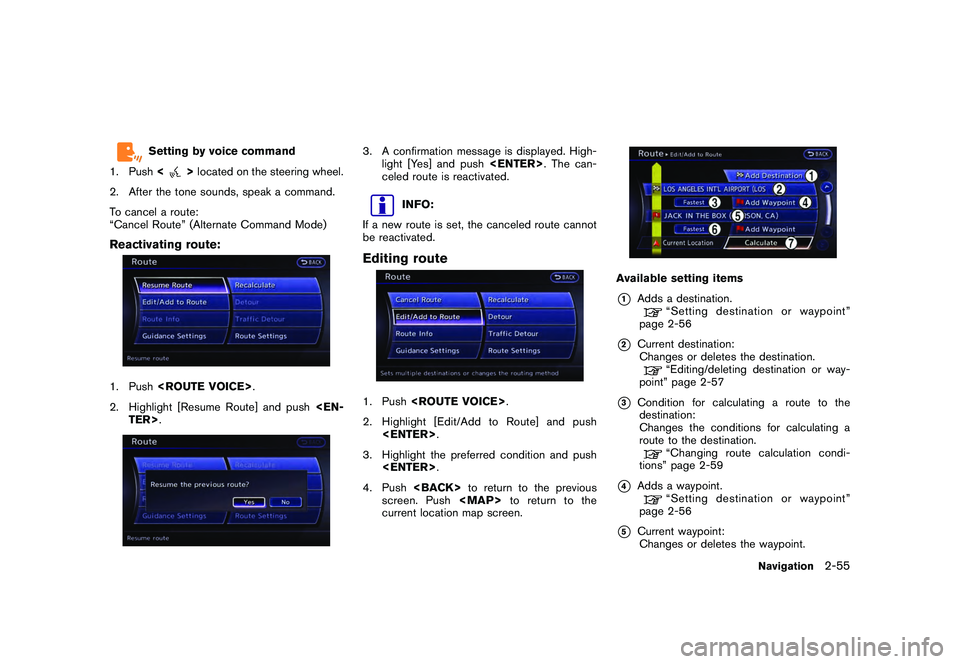
Editing route1. Push .
2. Highlight [Edit/Add to Route] and push .
3. Highlight the preferred condition and push .
4. Push to return to the previous
screen. Push
Page 84 of 312

Black plate (82,1)
Model "R35-N" EDITED: 2009/ 10/ 30
“Editing/deleting destination or way-
point” page 2-57
*6
Condition for calculating a route to a waypoint:
Changes the conditions for calculating a
route to a waypoint.
“Changing route calculation condi-
tions” page 2-59
*7
[Calculate]: Manually search for the route again after
changing the search conditions and have
the system calculate a route.
“Changing route calculation condi-
tions” page 2-59
Setting destination or waypoint:A destination or waypoint can be added to the
route that has already been set. A total of 6
destinations or waypoints can be set.1. Push . 2. Highlight [Edit/Add to Route] and push
.
3. Highlight [Add Destination] or [Add Way- point] and push .
If [Add Destination] is selected, the current
destination changes to a waypoint.
4. Set a destination or waypoint. The method of searching for a destination or waypoint is the
same as the one for a destination.
“SETTING DESTINATION” page 2-23
5. The selected location is displayed at thecenter of the map. Highlight [Add to Route]
after confirming the location and push
.
INFO:
Even after setting a destination/waypoint,
the destination/waypoint location can be
adjusted, the route can be stored, etc.“Editing/deleting destination or way-
point” page 2-57
6. Return to the [Edit Route] screen. Set the
route conditions as necessary.
7. Highlight [Calculate] and push .
The system will recalculate the routes. After
the route search is completed, the display
will automatically return to the current
location map screen.
2-56
Navigation
Page 85 of 312

Black plate (83,1)
Model "R35-N" EDITED: 2009/ 10/ 30
INFO:
. The prior route is automatically deleted.
. Added waypoints and search conditions will
not be taken into consideration for the route
calculation until [Calculate] is highlighted
and is pushed.
Editing/deleting destination or way-
point:The destination or waypoint that has already
been set can be modified or deleted.
If a location is modified or deleted when a
suggested route is already set, the prior
suggested route will be recalculated accord-
ingly.1. Push .
2. Highlight [Edit/Add to Route] and push .
3. Highlight a destination or waypoint that is already set and push
.
4. Highlight [Move Dest.] to modify the location
and push .
“Moving location of destination” page
2-46
5. Highlight [Delete] and push to
delete the location.
6. A confirmation message is displayed. Con- firm the contents of the message, highlight
[Yes] and push . The destination
or waypoint is deleted from the route. Return
to the [Edit Route] screen.7. By highlighting [Calculate] and pushing , the system will recalculate the
routes. After the route search is completed,
the display will automatically return to the
current location map screen.
Navigation
2-57
Page 86 of 312

Black plate (84,1)
Model "R35-N" EDITED: 2009/ 10/ 30
INFO:
. If the destination is deleted, the final
waypoint of the route becomes the destina-
tion.
. Even if the map screen is touched, the same
map screen as when [Move Dest.] is
selected is displayed.
Changing order of destination and way-
points:The order of a destination and waypoints that
have already been set can be changed.1. Push .
2. Highlight [Edit/Add to Route] and push .
3. Highlight a destination or waypoint that is already set and push .
4. Highlight [Change Order] and push
TER>. A list of the destination and way-
points is displayed.5. Highlight a preferred destination or waypoint
to replace the previously selected destina-
tion or waypoint and push .
6. A message is displayed and the order of the
destination or waypoint is changed.7. By highlighting [Calculate] and pushing , the system will recalculate the
routes. After the route search is complete,
the display will automatically return to the
current location map screen.
2-58
Navigation