2011 NISSAN GT-R USB
[x] Cancel search: USBPage 132 of 312

Black plate (132,1)
Model "R35-N" EDITED: 2009/ 10/ 30
midify or ventilate the USB player comple-
tely.
. The USB player sometimes cannot function
when the passenger compartment tempera-
ture is extremely high. Decrease the tem-
perature before use.
. Do not leave USB memory in a place prone
to static electricity or where the air condi-
tioner blows directly. The data in the USB
memory may be damaged.
. The vehicle is not equipped with a USB
memory stick.
. A USB device cannot be formatted with this
system. To format a USB device, use a
personal computer.
. Partitioned USB devices may not be played
correctly.
. Some characters used in other languages
(Chinese, Japanese, etc.) are not displayed
properly on the vehicle center screen. Using
English language characters with a USB
device is recommended.
. Do not connect a USB device if a connector
or cable is wet. Allow the cable and/or
connectors to dry completely before con-
necting the USB device. If the connector is
exposed to fluids other than water, evapora-
tive residue may cause a short between the connector pins.
. Large video podcast files cause slow
responses in an iPod
®. The vehicle center
display may momentarily black out, but it will
soon recover.
. If an iPod
®automatically selects large video
podcast files while in the shuffle mode, the
vehicle center display may momentarily
black out, but it will soon recover.
. Audiobooks may not play in the same order
as they appear on an iPod
®.
. An iPod nano
®(1st Generation) may remain
in fast forward or rewind mode if it is
connected during a seek operation. In this
case, please manually reset the iPod
®.
. An iPod nano
®(2nd Generation) will con-
tinue to fast forward or rewind if it is
disconnected during a seek operation.
. An incorrect song title may appear when the
Play Mode is changed while using the iPod
nano
®(2nd Generation)
iPod
®is a trademark of Apple Inc., registered in
the U.S. and other countries.
Compressed Audio Files (MP3/
WMA/AAC/ATRAC3)Explanation of terms:. MP3 — MP3 is short for Moving Pictures
Experts Group Audio Layer 3. MP3 is the
most well known compressed digital audio
file format. This format allows for near “CD
quality” sound, but at a fraction of the size of
normal audio files. MP3 conversion of an
audio track can reduce the file size by
approximately a 10:1 ratio (Sampling: 44.1
kHz, Bit rate: 128 kbps) with virtually no
perceptible loss in quality. The compression
reduces certain parts of sound that seem
inaudible to most people.
. WMA — Windows Media Audio (WMA) is a
compressed audio format created by Micro-
soft as an alternative to MP3. The WMA
codec offers greater file compression than
the MP3 codec, enabling storage of more
digital audio tracks in the same amount of
space when compared to MP3s at the same
level of quality.
. AAC/M4A — Advanced Audio Coding
(AAC) is a lossy audio compression format.
Audio files that have been encoded with
AAC are generally smaller in size and deliver
a higher quality of sound than MP3.
. Bit rate — Bit rate denotes the number of
bits per second used by a digital music file.
3-6
Audio system
Page 133 of 312

Black plate (133,1)
Model "R35-N" EDITED: 2009/ 10/ 30
The size and quality of a compressed digital
audio file is determined by the bit rate used
when encoding the file.
. Sampling frequency — Sampling frequency
is the rate at which the samples of a signal
are converted from analog to digital (A/D
conversion) per second.
. Multisession — Multisession is one of the
methods for writing data to media. Writing
data once to the media is called a single
session, and writing more than once is
called a multisession.
. ID3/WMA Tag — The ID3/WMA tag is the
part of the encoded MP3 or WMA file that
contains information about the digital music
file such as song title, artist, album title,
encoding bit rate, track time duration, etc.
ID3 tag information is displayed on the
Album/Artist/Track title line on the display.
* Windows
®and Windows Media
®are regis-
tered trademarks or trademarks of Microsoft
Corporation in the United States of America
and/or other countries.
Playback order:. The folder names of folders not containing
compressed audio files are not shown in the
display.
. If there is a file in the top level of a disc/USB,
“Root Folder” is displayed.
. The playback order is the order in which the files were written by the writing software, so
the files might not play in the desired order.
. Music playback order of compressed audio
files is as illustrated in the next figure.
Audio system
3-7
Page 134 of 312

Black plate (134,1)
Model "R35-N" EDITED: 2009/ 10/ 30
Specification chart:Supported mediaCD, CD-R, CD-RW, DVD-ROM, DVD+R, DVD +RW, DVD +R DL, USB2.0
Supported file systems CD, CD-R, CD-RW, DVD-ROM, DVD
+R, DVD +RW, DVD +R DL: ISO9660 LEVEL1, ISO9660 LEVEL2,
Romeo, Joliet
* ISO9660 Level 3 (packet writing) is not supported.
* Files saved using the Live File System component (on a Windows Vista-based computer) are not supported.
UDF Bridge (UDF1.02+ISO9660) , UDF1.5, UDF2.0
* VDF1.5/VDF2.0 (packet writing) is not supported.
USB memory: FAT16, FAT32
Supported
versions*1 MP3
Version
MPEG1 Audio Layer 3
Sampling frequency 8 kHz - 48 kHz
Bit rate 8 kbps - 320 kbps, VBR*4
WMA*2 Version
WMA7, WMA8, WMA9
Sampling frequency 32 kHz - 48 kHz
Bit rate 32 kbps - 192 kbps, VBR*4
AAC Version
MPEG-AAC
Sampling frequency 8 kHz - 96 kHz
Bit rate 16 kbps - 320 kbps, VBR*4
Tag information (Song title and Artist name) ID3 tag VER1.0, VER1.1, VER2.2, VER2.3, VER2.4 (MP3 only)
WMA tag (WMA only)
Folder levels With navigation system:
Folder levels: 8, Folders: 255 (including root folder) , Files: 512 (Max. 255 files for one folder)
Folder levels: 8, Folders and files: 999 (Max. 255 files for one folder)
Text character number limitation With navigation system: 100 characters
Displayable character codes*3 01: ASCII, 02: ISO-8859-1, 03: UNICODE (UTF-16 BOM Big Endian) , 04: UNICODE (UTF-16 Non-BOM Big
Endian) , 05: UNICODE (UTF-8) , 06: UNICODE (Non-UTF-16 BOM Little Endian) , 07: SHIFT-JIS3-8
Audio system
Page 136 of 312

Black plate (136,1)
Model "R35-N" EDITED: 2009/ 10/ 30
Compressed Video FilesExplanation of terms:.DivX
®- DivX
®refers to the DivX
®codec
owned by DivX, Inc. used for a lossy
compression of video based on MPEG-4.
. AVI - AVI stands for Audio Video Interleave.
It is a standard file format originated by
Microsoft Corporation. A “.divx” encoded file
can be saved into the “.avi” file format for
playback on this system if it meets the
requirements stated in the table in this
section. However, not all the “.avi” files are
playable on this system since different
encodings can be used than the DivX
®
codec.
. ASF - ASF stands for Advanced Systems
Format. It is a file format owned by Microsoft
Corporation. Note: Only “.asf” files that meet
the requirements stated in the table in this
section can be played.
. Bit rate — Bit rate denotes the number of
bits per second used by a digital video file.
The size and quality of a compressed digital
audio file is determined by the bit rate used
when encoding the file.
Requirement for Supporting Video
Playback:Media CD, CD-R, CD-RW, DVD, DVD+ R, DVD+RW, DVD +RW DL, USB 2.0 Memory
File Systems CD, CD-R,
CD-RW,
DVD,
DVD+R,
DVD +RW,
DVD +RW DL ISO9660 LEVEL1, ISO9660 LEVEL2, Romeo, Joliet, UDF Bridge
(UDF1.02+ISO9660) , UDF1.5, UDF2.0
- ISO9660 Level 3 (packet writing) is not supported.
- Files saved using the Live File System component (on a Windows Vista-
based computer) are not supported.
- VDF1.5/VDF2.0 (packet writing) is not supported.
USB Memory FAT16, FAT32
File Types .divx, .avi Video CodecsDivX3, DivX4, DivX5, DivX6
Audio Codecs MP3, MPEG2.5 Audio Layer3, AC3, LPCM
.asf Video Codec ISO-MPEG4
Audio Codec G.726
Bit Rates .divx, .avi Maximum Average 4Mbps
Maximum Peak8Mbps
Resolution .divx, .avi Minimum32632
Maximum 7206480
.asf Minimum 32632
Maximum 7206576
3-10
Audio system
Page 138 of 312

Black plate (138,1)
Model "R35-N" EDITED: 2009/ 10/ 30
ANTENNAWindow antennaThe antenna pattern is printed inside the rear
window.
CAUTION
.Do not place metalized film near the
rear window glass or attach any
metal parts to it. This may cause
poor reception or noise.
. When cleaning the inside of the rear
window, be careful not to scratch or
damage the rear window antenna.
Lightly wipe along the antenna with
a dampened soft cloth.
FM-AM-SAT RADIO WITH COM-
PACT DISC (CD) PLAYERThe satellite radio mode requires an active XM
Satellite Radio subscription. The satellite radio is
not available in Alaska, Hawaii and Guam.
It may take some time to receive the activation
signal after subscribing the XM Satellite Radio.
After receiving the activation signal, an available
channel list will be automatically updated in the
radio. For XM, push the ignition switch from
LOCK to ACC to update the channel list.Audio main operationHead unit:The auto loudness circuit enhances the low and
high frequency ranges automatically in both
radio reception and CD playback.ON·OFF/Volume control:Push the ignition switch to the ACC or ON
position, and then push the ON·OFF button
while the system is off to turn on the last audio
source (i.e. FM or CD) , which was playing
immediately before the system was turned off.
While the system is on, pushing the ON·OFF
button turns the system off.
Turn the VOL control knob to adjust the volume.
Adjusting tone quality and speaker bal-
ance:To adjust Bass, Treble, Balance and Fade, push
the Audio control knob. When the display shows
the setting you want to change (Bass, Treble,
Balance and Fade) , rotate the Audio control
knob to set the desired setting.
“AUDIO SETTINGS” page 7-3.
Switching the display:Pushing
as follows:
iPod
®/USB ?CD/DVD ?Music Box ?
Bluetooth
®streaming audio (if so equipped) ?
AUX (if so equipped) ?iPod
®/USB
FM-AM-SAT radio operationFM/AM radio band select:Pushing
follows:
AM ?FM1 ?FM2 ?AM
3-12
Audio system
Page 144 of 312

Black plate (144,1)
Model "R35-N" EDITED: 2009/ 10/ 30
Angle (DVD-VIDEO):If the DVD contains different angles (such as
moving images) , the current image angle can be
switched to another one. Select [Angle]. The
angle will change each time the [+] side or []
side is selected.Angle Mark (DVD-VIDEO):When this item is turned on, an angle mark will
be shown on the bottom of the screen if the
scene can be seen from a different angle.Menu Skip (DVD-VIDEO):DVD menus are automatically configured and
the contents will be played directly when [Menu
Skip] is turned on. Note that some discs may not
be played directly even if this item is turned on.CM Skip (DVD-VIDEO):Select [CM Skip]. Choose the setting time from
15, 30 or 60 seconds by selecting the [+] side
or [ ] side.DRC (DVD-VIDEO, DVD-VR):DRC (Dynamic Range Compression) automati-
cally adjusts the soundtrack volume level to
maintain a more even sound to the speakers.DVD Language (DVD-VIDEO, VIDEO-
CD):Select [DVD Language] to open the number
entry screen. Input the number corresponding to
the preferred language and select [OK]. The DVD top menu language will be changed to the
one specified.
Display:To adjust the image quality of the screen, select
the preferred adjustment items.Audio:Select the preferred language for audio.Subtitle (DVD-VIDEO, DVD-VR):Select the preferred language for subtitles.Display Mode (DVD-VIDEO, VIDEO-CD,
DVD-VR):Select from the “Full”, “Wide”, “Normal” or
“Cinema” modes.Title List (DVD-VR):Select the preferred title from the list.Play Mode:Select the preferred play mode.PG/PL Mode (DVD-VR):Select the “PG” or “PL” mode.
USB MEMORY OPERATION
Audio main operationOpen the console lid and connect a USB
memory as illustrated. Then, push
memory mode.
If the system has been turned off while the USB
memory was playing, pushing the ON·OFF/VOL
control knob will start the USB memory.
3-18
Audio system
Page 145 of 312

Black plate (145,1)
Model "R35-N" EDITED: 2009/ 10/ 30
File selectionWhen there are both audio and movie files in the
USB memory, the mode select screen is
displayed. Select the preferred contents to play.
When there is only one type of file, the audio or
movie operation screen is displayed and starts
to play.
If a video file restricts the number of playbacks, a
pop-up screen will appear to confirm it is ok to
play. Answer yes or no as requested by the
display.
Audio file operationPLAY:When
off and the USB memory inserted, the system
will turn on.
If another audio source is playing and a USB
memory is inserted, push
peatedly until the center display changes to the
USB memory mode.Next/Previous File and Fast Forward/
Rewind:When <
>(Rewind) or <
>(Fast For-
ward) is pushed for more than 1.5 seconds
while a USB memory is being played, the USB
memory will play while forwarding or rewinding.
When the button is released, the USB memory
will return to normal play speed.
When <
>or <
>is pushed for less
than 1.5 seconds while the USB memory is
being played, the next track or the beginning of the current track on the USB memory will be
played.
The center dial can also be used to select tracks
when the USB memory is being played.
Folder selection:To change to another folder in the USB memory,
turn the folder selector or choose a folder
displayed on the screen using the center dial.
REPEAT (RPT) , RANDOM (RDM):
When
memory is played, the play pattern can be
change as follows.
To change the play mode, push
repeatedly and the mode will change as follows.
Normal ?1 Folder Repeat ?1 Track Repeat ?
All Random ?1 Folder Random ?Normal
Audio system
3-19
Page 146 of 312
Black plate (146,1)
Model "R35-N" EDITED: 2009/ 10/ 30
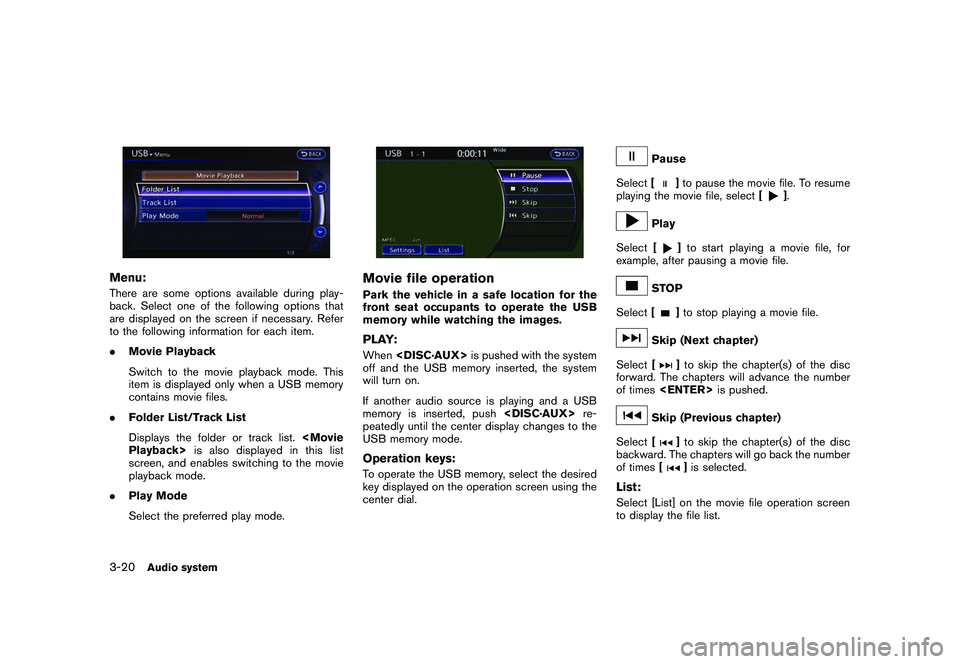
Menu:There are some options available during play-
back. Select one of the following options that
are displayed on the screen if necessary. Refer
to the following information for each item.
.Movie Playback
Switch to the movie playback mode. This
item is displayed only when a USB memory
contains movie files.
. Folder List/Track List
Displays the folder or track list.
screen, and enables switching to the movie
playback mode.
. Play Mode
Select the preferred play mode.
Movie file operationPark the vehicle in a safe location for the
front seat occupants to operate the USB
memory while watching the images.PLAY:When
off and the USB memory inserted, the system
will turn on.
If another audio source is playing and a USB
memory is inserted, push
peatedly until the center display changes to the
USB memory mode.Operation keys:To operate the USB memory, select the desired
key displayed on the operation screen using the
center dial.
Pause
Select [
]to pause the movie file. To resume
playing the movie file, select [
].
Play
Select [
]to start playing a movie file, for
example, after pausing a movie file.
STOP
Select [
]to stop playing a movie file.
Skip (Next chapter)
Select [
]to skip the chapter(s) of the disc
forward. The chapters will advance the number
of times
Skip (Previous chapter)
Select [
]to skip the chapter(s) of the disc
backward. The chapters will go back the number
of times []is selected.
List:Select [List] on the movie file operation screen
to display the file list.
3-20
Audio system