2011 NISSAN GT-R USB
[x] Cancel search: USBPage 147 of 312
![NISSAN GT-R 2011 Owners Manual Black plate (147,1)
Model "R35-N" EDITED: 2009/ 10/ 30
Example
Settings:Select[Settings] to adjust the following set-
tings.
. Audio File Playback
Switch to the audio playback mode. This
item is displ](/manual-img/5/58175/w960_58175-146.png "NISSAN GT-R 2011 Owners Manual Black plate (147,1)
Model \"R35-N\" EDITED: 2009/ 10/ 30
Example
Settings:Select[Settings] to adjust the following set-
tings.
. Audio File Playback
Switch to the audio playback mode. This
item is displ")
Black plate (147,1)
Model "R35-N" EDITED: 2009/ 10/ 30
Example
Settings:Select[Settings] to adjust the following set-
tings.
. Audio File Playback
Switch to the audio playback mode. This
item is displayed only when the USB
memory contains the audio files.
. Play Mode
Select the “Normal” or “1 Track Repeat” play
mode.
. 10 Key Search
Select [10 Key Search] to open the number
entry screen.
Input the number to be searched and select
[OK].
The specified folder/file will be played. .
Display
To adjust the image quality of the screen,
select the preferred adjustment items.
. DRC
DRC (Dynamic Range Compression) auto-
matically adjusts the soundtrack volume
level to maintain a more even sound to the
speakers.
. Audio
Select the preferred language for audio.
. Subtitle
Select the preferred language for subtitle.
. Display Mode
Select the “Normal”, “Wide”, “Cinema” or
“Full” mode.
BLUETOOTH STREAMING AUDIOYour vehicle is equipped with Bluetooth
®
Streaming Audio. If you have a compatible
Bluetooth
®device with streaming audio (A2DP
profile) , you can set up the wireless connection
between your Bluetooth
®device and the in-
vehicle audio system. This connection allows
you to listen to the audio from the Bluetooth
®
device using your vehicle speakers. It also may
allow basic control of the device for playing and
skipping audio files using the AVRCP Bluetooth
profile. All Bluetooth
®Devices do not have the
same level of controls for AVRCP. Please
consult the manual for your Bluetooth
®Device
for more details.
Once your Bluetooth
®device is connected to
the in-vehicle audio system, it will automatically
reconnect whenever the device is present in the
vehicle and you select Bluetooth Audio from
your audio system. You do not need to manually
reconnect for each usage.Audio system
3-21
Page 151 of 312

Black plate (151,1)
Model "R35-N" EDITED: 2009/ 10/ 30
Edit Bluetooth Info:Change the name broadcasted by this system
over Bluetooth. Change the PIN code that is
entered when connecting a hands free device to
this system.Replace Connected Phone:Replace the Bluetooth connection with a con-
nected Bluetooth cellular phone.
“Bluetooth
®Hands-Free Phone System”
page 4-1
iPod
®PLAYER OPERATION
Connecting iPod
®
Open the console lid and connect the iPod
®
cable to the USB connector. If the iPod
®
supports charging via USB, the battery of the
iPod
®will be charged while connected to the
vehicle. Depending on the version of the iPod
®, the
display on the iPod
®
shows a NISSAN or
Accessory Attached screen when the connec-
tion is completed. When the iPod
®is connected
to the vehicle, the iPod
®music library can only
be operated by the vehicle audio controls.
*iPod
®is a trademark of Apple Inc., registered
in the U.S. and other countries.
CompatibilityThe following models are available:
. Fifth generation iPod
®
(version 1.2.3 or
later)
. iPod Classic
®(version 1.1.1 or later)
. First generation iPod touch
®(version 2.0.0
or later)
. Second generation iPod touch
®
(version
1.2.3 or later)
. First generation iPod nano
®(version 1.3.1 or
later)
. Second generation iPod nano
®
(version
1.1.3 or later)
. Third generation iPod nano
®(version 1.1 or
later)
. Fourth generation iPod nano®(version 1.0.2
or later) Make sure that the iPod
®version is updated.
Audio main operationPush the ignition switch to the ACC or ON
position. Then, push
to switch to the iPod
®mode.
If the system has been turned off while the iPod
®
was playing, pushing the ON·OFF button will
start the iPod
®.
PLAY:When
off and the iPod
®connected, the system will
turn on. If another audio source is playing and
the iPod
®is connected, push
repeatedly until the center display changes to
the iPod
®mode.
Interface:The interface for iPod
®operation shown on the
vehicle center display is similar to the iPod
®
interface. Use the center dial and
<
> to play the iPod
®with your favorite
settings.
The following items can be chosen from the
menu list screen. For further information about
each item, see the iPod
®Owner’s Manual.
. Now Playing
. Playlists
. ArtistsAudio system
3-25
Page 153 of 312

Black plate (153,1)
Model "R35-N" EDITED: 2009/ 10/ 30
.The recording process can be
stopped at any time. All tracks that
were played before the CD was
stopped are stored.
. Individual tracks can be deleted
from the hard-disk drive after the
CD is recorded.If the title information of the track being recorded
is stored either in the in-vehicle memory or in the
CD, the title is automatically displayed on the
screen. For title acquisition from the in-vehicle
memory, music recognition technology and
related data are provided by Gracenote
®.
If a track is not recorded successfully due to
skipping sounds, the
mark is displayed
behind the track number.
The “Music Box” cannot perform recording
under the following conditions. .
There is not enough space in-vehicle
memory
. The number of albums reaches the maximum
of 500.
. The number of tracks reaches the maximum
of 3,000.
Automatic recording:If the “Automatic Recording” function is turned
to ON, recording starts when a CD is inserted.
“Music Box settings” page 3-29
Stopping recording:To stop the recording, select [Stop REC].
If the CD is ejected, the audio system is turned
off or the ignition switch is pushed to the OFF
position, the recording also stops.
Playing recorded songsSelect the “Music Box” audio system by using
one of the following methods.
.Push the audio source switch on the
steering wheel repeatedly until the center
display changes to the Music Box mode.
. Push
center display changes to the Music Box
mode.
. Give voice commands.
“Voice recognition” page 8-1
Stopping playback:The system stops playing when:
a. another mode (radio, CD, DVD, USB
memory, iPod or AUX) is selected.
b. the audio system is turned off.
c. the ignition switch is pushed to the LOCK position.Next/Previous Track and Fast Forward/
Rewind:When <
>(fast forward) or <
>(rewind)
is pushed for more than 1.5 seconds while a
track is being played, the track will play while
fast forwarding or rewinding. When the button is
released, the track will return to the normal play
speed.
When <
>or <
>is pushed for lessAudio system
3-27
Page 155 of 312

Black plate (155,1)
Model "R35-N" EDITED: 2009/ 10/ 30
ing a track and specifying the order.
. Edit Name
Edit the name of the Playlist using the
keypad displayed on the screen.
“HOW TO INPUT LETTERS AND
NUMBERS” page 1-16
. Delete Songs
Delete tracks in the Playlist by selecting from
the displayed song list.
Play Mode:Choose the preferred play mode from the
following items.
.Normal
. 1 Album Repeat
. 1 Track Repeat
. 1 Playlist Random
. 1 Artist Random
. 1 Album Random
. All Track RandomEdit Music Information:Displays the following information about the
Music Box to edit if necessary. .
Edit Information of Current Song
Edit the “Track”, “Artist” and “Genre” in-
formation of the current track using the
keypad displayed on the screen.
“HOW TO INPUT LETTERS AND
NUMBERS” page 1-16
Edit the “Mode” information by selecting
from the list.
. Edit Information by Album
Edit the displayed name and of a selected
album and the track information in the album.
. Update Gracenote from USB Device
Update the in-vehicle Gracenote Database
using a USB memory. Search the title from a
information acquired on the Internet.
Visit www.nissanusa.com/gracenote/ for de-
tails.
. Transfer Missing Titles to USB
Transfer the information of an album re-
corded without titles to a USB memory.
Visit www.nissanusa.com/gracenote/ for de-
tails. .
Update Gracenote from HDD
Search the title using the database in the
hard disk.
Music Box settingsTo set the Music box to your preferred settings,
select [Menu] during playback, and [Music Box
Settings] with the center dial, and then push
and “Remaining Time” is displayed.Automatic Recording:When this item is turned to ON, the Music Box
automatically starts recording when a CD is
inserted.
Audio system
3-29
Page 157 of 312
Black plate (157,1)
Model "R35-N" EDITED: 2009/ 10/ 30
error-free or that functioning of Gracenote
Software or Gracenote Servers will be unin-
terrupted. Gracenote is not obligated to provide
you with new enhanced or additional data types
or categories that Gracenote may provide in the
future and is free to discontinue its services at
any time.
GRACENOTE DISCLAIMS ALL WARRANTIES
EXPRESS OR IMPLIED, INCLUDING, BUT
NOT LIMITED TO, IMPLIED WARRANTIES OF
MERCHANTABILITY, FITNESS FOR A PARTI-
CULAR PURPOSE, TITLE, AND NON-INFRIN-
GEMENT. GRACENOTE DOES NOT
WARRANT THE RESULTS THAT WILL BE
OBTAINED BY YOUR USE OF THE GRACE-
NOTE SOFTWARE OR ANY GRACENOTE
SERVER. IN NO CASE WILL GRACENOTE
BE LIABLE FOR ANY CONSEQUENTIAL OR
INCIDENTAL DAMAGES OR FOR ANY LOST
PROFITS OR LOST REVENUES.Copyright:Music recognition technology and related data
are provided by Gracenote
®. Gracenote is the
industry standard in music recognition technol-
ogy and related content delivery. For more
information, please visit www.gracenote.com.
CD and music-related data from Gracenote,
Inc., copyright
*C
2000-2009 Gracenote.
Gracenote Software, copyright
*C2000-2009
Gracenote. This product and service may practice one or more of the following U.S.
Patents: #5,987,525; #6,061,680;
#6,154,773, #6,161,132, #6,230,192,
#6,230,207, #6,240,459, #6,330,593, and
other patents issued or pending. Some services
supplied under license from Open Globe, Inc.
for U.S. Patent: #6,304,523.
Gracenote and CDDB are registered trade-
marks of Gracenote. The Gracenote logo and
logotype, and the “Powered by Gracenote” logo
are trademarks of Gracenote.
CD/DVD/USB MEMORY CARE AND
CLEANING
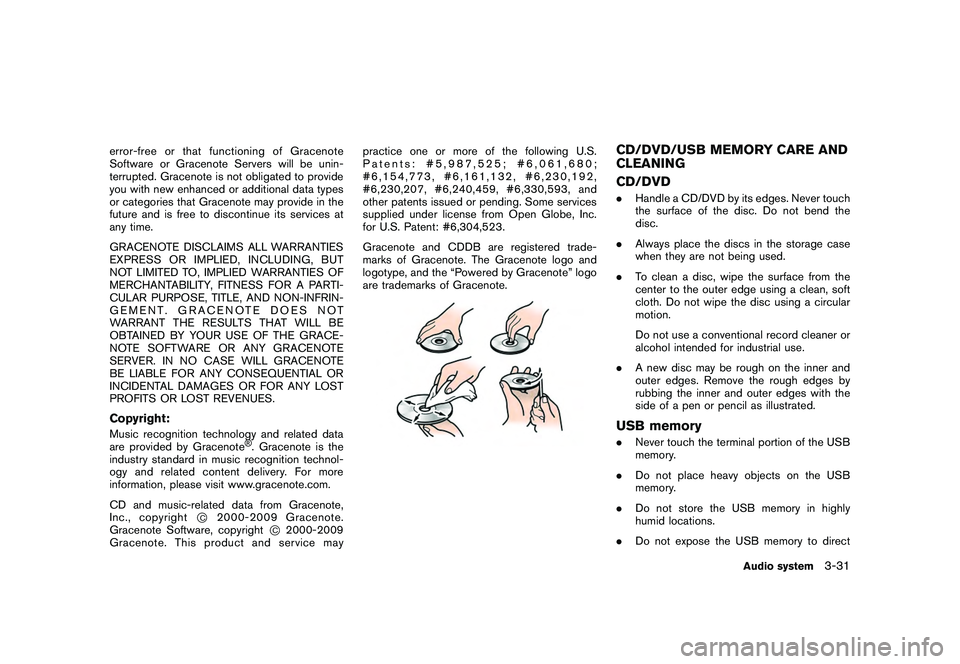
CD/DVD.
Handle a CD/DVD by its edges. Never touch
the surface of the disc. Do not bend the
disc.
. Always place the discs in the storage case
when they are not being used.
. To clean a disc, wipe the surface from the
center to the outer edge using a clean, soft
cloth. Do not wipe the disc using a circular
motion.
Do not use a conventional record cleaner or
alcohol intended for industrial use.
. A new disc may be rough on the inner and
outer edges. Remove the rough edges by
rubbing the inner and outer edges with the
side of a pen or pencil as illustrated.USB memory.Never touch the terminal portion of the USB
memory.
. Do not place heavy objects on the USB
memory.
. Do not store the USB memory in highly
humid locations.
. Do not expose the USB memory to direct
Audio system
3-31
Page 158 of 312

Black plate (158,1)
Model "R35-N" EDITED: 2009/ 10/ 30
sunlight.
. Do not spill any liquids on the USB memory.
Refer to the USB memory Owner’s Manual for
the details.
When installing a car phone or a CB radio in
your NISSAN, be sure to observe the following
cautions, otherwise the new equipment may
adversely affect the electronic control modules
and electronic control system harness.
WARNING
. A cellular telephone should not be
used while driving so full attention
may be given to vehicle operation.
Some jurisdictions prohibit the use
of cellular telephones while driving.
. If you must make a call while your
vehicle is in motion, the hands-free
cellular phone operational mode (if
so equipped) is highly recom-
mended. Exercise extreme caution
at all times so full attention may be
given to vehicle operation.
. If you are unable to devote full
attention to vehicle operation while
talking on the phone, pull off the
road to a safe location and stop
your vehicle.
CAUTION
.Keep the antenna as far away as
possible from the electronic control
modules.
. Keep the antenna wire more than 8
in (20 cm) away from the electronic
control system harness. Do not
route the antenna wire next to any
harness.
. Adjust the antenna standing-wave
ratio as recommended by the man-
ufacturer.
. Connect the ground wire from the
CB radio chassis to the body.
. For details, consult your NISSAN
dealer or GT-R certified NISSAN
dealer.
3-32
Audio system
CAR PHONE OR CB RADIO
Page 200 of 312

Black plate (206,1)
Model "R35-N" EDITED: 2009/ 10/ 30
The navigation system can be customized to
make it easier for you to use.BASIC OPERATION1. Push
2. Highlight the preferred setting item and push
Available setting items
. [Navigation]:
Adjust various settings of the navigation
system.
“NAVIGATION SETTING” page 2-93
. [Audio]:
Adjusts the audio settings.“AUDIO SETTINGS” page 7-3
. [Phone]:
Adjusts various settings of the Bluetooth
®
Hands-Free Phone System.
“PHONE SETTING” page 4-8 .
[Bluetooth]:
Set Bluetooth
®Audio and Phone.
“Bluetooth settings” page 3-24
. [Volume & Beeps]:
Adjusts the volume and sets the beep
function.“VOLUME ADJUSTMENT” page 7-6
. [Display]:
Adjusts the display.“DISPLAY SETTINGS” page 7-4
. [Clock]:
Changes the clock settings.“CLOCK SETTINGS” page 7-7
. [Others]:
— [Comfort]: This item is displayed when the ignition
switch is in the ON position.
“COMFORT & CONV. SET-
TINGS” page 7-8
— [Language & Units]: Changes the language or measurement
units.“LANGUAGE AND UNIT SET-
TINGS” page 7-9
— [Voice Recognition]: Adjusts various settings of the voice
recognition system.“SYSTEM FEEDBACK AN-
NOUNCEMENT MODES” page 8-22 — [Image Viewer]:
Displays the image files in the USB
memory.
“IMAGE VIEWER” page 7-11
7-2
Other settings
SETTINGS SCREEN
Page 201 of 312
![NISSAN GT-R 2011 Owners Manual Black plate (207,1)
Model "R35-N" EDITED: 2009/ 10/ 30
This allows to you adjust the speaker tone
quality and sound balance.1. Push<SETTING> .
2. Highlight [Audio] and push <ENTER>.
3. Highlight the p](/manual-img/5/58175/w960_58175-200.png "NISSAN GT-R 2011 Owners Manual Black plate (207,1)
Model \"R35-N\" EDITED: 2009/ 10/ 30
This allows to you adjust the speaker tone
quality and sound balance.1. Push<SETTING> .
2. Highlight [Audio] and push <ENTER>.
3. Highlight the p")
Black plate (207,1)
Model "R35-N" EDITED: 2009/ 10/ 30
This allows to you adjust the speaker tone
quality and sound balance.1. Push
2. Highlight [Audio] and push
3. Highlight the preferred adjustment item and push
4. Use the center dial to adjust the tone quality or sound balance.
5. After settings, push
>
to apply the setting.
6. Push <
>to return to the previous
screen.
Push