Page 252 of 489
Precision phased audio (if so equipped):
To turn on or off the precision phased audio,
press the SETTING button. Then touch the “Au-
dio” key; the audio settings screen will be dis-
played. Touch the “Precision Phased Audio ON”
key. If the amber indicator light is displayed, the
precision phased audio is enabled. Touching the
“Precision Phased Audio ON” key again will turn
off the precision phased audio; the indicator light
will disappear.
When this item is turned on, super high pitch
sound and super low pitch sound are empha-
sized and midrange sound is played naturally.While in this screen, you can also adjust the other
audio settings by touching the corresponding
key.
Once you have adjusted the sound quality to the
desired level, touch the “BACK” key.
Clock set:
For setting the clock, see “Clock” under the
“Control panel buttons – color screen without
navigation system” heading earlier in this section.
Page 253 of 489
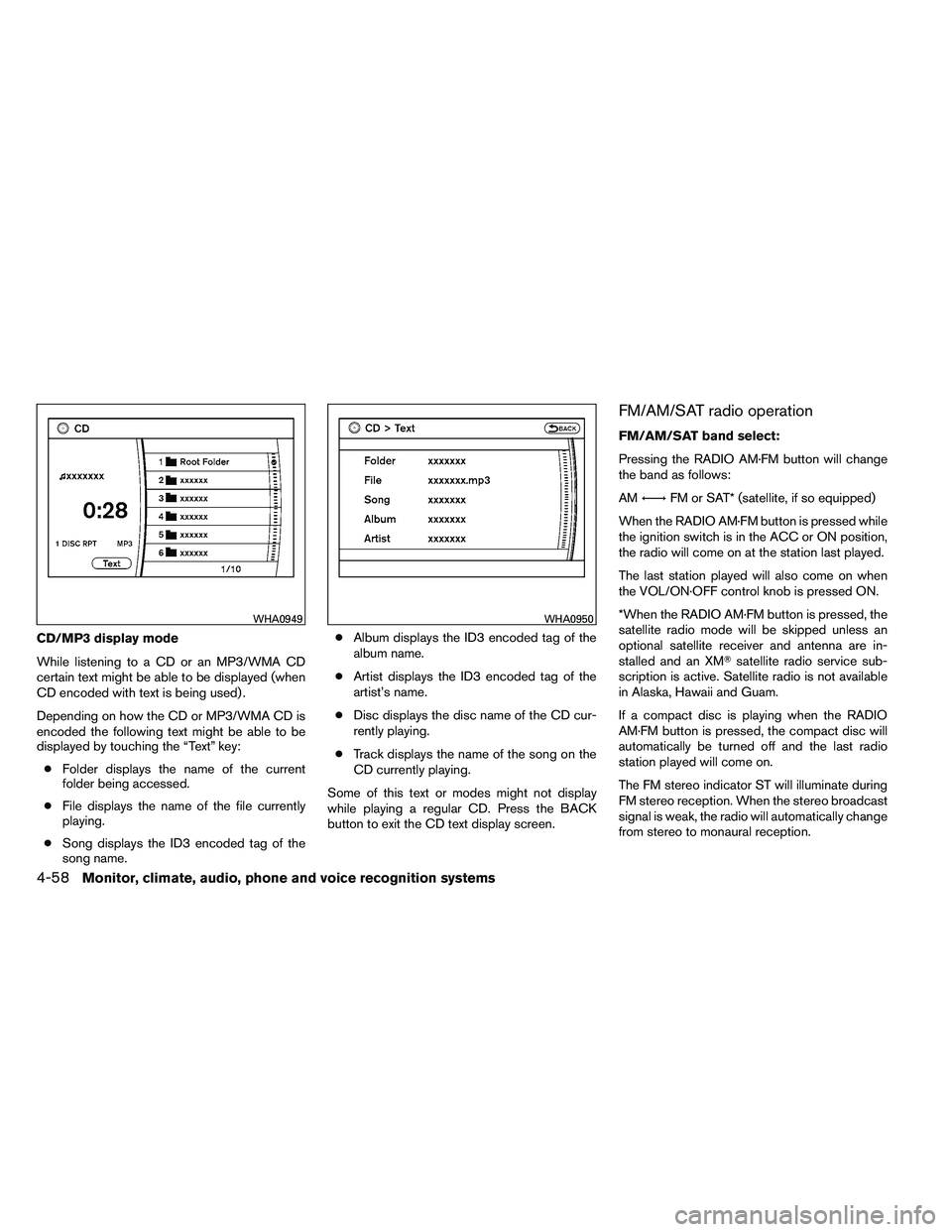
CD/MP3 display mode
While listening to a CD or an MP3/WMA CD
certain text might be able to be displayed (when
CD encoded with text is being used) .
Depending on how the CD or MP3/WMA CD is
encoded the following text might be able to be
displayed by touching the “Text” key:● Folder displays the name of the current
folder being accessed.
● File displays the name of the file currently
playing.
● Song displays the ID3 encoded tag of the
song name. ●
Album displays the ID3 encoded tag of the
album name.
● Artist displays the ID3 encoded tag of the
artist’s name.
● Disc displays the disc name of the CD cur-
rently playing.
● Track displays the name of the song on the
CD currently playing.
Some of this text or modes might not display
while playing a regular CD. Press the BACK
button to exit the CD text display screen.
FM/AM/SAT radio operation
FM/AM/SAT band select:
Pressing the RADIO AM·FM button will change
the band as follows:
AM ←→ FM or SAT* (satellite, if so equipped)
When the RADIO AM·FM button is pressed while
the ignition switch is in the ACC or ON position,
the radio will come on at the station last played.
The last station played will also come on when
the VOL/ON·OFF control knob is pressed ON.
*When the RADIO AM·FM button is pressed, the
satellite radio mode will be skipped unless an
optional satellite receiver and antenna are in-
stalled and an XM� satellite radio service sub-
scription is active. Satellite radio is not available
in Alaska, Hawaii and Guam.
If a compact disc is playing when the RADIO
AM·FM button is pressed, the compact disc will
automatically be turned off and the last radio
station played will come on.
The FM stereo indicator ST will illuminate during
FM stereo reception. When the stereo broadcast
signal is weak, the radio will automatically change
from stereo to monaural reception.
Page 257 of 489
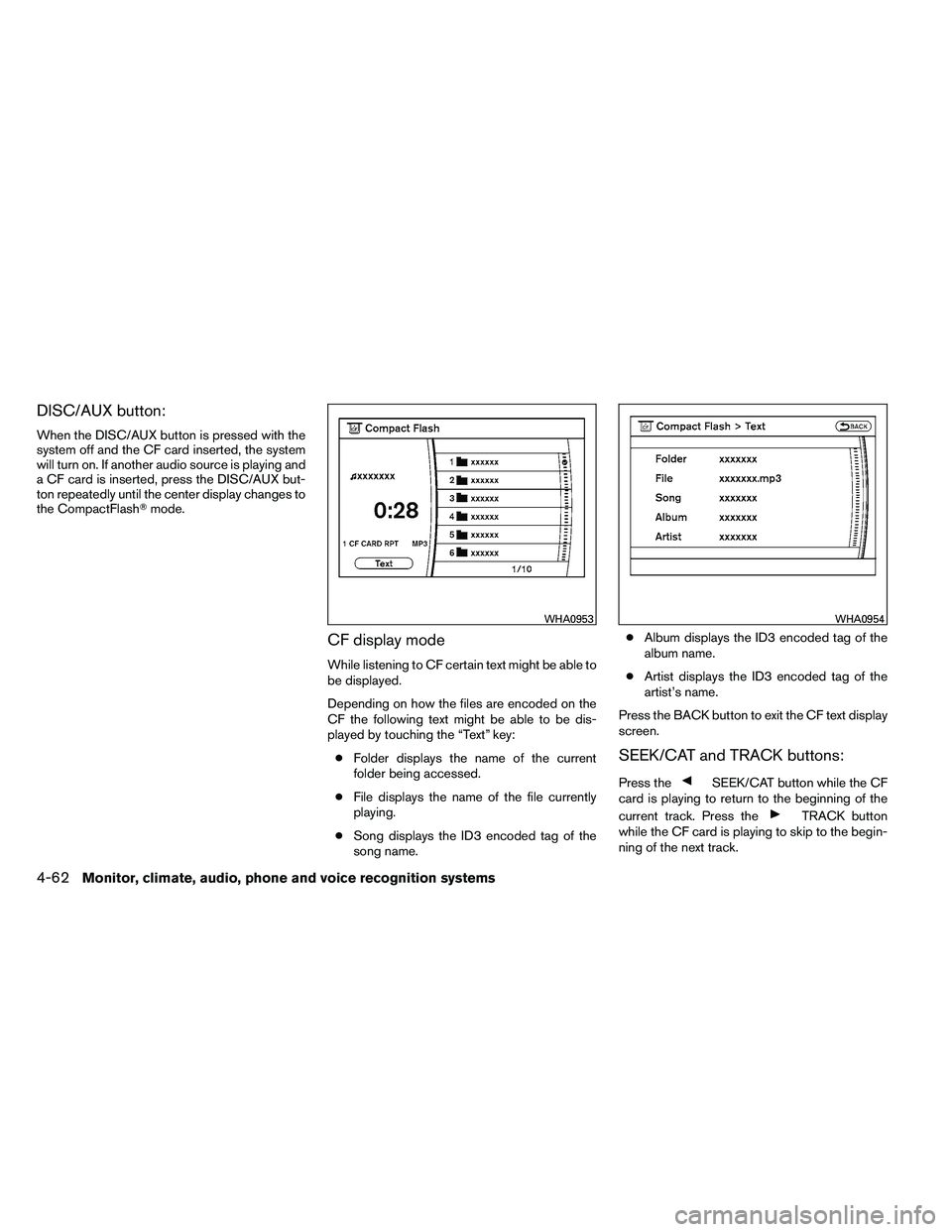
DISC/AUX button:
When the DISC/AUX button is pressed with the
system off and the CF card inserted, the system
will turn on. If another audio source is playing and
a CF card is inserted, press the DISC/AUX but-
ton repeatedly until the center display changes to
the CompactFlash�mode.
CF display mode
While listening to CF certain text might be able to
be displayed.
Depending on how the files are encoded on the
CF the following text might be able to be dis-
played by touching the “Text” key:
● Folder displays the name of the current
folder being accessed.
● File displays the name of the file currently
playing.
● Song displays the ID3 encoded tag of the
song name. ●
Album displays the ID3 encoded tag of the
album name.
● Artist displays the ID3 encoded tag of the
artist’s name.
Press the BACK button to exit the CF text display
screen.
SEEK/CAT and TRACK buttons:
Press the
Page 259 of 489
NOTE:
If the hard drive needs to be replaced due
to a malfunction, all stored music data will
be erased.
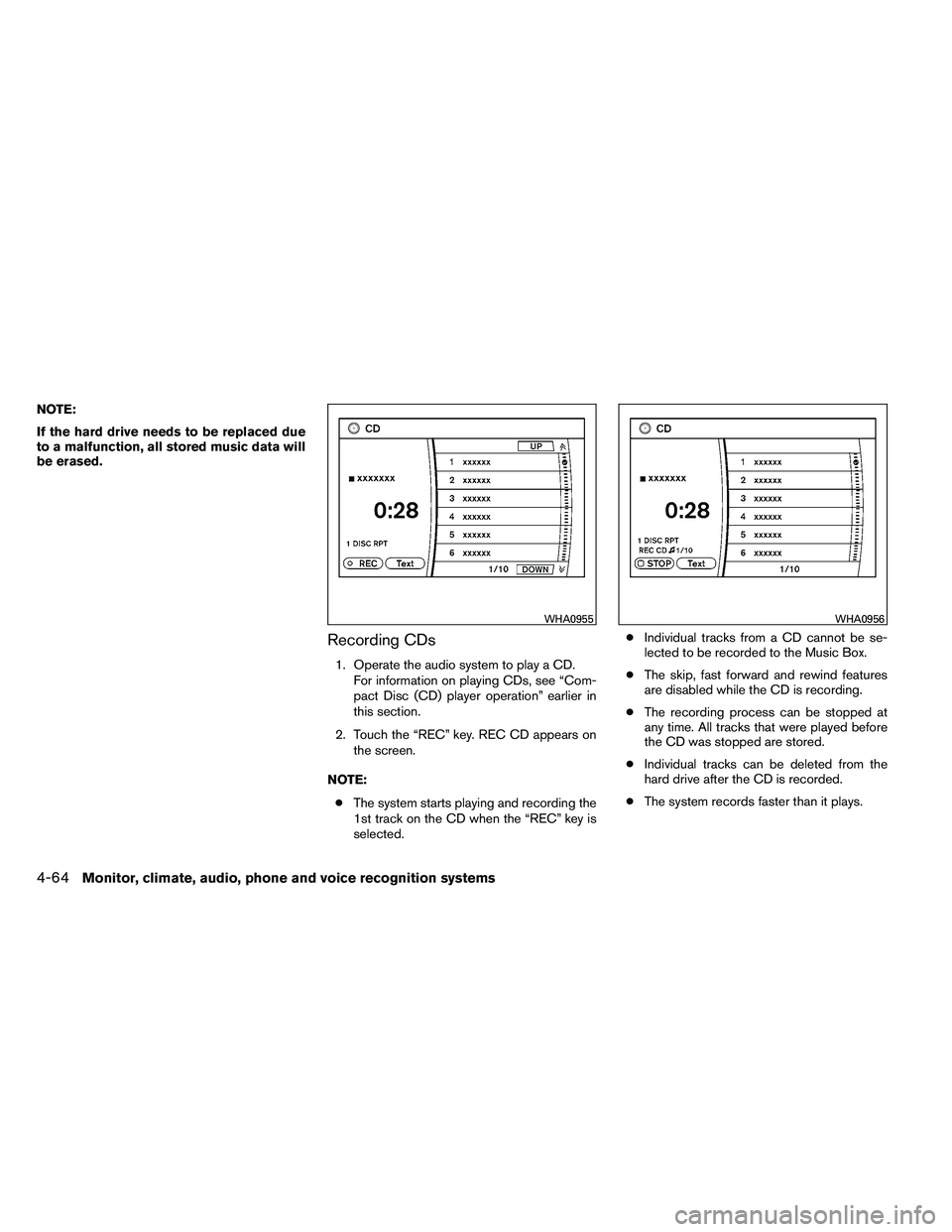
Recording CDs
1. Operate the audio system to play a CD.For information on playing CDs, see “Com-
pact Disc (CD) player operation” earlier in
this section.
2. Touch the “REC” key. REC CD appears on the screen.
NOTE: ● The system starts playing and recording the
1st track on the CD when the “REC” key is
selected. ●
Individual tracks from a CD cannot be se-
lected to be recorded to the Music Box.
● The skip, fast forward and rewind features
are disabled while the CD is recording.
● The recording process can be stopped at
any time. All tracks that were played before
the CD was stopped are stored.
● Individual tracks can be deleted from the
hard drive after the CD is recorded.
● The system records faster than it plays.
Page 260 of 489
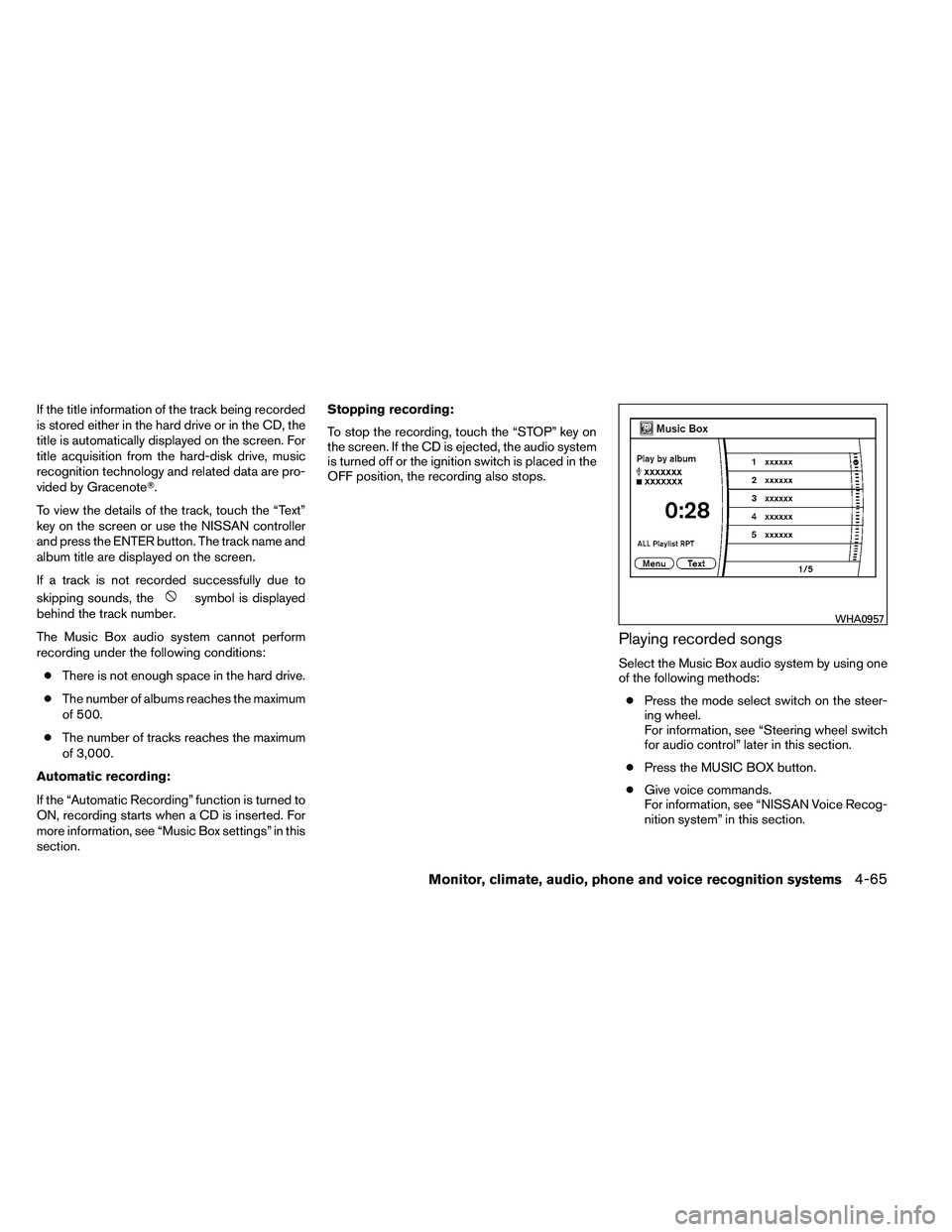
If the title information of the track being recorded
is stored either in the hard drive or in the CD, the
title is automatically displayed on the screen. For
title acquisition from the hard-disk drive, music
recognition technology and related data are pro-
vided by Gracenote�.
To view the details of the track, touch the “Text”
key on the screen or use the NISSAN controller
and press the ENTER button. The track name and
album title are displayed on the screen.
If a track is not recorded successfully due to
skipping sounds, the
Page 262 of 489
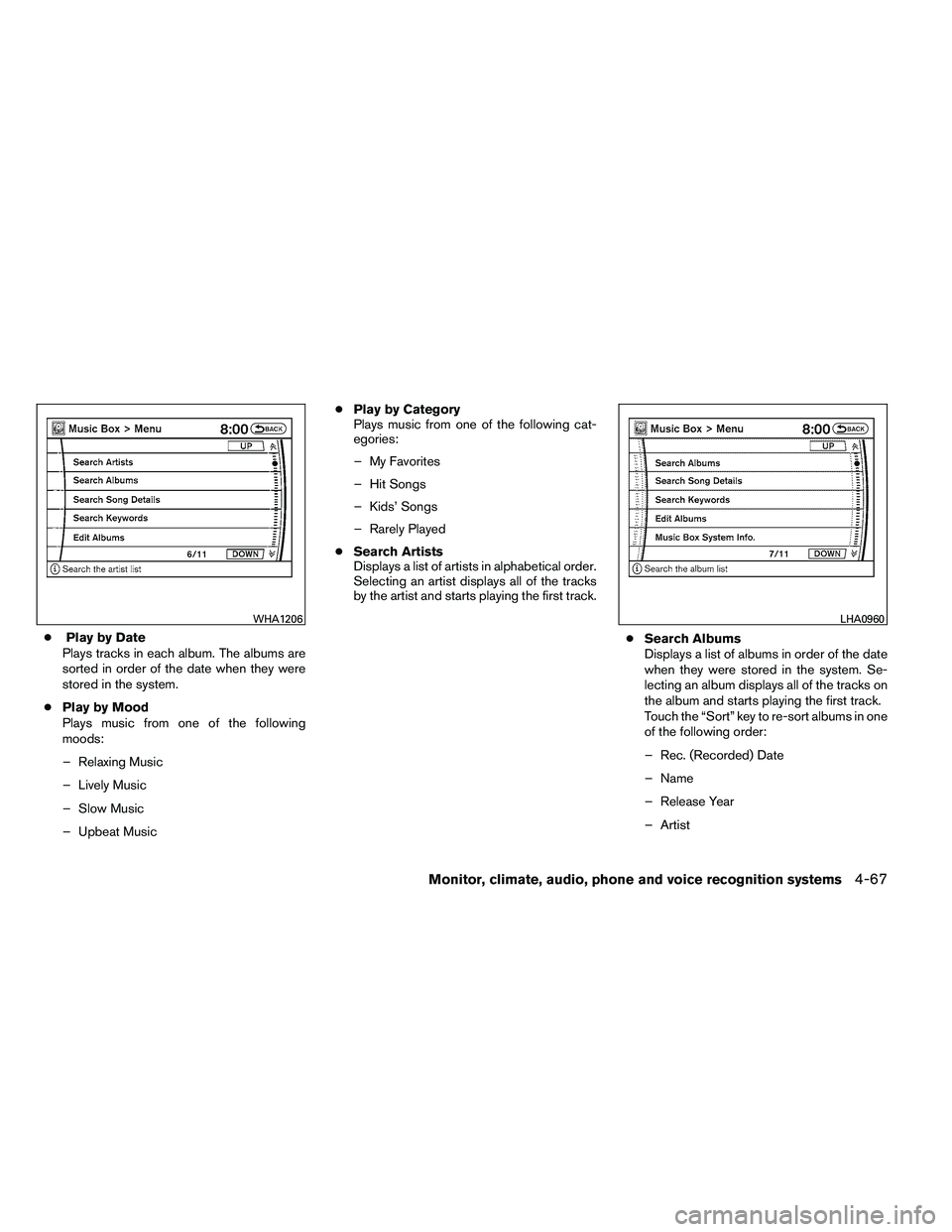
●Play by Date
Plays tracks in each album. The albums are
sorted in order of the date when they were
stored in the system.
● Play by Mood
Plays music from one of the following
moods:
– Relaxing Music
– Lively Music
– Slow Music
– Upbeat Music ●
Play by Category
Plays music from one of the following cat-
egories:
– My Favorites
– Hit Songs
– Kids’ Songs
– Rarely Played
● Search Artists
Displays a list of artists in alphabetical order.
Selecting an artist displays all of the tracks
by the artist and starts playing the first track.
●Search Albums
Displays a list of albums in order of the date
when they were stored in the system. Se-
lecting an album displays all of the tracks on
the album and starts playing the first track.
Touch the “Sort” key to re-sort albums in one
of the following order:
– Rec. (Recorded) Date
– Name
– Release Year
– Artist
Page 263 of 489
●Search Song Details
Set the conditions and touch the “Start
Song Search” key to search for a desired
song that is stored in the system. The con-
ditions are as follows:
– Music Tempo (All, Slow, Normal and Fast)
– Decade (All, ’70s, ’80s, ’90s, ’00s, ’10s and After)
– Group (All, Male Artist, Female Artist, Group and Duo)
– Category (Rock, Pop, Latin, Jazz, R&B, Hip Hop, Club/Dance, Punk, Reggae,
Folk, Blues, Country, Metal, Easy Listen-
ing, New Age, Soundtrack, Gospel & Re-
ligious, World, Classical, Children’s and
Other)
● Search Keywords
Input a search keyword using the keypad
displayed on the screen.
For information, see “How to use the touch
screen” earlier in this section.
● Edit Albums
Select a category (Rec. (Recorded) Date,
Name, Released Year and Artist) and edit
the details using the keypad displayed on
the screen.
For information, see “How to use the touch
screen” earlier in this section. ●
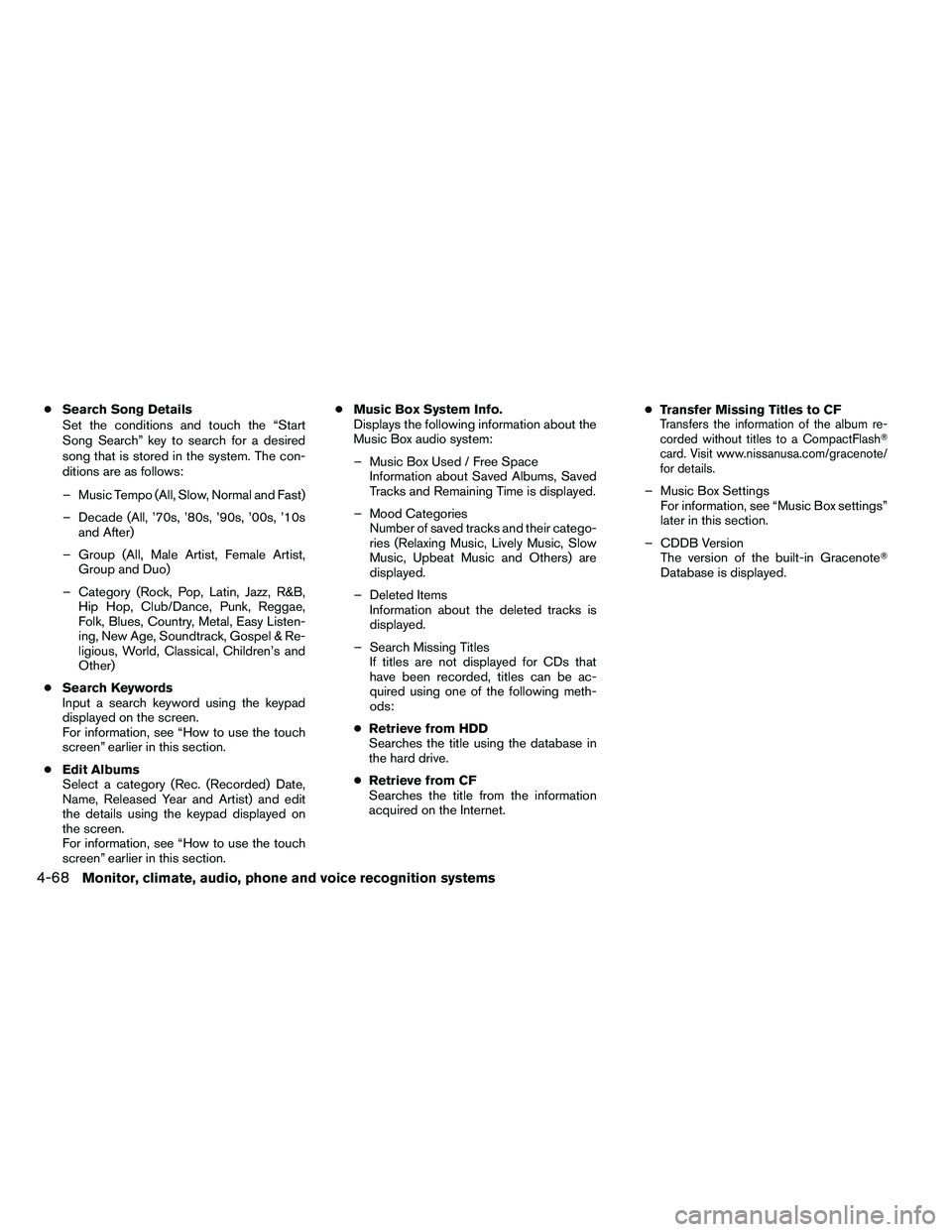
Music Box System Info.
Displays the following information about the
Music Box audio system:
– Music Box Used / Free Space Information about Saved Albums, Saved
Tracks and Remaining Time is displayed.
– Mood Categories Number of saved tracks and their catego-
ries (Relaxing Music, Lively Music, Slow
Music, Upbeat Music and Others) are
displayed.
– Deleted Items Information about the deleted tracks is
displayed.
– Search Missing Titles If titles are not displayed for CDs that
have been recorded, titles can be ac-
quired using one of the following meth-
ods:
● Retrieve from HDD
Searches the title using the database in
the hard drive.
● Retrieve from CF
Searches the title from the information
acquired on the Internet. ●
Transfer Missing Titles to CFTransfers the information of the album re-
corded without titles to a CompactFlash�
card. Visit www.nissanusa.com/gracenote/
for details.
– Music Box Settings
For information, see “Music Box settings”
later in this section.
– CDDB Version The version of the built-in Gracenote�
Database is displayed.
4-68Monitor, climate, audio, phone and voice recognition systems
Page 264 of 489
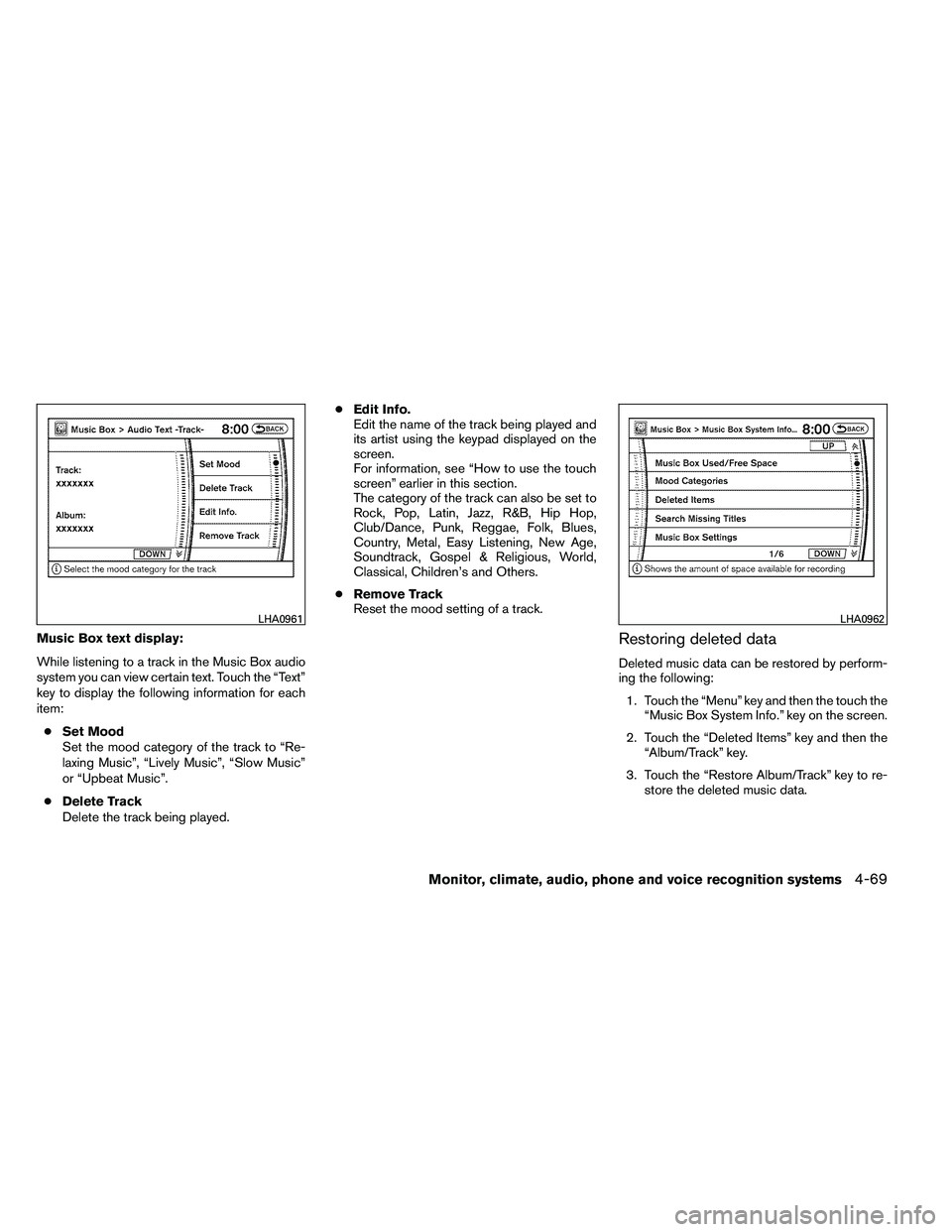
Music Box text display:
While listening to a track in the Music Box audio
system you can view certain text. Touch the “Text”
key to display the following information for each
item:● Set Mood
Set the mood category of the track to “Re-
laxing Music”, “Lively Music”, “Slow Music”
or “Upbeat Music”.
● Delete Track
Delete the track being played. ●
Edit Info.
Edit the name of the track being played and
its artist using the keypad displayed on the
screen.
For information, see “How to use the touch
screen” earlier in this section.
The category of the track can also be set to
Rock, Pop, Latin, Jazz, R&B, Hip Hop,
Club/Dance, Punk, Reggae, Folk, Blues,
Country, Metal, Easy Listening, New Age,
Soundtrack, Gospel & Religious, World,
Classical, Children’s and Others.
● Remove Track
Reset the mood setting of a track.Restoring deleted data
Deleted music data can be restored by perform-
ing the following:
1. Touch the “Menu” key and then the touch the “Music Box System Info.” key on the screen.
2. Touch the “Deleted Items” key and then the “Album/Track” key.
3. Touch the “Restore Album/Track” key to re- store the deleted music data.