Page 216 of 489
Fuel economy
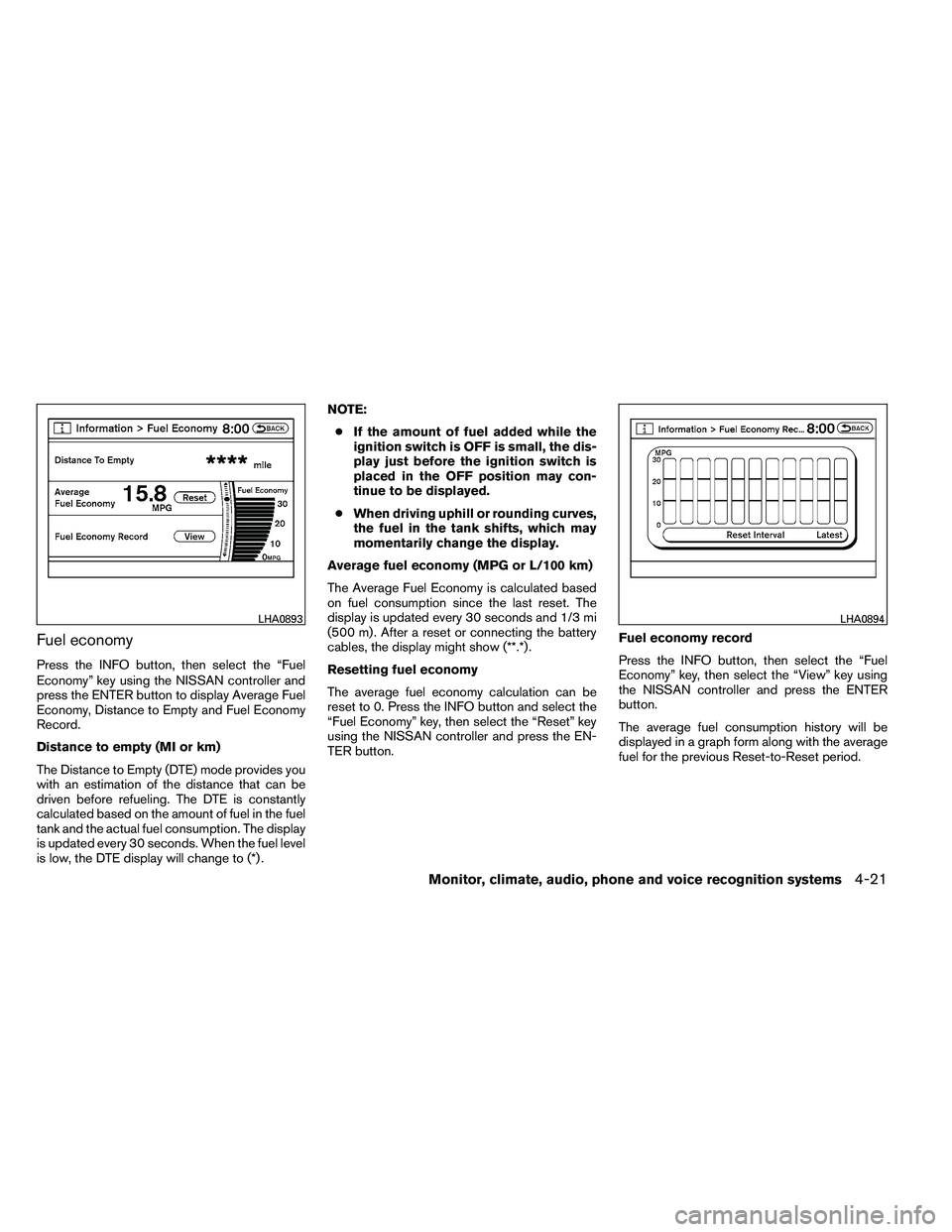
Press the INFO button, then select the “Fuel
Economy” key using the NISSAN controller and
press the ENTER button to display Average Fuel
Economy, Distance to Empty and Fuel Economy
Record.
Distance to empty (MI or km)
The Distance to Empty (DTE) mode provides you
with an estimation of the distance that can be
driven before refueling. The DTE is constantly
calculated based on the amount of fuel in the fuel
tank and the actual fuel consumption. The display
is updated every 30 seconds. When the fuel level
is low, the DTE display will change to (*) .NOTE:
● If the amount of fuel added while the
ignition switch is OFF is small, the dis-
play just before the ignition switch is
placed in the OFF position may con-
tinue to be displayed.
● When driving uphill or rounding curves,
the fuel in the tank shifts, which may
momentarily change the display.
Average fuel economy (MPG or L/100 km)
The Average Fuel Economy is calculated based
on fuel consumption since the last reset. The
display is updated every 30 seconds and 1/3 mi
(500 m) . After a reset or connecting the battery
cables, the display might show (**.*) .
Resetting fuel economy
The average fuel economy calculation can be
reset to 0. Press the INFO button and select the
“Fuel Economy” key, then select the “Reset” key
using the NISSAN controller and press the EN-
TER button. Fuel economy record
Press the INFO button, then select the “Fuel
Economy” key, then select the “View” key using
the NISSAN controller and press the ENTER
button.
The average fuel consumption history will be
displayed in a graph form along with the average
fuel for the previous Reset-to-Reset period.
Page 217 of 489
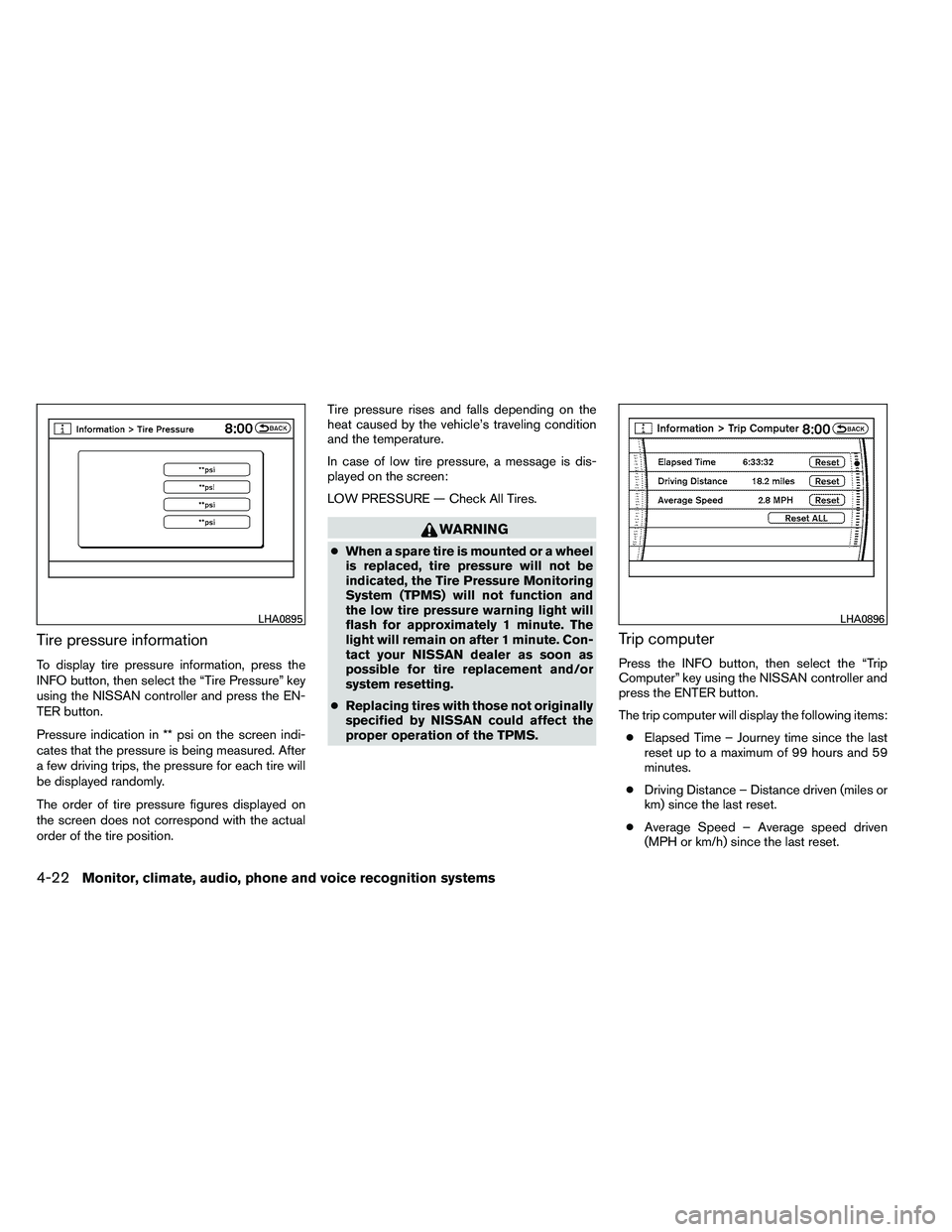
Tire pressure information
To display tire pressure information, press the
INFO button, then select the “Tire Pressure” key
using the NISSAN controller and press the EN-
TER button.
Pressure indication in ** psi on the screen indi-
cates that the pressure is being measured. After
a few driving trips, the pressure for each tire will
be displayed randomly.
The order of tire pressure figures displayed on
the screen does not correspond with the actual
order of the tire position.Tire pressure rises and falls depending on the
heat caused by the vehicle’s traveling condition
and the temperature.
In case of low tire pressure, a message is dis-
played on the screen:
LOW PRESSURE — Check All Tires.
Page 218 of 489
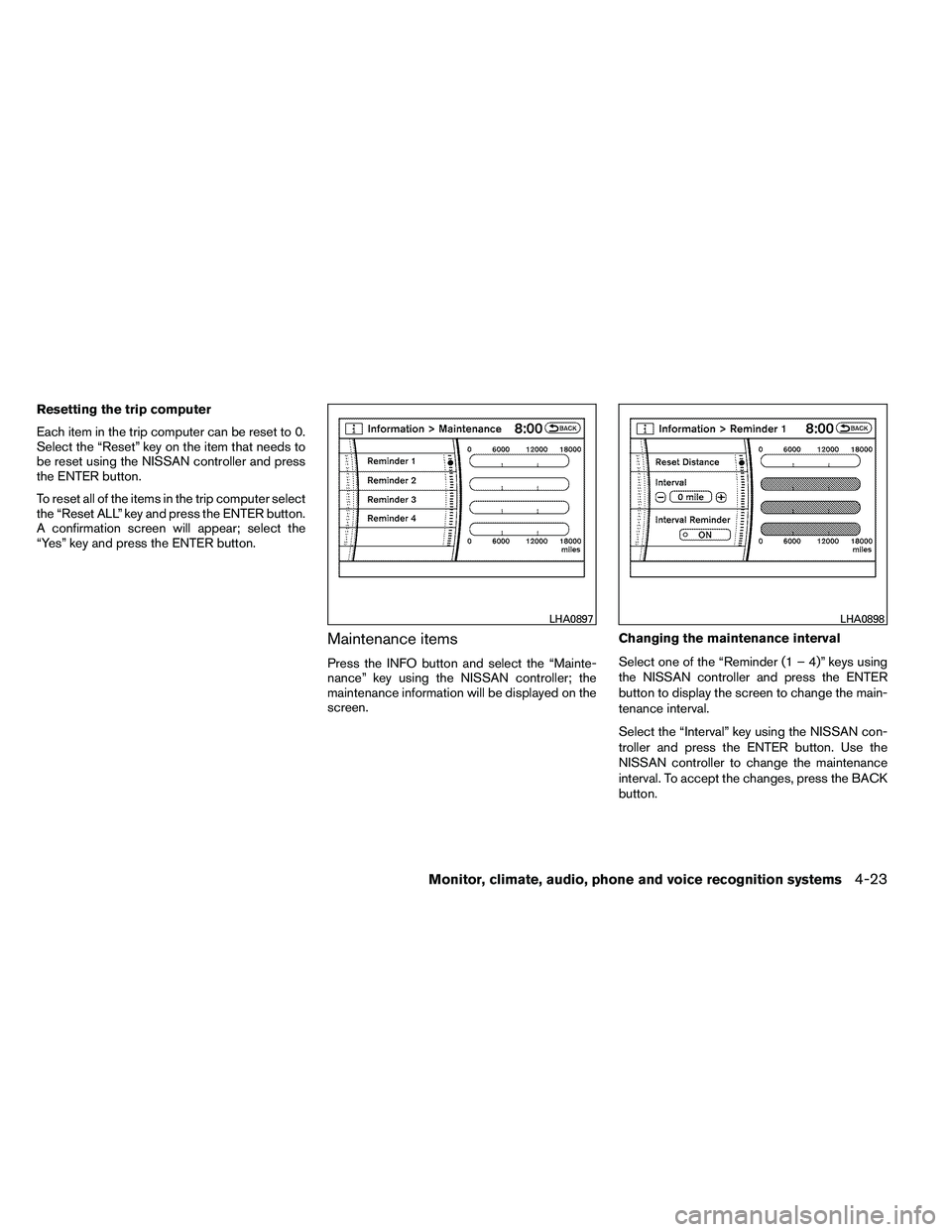
Resetting the trip computer
Each item in the trip computer can be reset to 0.
Select the “Reset” key on the item that needs to
be reset using the NISSAN controller and press
the ENTER button.
To reset all of the items in the trip computer select
the “Reset ALL” key and press the ENTER button.
A confirmation screen will appear; select the
“Yes” key and press the ENTER button.
Maintenance items
Press the INFO button and select the “Mainte-
nance” key using the NISSAN controller; the
maintenance information will be displayed on the
screen.Changing the maintenance interval
Select one of the “Reminder (1 – 4)” keys using
the NISSAN controller and press the ENTER
button to display the screen to change the main-
tenance interval.
Select the “Interval” key using the NISSAN con-
troller and press the ENTER button. Use the
NISSAN controller to change the maintenance
interval. To accept the changes, press the BACK
button.
Page 219 of 489
Resetting the maintenance interval
To reset the reminder schedule (distance) to 0 mi
(km) , select the “Reset Distance” key using the
NISSAN controller.Displaying the maintenance notice re-
minder
Select the “Interval Reminder ON” key to display
the MAINTENANCE INFORMATION automati-
cally at the set maintenance interval. The indica-
tor light will illuminate when it is ON.
The MAINTENANCE NOTICE screen will be au-
tomatically displayed as shown when both of the
following conditions are met:● The vehicle is driven the set distance and the
ignition switch is placed in the OFF position.
● The ignition switch is placed in the ON po-
sition the next time the vehicle will be driven. To return to the previous display after the MAIN-
TENANCE NOTICE screen is displayed, press
the BACK button.
The MAINTENANCE NOTICE screen displays
each time the key is turned ON until one of the
following conditions are met:
● The “Reset” key is selected.
● The “Interval Reminder ON” key is set to
OFF (indicator light not illuminated) .
● The maintenance interval is set again.
Page 220 of 489
Other items
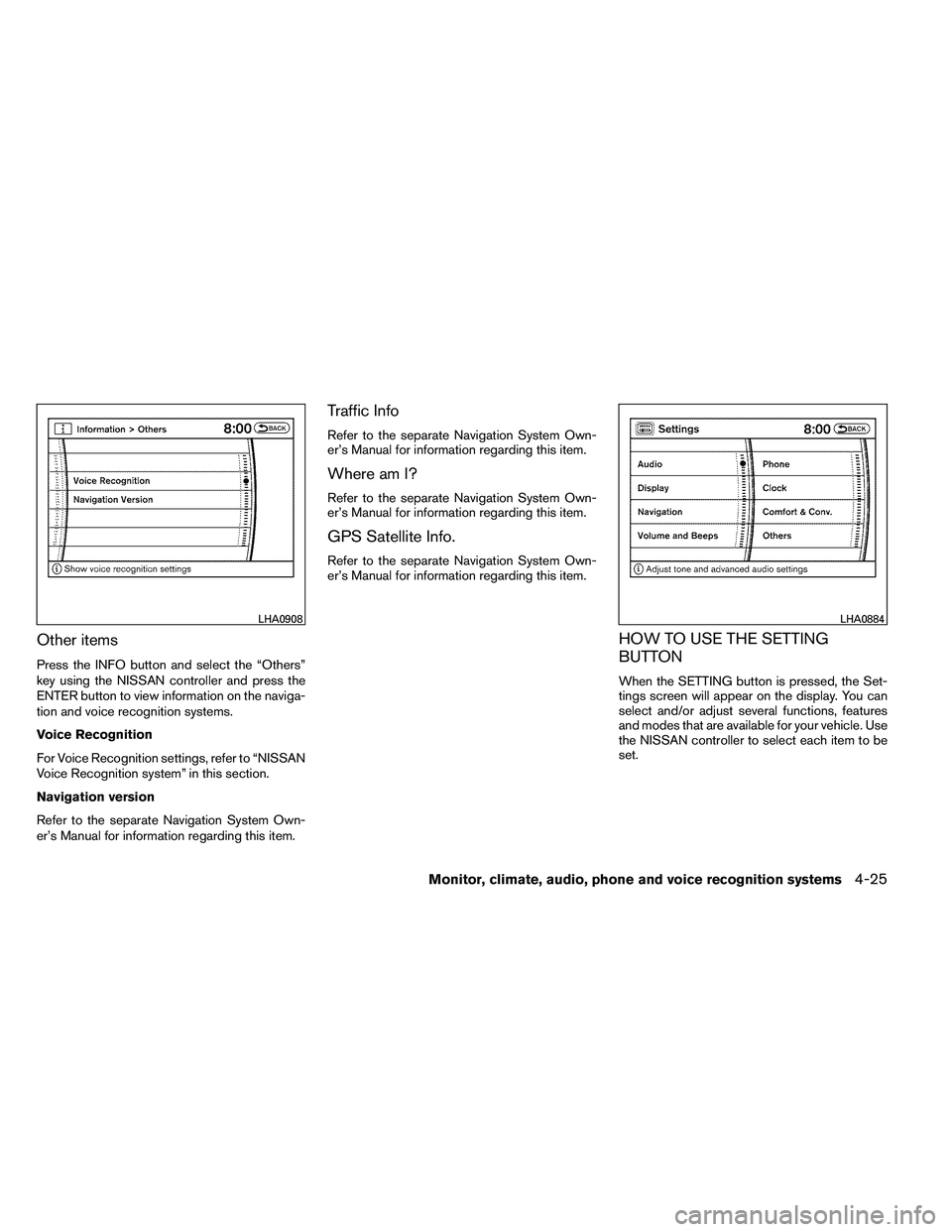
Press the INFO button and select the “Others”
key using the NISSAN controller and press the
ENTER button to view information on the naviga-
tion and voice recognition systems.
Voice Recognition
For Voice Recognition settings, refer to “NISSAN
Voice Recognition system” in this section.
Navigation version
Refer to the separate Navigation System Own-
er’s Manual for information regarding this item.
Traffic Info
Refer to the separate Navigation System Own-
er’s Manual for information regarding this item.
Where am I?
Refer to the separate Navigation System Own-
er’s Manual for information regarding this item.
GPS Satellite Info.
Refer to the separate Navigation System Own-
er’s Manual for information regarding this item.
HOW TO USE THE SETTING
BUTTON
When the SETTING button is pressed, the Set-
tings screen will appear on the display. You can
select and/or adjust several functions, features
and modes that are available for your vehicle. Use
the NISSAN controller to select each item to be
set.
Page 221 of 489
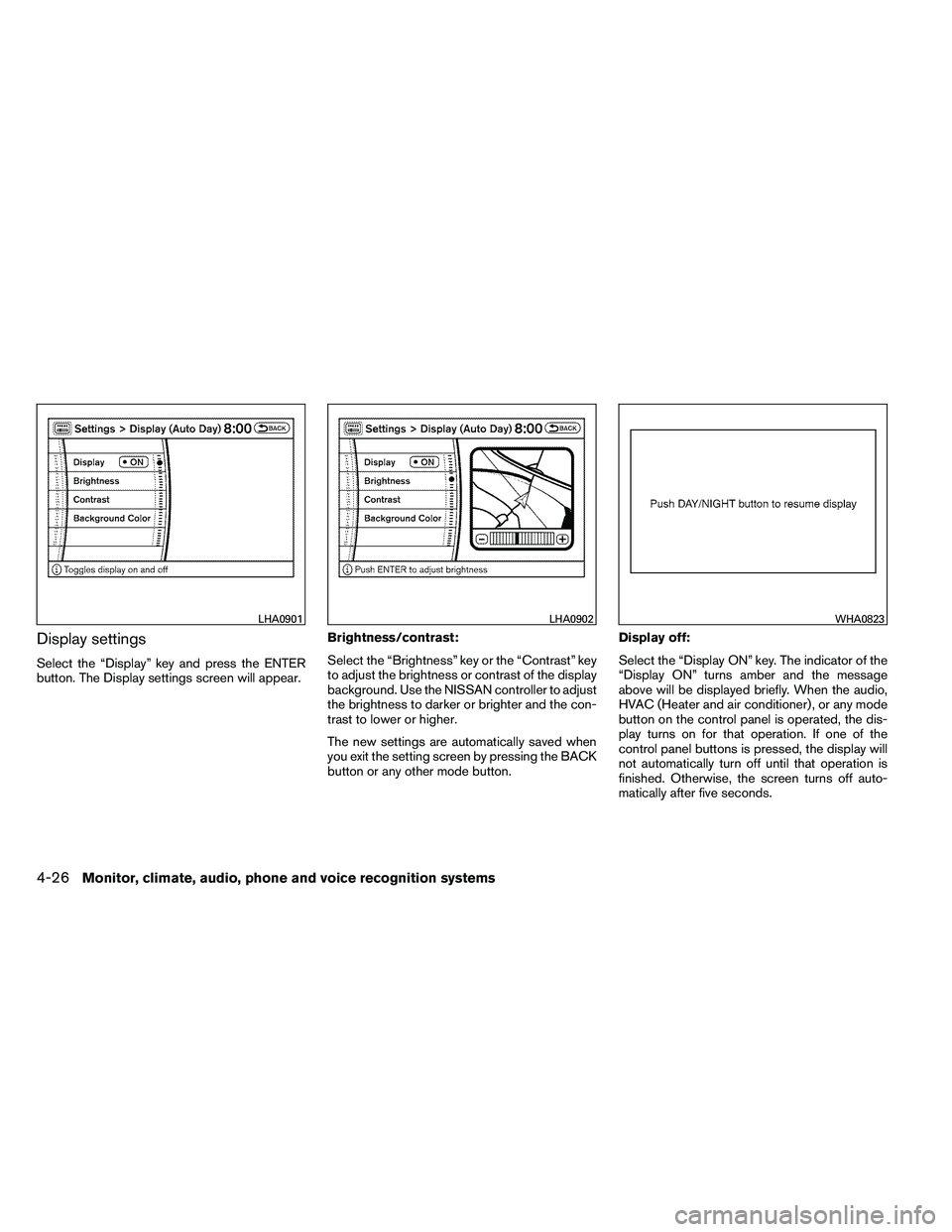
Display settings
Select the “Display” key and press the ENTER
button. The Display settings screen will appear.Brightness/contrast:
Select the “Brightness” key or the “Contrast” key
to adjust the brightness or contrast of the display
background. Use the NISSAN controller to adjust
the brightness to darker or brighter and the con-
trast to lower or higher.
The new settings are automatically saved when
you exit the setting screen by pressing the BACK
button or any other mode button.Display off:
Select the “Display ON” key. The indicator of the
“Display ON” turns amber and the message
above will be displayed briefly. When the audio,
HVAC (Heater and air conditioner) , or any mode
button on the control panel is operated, the dis-
play turns on for that operation. If one of the
control panel buttons is pressed, the display will
not automatically turn off until that operation is
finished. Otherwise, the screen turns off auto-
matically after five seconds.
Page 222 of 489
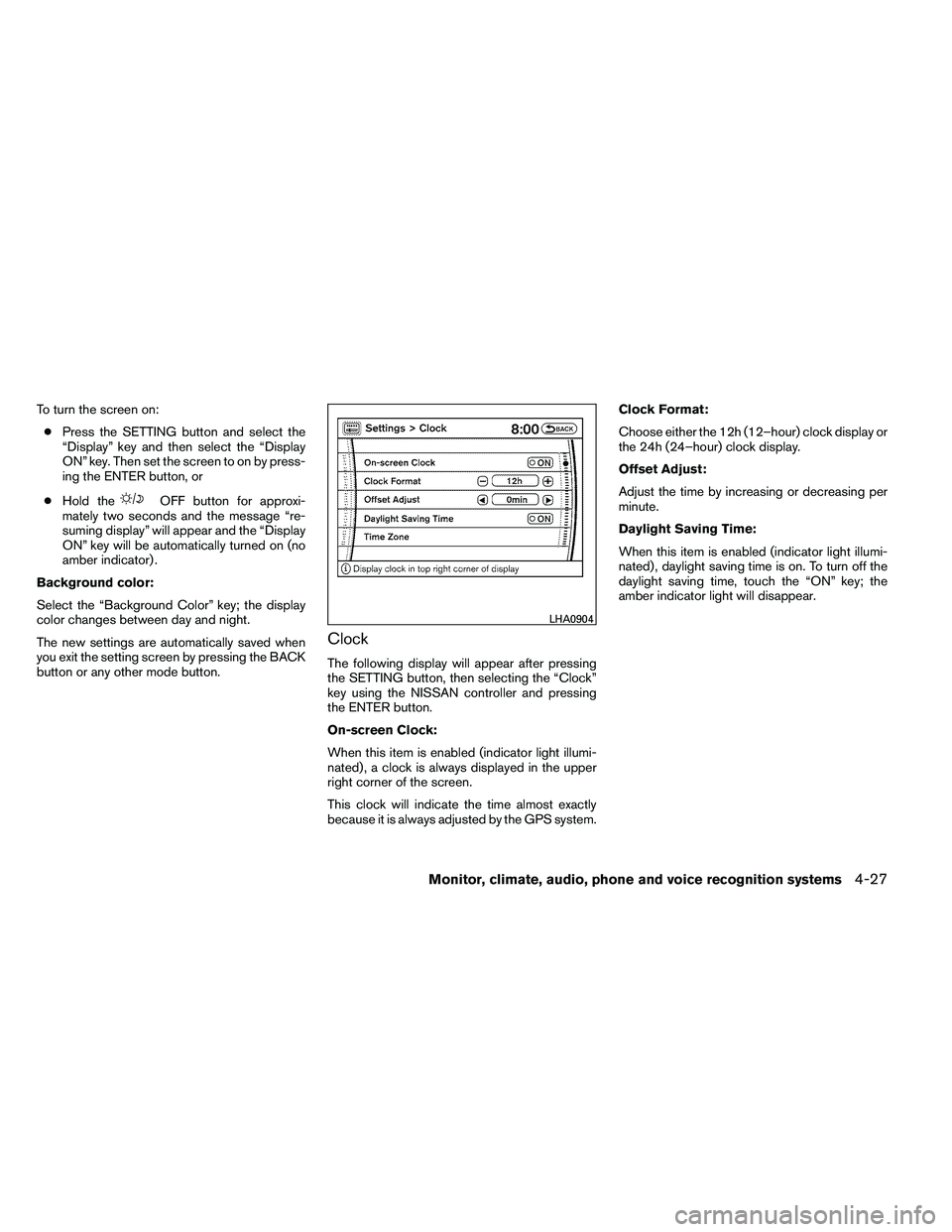
To turn the screen on:● Press the SETTING button and select the
“Display” key and then select the “Display
ON” key. Then set the screen to on by press-
ing the ENTER button, or
● Hold the
Page 223 of 489
Time Zone:
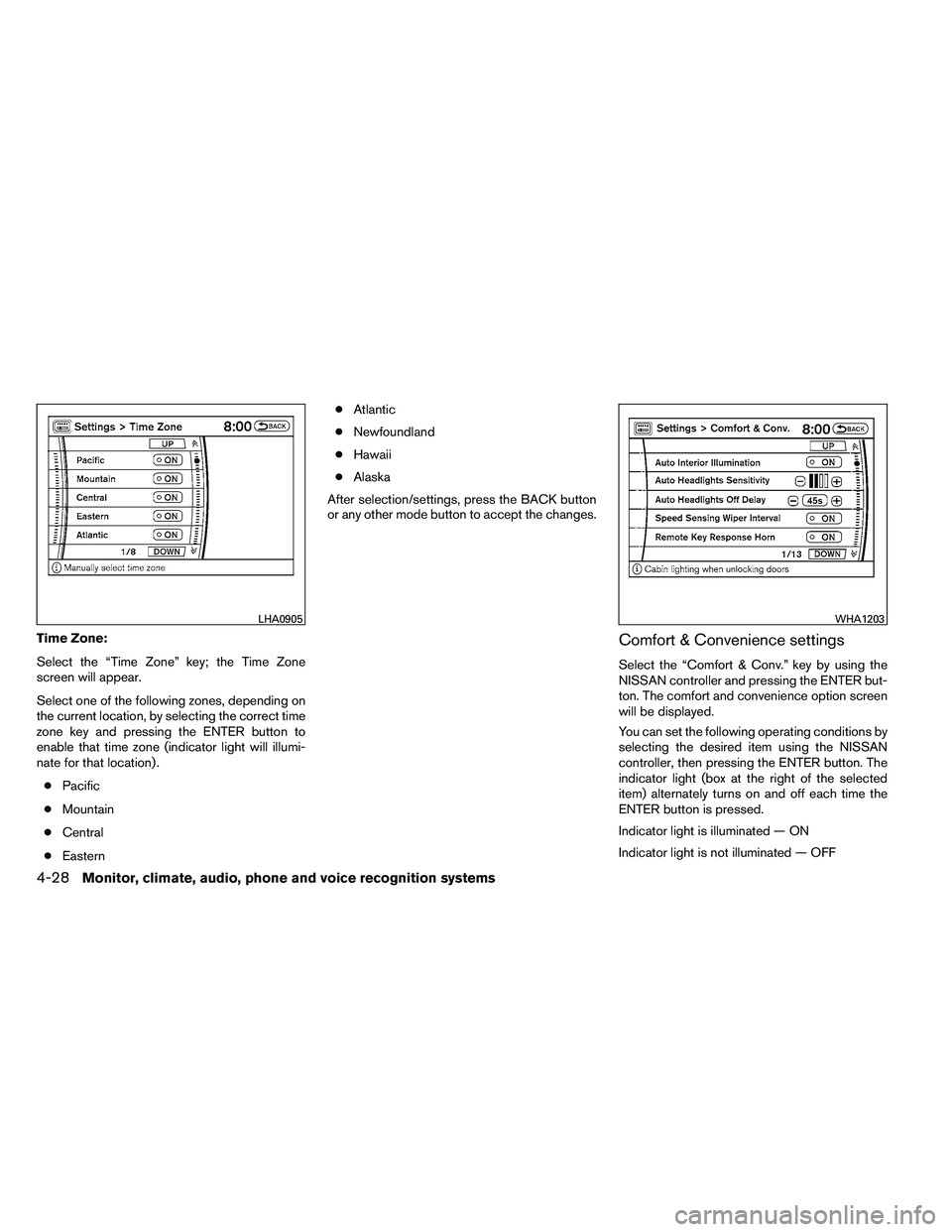
Select the “Time Zone” key; the Time Zone
screen will appear.
Select one of the following zones, depending on
the current location, by selecting the correct time
zone key and pressing the ENTER button to
enable that time zone (indicator light will illumi-
nate for that location) .● Pacific
● Mountain
● Central
● Eastern ●
Atlantic
● Newfoundland
● Hawaii
● Alaska
After selection/settings, press the BACK button
or any other mode button to accept the changes.Comfort & Convenience settings
Select the “Comfort & Conv.” key by using the
NISSAN controller and pressing the ENTER but-
ton. The comfort and convenience option screen
will be displayed.
You can set the following operating conditions by
selecting the desired item using the NISSAN
controller, then pressing the ENTER button. The
indicator light (box at the right of the selected
item) alternately turns on and off each time the
ENTER button is pressed.
Indicator light is illuminated — ON
Indicator light is not illuminated — OFF