2011 MERCEDES-BENZ SLS bluetooth
[x] Cancel search: bluetoothPage 154 of 436
XTo set the volume: Slide q m r.
The red bar moves up or down.
XTo confirm selection: Press n.
“911” Emergency Call
GWarning
The 911 emergency call system is a public
service. Using it without due cause is a
criminal offense.
The following conditions must be met for a
“911” emergency call:
RPhone switched on
RMobile phone network available
RValid SIM card in the phone (not required
on all mobile phone networks)
RMobile phone connected with COMAND via
Bluetooth®
If you are unable to make an emergency call,
you will have to initiate rescue measures
yourself.
The “911” emergency number is a public
service. Any abuse is punishable by law.
XEnter the digits on the COMAND control
unit (Y page 159).
XPress the 6 button.
The phone establishes the connection.
XWait until the emergency call center
answers, then describe the emergency.
Submenu Overview
PhoneCall lists or Mic
On/Off
Bluetooth PhonesDisplays or deletes
call lists
Download ContactsSwitches hands-free
microphone on/off
(during a call)
Delete ContactsPhone Main Menu
Switching to Phone Mode
XPress the function button ÷ on the
COMAND control unit.
iIf you press the ÷ button with the phone
main menu already open, the call list “Calls
Dialed” appears (Y page 156).
or
From another Main Function
XSelect Phone £ Phone £ Phone.
iIf phone mode was active last, you only
need to select “Phone”.
Within the Phone Function
XSelect Phone £ Phone.
or
XIn the phone mode press the k button
repeatedly until the phone main menu
appears.
Phone Menu
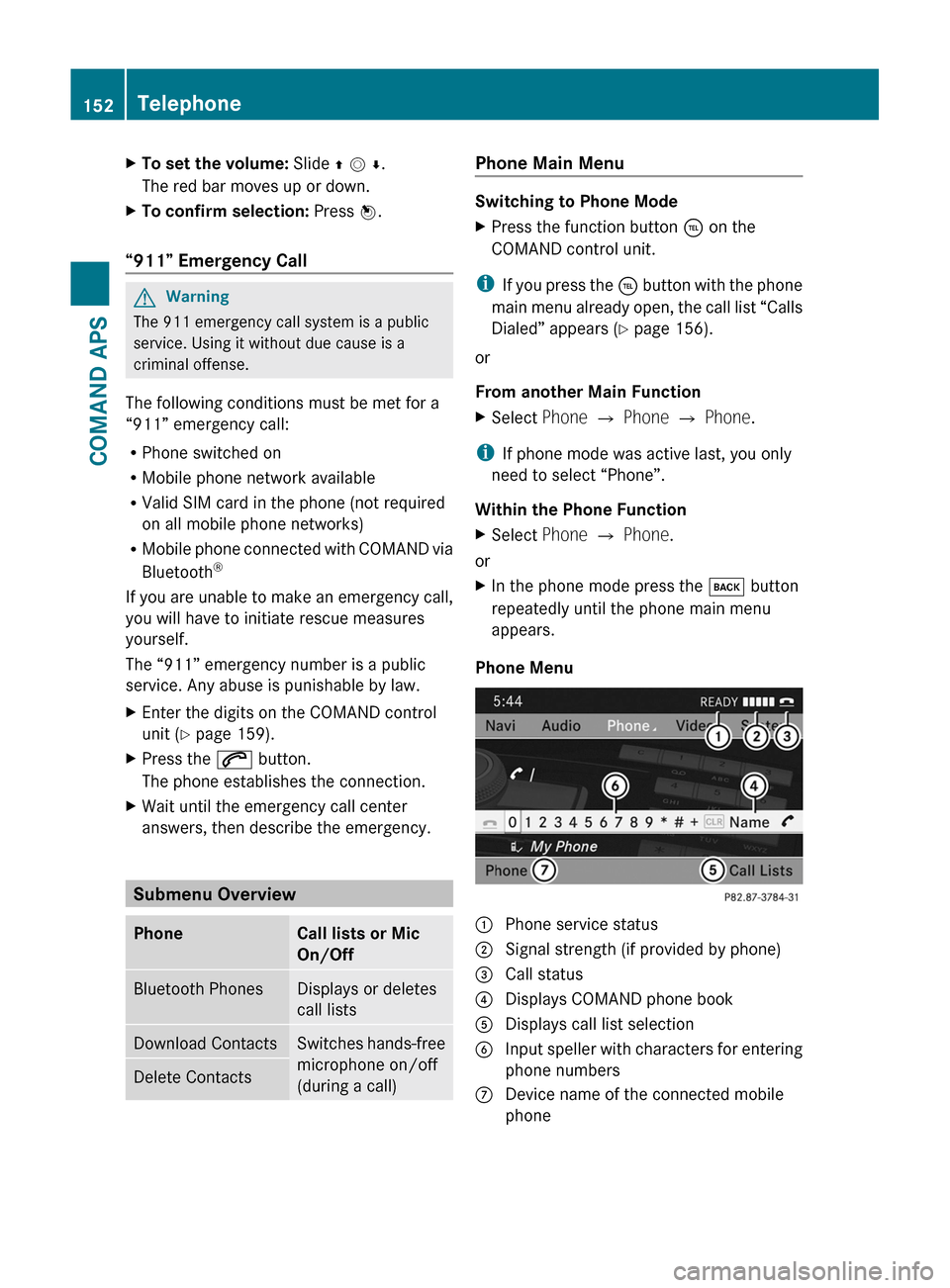
1 Phone service status2 Signal strength (if provided by phone)3 Call status4 Displays COMAND phone book5 Displays call list selection6 Input speller with characters for entering
phone numbers
7 Device name of the connected mobile
phone
152TelephoneCOMAND APS
BA 197 USA, CA Edition A 2011; 1; 27, en-UShereepeVersion: 3.0.3.52010-03-24T15:31:10+01:00 - Seite 152
Page 157 of 436

XSelect Yes or No.
The entry will either be stored or not,
depending on your selection.
Saving an Entry
XSelect d.
A corresponding message is displayed.
Deleting an Entry
The deletion rules vary according to the entry
selected:
R Phone book entry selected:
The entry is deleted in the COMAND phone
book and the address book if the address
book entry only contains phone numbers.
R Entire address book entry selected:
The entry is deleted in the COMAND phone
book and additionally also in the address
book if the address book entry only
contains phone numbers.
R Subentry of an address book entry
selected:
The subentry is deleted in the COMAND
phone book and in the address book.
XTo delete: Select entry ( Y page 153).XSelect Options £ Delete .
You will be prompted to confirm that you
really want to delete the entry.XSelect Yes or No.
Yes option: The entry is deleted according
to the above rules.
Adding a Phone Number to a Phone
Book Entry
XSelect the address book entry.XSelect Options £ Add Phone No. .XSelect a number category, e.g. Home.XSelect a phone category, e.g. Mobile
Phone .XSelect Save.
If five numbers are saved for the entry in the
selected number category, a prompt will
appear asking whether you wish to overwrite
one of the existing numbers.XSelect Yes or No.
If you select Yes, a selection list will appear
containing the five existing numbers.XSelect the number to be overwritten.
The input menu with the data field for
entering the new telephone number
appears.XTo enter digits: Select the required digits
in sequence from the input speller or use
the number keypad.XTo move the cursor in the data field:
Select Y or Z.XTo delete individual digits: Select õ
and briefly press the n button.
or
XPress the 2 button next to the
COMAND controller.
The digit to the left of the cursor is deleted.XTo delete an entire entry: Select õ
and press n until the entire entry has been
deleted.
or
XPress and hold down the 2 button next
to the COMAND controller until the entire
entry is deleted.XTo save entry: Select d.
Call Lists
i COMAND supports Bluetooth ®
PBAP
(Phone Book Access Profile).
How COMAND handles call lists depends
on the type of mobile phone connected:
R Bluetooth ®
phone with PBAP support:
COMAND downloads the call lists from
the mobile phone when the phone is
connected to COMAND
R Bluetooth ®
phone without PBAP support:
COMAND creates the call lists from calls
received (including missed calls) and
Telephone155COMAND APSBA 197 USA, CA Edition A 2011; 1; 27, en-UShereepeVersion: 3.0.3.52010-03-24T15:31:10+01:00 - Seite 155Z
Page 160 of 436
XTo delete an entire entry: Select õ
and press n until the entire entry has been
deleted.
or
XPress the 2 button next to the
COMAND controller and hold it until the
entry is deleted.
XTo save entry: Select d.
A corresponding message is displayed.
XTo cancel entry: Select Back.
If one of the data fields contains data, a
prompt will appear asking whether you wish
to save the entry.
XSelect Yes or No.
The entry will either be stored or not,
depending on your selection.
Adding a Phone Number from the Call List
to an Existing Address Book Entry
XSelect the list entry.XSelect Options £ Save £ Add Phone
No.
i Save has no function if the selected list
entry is already stored.
XSelect a number category, e.g. Home.XSelect a phone category, e.g. Mobile
Phone.
XSelect Save.
The search menu for address book entries
appears.
XSearch for the desired entry.
iPlease see the “Searching for an Address
Book Entry” section (Y page 162) for a
detailed description on searching for an
address book entry.
XPress n after completing the search.
If there are fewer than five numbers saved
for the required entry in the selected
number category, COMAND saves the
data.
If five numbers are saved for the entry you
are searching for, a prompt will appear
asking whether you wish to overwrite one
of the existing numbers.
XSelect Yes or No.
If you select Yes, a selection list with the
five existing numbers is displayed.
XSelect the number to be overwritten.
COMAND overwrites the selected number
with the new data.
Deleting Call Lists
This function is only available if you use a
Bluetooth® phone without PBAB support, that
is, if the call lists have been created by
COMAND.
XSelect Call Lists £ Delete Call
Lists from the basic telephone menu.
A query appears asking if all call lists are to
be deleted.
XSelect Yes or No.
The call lists will either be deleted or not,
depending on your selection.
iIf you use a mobile phone with PBAP
support, you have to delete the call lists on
the mobile phone. Next time you reconnect
the mobile phone, COMAND downloads the
empty call lists.
Making Calls
Incoming Call
Rejecting or Accepting Calls
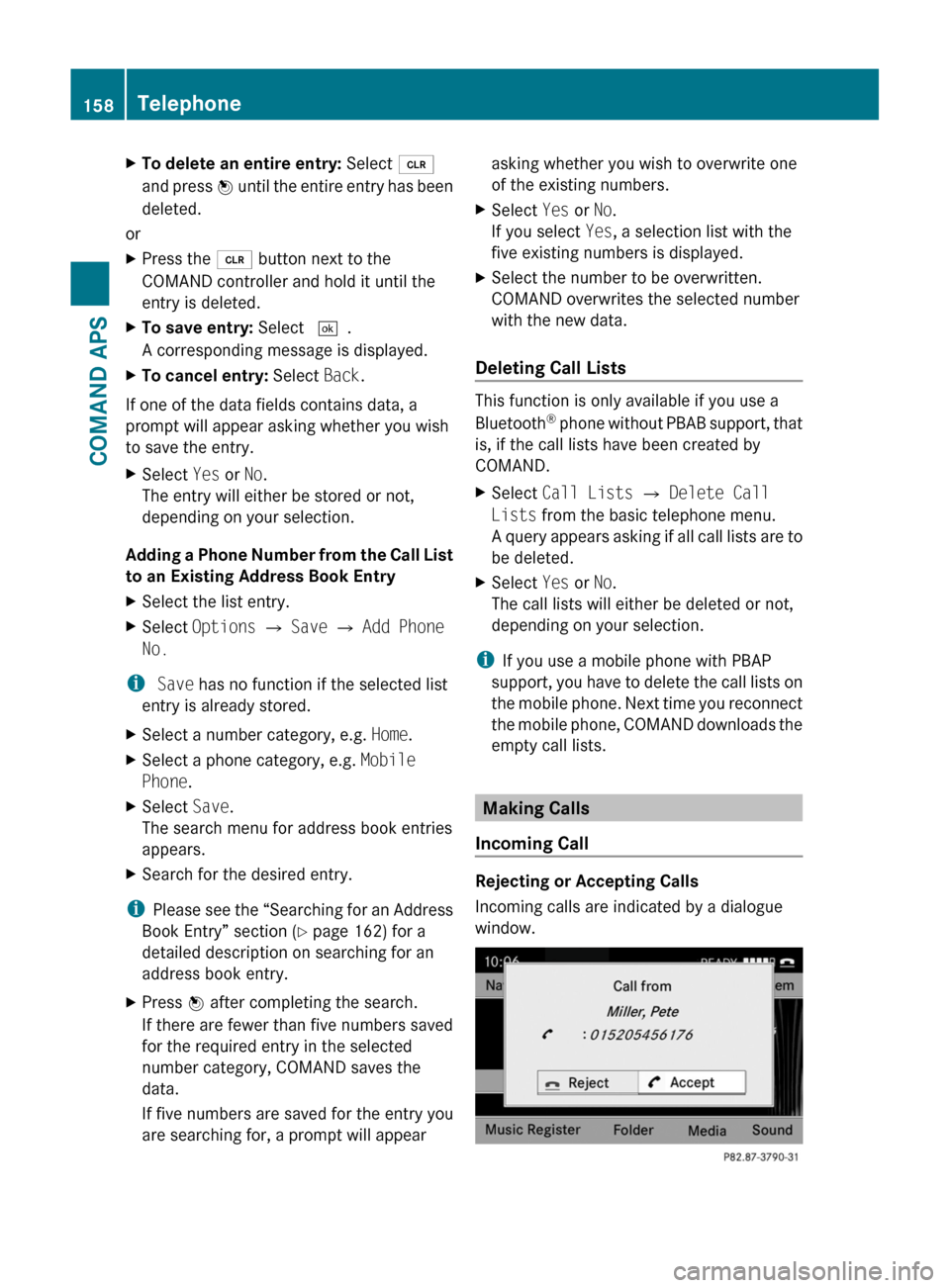
Incoming calls are indicated by a dialogue
window.
158TelephoneCOMAND APS
BA 197 USA, CA Edition A 2011; 1; 27, en-UShereepeVersion: 3.0.3.52010-03-24T15:31:10+01:00 - Seite 158
Page 167 of 436
Changing Entry
Changing an Address Book Entry
XSearch for the address book entry
(Y page 162).
XSelect Options £ Change Entry.
or
XDisplay details about an address book
entry.
XSelect Options £ Change Entry.
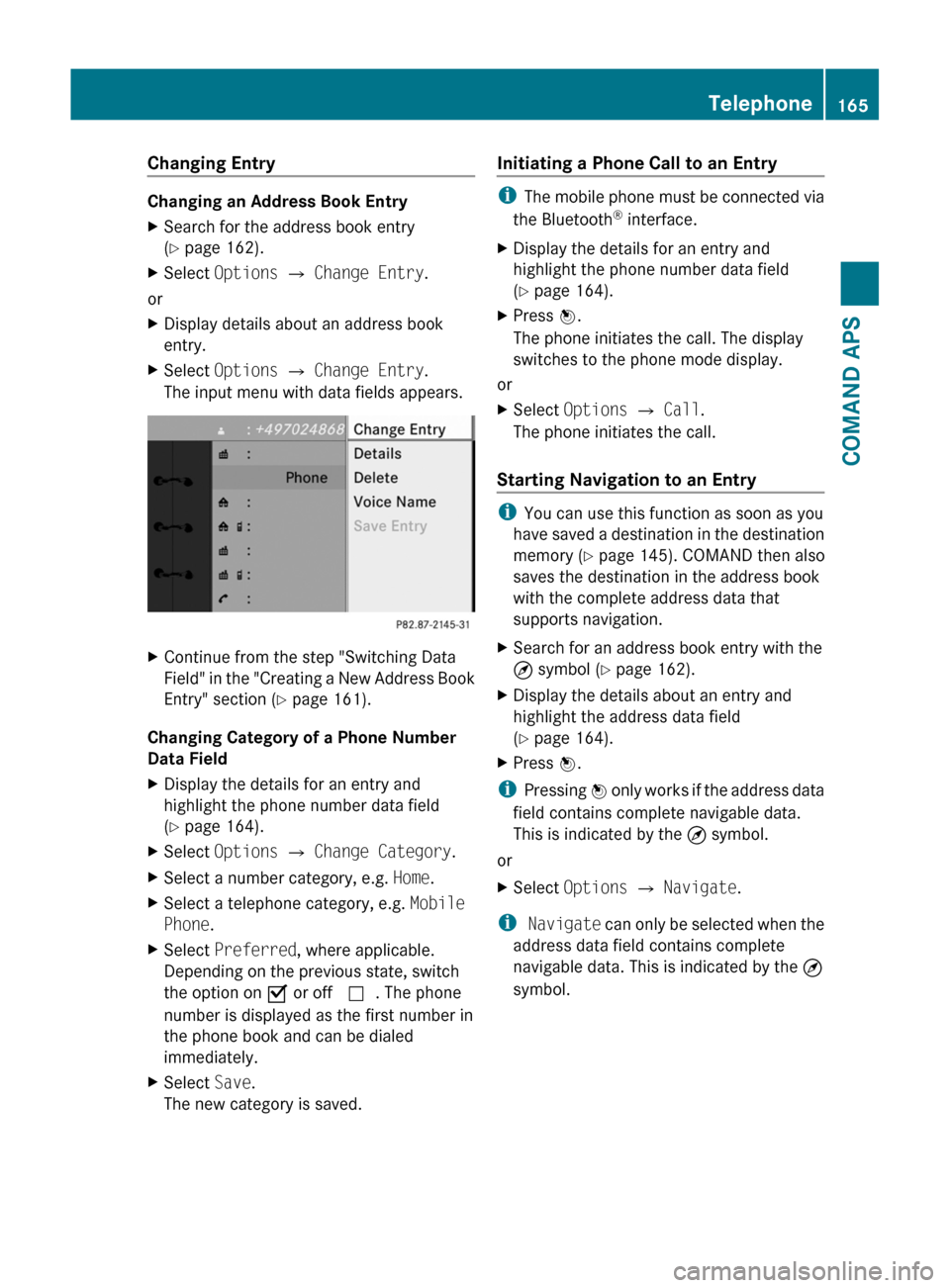
The input menu with data fields appears.
XContinue from the step "Switching Data
Field" in the "Creating a New Address Book
Entry" section (Y page 161).
Changing Category of a Phone Number
Data Field
XDisplay the details for an entry and
highlight the phone number data field
(Y page 164).
XSelect Options £ Change Category.XSelect a number category, e.g. Home.XSelect a telephone category, e.g. Mobile
Phone.
XSelect Preferred, where applicable.
Depending on the previous state, switch
the option on Ç or off c. The phone
number is displayed as the first number in
the phone book and can be dialed
immediately.
XSelect Save.
The new category is saved.
Initiating a Phone Call to an Entry
iThe mobile phone must be connected via
the Bluetooth® interface.
XDisplay the details for an entry and
highlight the phone number data field
(Y page 164).
XPress n.
The phone initiates the call. The display
switches to the phone mode display.
or
XSelect Options £ Call.
The phone initiates the call.
Starting Navigation to an Entry
iYou can use this function as soon as you
have saved a destination in the destination
memory (Y page 145). COMAND then also
saves the destination in the address book
with the complete address data that
supports navigation.
XSearch for an address book entry with the
¤ symbol (Y page 162).
XDisplay the details about an entry and
highlight the address data field
(Y page 164).
XPress n.
iPressing n only works if the address data
field contains complete navigable data.
This is indicated by the ¤ symbol.
or
XSelect Options £ Navigate.
i Navigate can only be selected when the
address data field contains complete
navigable data. This is indicated by the ¤
symbol.
Telephone165COMAND APSBA 197 USA, CA Edition A 2011; 1; 27, en-UShereepeVersion: 3.0.3.52010-03-24T15:31:10+01:00 - Seite 165Z
Page 168 of 436
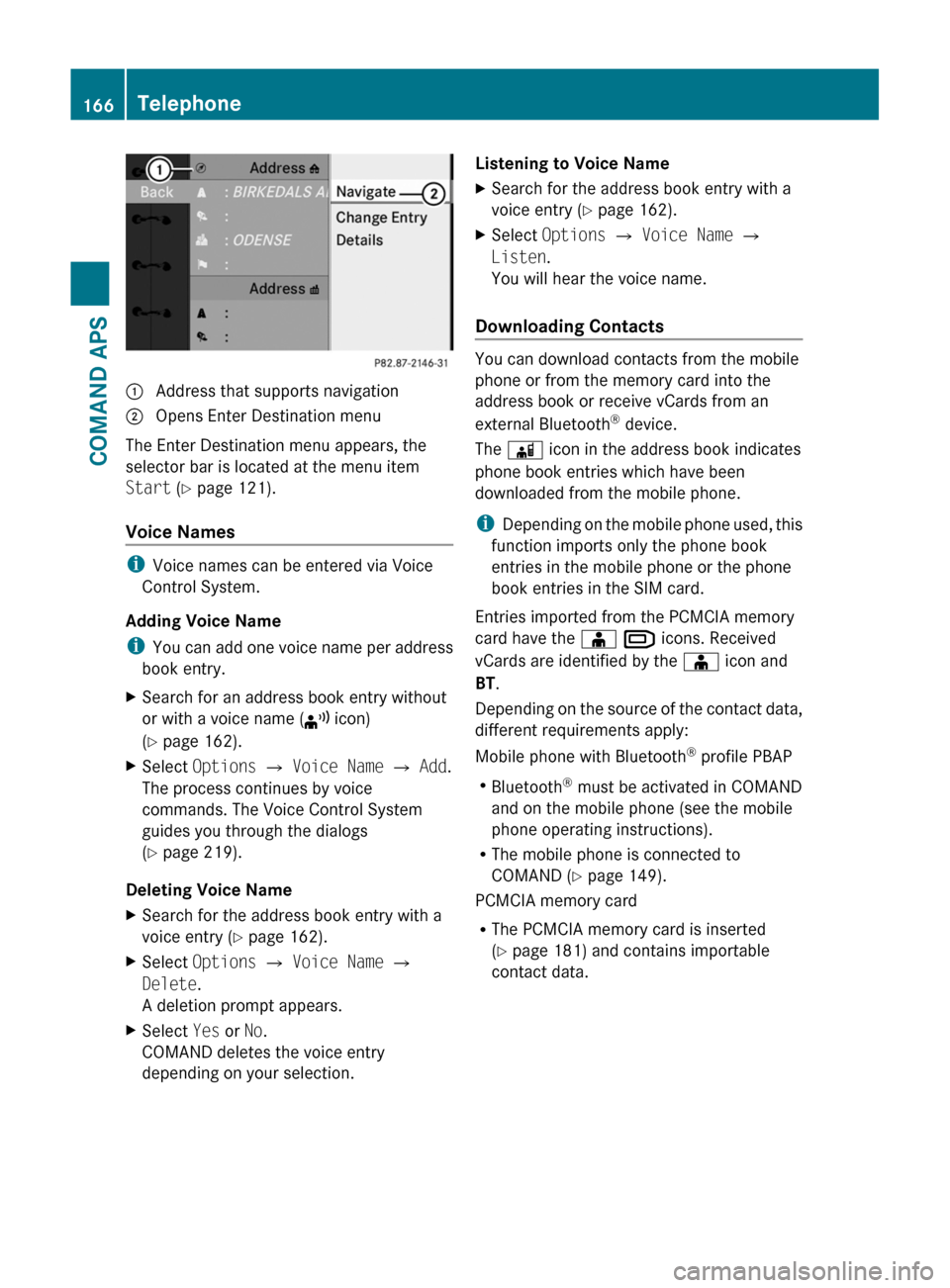
1 Address that supports navigation2 Opens Enter Destination menu
The Enter Destination menu appears, the
selector bar is located at the menu item
Start (Y page 121).
Voice Names
iVoice names can be entered via Voice
Control System.
Adding Voice Name
iYou can add one voice name per address
book entry.
XSearch for an address book entry without
or with a voice name (¦ icon)
(Y page 162).
XSelect Options £ Voice Name £ Add.
The process continues by voice
commands. The Voice Control System
guides you through the dialogs
(Y page 219).
Deleting Voice Name
XSearch for the address book entry with a
voice entry (Y page 162).
XSelect Options £ Voice Name £
Delete.
A deletion prompt appears.
XSelect Yes or No.
COMAND deletes the voice entry
depending on your selection.
Listening to Voice NameXSearch for the address book entry with a
voice entry (Y page 162).
XSelect Options £ Voice Name £
Listen.
You will hear the voice name.
Downloading Contacts
You can download contacts from the mobile
phone or from the memory card into the
address book or receive vCards from an
external Bluetooth® device.
The à icon in the address book indicates
phone book entries which have been
downloaded from the mobile phone.
iDepending on the mobile phone used, this
function imports only the phone book
entries in the mobile phone or the phone
book entries in the SIM card.
Entries imported from the PCMCIA memory
card have the Æ Â icons. Received
vCards are identified by the Æ icon and
BT.
Depending on the source of the contact data,
different requirements apply:
Mobile phone with Bluetooth® profile PBAP
RBluetooth® must be activated in COMAND
and on the mobile phone (see the mobile
phone operating instructions).
RThe mobile phone is connected to
COMAND (Y page 149).
PCMCIA memory card
RThe PCMCIA memory card is inserted
(Y page 181) and contains importable
contact data.
166TelephoneCOMAND APS
BA 197 USA, CA Edition A 2011; 1; 27, en-UShereepeVersion: 3.0.3.52010-03-24T15:31:10+01:00 - Seite 166
Page 169 of 436
External Bluetooth® device
RBluetooth® is activated in COMAND and on
the Bluetooth® device (see operating
instructions of the device).
RThe Bluetooth® device can send vCards via
Bluetooth® (see operating instructions of
the device).
RThe Bluetooth® device in the vehicle is
switched on.
It is not necessary to authorize the device in
COMAND to receive vCards.
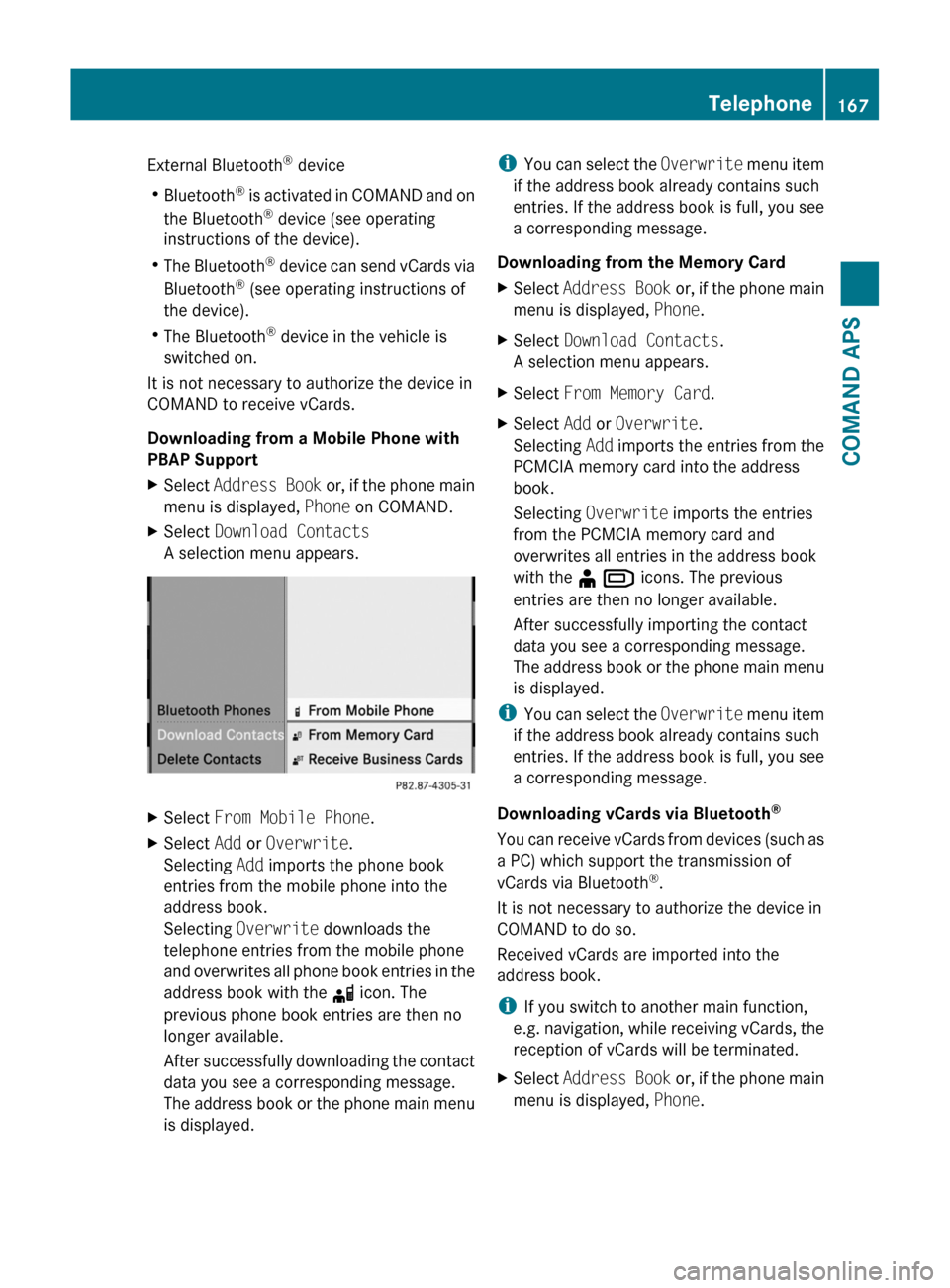
Downloading from a Mobile Phone with
PBAP Support
XSelect Address Book or, if the phone main
menu is displayed, Phone on COMAND.
XSelect Download Contacts
A selection menu appears.
XSelect From Mobile Phone.XSelect Add or Overwrite.
Selecting Add imports the phone book
entries from the mobile phone into the
address book.
Selecting Overwrite downloads the
telephone entries from the mobile phone
and overwrites all phone book entries in the
address book with the d icon. The
previous phone book entries are then no
longer available.
After successfully downloading the contact
data you see a corresponding message.
The address book or the phone main menu
is displayed.
iYou can select the Overwrite menu item
if the address book already contains such
entries. If the address book is full, you see
a corresponding message.
Downloading from the Memory Card
XSelect Address Book or, if the phone main
menu is displayed, Phone.
XSelect Download Contacts.
A selection menu appears.
XSelect From Memory Card.XSelect Add or Overwrite.
Selecting Add imports the entries from the
PCMCIA memory card into the address
book.
Selecting Overwrite imports the entries
from the PCMCIA memory card and
overwrites all entries in the address book
with the ¥ Â icons. The previous
entries are then no longer available.
After successfully importing the contact
data you see a corresponding message.
The address book or the phone main menu
is displayed.
iYou can select the Overwrite menu item
if the address book already contains such
entries. If the address book is full, you see
a corresponding message.
Downloading vCards via Bluetooth®
You can receive vCards from devices (such as
a PC) which support the transmission of
vCards via Bluetooth®.
It is not necessary to authorize the device in
COMAND to do so.
Received vCards are imported into the
address book.
iIf you switch to another main function,
e.g. navigation, while receiving vCards, the
reception of vCards will be terminated.
XSelect Address Book or, if the phone main
menu is displayed, Phone.
Telephone167COMAND APSBA 197 USA, CA Edition A 2011; 1; 27, en-UShereepeVersion: 3.0.3.52010-03-24T15:31:10+01:00 - Seite 167Z
Page 170 of 436
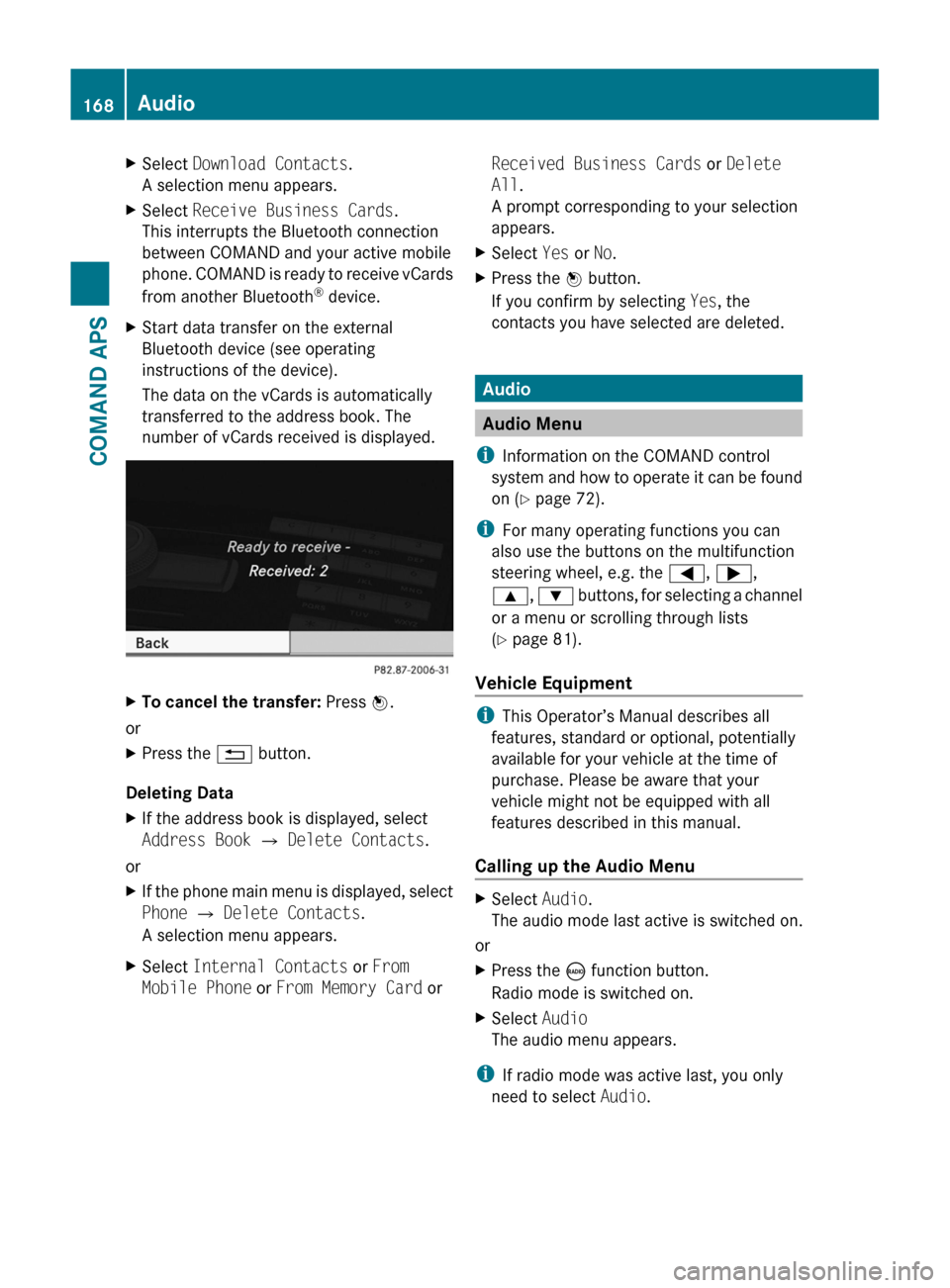
XSelect Download Contacts.
A selection menu appears.
XSelect Receive Business Cards.
This interrupts the Bluetooth connection
between COMAND and your active mobile
phone. COMAND is ready to receive vCards
from another Bluetooth® device.
XStart data transfer on the external
Bluetooth device (see operating
instructions of the device).
The data on the vCards is automatically
transferred to the address book. The
number of vCards received is displayed.
XTo cancel the transfer: Press W.
or
XPress the % button.
Deleting Data
XIf the address book is displayed, select
Address Book Q Delete Contacts.
or
XIf the phone main menu is displayed, select
Phone Q Delete Contacts.
A selection menu appears.
XSelect Internal Contacts or From
Mobile Phone or From Memory Card or
Received Business Cards or Delete
All.
A prompt corresponding to your selection
appears.
XSelect Yes or No.XPress the W button.
If you confirm by selecting Yes, the
contacts you have selected are deleted.
Audio
Audio Menu
iInformation on the COMAND control
system and how to operate it can be found
on (Y page 72).
iFor many operating functions you can
also use the buttons on the multifunction
steering wheel, e.g. the =, ;,
9, : buttons, for selecting a channel
or a menu or scrolling through lists
(Y page 81).
Vehicle Equipment
iThis Operator’s Manual describes all
features, standard or optional, potentially
available for your vehicle at the time of
purchase. Please be aware that your
vehicle might not be equipped with all
features described in this manual.
Calling up the Audio Menu
XSelect Audio.
The audio mode last active is switched on.
or
XPress the ó function button.
Radio mode is switched on.
XSelect Audio
The audio menu appears.
iIf radio mode was active last, you only
need to select Audio.
168AudioCOMAND APS
BA 197 USA, CA Edition A 2011; 1; 27, en-UShereepeVersion: 3.0.3.52010-03-24T15:31:10+01:00 - Seite 168
Page 195 of 436
Supported Data Formats (USB devices)
The following data types are supported:
RMP3: CBR, VBR (up to 320 kbit/s)
RWMA: CBR, VBR (up to 320 kbit/s)
In order to display the metadata during
playback, ID3 tags (version 1.x, 2.3, 2.4) and
WMA tags in ASCII and UTF16 coding are
supported.
Notes on USB Devices
RIn order to keep the initialisation time short,
do not store data other than music files on
the USB device.
RUp to eight directory levels with up to 1,000
tracks are supported.
RDo not use a USB extension cable or
adapter. These may impair functionality.
RPlaylists are searched for in the
background on the USB device and, if
available, are offered beside folders in a
separate category.
RYou can only use USB devices formatted
with the file system format FAT (File
Allocation Table).
iFiles protected with DRM (Digital Rights
Management) are not supported by the
Media Interface.
Connecting External Devices
You will find the connection sockets in the
glove compartment.
Never connect more than one device at a
time. Please consult a Mercedes-Benz
Service Center for further information.
iDo not leave external devices in the
vehicle, as functionality cannot be
guaranteed above certain temperatures
(such as inside a vehicle in direct sunlight).
Mercedes-Benz does not take
responsibility for any damage to external
devices.
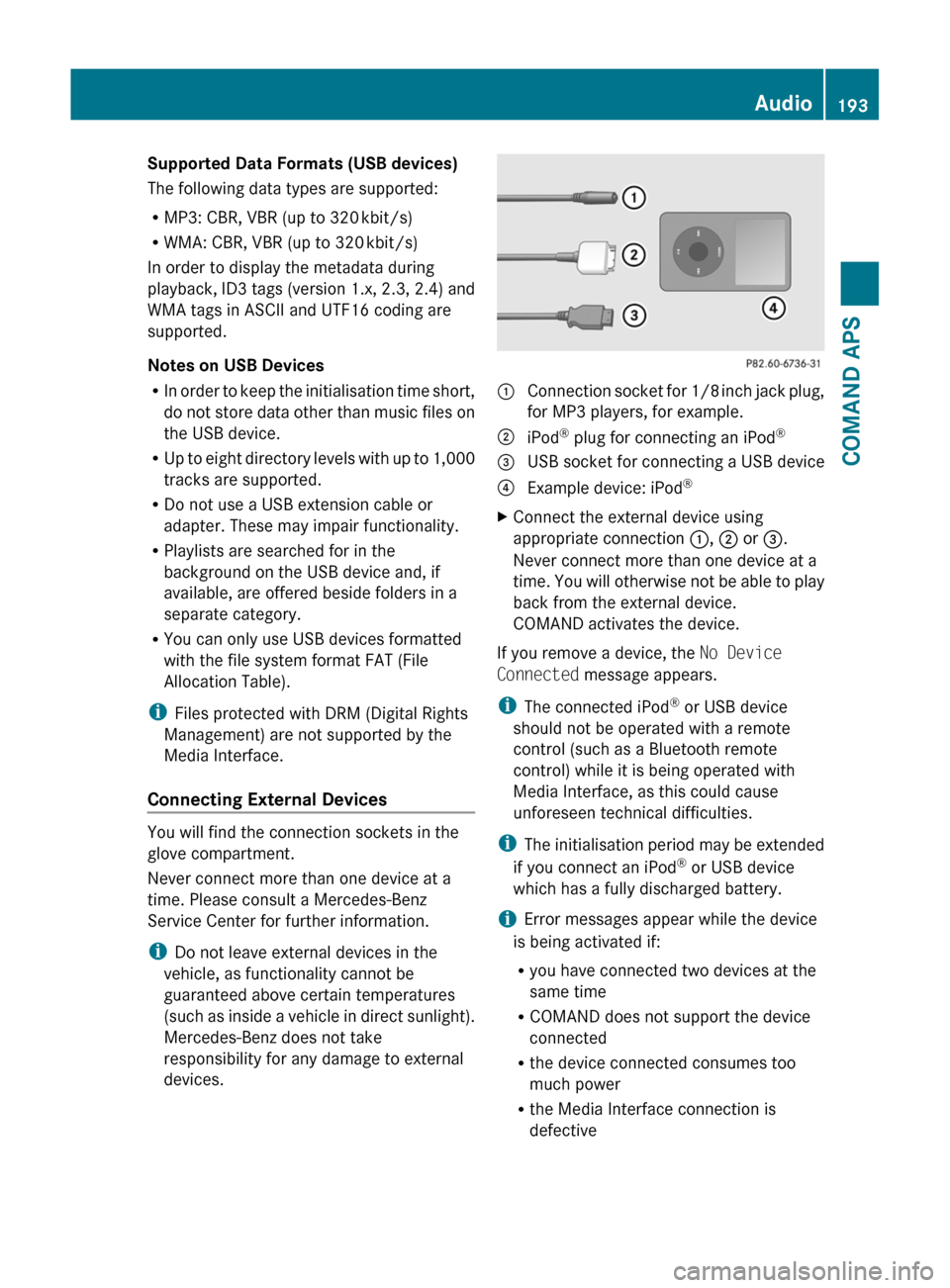
1 Connection socket for 1/8 inch jack plug,
for MP3 players, for example.
2 iPod® plug for connecting an iPod®3 USB socket for connecting a USB device4 Example device: iPod®XConnect the external device using
appropriate connection 1, 2 or 3.
Never connect more than one device at a
time. You will otherwise not be able to play
back from the external device.
COMAND activates the device.
If you remove a device, the No Device
Connected message appears.
iThe connected iPod® or USB device
should not be operated with a remote
control (such as a Bluetooth remote
control) while it is being operated with
Media Interface, as this could cause
unforeseen technical difficulties.
iThe initialisation period may be extended
if you connect an iPod® or USB device
which has a fully discharged battery.
iError messages appear while the device
is being activated if:
Ryou have connected two devices at the
same time
RCOMAND does not support the device
connected
Rthe device connected consumes too
much power
Rthe Media Interface connection is
defective
Audio193COMAND APSBA 197 USA, CA Edition A 2011; 1; 27, en-UShereepeVersion: 3.0.3.52010-03-24T15:31:10+01:00 - Seite 193Z