2011 MERCEDES-BENZ SLS AMG audio
[x] Cancel search: audioPage 208 of 436
iIn vehicles equipped with a rear view
camera, the Video Aux connection cannot
be used for external video sources.
Switching to Video Aux
From Another Main Function
XSelect Video £ Video £ Video Aux
iIf Video Aux mode was active last, you
only need to select Video.
Within the Video Function
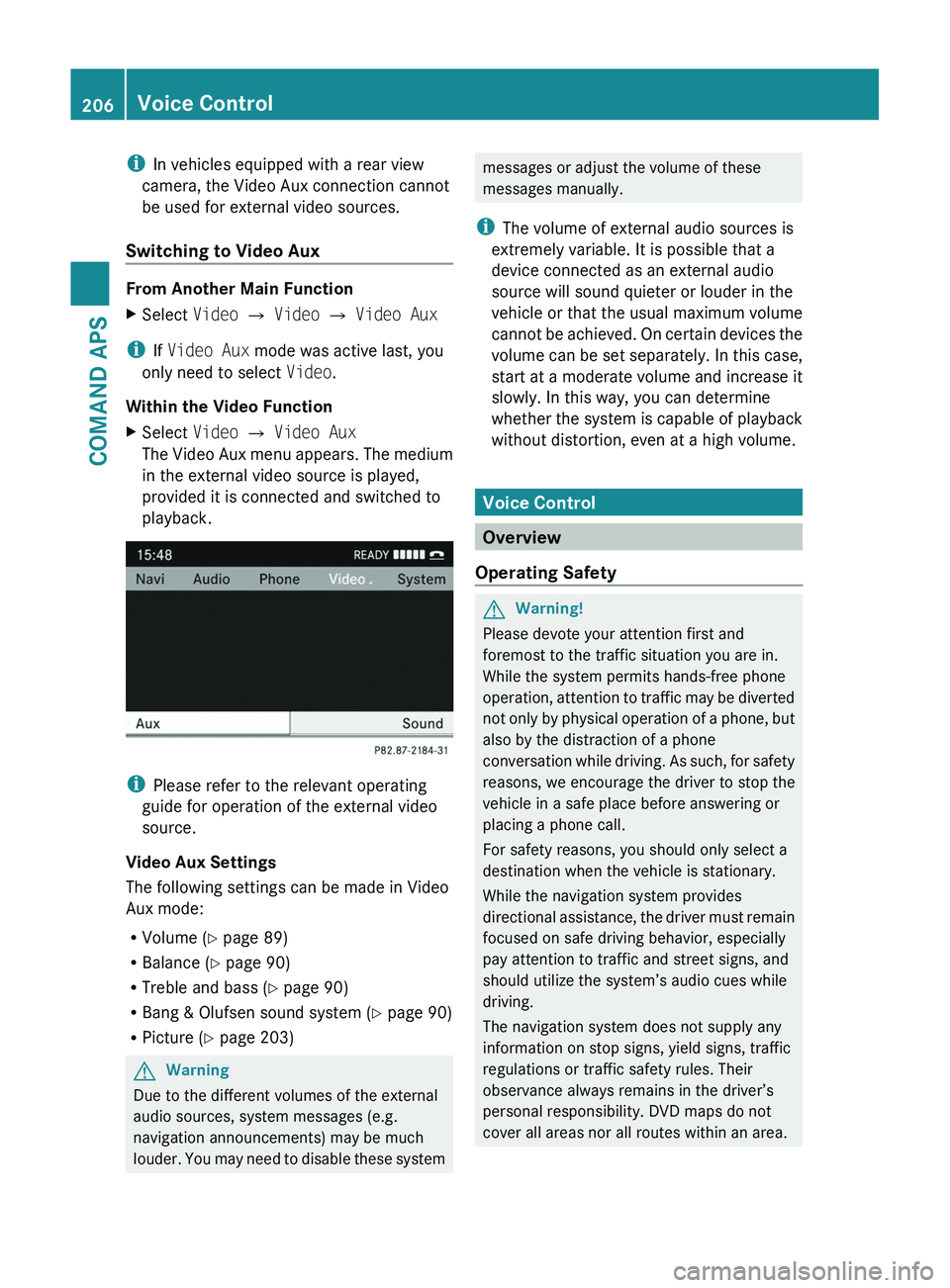
XSelect Video £ Video Aux
The Video Aux menu appears. The medium
in the external video source is played,
provided it is connected and switched to
playback.
iPlease refer to the relevant operating
guide for operation of the external video
source.
Video Aux Settings
The following settings can be made in Video
Aux mode:
RVolume (Y page 89)
RBalance (Y page 90)
RTreble and bass (Y page 90)
RBang & Olufsen sound system (Y page 90)
RPicture (Y page 203)
GWarning
Due to the different volumes of the external
audio sources, system messages (e.g.
navigation announcements) may be much
louder. You may need to disable these system
messages or adjust the volume of these
messages manually.
iThe volume of external audio sources is
extremely variable. It is possible that a
device connected as an external audio
source will sound quieter or louder in the
vehicle or that the usual maximum volume
cannot be achieved. On certain devices the
volume can be set separately. In this case,
start at a moderate volume and increase it
slowly. In this way, you can determine
whether the system is capable of playback
without distortion, even at a high volume.
Voice Control
Overview
Operating Safety
GWarning!
Please devote your attention first and
foremost to the traffic situation you are in.
While the system permits hands-free phone
operation, attention to traffic may be diverted
not only by physical operation of a phone, but
also by the distraction of a phone
conversation while driving. As such, for safety
reasons, we encourage the driver to stop the
vehicle in a safe place before answering or
placing a phone call.
For safety reasons, you should only select a
destination when the vehicle is stationary.
While the navigation system provides
directional assistance, the driver must remain
focused on safe driving behavior, especially
pay attention to traffic and street signs, and
should utilize the system’s audio cues while
driving.
The navigation system does not supply any
information on stop signs, yield signs, traffic
regulations or traffic safety rules. Their
observance always remains in the driver’s
personal responsibility. DVD maps do not
cover all areas nor all routes within an area.
206Voice ControlCOMAND APS
BA 197 USA, CA Edition A 2011; 1; 27, en-UShereepeVersion: 3.0.3.52010-03-24T15:31:10+01:00 - Seite 206
Page 209 of 436
Traffic regulations always have priority over
any route recommendations given.
Bear in mind that at a speed of just 30 mph
(approximately 50 km/h), your vehicle is
covering a distance of 44 feet (approximately
14 m) every second.GWarning
Navigation announcements are intended to
direct you while driving without diverting your
attention from the road and driving.
Please always use this feature instead of
consulting the map display for directions.
Consulting the symbols or map display for
directions may cause you to divert your
attention from driving and increase your risk
of an accident.
GWarning!
Please do not use the Voice Control System
in an emergency, as the tone of your voice
may change in a stressful situation. This could
cause a delay in completing your phone call
in a timely manner. This could distract you in
an emergency situation and cause you to be
involved in an accident.
Vehicle Equipment
i This Operator’s Manual describes all
features, standard or optional, potentially
available for your vehicle at the time of
purchase. Please be aware that your
vehicle might not be equipped with all
features described in this manual.
Symbols Only Used in this Chapter
The following symbols indicate:
sthat you have to say somethingtthat there is a voice output from the
voice controluthat the system shows information on
the display.Usage
You can use the voice control system to
operate the following systems depending on
the equipment in your vehicle:
R Phone
R Navigation
R Address book
R Audio (radio, satellite radio, DVD changer,
memory card, music register, media
interface)
Say the commands without pausing between
individual words. If you enter a command that
does not exist or is incorrect, the voice
control system asks you for a new command
with Please repeat or Please repeat
your entry! . The voice control confirms
important commands to you and gives you
instructions in the event of incorrect entries.
Command Types
Voice control distinguishes between the
following types of command:
R Global commands:
These are commands which can be called
up at any time (e.g. help, navigation or
phone commands).
R Local commands:
These are commands which are only
available for the active application (e.g.
“Save”).
Active Application
The local commands refer to the application
currently shown on the display and to the
audio source you are currently listening to.
For example, if you are listening to the radio
while the navigation application is active on
the display, you can operate both
applications using voice control.
Voice Control207COMAND APSBA 197 USA, CA Edition A 2011; 1; 27, en-UShereepeVersion: 3.0.3.52010-03-24T15:31:10+01:00 - Seite 207Z
Page 214 of 436
NavigationGWarning!
For safety reasons, you should only select a
destination when the vehicle is stationary.
While the navigation system provides
directional assistance, the driver must remain
focused on safe driving behavior, especially
pay attention to traffic and street signs, and
should utilize the system’s audio cues while
driving.
The navigation system does not supply any
information on stop signs, yield signs, traffic
regulations or traffic safety rules. Their
observance always remains in the driver’s
personal responsibility. DVD maps do not
cover all areas nor all routes within an area.
Traffic regulations always have priority over
any route recommendations given. Bear in
mind that at a speed of just 30 mph
(approximately 50 km/h), your vehicle is
covering a distance of 44 feet (approximately
14 m) every second.
During route guidance, you will not receive
information on:
R traffic lights
R stop and yield signs
R parking or stopping zones
R one-way streets
R narrow bridges
R other traffic regulation data
You should therefore always strictly observe
traffic regulations while driving. Drive
carefully and always obey traffic laws and
road signs, even if they contradict navigation
system instructions.
GWarning!
Please do not use the Voice Control System
in an emergency, as the tone of your voice
may change in a stressful situation. This could
cause a delay in completing your phone call
in a timely manner. This could distract you in
an emergency situation and cause you to be
involved in an accident.
Operation
You can use voice control to:
R enter a state
R enter a province
R enter a city
R enter a district (center)
R enter a street
R enter an intersection
R enter a house number
R enter an entire address
R enter a zip code
R find address
R enter a point of interest
R select one of your previous destinations
R call up route information
R store a destination
R display the map
R enlarge/reduce the size of the map
R listen to the destination memory
R start and stop route guidance
R switch the guidance instructions on and off
XTo select the navigation application press
the 0062 button on the multifunction
steering wheel.XGive the “Navigation” command.XPress the 0062 button.XGive one of the navigation commands
explained below.
Commands
You cannot start the route guidance until all
the necessary address data has been
entered.
“Help Navigation”/“Help”
Using the “Help navigation” command, you
can have all the essential commands for the
navigation system read out.
212Voice ControlCOMAND APS
BA 197 USA, CA Edition A 2011; 1; 27, en-UShereepeVersion: 3.0.3.52010-03-24T15:31:10+01:00 - Seite 212
Page 226 of 436
DVD ChangerGWarning
Please devote your attention first and
foremost to the traffic situation you are in.
Before your journey, please familiarize
yourself with the disc functions.
Only use the Voice Control System when road
and traffic conditions permit you to do so.
Otherwise you could be involved in an
accident in which you or others could be
injured.
Operation
You can use voice control to:
R select a CD/DVD
R select a track
R select a directory in MP3 operation
R select a group in DVD Audio operation
i On the command “Next/previous CD/
DVD”, the DVD changer changes from one
CD/ DVD to the next, skipping any empty
compartments. If you select an empty
compartment with the “CD/DVD 1 to CD/
DVD 6” command, the current
compartment remains selected.
XTo select the CD application: Press
the 0062 button.XSay one of the following commands:
R “CD player/CD changer”
R “DVD audio”
R “DVD video”
R “MP3”XPress the 0062 button.XGive one of the CD or DVD commands
explained below.
Commands
“Help CD”/“Help DVD”/“Help MP3”
With the commands:
R “Help CD”
R “Help DVD audio”
R“Help DVD video”
R “Help MP3”
you can have all the commands for the CD,
DVD or MP3 read out.
“Next CD/DVD”
With the “Next CD”/“Next DVD” commands,
you can select the next Audio CD/ DVD from
your DVD changer.
“Track 1” to “Track 99”
With the “Track 1” to “Track 99” commands,
you can select a track number from the
inserted CD/DVD.
“Next Track”
You can use the “Next track” command to
select the next track.
“Previous Track”
With the “Previous track” or “Repeat track”
commands, you can have the track just
played repeated. If the command is spoken
as the first few seconds of the track are
played, the previous track is selected.
“Group 1” to “Group 9”
With the “Group 1” to “Group 9” commands,
you can select a group on an inserted Audio
DVD.
“Next Group”/“Previous Group”
With the “Next group”/“Previous group”
commands, you can select the next or
previous group on the inserted Audio DVD.
“Next Folder”/“Previous Folder”
With the “Next folder”/“Previous folder”
commands, you can select a folder on the
inserted CD/DVD in MP3 mode.
“Memory Card”
With the “Memory card” command, you can
switch to the PCMCIA card on the COMAND
system.224Voice ControlCOMAND APS
BA 197 USA, CA Edition A 2011; 1; 27, en-UShereepeVersion: 3.0.3.52010-03-24T15:31:10+01:00 - Seite 224
Page 227 of 436
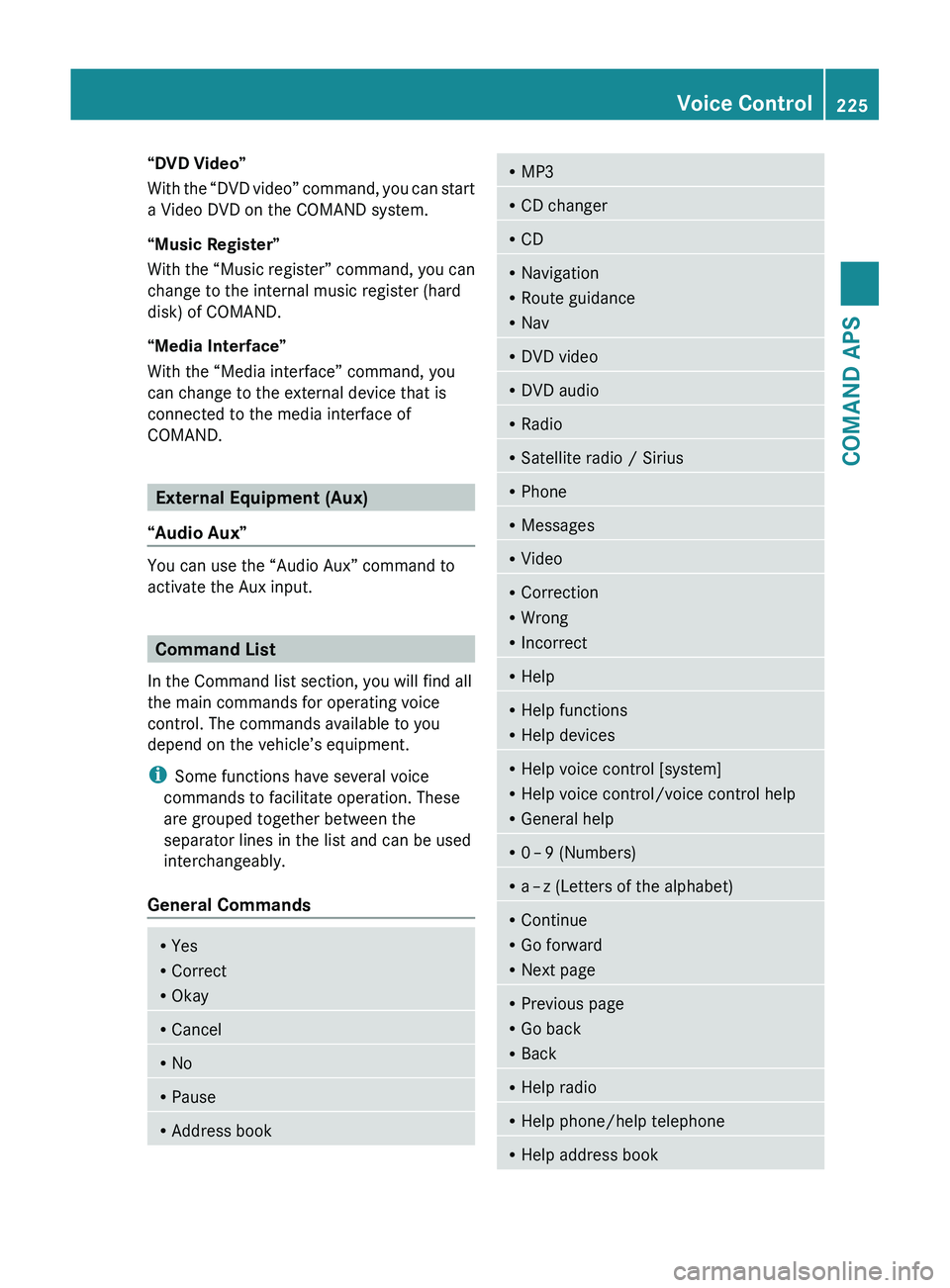
“DVD Video”
With the “DVD video” command, you can start
a Video DVD on the COMAND system.
“Music Register”
With the “Music register” command, you can
change to the internal music register (hard
disk) of COMAND.
“Media Interface”
With the “Media interface” command, you
can change to the external device that is
connected to the media interface of
COMAND.
External Equipment (Aux)
“Audio Aux”
You can use the “Audio Aux” command to
activate the Aux input.
Command List
In the Command list section, you will find all
the main commands for operating voice
control. The commands available to you
depend on the vehicle’s equipment.
i Some functions have several voice
commands to facilitate operation. These
are grouped together between the
separator lines in the list and can be used
interchangeably.
General Commands
R Yes
R Correct
R OkayRCancelRNoRPauseRAddress bookRMP3RCD changerRCDRNavigation
R Route guidance
R NavRDVD videoRDVD audioRRadioRSatellite radio / SiriusRPhoneRMessagesRVideoRCorrection
R Wrong
R IncorrectRHelpRHelp functions
R Help devicesRHelp voice control [system]
R Help voice control/voice control help
R General helpR0 – 9 (Numbers)R
a – z (Letters of the alphabet)R
Continue
R Go forward
R Next pageRPrevious page
R Go back
R BackRHelp radioRHelp phone/help telephoneRHelp address bookVoice Control225COMAND APSBA 197 USA, CA Edition A 2011; 1; 27, en-UShereepeVersion: 3.0.3.52010-03-24T15:31:10+01:00 - Seite 225Z
Page 228 of 436
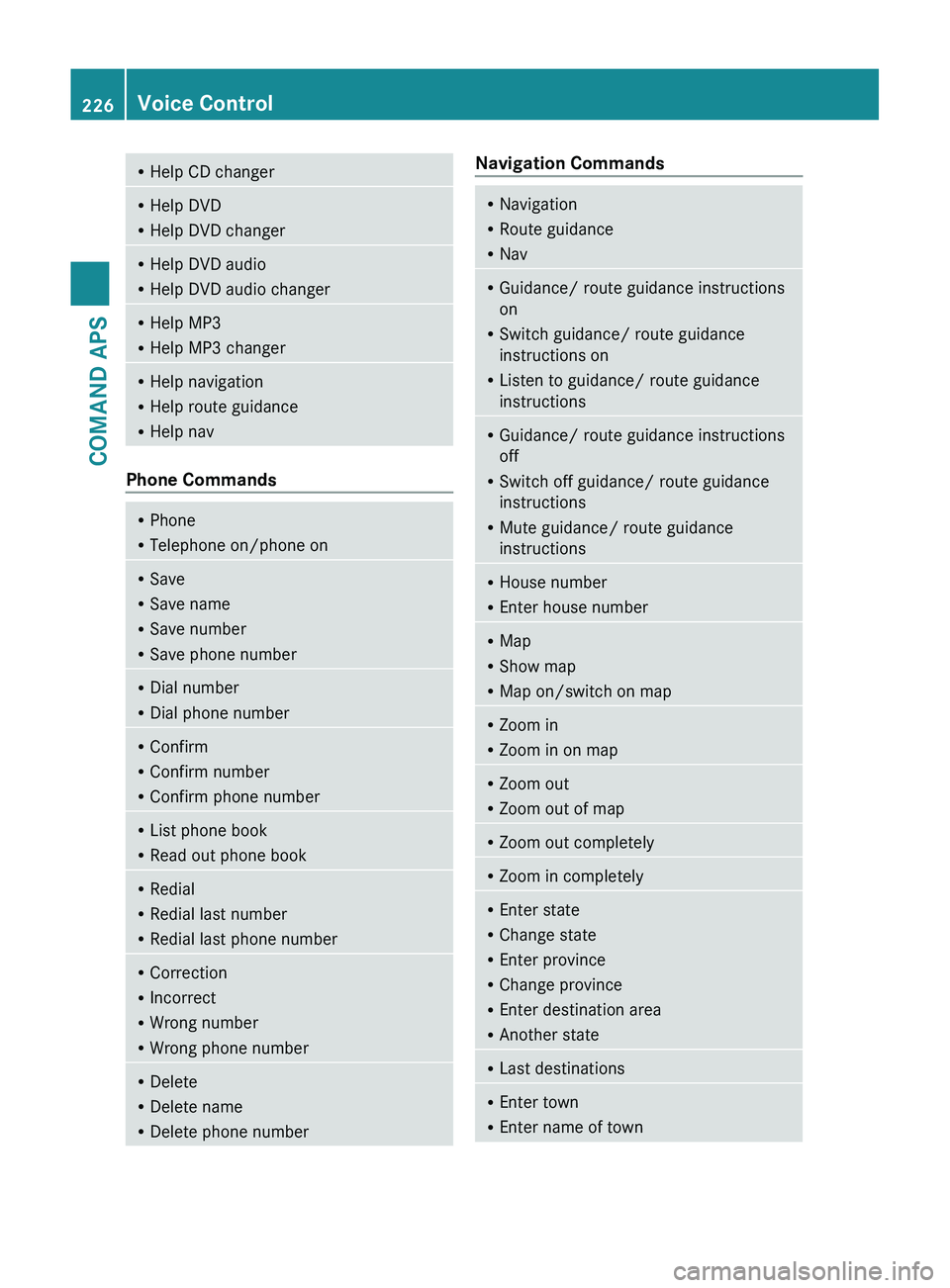
RHelp CD changerRHelp DVD
R Help DVD changerRHelp DVD audio
R Help DVD audio changerRHelp MP3
R Help MP3 changerRHelp navigation
R Help route guidance
R Help nav
Phone Commands
RPhone
R Telephone on/phone onRSave
R Save name
R Save number
R Save phone numberRDial number
R Dial phone numberRConfirm
R Confirm number
R Confirm phone numberRList phone book
R Read out phone bookRRedial
R Redial last number
R Redial last phone numberRCorrection
R Incorrect
R Wrong number
R Wrong phone numberRDelete
R Delete name
R Delete phone numberNavigation CommandsRNavigation
R Route guidance
R NavRGuidance/ route guidance instructions
on
R Switch guidance/ route guidance
instructions on
R Listen to guidance/ route guidance
instructionsR Guidance/ route guidance instructions
off
R Switch off guidance/ route guidance
instructions
R Mute guidance/ route guidance
instructionsR House number
R Enter house numberRMap
R Show map
R Map on/switch on mapRZoom in
R Zoom in on mapRZoom out
R Zoom out of mapRZoom out completelyRZoom in completelyREnter state
R Change state
R Enter province
R Change province
R Enter destination area
R Another stateRLast destinationsR
Enter town
R Enter name of town226Voice ControlCOMAND APS
BA 197 USA, CA Edition A 2011; 1; 27, en-UShereepeVersion: 3.0.3.52010-03-24T15:31:10+01:00 - Seite 226
Page 230 of 436
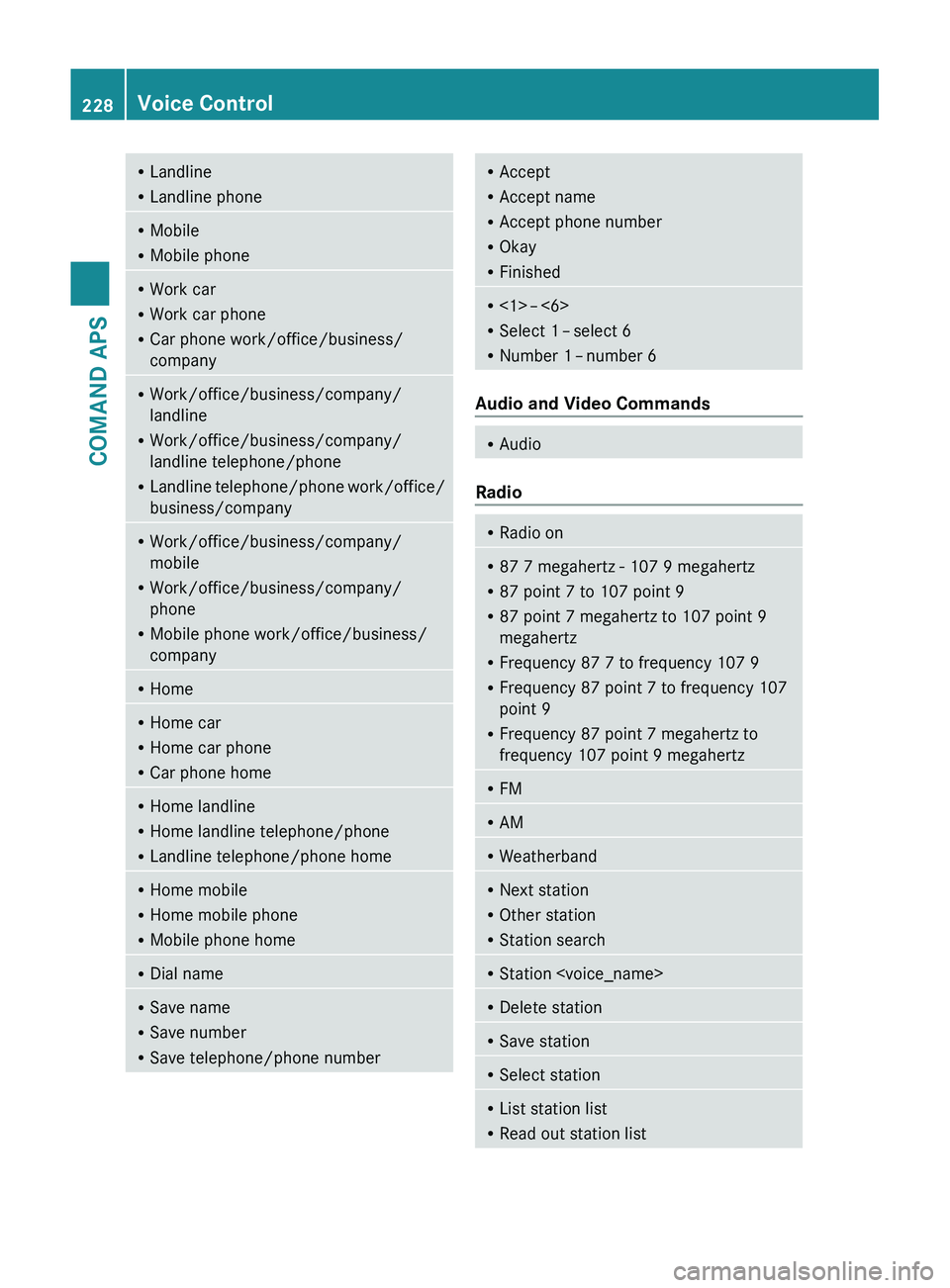
RLandline
R Landline phoneRMobile
R Mobile phoneRWork car
R Work car phone
R Car phone work/office/business/
companyR Work/office/business/company/
landline
R Work/office/business/company/
landline telephone/phone
R Landline telephone/phone work/office/
business/companyR Work/office/business/company/
mobile
R Work/office/business/company/
phone
R Mobile phone work/office/business/
companyR HomeRHome car
R Home car phone
R Car phone homeRHome landline
R Home landline telephone/phone
R Landline telephone/phone homeRHome mobile
R Home mobile phone
R Mobile phone homeRDial nameRSave name
R Save number
R Save telephone/phone numberRAccept
R Accept name
R Accept phone number
R Okay
R FinishedR<1> – <6>
R Select 1 – select 6
R Number 1 – number 6
Audio and Video Commands
R
Audio
Radio
RRadio onR
87 7 megahertz - 107 9 megahertz
R 87 point 7 to 107 point 9
R 87 point 7 megahertz to 107 point 9
megahertz
R Frequency 87 7 to frequency 107 9
R Frequency 87 point 7 to frequency 107
point 9
R Frequency 87 point 7 megahertz to
frequency 107 point 9 megahertzR FMR
AMRWeatherbandRNext station
R Other station
R Station searchRStation
R Read out station list228Voice ControlCOMAND APS
BA 197 USA, CA Edition A 2011; 1; 27, en-UShereepeVersion: 3.0.3.52010-03-24T15:31:10+01:00 - Seite 228
Page 232 of 436
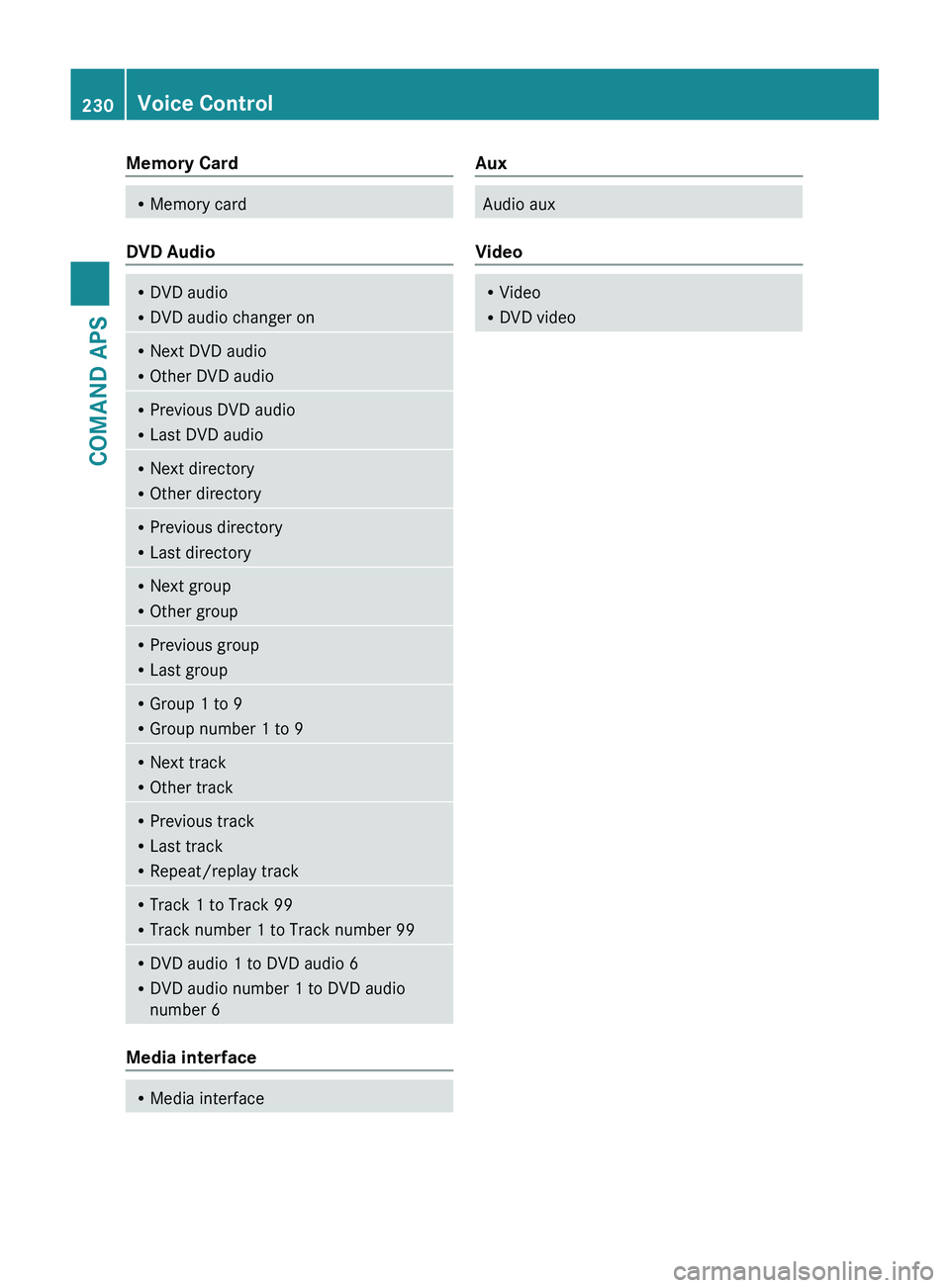
Memory CardRMemory card
DVD Audio
RDVD audio
R DVD audio changer onRNext DVD audio
R Other DVD audioRPrevious DVD audio
R Last DVD audioRNext directory
R Other directoryRPrevious directory
R Last directoryRNext group
R Other groupRPrevious group
R Last groupRGroup 1 to 9
R Group number 1 to 9RNext track
R Other trackRPrevious track
R Last track
R Repeat/replay trackRTrack 1 to Track 99
R Track number 1 to Track number 99RDVD audio 1 to DVD audio 6
R DVD audio number 1 to DVD audio
number 6
Media interface
R Media interfaceAuxAudio aux
Video
RVideo
R DVD video230Voice ControlCOMAND APS
BA 197 USA, CA Edition A 2011; 1; 27, en-UShereepeVersion: 3.0.3.52010-03-24T15:31:10+01:00 - Seite 230