Page 34 of 821
34
nCalling by name
You can call by saying a voice tag registered in the phonebook. For setting the voice recog-
nition, refer to the “Navigation System Owner's Manual”. Only when English is selected as
the system language can you call by saying a name registered in the phonebook without
registering any voice tags beforehand. (Names in the phonebook work as voice tags.)
Press .
Follow the voice guidance and say “Phone”.
Follow the voice guidance and say “Dial by
name”.
Follow the voice guidance and say a contact
name.
Follow the voice guidance and say the type of
phone number (home, mobile, work, other).
Follow the voice guidance and say “Dial”.
STEP1
STEP2
STEP4
: Pressing this switch turns the speech command system on. Say a command
after the beep.
Page 35 of 821
35
nReceiving a call
When a call is received, this screen is dis-
played with a sound.
Press on the steering wheel to talk on
the phone.
To ignore the call, press on the steering
wheel.
STEP1
STEP2
Page 41 of 821
41
Hands-free System For Cellular Phone
(without navigation system)
nBluetooth® phone pairing
Compatible Bluetooth®-equipped phones can be connected to the vehicle, enabling
hands-free operation. Please refer to the cellular phone manufacturer's user guide for pair-
ing procedures, or go to“www.lexus.com/bluetooth” for more phone information.
To use a Bluetooth® phone, it is necessary to first
register it in the system.
Press or .
Press and say “Pair phone”.
Press and say a name*.
*: This name will be used to identify your
phone in the case that more than one
phone has been registered to the system.
Press and say “Confirm” to display
the passkey.
Enter the passkey shown on the display into
the phone.
Refer to the cellular phone user's manual for
cellular phone operation.
Once the voice guidance for registration com-
pletion is finished, press .
STEP1
: Pressing this switch turns the speech command system on. Say a command
after the beep.
Page 42 of 821
42
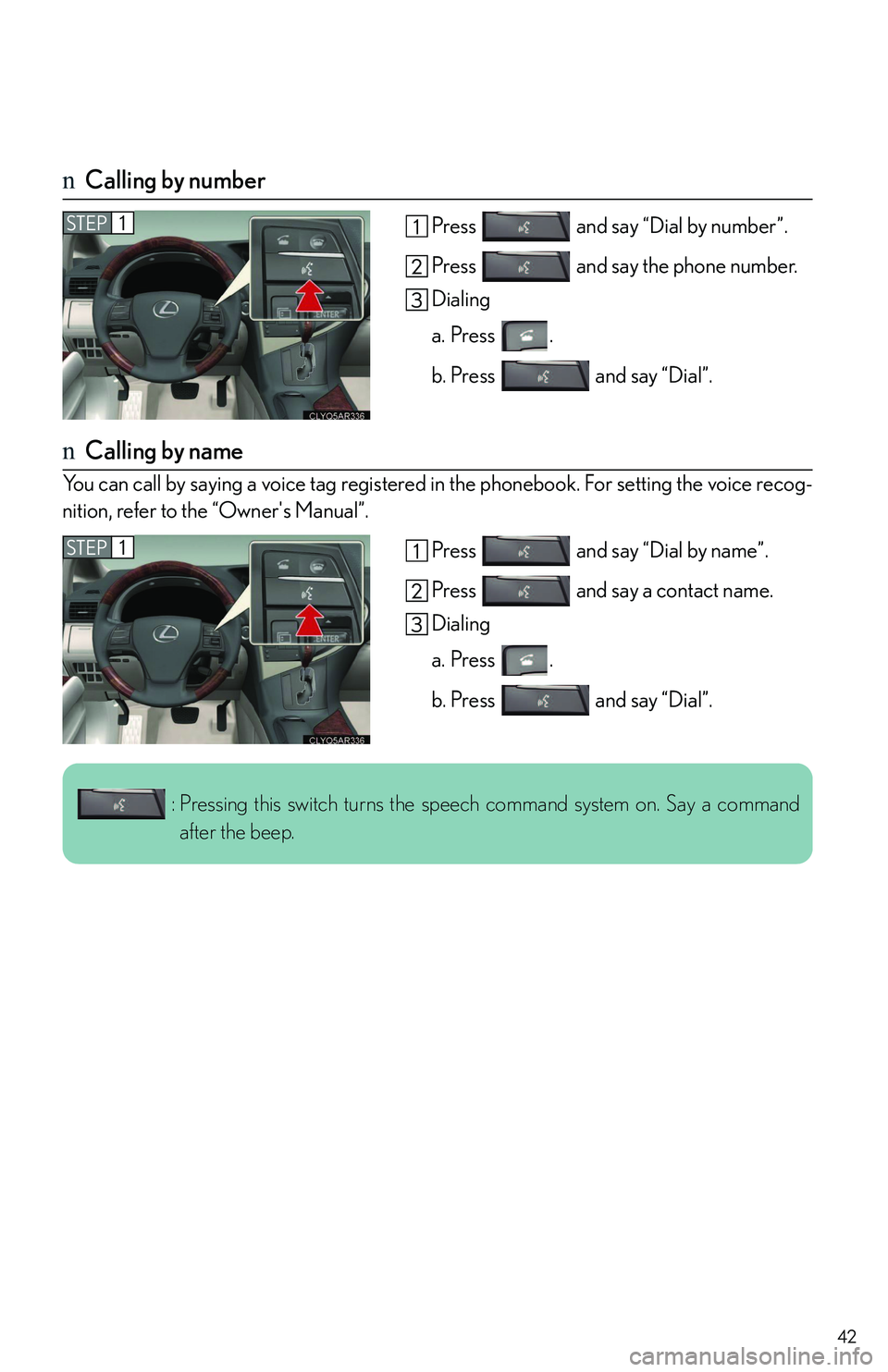
nCalling by number
Press and say “Dial by number”.
Press and say the phone number.
Dialing
a. Press .
b. Press and say “Dial”.
nCalling by name
You can call by saying a voice tag registered in the phonebook. For setting the voice recog-
nition, refer to the “Owner's Manual”.
Press and say “Dial by name”.
Press and say a contact name.
Dialing
a. Press .
b. Press and say “Dial”.
STEP1
STEP1
: Pressing this switch turns the speech command system on. Say a command
after the beep.
Page 43 of 821
43
nPhonebook transfer
Press .
Press and say “Phone book”.
Press and say “Add entry”.
Press and say “By phone”.
Press and say “Confirm”.
Transfer the phonebook data to the system
using the cellular phone.
Refer to the cellular phone user’s manual for
cellular phone operation.
Press and say “Previous” or “Next”
until the desired data is displayed.
Press and say “Confirm”.
Press and say the desired name.
Press and say “Confirm”.
Press and say “Confirm” again.
STEP1
10
11
Phonebook transfer may not be possible depending on phone model.
: Pressing this switch turns the speech command system on. Say a command
after the beep.
Page 44 of 821
44
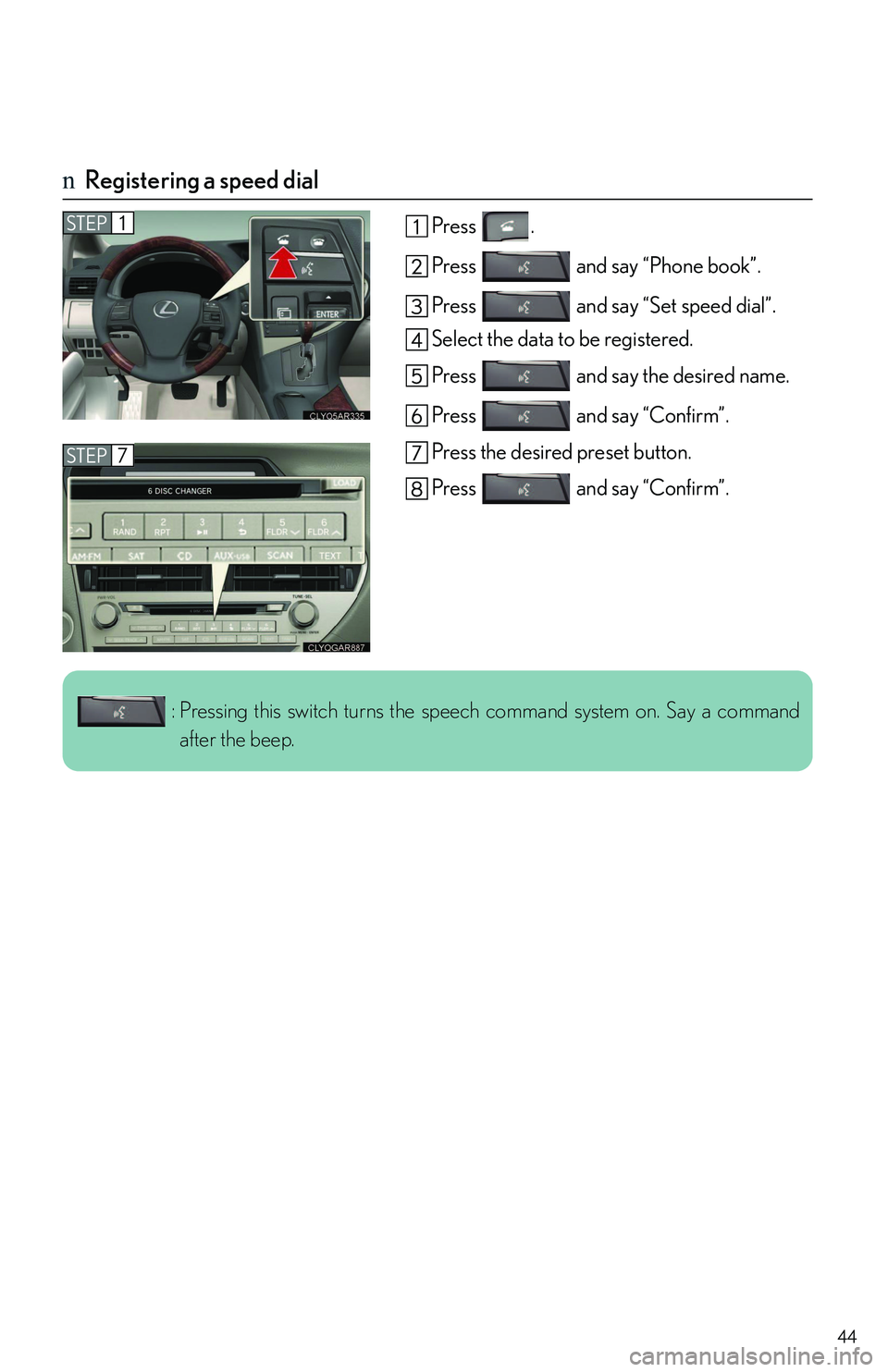
nRegistering a speed dial
Press .
Press and say “Phone book”.
Press and say “Set speed dial”.
Select the data to be registered.
Press and say the desired name.
Press and say “Confirm”.
Press the desired preset button.
Press and say “Confirm”.
STEP1
STEP7
: Pressing this switch turns the speech command system on. Say a command
after the beep.
Page 53 of 821

53
nCommand list
All vehicles
With navigation system
PHONE
To Operate a
Bluetooth
Connected
Phone/Make
Calls, SAY:
“Phone” and
then SAY:
“Dial by Name”NOTE: You
can also make
a call by simply
saying: “Call
XXX-555-
5555” ETC.
“Dial by Number”
“Redial”
“Call Back”
“Mute”
Destinations
To E n t e r a n A d d r e s s /
Destination, SAY:
(English only)
“Destination” and then
SAY:
“Address” and then follow the
prompts to enter city, state,
street and house number
To Enter a Point of Interest,
SAY
A Point of Interest Category, Such As: “Dining,”
“Shopping Malls,” “Police,” “Gas,” ETC.
“Destination”
and then
SAY:
“Point of
Interest”
and then
SAY:
“Near Here”
And then
follow the
prompts
“A l o n g R o u t e ”
“Emergency”
“Phone
Number”
To E n t e r a P r e v i o u s
Destination, SAY:
“Destination” and then
SAY:“Previous Destinations”
To Enter/Go to Preset
Destinations, SAY:
“Destination”
and then
SAY:
“Presets”
and then
SAY:
“Home” (HOME must
already be set using
manual controls)
“Preset 1” or “Preset 2”
ETC. (preset addresses
must already be set using
manual controls)
Page 55 of 821
55
To Review the Route, SAY:
“Route Overview”
“Next Destination Map”
“First Destination Map”
“Second Destination Map”
“Third Destination Map”
“Fourth Destination Map”
“Fifth Destination Map”
“Final Destination Map”
To Delete the Destination, SAY:
“Delete Next Destination”
“Delete Final Destination”
“Delete All Destinations”
To Operate Guidance
Options, SAY:
“Pause Guidance”
“Resume Guidance”
“Repeat Guidance”
“Louder”
“Softer”
To Operate the Traffic
Information, SAY:“Traffic Information”
To Show the Icon, SAY:“Show GAS”, “Show PARKING” ETC.
General Navigation Commands
PHONE
To Operate a
Bluetooth
Connected
Phone/Make
Calls, SAY:
“Phone” and
then SAY:
“Send Tones”
NOTE: You
can also make
a call by simply
saying: “Call
XXX-555-
5555” ETC.
“Connect
Phone” and
then SAY:
“Send Phone”
“A d d N e w
Phone”
“Hands Free
Pow e r O N ”
“Hands Free
Power OFF”