2011 JEEP GRAND CHEROKEE ESP
[x] Cancel search: ESPPage 222 of 587
Sunroof And Power Shade Movement – Manual
If any sunroof or shade switch is pressed and held for
more than one second, the sunroof or shade movement
will continue only as long as the switch is continuously
held. Whenever the switch is released, any sunroof or
shade movement will stop. This allows the sunroof or
shade to be stopped at any desired partially open
position.
Pinch Protect Feature
This feature will detect an obstruction in the opening of
the sunroof or the shade during any close operation. If an
obstruction is detected, the sunroof or shade will auto-
matically reverse direction to release the obstruction. If
this occurs, remove the obstruction and then press the
sunroof or shade switch forward to complete the desired
close motion.
Pinch Protect Override
Method 1:If a known obstruction (ice, debris, etc)
prevents closing of the sunroof or shade, press the
corresponding switch forward and hold for two seconds
after the reversal motion ends. After two seconds, all
closing motions will be manual and will have Pinch
Protect disabled. This will allow the sunroof or shade to
move towards the closed position.
Method 2: If three consecutive sunroof or shade close
attempts result in Pinch Protect reversals, the fourth close
attempt will be a Manual Close movement with Pinch
Protect disabled.
Pinch Protect Override Cancellation
Once the sunroof or shade reaches the closed position,
Pinch Protect will reactivate. In addition, if any other
switch is pressed which moves the sunroof or shade
away from the closed position, Pinch Protect will
reactivate.
220 UNDERSTANDING THE FEATURES OF YOUR VEHICLE
Page 243 of 587
CAUTION!
•To prevent damage to the roof of your vehicle, do
not carry any loads on the roof rack without the
crossbars installed. The load should be secured
and placed on top of the crossbars, not directly on
the roof. If it is necessary to place the load on the
roof, place a blanket or some other protection
between the load and the roof surface.
•To avoid damage to the roof rack and vehicle, do not
exceed the maximum roof rack load capacity of
150 lbs (68 kg). Always distribute heavy loads as
evenly as possible and secure the load appropriately.
•Long loads which extend over the windshield,
such as wood panels or surfboards, or loads with
large frontal area should be secured to both the
front and rear of the vehicle.(Continued)
CAUTION! (Continued)
•Travel at reduced speeds and turn corners care-
fully when carrying large or heavy loads on the
roof rack. Wind forces, due to natural causes or
nearby truck traffic, can add sudden upward lift to
a load. This is especially true on large flat loads
and may result in damage to the cargo or your
vehicle.
WARNING!
Cargo must be securely tied before driving your
vehicle. Improperly secured loads can fly off the
vehicle, particularly at high speeds, resulting in per-
sonal injury or property damage. Follow the roof rack
cautions when carrying cargo on your roof rack.
3
UNDERSTANDING THE FEATURES OF YOUR VEHICLE 241
Page 254 of 587

Please note that the TPMS is not a substitute for proper
tire maintenance, and it is the driver ’s responsibility to
maintain correct tire pressure, even if under-inflation has
not reached the level to trigger illumination of the TPMS
low tire pressure telltale.
Your vehicle has also been equipped with a TPMS
malfunction indicator to indicate when the system is not
operating properly. The TPMS malfunction indicator is
combined with the low tire pressure telltale. When the
system detects a malfunction, the telltale will flash for
approximately one minute and then remain continuously
illuminated. This sequence will continue upon subse-
quent vehicle start-ups as long as the malfunction exists.
When the malfunction indicator is illuminated, the sys-
tem may not be able to detect or signal low tire pressure
as intended. TPMS malfunctions may occur for a variety
of reasons, including the installation of replacement or
alternate tires or wheels on the vehicle that prevent the
TPMS from functioning properly. Always check theTPMS malfunction telltale after replacing one or more
tires or wheels on your vehicle, to ensure that the
replacement or alternate tires and wheels allow the TPMS
to continue to function properly.
CAUTION!
The TPMS has been optimized for the original
equipment tires and wheels. TPMS pressures and
warning have been established for the tire size
equipped on your vehicle. Undesirable system opera-
tion or sensor damage may result when using re-
placement equipment that is not of the same size,
type, and/or style. Aftermarket wheels can cause
sensor damage. Do not use tire sealant from a can, or
balance beads if your vehicle is equipped with a
TPMS, as damage to the sensors may result.
252 UNDERSTANDING YOUR INSTRUMENT PANEL
Page 269 of 587
•Power Steering System Over Temperature —
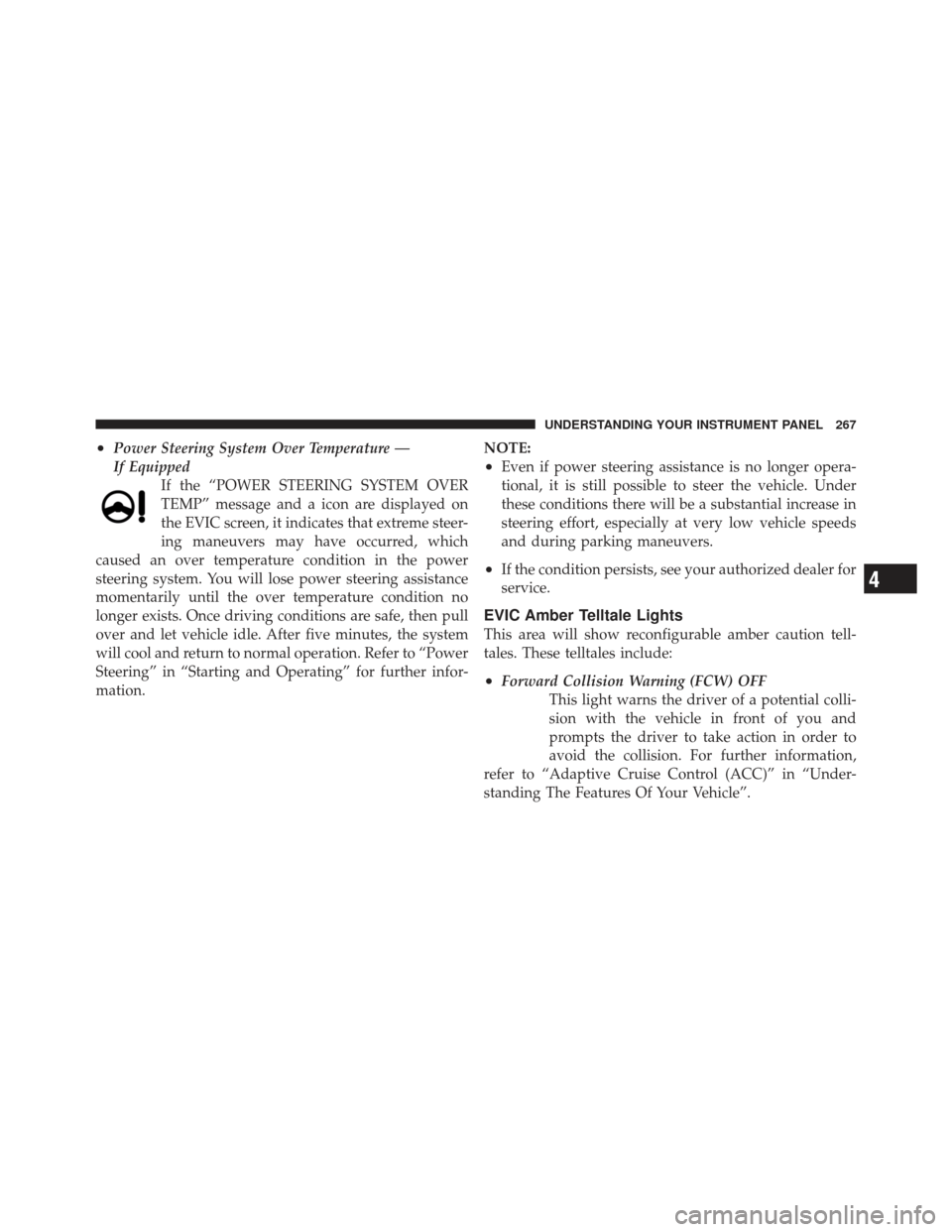
If EquippedIf the “POWER STEERING SYSTEM OVER
TEMP” message and a icon are displayed on
the EVIC screen, it indicates that extreme steer-
ing maneuvers may have occurred, which
caused an over temperature condition in the power
steering system. You will lose power steering assistance
momentarily until the over temperature condition no
longer exists. Once driving conditions are safe, then pull
over and let vehicle idle. After five minutes, the system
will cool and return to normal operation. Refer to “Power
Steering” in “Starting and Operating” for further infor-
mation. NOTE:
•Even if power steering assistance is no longer opera-
tional, it is still possible to steer the vehicle. Under
these conditions there will be a substantial increase in
steering effort, especially at very low vehicle speeds
and during parking maneuvers.
•If the condition persists, see your authorized dealer for
service.
EVIC Amber Telltale Lights
This area will show reconfigurable amber caution tell-
tales. These telltales include:
•Forward Collision Warning (FCW) OFF
This light warns the driver of a potential colli-
sion with the vehicle in front of you and
prompts the driver to take action in order to
avoid the collision. For further information,
refer to “Adaptive Cruise Control (ACC)” in “Under-
standing The Features Of Your Vehicle”.
4
UNDERSTANDING YOUR INSTRUMENT PANEL 267
Page 282 of 587

3. Press the DOWN button until the “Compass Variance”
message is displayed in the EVIC, then press the SELECT
button. The last variance zone number displays in the
EVIC.
4. Press and release the SELECT button until the proper
variance zone is selected, according to the map.
5. Press and release the RETURN button to exit.
Customer-Programmable Features (System Setup)
Personal Settings allows you to set and recall features
when the transmission is in PARK. If the transmission is
out of PARK or the vehicle begins moving, a warning
messageSETUP NOT AVAILABLE, is followed in three
seconds by, VEHICLE NOT IN PARK.
Press and release the UP or DOWN button until Setup
displays in the EVIC.
Use the UP or DOWN button to display one of the
following choices.
Select Language
When in this display you may select one of five lan-
guages for all display nomenclature, including the trip
functions and the navigation system (if equipped). Press
the UP or DOWN button while in this display and scroll
through the language choices. Press the SELECT button
to select English, Spanish (Español), French (Français),
Italian (Italiano), German (Deutsch), and Dutch (Neder-
lands). Then, as you continue, the information will dis-
play in the selected language.
Nav–Turn By Turn
When this feature is selected, the navigation system
utilizes voice commands, guiding through the drive
route, mile by mile, turn-by-turn until the final destina-
tion is reached. To make your selection, press and release
the SELECT button until a check-mark appears next to
the feature showing the system has been activated or the
check-mark is removed, showing the system has been
deactivated.
280 UNDERSTANDING YOUR INSTRUMENT PANEL
Page 293 of 587
AM/FM Button
Press the buttons to select either AM or FM mode.
SET/RND Button — To Set the Pushbutton Memory
When you are receiving a station that you wish to
commit to pushbutton memory, press the SET/RND
button. The symbol SET 1 will now show in the display
window. Select the button (1 to 6) you wish to lock onto
this station and press and release that button. If a button
is not selected within five seconds after pressing the
SET/RND button, the station will continue to play but
will not be stored into pushbutton memory.
You may add a second station to each pushbutton by
repeating the above procedure with this exception: Press
the SET/RND button twice and SET 2 will show in the
display window. Each button can be set for SET 1 and
SET 2 in both AM and FM. This allows a total of 12 AM
and 12 FM stations to be stored into pushbutton memory.
The stations stored in SET 2 memory can be selected by
pressing the pushbutton twice.Every time a preset button is used, a corresponding
button number will display.
Buttons1-6
These buttons tune the radio to the stations that you
commit to pushbutton memory (12 AM and 12 FM
stations).
DISC Button
Pressing the DISC button will allow you to switch from
AM/FM modes to Disc modes.
Operation Instructions — CD MODE For CD And
MP3 Audio Play
NOTE:
•The ignition switch must be in the ON or ACC
position to operate the radio.
4
UNDERSTANDING YOUR INSTRUMENT PANEL 291
Page 304 of 587
hours, press the TUNE/SCROLL control knob to set
the minutes. The minutes will begin to blink. Adjust
the minutes using the right side TUNE/SCROLL
control knob. Press the TUNE/SCROLL control knob
to save time change.
AM/FM Button
Press the button to select either AM or FM mode.
SET/RND Button — To Set the Pushbutton
Memory
When you are receiving a station that you wish to
commit to pushbutton memory, press the SET/RND
button. The symbol SET 1 will now show in the display
window. Select the button (1–6) you wish to lock onto this
station and press and release that button. If a button is
not selected within five seconds after pressing the SET/
RND button, the station will continue to play but will not
be stored into pushbutton memory.You may add a second station to each pushbutton by
repeating the above procedure with this exception: Press
the SET/RND button twice and SET 2 will show in the
display window. Each button can be set for SET 1 and
SET 2 in both AM and FM. This allows a total of 12 AM
and 12 FM stations to be stored into pushbutton memory.
The stations stored in SET 2 memory can be selected by
pressing the pushbutton twice.
Every time a preset button is used, a corresponding
button number will display.
Buttons1-6
These buttons tune the radio to the stations that you
commit to pushbutton memory (12 AM and 12 FM
stations).
DISC/AUX Button
Pressing the DISC/AUX button will allow you to switch
from AM/FM modes to DISC/AUX mode.
302 UNDERSTANDING YOUR INSTRUMENT PANEL
Page 314 of 587
SETUP Button
Pressing the SETUP button allows you to select the
following items:
•Display Sirius ID number — Press the AUDIO/
SELECT button to display the Sirius ID number. This
number is used to activate, deactivate, or change the
Sirius subscription.
SET Button – To Set the Pushbutton Memory
When you are receiving a channel that you wish to
commit to pushbutton memory, press the SET button.
The symbol SET 1 will now show in the display window.
Select the button (1-6) you wish to lock onto this channel
and press and release that button. If a button is not
selected within five seconds after pressing the SET but-
ton, the channel will continue to play but will not be
stored into pushbutton memory.You may add a second channel to each pushbutton by
repeating the above procedure with this exception: Press
the SET button twice and SET 2 will show in the display
window. Each button can be set for SET 1 and SET 2. This
allows a total of 12 Satellite channels to be stored into
pushbutton memory. The channels stored in SET 2
memory can be selected by pressing the pushbutton
twice.
Every time a preset button is used, a corresponding
button number will display.
Buttons1-6
These buttons tune the radio to the channels that you
commit to pushbutton memory (12 Satellite stations).
Operating Instructions (Uconnect™ Phone) —
If Equipped
Refer to “Uconnect™ Phone” in the Uconnect™ User
Manual located on the DVD for further details.
312 UNDERSTANDING YOUR INSTRUMENT PANEL