Page 316 of 587
Connecting The iPod�or External USB Device
Use the connection cable to connect an iPod� or external
USB device to the vehicle’s USB/AUX connector port
which is located in the center console or glove compart-
ment. Once the audio device is connected and synchronized to
the vehicle’s iPod�/USB/MP3 control system (iPod�
or
external USB device may take a few minutes to connect),
the audio device starts charging and is ready for use by
pressing radio switches, as described below.
NOTE: If the audio device battery is completely dis-
charged, it may not communicate with the iPod�/USB/
MP3 control system until a minimum charge is attained.
Leaving the audio device connected to the iPod �/USB/
MP3 control system may charge it to the required level.
Using This Feature
By using iPod cable or external USB device to connect to
USB port:
•The audio device can be played on the vehicle’s sound
system, providing metadata (artist, track title, album,
etc.) information on the radio display.
Center Console USB/AUX Connector Port
314 UNDERSTANDING YOUR INSTRUMENT PANEL
Page 317 of 587
•The audio device can be controlled using the radio
buttons to Play, Browse, and List the iPod�contents.
•The audio device battery charges when plugged into
the USB/AUX connector (if supported by the specific
audio device)
Controlling The iPod�or External USB Device
Using Radio Buttons
To get into the iPod�/USB/MP3 control mode and access
a connected audio device, either press the “AUX” button
on the radio faceplate or press VR button and say �USB�
or �Switch to USB�. Once in the iPod�/USB/MP3 control
mode, audio tracks (if available from audio device) start
playing over the vehicle’s audio system.
Play Mode
When switched to iPod�/USB/MP3 control mode, the
iPod� or external USB device automatically starts Play
mode. In Play mode, the following buttons on the radio
faceplate may be used to control the iPod� or external
USB device and display data:
•Use the TUNE control knob to select the next or
previous track.
•Turning it clockwise (forward) by one click, while
playing a track, skips to the next track or press VR
button and say �Next Track�.
•Turning it counterclockwise (backward) by one
click, will jump to the previous track in the list or
press VR button and say �Previous Track�
•Jump backward in the current track by pressing and
holding the <
button long enough will jump to the beginning of
the current track.
4
UNDERSTANDING YOUR INSTRUMENT PANEL 315
Page 318 of 587
•Jump forward in the current track by pressing and
holding theFF>> button.
•A single press backward << RWor forward FF>> will
jump backward or forward respectively, for five
seconds.
•Use the << SEEKandSEEK >> buttons to jump to the
previous or next track. Pressing the SEEK>> button
during play mode will jump to the next track in the
list, or can press VR button and say �Next or Previous
Track�.
•While a track is playing, press the INFObutton to see
the associated metadata (artist, track title, album, etc.)
for that track. Pressing the INFObutton again jumps
to the next screen of data for that track. Once all
screens have been viewed, the last INFObutton press
will go back to the play mode screen on the radio.
•Pressing the REPEATbutton will change the audio
device mode to repeat the current playing track or
press the VR button and say �Repeat ON�or�Repeat
Off�.
•Press the SCANbutton to use iPod�/USB/MP3 de-
vice scan mode, which will play the first 10 seconds of
each track in the current list and then forward to the
next song. To stop SCAN mode and start playing the
desired track, when it is playing the track, press the
SCAN button again. During Scan mode, pressing the
<< SEEK andSEEK >> buttons will select the previ-
ous and next tracks.
•RND button (available on sales code RES radio only):
Pressing this button toggles between Shuffle ON and
Shuffle OFF modes for the iPod� or external USB
device, or press VR button and say �Shuffle ON�or
�Shuffle Off�.IftheRND icon is showing on the radio
display, then the shuffle mode is ON.
316 UNDERSTANDING YOUR INSTRUMENT PANEL
Page 319 of 587

List Or Browse Mode
During Play mode, pressing any of the buttons described
below, will bring up List mode. List mode enables
scrolling through the list of menus and tracks on the
audio device.
•TUNEcontrol knob: The TUNEcontrol knob functions
in a similar manner as the scroll wheel on the or
external USB device.
•Turning it clockwise (forward) and counterclock-
wise (backward) scrolls through the lists, displaying
the track detail on the radio display. Once the track
to be played is highlighted on the radio display,
press the TUNEcontrol knob to select and start
playing the track. Turning the TUNEcontrol knob
fast will scroll through the list faster. During fast
scroll, a slight delay in updating the information on
the radio display may be noticeable.
•During all List modes, the iPod� displays all lists in
“wrap-around” mode. So if the track is at the
bottom of the list, just turn the wheel backwards
(counter-clockwise) to get to the track faster.
•In List mode, the radio PRESETbuttons are used as
shortcuts to the following lists on the iPod� or
external USB device.
•Preset 1 – Playlists
•Preset 2 – Artists
•Preset 3 – Albums
•Preset 4 – Genres
•Preset 5 – Audiobooks
•Preset 6 – Podcasts
4
UNDERSTANDING YOUR INSTRUMENT PANEL 317
Page 320 of 587
•Pressing a PRESET button will display the current
list on the top line and the first item in that list on
the second line.
•To Exit List mode without selecting a track, press the
samePRESET button again to go back to Play
mode.
•LIST button: The LISTbutton will display the top
level menu of the iPod� or external USB device. Turn
the TUNE control knob to list the top-menu item to be
selected and press the TUNEcontrol knob. This will
display the next sub-menu list item on the audio
device, then follow the same steps to go to the desired
track in that list. Not all iPod� or external USB device
sub-menu levels are available on this system.
•MUSIC TYPE button: TheMUSIC TYPE button is
another shortcut button to the genre listing on your
audio device.
CAUTION!
•Leaving the iPod� or external USB device (or any
supported device) anywhere in the vehicle in
extreme heat or cold can alter the operation or
damage the device. Follow the device manufactur-
er ’s guidelines.
•Placing items on the iPod� or external USB device,
or connections to the iPod� or external USB device
in the vehicle, can cause damage to the device
and/or to the connectors.
WARNING!
Do not plug in or remove the iPod� or external USB
device while driving. Failure to follow this warning
could result in an accident.
318 UNDERSTANDING YOUR INSTRUMENT PANEL
Page 321 of 587
Bluetooth Streaming Audio (BTSA)
Music can be streamed from your cellular phone to the
Uconnect™ phone system.
Controlling BTSA using Radio Buttons
To get into the BTSA mode, press either “AUX” button on
the radio or press VR button and say “Bluetooth Stream-
ing Audio”.
Play Mode
When switched to BTSA mode, some audio devices can
start playing music over the vehicle’s audio system, but
some devices require the music to be initiated on the
device first, then it will get streamed to Uconnect™
phone system. Seven devices can be paired to Uconnect™
phone system, but just one can be selected and played.
Selecting different Audio Device
1. Press PHONE button to begin.2. After the
�Ready�prompt and the following beep, say
�Setup�, then �Select Audio Devices�.
3. Say name of the audio device or ask Uconnect™
phone system to list audio devices.
Next Track
Use the SEEK UP button, or press the VR button on the
radio and say “Next Track” to jump to the next track
music on your cellular phone.
Previous Track
Use the SEEK DOWN button, or press the VR button on
the radio and say “Previous Track” to jump to the
previous track music on your cellular phone.
Browse
Browsing is not available on a BTSA device. Only the
current song that is playing will display info.
4
UNDERSTANDING YOUR INSTRUMENT PANEL 319
Page 322 of 587

Uconnect™ Multimedia
(SIRIUS BACKSEAT TV™) — IF EQUIPPED
Satellite video uses direct satellite receiver broadcasting
technology to provide streaming video. The subscription
service provider is SIRIUS Satellite Radio. Uconnect™
studio (SIRIUS Backseat TV™) offers three video chan-
nels for family entertainment, directly from its satellites
and broadcasting studios.
NOTE:SIRIUS Backseat TV™ service is not available in
Hawaii or Canada and has limited coverage in Alaska.
Refer to the Uconnect™ User Manual located on the
DVD, RER Navigation, RHB Multimedia or RBZ Multi-
media User Manuals for detailed operating instructions.
VIDEO ENTERTAINMENT SYSTEM™
(SALES CODE XRV) — IF EQUIPPED
The optional VES™ (Video Entertainment System) con-
sists of a DVD player and LCD (liquid crystal display) screen, a battery-powered remote control, and two head-
sets. Refer to the “Uconnect™ Multimedia” section of
Uconnect™ User Manual located on the DVD for further
details.
The LCD screen is located on the headliner behind the
front seats.
Lowering the Display Screen
320 UNDERSTANDING YOUR INSTRUMENT PANEL
Page 323 of 587
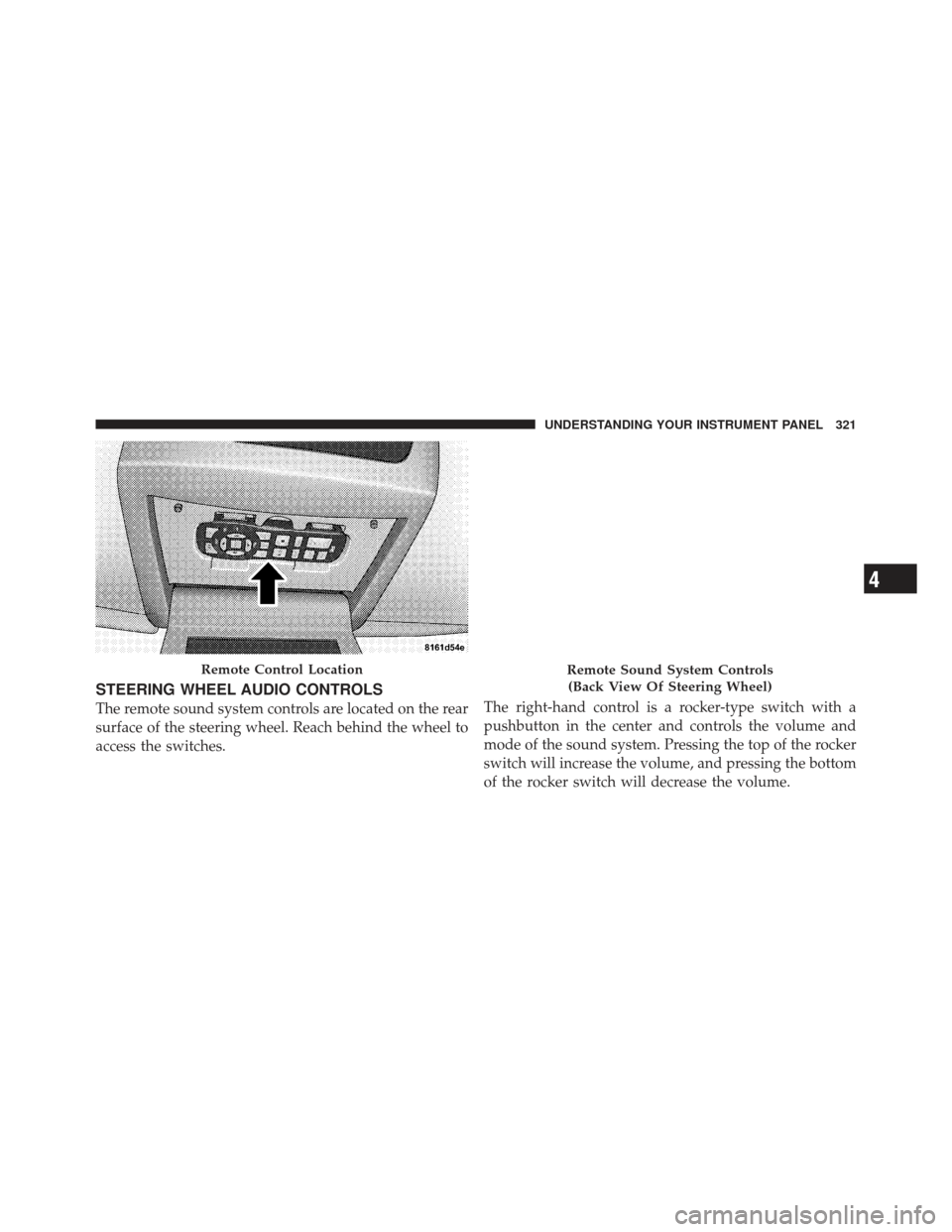
STEERING WHEEL AUDIO CONTROLS
The remote sound system controls are located on the rear
surface of the steering wheel. Reach behind the wheel to
access the switches.The right-hand control is a rocker-type switch with a
pushbutton in the center and controls the volume and
mode of the sound system. Pressing the top of the rocker
switch will increase the volume, and pressing the bottom
of the rocker switch will decrease the volume.
Remote Control LocationRemote Sound System Controls
(Back View Of Steering Wheel)
4
UNDERSTANDING YOUR INSTRUMENT PANEL 321