Page 259 of 574
�µ
�µ
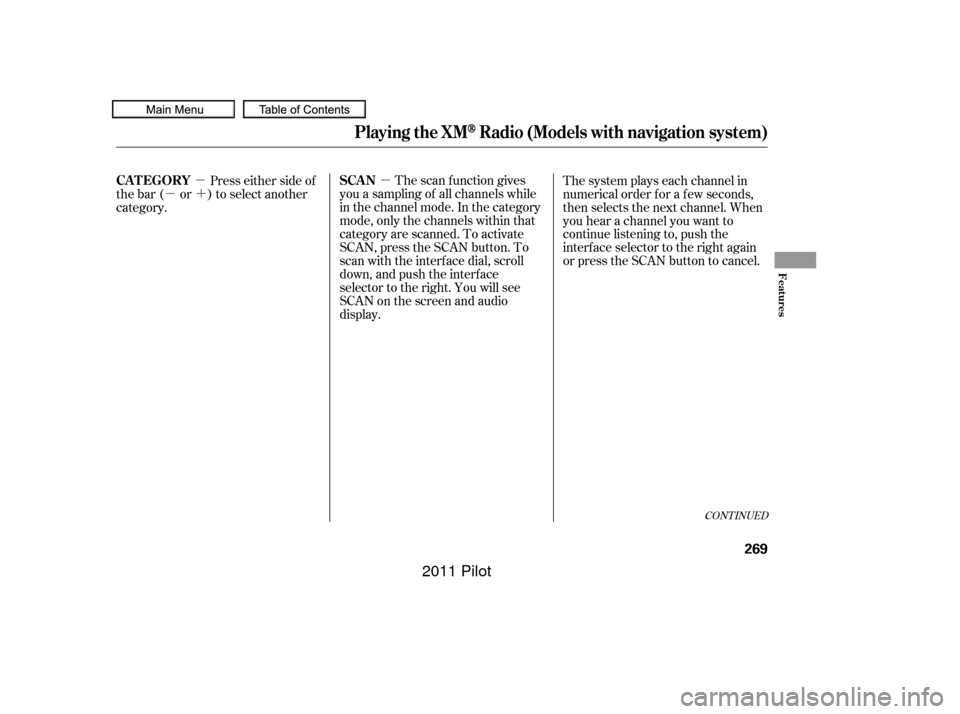
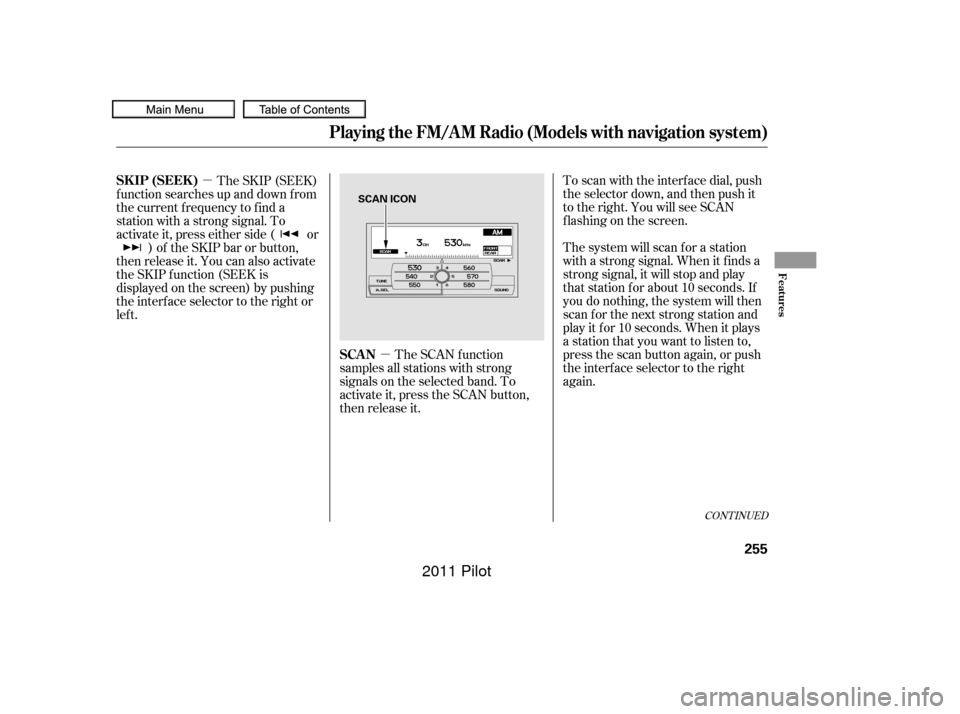
To scan with the interf ace dial, push
the selector down, and then push it
to the right. You will see SCAN
f lashing on the screen.
The system will scan f or a station
with a strong signal. When it f inds a
strong signal, it will stop and play
that station for about 10 seconds. If
you do nothing, the system will then
scan f or the next strong station and
play it f or 10 seconds. When it plays
a station that you want to listen to,
press the scan button again, or push
the interface selector to the right
again.
The SCAN f unction
samples all stations with strong
signals on the selected band. To
activate it, press the SCAN button,
then release it.
The SKIP (SEEK)
f unction searches up and down f rom
the current f requency to f ind a
station with a strong signal. To
activate it, press either side ( or ) of the SKIP bar or button,
then release it. You can also activate
the SKIP function (SEEK is
displayed on the screen) by pushing
the interface selector to the right or
lef t.
CONT INUED
SCAN
SK IP (SEEK )
Playing the FM/A M Radio (Models with navigation system)
Features
255
SCAN ICON
10/01/26 19:06:52 31SZA620_260
2011 Pilot
Page 260 of 574
�µ
�µ
If you are
traveling and can no longer receive
your preset stations, you can use the
auto select feature to find stations in
the local area.
Each preset button or
preset icon can store one f requency
on AM and two f requencies on FM.
Select the desired band, AM or
FM. FM1 and FM2 let you store
twosetsof FMfrequencieswith
the preset buttons (on-screen
icons).
Usethetune,seek,orscan
function to tune the radio to a
desired station.
Press the preset button, and hold
it until you hear a beep. You can
also store f requencies with the
interf ace dial. Select the preset
icon you want to store the
f requency on, then press ENTER
on the interf ace selector, and hold
it f or more than 2 seconds.
Repeat steps 1 through 3 to store a
total of six stations on AM and
twelve stations on FM. You will see ‘‘0’’ displayed if auto
select cannot f ind a strong station f or
every preset button.
If you do not like the stations auto
select has stored, you can store
other f requencies on the preset
buttons (icons) as previously
described.
To turn of f auto select, press
ENTER on the interf ace selector or
press the A.SEL button again. This
restores the presets you originally
set.
Push the interf ace selector down to
scroll down the screen, highlight
A.SEL, then press ENTER on the
interf ace selector. You will see
A.SEL on the screen, and the system
goes into scan mode f or several
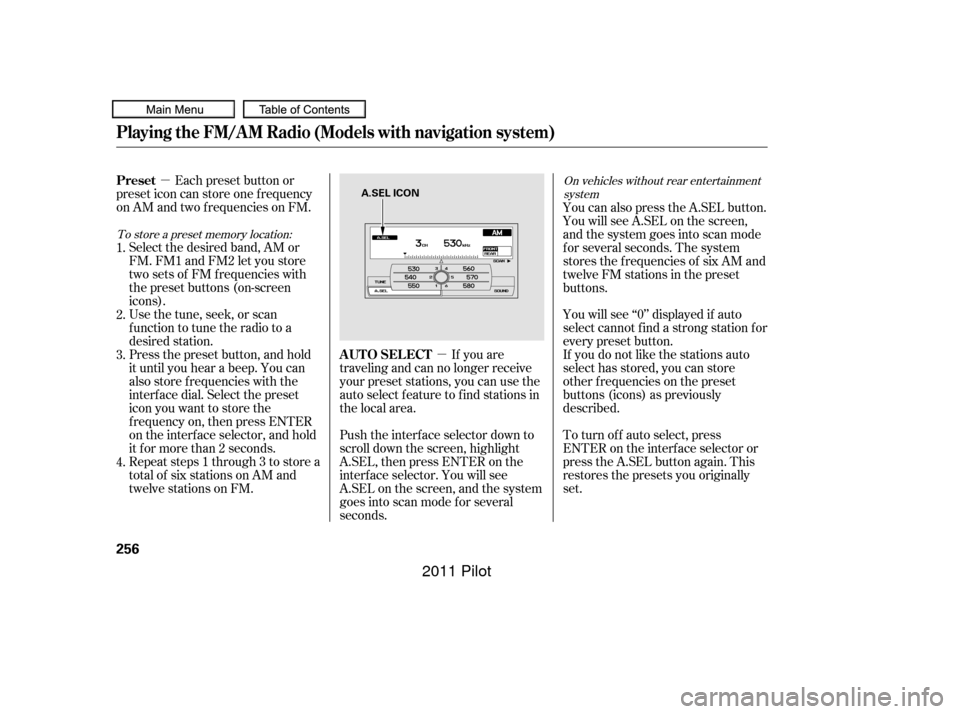
seconds. You can also press the A.SEL button.
YouwillseeA.SELonthescreen,
and the system goes into scan mode
f or several seconds. The system
stores the f requencies of six AM and
twelve FM stations in the preset
buttons.
1.
2.
3.
4.
To store a preset memory location: On vehicles without rear entertainment
system
AUTO SELECT
Preset
Playing the FM/A M Radio (Models with navigation system)
256
A.SEL ICON
10/01/26 19:07:05 31SZA620_261
2011 Pilot
Page 263 of 574
�µ�´
CONT INUED
If the system does not find a station,
‘‘NOTHING’’ will be blinking f or
about 5 seconds, then the system
goes back to the last selected station.
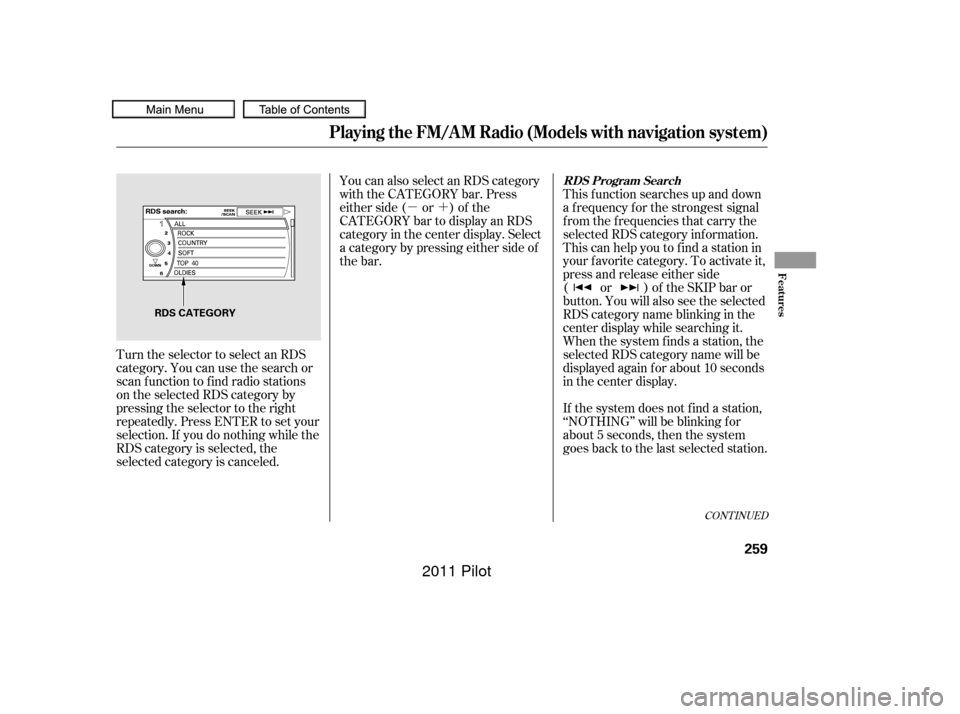
Turn the selector to select an RDS
category. You can use the search or
scan function to find radio stations
on the selected RDS category by
pressing the selector to the right
repeatedly. Press ENTER to set your
selection. If you do nothing while the
RDS category is selected, the
selected category is canceled. This f unction searches up and down
a f requency f or the strongest signal
f rom the f requencies that carry the
selected RDS category inf ormation.
This can help you to find a station in
your favorite category. To activate it,
press and release either side
( or ) of the SKIP bar or
button. You will also see the selected
RDS category name blinking in the
center display while searching it.
When the system finds a station, the
selected RDS category name will be
displayed again for about 10 seconds
in the center display.
You can also select an RDS category
with the CATEGORY bar. Press
either side ( or ) of the
CATEGORY bar to display an RDS
category in the center display. Select
a category by pressing either side of
the bar.
Playing the FM/A M Radio (Models with navigation system)
RDS Program Search
Features
259
RDS CATEGORY
10/01/26 19:07:38 31SZA620_264
2011 Pilot
Page 264 of 574
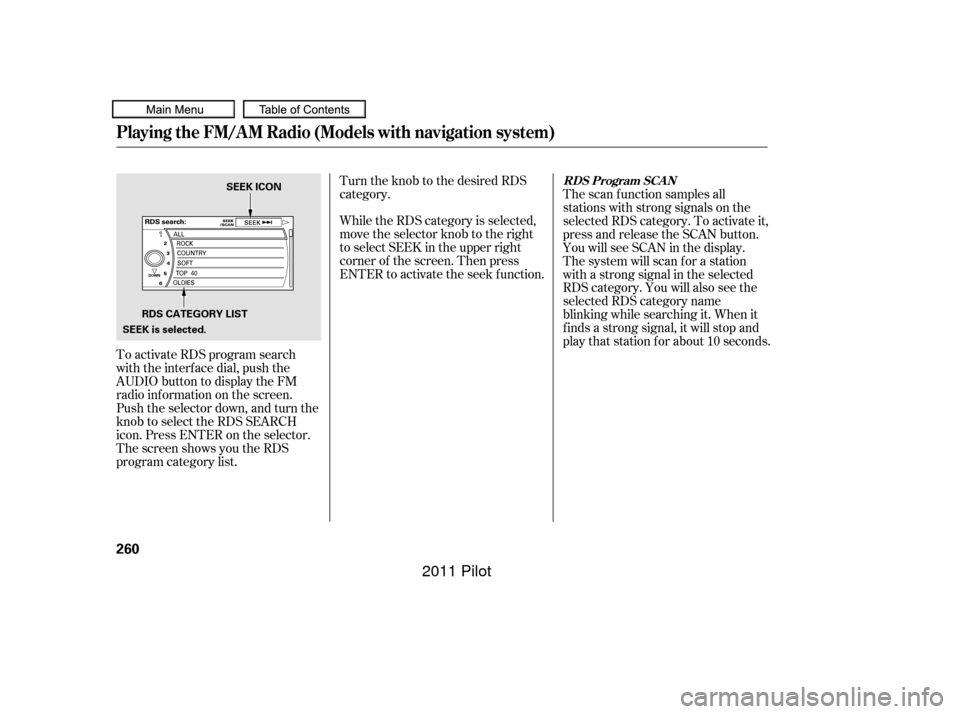
To activate RDS program search
with the interf ace dial, push the
AUDIO button to display the FM
radio inf ormation on the screen.
Push the selector down, and turn the
knob to select the RDS SEARCH
icon. Press ENTER on the selector.
The screen shows you the RDS
program category list.Turn the knob to the desired RDS
category.
While the RDS category is selected,
move the selector knob to the right
to select SEEK in the upper right
corner of the screen. Then press
ENTER to activate the seek f unction.
The scan f unction samples all
stations with strong signals on the
selected RDS category. To activate it,
press and release the SCAN button.
You will see SCAN in the display.
The system will scan f or a station
with a strong signal in the selected
RDS category. You will also see the
selected RDS category name
blinking while searching it. When it
f inds a strong signal, it will stop and
play that station for about 10 seconds.
Playing the FM/A M Radio (Models with navigation system)
RDS Program SCAN
260
RDS CATEGORY LISTSEEK ICON
SEEK is selected.
10/01/26 19:07:45 31SZA620_265
2011 Pilot
Page 265 of 574
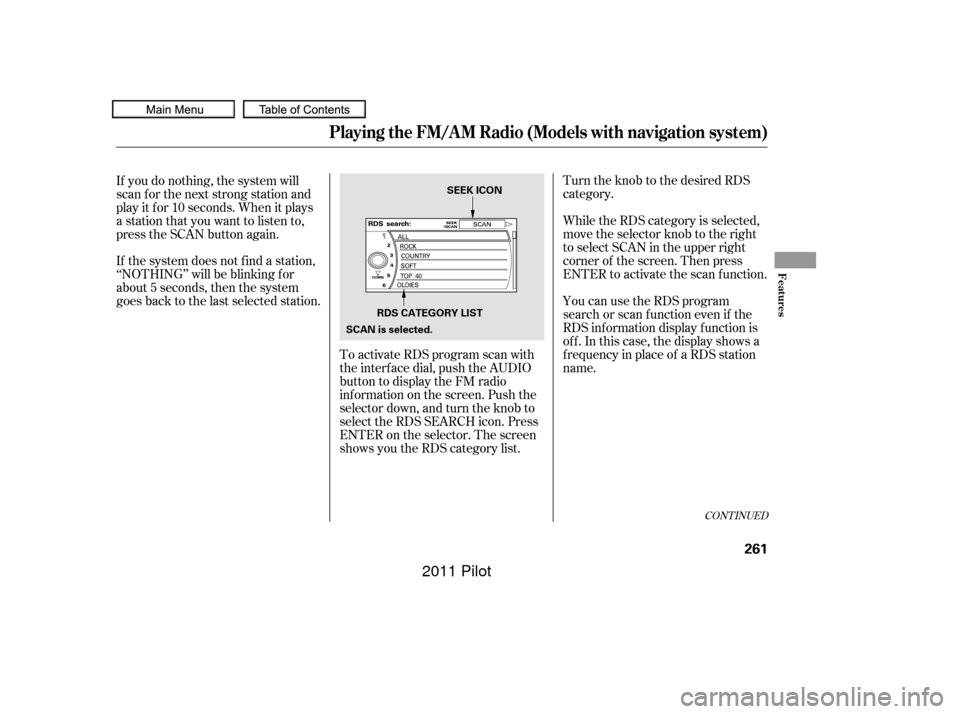
Turn the knob to the desired RDS
category.
To activate RDS program scan with
the interf ace dial, push the AUDIO
button to display the FM radio
inf ormation on the screen. Push the
selector down, and turn the knob to
select the RDS SEARCH icon. Press
ENTER on the selector. The screen
shows you the RDS category list. While the RDS category is selected,
move the selector knob to the right
to select SCAN in the upper right
corner of the screen. Then press
ENTER to activate the scan function.
If you do nothing, the system will
scan f or the next strong station and
play it f or 10 seconds. When it plays
a station that you want to listen to,
press the SCAN button again.
If the system does not find a station,
‘‘NOTHING’’ will be blinking f or
about 5 seconds, then the system
goes back to the last selected station.
You can use the RDS program
search or scan f unction even if the
RDS inf ormation display f unction is
of f . In this case, the display shows a
f requency in place of a RDS station
name.
CONT INUED
Playing the FM/A M Radio (Models with navigation system)
Features
261
RDS CATEGORY LISTSEEK ICON
SCAN is selected.
10/01/26 19:07:55 31SZA620_266
2011 Pilot
Page 269 of 574
�µDolby
PL (ProLogic) II signal processing
creates multi-channel surround
sound f rom 2 channel stereo audio
sources. Dolby ProLogic II can only
be activated when listening to DISC
(CD-DA, MP3/WMA), XM Radio,
andAUX.WhenProLogicIIisactive,
‘‘PL II’’ is shown in the audio display. To set this f eature on or of f , select
Dolby PL II, and press ENTER on
the interf ace selector. Rotate the
interf ace dial to ON or OFF, and
press ENTER.
Manuf actured under license f rom
Dolby Laboratories. Dolby, Pro
Logic, MLP Lossless and the double-
D symbol are trademarks of Dolby
Laboratories.The SVC mode controls the volume
based on vehicle speed. The f aster
you go, the louder the audio volume
becomes. As you slow down, the
audio volume decreases.
The SVC has f our modes: SVC OFF,
SVC LOW, SVC MID, and SVC
HIGH. The def ault setting is MID.
To change the SVC mode, select
SVC, then press ENTER on the
interf ace selector. The current
setting is shown on the screen. Turn
the interface knob to the desired
level, and enter your selection by
pressing ENTER on the interf ace
selector. If you f eel the sound is too
loud, choose low. If you f eel the
sound is too quiet, choose high.
Dolby PL (ProL ogic) IISpeed-sensit ive Volume
Compensat ion (SVC)
Playing the FM/A M Radio (Models with navigation system)
Features
265
10/01/26 19:08:27 31SZA620_270
2011 Pilot
Page 273 of 574
�µ
�µ
�µ�´
CONT INUED
The scan f unction gives
you a sampling of all channels while
in the channel mode. In the category
mode, only the channels within that
category are scanned. To activate
SCAN, press the SCAN button. To
scan with the interface dial, scroll
down, and push the interf ace
selector to the right. You will see
SCAN on the screen and audio
display. The system plays each channel in
numerical order f or a f ew seconds,
then selects the next channel. When
you hear a channel you want to
continue listening to, push the
interf ace selector to the right again
or press the SCAN button to cancel.
Press either side of
the bar ( or ) to select another
category.
Playing the XMRadio (Models with navigation system)
SCAN
CATEGORY
Features
269
10/01/26 19:08:58 31SZA620_274
2011 Pilot
Page 280 of 574

To load multiple discs in one
operation:With the ignition in the
ACCESSORY (I) or the ON (II)
position, press and hold the LOAD
button until you hear a beep and
see ‘‘LOAD’’ in the upper display,
then release the button.
‘‘NO DISC’’ is shown on the screen
foranemptypositioninthe
changer. When the green load
indicator comes on and you see
‘‘LOAD’’ in the audio display,
insert the disc into the slot. Insert
it only about half way; the drive will
pull it in the rest of the way. Press and release the LOAD
button.
To load a single disc: If you stop loading discs bef ore all
six positions are f illed, the system
will wait f or 10 seconds, stop the load
operation, and begin playing the last
disc loaded. Repeat this until all six positions
are loaded. If you are not loading
all six positions, the system will
then begin playing the last disc
loaded.
Insert a disc into the slot. Insert it
only about half way; the drive will
pull it in the rest of the way. You
will see ‘‘BUSY’’ in the audio
display. Do not try to insert a disc until
‘‘LOAD’’ appears. You could damage
the audio unit.
You can select the position to load a
disc. Turn the interf ace knob or
press a preset button to select the
position, then press ENTER on the
selector. This starts the loading
sequence. If you do not select the
position, the system loads the disc to
the f irst empty position in numerical
order.
If you press the LOAD button while
a disc is playing, the system will stop
playing that disc and start the
loading sequence. It will then play
the disc just loaded.
When ‘‘LOAD’’ appears in the
audio display again, insert the next
disc into the slot.
Do not try to insert a disc until
‘‘LOAD’’ appears. You could
damage the audio unit.
1.
1.
2.
3. 4.
2.
Playing Discs (Models with navigation system)
L oading Discs in the Changer
276
10/01/26 19:10:20 31SZA620_281
2011 Pilot