Page 357 of 722
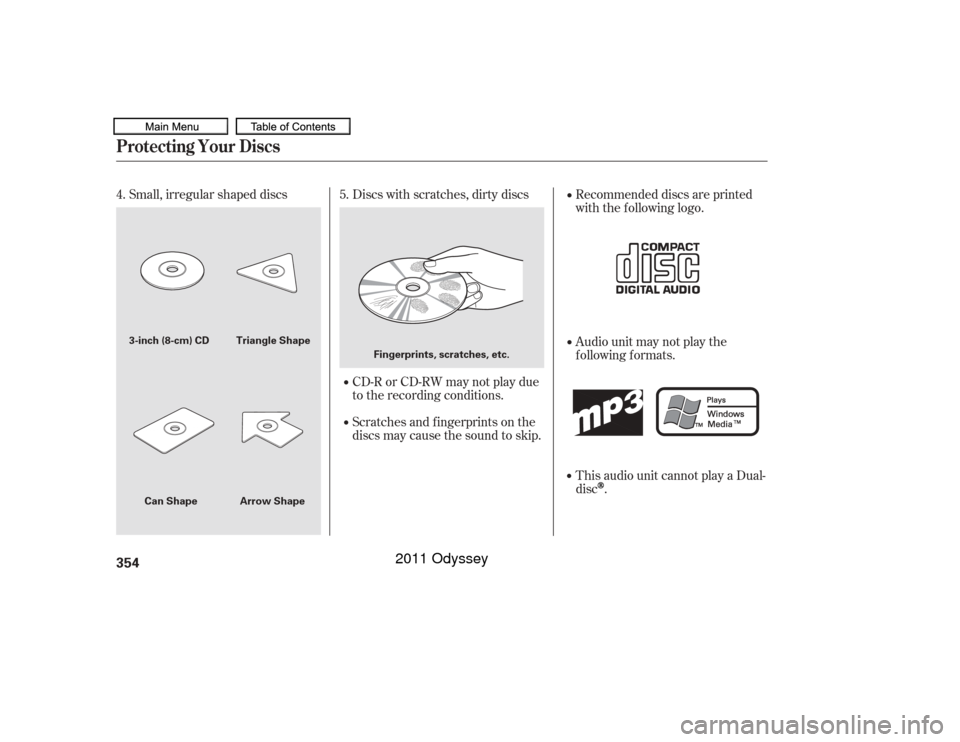
Small, irregular shaped discsDiscs with scratches, dirty discs
CD-R or CD-RW may not play due
to the recording conditions.
Scratches and f ingerprints on the
discs may cause the sound to skip. Recommended discs are printed
with the f ollowing logo.
Audio unit may not play the
following formats.
This audio unit cannot play a Dual-
disc
.
4.
5.
Protecting Your Discs354
Fingerprints, scratches, etc.
3-inch (8-cm) CD Triangle Shape
Arrow Shape
Can Shape
10/07/17 10:21:17 31TK8600_359
2011 Odyssey
Page 358 of 722
CONT INUED
Playing Hard Disc Drive (HDD) Audio (Models with navigation system)
Features
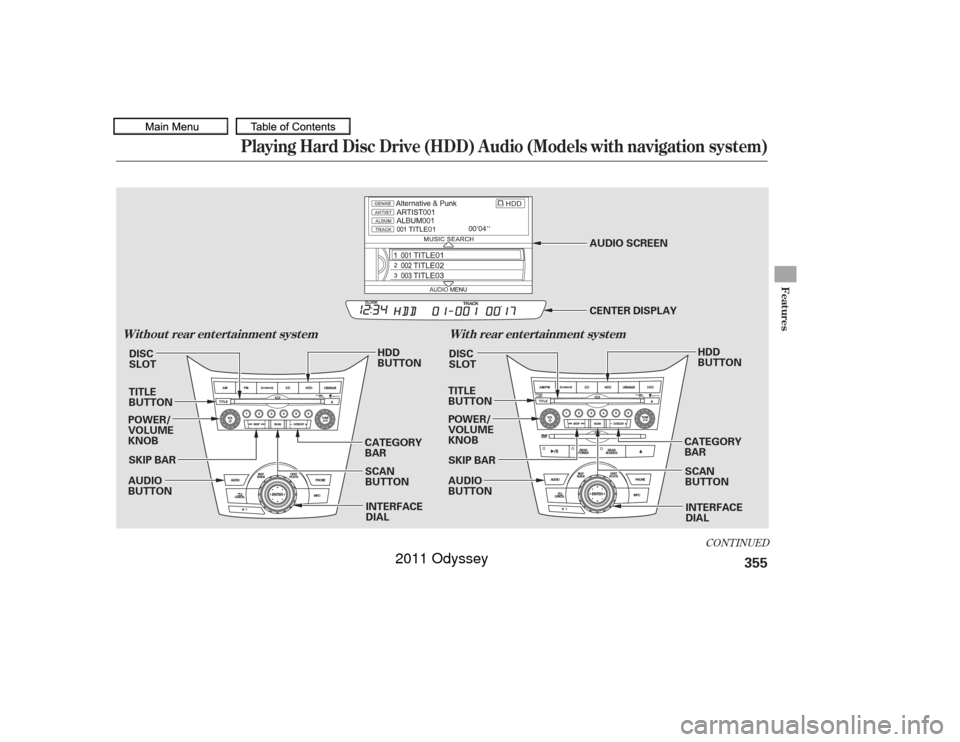
Wit hout rear ent ert ainment syst emWit h rear ent ert ainment syst em
355
AUDIO
BUTTON POWER/
VOLUME
KNOB POWER/
VOLUME
KNOB
AUDIO
BUTTON
TITLE
BUTTON
CATEGORY
BARTITLE
BUTTON
CATEGORY
BAR
HDD
BUTTON
SKIP BAR SKIP BARHDD
BUTTON
SCAN
BUTTON SCAN
BUTTON
AUDIO SCREEN
CENTER DISPLAY
INTERFACE
DIAL INTERFACE
DIAL
DISC
SLOT
DISC
SLOT
10/07/17 10:21:25 31TK8600_360
2011 Odyssey
Page 359 of 722
�µ
�µ
�µ
�µ
�µ
�µ
�µ
�µ
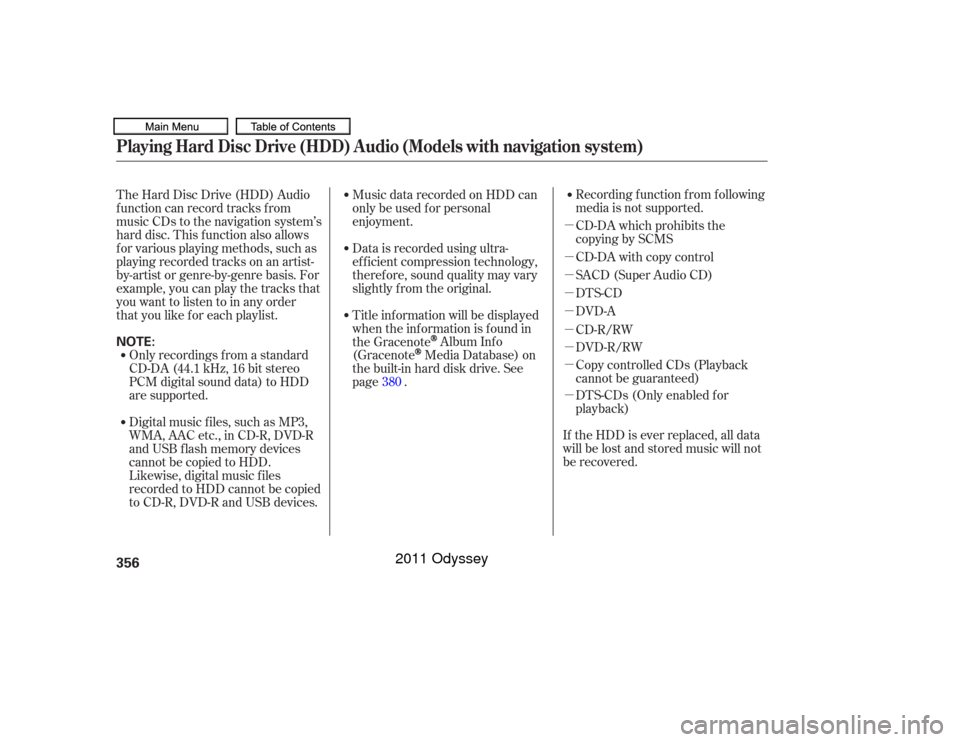
�µRecording f unction f rom f ollowing
media is not supported.
CD-DA which prohibits the
copying by SCMS
CD-DA with copy control
SACD (Super Audio CD)
DTS-CD
DVD-A
CD-R/RW
DVD-R/RW
Copy controlled CDs (Playback
cannot be guaranteed)
DTS-CDs (Only enabled f or
playback)
The Hard Disc Drive (HDD) Audio
f unction can record tracks f rom
music CDs to the navigation system’s
hard disc. This f unction also allows
f or various playing methods, such as
playingrecordedtracksonanartist-
by-artist or genre-by-genre basis. For
example, you can play the tracks that
youwanttolistentoinanyorder
that you like f or each playlist.
Music data recorded on HDD can
only be used f or personal
enjoyment.
Data is recorded using ultra-
ef f icient compression technology,
theref ore, sound quality may vary
slightly f rom the original.
Title inf ormation will be displayed
when the inf ormation is f ound in
the Gracenote
Album Inf o
(Gracenote
Media Database) on
the built-in hard disk drive. See
page .
If the HDD is ever replaced, all data
will be lost and stored music will not
be recovered.
Only recordings f rom a standard
CD-DA (44.1 kHz, 16 bit stereo
PCM digital sound data) to HDD
are supported.
Digital music f iles, such as MP3,
WMA, AAC etc., in CD-R, DVD-R
and USB f lash memory devices
cannot be copied to HDD.
Likewise, digital music f iles
recorded to HDD cannot be copied
to CD-R, DVD-R and USB devices. 380
Playing Hard Disc Drive (HDD) Audio (Models with navigation system)356NOTE:
10/07/17 10:21:33 31TK8600_361
2011 Odyssey
Page 360 of 722
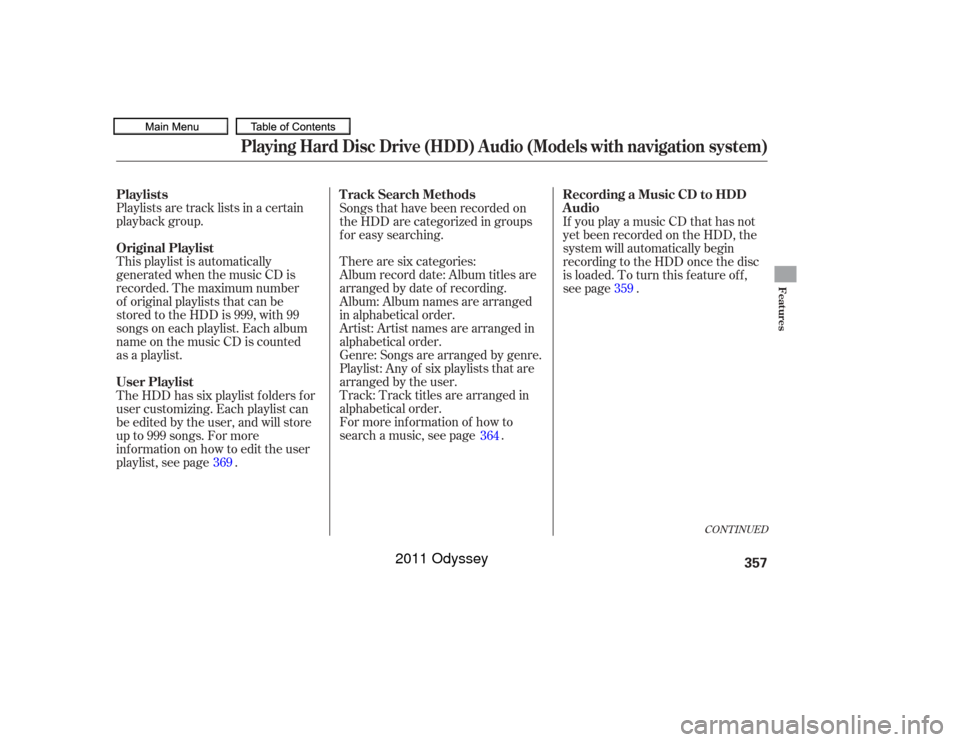
Playlists are track lists in a certain
playback group.
This playlist is automatically
generated when the music CD is
recorded. The maximum number
of original playlists that can be
stored to the HDD is 999, with 99
songs on each playlist. Each album
name on the music CD is counted
as a playlist.Songs that have been recorded on
the HDD are categorized in groups
f or easy searching.
For more inf ormation of how to
search a music, see page . There are six categories:
Album record date: Album titles are
arranged by date of recording.
Album: Album names are arranged
in alphabetical order.
Artist: Artist names are arranged in
alphabetical order.
Genre: Songs are arranged by genre.
Playlist: Any of six playlists that are
arranged by the user.
Track: Track titles are arranged in
alphabetical order. If you play a music CD that has not
yet been recorded on the HDD, the
system will automatically begin
recording to the HDD once the disc
is loaded. To turn this f eature of f ,
see page .
The HDD has six playlist f olders f or
user customizing. Each playlist can
be edited by the user, and will store
up to 999 songs. For more
inf ormation on how to edit the user
playlist, see page . 369 364359
CONT INUED
Playlists
Original Playlist
User Playlist T rack Search Methods
Recording a Music CD to HDD
Audio
Playing Hard Disc Drive (HDD) Audio (Models with navigation system)
Features
357
10/07/17 10:21:46 31TK8600_362
2011 Odyssey
Page 361 of 722
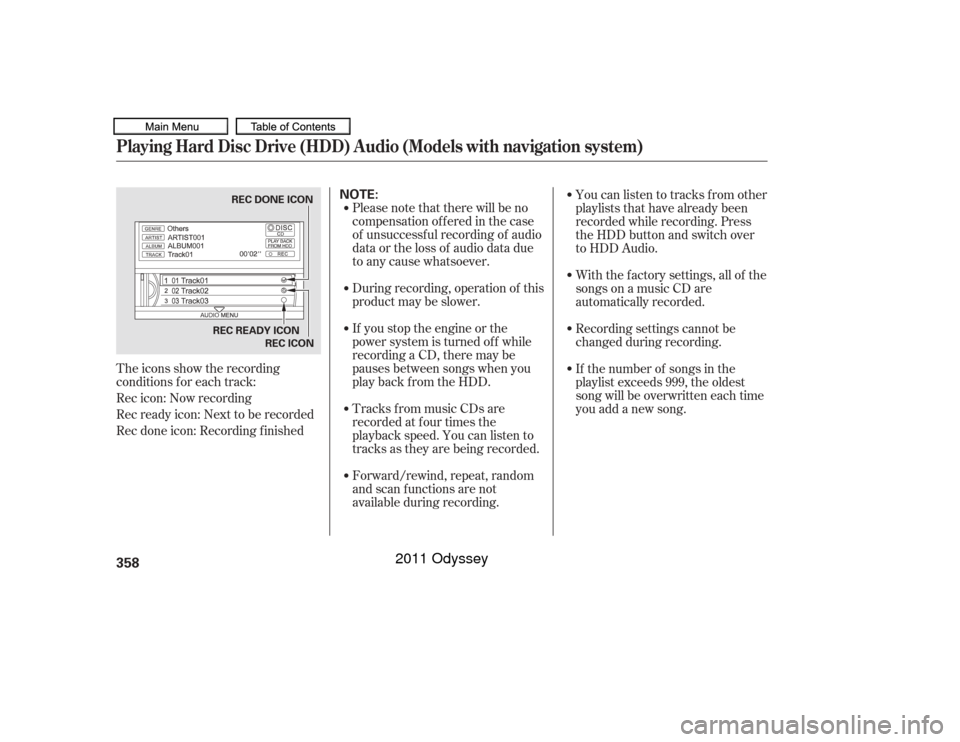
The icons show the recording
conditions f or each track:
Rec icon: Now recording
Rec ready icon: Next to be recorded
Rec done icon: Recording f inishedPlease note that there will be no
compensationofferedinthecase
of unsuccessf ul recording of audio
data or the loss of audio data due
to any cause whatsoever.
During recording, operation of this
product may be slower.
If you stop the engine or the
power system is turned of f while
recording a CD, there may be
pauses between songs when you
play back f rom the HDD.
Tracks from music CDs are
recorded at f our times the
playback speed. You can listen to
tracks as they are being recorded.
Forward/rewind, repeat, random
and scan f unctions are not
available during recording.With the factory settings, all of the
songs on a music CD are
automatically recorded.
Recording settings cannot be
changed during recording.
If the number of songs in the
playlist exceeds 999, the oldest
song will be overwritten each time
you add a new song. Youcanlistentotracksfromother
playlists that have already been
recorded while recording. Press
the HDD button and switch over
to HDD Audio.Playing Hard Disc Drive (HDD) Audio (Models with navigation system)358
NOTE:
REC READY ICON
REC DONE ICON
REC ICON
10/07/17 10:21:55 31TK8600_363
2011 Odyssey
Page 362 of 722
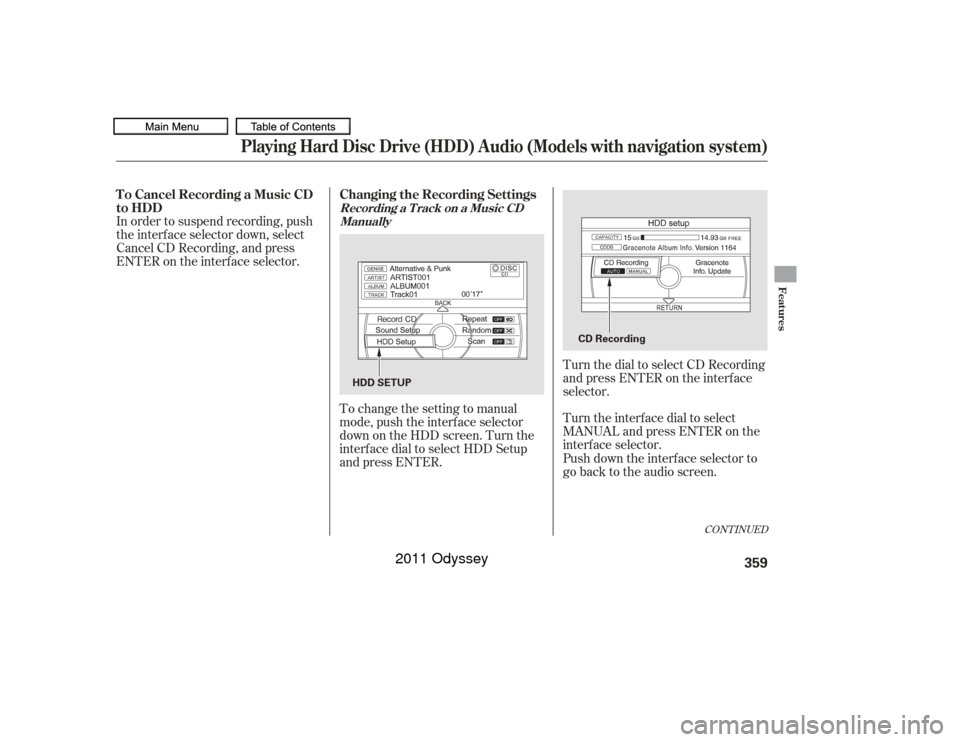
To change the setting to manual
mode, push the interf ace selector
down on the HDD screen. Turn the
interf ace dial to select HDD Setup
and press ENTER.Turn the interface dial to select
MANUAL and press ENTER on the
interf ace selector.
In order to suspend recording, push
the interf ace selector down, select
Cancel CD Recording, and press
ENTER on the interf ace selector.
Turn the dial to select CD Recording
andpressENTERontheinterface
selector.
Push down the interf ace selector to
go back to the audio screen.
CONT INUED
To Cancel Recording a Music CD
to HDDChanging the Recording Settings
Recording a T rack on a Music CD
Manually
Playing Hard Disc Drive (HDD) Audio (Models with navigation system)
Features
359
HDD SETUP CD Recording
10/07/17 10:22:04 31TK8600_364
2011 Odyssey
Page 363 of 722
To change the setting to
automatically record all of the tracks
on a music CD, move the interf ace
selector down on the HDD Audio
screen. Turn the interf ace dial to
select HDD Setup, and press ENTER
on the interf ace selector.
Turn the interf ace dial to select
AUTO, and press ENTER on the
interf ace selector. Turn the dial to select CD Recording
andpressENTERontheinterface
selector.To play tracks on HDD, push the
HDD button until the HDD Audio
screen appears. Playback will start
automatically with the track
previously selected.
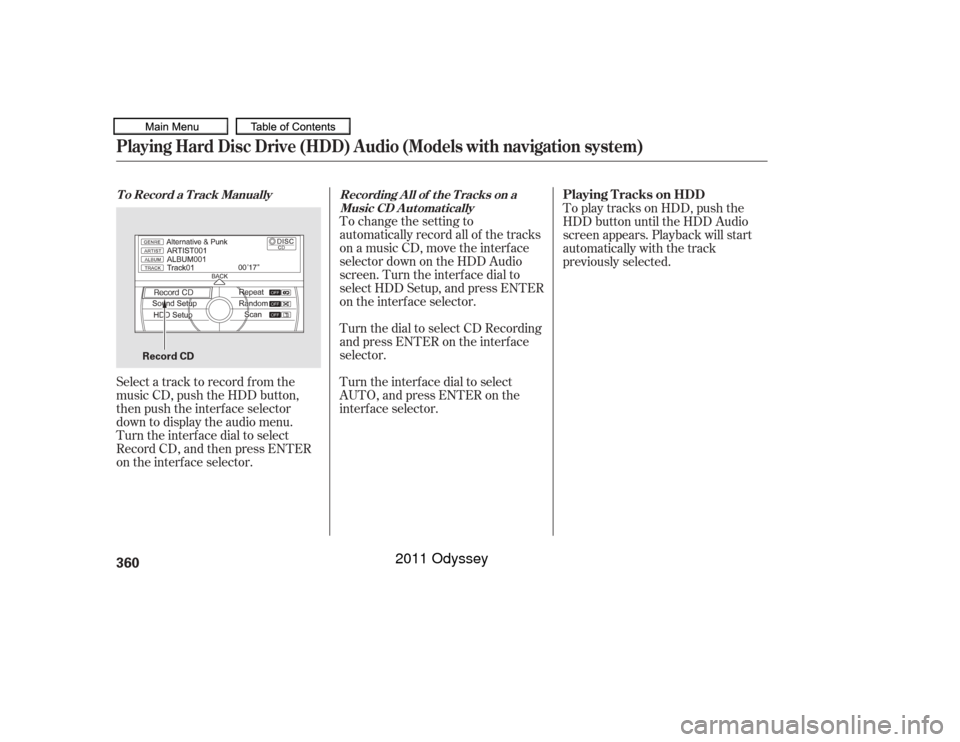
Select a track to record f rom the
music CD, push the HDD button,
then push the interface selector
down to display the audio menu.
Turn the interf ace dial to select
Record CD, and then press ENTER
on the interf ace selector.
T o Record a T rack Manually Recording A ll of t he T racks on a
Music CD A utomatically
Playing T racks on HDD
Playing Hard Disc Drive (HDD) Audio (Models with navigation system)360
Record CD
10/07/17 10:22:12 31TK8600_365
2011 Odyssey
Page 364 of 722
�Î
�´
�µ
�´
�µ
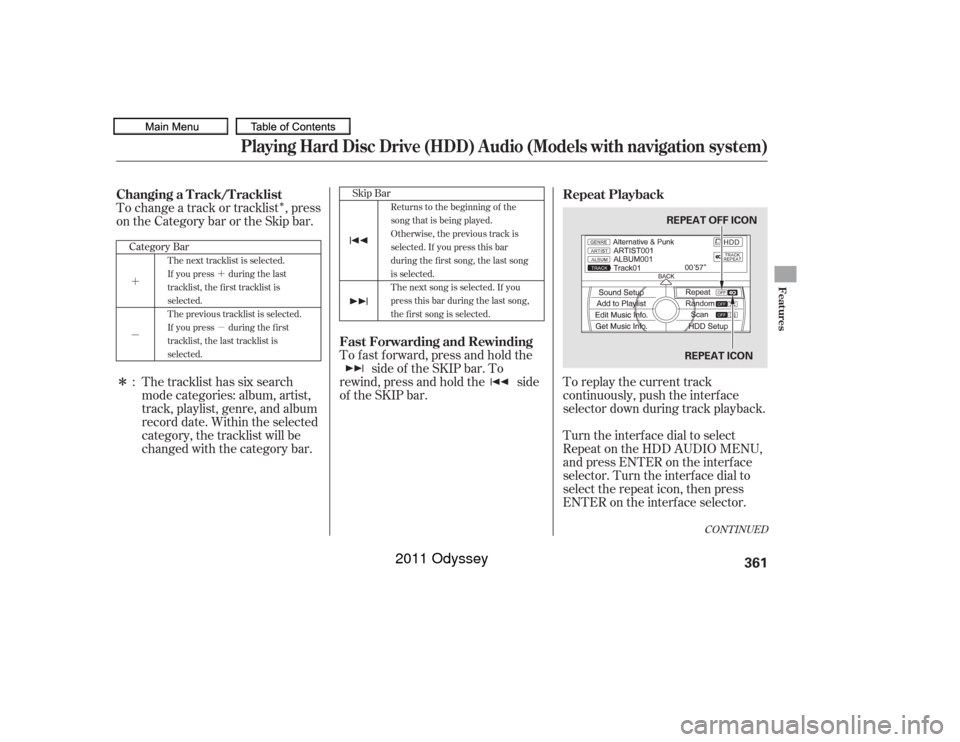
�ΠTo change a track or tracklist , press
on the Category bar or the Skip bar.The tracklist has six search
mode categories: album, artist,
track, playlist, genre, and album
record date. Within the selected
category, the tracklist will be
changed with the category bar. To replay the current track
continuously, push the interf ace
selector down during track playback.
Turn the interf ace dial to select
Repeat on the HDD AUDIO MENU,
andpressENTERontheinterface
selector. Turn the interf ace dial to
select the repeat icon, then press
ENTER on the interf ace selector.
To fast forward, press and hold the
side of the SKIP bar. To
rewind, press and hold the side
of the SKIP bar.
:
Category Bar Skip Bar
CONT INUED
The next tracklist is selected.
If youpress duringthelast
tracklist, the first tracklist is
selected.
The previous tracklist is selected.
If youpress duringthefirst
tracklist, the last tracklist is
selected. Returns to the beginning of the
song that is being played.
Otherwise, the previous track is
selected. If you press this bar
during the f irst song, the last song
is selected.
The next song is selected. If you
press this bar during the last song,
the f irst song is selected.
Changing a Track/Tracklist
Repeat Playback
Fast Forwarding and Rewinding
Playing Hard Disc Drive (HDD) Audio (Models with navigation system)
Features
361
REPEAT ICON
REPEAT OFF ICON
10/07/17 10:22:23 31TK8600_366
2011 Odyssey