Page 178 of 400

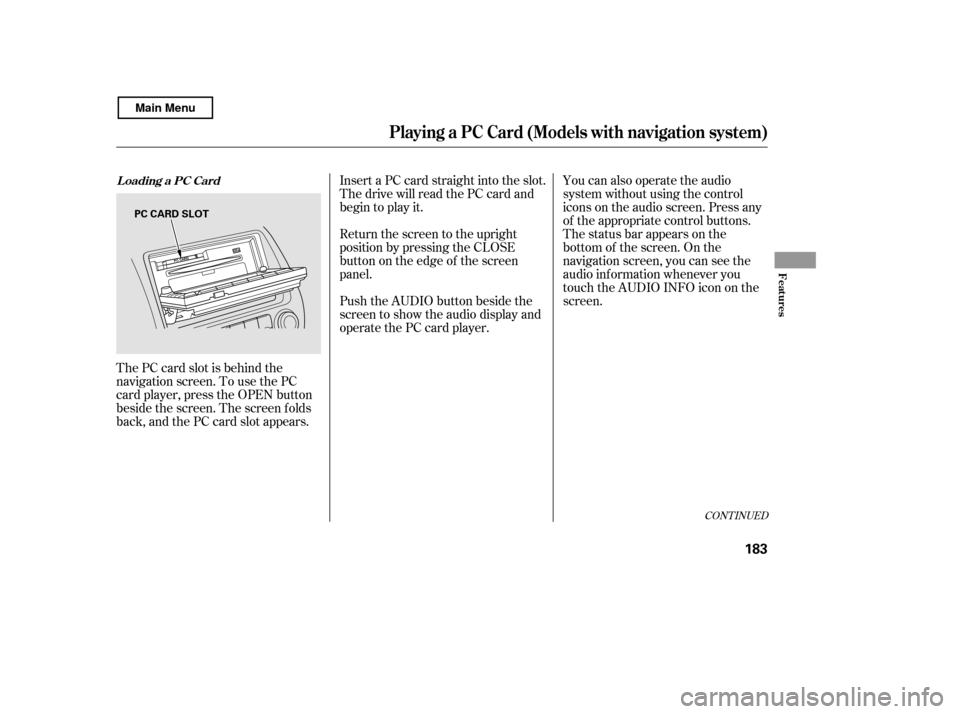
Insert a disc about half way into the
disc slot. The drive will pull the disc
in the rest of the way and begin to
play it.
You cannot load and play 3-inch
(8-cm)discsinthissystem.To return the screen to the upright
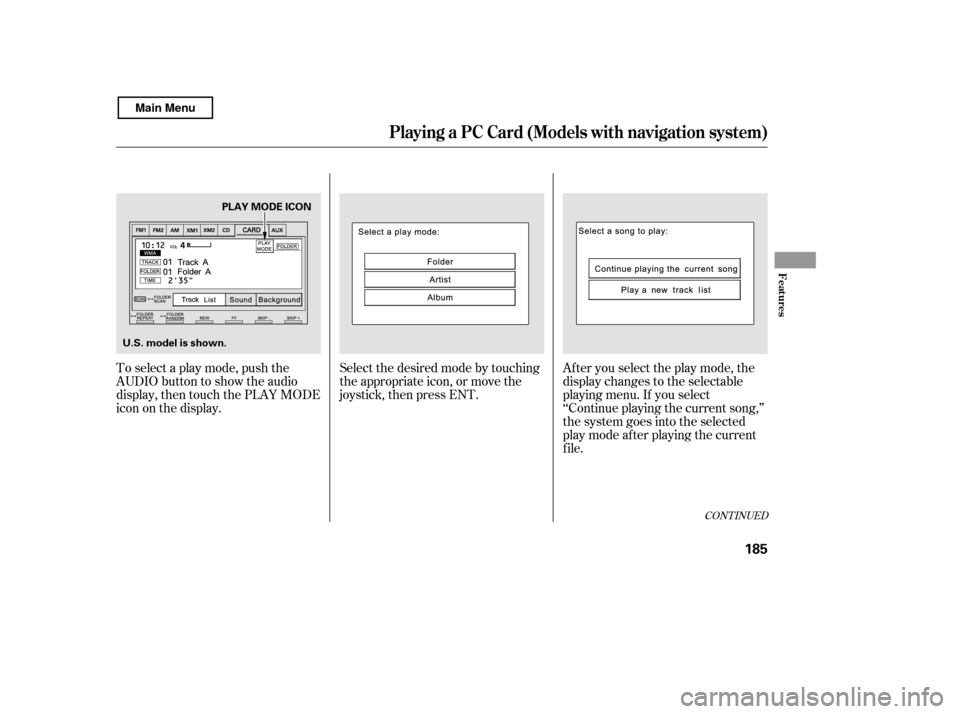
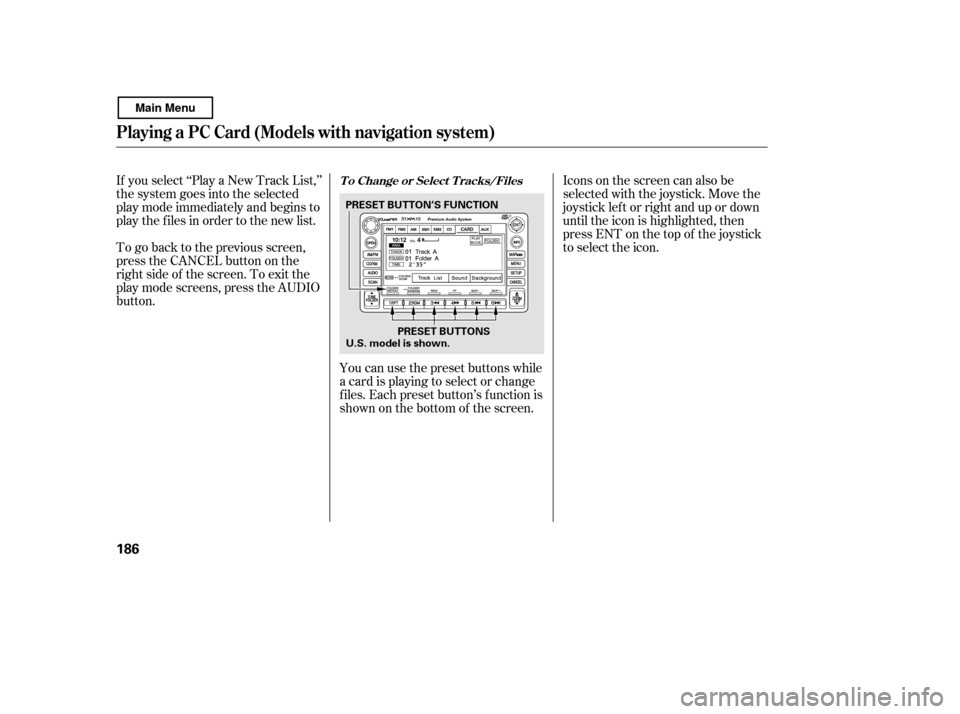
position, press the CLOSE button on
the edge of the screen panel. Do not
use the f olded down screen as a tray.
If you put a cup, f or example, on the
screen, the liquid inside the cup may
spill on the screen when you go over
a bump.Push the AUDIO button beside the
screen to show the audio display and
operate the disc player.
You can also operate the audio
system without using the control
icons on the audio screen. Press the
CD button. The status bar appears
on the bottom of the screen. On the
navigation screen, you can see the
audio inf ormation whenever you
touch the AUDIO INFO icon on the
lower portion of the screen.
When playing a CD recorded with
text data, the track, album, and artist
name are shown on the audio display.
When playing a disc in MP3 or WMA,
the f older number and name, the f ile
number and name, the artist name,
and the elapsed time are shown. The
system will continuously play a disc
until you change modes. If the disc
was not recorded with text data, it
will not be displayed.
Playing a Disc (Models with navigation system)
174
DISC SLOT
CLOSE BUTTON
Main Menu
Page 181 of 400
�µ
CONT INUED
In MP3 or WMA mode
This feature,
when activated, samples all the first
f iles in each f older on the disc in
order. To activate f older scan, press
and hold the SCAN button. You will
see FOLDER SCAN in the display.
The system plays the f irst f ile in
each f older f or about 10 seconds. If
you do nothing, the system then
plays the f irst f ile in each f older f or
10 seconds each. Af ter playing the
first file of the last folder, the system
goes to normal play.
Pressing either SKIP button (preset
5 or 6), or selecting a dif f erent f older
with the TUNE bar, or pressing the
SCAN button, also turns of f f older
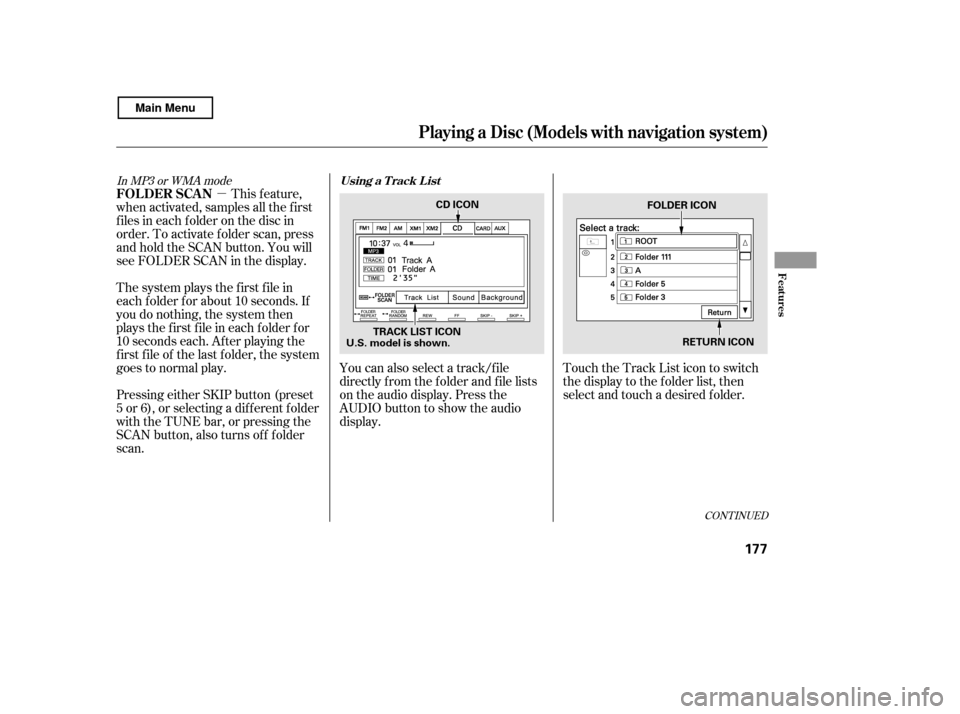
scan. You can also select a track/f ile
directly f rom the f older and f ile lists
on the audio display. Press the
AUDIO button to show the audio
display.
Touch the Track List icon to switch
the display to the folder list, then
select and touch a desired f older.
Playing a Disc (Models with navigation system)
FOLDER SCAN
Using a T rack L ist
Features
177
TRACK LIST ICONCD ICON
U.S. model is shown. RETURN ICON
FOLDER ICON
Main Menu
Page 182 of 400
�Û�Ý
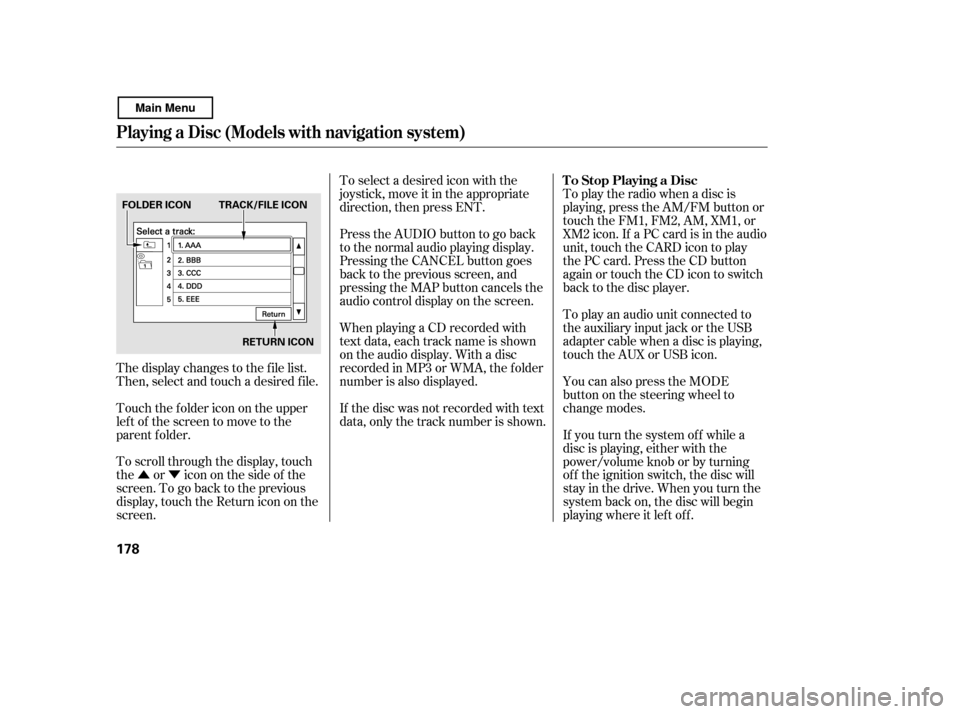
The display changes to the f ile list.
Then, select and touch a desired f ile.
Touch the f older icon on the upper
left of the screen to move to the
parent f older.
To scroll through the display, touch
the or icononthesideof the
screen.Togobacktotheprevious
display, touch the Return icon on the
screen. To select a desired icon with the
joystick, move it in the appropriate
direction, then press ENT.
PresstheAUDIObuttontogoback
to the normal audio playing display.
Pressing the CANCEL button goes
back to the previous screen, and
pressing the MAP button cancels the
audio control display on the screen.
When playing a CD recorded with
text data, each track name is shown
on the audio display. With a disc
recorded in MP3 or WMA, the f older
number is also displayed.
If the disc was not recorded with text
data, only the track number is shown.
To play the radio when a disc is
playing, press the AM/FM button or
touch the FM1, FM2, AM, XM1, or
XM2 icon. If a PC card is in the audio
unit, touch the CARD icon to play
the PC card. Press the CD button
again or touch the CD icon to switch
back to the disc player.
If you turn the system of f while a
disc is playing, either with the
power/volume knob or by turning
of f the ignition switch, the disc will
stay in the drive. When you turn the
system back on, the disc will begin
playing where it lef t of f .
You can also press the MODE
buttononthesteeringwheelto
change modes.
To play an audio unit connected to
the auxiliary input jack or the USB
adapter cable when a disc is playing,
touch the AUX or USB icon.
Playing a Disc (Models with navigation system)
To Stop Playing a Disc
178
FOLDER ICON
RETURN ICON
TRACK/FILE ICON
Main Menu
Page 183 of 400
�Û�Ý
To remove a disc f rom the audio unit,
f old back the screen by pressing the
OPEN button (see page ). Press
the disc eject button ( ) to
remove the disc. If you eject the disc,
but do not remove it f rom the slot,
the system will automatically reload
it af ter 10 seconds and put it in pause
mode. To begin playing, press the
CD button.
To return the screen to the upright
position, press the CLOSE button.
You cannot close the screen if a disc
is partially inserted into its slot.
You can also eject the disc when the
ignition switch is of f .
An optional six or eight disc changer
is available f or your vehicle. This
disc changer uses the same controls
used f or the in-dash disc player or
the radio.
Load the desired discs in the
magazine, and load the magazine in
the changer according to the
instructions that came with the unit.
To select the disc changer, press the
CD/XM button. The disc and track
numbers will be displayed. To select
a dif f erent disc, use either side of the
TUNE bar. To select the previous
disc, press the side. To select the
next disc, press the side.
If you select an empty slot in the
magazine, the changer will search
f or the next available disc to load and
play.For inf ormation on how to handle
and protect discs, see page .
216
173
Playing a Disc (Models with navigation system)
Removing a DiscOperating the Optional Disc
Changer Protecting Discs
Features
179
Main Menu
Page 185 of 400
�µ�´
Playing a PC Card (Models with navigation system)
Features
181
OPEN BUTTON
AUDIO BUTTON SCAN BUTTON
SKIP BUTTONSKIP BUTTON
FAST FORWARD
BUTTON
REWIND BUTTON
CD/XM BUTTON
POWER/VOLUMEKNOB
JOYSTICK
TUNE BAR PLAY MODEICON
PC CARD ICON
TRACK LIST ICON
RDM (RANDOM)
BUTTON
RPT (REPEAT) BUTTON
U.S. model is shown.
Main Menu
Page 187 of 400
The PC card slot is behind the
navigation screen. To use the PC
card player, press the OPEN button
beside the screen. The screen f olds
back, and the PC card slot appears.Insert a PC card straight into the slot.
The drive will read the PC card and
begin to play it.
Return the screen to the upright
position by pressing the CLOSE
button on the edge of the screen
panel.
Push the AUDIO button beside the
screen to show the audio display and
operate the PC card player.
You can also operate the audio
system without using the control
icons on the audio screen. Press any
of the appropriate control buttons.
The status bar appears on the
bottom of the screen. On the
navigation screen, you can see the
audio inf ormation whenever you
touch the AUDIO INFO icon on the
screen.
CONT INUED
Loading a PC Card
Playing a PC Card (Models with navigation system)
Features
183
PC CARD SLOT
Main Menu
Page 189 of 400
To select a play mode, push the
AUDIO button to show the audio
display, then touch the PLAY MODE
icon on the display.Select the desired mode by touching
the appropriate icon, or move the
joystick, then press ENT.
After you select the play mode, the
display changes to the selectable
playing menu. If you select
‘‘Continue playing the current song,’’
the system goes into the selected
play mode af ter playing the current
f ile.
CONT INUED
Playing a PC Card (Models with navigation system)
Features
185
U.S. model is shown.PLAY MODE ICON
Main Menu
Page 190 of 400
If you select ‘‘Play a New Track List,’’
the system goes into the selected
play mode immediately and begins to
play the files in order to the new list.
To go back to the previous screen,
presstheCANCELbuttononthe
rightsideofthescreen.Toexitthe
play mode screens, press the AUDIO
button.You can use the preset buttons while
a card is playing to select or change
f iles. Each preset button’s f unction is
shownonthebottomof thescreen.Iconsonthescreencanalsobe
selected with the joystick. Move the
joystick lef t or right and up or down
until the icon is highlighted, then
press ENT on the top of the joystick
to select the icon.T o Change or Select T racks/Files
Playing a PC Card (Models with navigation system)
186
PRESET BUTTONS
PRESET BUTTON’S FUNCTION
U.S. model is shown.
Main Menu