Page 222 of 400
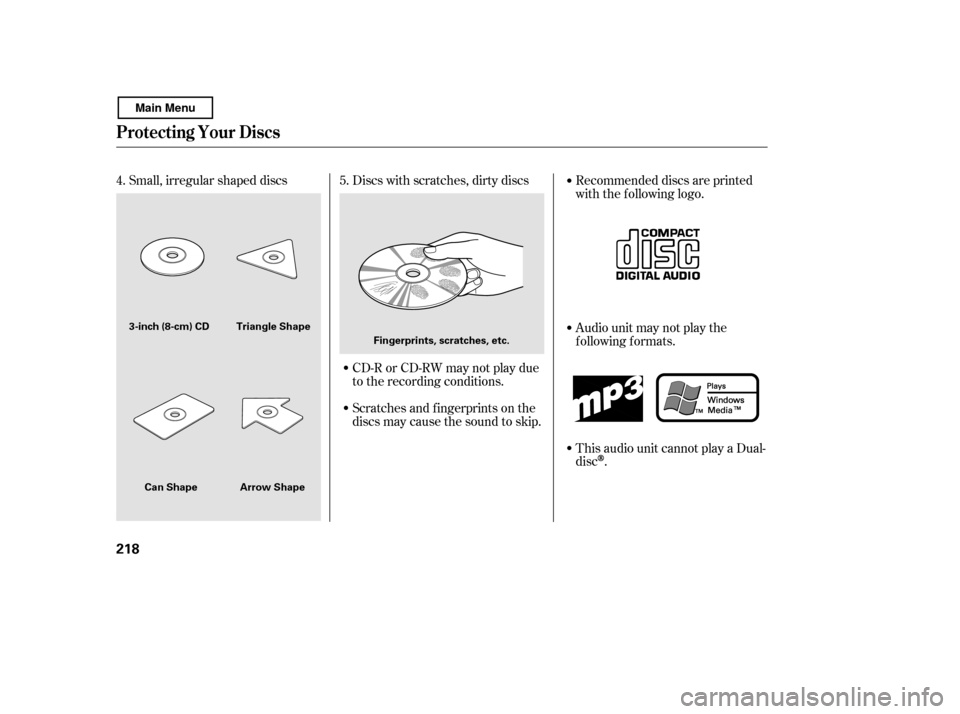
Small, irregular shaped discs Discs with scratches, dirty discsCD-R or CD-RW may not play due
to the recording conditions.
Scratches and f ingerprints on the
discs may cause the sound to skip.Recommended discs are printed
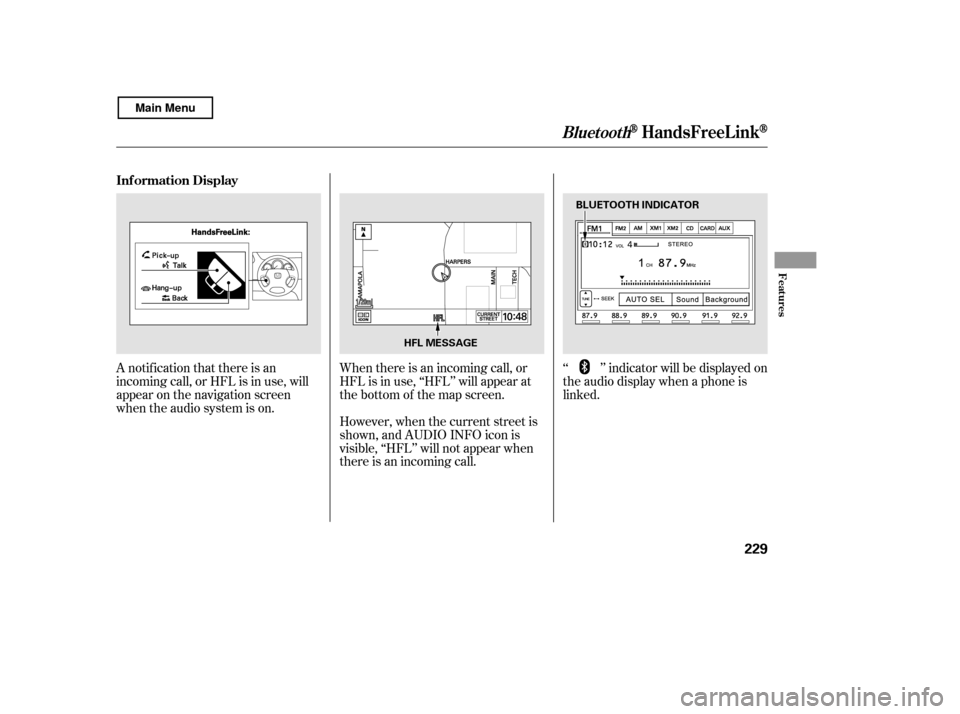
with the f ollowing logo.
Audio unit may not play the
following formats.
This audio unit cannot play a Dual- disc
.
4.
5.
Protecting Your Discs
218
Fingerprints, scratches, etc.
3-inch (8-cm) CD Triangle Shape
Arrow Shape
Can Shape
Main Menu
Page 223 of 400

�Û�Ý�´
�µ
�´�µ �´
�µ
�´�µ
If equipped
CONT INUED
Three controls f or the audio system
are mounted in the steering wheel
hub. These let you control basic
f unctions without removing your
hand f rom the wheel.
The VOL button adjusts the volume
up ( ) or down ( ). Press the top
or bottom of the button, hold it until
the desired volume is reached, then
release it. The MODE button changes the
mode. Pressing the button
repeatedly selects FM1, FM2, AM,
disc (if a disc is loaded), or a PC card
(if it is loaded). On models with XM
Radio, you can also select XM1 and
XM2.
If an iPod or a USB f lash memory
device is plugged into the system,
you can also select AUX.
If you are listening to the radio, use
the CH button to change stations.
Each time you press and release the
top ( ) of the button, the system
goes to the next preset station on the
band you are listening to. Press and
releasethebottom( )togobackto
the previous station.
To activate the seek function, press
and hold the top ( ) or bottom ( )
of the CH button until you hear a
beep. The system searches up or
down f rom the current f requency tofind a station with a strong signal.
If you are playing a disc, the system
skips to the beginning of the next
track (f ile in MP3 or WMA f ormat)
each time you press the top ( ) of
the CH button. Press the bottom
( ) to return to the beginning of the
current track or f ile. Press it twice to
return to the previous track or f ile.
You will see the track/f ile number
and the elapsed time. If the disc has
text data or is compressed in MP3 or
WMA, you can also see any other
inf ormation (track title, f ile name,
f older name, etc.).
If you are playing a PC card, press
the top ( ) of the CH button to
advance to the next file. Press the
bottom( )togobacktothe
previous f ile.
Remote Audio Controls
Features
219
CH BUTTON MODE BUTTON
VOL BUTTON
Main Menu
Page 224 of 400
�´�µ
�´
�µ
In MP3 or WMA mode, you can use
the seek function to select folders.
Press and hold the top ( ) of the
CH button until you hear a beep to
skip f orward to the f irst f ile of the
next folder. Press the bottom ( ) to
skip backward to the previous f older.
If youareplayingaUSBflash
memory device or iPod with the USB
adapter cable (if equipped), press
and release the top ( ) of the CH
button to skip forward to the
beginning of the next f ile. Press the
bottom( )toskipbackwardtothe
beginning of the current f ile. Press it
twice to return to the previous f ile.
When playing a USB f lash memory
device, you can also use the seek
function to skip the folder. To
activate this, press and hold either
side of the CH button until you hear
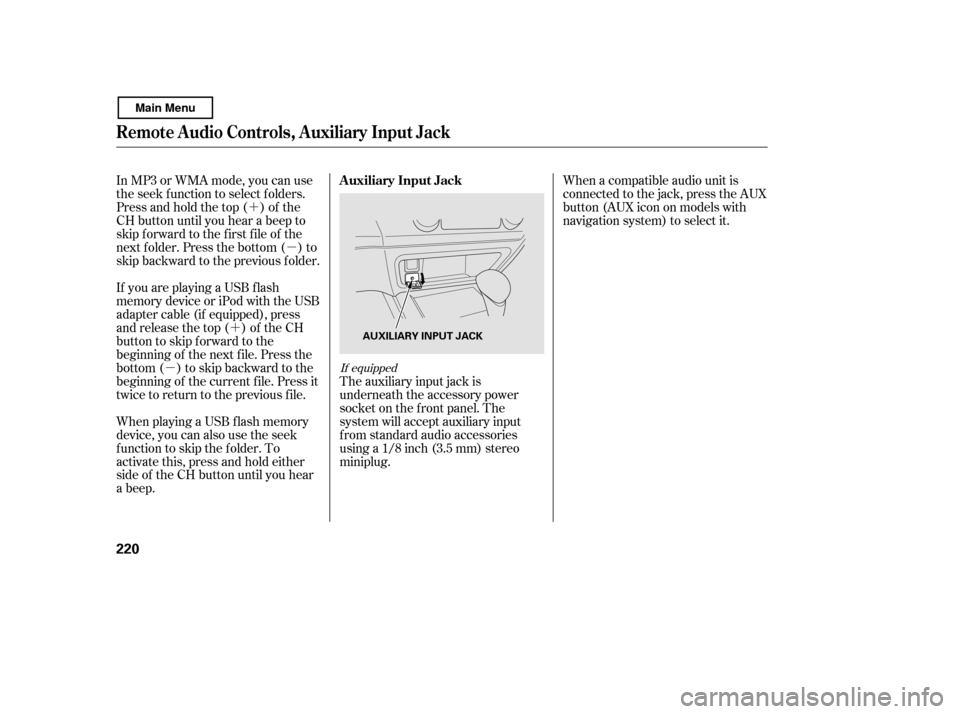
a beep. When a compatible audio unit is
connected to the jack, press the AUX
button(AUXicononmodelswith
navigation system) to select it.
The auxiliary input jack is
underneath the accessory power
socket on the f ront panel. The
system will accept auxiliary input
f rom standard audio accessories
using a 1/8 inch (3.5 mm) stereominiplug.
If equipped
Remote Audio Controls, Auxiliary Input Jack
Auxiliary Input Jack
220
AUXILIARY INPUT JACK
Main Menu
Page 225 of 400

Your vehicle’s audio system will
disable itself if it is disconnected
f rom electrical power f or any reason.
To make it work again, you must
enter a specif ic code using the preset
buttons (icons on vehicle’s with
navigation system). Because there
are hundreds of number
combinations possible f rom specif ic
digits, making the system work
without knowing the exact code is
nearly impossible.If your vehicle’s battery is
disconnected or goes dead, the audio
system will disable itself . If this
happens, you will see ‘‘ENTER
CODE’’ in the f requency display the
nexttimeyouturnonthesystem.
Use the preset buttons (icons on
vehicles with navigation system) to
enter the code. The code is on the
radio code card included in your
owner’s manual kit. When it is
entered correctly, the radio will start
playing.
If you lose the card, you must obtain
the code number f rom a dealer. To
do this, you will need the system’s
serial number.
Youshouldhavereceivedacardthat
lists your audio system’s code and
serial numbers. It is best to store this
card in a saf e place at home. In
addition, you should write the audio
system’s serial number in this owner’s
manual. The system will retain your AM and
FM presets even if power is
disconnected.
If you make a mistake entering the
code, do not start over; complete the
sequence, then enter the correct
code. You have 10 tries to enter the
correct code. If you are unsuccessf ul
in 10 attempts, you must then leave
the system on f or 1 hour bef ore
trying again.
On models with audio system
Radio T hef t Prot ect ion
Features
221
Main Menu
Page 227 of 400
Once the security system is set,
opening either door without using
the key or the remote transmitter,
the hood, or the trunk will cause the
alarm to activate. It will also activate
if the audio unit is removed f rom the
dashboard or the wiring is cut.
The security system helps to protect
your vehicle and valuables f rom thef t.
The horn sounds and a combination
of headlights, parking lights, side
marker lights, and taillights f lashes if
someone attempts to break into your
vehicleorremovetheradio.This
alarm continues f or 2 minutes, then
the system resets. To reset an
activated system before the 2
minutes have elapsed, unlock the
driver’s door with the key or the
remote transmitter.
The security system automatically
sets 15 seconds after you lock the
doors, hood, and trunk. For the
system to activate, you must lock the
doors f rom the outside with the key,
lock tab, door lock switch, or remote
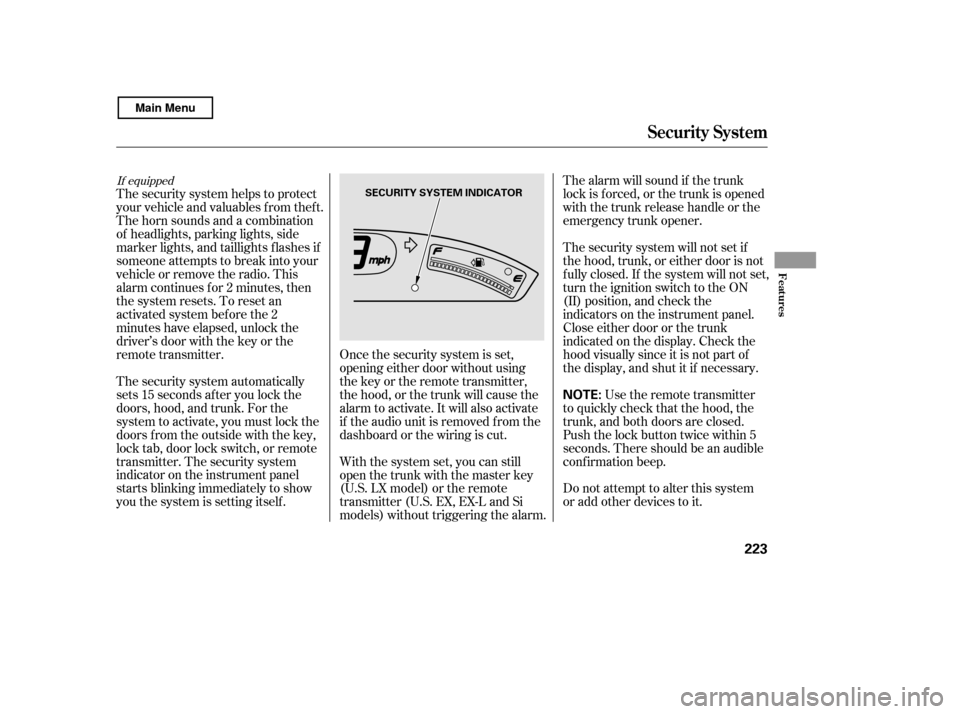
transmitter. The security system
indicator on the instrument panel
starts blinking immediately to show
you the system is setting itself . The security system will not set if
the hood, trunk, or either door is not
f ully closed. If the system will not set,
turn the ignition switch to the ON
(II) position, and check the
indicators on the instrument panel.
Close either door or the trunk
indicated on the display. Check the
hood visually since it is not part of
the display, and shut it if necessary.
With the system set, you can still
open the trunk with the master key
(U.S. LX model) or the remote
transmitter (U.S. EX, EX-L and Si
models) without triggering the alarm. The alarm will sound if the trunk
lock is f orced, or the trunk is opened
with the trunk release handle or the
emergency trunk opener.
Use the remote transmitter
to quickly check that the hood, the
trunk, and both doors are closed.
Push the lock button twice within 5
seconds. There should be an audible
conf irmation beep.
Do not attempt to alter this system
or add other devices to it.
If equipped
Security System
Features
223
NOTE:
SECURITY SYSTEM INDICATOR
Main Menu
Page 232 of 400
�Ì�Ì�Ì�Ì
Press and release the HFL Talk
button each time you want to
make a command. Af ter the beep,
speak in a clear, natural tone.
Try to reduce all background
noise. If the microphone picks up
voices other than yours,
commands may be misinterpreted. Many commands can be spoken
together. For example, you can
say ‘‘Call 123-456- ’’ or
‘‘Dial Peter.’’
When HFL is in use, navigation
voice commands cannot be
recognized.
To change the volume level of
HFL, use the audio system volume
knob or the steering wheel volume
controls.To hear general HFL inf ormation,
including help on pairing a phone
or setting up the system, say
‘‘Tutorial.’’
For help at any time, including a
list of available commands, say
‘‘Hands f ree help.’’
Help Feat ures
BluetoothHandsFreeL ink
228
Main Menu
Page 233 of 400
A notif ication that there is an
incoming call, or HFL is in use, will
appear on the navigation screen
when the audio system is on.‘‘ ’’ indicator will be displayed on
the audio display when a phone is
linked.
When there is an incoming call, or
HFL is in use, ‘‘HFL’’ will appear at
the bottom of the map screen.
However, when the current street is
shown, and AUDIO INFO icon is
visible, ‘‘HFL’’ will not appear when
there is an incoming call.
Inf ormation Display
BluetoothHandsFreeL ink
Features
229
HFL MESSAGE
BLUETOOTH INDICATOR
Main Menu
Page 240 of 400

You can make calls using any phone
number or a name in the HFL
phonebook. You can also redial the
last number called.Press and release the HFL Talk
button bef ore a command.
Say ‘‘ ’’ or ‘‘ .’’
Follow the HFL prompts and say
the phone number you want to dial.
Follow the HFL prompts to
conf irm the number and say
‘‘ ’’ or ‘‘ .’’
Once connected, you will hear the
person you called through the audio
speakers. Press and release the HFL Talk
button bef ore a command.
Follow the HFL prompts to
conf irm the name and make the
call.
Follow the HFL prompts and say
thenamestoredintheHFL
phonebook that you want to call.
Say ‘‘ ’’ or ‘‘ .’’
Bluetooth is the wireless technology
that links your phone to HFL. HFL
uses a Class 2 Bluetooth, which
means the maximum range between
yourphoneandvehicleis30feet(10
meters).
During a call, HFL allows you to talk
up to 30 minutes af ter you remove
the key from the ignition switch.
However, this may weaken the
vehicle’s battery. 1. 2. 3.
1. 2. 3.
Making a Call
Call Dial
Call Dial Call Dial
T o make a call using a phone
number: Tomakeacallusinganameinthe
HFL phonebook:
BluetoothHandsFreeL ink
236
Main Menu