Page 143 of 400

�µ �´ �µ �´
Press the eject button ( ) to
remove the disc. If you eject the disc,
but do not remove it f rom the slot,
the system will automatically reload
the disc af ter 10 seconds and put it in
pause mode. To begin playing, press
the CD button.
You can also eject the disc when the
ignition switch is of f .
To play the radio when a disc is
playing, press the AM/FM button or
AUXbuttononmodelsthatareXM
Radio capable. Press the CD button
again to switch back to the disc
player. To select the disc changer, press the
CD button. The disc and track
numbers will be displayed. To select
a dif f erent disc, use the preset 4
button (DISC ) or the preset 1
button (DISC ). To select the
previous disc, press the preset 4
button (DISC ), or the preset 1
button (DISC ) to select the next
disc in sequence.
You can also press the MODE
buttononthesteeringwheelto
change modes.
To play an audio unit connected to
the auxiliary input jack or the USB
adapter cable when a disc is playing, press the AUX button. Press the CD
button again to switch back to the
disc player.
If you turn the system of f while a
disc is playing, either with the
power/volume knob or by turning
of f the ignition switch, the disc will
stay in the drive. When you turn the
system back on, the disc will begin
playing where it lef t of f .
An optional six or eight disc changer
is available f or your vehicle. This
disc changer uses the same controls
used f or the in-dash disc player or
the radio.
Load the desired discs in the
magazine, and load the magazine in
the changer according to the
instructions that came with the unit.
For inf ormation on how to handle
and protect compact discs, see page
.
If you select an empty slot in the
magazine, the changer will search
f or the next available disc to load and
play.
216
To Stop Playing a Disc
Operating the Optional Disc
ChangerProtecting Discs
Playing a Disc (Models without navigat ion system)
Features
139
Main Menu
Page 147 of 400

CONT INUED
Model
iPod classic
(80/160 G)
iPod classic
(120 G)
iPod with video
(iPod 5th
generation)
iPod nano
iPod nano
2nd generation
iPod nano
3rd generation
iPod nano
4th generation
iPod nano
5th generation
iPod touch
iPod touch
2nd generation Sof tware
Ver. 1.1.2 or more
Ver. 2.0.1 or more
Ver. 1.3.0 or more
Ver. 1.3.1 or more
Ver. 1.1.3 or more
Ver. 1.1.3 or more
Ver. 1.0.3 or more
Ver. 1.0.1 or more
Ver. 1.1.5 or more
Ver. 2.2.1 or more
This audio system can select and
play the audio f iles on the iPod
with
the same controls used f or the disc
player. To play an iPod, connect it to
the USB adapter cable in the console
compartment by using your dock
connector, then press the AUX
button. The ignition switch must be
in the ACCESSORY (I) or ON (II)
position. The iPod will also be
charged with the ignition switch in
these positions.
The audio system reads and plays
playable sound f iles on the iPod. The
system cannot operate an iPod as a
mass storage device. The system will
only play songs stored on the iPod
with iTunes.
iPod and iTunes are registered
trademarks owned by Apple Inc. iPods compatible with your audio
system using the USB adapter cable
are:
UseonlycompatibleiPodswiththe
latest sof tware. iPods that are not
compatible will not work in this audio
unit.
To Play an iPod
Playing an iPod(Models wit hout navigat ion syst em)
Features
143
Main Menu
Page 149 of 400

�µ
�¼
CONT INUED
If the iPod indicator does not appear
in the audio display, check the
connections, and try to reconnect the
iPod a f ew times.
If the audio system still does not
recognize the iPod, the iPod may
need to be reset. Follow the
instructions that came with your
iPod, or you can f ind reset
instructions online at Each time you press the DISP button,
the display mode switches between
the album name, the song/track
name, the artist name, or name of f
(which turns off the text display).
The display shows up to 16
characters of the selected data. If the
text data has more than 17
characters, you will see the f irst 15
characters and the indicator in
the display. Press and hold the DISP
button until the next 16 characters
are shown.
If youpressandholdtheDISP
button again, the display shows the
f irst 15 characters again.You can use the SEEK/SKIP button
while an iPod is playing to select
passages and change f iles.
Each time you press and
releasethe sideof theSEEK/
SKIP button, the system skips
f orward to the beginning of the next
f ile. Press and release the side
of thebuttontoskipbackwardtothe
beginning of the current f ile. Press it
againtoskiptothebeginningof the
previous f ile.
To move rapidly within a f ile, press
andholdeitherside( or )
of the SEEK/SKIP button.
www.apple.com/
itunes/
Playing an iPod(Models wit hout navigat ion syst em)
T ext Dat a Display Funct ion T o Change or Select Files
SK IP
Features
145
Main Menu
Page 152 of 400
�µ�µ
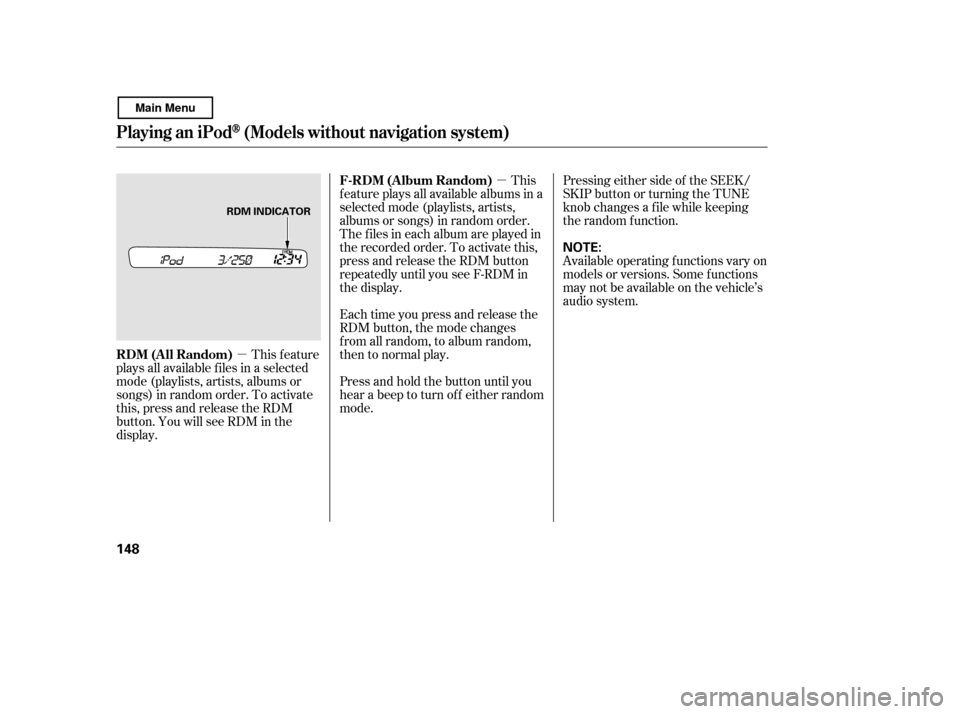
This feature
plays all available f iles in a selected
mode (playlists, artists, albums or
songs) in random order. To activate
this, press and release the RDM
button. You will see RDM in the
display. This
feature plays all available albums in a
selected mode (playlists, artists,
albums or songs) in random order.
The f iles in each album are played in
the recorded order. To activate this,
press and release the RDM button
repeatedly until you see F-RDM in
the display.
Each time you press and release the
RDM button, the mode changes
f rom all random, to album random,
then to normal play.
Press and hold the button until you
hear a beep to turn off either random
mode. Pressing either side of the SEEK/
SKIP button or turning the TUNE
knob changes a f ile while keeping
the random f unction.
Available operating f unctions vary on
models or versions. Some f unctions
may not be available on the vehicle’s
audio system.
Playing an iPod(Models wit hout navigat ion syst em)
RDM (All Random)
F-RDM (Album Random)
148
NOTE:
RDM INDICATOR
Main Menu
Page 153 of 400

�Î
�Î
You can disconnect the iPod at any
time when you see the ‘‘OK to
disconnect’’ message in the iPod
display. With the AUX mode, you will
see a ‘‘USB NO DATA’’ message in
the display. Always make sure you
see the ‘‘OK to disconnect’’ in the
iPod display bef ore you disconnect it.
Make sure to f ollow the iPod’s
instructions on how to disconnect
the dock connector f rom the USB
adapter cable.
The displayed message may
vary on models or versions. On
some models, there is no
message to disconnect.
If you reconnect the same iPod, the
system may begin playing where it
lef t of f , depending on what mode the
iPod is in when it is reconnected. If you see an error message in the
display, see page .
To play the radio, press the AM/FM
button. Press the CD button to
switch to the disc mode (if a disc is
loaded). Pressing the AUX button
switches the audio mode between
the USB and AUX.
You can also press the MODE
buttononthesteeringwheelto
change modes.
: 150
Playing an iPod(Models wit hout navigat ion syst em)
T o Stop Playing Your iPod
iPodError MessagesDisconnect ing an iPod
Features
149
Main Menu
Page 154 of 400

If you see an error message on the
audio display while playing an iPod,
f ind the solution in the chart to the
right. If you cannot clear the error
message, take your vehicle to your
dealer.Solution
Error Message Cause
There is problem with the USB adapter unit.
Disconnect the device. Then, turn the audio
systemoff,andturnitonagain.Donot
reconnect the device that caused the error.
Appears when the iPod is empty. Store some
f iles in the iPod.
Appears when an unsupported iPod is
connected. See page 143 f or specif ication
informationoniPods.If itappearswhena
supported iPod is connected, update the iPod
software to the newer version.
Appears when the system dose not
acknowledge the iPod. Reconnect the iPod.
USB ROM Error
Appears when an
incompatible device is
connected.
No files in iPod
Use of unsupported
iPod
Recognition f ailure of
iPod
iPodError Messages (Models without navigation system)
150
USB ERROR
BAD USB
DEVICE
PLEASE CHECK OWNERS
MANUAL
iPod NO SONG
UNSUPPORTED VER.
CONNECT RETRY
Main Menu
Page 156 of 400

�Î
�ΠThe recommended USB f lash
memory devices are 256 MB or
higher, and f ormatted with the FAT
f ile system. Some digital audio
players may be compatible as well.
This audio system can select and
play the audio f iles on a USB f lash
memory device with the same
controls used f or the disc player. To
play a USB f lash memory device,
connect it to the USB adapter cable
in the console compartment, then
press the AUX button. The ignition
switch must be in the ACCESSORY
(I) or ON (II) position.
The audio system reads and plays
the audio f iles on the USB f lash
memory device in MP3, WMA or
AAC formats. The USB flash
memory device limit is up to 700
f olders or up to 65535 f iles.
Only AAC f ormat f iles recorded
with iTunes are playable on this
audio unit. Depending on the sof tware the
f iles were made with, it may not be
possibletoplaysomefiles,or
display some text data.
Depending on the type and
number of f iles, it may take some
time bef ore they begin to play.
Some devices cannot be powered
or charged via the USB adapter. If
this is the case, use the accessory
adapter to supply power to your
device.
We recommend backing up your
data bef ore playing a USB f lash
memory device.
Do not keep a USB f lash memory
device in the vehicle. Direct
sunlight and high heat will damage
it.
Do not use an extension cable to
the USB adapter cable equipped
with your vehicle.
Do not connect your USB f lash
memory device using a hub.
Do not use a device such as a card
reader or hard drive as the device
or your f iles may be damaged.
Some USB f lash memory devices
(such as devices with security lock-
out f eatures, etc.) will not work in
this audio unit.
Playing a USB Flash Memory Device (Models without navigat ion system)
To Play a USB Flash Memory
Device
152
NOTE:
Main Menu
Page 157 of 400

CONT INUED
Depending on the type of
encoding and writing sof tware
used, there may be cases where
character inf ormation does not
display properly.
The order of f iles in USB playback
maybedifferentfromtheorderof
f iles displayed in PC or other
devices etc. Files are played in the
orderstoredinUSBflashmemory
device.Some versions of MP3, WMA, or
AAC f ormat may not be supported. If
an unsupported f ile is f ound, the
audio unit displays UNSUPPORTED,
then skips to the next f ile.
In WMA or AAC format, DRM
(digital rights management) f iles
cannot be played. If the system f inds
a DRM f ile, the audio unit displays
UNPLAYABLE FILE, and then skips
to the next file.
Pull out the USB connector f rom
the holder and remove the cable
f rom the clip in the console
compartment.
1.
Playing a USB Flash Memory Device (Models without navigat ion system)
Connect ing a USB Flash Memory
Device
Features
153
USB CONNECTOR
CABLE
Combining a low sampling f requency
with a low bitrate may result in
extremely degraded sound quality.
Main Menu