Page 156 of 400

�Î
�ΠThe recommended USB f lash
memory devices are 256 MB or
higher, and f ormatted with the FAT
f ile system. Some digital audio
players may be compatible as well.
This audio system can select and
play the audio f iles on a USB f lash
memory device with the same
controls used f or the disc player. To
play a USB f lash memory device,
connect it to the USB adapter cable
in the console compartment, then
press the AUX button. The ignition
switch must be in the ACCESSORY
(I) or ON (II) position.
The audio system reads and plays
the audio f iles on the USB f lash
memory device in MP3, WMA or
AAC formats. The USB flash
memory device limit is up to 700
f olders or up to 65535 f iles.
Only AAC f ormat f iles recorded
with iTunes are playable on this
audio unit. Depending on the sof tware the
f iles were made with, it may not be
possibletoplaysomefiles,or
display some text data.
Depending on the type and
number of f iles, it may take some
time bef ore they begin to play.
Some devices cannot be powered
or charged via the USB adapter. If
this is the case, use the accessory
adapter to supply power to your
device.
We recommend backing up your
data bef ore playing a USB f lash
memory device.
Do not keep a USB f lash memory
device in the vehicle. Direct
sunlight and high heat will damage
it.
Do not use an extension cable to
the USB adapter cable equipped
with your vehicle.
Do not connect your USB f lash
memory device using a hub.
Do not use a device such as a card
reader or hard drive as the device
or your f iles may be damaged.
Some USB f lash memory devices
(such as devices with security lock-
out f eatures, etc.) will not work in
this audio unit.
Playing a USB Flash Memory Device (Models without navigat ion system)
To Play a USB Flash Memory
Device
152
NOTE:
Main Menu
Page 157 of 400

CONT INUED
Depending on the type of
encoding and writing sof tware
used, there may be cases where
character inf ormation does not
display properly.
The order of f iles in USB playback
maybedifferentfromtheorderof
f iles displayed in PC or other
devices etc. Files are played in the
orderstoredinUSBflashmemory
device.Some versions of MP3, WMA, or
AAC f ormat may not be supported. If
an unsupported f ile is f ound, the
audio unit displays UNSUPPORTED,
then skips to the next f ile.
In WMA or AAC format, DRM
(digital rights management) f iles
cannot be played. If the system f inds
a DRM f ile, the audio unit displays
UNPLAYABLE FILE, and then skips
to the next file.
Pull out the USB connector f rom
the holder and remove the cable
f rom the clip in the console
compartment.
1.
Playing a USB Flash Memory Device (Models without navigat ion system)
Connect ing a USB Flash Memory
Device
Features
153
USB CONNECTOR
CABLE
Combining a low sampling f requency
with a low bitrate may result in
extremely degraded sound quality.
Main Menu
Page 158 of 400

�¼
Connect the USB f lash memory
device to the USB adapter cable
correctly and securely. When the USB f lash memory device
is connected, the display shows a
‘‘USB CONNECTED’’ message f or a
f ew seconds. If the AUX mode is
selected, a ‘‘USB LOAD’’ message is
displayed f or a f ew seconds.
When the USB f lash memory device
is connected, the USB indicator is
showninthedisplay.
Each time you press the DISP button,
the display mode shows you in
sequence, the f older name, the f ile
name, the artist tag, the album tag,
the track tag and name off (which
turns off the text display).
The display shows up to 16
characters of the selected data. If the
text data has more than 17
characters, you will see the f irst 15
characters and the indicator in
the display. Press and hold the DISP
button until the next 16 characters
are shown.
If youpressandholdtheDISP
button again, the display shows the
f irst 15 characters again.
2.
Playing a USB Flash Memory Device (Models without navigat ion system)
T ext Data Display Function
154
USB ADAPTER CABLE
Main Menu
Page 159 of 400

�µ�µ
�µ �µ
Use the SEEK/SKIP button while a
USB f lash memory device is playing
to select passages and change f iles.
Each time you press and
releasethe sideof theSEEK/
SKIP button, the system skips
f orward to the beginning of the next
f ile. Press and release the side
of thebuttontoskipbackwardtothe
beginning of the current f ile. Press it
again to skip to the beginning of the
previous f ile. Each time you press and release the
RPT button, the mode changes f rom
f ile repeat to f older repeat, then to
normal play.
Press and hold the button until you
hear a beep to turn of f either repeat
mode. Pressing either side of the
SEEK/SKIP button also turns of f
this feature.This
f eature replays all the f iles in the
selected f older in the order they are
stored. To activate f older repeat,
press and release the RPT button
(preset 2) repeatedly until you see
F-RPT in the display.
This feature
continuously plays a f ile. To activate
f ile repeat, press and release the
RPT button (preset 2). You will see
RPT in the display. To
select a different folder, turn the
TUNE knob right or left. Turn to the
righttoskiptothenextfolder,and
turn to the left to skip to the previous
f older. Turning the TUNE knob
more than two clicks skips several
folders.
To move rapidly within a f ile, press
andholdeitherside( or )
of the SEEK/SKIP button.
CONT INUED
T o Change or Select Files
Playing a USB Flash Memory Device (Models without navigat ion system)
SK IP F-RPT (Folder Repeat)
RPT (File Repeat)
FOLDER SELECTION
Features
155
File repeat mode is shown.
RPT INDICATOR
Main Menu
Page 160 of 400
�µ
�µ �µ �µ
This
f eature plays the f iles in the selected
f older in random order. To activate
f older random, press and release the
RDM button (preset 3). You will see
F-RDM in the display.
This feature
plays all the f iles in random order.
To activate all random, press and
release the RDM button (preset 3)
repeatedly until you see RDM in the
display.
Each time you press and release the
RDM button, the mode changes
f rom f older random, to all random,
then to normal play.
Press and hold the button until you
hear a beep to turn off either random
mode. This feature
samples all f iles in the selected
f older in the order they are stored.
To activate the scan, press and
release the SCAN button. You will
see SCAN in the display. You will get
a 10 second sampling of the f ile in
each f older. This
f eature samples the f irst f ile in each
f older in the order they are stored.
To activate f older scan, press and
release the SCAN button repeatedly
until you see F-SCAN in the display.
You will get a 10 second sampling of
the f irst f ile in each f older.
Each time you press and release the
SCAN button, the mode changes
from file scan to folder scan, then to
normal play.
Press and hold the button until you
hear a beep to turn off either scan
mode.
Playing a USB Flash Memory Device (Models without navigat ion system)
F-RDM (Folder Random)
RDM (All Random)
SCA N (File Scan)F-SCAN (Folder Scan)
156
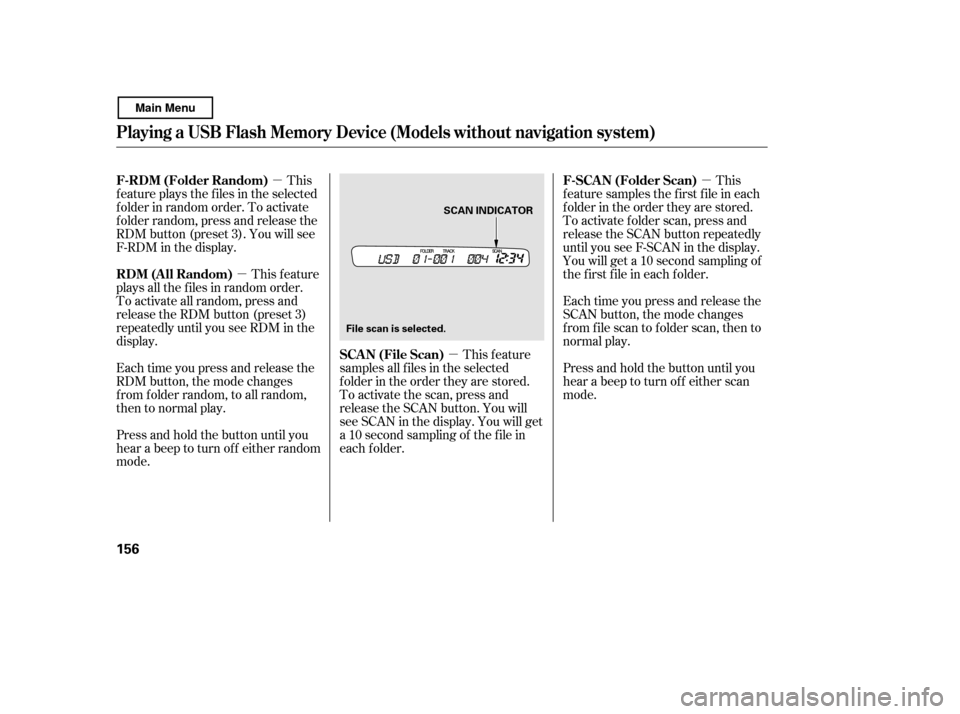
SCAN INDICATOR
File scan is selected.
Main Menu
Page 161 of 400
If you see an error message in the
display, see page .
You can disconnect the USB f lash
memory device at any time even if
the USB mode is selected on the
audio system. With the AUX mode,
you will see a ‘‘USB NO DATA’’
messageinthedisplay.Makesureto
f ollow the USB f lash memory device’s
instructions when you remove it.
If you reconnect the same USB f lash
memory device, the system will
begin playing where it lef t of f .
To play the radio, press the AM/FM
button. Press the CD button to
switch to the disc mode (if a disc is
loaded). Pressing the AUX button
switches the audio mode between
the USB and AUX.
You can also press the MODE
buttononthesteeringwheelto
change modes.
158
Playing a USB Flash Memory Device (Models without navigat ion system)
USB Flash Memory Device Error
Messages
To Stop Playing a USB Flash
Memory DeviceDisconnect ing a USB Flash Memory
Device
Features
157
Main Menu
Page 162 of 400

If you see an error message on the
audio display while playing a USB
f lash memory device, f ind the
solution in the chart to the right. If
you cannot clear the error message,
take your vehicle to your dealer.Error Message Solution
Cause
There is problem with the USB adapter unit.
Disconnect the device. Then, turn the audio
systemoff,andturnitonagain.Donot
reconnect the device that caused the error.
Appears when the files in the USB flash
memory device are DRM or an unsupported
format. This error message appears for about 3
seconds, then plays the next song.
Appears when the USB f lash memory device is
emptyortherearenoMP3,WMA,orAACfiles
in the USB flash memory device. Save some
MP3, WMA, or AAC files in the USB flash
memory device.
Appears when an unsupported device is
connected. See page 152 for the specification
information for the USB flash memory device.
If it appears when the supported device is
connected, reconnect the device.
USB ROM Error
Appears when an
incompatible device is
connected.
Use of unsupported
files
No files in USB flash
memory device
Use of unsupported
USB f lash memory
device
USB Flash Memory Device Error Messages (Models without navigati
on system)
158
USB ERROR
BAD USB
DEVICE
PLEASE CHECK OWNERS
MANUAL
UNPLAYABLE FILE
USB NO SONG
UNSUPPORTED
Main Menu
Page 164 of 400

�µ�Û�Ý
�Û
�Ý
The ignition switch must be in the
ACCESSORY (I) or ON (II) position.
Turn the system on by pushing the
power/volume knob or the AM/FM
button. Adjust the volume by turning
the power/volume knob.
Pushing the AUDIO button will also
turn on the system.
You can also operate the audio
system without using the control
icons on the audio screen. Use the
control buttons on the lef t side of the
screen. The status bar appears on
the bottom of the screen each time
you operate any of the control
buttons. On the navigation screen,
you can also see audio inf ormation
by touching the AUDIO INFO icon
on the lower half of the screen. The band and f requency that the
radio was last tuned to are displayed.
To change bands, press the AM/FM
button, or touch the desired band
icon (FM1, FM2, AM, XM1, or XM2).
On the FM band, STEREO will be
displayed if the station is
broadcasting in stereo. Stereo
reproduction on AM is not available.
You can use any of f ive methods to
f ind radio stations on the selected
band: tune, seek, scan, the preset
buttons, and auto select.
Use the TUNE bar to tune
the radio to a desired f requency.
Press the side of the bar to tune
to a higher f requency, and press the
side to tune to a lower
f requency.
Press and hold the or side of
the TUNE bar until you hear two
beeps to change the f requency
rapidly. Release the bar when the
display reaches the desired
f requency.
For inf ormation on XM Radio, see
page .
163
T o Play the A M/FM Radio
T o Select a Station
TUNE
Playing t he A M/FM Radio (Models wit h navigat ion syst em)
160
Main Menu
