Page 214 of 400
�µ
�µ
You can select any type of repeat,
random and scan modes with the
RPT, RDM and SCAN buttons. To
conf irm the selected mode, press the
AUDIO button to show the audio
control display on the navigation
screen.
This feature
replays all the tracks/f iles in the
selected f older in the order they are
stored. To activate f older repeat,
press and hold the RPT button
(preset 1) until you see FOLDER
REPEAT in the display. Press and hold the button until you
hear a beep to turn of f either repeat
mode. Pressing either side of the
TUNE bar also turns of f this f eature.
This feature
continuously plays a track/f ile. To
activate track repeat, press and
release the RPT button (preset 1).
You will see TRACK REPEAT in the
display.
Playing a USB Flash Memory Device (Models with navigat ion syst em)
T o Select Repeat , Random or Scan
Mode:
FOLDER REPEAT
T RA CK REPEA T
210
U.S. model is shown.
Main Menu
Page 215 of 400

�µ�µ �µ
�µ
This feature
plays all the tracks/f iles in random
order. To activate track random,
press and release the RDM button
(preset 2). You will see TRACK
RANDOM in the display.
This
f eature plays the tracks/f iles in the
selected f older in random order. To
activate f older random, press and
hold the RDM button (preset 2) until
you see FOLDER RANDOM in the
display. This feature
samples all tracks/f iles in the
selected f older in the order they are
stored. To activate track scan, press
and release the SCAN button. You
will see TRACK SCAN in the display.
You will get a 10 second sampling of
each track/f ile in the f older.
This feature
samples the f irst track/f ile in each
f older in the order they are stored.
To activate f older scan, press and
hold the SCAN button until you see
FOLDER SCAN in the display. You
will get a 10 second sampling of each
f irst track/f ile in the f older(s). Press and hold the button until you
hear a beep to turn off either scan
mode. Pressing either SKIP button
also turns off this feature.
Press and hold the button until you
hear a beep to turn off either random
mode.
Playing a USB Flash Memory Device (Models with navigat ion syst em)
TRACK RANDOM
FOLDER RANDOM TRACK SCAN
FOLDER-SCAN
Features
211
Main Menu
Page 216 of 400

�Î�Î�Î
�Î
To play the radio, press the AM/FM
button or touch the FM1, FM2, AM,
XM1 , or XM2 icon. Press the CD
icon to switch to the disc mode (if a
disc is loaded). Each time you press
the CD/XM button, the audio mode
switches between the USB, disc and
XM Radio .
If a PC card is in the audio unit,
touch the CARD icon to play the PC
card. You can disconnect the USB f lash
memory device at any time even if
the USB mode is selected on the
audio system. Make sure to f ollow
the USB f lash memory device’s
instructions when you remove it.
When you disconnect the USB f lash
memory device while it is playing,
the audio display (if selected) shows
NO DATA.
If you reconnect the same USB f lash
memory device, the system will
begin playing where it lef t of f .If you see an error message in the
screen, see page .
If equipped
You can also press the MODE
buttononthesteeringwheelto
change modes. : 213
Playing a USB Flash Memory Device (Models with navigat ion syst em)
To Stop Playing a USB Flash
Memory Device
USB Flash Memory Device Error
MessagesDisconnect ing a USB Flash Memory
Device
212
Main Menu
Page 218 of 400

How well the radio receives stations
is dependent on many f actors, such
as the distance from the station’s
transmitter, nearby large objects,
and atmospheric conditions.
The radio can receive the complete
AM and FM bands.
Those bands cover these f requen-
cies:
AM band: 530 to 1,710 kHz
FM band: 87.7 to 107.9 MHz
Driving very near the transmitter of
a station that is broadcasting on a
f requency close to the f requency of
the station you are listening to can
also af f ect your radio’s reception.
You may temporarily hear both
stations,orhearonlythestationyou
are close to.
A radio station’s signal gets weaker
as you get f arther away f rom its
transmitter. If you are listening to an
AM station, you will notice the sound
volume becoming weaker, and the
stationdriftinginandout.If youare
listening to an FM station, you will
see the stereo indicator f lickering of f
and on as the signal weakens.
Eventually, the stereo indicator will
go of f and the sound will f ade
completely as you get out of range of
the station’s signal.
Radio stations on the AM band are
assigned f requencies at least 10 kHz
apart (530, 540, 550). Stations on the
FM band are assigned f requencies at
least 0.2 MHz apart (87.9, 88.1, 88.3).
Stations must use these exact
f requencies. It is f airly common f or
stations to round-of f the f requency in
their advertising, so your radio could
display a f requency of 100.9 even
though the announcer may identif y
the station as ‘‘FM101.’’ Radio Reception
Radio Frequencies
A M/FM Radio Recept ion
214
Main Menu
Page 225 of 400

Your vehicle’s audio system will
disable itself if it is disconnected
f rom electrical power f or any reason.
To make it work again, you must
enter a specif ic code using the preset
buttons (icons on vehicle’s with
navigation system). Because there
are hundreds of number
combinations possible f rom specif ic
digits, making the system work
without knowing the exact code is
nearly impossible.If your vehicle’s battery is
disconnected or goes dead, the audio
system will disable itself . If this
happens, you will see ‘‘ENTER
CODE’’ in the f requency display the
nexttimeyouturnonthesystem.
Use the preset buttons (icons on
vehicles with navigation system) to
enter the code. The code is on the
radio code card included in your
owner’s manual kit. When it is
entered correctly, the radio will start
playing.
If you lose the card, you must obtain
the code number f rom a dealer. To
do this, you will need the system’s
serial number.
Youshouldhavereceivedacardthat
lists your audio system’s code and
serial numbers. It is best to store this
card in a saf e place at home. In
addition, you should write the audio
system’s serial number in this owner’s
manual. The system will retain your AM and
FM presets even if power is
disconnected.
If you make a mistake entering the
code, do not start over; complete the
sequence, then enter the correct
code. You have 10 tries to enter the
correct code. If you are unsuccessf ul
in 10 attempts, you must then leave
the system on f or 1 hour bef ore
trying again.
On models with audio system
Radio T hef t Prot ect ion
Features
221
Main Menu
Page 226 of 400

Change the hours by pressing the H
(preset 1) button until the numbers
advance to the desired time. Change
the minutes by pressing the M
(preset 2) button until the numbers
advance to the desired time.For example: 1:06 will reset to 1:001:52 will reset to 2:00
To set the time, press the CLOCK
(AM/FM) button until the displayed
time begins to blink, then release the
button.
Press the CLOCK (AM/FM) button
again to enter the set time.
You can quickly set the time to the
nearest hour. If the displayed time is
bef ore the half hour, pressing the
CLOCK (AM/FM) button until you
hear a beep, then pressing the R
(preset 3) button sets the clock back
to the previous hour. If the displayed
time is af ter the half hour, the clock
sets f orward to the beginning of the
next hour.
The navigation system receives
signals f rom the global positioning
system (GPS), and the displayed
time is updated automatically by the
GPS. Ref er to the navigation system
manual f or how to adjust the time.
On models with navigation system
On models without navigation system
Setting the Clock
222
CLOCK BUTTON
H (HOUR)
BUTTON R (RESET)
BUTTON H (HOUR)
BUTTONR (RESET)
BUTTON
CLOCK BUTTON
EX, EX-L and Si models
M (MINUTE) BUTTON M (MINUTE) BUTTON
Optional for U.S. DX model
U.S. LX, and Canadian DX-G and
SE models
Main Menu
Page 227 of 400
Once the security system is set,
opening either door without using
the key or the remote transmitter,
the hood, or the trunk will cause the
alarm to activate. It will also activate
if the audio unit is removed f rom the
dashboard or the wiring is cut.
The security system helps to protect
your vehicle and valuables f rom thef t.
The horn sounds and a combination
of headlights, parking lights, side
marker lights, and taillights f lashes if
someone attempts to break into your
vehicleorremovetheradio.This
alarm continues f or 2 minutes, then
the system resets. To reset an
activated system before the 2
minutes have elapsed, unlock the
driver’s door with the key or the
remote transmitter.
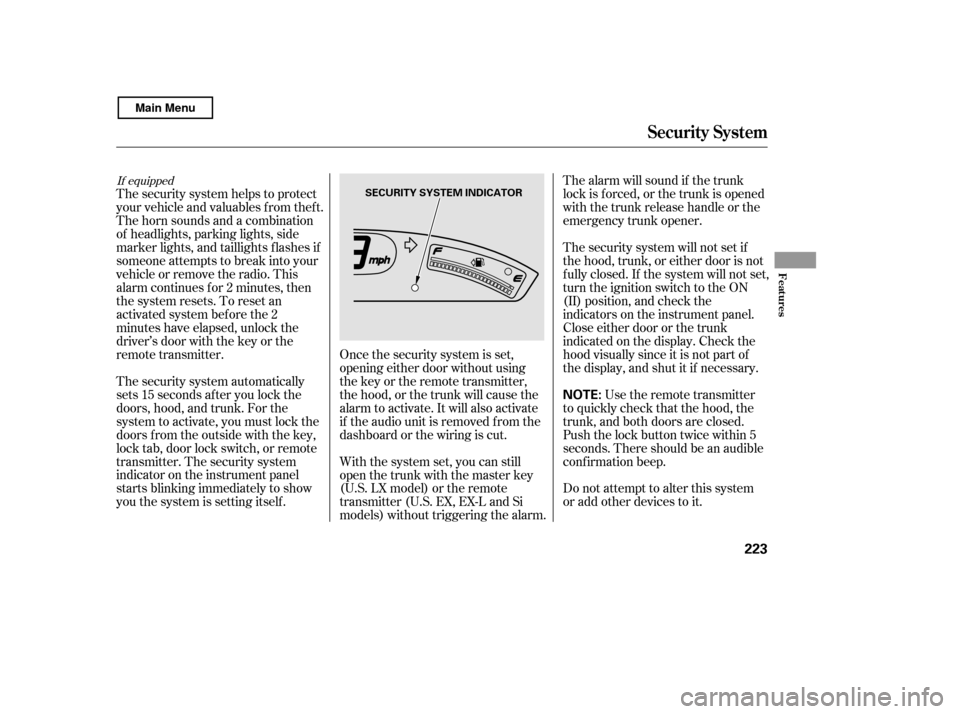
The security system automatically
sets 15 seconds after you lock the
doors, hood, and trunk. For the
system to activate, you must lock the
doors f rom the outside with the key,
lock tab, door lock switch, or remote
transmitter. The security system
indicator on the instrument panel
starts blinking immediately to show
you the system is setting itself . The security system will not set if
the hood, trunk, or either door is not
f ully closed. If the system will not set,
turn the ignition switch to the ON
(II) position, and check the
indicators on the instrument panel.
Close either door or the trunk
indicated on the display. Check the
hood visually since it is not part of
the display, and shut it if necessary.
With the system set, you can still
open the trunk with the master key
(U.S. LX model) or the remote
transmitter (U.S. EX, EX-L and Si
models) without triggering the alarm. The alarm will sound if the trunk
lock is f orced, or the trunk is opened
with the trunk release handle or the
emergency trunk opener.
Use the remote transmitter
to quickly check that the hood, the
trunk, and both doors are closed.
Push the lock button twice within 5
seconds. There should be an audible
conf irmation beep.
Do not attempt to alter this system
or add other devices to it.
If equipped
Security System
Features
223
NOTE:
SECURITY SYSTEM INDICATOR
Main Menu
Page 233 of 400
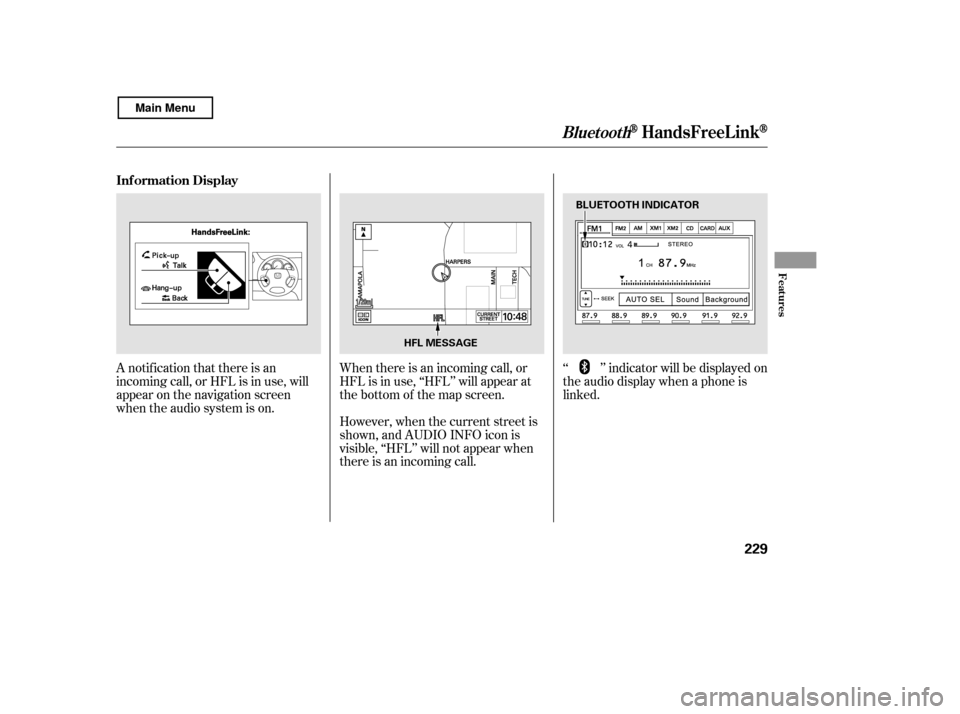
A notif ication that there is an
incoming call, or HFL is in use, will
appear on the navigation screen
when the audio system is on.‘‘ ’’ indicator will be displayed on
the audio display when a phone is
linked.
When there is an incoming call, or
HFL is in use, ‘‘HFL’’ will appear at
the bottom of the map screen.
However, when the current street is
shown, and AUDIO INFO icon is
visible, ‘‘HFL’’ will not appear when
there is an incoming call.
Inf ormation Display
BluetoothHandsFreeL ink
Features
229
HFL MESSAGE
BLUETOOTH INDICATOR
Main Menu