Page 34 of 315
BASIC FUNCTIONS
37
ADDRESS BOOK ENTRY
INFORMATION
When the cursor is set on an address book
entry icon, the name and “Info.” are dis-
played at the top of the screen.
Touch “Info.”.
Information such as the name, address,
and phone number are displayed.
If “Enter
” is touched, the position of the
cursor is set as a destination.
If there is already a set destination, “Go to
” and “Add to Route” are displayed.
“Go to
”: To delete the existing destina-
tions and set a new one.
“Add to Route”: To add a destination.
To edit an address book entry, touch
“Edit” . (See “(b) Editing address book en-
tries” on page 108.)
To delete an address book entry, touch
“Delete” .
If
is touched, the registered tele-
phone number can be called.
Page 35 of 315
BASIC FUNCTIONS
38
DESTINATION INFORMATION
When the cursor is set on a destination
icon, the name and “Info.” are displayed
on the top of the screen.
Touch “Info.”.
Information such as the name, address,
and phone number are displayed.
To delete a destination, touch “Delete”.
If
is touched, the registered tele-
phone number can be called. XM
� NavTraffic TEXT INFORMATION
When you touch the XM � NavTraffic icon
on the map, the XM � NavTraffic info. bar
will appear on the upper part of the screen.
Touch “Info.”.
Traffic information is displayed on the
screen.
Touch “Detail” to display detailed traffic
event information.
Page 42 of 315
BASIC FUNCTIONS
45
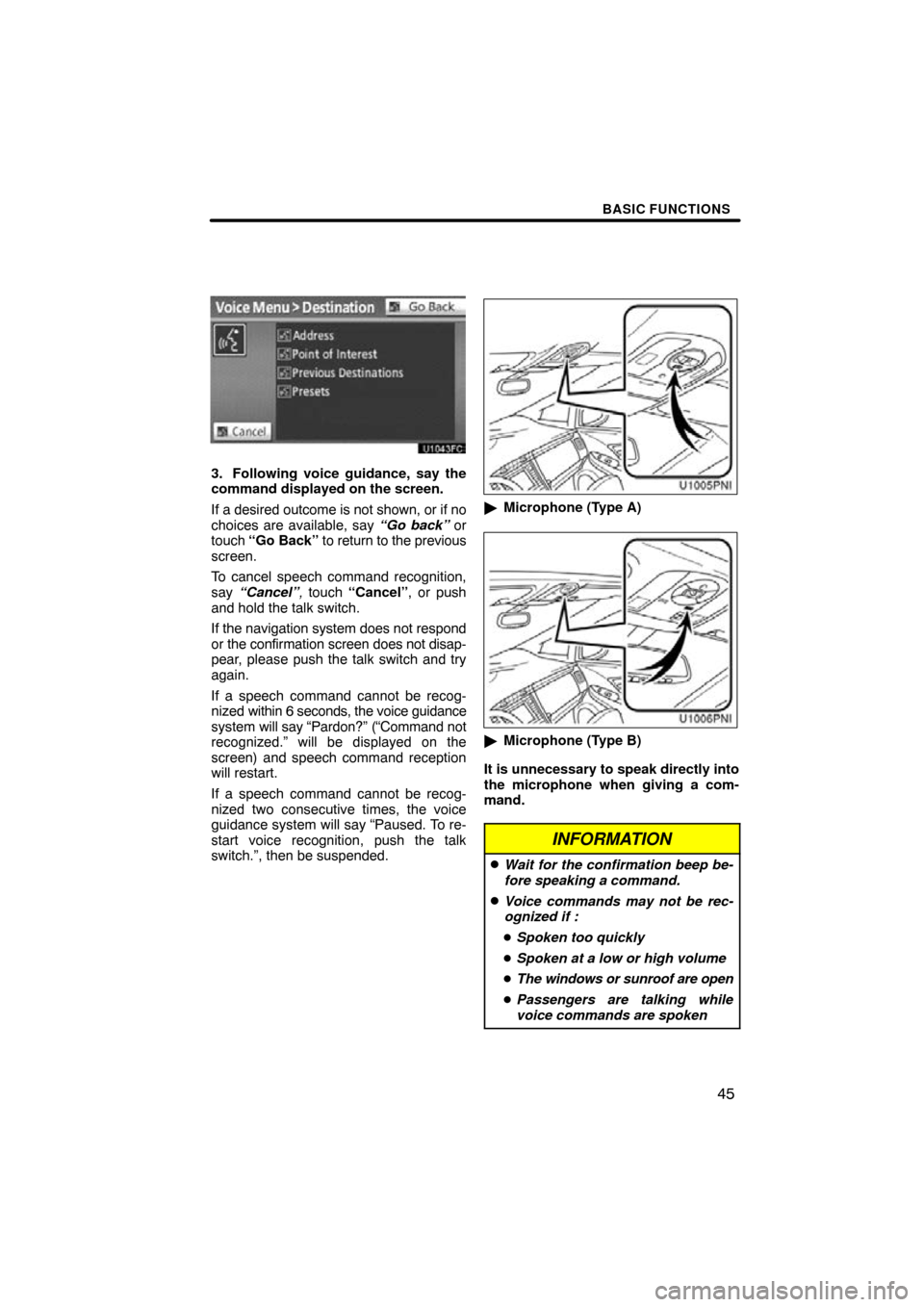
3. Following voice guidance, say the
command displayed on the screen.
If a desired outcome is not shown, or if no
choices are available, say “Go back” or
touch “Go Back” to return to the previous
screen.
To cancel speech command recognition,
say “Cancel” , touch “Cancel” , or push
and hold the talk switch.
If the navigation system does not respond
or the confirmation screen does not disap-
pear, please push the talk switch and try
again.
If a speech command cannot be recog-
nized within 6 seconds, the voice guidance
system will say “Pardon?” (“Command not
recognized.” will be displayed on the
screen) and speech command reception
will restart.
If a speech command cannot be recog-
nized two consecutive times, the voice
guidance system will say “Paused. To re-
start voice recognition, push the talk
switch.”, then be suspended.
� Microphone (Type A)
�Microphone (Type B)
It is unnecessary to speak directly into
the microphone when giving a com-
mand.
INFORMATION
�Wait for the confirmation beep be-
fore speaking a command.
�Voice commands may not be rec-
ognized if :
� Spoken too quickly
� Spoken at a low or high volume
� The windows or sunroof are open
� Passengers are talking while
voice commands are spoken
Page 54 of 315
DESTINATION SEARCH
57
There are 3 ways to search by Points of In-
terest.
(a) Search by name
(b) Search by category
(c) Search by phone #
1. Push the “DEST” button.
2. Touch “Points of Interest” on the
“Destination” screen.
3. Touch the button for the desired
method. (a) Search by “Name”
1. Push the “DEST” button.
2. Touch “Point of Interest” on the
“Destination” screen.
3. Touch “Name” on the “Point of In-
terest” screen.
4. Input the name of the Point of Inter-
est.
5. Touch
the button of the desired des-
tination.
The screen changes and displays the map
location of the selected destination and the
route preference. (See “Starting route
guidance” on page 70.)
When inputting the name of a specific
Point of Interest, and there are two or more
sites with the same name, the list screen
is displayed.
INFORMATION
To search for a facility name using
multiple search words, put a space
between each word.
— Destination search by
“Point of Interest”
Page 59 of 315

DESTINATION SEARCH
62
�
To search POIs near the search
point
When the search point is set, the “POI
Category” screen will be displayed.
Select the desired POI category.
If the desired POI category is not on the
screen, touch “List All Categories” to list
all POI categories.
Select the desired POI category from
the list.
By touching the button of the desired item,
the screen changes and displays the map
location of the selected destination and the
route preference. (See “Starting route
guidance” on page 70.) (c) Search by “Phone #”
1. Push the “DEST” button.
2. Touch “Point of Interest” on the
“Destination” screen.
3. Touch
“Phone #” on the “Point of In-
terest” screen.
4. Input a telephone number.
5. After inputting a telephone number,
touch “OK”.
The screen changes and displays the map
location of the selected destination and the
route preference. (See “Starting route
guidance” on page 70.)
If there is more than one site with the same
number, the following screen will be dis-
played.
Page 60 of 315

DESTINATION SEARCH
63
INFORMATION
�If there is no match for the tele-
phone number inputted, a list of
identical numbers with different
area codes will be displayed.
� To set an address book entry as a
destination using the phone num-
ber, the number must already be
registered. (See page 111.)
1. Push the “DEST” button.
2. Touch “Previous Destinations”
on
the “Destination” screen.
The previous starting point and up to 100
previously set destinations are displayed
on the screen.
3. Touch the button of the desired des-
tination.
“Delete”: To delete the previous destina-
tion. (To delete previous destinations, see
page 117.)
The screen changes and displays the map
location of the selected destination and the
route preference. (See “Starting route
guidance” on page 70.)
INFORMATION
The list of previous destinations can
also be deleted by touching “Delete
Previous Dest.” on the “Navigation
Settings” screen when the vehicle is
stopped. (See “ — Deleting previous
destinations” on page 117.)
— Destination search by
“Previous Destinations”
Page 67 of 315
DESTINATION SEARCH
70
The system searches for the guidance
route again, and displays the entire route.
INFORMATION
Set destinations can also be deleted
by touching “Route”. (See “ — Delet-
ing destinations” on page 83.)
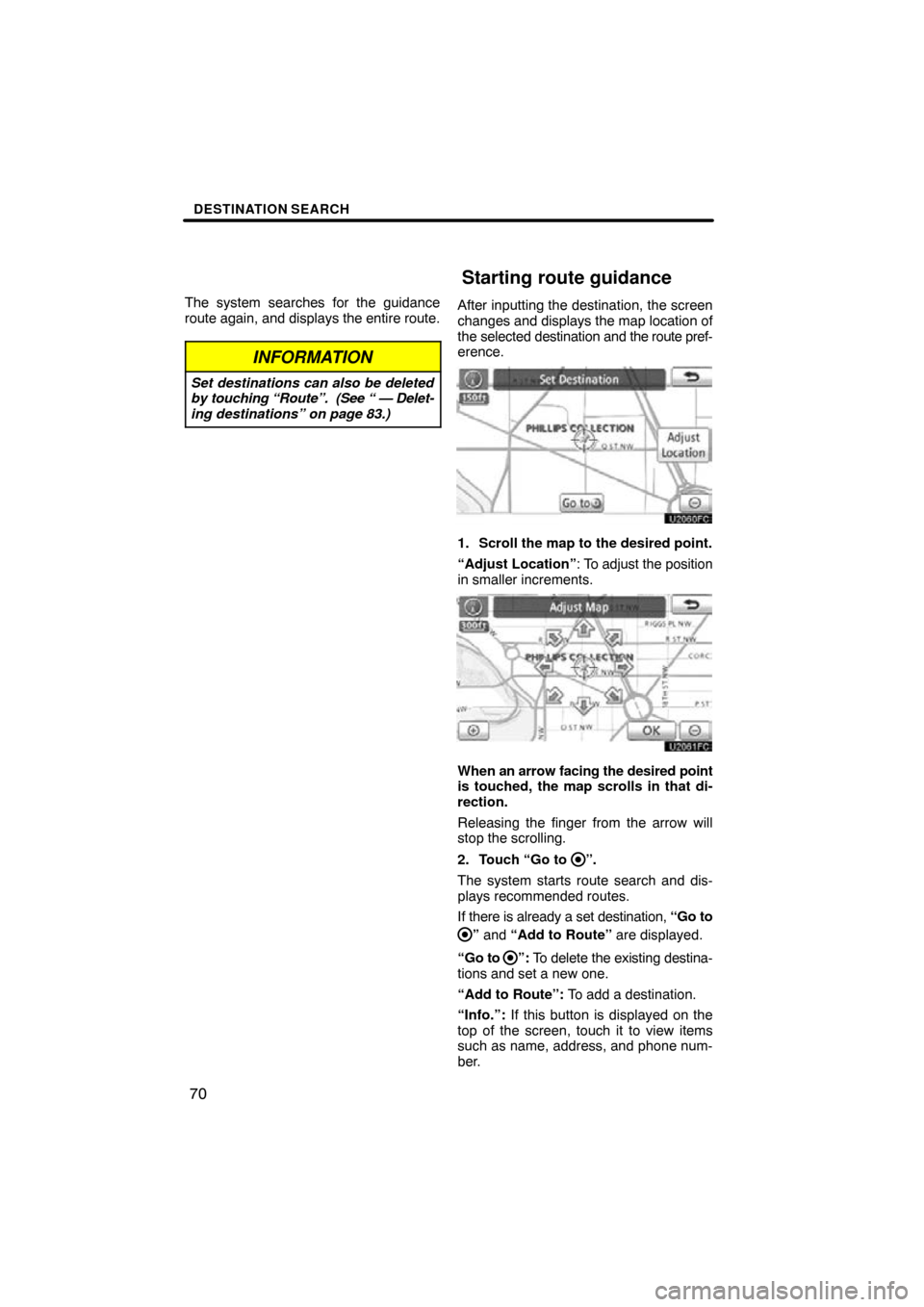
After inputting the destination, the screen
changes and displays the map location of
the selected destination and the route pref-
erence.
1. Scroll the map to the desired point.
“Adjust Location” : To adjust the position
in smaller increments.
When an arrow facing the desired point
is touched, the map scrolls in that di-
rection.
Releasing the finger from the arrow will
stop the scrolling.
2. Touch “Go to
”.
The system starts route search and dis-
plays recommended routes.
If there is already a set destination, “Go to
” and “Add to Route” are displayed.
“Go to
”: To delete the existing destina-
tions and set a new one.
“Add to Route”: To add a destination.
“Info.”: If this button is displayed on the
top of the screen, touch it to view items
such as name, address, and phone num-
ber.
Starting route guidance
Page 99 of 315
MY PLACES
102
When registration of home is completed,
the “Edit Home” screen will be displayed.
6. Touch “OK”.
To edit registered information, see “(b)
Editing home” on page 102.(b) Editing home
1. Push the “SETUP” button.
2. Touch “Navi.” on the “Setup”
screen.
3. Touch “Home” on the “Navigation
Settings” screen.
4. Touch “Edit”.
5. Touch “Edit” for the item you want
to change.
“Name”: To edit home name. The names
can be displayed on the map. (See page
110.)
“Location”: To edit location information.
(See page 111.)
“Phone #”: To edit telephone numbers.
(See page 111.)
“Icon”: To select icons to be displayed on
the map. (See page 109.)
6. Touch “OK”.


