Page 230 of 538
228 3-2. Using the audio system
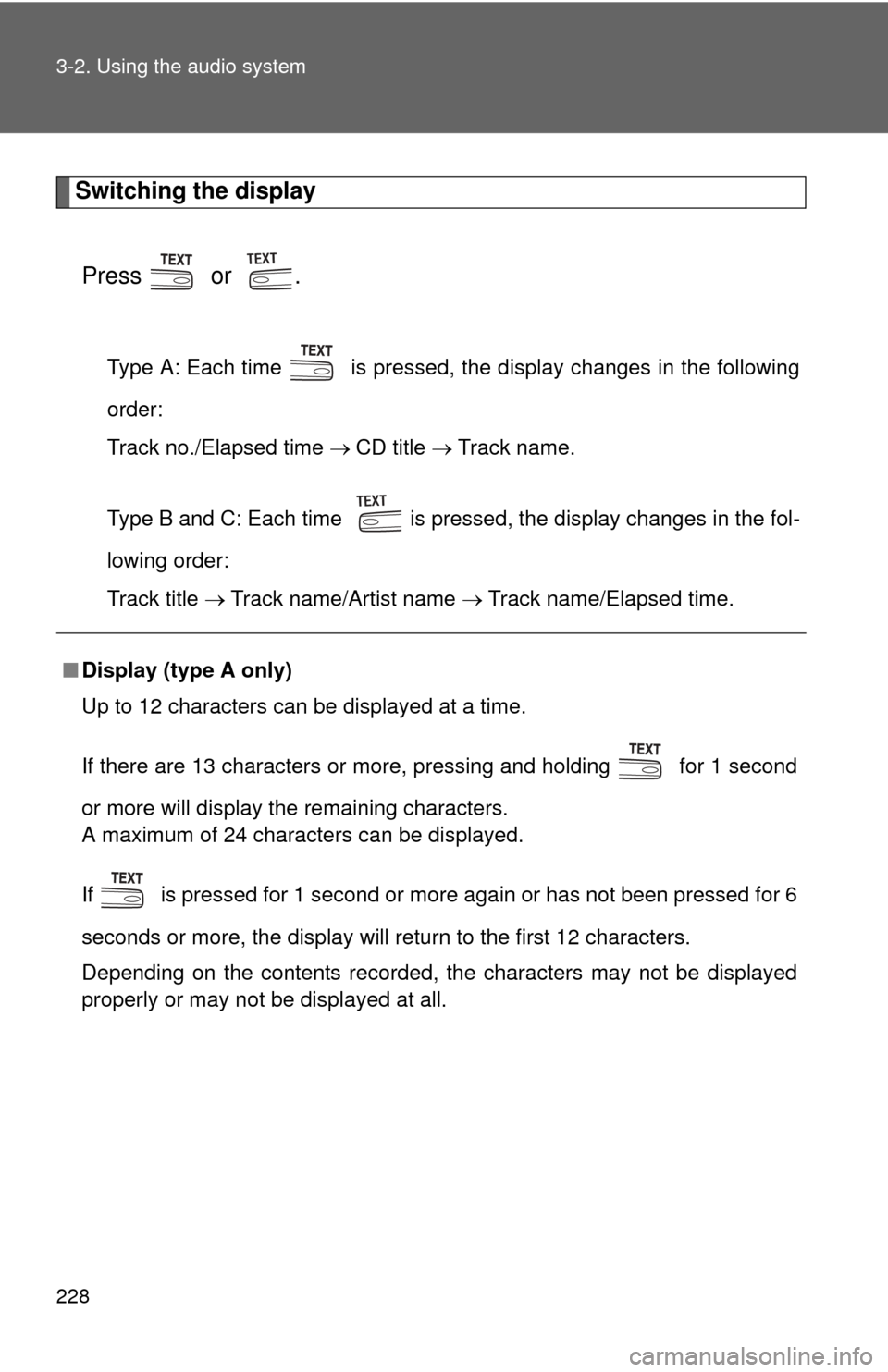
Switching the displayPress or .
Type A: Each time is pressed, the display changes in the following
order:
Track no./Elapsed time CD title Track name.
Type B and C: Each time is pressed, the display changes in the fol-
lowing order:
Track title Track name/Artist name Track name/Elapsed time.
■Display (type A only)
Up to 12 characters can be displayed at a time.
If there are 13 characters or more, pressing and holding for 1 second
or more will display the remaining characters.
A maximum of 24 characters can be displayed.
If is pressed for 1 second or more again or has not been pressed for 6
seconds or more, the display will return to the first 12 characters.
Depending on the contents recorded, the characters may not be displayed
properly or may not be displayed at all.
Page 234 of 538
232
3-2. Using the audio system
Playing MP3 and WMA discs
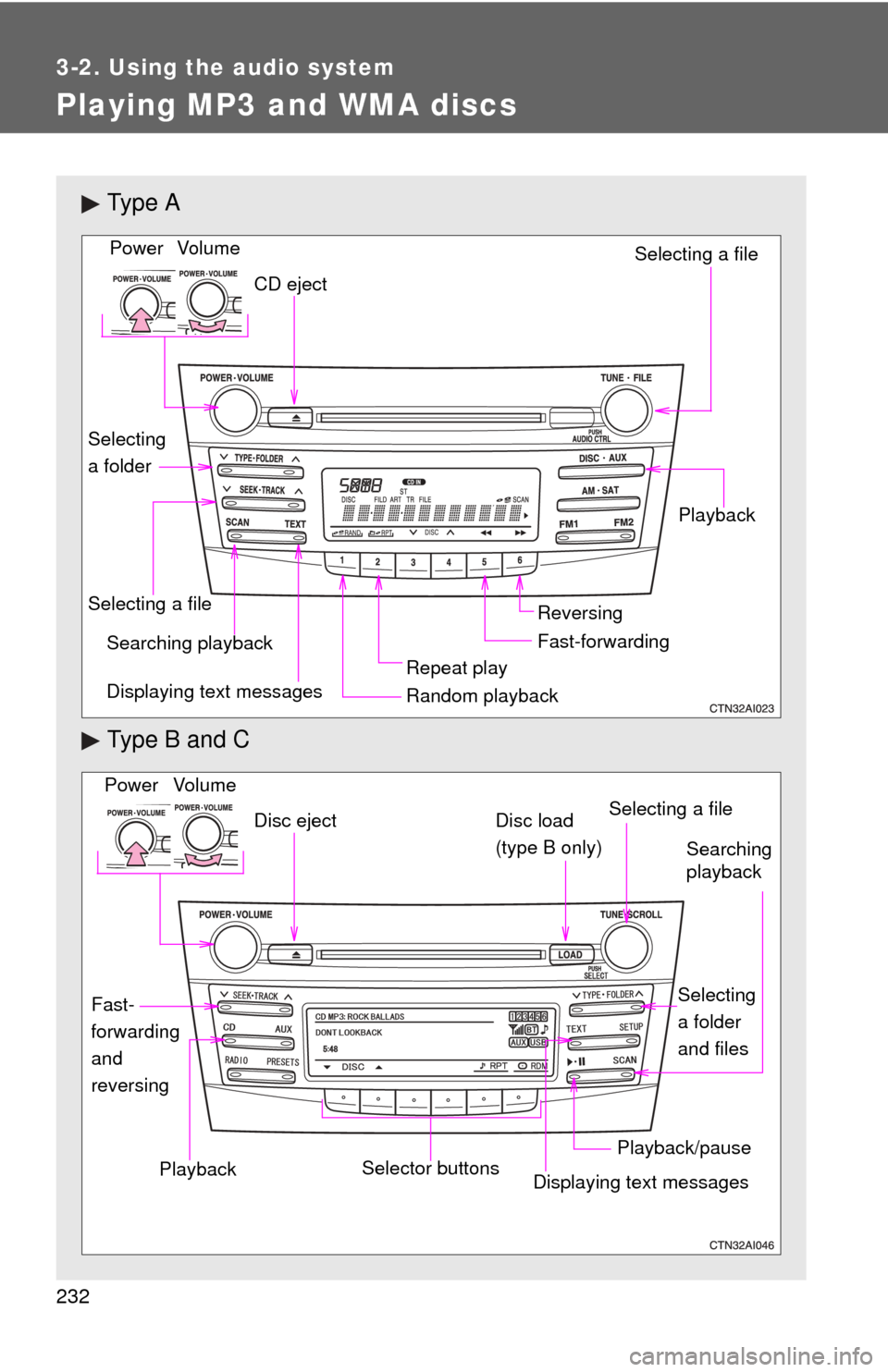
Ty p e A
Type B and C
Vo lu m eRandom playbackSelecting a file
Playback
Power
CD eject
Displaying text messages
Selecting a file
Repeat play
Searching playback
Selecting
a folder
Fast-forwarding Reversing
Vo lu m e
Power
Disc eject
Searching
playback
Selecting
a folder
and files
Disc load
(type B only)
Playback/pause
Displaying text messages Selecting a fileSelector buttons
Fast-
forwarding
and
reversingPlayback
Page 236 of 538
234 3-2. Using the audio system
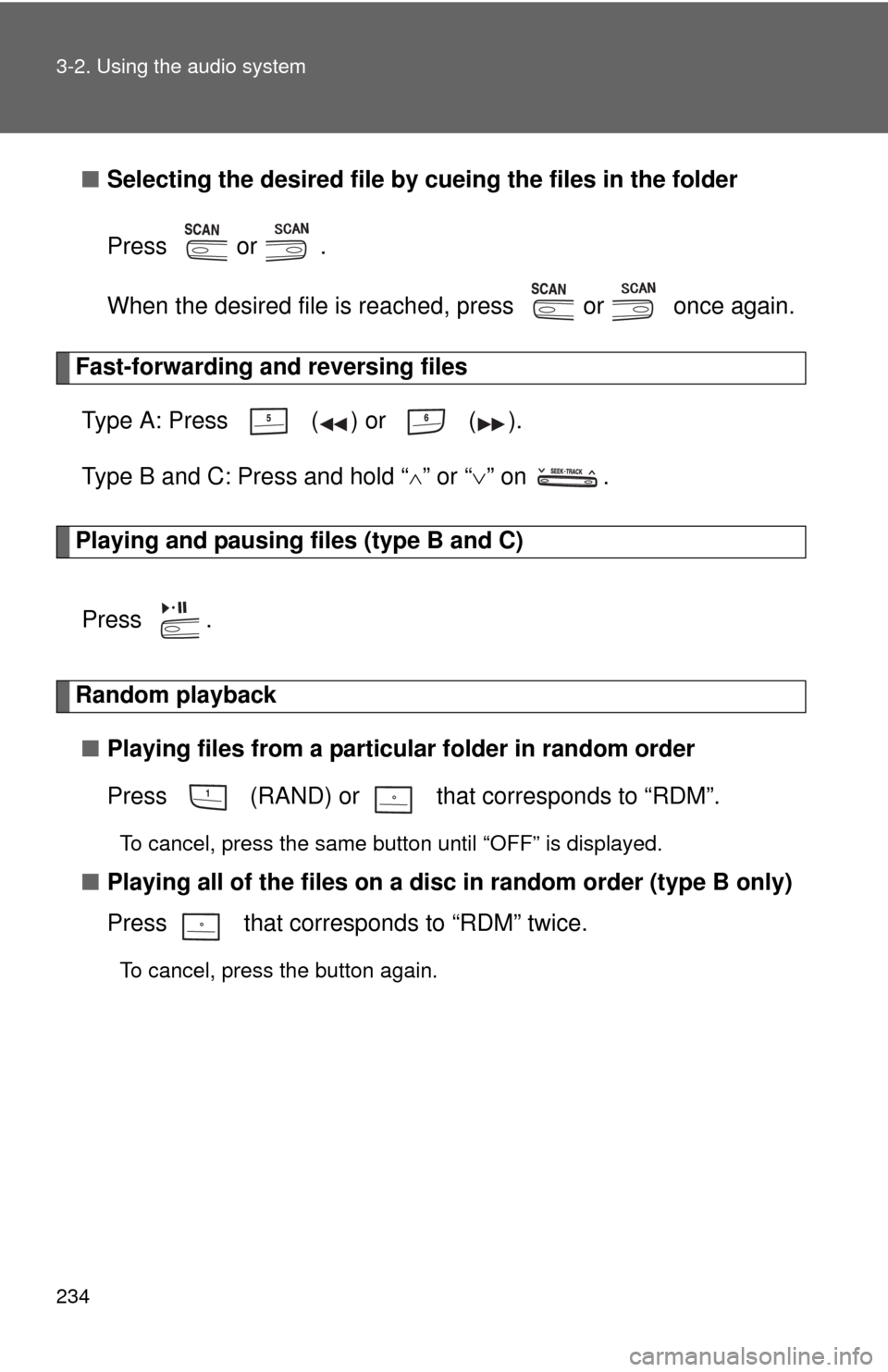
■Selecting the desired file by cueing the files in the folder
Press or .
When the desired file is reached, press or once again.
Fast-forwarding and reversing files Type A: Press ( ) or ( ).
Type B and C: Press and hold “
” or “ ” on .
Playing and pausing files (type B and C)
Press .
Random playback■ Playing files from a particular folder in random order
Press (RAND) or that corresponds to “RDM”.
To cancel, press the same button until “OFF” is displayed.
■Playing all of the files on a di sc in random order (type B only)
Press that corresponds to “RDM” twice.
To cancel, press the button again.
Page 237 of 538
235
3-2. Using the audio system
3
Interior features
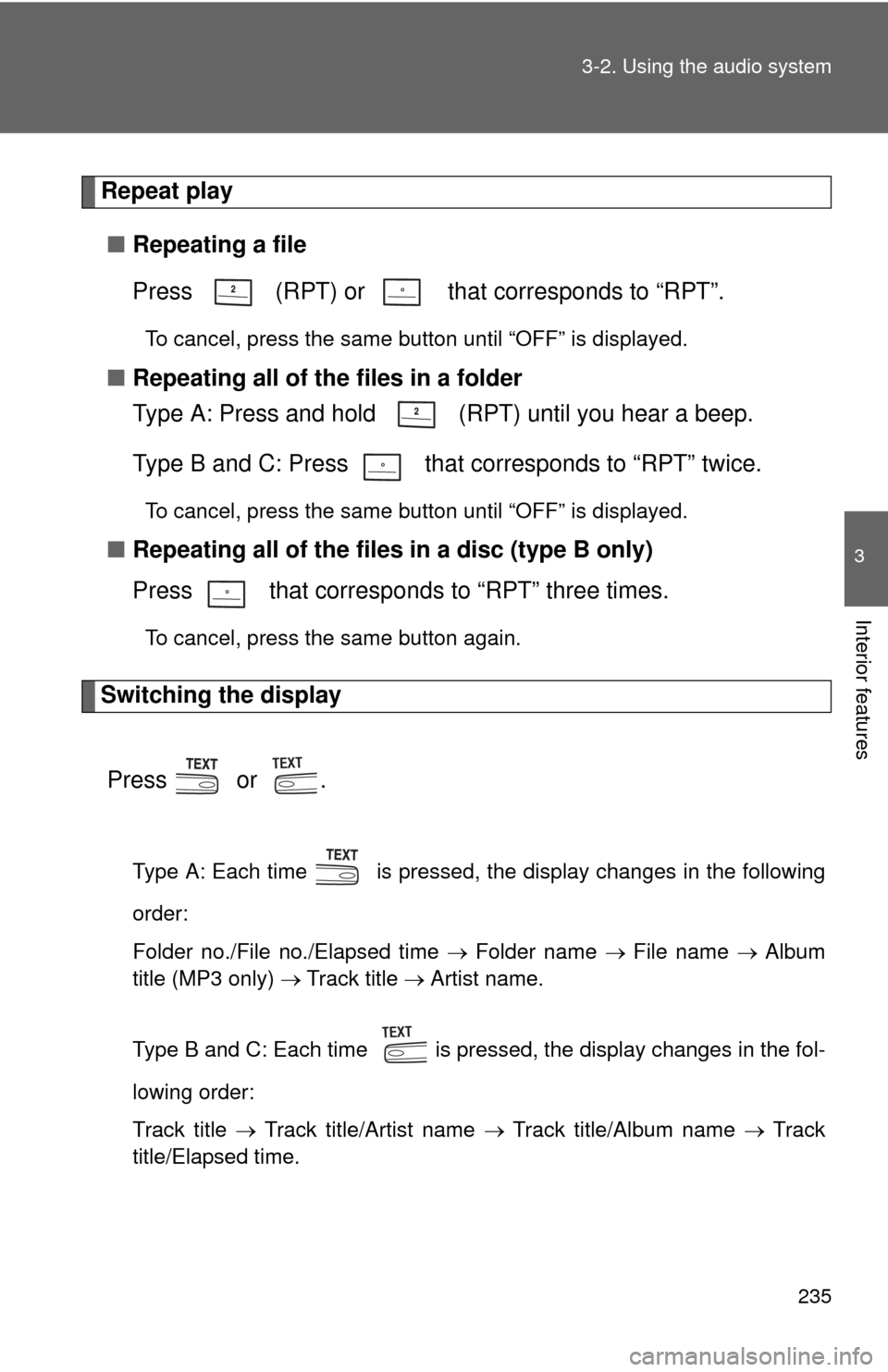
Repeat play
■ Repeating a file
Press (RPT) or that corresponds to “RPT”.
To cancel, press the same button until “OFF” is displayed.
■Repeating all of the files in a folder
Type A: Press and hold (RPT) until you hear a beep.
Type B and C: Press that corresponds to “RPT” twice.
To cancel, press the same button until “OFF” is displayed.
■Repeating all of the files in a disc (type B only)
Press that corresponds to “RPT” three times.
To cancel, press the same button again.
Switching the display
Press or .
Type A: Each time is pressed, the display changes in the following
order:
Folder no./File no./Elapsed time Folder name File name Album
title (MP3 only) Track title Artist name.
Type B and C: Each time is pressed, the display changes in the fol-
lowing order:
Track title Track title/Artist name Track title/Album name Track
title/Elapsed time.
Page 238 of 538
236 3-2. Using the audio system
■Display
P. 228
■ Error messages
“CD CHECK”: This indicates a problem either with the CD or inside the
player. The CD may be dirty, damaged or inserted up-side
down.
“WAIT” or “PLEASE WAIT”: Operation has stopped due to a high tempera- ture inside the player. Wait for a while and then
press or . Contact your Toyota
dealer if the CD still cannot be played.
■ Discs that can be used
P. 229
■ CD player protection feature
P. 229
■ If CDs are left inside the CD player or in the ejected position for
extended periods
P. 229
■ Lens cleaners
P. 229
Page 240 of 538
238 3-2. Using the audio system
●Compatible media
Media that can be used for MP3 and WMA playback are CD-Rs and CD-
RWs.
Playback in some instances may not be possible, depending on the status
of the CD-R or CD-RW. Playback may not be possible or the audio may
jump if the disc is scratched or marked with fingerprints.
● Compatible disc formats
The following disc formats can be used.
• Disc formats: CD-ROM Mode 1 and Mode 2
CD-ROM XA Mode 2, Form 1 and Form 2
• File formats: ISO9660 Level 1, Level 2, (Romeo, Joliet) MP3 and WMA files written in any format other than those listed above
may not play correctly, and their file names and folder names may not
be displayed correctly.
Items related to standards and limitations are as follows.
• Maximum directory hierarchy: 8 levels
• Maximum length of folder names/file names: 32 characters
• Maximum number of folders: 192 (including the root)
• Maximum number of files per disc: 255
● File names
The only files that can be recognized as MP3/WMA and played are those
with the extension .mp3 or .wma.
● Multi-sessions
As the audio system is compatible with multi-sessions, it is possible to play
discs that contain MP3 and WMA files. However, only the first session can
be played.
● ID3 and WMA tags
ID3 tags can be added to MP3 files, making it possible to record the track
title and artist name, etc.
The system is compatible with ID3 Ver. 1.0, 1.1, and Ver. 2.2, 2.3 ID3 tags.
(The number of characters is based on ID3 Ver. 1.0 and 1.1.)
WMA tags can be added to WMA files, making it possible to record the
track title and artist name in the same way as with ID3 tags.
Page 242 of 538
240
3-2. Using the audio system
Operating an iPod® player
Connecting an iPod® player enables you to enjoy music from the
vehicle speakers.
■ Connecting an iPod® player
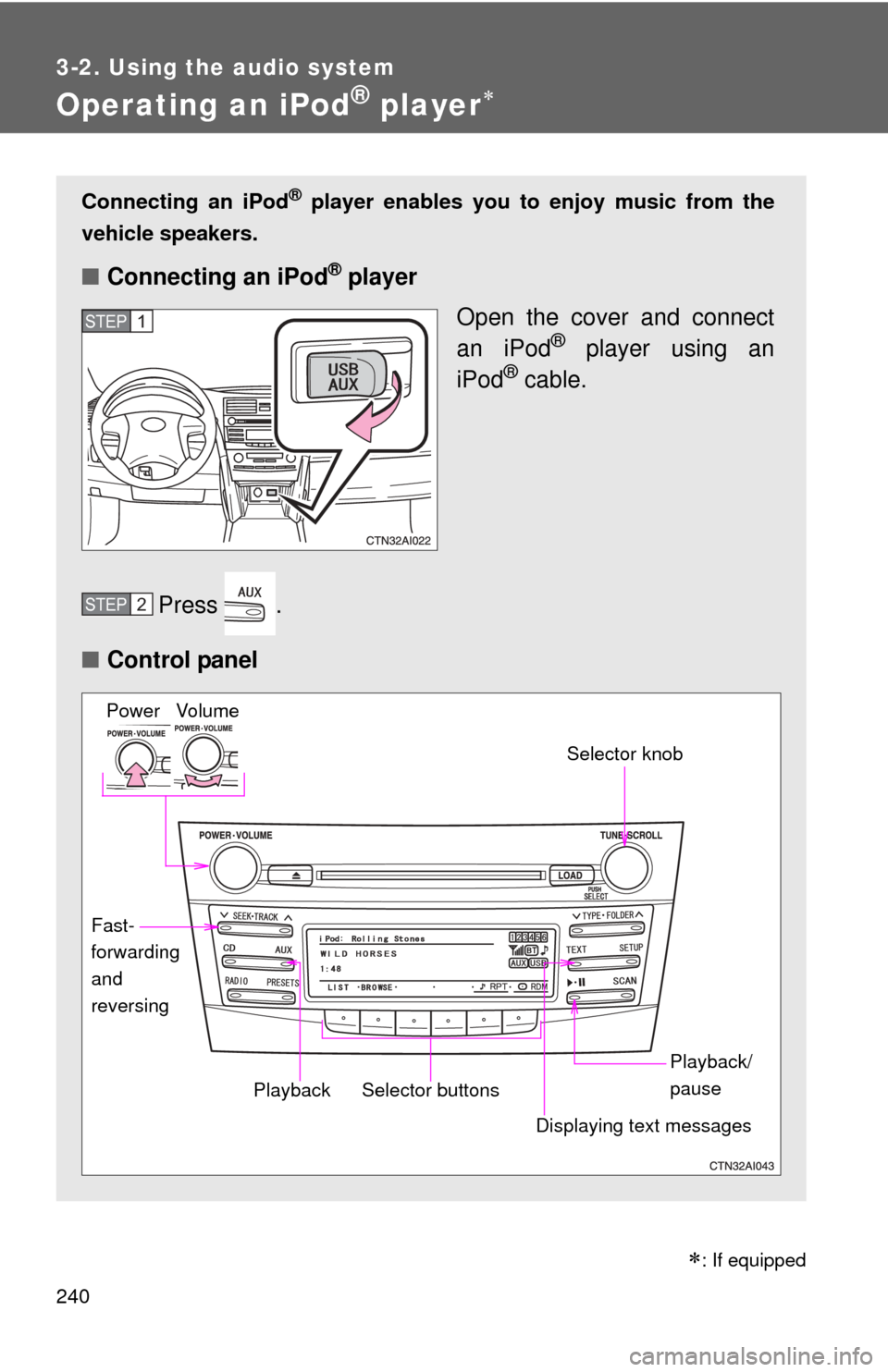
Open the cover and connect
an iPod
® player using an
iPod® cable.
Press .
■ Control panel
STEP1
STEP2
Vo lu m e
Power
Playback/
pause
Displaying text messages Selector knob
Selector buttons
Fast-
forwarding
and
reversingPlayback
: If equipped
Page 243 of 538
241
3-2. Using the audio system
3
Interior features
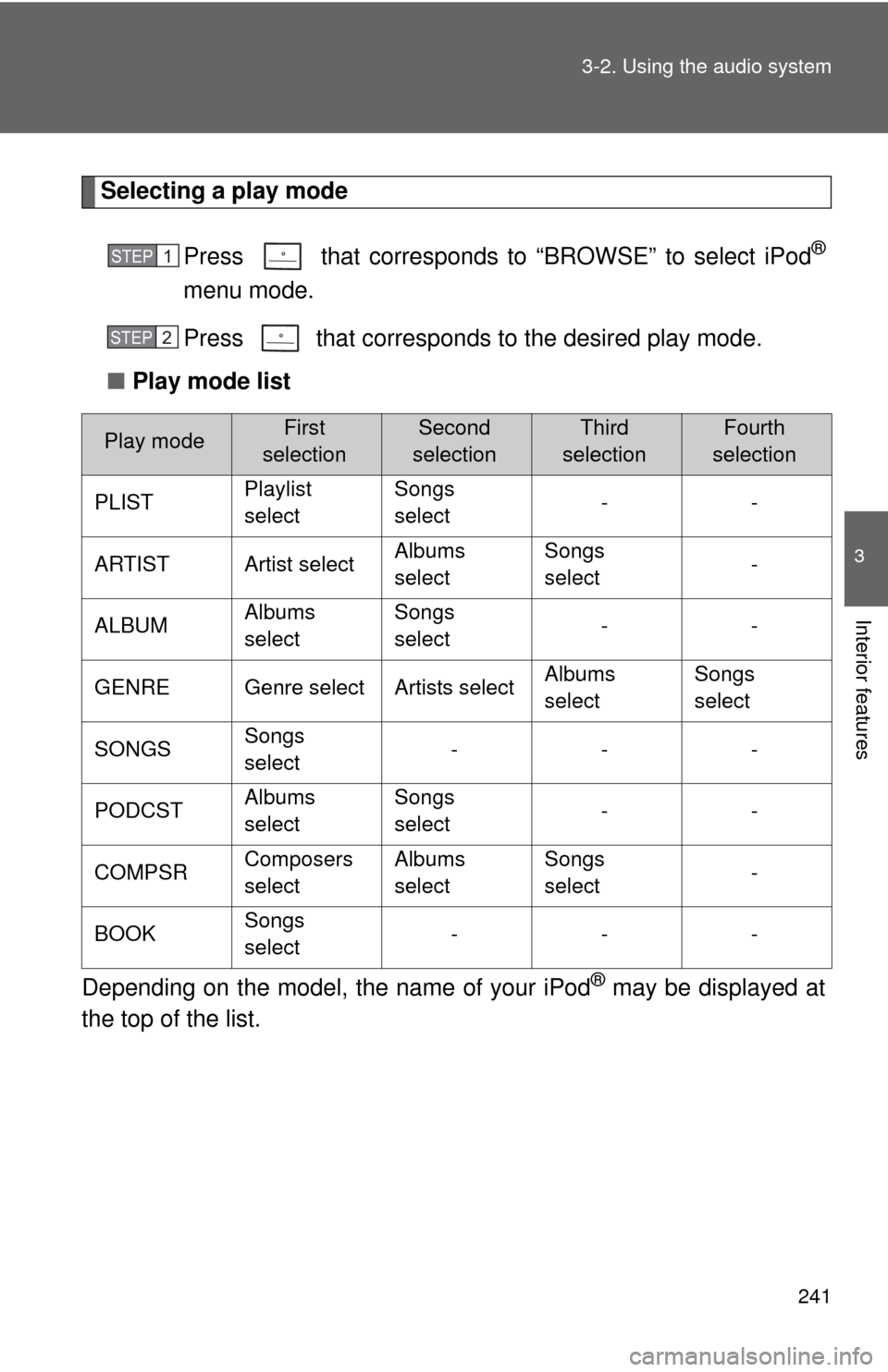
Selecting a play mode
Press that corresponds to “BROWSE” to select iPod
®
menu mode.
Press that corresponds to the desired play mode.
■ Play mode list
Depending on the model, the name of your iPod
® may be displayed at
the top of the list.
Play modeFirst
selectionSecond
selectionThird
selectionFourth
selection
PLIST Playlist
selectSongs
select
--
ARTIST Artist select Albums
selectSongs
select
-
ALBUM Albums
selectSongs
select
--
GENRE Genre select Artists select Albums
selectSongs
select
SONGS Songs
select ---
PODCST Albums
selectSongs
select
--
COMPSR Composers
selectAlbums
selectSongs
select
-
BOOK Songs
select ---
STEP1
STEP2