2010 SUZUKI KIZASHI ECU
[x] Cancel search: ECUPage 144 of 388
3-13OPERATING YOUR VEHICLE
57L20-03E
3) Close the engine hood securely before
starting the engine.
Using the TransaxleManual Transaxle
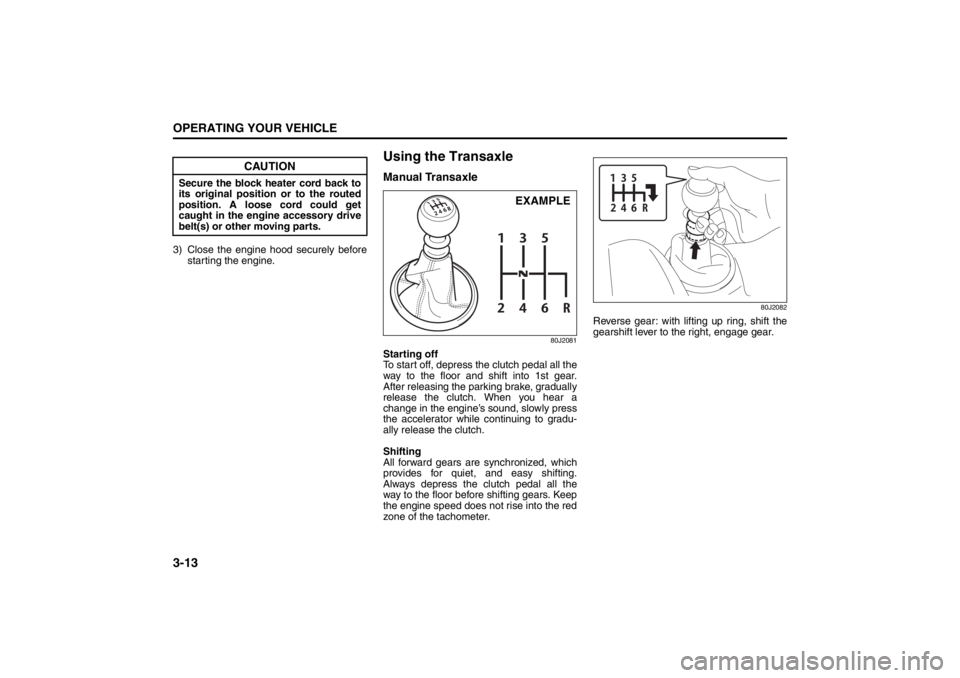
80J2081
Starting off
To start off, depress the clutch pedal all the
way to the floor and shift into 1st gear.
After releasing the parking brake, gradually
release the clutch. When you hear a
change in the engine’s sound, slowly press
the accelerator while continuing to gradu-
ally release the clutch.
Shifting
All forward gears are synchronized, which
provides for quiet, and easy shifting.
Always depress the clutch pedal all the
way to the floor before shifting gears. Keep
the engine speed does not rise into the red
zone of the tachometer.
80J2082
Reverse gear: with lifting up ring, shift the
gearshift lever to the right, engage gear.
CAUTION
Secure the block heater cord back to
its original position or to the routed
position. A loose cord could get
caught in the engine accessory drive
belt(s) or other moving parts.
EXAMPLE
Page 223 of 388

5-44
OTHER CONTROLS AND EQUIPMENT
57L20-03E
Security number (PIN)
The security number (PIN) is specified.
Once PIN is specified, PIN entry is
required when toggling Phonebook
between locking and unlocking.
1) Press the Off Hook button (7).
The Bluetooth
® main menu appears.
2) Turn the TUNE FOLDER PUSH
SOUND knob (1) to select “Setup”,
and press the TUNE FOLDER PUSH
SOUND knob (1) to determine the
selection.
3) Turn the TUNE FOLDER PUSH
SOUND knob (1) to select “Security”,
and press the TUNE FOLDER PUSH
SOUND knob (1) to determine the
selection.
4) Turn the TUNE FOLDER PUSH
SOUND knob (1) to select “Set PIN”,
and press the TUNE FOLDER PUSH
SOUND knob (1) to determine the
selection.
If the PIN is already specified, PIN
entry is required. If the PIN needs to
be changed, enter the current PIN.
5) Turn the TUNE FOLDER PUSH
SOUND knob (1) to select a number
for ones digit, and press the TUNE
FOLDER PUSH SOUND knob (1) to
determine the selection. Determine the
tens, hundreds, and thousands digits
in the same manner.6) Turn the TUNE FOLDER PUSH
SOUND knob (1) to select “Confirm”,
and press the TUNE FOLDER PUSH
SOUND knob (1) to determine the
selection.
NOTE:
Selection of “Go Back” displays the previ-
ous menu.Phonebook lock
Locking Phonebook disables users from
referring to, using, editing, and deleting
Phonebook, outgoing call record, and
incoming call record.
1) Press the Off Hook button (7).
The Bluetooth
® main menu appears.
2) Turn the TUNE FOLDER PUSH
SOUND knob (1) to select “Setup”,
and press the TUNE FOLDER PUSH
SOUND knob (1) to determine the
selection.
3) Turn the TUNE FOLDER PUSH
SOUND knob (1) to select “Security”,
and press the TUNE FOLDER PUSH
SOUND knob (1) to determine the
selection.
4) Turn the TUNE FOLDER PUSH
SOUND knob (1) to select “Phbk
Lock”, and press the TUNE FOLDER
PUSH SOUND knob (1) to determine
the selection.
If Phonebook is already set to Lock,
“Phbk Lock.” is displayed.
5) Enter a PIN number.
NOTE:
Selection of “Go Back” displays the previ-
ous menu.
Page 224 of 388

5-45OTHER CONTROLS AND EQUIPMENT
57L20-03E
Phonebook unlock
1) Press the Off Hook button (7).
The Bluetooth
® main menu appears.
2) Turn the TUNE FOLDER PUSH
SOUND knob (1) to select “Setup”,
and press the TUNE FOLDER PUSH
SOUND knob (1) to determine the
selection.
3) Turn the TUNE FOLDER PUSH
SOUND knob (1) to select “Security”,
and press the TUNE FOLDER PUSH
SOUND knob (1) to determine the
selection.
4) Turn the TUNE FOLDER PUSH
SOUND knob (1) to select “Phbk
Unlock”, and press the TUNE
FOLDER PUSH SOUND knob (1) to
determine the selection.
If Phonebook is already set to Unlock,
“Phbk Unlock.” is displayed.
5) Enter a PIN number.
NOTE:
Selection of “Go Back” displays the previ-
ous menu.Adjusting the guidance volume
You can adjust the guidance volume.
1) Press the Off Hook button (7).
The Bluetooth
® main menu appears.
2) Turn the TUNE FOLDER PUSH
SOUND knob (1) to select “Setup”,
and press the TUNE FOLDER PUSH
SOUND knob (1) to determine the
selection.
3) Turn the TUNE FOLDER PUSH
SOUND knob (1) to select “System
Setup”, and press the TUNE FOLDER
PUSH SOUND knob (1) to determine
the selection.
4) Turn the TUNE FOLDER PUSH
SOUND knob (1) to select “Guidance
Vol”, and press the TUNE FOLDER
PUSH SOUND knob (1) to determine
the selection.
The current guidance volume is dis-
played.
5) Turn the TUNE FOLDER PUSH
SOUND knob (1) to select guidance
volume, and press the TUNE FOLDER
PUSH SOUND knob (1) to determine
the selection.
NOTE:
Selection of “Go Back” displays the previ-
ous menu.Display of device data (Device Name)
BD address and device name is displayed.
1) Press the Off Hook button (7).
The Bluetooth
® main menu appears.
2) Turn the TUNE FOLDER PUSH
SOUND knob (1) to select “Setup”,
and press the TUNE FOLDER PUSH
SOUND knob (1) to determine the
selection.
3) Turn the TUNE FOLDER PUSH
SOUND knob (1) to select “System
Setup”, and press the TUNE FOLDER
PUSH SOUND knob (1) to determine
the selection.
4) Turn the TUNE FOLDER PUSH
SOUND knob (1) to select “Device
Name”, and press the TUNE FOLDER
PUSH SOUND knob (1) to determine
the selection.
5) Turn the TUNE FOLDER PUSH
SOUND knob (1) to display the BD
address and the device name.
NOTE:
Selection of “Go Back” displays the previ-
ous menu.
Page 226 of 388

5-47OTHER CONTROLS AND EQUIPMENT
57L20-03E
7) Pronounce the name to be used at
voice recognition.
8) Turn the TUNE FOLDER PUSH
SOUND knob (1) to select “Confirm”,
and press the TUNE FOLDER PUSH
SOUND knob (1) to determine the
selection.
NOTE:
Selection of “Go Back” displays the previ-
ous menu.List of telephones (List Phones)
The registered name of phones are dis-
played in sequence.
1) Press the Off Hook button (7).
The Bluetooth
® main menu appears.
2) Turn the TUNE FOLDER PUSH
SOUND knob (1) to select “Setup”,
and press the TUNE FOLDER PUSH
SOUND knob (1) to determine the
selection.
3) Turn the TUNE FOLDER PUSH
SOUND knob (1) to select “Phone
Setup”, and press the TUNE FOLDER
PUSH SOUND knob (1) to determine
the selection.
4) Turn the TUNE FOLDER PUSH
SOUND knob (1) to select “List
Phones”, and press the TUNE
FOLDER PUSH SOUND knob (1) to
determine the selection.
The names of registered phones are
displayed in sequence.
NOTE:
Selection of “Go Back” displays the previ-
ous menu.Passkey setting (Set Passkey)
The security number (Passkey) is speci-
fied.
1) Press the Off Hook button (7).
The Bluetooth
® main menu appears.
2) Turn the TUNE FOLDER PUSH
SOUND knob (1) to select “Setup”,
and press the TUNE FOLDER PUSH
SOUND knob (1) to determine the
selection.
3) Turn the TUNE FOLDER PUSH
SOUND knob (1) to select “Phone
Setup”, and press the TUNE FOLDER
PUSH SOUND knob (1) to determine
the selection.
4) Turn the TUNE FOLDER PUSH
SOUND knob (1) to select “Set Pass-
key”, and press the TUNE FOLDER
PUSH SOUND knob (1) to determine
the selection.
5) Turn the TUNE FOLDER PUSH
SOUND knob (1) to select a number
for ones digit, and press the TUNE
FOLDER PUSH SOUND knob (1) to
determine the selection. Determine the
tens, hundreds, and thousands digits
in the same manner.
NOTE:
Selection of “Go Back” displays the previ-
ous menu.
Page 232 of 388

5-53OTHER CONTROLS AND EQUIPMENT
57L20-03E
7) Pronounce the name to be used at
voice recognition.
8) Turn the TUNE FOLDER PUSH
SOUND knob (2) to select “Confirm”,
and press the TUNE FOLDER PUSH
SOUND knob (2) to determine the
selection.
NOTE:
Selection of “Go Back” displays the previ-
ous menu.List of audio devices (List Audio)
The registered name of audio devices are
displayed in sequence.
1) Press the Off Hook button (6).
The Bluetooth
® main menu appears.
2) Turn the TUNE FOLDER PUSH
SOUND knob (2) to select “Setup”,
and press the TUNE FOLDER PUSH
SOUND knob (2) to determine the
selection.
3) Turn the TUNE FOLDER PUSH
SOUND knob (2) to select “BT.A
Setup”, and press the TUNE FOLDER
PUSH SOUND knob (2) to determine
the selection.
4) Turn the TUNE FOLDER PUSH
SOUND knob (2) to select “List
Audios”, and press the TUNE
FOLDER PUSH SOUND knob (2) to
determine the selection.
The names of registered phones are
displayed in sequence.
NOTE:
Selection of “Go Back” displays the previ-
ous menu.Passkey setting (Set Passkey)
The security number (Passkey) is speci-
fied.
1) Press the Off Hook button (6).
The Bluetooth
® main menu appears.
2) Turn the TUNE FOLDER PUSH
SOUND knob (2) to select “Setup”,
and press the TUNE FOLDER PUSH
SOUND knob (2) to determine the
selection.
3) Turn the TUNE FOLDER PUSH
SOUND knob (2) to select “BT.A
Setup”, and press the TUNE FOLDER
PUSH SOUND knob (2) to determine
the selection.
4) Turn the TUNE FOLDER PUSH
SOUND knob (2) to select “Set Pass-
key”, and press the TUNE FOLDER
PUSH SOUND knob (2) to determine
the selection.
5) Turn the TUNE FOLDER PUSH
SOUND knob (2) to select a number
for ones digit, and press the TUNE
FOLDER PUSH SOUND knob (2) to
determine the selection. Determine the
tens, hundreds, and thousands digits
in the same manner.
NOTE:
Selection of “Go Back” displays the previ-
ous menu.
Page 242 of 388
5-63OTHER CONTROLS AND EQUIPMENT
57L20-03E
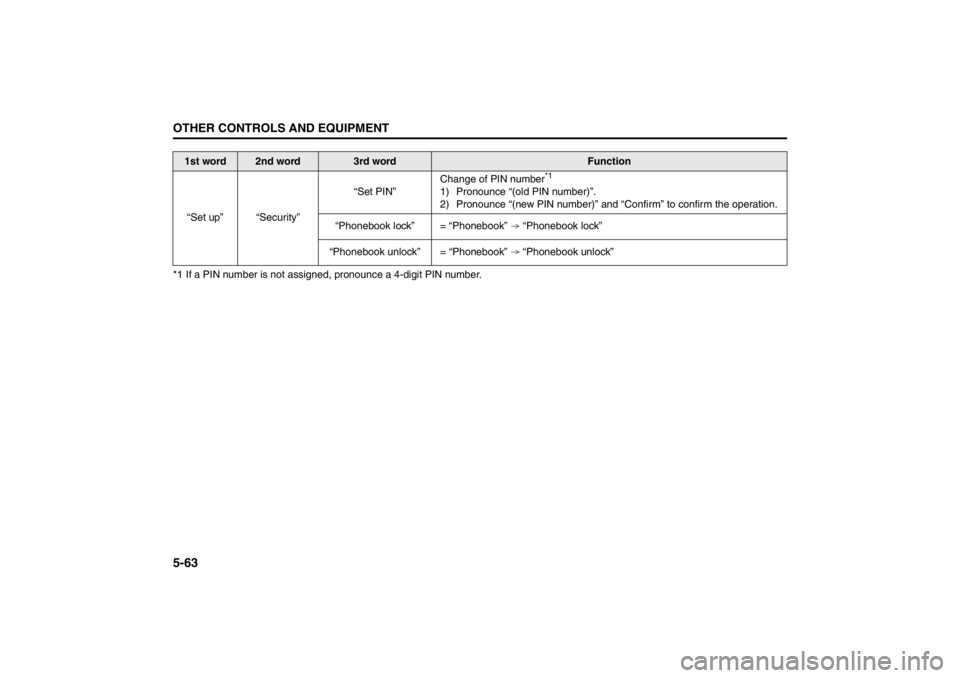
*1 If a PIN number is not assigned, pronounce a 4-digit PIN number.
1st word
2nd word
3rd word
Function
“Set up” “Security”“Set PIN”Change of PIN number
*1
1) Pronounce “(old PIN number)”.
2) Pronounce “(new PIN number)” and “Confirm” to confirm the operation.
“Phonebook lock” = “Phonebook” “Phonebook lock”
“Phonebook unlock” = “Phonebook” “Phonebook unlock”
Page 246 of 388

5-67OTHER CONTROLS AND EQUIPMENT
57L20-03E
The anti-theft feature is intended to dis-
courage theft or the audio system by pre-
venting the system from operating when it
is moved to a different vehicle.
This feature works by allowing you to enter
a Personal Identification Number (PIN).
When the audio system is disconnected
from its power source, such as when the
audio system is removed or the battery is
disconnected, the system will not operate
again unless the PIN is reentered.Setting the Anti-Theft Function
1) Press the VOL PUSH POWER knob
(1) to power off.
2) Press the Preset buttons (2) 1, 6 and
VOL PUSH POWER knob (1) simulta-
neously.
“SECURITY” is displayed.
3) Press the Up button (3) and Preset
button (2) 1 simultaneously.
4) Enter a 4-digit PIN number using the
Preset buttons (2) 1-4.
5) Hold down TUNE FOLDER PUSH
SOUND knob (4) for 1 sec. or more.
NOTE:
Write down your PIN for the future use.
Canceling the anti-theft feature
This operation is to be done when you
want to cancel the anti-theft function or
change your PIN.
1) Press the Preset buttons (2) 1, 6 and
the VOL PUSH POWER knob (1)
simultaneously.
2) Press the Up button (3) and Preset
button (2) 1 simultaneously.
3) Enter a 4-digit PIN number using the
Preset buttons (2) 1-4.
4) Hold down the TUNE FOLDER PUSH
SOUND knob (4) for 1 sec. or more.
NOTE:
To change your PIN, first delete your cur-
rent PIN, then set a new one.Confirming Your Personal Identification
Number (PIN)
When the main power source is discon-
nected such as when you exchange your
battery, etc, you will have to confirm your
PIN to be able to use the audio system.
1) Press the engine switch to change the
ignition mode to “ACC”.
2) Press the Up button (3) and Preset
button (2) 1 simultaneously.
3) Enter a 4-digit PIN number using the
Preset buttons (2) 1-4.
4) Hold down the TUNE FOLDER PUSH
SOUND knob (4) for 1 sec. or more.
If the PIN that you input matches the
registered PIN, the power of the audio-
system will turn off, and you will be
able to operate the audio system.
NOTE:
If you input your PIN incorrectly, “ERROR”
will be displayed. If you enter an incorrect
PIN more than 10 times, “HELP” will be
displayed and you can not perform any
further operation.
Page 247 of 388

5-68
OTHER CONTROLS AND EQUIPMENT
57L20-03E
TroubleshootingIf you suspect something wrong, check and take steps as described below.
If the described suggestions do not solve the problem, it is recommended to take the unit to your nearest dealer.
Problem
Possible cause
Possible solution
Common
Unable to operate The security function is on.If the unit displays “SECURITY”, enter
your user ID.
If the unit displays “HELP”, consult your
dealer.
Power is not turned on.
(No sound is produced)Fuse is blown. Contact your authorized SUZUKI dealer.
Radio
Much noiseThe unit is not exactly tuned in to the sta-
tion.Tune it in exactly to the station.
Unable to receive by auto tuningThere is no station emitting signals pow-
erful enough.Pick up a station by manual tuning.
XM
Channel unselectable No contact with XM Satellite radio Inc.Refer to the XM’s website to sign up for
XM Radio service.
CD
Sound skipping or noiseThe disc is dirty. Wipe the disc with a soft cloth.
The disc has a major flaw or is warped.Replace the disc with another without
flaws.