2010 MERCEDES-BENZ SLS COUPE navigation
[x] Cancel search: navigationPage 130 of 361
deletes the oldest destination. You can also
store one destination from the list of previous
destinations in the destination memory. It will
be stored there permanently. Storing
adestination permanently in
the destination memory
X Proceed as described in the "From the list
of previous destinations" section
(Y page 125). Storing the vehicle position in the list
of previous destinations
X Switch to navigation mode and display the
menu system (Y page 82).
X Select Position 0004Save vehicle
position.
COMAND stores the curren tvehicle posi-
tion as a destination in the list of previous
destinations. Storing the crosshair position in the
list of previous destinations
i Acrosshair appears on the map if you
have moved the map manually.Y ou can
store the crosshair position as a destina-
tion in the list of previous destinations.
X To display the menu system: press0017.
X Select Position 0004Save crosshair
position.
COMAND stores the crosshair position as
a destination in the list of previous desti-
nations. Deleting one of the previous destina-
tions
X Switch to navigation mode and display the
menu system (Y page 82). X
Select Destination 0004From last des‐
tinations.
The list of previous destinations appears.
X Select the desired destination.
X Select Options 0004Delete.
Aq uery appears.
X Select YesorNo.
If you select Yes, COMAND deletes the
destination .You see a message to this
effect. Telephone
General notes
COMAND offers you dual-level telephone
functions.
The basic version, when used in conjunction
with a Bluetooth ®
-capable mobile phone,
offers telephony via the Bluetooth ®
interface.
With a suitable mobile phone, you can use the
hands-free system and receive electronic
vCards via the Bluetooth ®
interface.
If your vehicle is equipped with convenience
telephony*, you can obtain mobile phone
brackets* for specific mobile phones at your
Mercedes-Benz Service Centre and have
them installed in the centre armrest.
In the bracket*, the mobile phone battery is
charged and a connection is made to the
vehicle's exterior aerial.
When using a suitable mobile phone, the con-
venience telephony* function offers, in addi-
tion to the hands-free function, the ability to
load the phone book from your mobile phone
and to use the text message function (SMS).
i If your vehicle is equipped with conveni-
ence telephony*, you can also connect a
Bluetooth ®
-capable mobile phone to
COMAND via the Bluetooth ®
interface.
You can obtain more detailed information
about suitable mobile phones and about con-
necting Bluetooth ®
-capable mobile phones to Telephone
127COMAND APS
*optional
BA 197 ECE RE 2010/6a; 1; 2, en-GB
sabbaeu
Version: 3.0.3.6 2010-05-07T14:19:43+02:00 - Seite 127 Z
Page 140 of 361
item and the phone book already contains
too much data, the
Memory fullmessage
appears.
Receiving vCards (via the Bluetooth*
interface) i
You can receive vCards fro maBlue-
tooth ®
telephone or a convenience tele-
phone*.
You can import vCards from external Blue-
tooth ®
-capable phones into the address
book. Please observe that:
R Bluetooth ®
must be activated in COMAND
and in the external Bluetooth ®
-capable
telephone (see the operating instructions
of the respective mobile phone).
R the external Bluetooth ®
phone mus tbe
able to send vCards via Bluetooth ®
(see
operating instructions of the respective
mobile phone).
R the external Bluetooth ®
phone in the vehi-
cle is switched on and authorised
(Y page 129).
i If you switch to another main function,
e.g .navigation, while receiving vCards, the
reception of vCards will be terminated.
X Press the 0008function button.
X Select Telephone 0004Receive busi‐
ness cards.
This interrupts the Bluetooth ®
connection
between COMAND and your active mobile
phone. COMAND, however, is ready to
receive vCards from another mobile phone.
X Start data transfer on the external Blue-
tooth ®
phone (see operating instructions of
the respective mobile phone).
The data on the vCards is automatically
transferred to the phon ebook. The number
of vCards received is displayed. X
To cancel the transfer: press0017.
or
X Press the 0001back button next to the
COMAND controller.
Deleting external data You can use this function to delete data
imported from the convenience telephone*.
X
Press the 0008function button.
X Select Telephone 0004Delete external
data.
Ap rompt appears asking whethe rall the
imported data should be deleted.
X Select YesorNo.
The data will either be deleted or not,
depending on your selection.
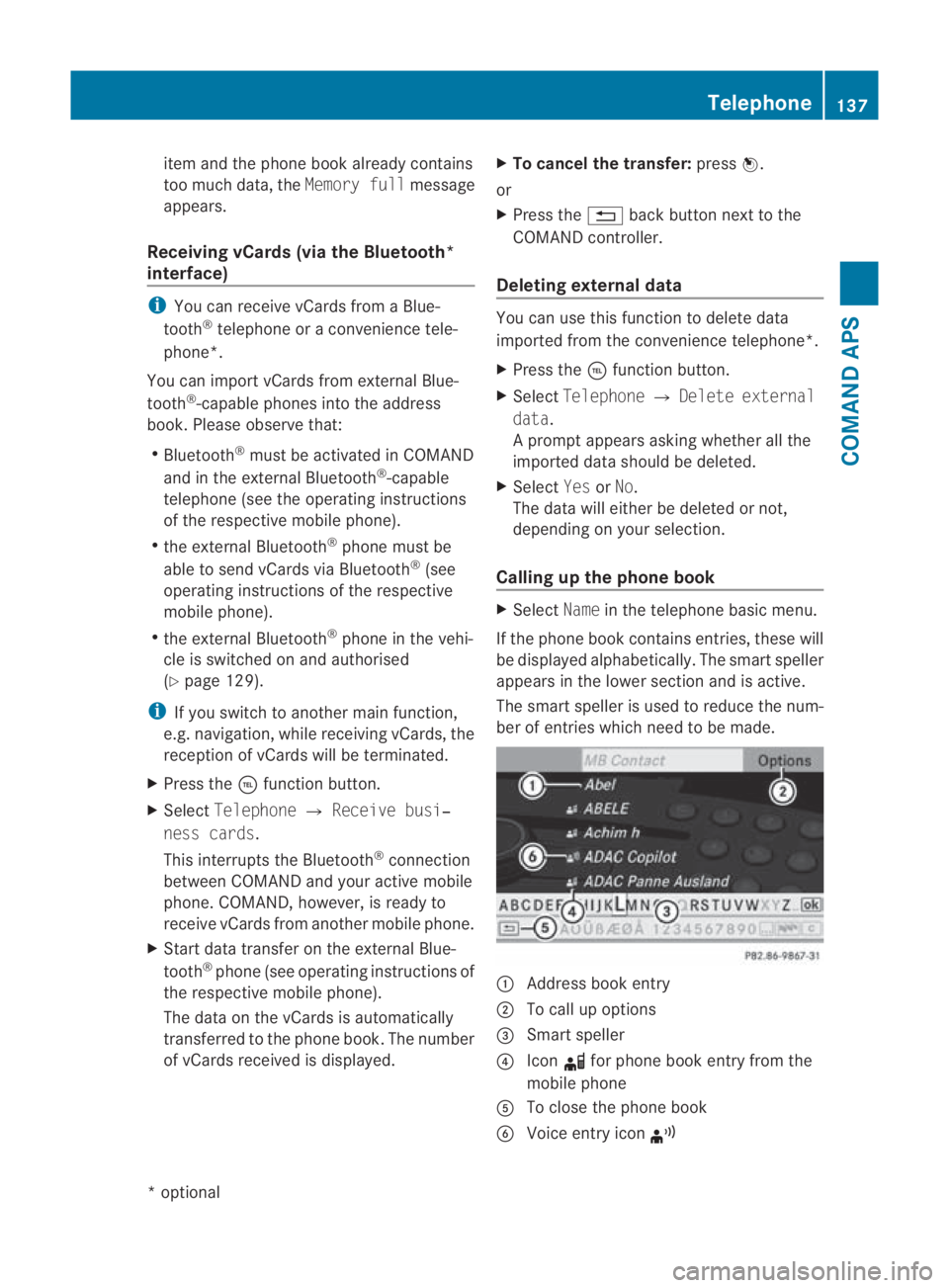
Calling up the phone book X
Select Namein the telephone basic menu.
If the phone book contains entries, these will
be displayed alphabetically. The smart speller
appears in the lower section and is active.
The smart speller is used to reduce the num-
ber of entries which need to be made. 0001
Address book entry
0002 To call up options
0015 Smart speller
0014 Icon 000Ffor phone book entry from the
mobile phone
0012 To close the phone book
0013 Voice entry icon ¦ Telephone
137COMAND APS
*optional
BA 197 ECE RE 2010/6a; 1; 2, en-GB
sabbaeu
Version: 3.0.3.6 2010-05-07T14:19:43+02:00 - Seite 137 Z
Page 152 of 361
X
Select a telephone category, e.g. Mobile.
X Select Save.
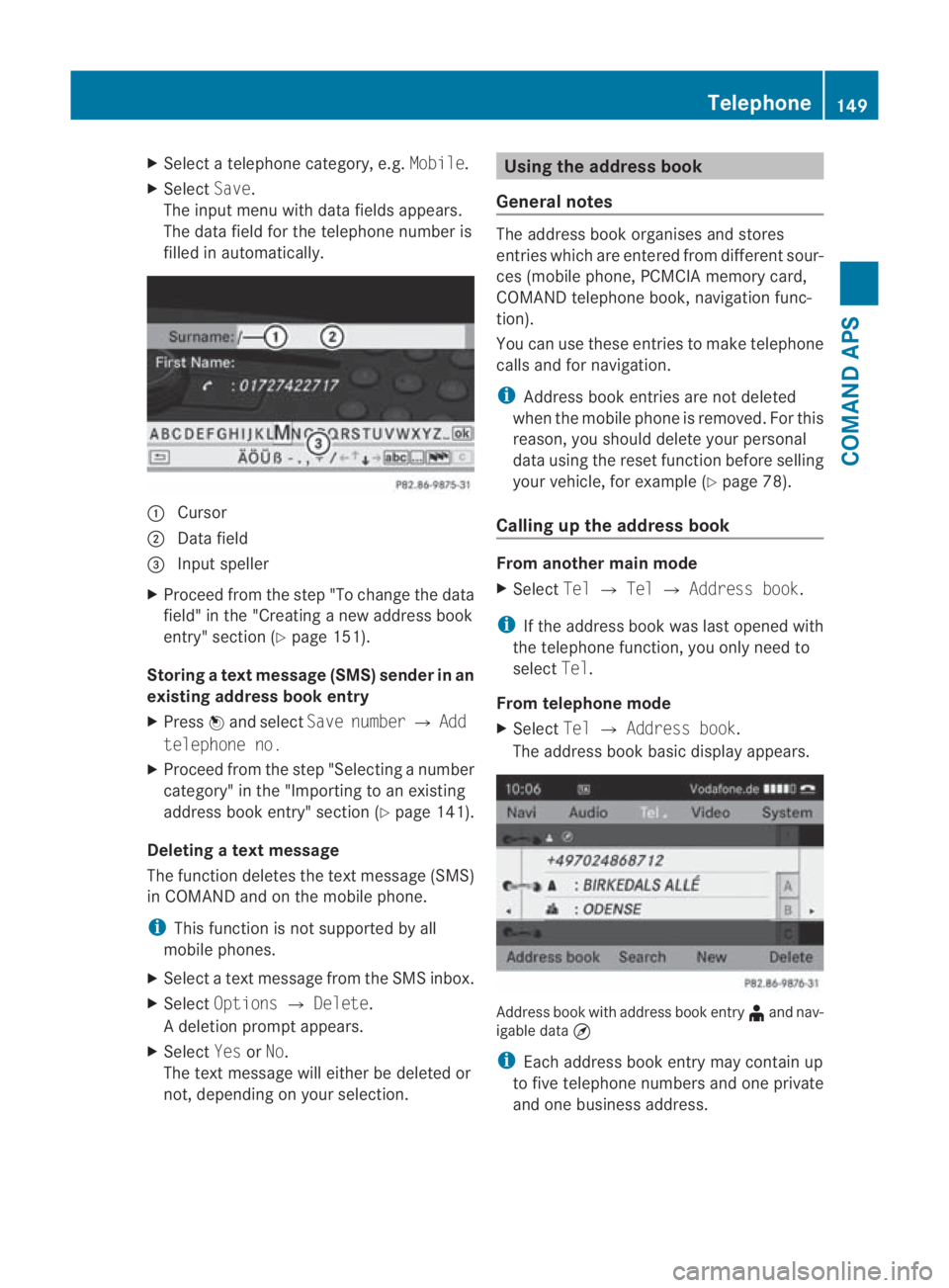
The input menu with data fields appears.
The data field for the telephone number is
filled in automatically. 0001
Cursor
0002 Data field
0015 Inpu tspeller
X Proceed from the step "To change the data
field" in the "Creating anew address book
entry" section (Y page 151).
Storing atext message (SMS) sender in an
existing address book entry
X Press 0017and select Save number 0004Add
telephone no.
X Proceed fro mthe step "Selecting a number
category" in the "Importing to an existing
address book entry" section (Y page 141).
Deleting atext message
The function deletes the tex tmessage (SMS)
in COMAND and on the mobile phone.
i This function is not supported by all
mobile phones.
X Select a textm essage from the SMS inbox.
X Select Options 0004Delete.
Ad eletion prompt appears.
X Select YesorNo.
The textm essage will either be deleted or
not, depending on your selection. Using the address book
General notes The address book organises and stores
entries which are entered from differen
tsour-
ces (mobile phone, PCMCIA memory card,
COMAND telephone book, navigation func-
tion).
You can use these entries to make telephone
calls and for navigation.
i Address book entries are not deleted
when the mobile phone is removed. For this
reason, you should delete your personal
data using the reset function before selling
your vehicle, for example (Y page 78).
Calling up the address book From another main mode
X
Select Tel0004Tel 0004Address book.
i If the address book was last opened with
the telephone function, you only need to
select Tel.
From telephone mode
X Select Tel0004Address book.
The address book basic display appears. Address book with address book entry
¥and nav-
igable data ¤
i Each address book entry may contain up
to five telephone numbers and one private
and one business address. Telephone
149COMAND APS
BA 197 ECE RE 2010/6a; 1; 2, en-GB
sabbaeu Version: 3.0.3.6 2010-05-07T14:19:43+02:00 - Seite 149 Z
Page 154 of 361
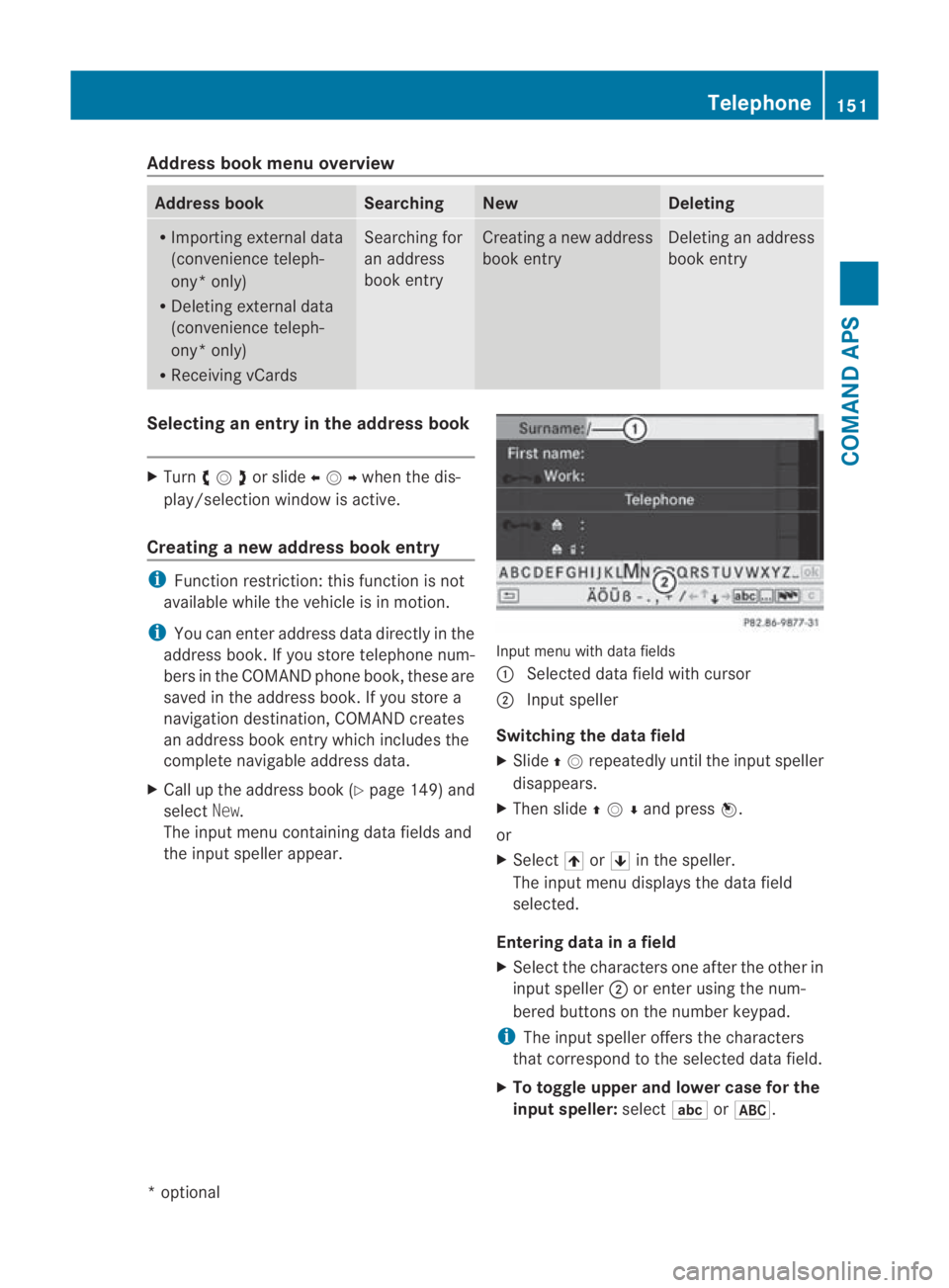
Address book men
uoverview Address book Searching New Deleting
R
Importing external data
(convenience teleph-
ony* only)
R Deleting external data
(convenience teleph-
ony* only)
R Receiving vCards Searching for
an address
book entry Creating a new address
book entry Deleting an address
book entry
Selecting an entry in the address book
X
Turn 002800130029or slide 002B0013002Cwhen the dis-
play/selection window is active.
Creating a new address book entry i
Function restriction: this function is not
available while the vehicle is in motion.
i You can enter address data directly in the
address book .Ifyou store telephone num-
bers in the COMAND phone book, these are
saved in the address book. If you store a
navigation destination, COMAND creates
an address book entry which includes the
complete navigable address data.
X Call up the address book (Y page 149) and
select New.
The input menu containing data fields and
the input speller appear. Input menu with data fields
0001
Selected data field with cursor
0002 Input speller
Switching the data field
X Slide 001F0013repeatedly until the inpu tspeller
disappears.
X Then slide 001F0013000Dand press 0017.
or
X Select 001Aor001B in the speller.
The input menu displays the data field
selected.
Entering data in a field
X Select the characters one after the other in
input speller 0002or enter using the num-
bered buttons on the number keypad.
i The input speller offers th echaracters
that correspond to the selected data field.
X To toggle upper and lower case for the
input speller: select0003or0024. Telephone
151COMAND APS
*optional
BA 197 ECE RE 2010/6a; 1; 2, en-GB
sabbaeu Version: 3.0.3.6 2010-05-07T14:19:43+02:00 - Seite 151 Z
Page 155 of 361
X
To change the character set for the
input speller: select0001.
The character set changes each time you
make this selection.
X To change the language for the input
speller: select0014.
X Turn 002800130029or slide 001F0013000Duntil the desired
language is highlighted and then press 0017.
X To move the cursor in the data field:
select 0018or0019.
Deleting
X To delete individual characters: select
0004 and briefly press 0017.
or
X Press the 0013button next to the
COMAND controller.
The character to the left of the cursor is
deleted.
X To delete an entire entry: select0004and
press and hold the 0017butto nuntil the entire
entry has been deleted.
or
X Press the 0013button next to the
COMAND controller and hold it until the
entire entry is deleted.
Cancelling an entry
X Select 0002.
If one of the data fields contains new data,
a prompt will appear asking whethe ryou
wish to store the entry.
X Select YesorNo.
The entry will either be stored or not,
depending on your selection.
Storing an entry
X Select 0005.
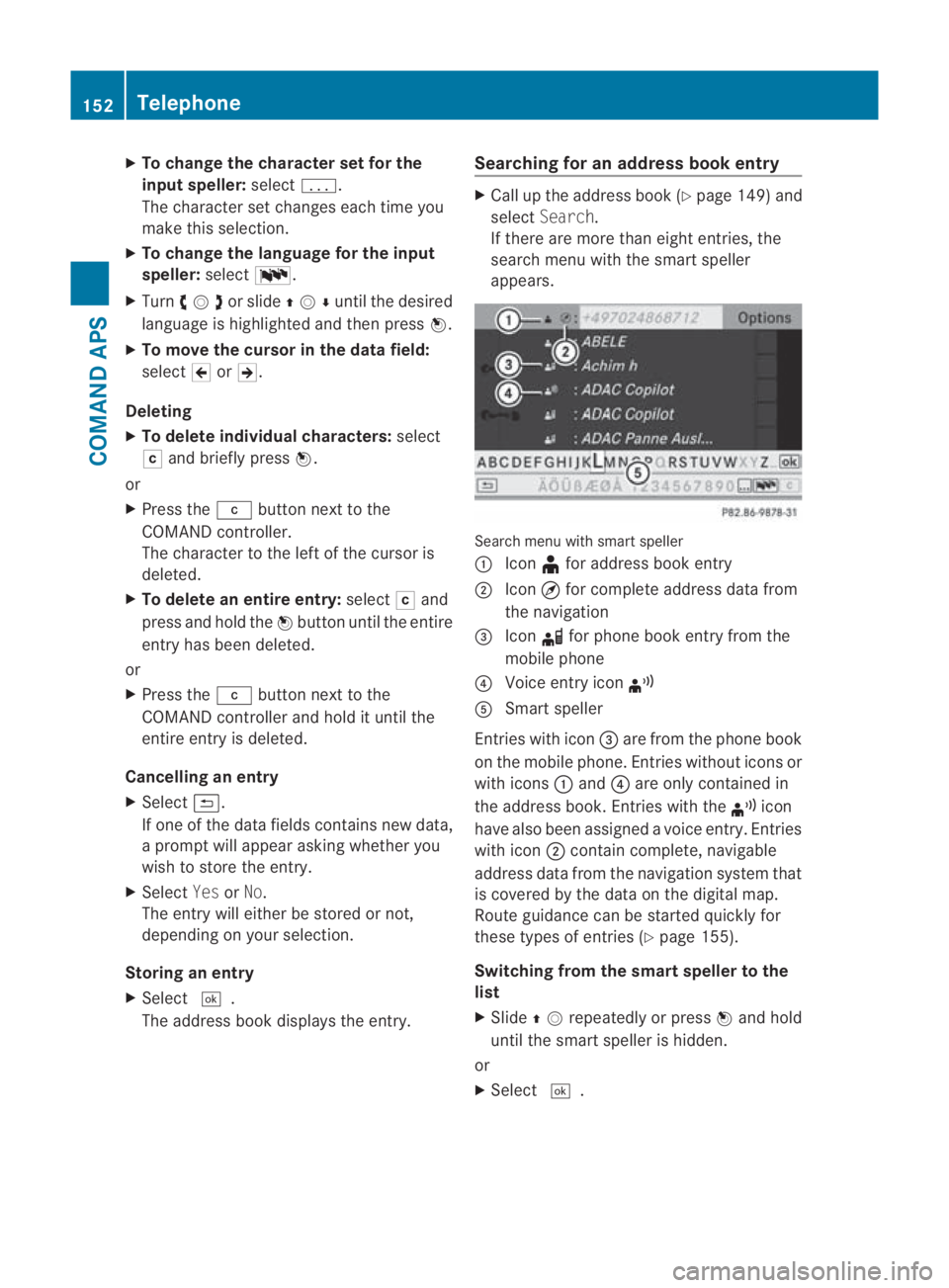
The address book displays the entry. Searching for an address book entry X
Call up the address book (Y page 149) and
select Search.
If there are more than eight entries, the
search menu with the smart speller
appears. Search menu with smart speller
0001
Icon ¥for address book entry
0002 Icon ¤for complete address data from
the navigation
0015 Icon 000Ffor phone book entry from the
mobile phone
0014 Voice entry icon ¦
0012 Smart speller
Entries with icon 0015are from the phone book
on the mobile phone. Entries without icons or
with icons 0001and 0014are only contained in
the address book. Entries with the ¦icon
have also been assigned a voice entry. Entries
with icon 0002contain complete, navigable
address data from the navigation system that
is covered by the data on the digital map.
Route guidance can be started quickly for
these types of entries (Y page 155).
Switching from the smart speller to the
list
X Slide 001F0013repeatedly or press 0017and hold
until the smart speller is hidden.
or
X Select 0005. 152
TelephoneCOMAND APS
BA 197 ECE RE 2010/6a; 1; 2, en-GB
sabbaeu Version: 3.0.3.6 2010-05-07T14:19:43+02:00 - Seite 152
Page 167 of 361
Radio Data System (RDS)
The Radio Data System (RDS) provides inaud-
ible additional information in the FM wave-
band. The system consists of a listening
receiver and a monitoring receiver.
The monitoring receive rconstantly scans the
FM waveband and collects data from all the
stations with adequate reception, e.g. recep-
tion quality and RDS data such as programme
name and alternative frequencies. COMAND
stores the data and constantly updates the
memory. Therefore, the listening receiver is
able to switch inaudibly to an alternative fre-
quency with a better signal.
i RDS only functions for stations which
transmit RDS data.
Switching RDS on/off
You can use the functions "Frequency fix" (FM
mode) or "Station fix" (DAB mode*) to prevent
COMAND from switching between alternative
frequencies. This is useful, for example, when
the same content is broadcast with a time
delay, or when there is interference on one of
the frequencies.
X Select Radioin the radio or DABr adio dis-
play
X Select Frequency fix orStation fix .
The function is switched on 0019or off 0004,
depending on the previous status.
Traffic Programme Many FM stations transmit traffic announce-
ments (TA). You can also hear these in DAB
radio mode*.
You can switch announcements on and off or
interrupt a current announcement.
Switching Traffic Programme on/off
X Firs toption: selectRadio in the radio or
DAB radio display. The tick next to
TAindicates that traffic
announcement receptio nis switched on.
You see the TAicon in the status bar.
X Select TA.
TA is switched on or off, depending on the
previous status.
X Second option: press and hold the 001E
button until the TAicon lights up or goes
out in the status bar.
At one sounds.
or
X Using the multifunction steering wheel,
press and hold 001Euntil the TAicon lights
up or goes out in the status bar.
At one sounds.
Once traffic announcements have been
switched on, COMAND selects an RDS sta-
tion. The Traffic Programme is retrieved from:
R the currently selected FM station
R an RDS station in the range of stations of
the currently selected FM station
R the RDS station with the best reception
quality
When traffic announcements are switched
on, a traffic announcement will interrupt the
audio signal from the currently activated
audio or video source.
i Telephone conversations and navigation
announcements are not interrupted.
Ad isplay message appears in the display in
all audio operating modes.
Interrupting a traffic announcement
X Briefly press the 000Bbutton during a traffic
announcement.
or
X Using the multifunction steering wheel,
briefly press the 000Bbutton during a traffic
announcement.
COMAND switches back to the audio
source that was selected before the
announcement. Any subsequent new
announcements will continue to interrupt
the audio source. 164
AudioCOMAND APS
*o
ptional
BA 197 ECE RE 2010/6a; 1; 2, en-GB
sabbaeu
Version: 3.0.3.6 2010-05-07T14:19:43+02:00 - Seite 164
Page 193 of 361
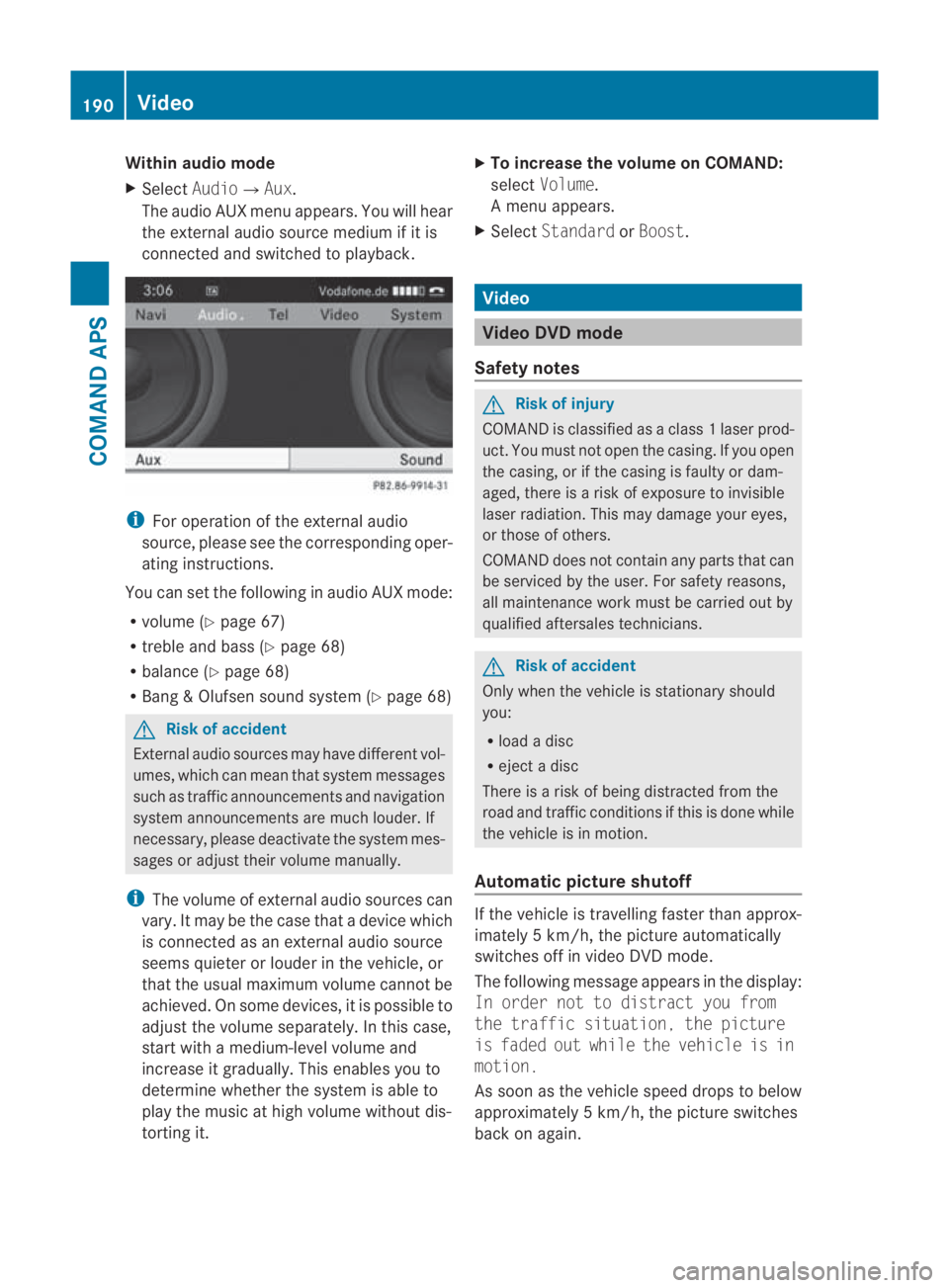
Within audio mode
X
Select Audio0004Aux.
The audio AUX menu appears .You will hear
the external audio source medium if it is
connected and switched to playback. i
For operation of the external audio
source, please see the corresponding oper-
ating instructions.
You can set the following in audio AUX mode:
R volume (Y page 67)
R treble and bass ( Ypage 68)
R balance (Y page 68)
R Bang &Olufsen sound system (Y page 68)G
Risk of accident
External audio sources may have differen tvol-
umes, which can mean that system messages
such as traffic announcements and navigation
system announcements are much louder. If
necessary, please deactivate the system mes-
sages or adjust their volume manually.
i The volume of external audio sources can
vary. It may be the case that a device which
is connected as an external audio source
seems quieter or louder in the vehicle, or
that the usual maximum volume cannot be
achieved. On some devices, it is possible to
adjust the volume separately. In this case,
start with a medium-level volume and
increase it gradually. This enables you to
determine whether the system is able to
play the music at high volume without dis-
torting it. X
To increase the volume on COMAND:
select Volume.
Am enu appears.
X Select Standard orBoost. Video
Video DVD mode
Safety notes G
Risk of injury
COMAND is classified as a class 1laser prod-
uct .You must not open the casing. If you open
the casing, or if the casing is faulty or dam-
aged, there is a risk of exposure to invisible
laser radiation. This may damage your eyes,
or those of others.
COMAND does not contain any parts that can
be serviced by the user. For safety reasons,
all maintenance work must be carried out by
qualified aftersales technicians. G
Risk of accident
Only when the vehicle is stationary should
you:
R load a disc
R eject a disc
There is a risk of being distracted from the
road and traffic conditions if this is done while
the vehicle is in motion.
Automatic picture shutoff If the vehicle is travelling faster than approx-
imately
5km/h, the picture automatically
switches off in video DVD mode.
The following message appears in the display:
In order not to distract you from
the traffic situation, the picture
is faded out while the vehicle is in
motion.
As soon as the vehicle spee ddrops to below
approximately 5km/h, the picture switches
back on again. 190
VideoCOMAND APS
BA 197 ECE RE 2010/6a; 1; 2, en-GB
sabbaeu
Version: 3.0.3.6
2010-05-07T14:19:43+02:00 - Seite 190
Page 194 of 361
Notes on discs
i
There may be playback problems when
playing copied discs .There are a large vari-
ety of discs, DVD authoring software, writ-
ing software and writers available. This vari-
ety means that there is no guarantee that
the system will be able to play discs that
you have copied yourself.
! Do not affix stickers or labels to the discs,
as they could peel off and damage
COMAND. Stickers can cause the disc to
bend, which can result in read errors and
disc recognition problems.
! COMAND is designed to accommodate
discs which comply with the EN 60908
standard. You can therefore only use discs
with a maximum thickness of 1.3 mm.
If you insert thicker discs, e.g. those that
contain data on both sides (DVD on one
side and audio data on the other), they can-
not be ejected and can damage COMAND.
Use round discs with a diameter of 12 cm.
Do not use discs with a diameter of 8 cm,
even with an adapter.
Notes on handling discs R
Only hold discs by the edge.
R Handle discs carefully to prevent playback
problems.
R Avoid getting scratches, fingerprints and
dust on discs.
R Clean discs from time to time with a com-
mercially available cleaning cloth. When
cleaning CDs, you should wipe in straight
lines from the centre outwards rather than
in a circular motion.
R Only use a pen specifically made for label-
ling discs.
R Place discs back in their cases after use.
R Protect discs from heat and direct sunlight. DVD playback conditions It is possible to buy video DVDs which do not
conform to current standards.
Such DVDs may have picture, sound or other
playback problems. COMAND can play back
video DVDs produced according to the fol-
lowing standards:
R
region code 2orregion code 0(no region
code)
i If you insert a video DVD with a different
regio ncode, you will see a message to this
effect.
R PAL or NTSC TV standard
You will generally find the relevant details
either on the DVD itself or on the DVD case.
i COMAND is set to region code 2 at the
factory. This setting can be changed at a
Mercedes-Benz Service Centre. This will
allow you to play video DVDs with a differ-
ent region code, provided that they are pro-
duced in accordance with the PAL or NTSC
TV standard. The region code can be
changed a maximum of five times.
Background video mode If another main function is active, such as
navigation, you can use the
0001or0002
button to carry out the following functions in
video DVD mode:
R select a scene/chapter
R fast forward or rewind
Aw indow shows information about the selec-
ted function.
Function restrictions Depending on the DVD, it is possible that cer-
tain functions or actions will be temporarily
blocked or may not function at all. As soon as
you try to activate these functions or actions,
you will see the
0008symbol in the display. Video
191COMAND APS
BA 197 ECE RE 2010/6a; 1; 2, en-GB
sabbaeu Version: 3.0.3.6 2010-05-07T14:19:43+02:00 - Seite191 Z