Page 213 of 465
Keyless Go Display — If Equipped
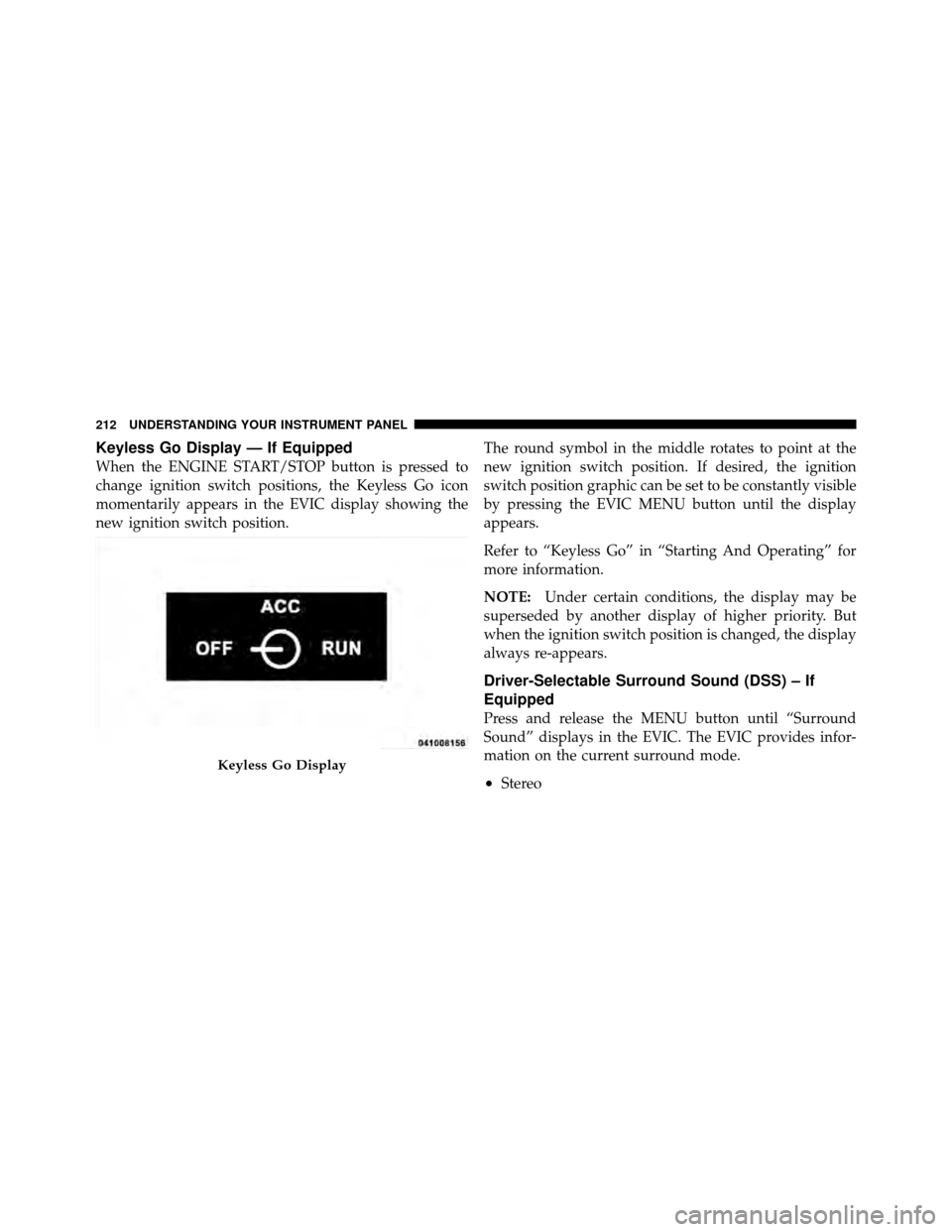
When the ENGINE START/STOP button is pressed to
change ignition switch positions, the Keyless Go icon
momentarily appears in the EVIC display showing the
new ignition switch position.The round symbol in the middle rotates to point at the
new ignition switch position. If desired, the ignition
switch position graphic can be set to be constantly visible
by pressing the EVIC MENU button until the display
appears.
Refer to “Keyless Go” in “Starting And Operating” for
more information.
NOTE:
Under certain conditions, the display may be
superseded by another display of higher priority. But
when the ignition switch position is changed, the display
always re-appears.
Driver-Selectable Surround Sound (DSS) – If
Equipped
Press and release the MENU button until “Surround
Sound” displays in the EVIC. The EVIC provides infor-
mation on the current surround mode.
•Stereo
Keyless Go Display
212 UNDERSTANDING YOUR INSTRUMENT PANEL
Page 214 of 465
•Video Surround
•Audio Surround
While in the Surround Sound menu, press the FUNC-
TION SELECT button to change surround modes. The
Video Surround Mode will only be available for video
media sources (DVDs, Video CDs, or other video media
supported by the radio).
Compass Display
The compass readings indicate the direction
the vehicle is facing. Press and release the
HOME button to display one of eight compass
readings and the outside temperature.
NOTE: The system will display the last known outside
temperature when starting the vehicle and may need to
be driven several minutes before the updated tempera-
ture is displayed. Engine temperature can also affect the displayed temperature, therefore temperature readings
are not updated when the vehicle is not moving.
Automatic Compass Calibration
This compass is self-calibrating, which eliminates the
need to set the compass manually. When the vehicle is
new, the compass may appear erratic and the EVIC will
display “CAL” until the compass is calibrated. You may
also calibrate the compass by completing one or more 360
degree turns (in an area free from large metal or metallic
objects) until the “CAL” message displayed in the EVIC
turns off. The compass will now function normally.
Manual Compass Calibration
If the compass appears erratic and the “CAL” message
does not appear in the EVIC display, you must put the
compass into the Calibration Mode manually as follows:
1. Turn the ignition switch ON.
2. Press and hold the HOME button for approximately
two seconds.HOME
Button
4
UNDERSTANDING YOUR INSTRUMENT PANEL 213
Page 215 of 465
3. Press the SCROLL button until “Calibrate Compass”
displays in the EVIC.
4. Press and release the FUNCTION SELECT button to
start the calibration. The message “CAL” will display in
the EVIC.
5. Complete one or more 360 degree turns (in an area free
from large metal or metallic objects) until the “CAL”
message turns off. The compass will now function
normally.
Compass Variance
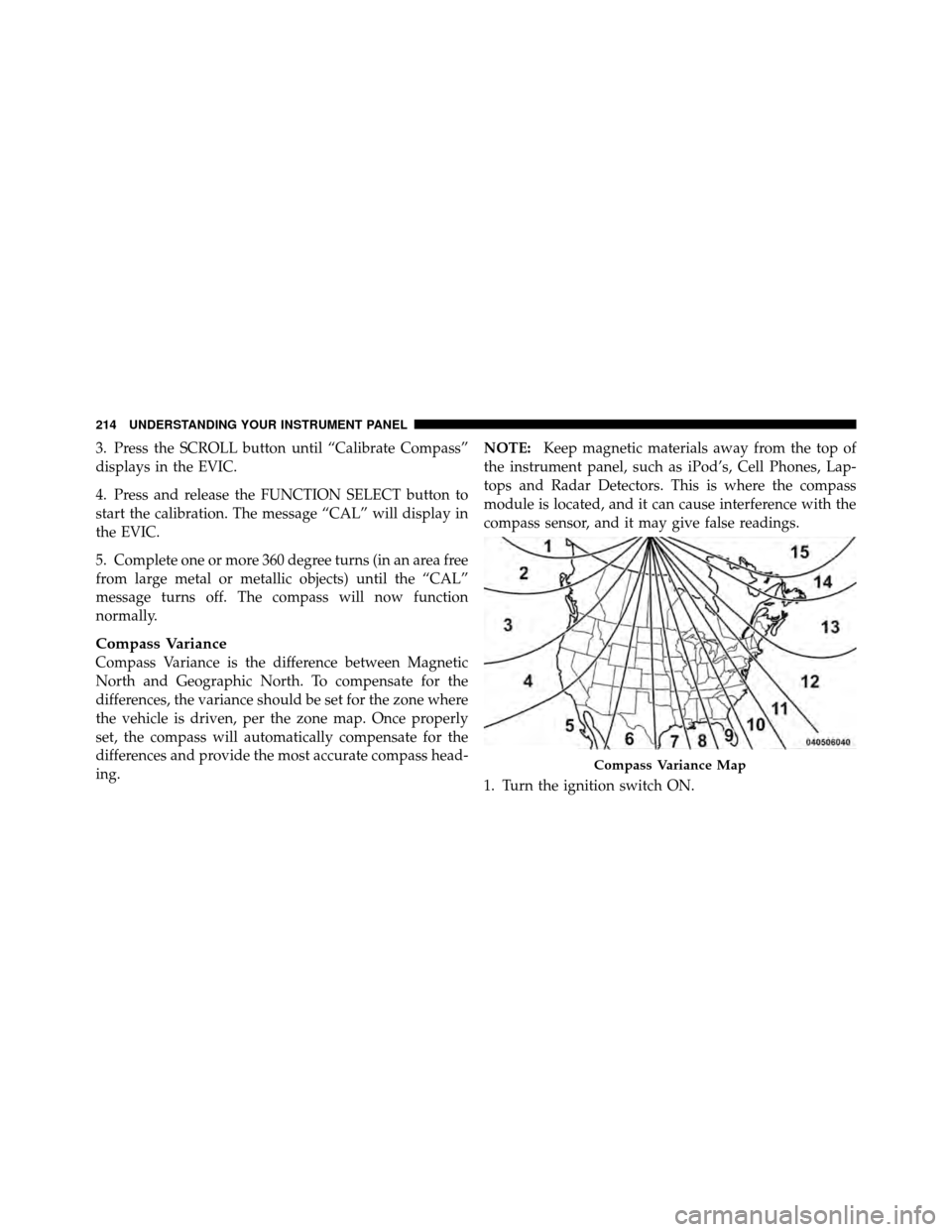
Compass Variance is the difference between Magnetic
North and Geographic North. To compensate for the
differences, the variance should be set for the zone where
the vehicle is driven, per the zone map. Once properly
set, the compass will automatically compensate for the
differences and provide the most accurate compass head-
ing.NOTE:
Keep magnetic materials away from the top of
the instrument panel, such as iPod’s, Cell Phones, Lap-
tops and Radar Detectors. This is where the compass
module is located, and it can cause interference with the
compass sensor, and it may give false readings.
1. Turn the ignition switch ON.
Compass Variance Map
214 UNDERSTANDING YOUR INSTRUMENT PANEL
Page 220 of 465
door. Refer to “Driver Memory Seat” in “Understanding
The Features Of Your Vehicle” for further information.
“Flash Lights with Remote Key Lock”
When ON is selected, the front and rear turn signals will
flash when the doors are locked or unlocked with the
RKE transmitter. This feature may be selected with or
without the sound horn on lock feature selected. To make
your selection, press and release the FUNCTION SE-
LECT button until “ON” or “OFF” appears.
“Headlights On with Wipers”
When ON is selected, and the HEADLIGHT switch is in
the AUTO position, the headlights will turn on approxi-
mately 10 seconds after the wipers are turned on. The
headlights will also turn off when the wipers are turned
off if they were turned on by this feature. To make your
selection, press and release the FUNCTION SELECT
button until “ON” or “OFF” appears.NOTE:
Turning the headlights on during the daytime
causes the instrument panel lights to dim. To increase the
brightness, refer to “Lights” in “Understanding The
Features Of Your Vehicle”.
“Delay Turning Headlights Off”
When this feature is selected, the driver can choose to
have the headlights remain on for 0, 30, 60, or 90 seconds
when exiting the vehicle. To make your selection, press
and release the FUNCTION SELECT button until “0,”
“30,” “60,” or “90” appears.
“Tilt Mirrors Down in Reverse”
When ON is selected, the outside rearview mirrors will
tilt downward when the ignition switch is in the ON
position and the transmission is in the REVERSE posi-
tion. The mirrors will move back to their previous
position when the transmission is shifted out of RE-
VERSE. To make your selection, press and release the
FUNCTION SELECT button until “ON” or “OFF”
appears.
4
UNDERSTANDING YOUR INSTRUMENT PANEL 219
Page 221 of 465

“Turn Headlights On with Remote Key Unlock”
When this feature is selected, the headlights will activate
and remain on for up to 90 seconds when the doors are
unlocked with the RKE transmitter. To make your selec-
tion, press and release the FUNCTION SELECT button
until “OFF,” “30 sec.,” “60 sec.,” or “90 sec.” appears.
“Delay Power Off to Accessories Until Exit”
When this feature is selected, the power WINDOW
switches, radio, Uconnect™ Phone (if equipped), DVD
video system (if equipped), power sunroof (if equipped),
and power outlets will remain active for up to 60 minutes
after the ignition switch is turned OFF. Opening a vehicle
door will cancel this feature. To make your selection,
press and release the FUNCTION SELECT button until
“Off,” “45 sec.,” “5 min.,” “10 min.,” “30 min.,” or “60
min.” appears.
“Confirmation of Voice Commands” — If
Equipped
When ON is selected, all voice commands from the
Uconnect™ system are confirmed. To make your selec-
tion, press and release the FUNCTION SELECT button
until “ON” or “OFF” appears.
“Park Assist System”
When ON is selected, the system will scan for objects
behind the vehicle when the transmission is in the
REVERSE or NEUTRAL position. To make your selec-
tion, press and release the FUNCTION SELECT button
until “ON” or “OFF” appears.
“Turn-by-Turn Navigation” — If Equipped
When ON is selected, the turn-by-turn directions will
appear in the display as the vehicle approaches a desig-
nated turn within a programmed route. To make your
selection, press and release the FUNCTION SELECT
button until “ON” or “OFF” appears.
220 UNDERSTANDING YOUR INSTRUMENT PANEL
Page 227 of 465
4. Touch the screen where the words “Set Time Zone” are
displayed. The time zone selection menu will appear on
the screen.
5. Select a time zone by touching the screen where your
selection appears. If you do not see a time zone that you
want to select, touch the screen where the word “Page” is
displayed to view additional time zones in the menu.
6. Touch the screen where the word “Save” is displayed.
MEDIA CENTER 130 (RES) — AM/FM STEREO
RADIO WITH CD PLAYER (MP3 AUX JACK)
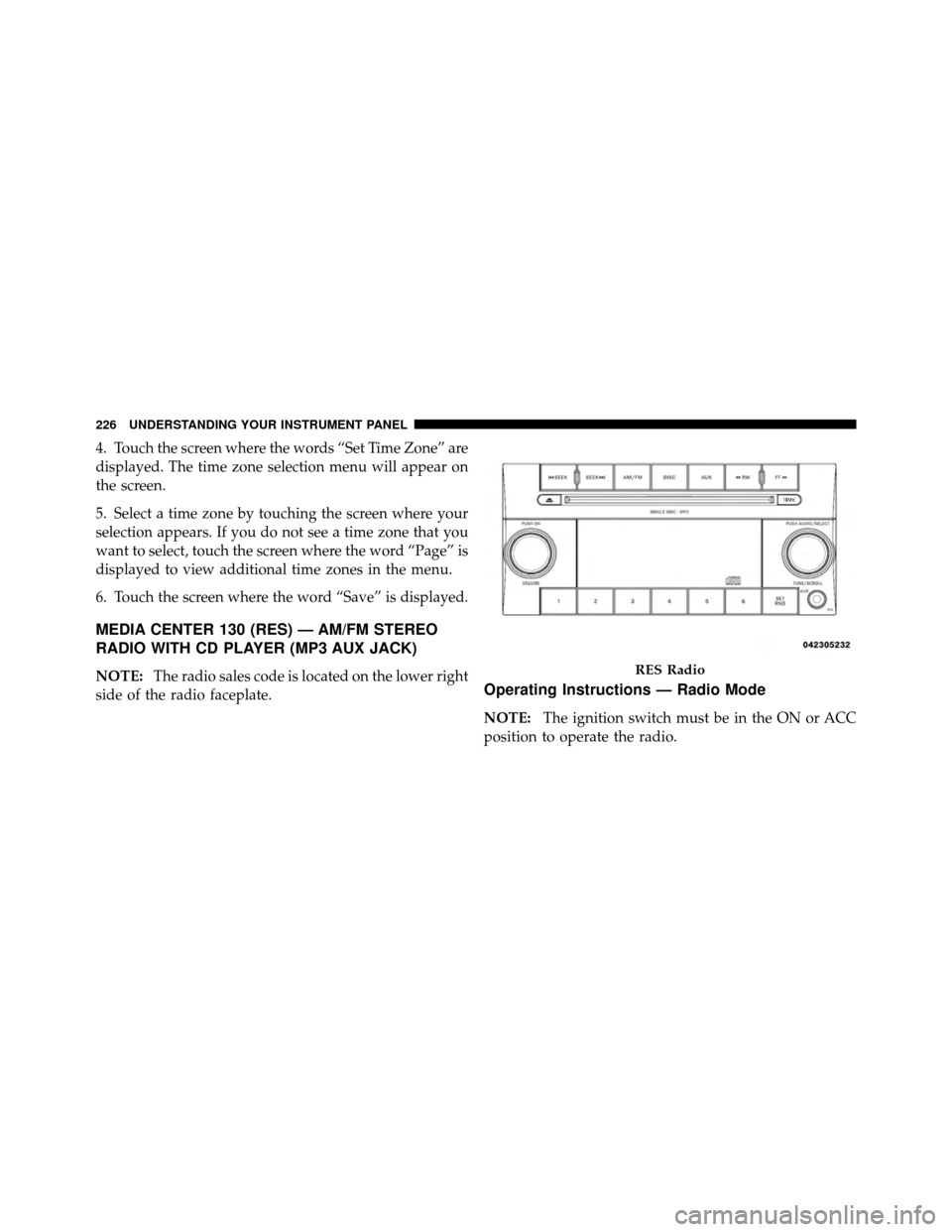
NOTE:The radio sales code is located on the lower right
side of the radio faceplate.Operating Instructions — Radio Mode
NOTE: The ignition switch must be in the ON or ACC
position to operate the radio.
RES Radio
226 UNDERSTANDING YOUR INSTRUMENT PANEL
Page 230 of 465
SET/RND Button — To Set the Pushbutton
Memory
When you are receiving a station that you wish to
commit to pushbutton memory, press the SET/RND
button. The symbol SET 1 will now show in the display
window. Select the button (1 to 6) you wish to lock onto
this station and press and release that button. If a button
is not selected within five seconds after pressing the
SET/RND button, the station will continue to play but
will not be stored into pushbutton memory.
You may add a second station to each pushbutton by
repeating the above procedure with this exception: Press
the SET/RND button twice and SET 2 will show in the
display window. Each button can be set for SET 1 and
SET 2 in both AM and FM. This allows a total of 12 AM
and 12 FM stations to be stored into pushbutton memory.
The stations stored in SET 2 memory can be selected by
pressing the pushbutton twice.Every time a preset button is used, a corresponding
button number will display.Buttons 1 - 6
These buttons tune the radio to the stations that you
commit to pushbutton memory (12 AM and 12 FM
stations).
DISC Button
Pressing the DISC button will allow you to switch from
AM/FM modes to Disc modes.
Operation Instructions — CD MODE For CD And
MP3 Audio Play
NOTE:
•The ignition switch must be in the ON or ACC
position to operate the radio.
•This radio is capable of playing compact discs (CD),
recordable compact discs (CD-R), rewritable compact
4
UNDERSTANDING YOUR INSTRUMENT PANEL 229
Page 231 of 465
discs (CD-RW), compact discs with MP3 tracks and
multisession compact discs with CD and MP3 tracks.
Inserting Compact Disc(s)
Gently insert one CD into the CD player with the CD
label facing up. The CD will automatically be pulled into
the CD player and the CD icon will illuminate on the
radio display. If a CD does not go into the slot more than
1.0 in (2.5 cm), a disc may already be loaded and must be
ejected before a new disc can be loaded.
If you insert a disc with the ignition ON and the radio
ON, the unit will switch from radio to CD mode and
begin to play when you insert the disc. The display will
show the track number, and index time in minutes and
seconds. Play will begin at the start of track 1.
CAUTION!
•This CD player will accept 4-3/4 in (12 cm) discs
only. The use of other sized discs may damage the
CD player mechanism.
•Do not use adhesive labels. These labels can peel
away and jam the player mechanism.
•RES is a single CD player. Do not attempt to insert
a second CD if one is already loaded.
•Dual-media disc types (one side is a DVD, the
other side is a CD) should not be used, and they
can cause damage to the player.
230 UNDERSTANDING YOUR INSTRUMENT PANEL