2010 CHEVROLET HHR ECO mode
[x] Cancel search: ECO modePage 186 of 480
For quick cool down on hot days:1. Select
H.
2. Select
@.
3. Select
#.
4. Select the coolest temperature.
5. Select the highest fan speed.
Using these settings together for long periods of time
can cause the air inside of the vehicle to become too
dry. To prevent this from happening, after the air in the
vehicle has cooled, turn off the recirculation by pressing
the outside air button.
The air conditioning system removes moisture from the
air, so a small amount of water might drip under the
vehicle while idling or after turning off the engine. This
is normal.
The air conditioning compressor cannot be turned on
when the fan is off.
@(Recirculation): Press to turn the recirculation
mode on. An indicator light comes on to show that
recirculation is on. This mode recirculates and helps to quickly cool the
air inside the vehicle. It can be used to help prevent
outside air and odors from entering the vehicle.
The air conditioning compressor also comes on.
Recirculation is not available in floor, defog and defrost
modes. If the recirculation button is pressed, the
indicator light flashes five times and outside air is
delivered. Operation in this mode during periods of high
humidity and cool outside temperatures can result in
increased window fogging. If window fogging is
experienced, select the defrost mode.
;(Outside Air):
Press to allow outside air to circulate
through the vehicle. An indicator light comes on to show
that outside air is on.
Rear Window Defogger
The rear window defogger uses a warming grid to
remove fog from the rear window.
The rear window defogger only works when the ignition
is in ON/RUN.
<(Rear): Press to turn the rear window defogger on
or off. Be sure to clear as much snow from the rear
window as possible. An indicator light comes on to
show that the rear window defogger is on.
4-20
Page 208 of 480

Region A Gauge and Speedometer
Displays
Change the information displayed in Region A by
turning the knob either clockwise or counterclockwise.
The available gauges are:
BOOST:Displays positive boost pressure as
determined by the manifold air pressure (MAP) sensor.
AIR/FUEL RATIO: Displays the mass ratio of air to fuel.
CAM PHASER ANGLES: Displays orientation of the
intake and exhaust cam shafts relative to their park
positions as commanded by the engine control module.
OVERLAP represents the total distance the intake and
exhaust cam shafts have phased.
SPARK ADVANCE/ KNOCK RETARD: The spark
advance gauge displays ignition timing. Knock retard
indicates the amount of ignition delay to reduce spark
knock.
ENGINE POWER & TORQUE : Displayed engine
power and torque are engine flywheel output values
calculated by the engine control module. These
values are approximate and may change with the air
conditioning load, generator output, air temperature, air
pressure, and fuel octane. SPEEDOMETER & G FORCE :
The G FORCE meter
displays lateral acceleration. While turning right,
G forces are felt on the left, and vice versa. PEAK
values are stored indefinitely, and can be reset with
a press and hold of the RPD knob while viewing the
G FORCE meter.
SETUP MENU: Press the RPD knob to enter this
menu. The vehicle should be stopped while configuring
the setup menu selections.
SCREEN OFF: Turns the screen off.
Region B Readout Displays
Press the RPD knob to highlight Region B. The
information displayed can be changed by turning the
RPD knob either clockwise or counterclockwise.
Press the RPD knob again, to store the selection. The
selection will also be stored after a few seconds of no
activity. Available modes are:
Readouts #1
SHIFT LIGHTS/GEAR INDICATION: The shift lights
provide visual identification of engine speed for a
transmission gear. Shift light minimum and maximum
RPM settings can be viewed and configured in the
SETUP screen. The gear indication on manual
transmission vehicles is calculated by the engine
control module. The gear is only displayed when
enough torque is available to determine the selected
forward gear.
4-42
Page 212 of 480
Driver Information Center (DIC)
Your vehicle has a Driver Information Center (DIC). The
DIC display gives you the status of many of your
vehicle's systems. The DIC is also used to display
driver personalization menu modes and warning/status
messages. All messages will appear in the DIC display,
located at the bottom of the instrument panel cluster.
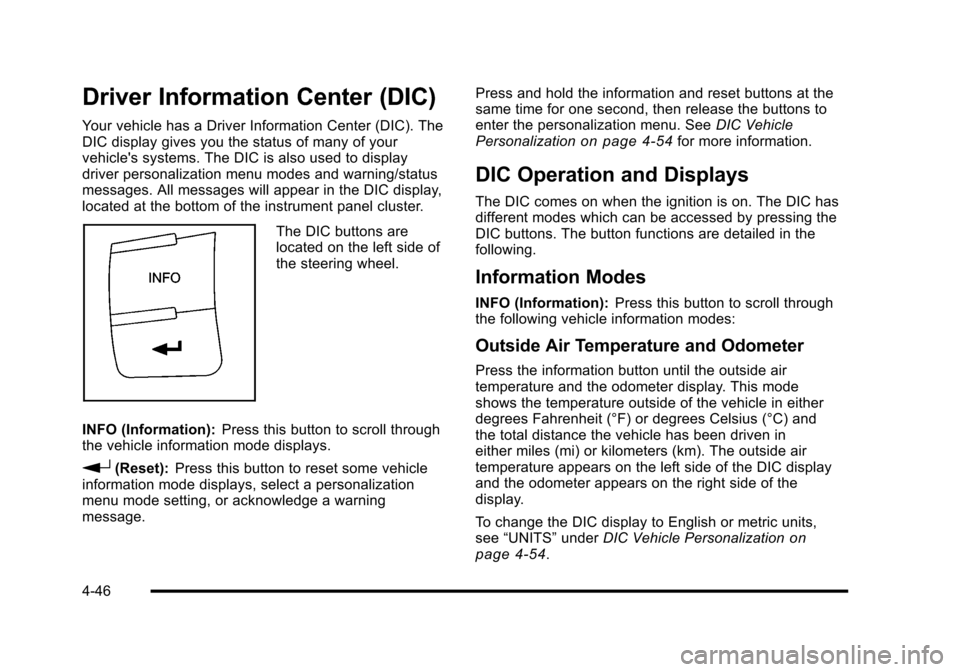
The DIC buttons are
located on the left side of
the steering wheel.
INFO (Information): Press this button to scroll through
the vehicle information mode displays.
r(Reset): Press this button to reset some vehicle
information mode displays, select a personalization
menu mode setting, or acknowledge a warning
message. Press and hold the information and reset buttons at the
same time for one second, then release the buttons to
enter the personalization menu. See
DIC Vehicle
Personalization
on page 4‑54for more information.
DIC Operation and Displays
The DIC comes on when the ignition is on. The DIC has
different modes which can be accessed by pressing the
DIC buttons. The button functions are detailed in the
following.
Information Modes
INFO (Information): Press this button to scroll through
the following vehicle information modes:
Outside Air Temperature and Odometer
Press the information button until the outside air
temperature and the odometer display. This mode
shows the temperature outside of the vehicle in either
degrees Fahrenheit (°F) or degrees Celsius (°C) and
the total distance the vehicle has been driven in
either miles (mi) or kilometers (km). The outside air
temperature appears on the left side of the DIC display
and the odometer appears on the right side of the
display.
To change the DIC display to English or metric units,
see “UNITS” underDIC Vehicle Personalization
on
page 4‑54.
4-46
Page 213 of 480
TRIP A or TRIP B
Press the information button until TRIP A or TRIP B
display. These modes show the current distance
traveled since the last reset for each trip odometer in
either miles (mi) or kilometers (km). Both odometers
can be used at the same time.
To reset the trip odometer to zero, press and hold the
reset button for a few seconds while the desired trip
odometer is displayed.
FUEL RANGE
Press the information button until FUEL RANGE
displays. This mode shows the remaining distance
you can drive without refueling in either miles (mi) or
kilometers (km). It is based on fuel economy and the
fuel remaining in the tank.
When the fuel level is low, FUEL RANGE LOW
displays.
The fuel economy data used to determine fuel range is
an average of recent driving conditions. As your driving
conditions change, this data is gradually updated. The
FUEL RANGE mode cannot be reset.
MPG (L/100 KM) AVG (Average)
Press the information button until MPG (L/100 KM)AVG displays. This mode shows how many miles per
gallon (mpg) or liters per 100 kilometers (L/100 km) your
vehicle is getting based on current and past driving
conditions.
To reset the average fuel economy, press and hold the
reset button while MPG (L/100 KM) AVG is displayed.
Average fuel economy is then calculated starting from
that point. If the average fuel economy is not reset, it is
continually updated each time you drive.
MPG (L/100 KM) INST (Instantaneous)
Press the information button until MPG (L/100 KM) INST
displays. This mode shows the current fuel economy at
a particular moment and changes frequently as driving
conditions change. This mode shows the instantaneous
fuel economy in miles per gallon (mpg) or liters per
100 kilometers (L/100 km). Unlike average fuel
economy, this screen cannot be reset.
4-47
Page 214 of 480
AV (Average) SPEED
Press the information button until AV SPEED displays.
This mode shows the vehicle's average speed in miles
per hour (mph) or kilometers per hour (km/h).
To reset the average vehicle speed, press and hold the
reset button while AV SPEED is displayed.
OIL LIFE
Press the information button until OIL LIFE displays.
The engine oil life system shows an estimate of the oil's
remaining useful life. It shows 100% when the system is
reset after an oil change. It alerts you to change the oil
on a schedule consistent with your driving conditions.
In addition to the engine oil life system monitoring the
oil life, additional maintenance is recommended in the
Maintenance Schedule in this manual. SeeEngine Oil
on page 6‑19andScheduled Maintenanceon
page 7‑3.
Always reset the engine oil life system after an oil
change. See “How to Reset the Engine Oil Life
System” underEngine Oil Life System on page 6‑23.
COOLANT
Press the information button until COOLANT displays.
This mode shows the temperature of the engine
coolant in either degrees Fahrenheit (°F) or degrees
Celsius (°C).
Tire Pressure
If your vehicle has a Tire Pressure Monitor System
(TPMS), the pressure for each tire can be viewed in the
DIC. The tire pressure is shown in either pounds per
square inch (psi) or kilopascals (kPa). Press the
information button until LF ## PSI (kPa) ## RF displays
for the front tires. Press the information button again
until LR ## PSI (kPa) ## RR displays for the rear tires.
If a low tire pressure condition is detected by the
system while driving, a message advising you to
check the tire pressure appears in the display. See
Inflation - Tire Pressure
on page 6‑63andDIC
Warnings and Messageson page 4‑48for more
information.
DIC Warnings and Messages
These messages appear if there is a problem detected
in one of your vehicle's systems.
A message clears when the vehicle's condition is no
longer present. To acknowledge a message and clear it
from the display, press and hold any of the DIC buttons.
If the condition is still present, the warning message
comes back on the next time the vehicle is turned off
and back on. With most messages, a warning chime
sounds when the message displays. Your vehicle may
have other warning messages.
4-48
Page 220 of 480
TRACTION OFF
If your vehicle has the Enhanced Traction System
(ETS) or Traction Control System (TCS), this message
displays and the ETS light or the ESC/TCS light on the
instrument panel cluster comes on solid when the
system is turned off. Adjust your driving accordingly.
SeeEnhanced Traction System (ETS)
on page 5‑11or
Traction Control System (TCS)on page 5‑9and
Enhanced Traction System (ETS) Indicator/Warning
Light
on page 4‑32or Electronic Stability Control
(ESC)/Traction Control System (TCS) Indicator/Warning
Light
on page 4‑33for more information.
DIC Vehicle Personalization
Your vehicle has personalization capabilities that allow
you to program certain features to a preferred setting.
All of the features listed may not be available on your
vehicle. Only the features available will be displayed on
the DIC.
The default settings for the features were set when your
vehicle left the factory, but may have been changed
from their default state since that time. To change feature settings, use the following procedure:
Entering Personalization Menu
1. Turn the ignition on while the vehicle is stopped.
To avoid excessive drain on the battery, it is
recommended that the headlamps are turned off.
2. Press and hold the information and reset buttons at the same time for one second, then release to
enter the personalization menu.
If the vehicle speed is greater than 2 mph (3 km/h),
only the UNITS menu will be accessible.
3. Press the information button to scroll through the available personalization menu modes.
Press the reset button to scroll through the
available settings for each mode.
If you do not make a selection within ten seconds,
the display will go back to the previous information
displayed.
4-54
Page 221 of 480
Personalization Menu Modes
OIL LIFE RESET
When this feature is displayed, you can reset the
engine oil life system. To reset the system, seeEngine
Oil Life System
on page 6‑23. See “OIL LIFE” under
DIC Operation and Displayson page 4‑46for more
information.
UNITS
This feature allows you to select the units of
measurement in which the DIC will display the vehicle
information. When UNITS appears on the display, press
and hold the reset button for at least one second to
scroll through the available settings:
ENGLISH (default in United States): All information
will be displayed in English units.
METRIC (default in Canada): All information will be
displayed in metric units.
To select a setting and move on to the next feature,
press the information button while the desired setting is
displayed on the DIC.
REMOTE START
If your vehicle has remote start, this feature allows
remote start to be turned off or on. Remote start allows
you to start the engine from outside of the vehicle using
your Remote Keyless Entry (RKE) transmitter. When
REMOTE START appears on the display, press and
hold the reset button for at least one second to scroll
through the available settings:
OFF: The remote start feature will be disabled.
ON (default): The remote start feature will be enabled.
See Remote Vehicle Start
on page 3‑7for more
information.
To select a setting and move on to the next feature,
press the information button while the desired setting is
displayed on the DIC.
4-55
Page 225 of 480
EXT (Exterior) LIGHTS
This feature, which allows the vehicle's exterior
perimeter lighting to turn on each time the unlock
button on the Remote Keyless Entry (RKE) transmitter
is pressed, can be enabled or disabled. When EXT
LIGHTS appears on the display, press and hold the
reset button for at least one second to scroll through the
available settings:
OFF:The exterior perimeter lighting will not turn on
when the unlock button on the RKE transmitter is
pressed.
ON (default): The exterior perimeter lighting will turn
on when the unlock button on the RKE transmitter is
pressed.
See Remote Keyless Entry (RKE) System Operation
on
page 3‑4for more information.
To select a setting and move on to the next feature,
press the information button while the desired setting
is displayed on the DIC.
LANGUAGE
This feature allows you to select the language in which
the DIC will display. When LANGUAGE appears on the
display, press and hold the reset button for at least
one second to scroll through the available settings:
ENGLISH (default): All messages will appear in
English.
FRENCH: All messages will appear in French.
SPANISH: All messages will appear in Spanish.
GERMAN: All messages will appear in German.
To select a setting and exit out of the personalization
menu mode, press the information button while the
desired setting is displayed on the DIC.
Exiting Personalization Menu
The personalization menu will be exited when any of
the following conditions occur:
.A ten second time period has elapsed.
.The ignition is turned off.
.The end of the personalization menu list is
reached.
4-59