2010 CHEVROLET EQUINOX audio
[x] Cancel search: audioPage 156 of 394
6-26 Infotainment System
Stopping the Recording
Press the
OREC button while
recording from an audio CD to
display the stop recording option.
Select Stop Recording Song
to MEM.
Renaming Recorded Discs
Discs that have been recorded to
MEM can be renamed.
1. Press the MENU/SEL knob.
2. Select Rename Recorded Discs.
3. Select the disc.
4. Select Album or Artist to rename either one.
5. Use the menu knob to enter the character sequence. See
Operation
on page 6‑7for
more information.
Recording From MP3/WMA
Discs or USB Storage Devices
USB Host Support
The USB connector uses the USB
standards, 1.1 and 2.0.
USB Supported Devices
.USB Flash Drives
.Portable USB Hard Drives
Recording to MEM
Press
OREC, then select Record
Current Song or Record Current
Folder.
The information stored by MEM is
titled according to the ID3 tag
associated with it. Re-recording a Previously
Recorded Disc
If the disc or track has already been
recorded to MEM, the message The
Song(s) is Already Recorded
displays.
Stopping the Recording
Press the
OREC button while
recording from an MP3/WMA CD or
USB storage device to display the
stop recording option. Select Stop
Recording Song to MEM.
Deleting Tracks From MEM
Individual tracks and all tracks can
be deleted from MEM.
To delete individual tracks, press
and release the DEL button while
the track is playing.
To delete all tracks from MEM,
press and hold the DEL button while
a track is playing.
Page 158 of 394
6-28 Infotainment System
Album:Saves the album
associated with the currently playing
track in the indicated favorites
position.
Genre: Saves the genre associated
with the currently playing track in
the indicated favorites position.
Creating Playlists
To create a playlist using tracks
stored in MEM:
1. Select Playlist from the MEM
favorites.
2. Select the track to be stored in the playlist.
3. Press and hold one of the 1 to 6 buttons until the track
can be heard again to store the
track.
4. Repeat steps 1 though 3 to store additional tracks in the playlist.Auxiliary Devices
(Radio with CD)
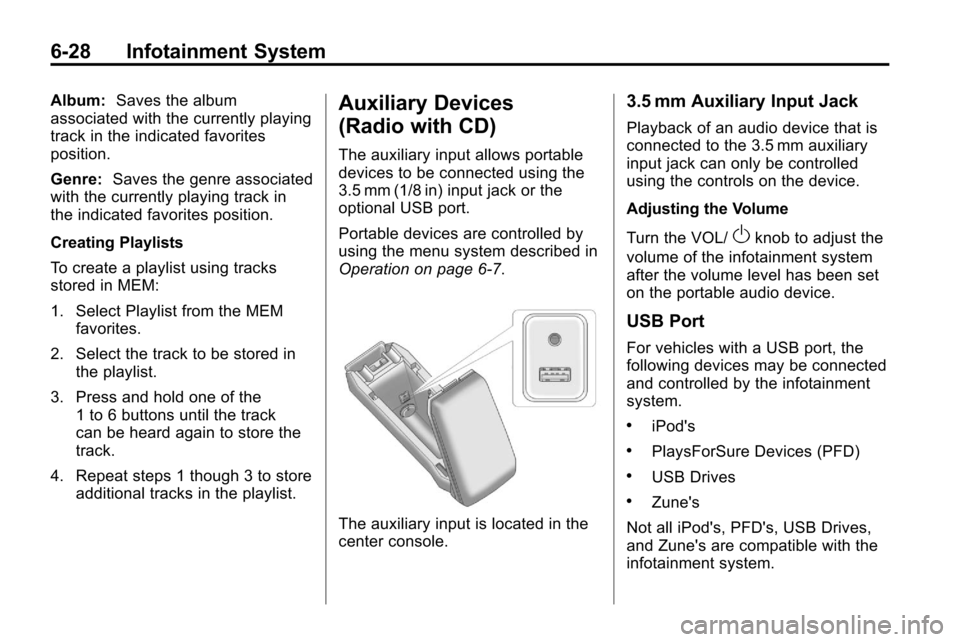
The auxiliary input allows portable
devices to be connected using the
3.5 mm (1/8 in) input jack or the
optional USB port.
Portable devices are controlled by
using the menu system described in
Operation on page 6‑7.
The auxiliary input is located in the
center console.
3.5 mm Auxiliary Input Jack
Playback of an audio device that is
connected to the 3.5 mm auxiliary
input jack can only be controlled
using the controls on the device.
Adjusting the Volume
Turn the VOL/
Oknob to adjust the
volume of the infotainment system
after the volume level has been set
on the portable audio device.
USB Port
For vehicles with a USB port, the
following devices may be connected
and controlled by the infotainment
system.
.iPod's
.PlaysForSure Devices (PFD)
.USB Drives
.Zune's
Not all iPod's, PFD's, USB Drives,
and Zune's are compatible with the
infotainment system.
Page 159 of 394
Infotainment System 6-29
Connecting and Controlling
an iPod™
Not all iPod's can be controlled by
the Infotainment System.
Connecting an iPod
Connect the iPod to the USB port.
Searching For a Track
Tracks can be searched for by:
.Playlists
.Artists
.Albums
.Song Titles
.Podcasts
.Genres
.Audiobooks
.ComposersTo search for tracks:
1. Press the MENU/SEL knob.
2. Select Search.
3. Select: Playlists, Artists, Albums,
Song Titles, Podcasts, Genres,
Audiobooks, or Composers.
4. Select the track.
Shuffle
Press the MENU/SEL knob and set
Shuffle Songs (Random) to On or
Off, then press the
0BACK button
to return the main screen.
On: Plays tracks in the current
folder in random order.
Off: Plays tracks in the current
folder in sequential order.
Repeat
Press the MENU/SEL knob and set
Repeat to On or Off, then press the
0BACK button to return the main
screen. On:
Repeats the current track.
Off: Playback starts from the
beginning of the current track after
the last track finishes.
Connecting and Controlling a
PlaysForSure Device (PFD)
or Zune™
Connecting a PFD or Zune
Connect the PFD or Zune to the
USB port.
Searching For a Track
Tracks can be searched for by:
.Playlists
.Artists
.Albums
.Song Titles
.Podcasts
.Genres
Page 161 of 394
Infotainment System 6-31
Shuffle Functionality
Press the MENU/SEL knob and set
Shuffle Songs (Random) to On
or Off.
On:Plays current tracks in random
order.
Off: Plays current tracks in
sequential order.
Repeat Functionality
Press the MENU/SEL knob and set
Repeat to On or Off.
Repeat On: Repeats the current
track.
Repeat Off: Playback starts from
the beginning of the current track
after the last track finishes.Auxiliary Devices (Radio
with CD/DVD/MEM)
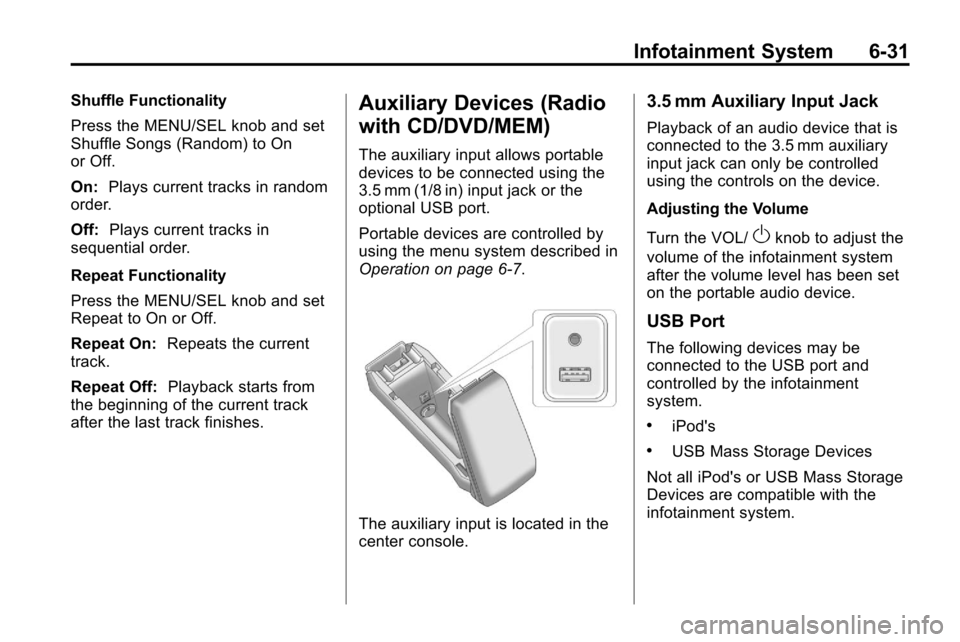
The auxiliary input allows portable
devices to be connected using the
3.5 mm (1/8 in) input jack or the
optional USB port.
Portable devices are controlled by
using the menu system described in
Operation on page 6‑7.
The auxiliary input is located in the
center console.
3.5 mm Auxiliary Input Jack
Playback of an audio device that is
connected to the 3.5 mm auxiliary
input jack can only be controlled
using the controls on the device.
Adjusting the Volume
Turn the VOL/
Oknob to adjust the
volume of the infotainment system
after the volume level has been set
on the portable audio device.
USB Port
The following devices may be
connected to the USB port and
controlled by the infotainment
system.
.iPod's
.USB Mass Storage Devices
Not all iPod's or USB Mass Storage
Devices are compatible with the
infotainment system.
Page 162 of 394
6-32 Infotainment System
Connecting and Controlling
an iPod™
Not all iPod's can be controlled by
the Infotainment System.
Connecting an iPod
Connect the iPod to the USB port.
Selecting a Track
Using the control buttons:
.PressgSEEK orlSEEK to
select the previous or next track.
.Turn the MENU/SEL knob to
select the track in the current
sub menu. The track will start
to play.
Playing Tracks in Random Order
Press the MENU/SEL knob and set
Shuffle Songs to On or Off.
Shuffle On: Plays current tracks in
random order.
Shuffle Off: Plays current tracks in
sequential order. Searching For a Track
Tracks can be searched for by:
.Playlists
.Artists
.Albums
.Song Titles
.Genres
.Composers
.Audiobooks
The number of objects in each
category is shown in parentheses
after the category.
To search for tracks:
1. Press the MENU/SEL knob.
2. Select Search.
3. Select: Playlists, Artists, Albums, Song Titles, Genres,
Composers, or Audiobooks.
4. Select the track. The search rate increases if the MENU/SEL knob
is continuously turned while
searching in a list.
Connecting and Controlling a
USB Drive
Files that are not stored in folders
are displayed in the root
directory (USB).
Connecting a USB Drive
Connect the USB drive to the
USB port.
Disconnecting a USB Drive
A USB drive should be ejected from
the USB port before disconnecting
it. To eject a USB drive:
1. Press the MENU/SEL knob.
2. Select USB Eject.
Playing Tracks in Random Order
Press the MENU/SEL knob and
then set Shuffle Songs to On.
Page 163 of 394

Infotainment System 6-33
Selecting a Track
Using the control buttons:
.PressgSEEK orlSEEK to
select the previous or next track.
.Turn the MENU/SEL knob to
select a track in the current sub
menu. The track will start to play.
Selecting a track in a different
folder:
1. Press the MENU/SEL knob.
2. Select Folder List.
3. Select the folder.
4. Select the track.
Searching for Tracks
It is normal for the search feature
to take some time to display the
information after reading the device
due to the amount of information
stored.
Files that do not have any meta
data stored in the ID3 tag display
as Unknown. Tracks can be searched by:
.Playlists
.Artists
.Albums
.Song Titles
.Genres
The number of objects in each
category is shown in parentheses
after the category.
To search for tracks:
1. Press the MENU/SEL knob.
2. Select Search.
3. Select: Playlists, Artists, Albums, Song Titles, Genres,
Composers, or Audiobooks.
4. Select the track. The search rate increases if the MENU/SEL knob
is continuously turned while
searching in a list.
Recording Tracks to MEM
See Mass Storage Media (MEM)
on
page 6‑25for more information.
Rear Seat
Infotainment
Rear Seat Entertainment
(RSE) System
The vehicle may have a DVD Rear
Seat Entertainment (RSE) system.
The RSE system works with the
vehicle's infotainment system. The
DVD player is part of the front radio.
The RSE system includes a radio
with a DVD player, two rear seat
video display screens, audio/video
jacks, two wireless headphones,
and a remote control. See CD/DVD
Player
on page 6‑21or the
separate navigation system manual
for more information on the vehicle's
DVD system.
Page 165 of 394
Infotainment System 6-35
Infrared transmitters are on the top
of the left seatback video screen.
The headphones shut off
automatically to save the battery
power if the RSE system is shut
off or if the headphones are out of
range of the transmitters for more
than three minutes. Moving too far
forward or stepping out of the
vehicle, can cause the headphones
to lose the signal or have static.
The headphones may automatically
turn off after four hours of
continuous use.
To adjust the volume on the
headphones, use the volume
control.
For best audio performance, the
headphones must be worn correctly,
with the headband over the top of
the head. L (Left) and R (Right)
are above the ear pads and are
indicators as to how the
headphones should be placed
on the head.Notice:
Do not store the
headphones in heat or direct
sunlight. This could damage the
headphones and repairs will not
be covered by the warranty.
Storage in extreme cold can
weaken the batteries. Keep the
headphones stored in a cool, dry
place.
If the foam ear pads become worn
or damaged, they can be replaced
separately from the headphones.
See your dealer for more
information.
Battery Replacement
To change the batteries:
1. Loosen the screw to the battery door located on the left side of
the headphones.
2. Slide the battery door open.
3. Replace the two AAA batteries.
4. Replace the battery door and tighten the screw. Remove the batteries if the
headphones are not going to be
used for a long period of time.
Audio/Video (A/V) Jacks
If available, the A/V jacks are
located on the rear of the floor
console. They allow audio or video
cables to be connected from an
auxiliary device such as a
camcorder or a video game system.
The A/V jacks are color coded:
.Yellow for video input.
.White for left audio input.
.Red for right audio input.
Power for auxiliary devices is not
supplied by the radio system.
To use the auxiliary inputs of the
RSE system:
1. Connect the auxiliary device cables to the A/V jacks.
2. Power on both the auxiliary device and the RSE video
screen.
Page 166 of 394
6-36 Infotainment System
Changing the Source on the Video
Display Screens
The image from the auxiliary device
can be switched between the video
display screens.
To change the display:
1. Press the AUX button on theremote control to change the
source of both video screens
from the DVD player to the
auxiliary device.
2. Press the AUX button a second time to change the left video
screen source to the DVD player
and the right video screen to the
auxiliary device.
3. Press the AUX button a third time to change the left video
screen source to the auxiliary
device and the right video
screen to the DVD player. 4. Press the AUX button a fourth
time to change the source of
both video screens to the DVD
player.
How to Change the RSE Video
Screen Settings
The screen display mode,
brightness, and language can be
changed from the setup menu using
the remote control. To change a
setting:
1. Press
z.
2. Use
n,q,p,oandrto
select the settings.
3. Press
zagain to exit the
setup menu.
Audio Output
Audio from the DVD player or
auxiliary inputs can be heard
through the following:
.Wireless Headphones
.Vehicle Speakers
The RSE system transmits the
audio signal to the wireless
headphones if an audio signal is
available. See “Headphones” earlier
in this section for more information.
The front seat passengers are able
to listen to playback from the A/V
jacks through the vehicle speakers
by selecting Rear A/V as the source
on the radio.