2010 CHEVROLET CORVETTE ESP
[x] Cancel search: ESPPage 115 of 472
Theft-Deterrent Systems
Vehicle theft is big business, especially in some cities.
This vehicle has theft-deterrent features, however, they
do not make it impossible to steal.
Theft-Deterrent System
This vehicle has a theft-deterrent alarm system.
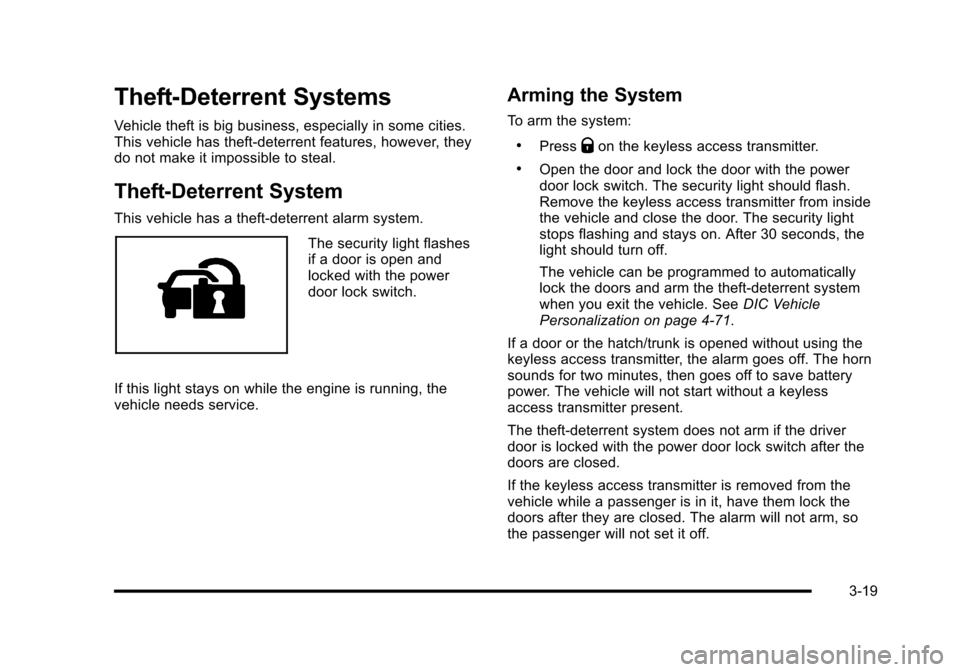
The security light flashes
if a door is open and
locked with the power
door lock switch.
If this light stays on while the engine is running, the
vehicle needs service.
Arming the System
To arm the system:
.PressQon the keyless access transmitter.
.Open the door and lock the door with the power
door lock switch. The security light should flash.
Remove the keyless access transmitter from inside
the vehicle and close the door. The security light
stops flashing and stays on. After 30 seconds, the
light should turn off.
The vehicle can be programmed to automatically
lock the doors and arm the theft-deterrent system
when you exit the vehicle. See DIC Vehicle
Personalization on page 4‑71.
If a door or the hatch/trunk is opened without using the
keyless access transmitter, the alarm goes off. The horn
sounds for two minutes, then goes off to save battery
power. The vehicle will not start without a keyless
access transmitter present.
The theft-deterrent system does not arm if the driver
door is locked with the power door lock switch after the
doors are closed.
If the keyless access transmitter is removed from the
vehicle while a passenger is in it, have them lock the
doors after they are closed. The alarm will not arm, so
the passenger will not set it off.
3-19
Page 121 of 472
3. Do not race the engine immediately after starting it. Operate the engine and transmission gently until
the oil warms up and lubricates all moving parts.
4. If the engine does not start and no DIC message is displayed, wait 15 seconds before trying again to
let the cranking motor cool down.
If the engine does not start after 5-10 seconds,
especially in very cold weather (below −18°C
or 0°F), it could be flooded with too much gasoline.
Try pushing the accelerator pedal all the way
to the floor while cranking for up to 15 seconds
maximum. Wait at least 15 seconds between
each try, to allow the cranking motor to cool down.
When the engine starts, let go of the accelerator.
If the vehicle starts briefly but then stops again,
repeat these steps. This clears the extra gasoline
from the engine.
Notice: Cranking the engine for long periods of
time, by pressing the START button immediately
after cranking has ended, can overheat and damage
the cranking motor, and drain the battery. Wait at
least 15 seconds between each try, to allow the
cranking motor to cool down. The vehicle has a Computer-Controlled Cranking
System. This feature assists in starting the engine and
protects components. Once cranking has been initiated,
the engine continues cranking for a few seconds or
until the vehicle starts. If the engine does not start,
cranking automatically stops after 15 seconds to
prevent cranking motor damage. To prevent gear
damage, this system also prevents cranking if the
engine is already running.
Notice:
The engine is designed to work with the
electronics in the vehicle. If electrical parts or
accessories are added, you could change the
way the engine operates. Before adding electrical
equipment, check with your dealer/retailer. If you
do not, the engine might not perform properly. Any
resulting damage would not be covered by the
vehicle warranty.
3-25
Page 126 of 472
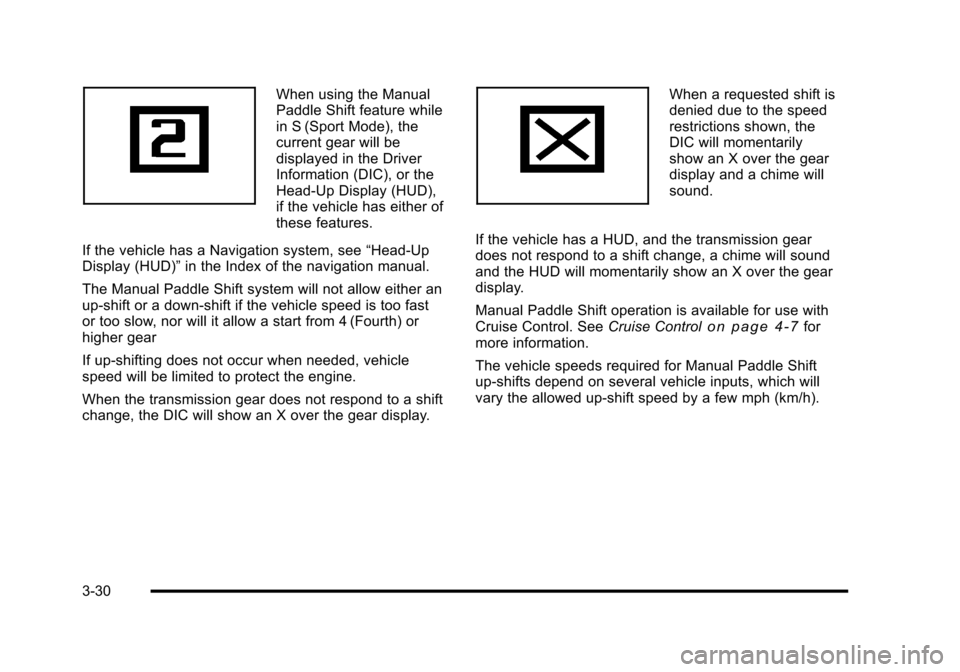
When using the Manual
Paddle Shift feature while
in S (Sport Mode), the
current gear will be
displayed in the Driver
Information (DIC), or the
Head-Up Display (HUD),
if the vehicle has either of
these features.
If the vehicle has a Navigation system, see “Head-Up
Display (HUD)” in the Index of the navigation manual.
The Manual Paddle Shift system will not allow either an
up-shift or a down-shift if the vehicle speed is too fast
or too slow, nor will it allow a start from 4 (Fourth) or
higher gear
If up-shifting does not occur when needed, vehicle
speed will be limited to protect the engine.
When the transmission gear does not respond to a shift
change, the DIC will show an X over the gear display. When a requested shift is
denied due to the speed
restrictions shown, the
DIC will momentarily
show an X over the gear
display and a chime will
sound.
If the vehicle has a HUD, and the transmission gear
does not respond to a shift change, a chime will sound
and the HUD will momentarily show an X over the gear
display.
Manual Paddle Shift operation is available for use with
Cruise Control. See Cruise Control
on page 4‑7for
more information.
The vehicle speeds required for Manual Paddle Shift
up-shifts depend on several vehicle inputs, which will
vary the allowed up-shift speed by a few mph (km/h).
3-30
Page 186 of 472
Within each mode, the display, can be further
customized by pressing the PAGE button. Pressing this
button in each mode will turn off and on the following:
.Street Mode —No tachometer, circular
tachometer, and linear tachometer.
.Track Modes 1 and 2 —No minor gauge, coolant
temperature, transmission oil temperature, engine
oil temperature, engine oil pressure, and boost
gauge.
While in Track Mode 1 or 2, the maximum G value
achieved during the current ignition cycle can be
displayed by pressing and holding the PAGE
button. The maximum G display will be shown
until the PAGE button is released. The maximum
G value display will be identical to the normal
G value display, except the maximum G gauge
digits (X.XX G) and corresponding G gauge bar
will overwrite the current G value.
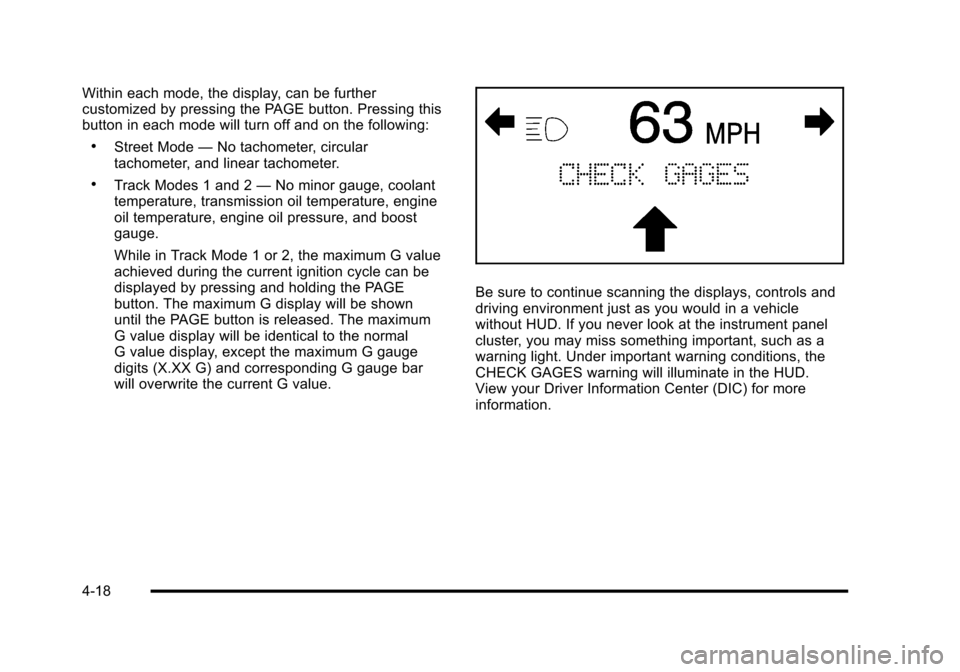
Be sure to continue scanning the displays, controls and
driving environment just as you would in a vehicle
without HUD. If you never look at the instrument panel
cluster, you may miss something important, such as a
warning light. Under important warning conditions, the
CHECK GAGES warning will illuminate in the HUD.
View your Driver Information Center (DIC) for more
information.
4-18
Page 239 of 472
DIC Vehicle Personalization
Many features on your vehicle can be personalized.
This means that the operation of these features can be
set to operate differently depending on who is driving
the vehicle. See “Personal Options” later in this section
for the features that you can personalize.
The personalization settings for other features are
automatically updated and saved as the driver adjusts
them. These include the following settings and presets:
.The radio presets, tone, volume, fade, balance,
equalization (EQ) settings and source (radio
or CD)
.The last climate control setting
.The Head-Up Display (HUD) position and dimming
level, if your vehicle has this feature
.The instrument panel cluster dimming level and
last selected DIC display
Separate personalization settings are saved for two
different drivers. One of the keyless access transmitters
is assigned to driver 1. The other is assigned to driver 2.
The back of the keyless access transmitters are
labelled 1 or 2 to correspond to each driver. The current driver's preferences are recalled when one
of the following occurs:
.The lock or unlock button on the keyless access
transmitter, labelled 1 or 2, is pressed.
.The appropriate memory button, 1 or 2, located on
the driver's door is pressed. See
Memory Seat,
Mirrors and Steering Wheel
on page 2‑4for
more information.
.A valid keyless access transmitter is detected upon
opening the driver's door.
If more than one valid keyless access transmitter is
detected upon opening the driver's door, the driver
preferences for the lowest driver number will be
recalled.
If a keyless access transmitter that is not labelled
1 or 2 is used, the personalization system will not
recognize the transmitter. The Driver Information
Center (DIC) will not display a current driver number
and the features that are normally programmed through
the DIC will be set to the default states. Also, if the
OPTION button is pressed, the DIC does not display
the menus used to set personalizations, but instead
displays OPTIONS UNAVAILABLE for a few seconds.
4-71
Page 246 of 472
When the mode you want is selected, press the
OPTION button to set your choice and advance to the
next personal option.
Language : This option allows you to select the
language the DIC, the Head-Up Display (HUD), if your
vehicle has this feature, and the radio uses to display
messages. Each language mode will be displayed in its
own language. For example, English will be displayed
as ENGLISH, Spanish as ESPANOL, etc. If your vehicle
has the navigation system, you will not have the
Japanese language mode.
Press the OPTION button until LANGUAGE appears on
the display, then press the RESET button to scroll
through the following modes:
.ENGLISH (default)
.DEUTSCH (German)
.FRANCAIS (French)
.ITALIANO (Italian)
.ESPANOL (Spanish)
If you choose a language that you do not understand,
press the OPTION and RESET buttons for
five seconds. The DIC will begin displaying all of the
various languages one by one for as long as the
buttons are pressed. When the desired language is
displayed, release the buttons and the DIC will set to
this language. When the mode you want is selected, press the
OPTION button to set your choice and advance
to the next personal option.
Personalize Name :
This option allows you to type
in a name or greeting that will appear on the DIC
display whenever the corresponding keyless access
transmitter (1 or 2) is used or one of the memory
buttons (1 or 2) located on the driver's door is pressed.
Press the OPTION button until PERSONALIZE NAME
appears on the display, then press the RESET button to
scroll through the following modes:
.YES
.NO (default)
If you choose YES, you can type in a name that will
appear on the DIC display.
To program a name, use the following procedure: 1. Enter the PERSONAL OPTIONS menu and select the driver number (1 or 2) that you would like to
program by following the instructions listed
previously under “Entering the Personal
Options Menu”.
2. Press the OPTION button until the PERSONALIZE NAME option appears on the display.
3. Select YES under PERSONALIZE NAME by pressing the RESET button.
4-78
Page 247 of 472
4. Press the OPTION button and a cursor will display where you can insert a letter.
5. Press the OPTION button again until the letter you want is displayed. To scroll through the letters
faster and without a beeping noise, keep the
OPTIONS button depressed. There are alpha/
numeric characters and a blank space available.
6. Then press the RESET button to select the letter of your choice and proceed on to the next space to
the right.
If you make a mistake and would like to clear or
replace a letter, perform the following steps:
6. 1. Press the RESET button to reach the letter
you would like to change.
6. 2. Press the OPTION button to scroll through the letter choices.
6. 3. Press the RESET button to select the letter and proceed on to the next space to the right. 7. Repeat Steps 5 and 6 until the name or greeting
you want is complete. After the name or greeting is
complete, keep pressing the RESET button until
the display turns blank and exits out of this option.
You can program up to 20 characters.
If you choose NO, this option will turn off.
If a customized name or greeting is not programmed,
the DIC display will show Driver 1 or Driver 2 to
correspond with either the number on the back of the
keyless access transmitter (1 or 2) that is being used
or to the memory button (1 or 2) that is pressed.
PERSONALIZE NAME is the last option available to
program in the PERSONAL OPTIONS menu. Pressing
the OPTION button after this setting will exit you from
the PERSONAL OPTIONS menu. The last item you
were in prior to entering PERSONAL OPTIONS will
then display on the DIC.
4-79
Page 264 of 472
Navigation/Radio System
For vehicles with a navigation radio system, see the
separate Navigation System manual.
Bluetooth®
Vehicles with a Bluetooth system can use a Bluetooth
capable cell phone with a Hands Free Profile to make
and receive phone calls. The system can be used while
the key is in ON/RUN or ACC/ACCESSORY position.
The range of the Bluetooth system can be up to
9.1 m (30 ft). Not all phones support all functions,
and not all phones are guaranteed to work with
the in-vehicle Bluetooth system. See www.gm.com/
bluetooth for more information on compatible phones.
Voice Recognition
The Bluetooth system uses voice recognition to
interpret voice commands to dial phone numbers and
name tags.
Noise : Keep interior noise levels to a minimum.
The system may not recognize voice commands
if there is too much background noise.
When to Speak : A short tone sounds after the system
responds indicating when it is waiting for a voice
command. Wait until the tone and then speak.
How to Speak : Speak clearly in a calm and natural
voice.
Audio System
When using the in‐vehicle Bluetooth system, sound
comes through the vehicle's front audio system
speakers and over‐rides the audio system. Use the
audio system volume knob, during a call, to change
the volume level. The adjusted volume level remains
in memory for later calls. To prevent missed calls, a
minimum volume level is used if the volume is turned
down too low.
Bluetooth Controls
Use the buttons located on the steering wheel to
operate the in‐vehicle Bluetooth system. See Audio
Steering Wheel Controls
on page 4‑107for more
information.
b g(Push To Talk) : Press to answer incoming calls,
to confirm system information, and to start speech
recognition.
c(Phone On Hook): Press to end a call, reject a
call, or to cancel an operation.
4-96