2010 CADILLAC ESCALADE phone
[x] Cancel search: phonePage 281 of 616

STOPc:Press once to stop playing a DVD.
There is a pre-stop feature for DVD and video CD only.This feature resumes playback of the disc where it wasstopped. Press the stop button once during disc
playback andcdisplays on the DVD startup screen.
This icon disappears after a few seconds. Press thestop button a second time, or eject the disc, to cancelthe pre-stop feature and to clear the disc positionmemory.
SOURCE :Press to select between Monitor 3,Monitor 4, or the AV INPUT.
Each video display screen can be adjustedindependently, as well as display information from bothDVD players and both A/V inputs.
Infrared Remote Sensor :Located in the top center ofthe video display screen. Do not block the signal fromthe remote to the sensor.
Infrared Transmitters :Located in the top center of thevideo display screen. Do not block the signal from theheadphones to the transmitter.
Video Display Screen :Located on the back of eachheadrest.
AV OUTPUT (Audio/Video Output Jack) :Located onthe lower left side of the screen and is identified on thevideo screen panel as the AV OUTPUT.
Headphone Jack :Wired headphones can be pluggedinto the headphone jack with one-eighth inch stereoplugs.
AV INPUT: (Audio/Video Input Jack) :The audio/videoinput jack is located below the video display screen andallows viewing of auxiliary sources such as portableDVD players, game stations, or video cameras, on eachscreen.
.Video Input—The yellow connector is used forvideo input.
.L Audio—The white connector is used for the leftside audio.
.R Audio—The red connector is used for the rightside audio.
Level Lock and Release Latch :The viewing angle ofthe video screen can be adjusted by releasing the latchand gently moving the screen. Then lock it into a secureposition.
4-89
Page 282 of 616
Vehicle Speakers
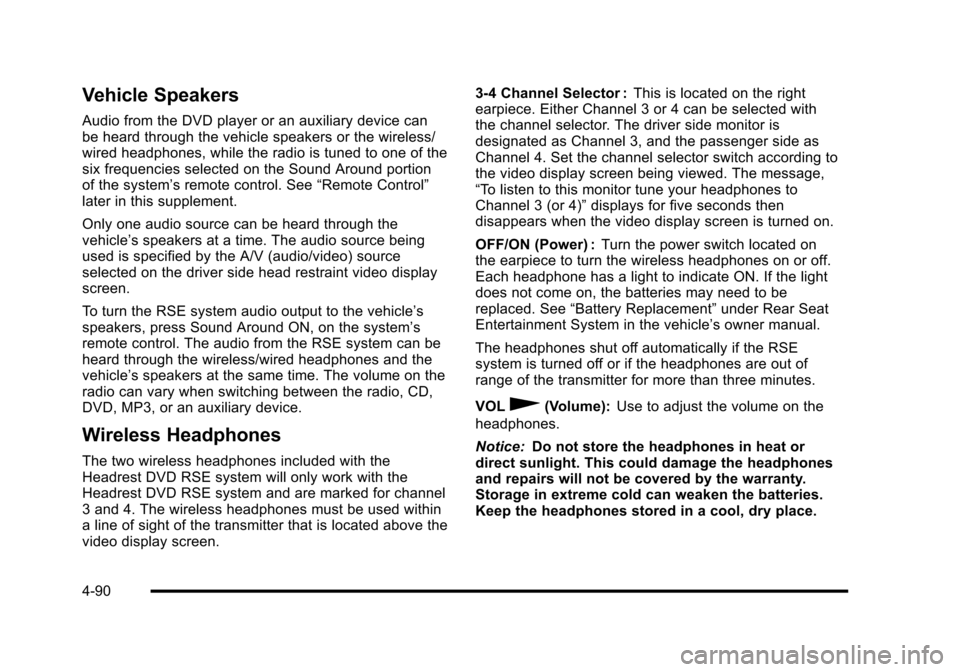
Audio from the DVD player or an auxiliary device canbe heard through the vehicle speakers or the wireless/wired headphones, while the radio is tuned to one of thesix frequencies selected on the Sound Around portionof the system’s remote control. See“Remote Control”later in this supplement.
Only one audio source can be heard through thevehicle’s speakers at a time. The audio source beingused is specified by the A/V (audio/video) sourceselected on the driver side head restraint video displayscreen.
To turn the RSE system audio output to the vehicle’sspeakers, press Sound Around ON, on the system’sremote control. The audio from the RSE system can beheard through the wireless/wired headphones and thevehicle’s speakers at the same time. The volume on theradio can vary when switching between the radio, CD,DVD, MP3, or an auxiliary device.
Wireless Headphones
The two wireless headphones included with theHeadrest DVD RSE system will only work with theHeadrest DVD RSE system and are marked for channel3 and 4. The wireless headphones must be used withina line of sight of the transmitter that is located above thevideo display screen.
3!4 Channel Selector :This is located on the rightearpiece. Either Channel 3 or 4 can be selected withthe channel selector. The driver side monitor isdesignated as Channel 3, and the passenger side asChannel 4. Set the channel selector switch according tothe video display screen being viewed. The message,“To listen to this monitor tune your headphones toChannel 3 (or 4)”displays for five seconds thendisappears when the video display screen is turned on.
OFF/ON (Power) :Turn the power switch located onthe earpiece to turn the wireless headphones on or off.Each headphone has a light to indicate ON. If the lightdoes not come on, the batteries may need to bereplaced. See“Battery Replacement”under Rear SeatEntertainment System in the vehicle’s owner manual.
The headphones shut off automatically if the RSEsystem is turned off or if the headphones are out ofrange of the transmitter for more than three minutes.
VOL0(Volume):Use to adjust the volume on the
headphones.
Notice:Do not store the headphones in heat ordirect sunlight. This could damage the headphonesand repairs will not be covered by the warranty.Storage in extreme cold can weaken the batteries.Keep the headphones stored in a cool, dry place.
4-90
Page 284 of 616

SETUP :Press to change the default settings, see“Using the RSE On-Screen Display (OSD) Menus”laterin this manual. There are four main menu screens, eachscreen displays a menu to select different settingoptions. The screens are:
1. General Setup—adjusts screen settings.
2. Audio Setup—sets the language.
3. Preference Screen—sets the subtitles andparental controls.
4. Password Setup—allows a password to be set.
Press SETUP again to exit.
EJECTX:Press to eject or reload a disc.
DVD-Video Screen 3 :Press the DVD button locatedunder 3 to transmit IR codes for DVD mode on VideoScreen 3.
TV-Video Screen 3 :This button is not used with thesystem.
DVD-Video Screen 4 :Press the DVD button locatedunder 4 to transmit IR codes for DVD mode on VideoScreen 4.
TV-Video Screen 4 :This button is not used with thesystem.
SOUND AROUND ON/OFF :Press to turn the FMTransmitter power on or off.
MUTE>(For DVD Only):Press to turn off the
headphone sound. Press again to turn the sound onagain.
PIX (Picture Selection) :Press to adjust the picture’sOn Screen Display (OSD). Each time this button ispressed, the picture adjustment OSD, cycles throughbars for BRIGHTNESS, CONTRAST, COLOR, andTINT. Use the right/left navigation arrows to adjust thesetting. This feature automatically shuts off id anotherbutton is pressed or adjustments are not made withinsix seconds.
SOUND AROUND SELECT :Press to select an FMtransmitter channel. The SOUND AROUND SELECTlets the DVD audio play over the vehicle’s soundsystem by tuning the radio to one of the six FMfrequencies listed below.
.CH1 : 88.3MHz
.CH2 : 88.7MHz
.CH3 : 89.1MHz
.CH4 : 89.5MHz
.CH5 : 89.9MHz
.CH6 : 90.3MHz
MENU :Press to enter the DVD disc menu while thedisc is playing.
Q,R,q,r(Navigation Arrows):Press to navigatethrough menus.
4-92
Page 295 of 616

Cleaning the Components
Use care when touching or cleaning the componentssuch as the DVD player or the discs.
Do not use DVD lens cleaners for DVD players becausethe lens of the DVD optics can become contaminatedby lubricants.
Handle CDs and DVDs carefully. Store them in theiroriginal cases or other protective cases and away fromdirect sunlight and dust. The DVD player scans thebottom surface of the disc. If the surface of a CD orDVD is damaged, such as cracked, broken,or scratched, the CD or DVD may not play properly ornot at all. If the surface of a CD or DVD is soiled, take asoft, lint free cloth or dampen a clean, soft cloth in amild, neutral detergent solution mixed with water, andclean it. Make sure the wiping process starts from thecenter to the edge.
Do not touch the bottom side of a CD or DVD whilehandling it; this could damage the surface. Pick up CDsor DVDs by grasping the outer edges or the edge of thehole and the outer edge.
Rear Seat Audio (RSA)
Vehicles with this feature allow the rear seatpassengers to listen to and control any of the musicsources: radio, CDs, DVDs, or other auxiliary sources.The rear seat passengers can control the same musicsources the front seat passengers are listening to (dualcontrol) or a different source. For example, rear seatpassengers can listen to and control a CD through theheadphones, while the driver listens to the radio throughthe speakers. The rear seat passengers have control ofthe volume for each set of headphones.
The radio functionality is controlled by both the RSAand the front radio, only one band can be tuned to atone time. Changing the band on the RSA or the frontradio will change band on the other system.
RSA functions can be operated even when the mainradio is off.
Audio can be heard through wired headphones(not included) plugged into the jacks on the RSA.If the vehicle has this feature, audio can also beheard on Channel 2 of the wireless headphones.
The audio system allows the rear speakers to continueplaying even when the RSA audio is active through theheadphones.
4-103
Page 296 of 616

To listen to an iPod or portable audio device through theRSA, attach the iPod or portable audio device to theauxiliary input (if available), located below the RSA.Turn the iPod on, then choose the auxiliary input withthe RSA SRCE button.
P(Power):Press thePbutton to turn RSA onand off.
Volume :Turn this knob to increase or to decrease thevolume of the wired headphones. The left knob controlsthe left headphones and the right knob controls the rightheadphones.
SRCE (Source) :Press this button to switch betweenthe radio (AM/FM), XM™(if equipped), CD, and if thevehicle has these features, DVD, and rear auxiliary.
©¨(Seek):When listening to FM, AM, or XM
(if equipped), press either the left©or right¨seek
arrow to go to the previous or to the next station orchannels and stay there. This function is inactive, withsome radios, if the front seat passengers are listeningto the radio.
Press and hold either the left©or right¨seek arrow
until the display flashes, to tune to an individual station.The display stops flashing after the buttons have notbeen pushed for more than two seconds. This functionis inactive, with some radios, if the front seatpassengers are listening to the radio.
While listening to a disc, press the right¨seek arrow
to go to the next track or chapter on the disc. Press the
left©seek arrow to go back to the start of the current
track or chapter (if more than ten seconds have played).This function is inactive, with some radios, if the frontseat passengers are listening to the disc.
When a DVD video menu is being displayed, press
either the left©or right¨seek arrow to perform a
cursor up or down on the menu. Hold the left©or
right¨seek arrow to perform a cursor left or right on
the menu.
4-104
Page 299 of 616

Music Navigator Screen
To enter the music navigator screen, press and release¨while on the main audio screen. While using themusic navigator screen, the track currently playingcontinues to play until the next track is selected.
To move up or down the list of tracks or folders:
.Press and releaseworxto highlight one track
or folder at a time.
.Press and holdworxto scroll through the list.
To select the highlighted track or folder press and
release¨.
To move back to the previous folder, press
and hold¨.
Radio Reception
Frequency interference and static can occur duringnormal radio reception if items such as cell phonechargers, vehicle convenience accessories, andexternal electronic devices are plugged into theaccessory power outlet. If there is interference or static,unplug the item from the accessory power outlet.
AM
The range for most AM stations is greater than for FM,especially at night. The longer range can cause stationfrequencies to interfere with each other. For better radioreception, most AM radio stations boost the powerlevels during the day, and then reduce these levelsduring the night. Static can also occur when things likestorms and power lines interfere with radio reception.When this happens, try reducing the treble on the radio.
FM Stereo
FM signals only reach about 10 to 40 miles (16 to 65 km).Although the radio has a built-in electronic circuit thatautomatically works to reduce interference, some staticcan occur, especially around tall buildings or hills,causing the sound to fade in and out.
XM™Satellite Radio Service
XM Satellite Radio Service gives digital radio receptionfrom coast-to-coast in the 48 contiguous United States,and in Canada. Just as with FM, tall buildings or hillscan interfere with satellite radio signals, causing thesound to fade in and out. In addition, traveling orstanding under heavy foliage, bridges, garages,or tunnels may cause loss of the XM signal for a periodof time.
4-107
Page 300 of 616

Cellular Phone Usage
Cellular phone usage may cause interference with thevehicle's radio. This interference may occur whenmaking or receiving phone calls, charging the phone'sbattery, or simply having the phone on. Thisinterference causes an increased level of static whilelistening to the radio. If static is received while listeningto the radio, unplug the cellular phone and turn it off.
Rear Side Window Antenna
The AM-FM antenna is located in the passenger rearside windows. Make sure the inside surfaces of the rearside windows are not scratched and that the lines onthe glass are not damaged. If the inside surfaces aredamaged, they could interfere with radio reception.
If a cellular telephone antenna needs to be attached tothe glass, make sure that the grid lines for the AM-FMantenna are not damaged. There is enough spacebetween the grid lines to attach a cellular telephoneantenna without interfering with radio reception.
Notice:Using a razor blade or sharp object to clearthe inside of the rear side windows may affect radioreception or damage the rear side window antenna.Repairs would not be covered by the warranty. Donot clear the inside of the rear side windows withsharp objects.
Notice:Do not apply aftermarket glass tinting withmetallic film. The metallic film in some tintingmaterials will interfere with or distort the incomingradio reception. Any damage caused to the antennadue to metallic tinting materials will not be coveredby the warranty.
XM™Satellite Radio Antenna
System
The XM Satellite Radio antenna is located on the roof ofthe vehicle. Keep the antenna clear of obstructions forclear radio reception.
If the vehicle has a sunroof, the performance of theXM system may be affected if the sunroof is open.
4-108
Page 303 of 616

A. FULL MAP Touch Screen Button. See“NAV”under“Hard Keys”underUsing the Navigation Systemon page 5!12for more information.
B. No GPS Symbol. SeeSymbolson page 5!17formore information.
C. North Up/Heading Up Symbol. SeeSymbolsonpage 5!17for more information.
D. Map Scale. See“Map Scales”underMapsonpage 5!14for more information.
E.0(Zoom In) Touch Screen Button. See“Map
Scales”underMapson page 5!14for moreinformation.
F. Mark Touch Screen Button. See“AddingDestinations to the Address Book”underDestinationon page 5!24for more information.
G.Z(DVD Map Disc Eject) Key. SeeMapson
page 5!14for more information.
H. Map DVD Slot. See“Installing the Map DVD”underMapson page 5!14for information on how toinstall and eject a map DVD.
I.M(Load) Key. SeeCD Playeron page 5!68or
DVD Playeron page 5!75for more information.
J.Z(CD/DVD Video/Audio Eject) Key. SeeCD
Playeron page 5!68orDVD Playeron page 5!75for more information.
K. CD/DVD Video/Audio Slot. SeeCD Playeronpage 5!68orDVD Playeron page 5!75formore information.
L.O/n(Power/Volume) Knob. SeeNavigation
Audio Systemon page 5!60for more information.
M.M(Disc Up/Down) Key. See“Hard Keys”under
Using the Navigation Systemon page 5!12formore information.
N. AUDIO Key. SeeNavigation Audio Systemonpage 5!60for more information.
O. FAV (Favorite) Key. See“Storing Radio StationPresets”underNavigation Audio Systemonpage 5!60for more information.
P.5(Phone) Key. See the OnStar®owner guide and
Bluetooth®on page 4!67for more information.
Q.e(Sound) Key. See“Sound Menu”under
Navigation Audio Systemon page 5!60formore information.
R. Source (AM, FM, XM, CD, etc.) Touch ScreenButton. SeeNavigation Audio Systemonpage 5!60for more information.
S. Clock Touch Screen Button. See“Setting theClock”underConfigure Menuon page 5!42formore information.
5-3