Page 312 of 616

Features and Controls
Using the Navigation System
This section presents basic information needed tooperate the navigation system.
Use the hard keys located on the navigation systemalong with the available touch-sensitive screen buttonson the navigation screen to operate the system. SeeNavigation System Overviewo n p a g e 5!2for moreinformation.
Once the vehicle is moving, various functions aredisabled to reduce driver distractions.
Hard Keys
The following hard keys are located on the navigationsystem:
O/n(Power/Volume):Press to turn the systemon and off. Turn to increase or decrease the volume tothe audio system.
Press and hold for more than two seconds to turn offthe navigation system, the Rear Seat Entertainment(RSE), and Rear Seat Audio (RSA). If the vehicle hasnot been tuned off, the RSE and the RSA can be turnedback on by pressing this knob and continues play of thelast active source.
w(Tune):Turn to go to the next or previous radiostation or disc track or chapter. SeeNavigation AudioSystemon page 5!60,CD Playeron page 5!68,orDVD Playeron page 5!75for more information.
Z(DVD Map Disc Eject):Press to eject the DVDmap disc. This button is located next to the upper discslot. SeeMapson page 5!14for more information.
M(Load):Press to load CDs or audio/video DVDs. SeeCD Playeron page 5!68orDVD Playeron page 5!75for more information.
Z(CD/DVD Eject):Press to eject CDs or audio/videoDVDs. This button is located under the load button. SeeCD Playeron page 5!68orDVD Playeron page 5!75for more information.
M(Disc Up/Down):Press the up or down arrows to goto the next or previous disc.
AUDIO :Press access the full Audio screen to changeAM, FM, XM™Satellite Radio Service (if equipped),CD/DVD, and auxiliary input. See“Audio”underNavigation Audio Systemon page 5!60for moreinformation.
FAV (Favorite) :Press to access the preset stations.See“Storing Radio Station Presets”underNavigationAudio Systemon page 5!60for more information.
5-12
Page 360 of 616

Navigation Audio System
Notice:Before adding any sound equipment tothe vehicle, such as an audio system, CD player,CB radio, mobile telephone, or two-way radio, makesure that it can be added by checking with yourdealer/retailer. Also, check federal rules coveringmobile radio and telephone units. If soundequipment can be added, it is very important todo it properly. Added sound equipment can interferewith the operation of the vehicle's engine, radio,or other systems, and even damage them. Thevehicle's systems can interfere with the operationof sound equipment that has been added.
Notice:The chime signals related to safety belts,parking brake, and other functions of the vehicleoperate through the navigation system. If thatequipment is replaced or additional equipment isadded to the vehicle, the chimes may not work.Make sure that replacement or additional equipmentis compatible with the vehicle before installing it.See“Accessories and Modifications”in the Index ofthe vehicle's owner manual.
Playing the Radio
O/n(Power/Volume):Press to turn the audiosystem on and off. Turn to increase or to decreasethe volume.
Press and hold for more than two seconds to turn offthe navigation system, the Rear Seat Entertainment(RSE) video screen, and Rear Seat Audio (RSA). If thevehicle has not been turned off, press this knob to turnRSE and RSA back on and to continue playback of thelast active source.
w(Tuning Knob):Turn to go to the next or previousfrequency or disc track or chapter. SeeCD Playeronpage 5!68orDVD Playeron page 5!75for moreinformation.
AUDIO :Press to display the audio screen. Press toswitch between AM, FM, or XM, if equipped, DISC,or AUX (Auxiliary), or touch the screen button. SeeCDPlayeron page 5!68,DVD Playeron page 5!75, andAuxiliary Deviceson page 5!85for more information.
5-60
Page 363 of 616
Storing Radio Station Presets
This feature stores a mix of up to 30 AM, FM, andXM (if equipped) preset stations. To store presets:
1. PressOto turn the system on.
2. If viewing a map screen, touch the sourcescreen button, press the AUDIO key, or pressthe FAV (favorite) key.
3. Select the band.
4. Seek, scan, or tune to the desired station, to selectthe station.
5. Press and hold one of the preset screen buttonsfor more than two seconds or until a beep is heard.
6. Repeat the steps for each preset.
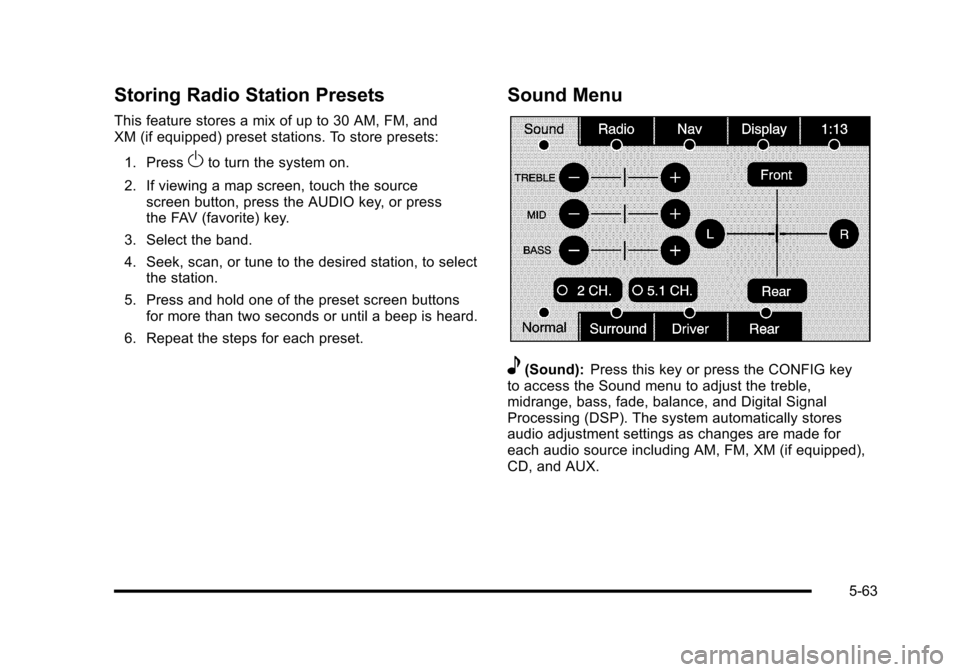
Sound Menu
e(Sound):Press this key or press the CONFIG keyto access the Sound menu to adjust the treble,midrange, bass, fade, balance, and Digital SignalProcessing (DSP). The system automatically storesaudio adjustment settings as changes are made foreach audio source including AM, FM, XM (if equipped),CD, and AUX.
5-63
Page 382 of 616
Using the Navigation Audio System to
Control a USB Storage Device or iPod®
The navigation audio system can control a USB storagedevice or an iPod by using the radio touch screens andsteering wheel controls.
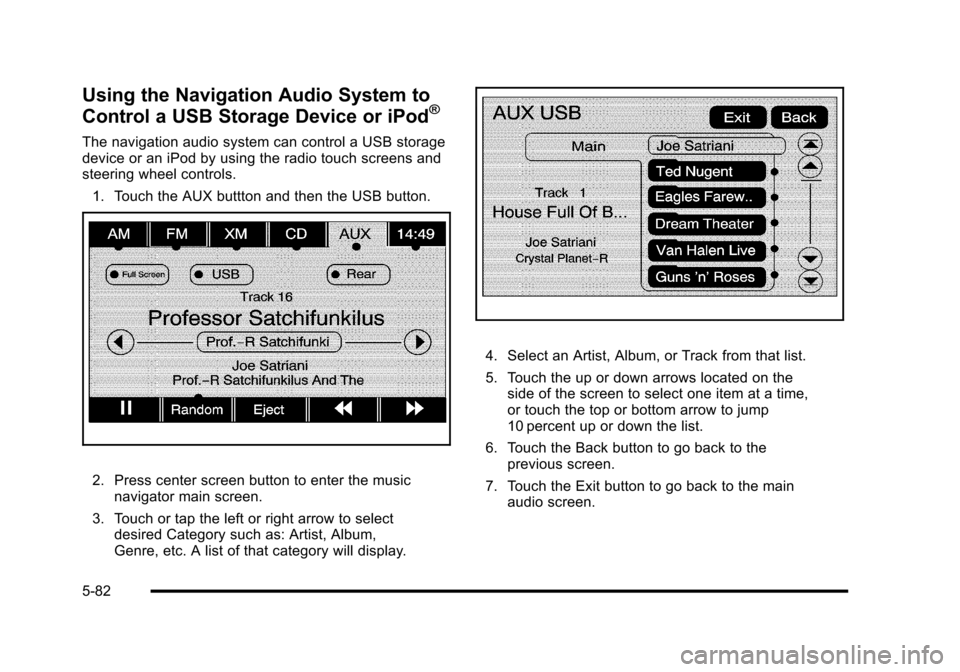
1. Touch the AUX buttton and then the USB button.
2. Press center screen button to enter the musicnavigator main screen.
3. Touch or tap the left or right arrow to selectdesired Category such as: Artist, Album,Genre, etc. A list of that category will display.
4. Select an Artist, Album, or Track from that list.
5. Touch the up or down arrows located on theside of the screen to select one item at a time,or touch the top or bottom arrow to jump10 percent up or down the list.
6. Touch the Back button to go back to theprevious screen.
7. Touch the Exit button to go back to the mainaudio screen.
5-82
Page 385 of 616
Do not add any label to a CD or DVD, it could getcaught in the player. If a CD or DVD is recorded on apersonal computer and a description label is needed,try labeling the top of the recorded CD or DVD with asoft marker.
Auxiliary Devices
The vehicle may have a rear entertainmentsystem (RSE) with a second and third row screen.The RSE has audio adapters to allow you to connectauxiliary devices. The audio can be heard through thespeakers or through the wireless or wired headphones.See“Audio/Video Jacks”under,Rear SeatEntertainment (RSE) System (Overhead)on page 4!77orRear Seat Entertainment (RSE) System (HeadrestDVD)on page 4!86for more information.
Drivers are encouraged to set up any auxiliary devicewhile the vehicle is in P (Park). SeeDefensive Drivingo n p a g e 6!2for more information on driver distraction.
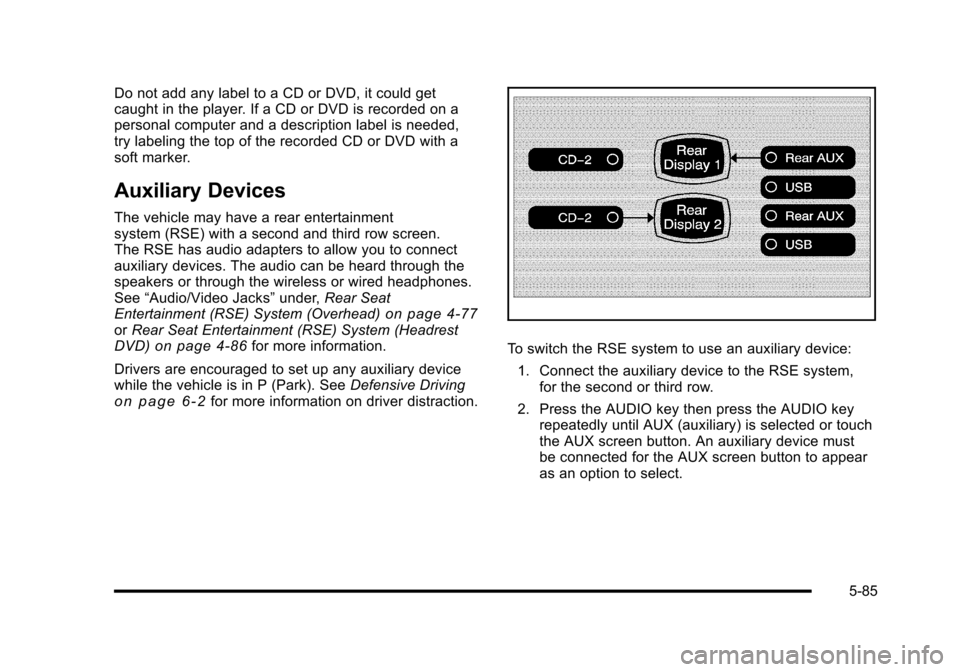
To switch the RSE system to use an auxiliary device:
1. Connect the auxiliary device to the RSE system,for the second or third row.
2. Press the AUDIO key then press the AUDIO keyrepeatedly until AUX (auxiliary) is selected or touchthe AUX screen button. An auxiliary device mustbe connected for the AUX screen button to appearas an option to select.
5-85
Page 386 of 616

3. For the second row display select the Rear AUXscreen button next to Rear Display 1 and for thethird row display select the Rear AUX screenbutton next to Rear Display 2. Each screen worksindependently of the other. The second row screencan watch a DVD while the third row screen canuse the auxiliary device.
The rear seat passengers can also use the remotecontrol to change the functions of the RSE. SeeRearSeat Entertainment (RSE) System (Overhead)onpage 4!77orRear Seat Entertainment (RSE) System(Headrest DVD)on page 4!86for more information.
Voice Recognition
The navigation system's voice recognition allowsfor hands-free operation of the navigation system,audio system, and OnStar®features. The DVD mapdisc must be installed in the navigation system for voicerecognition to work. See“Installing the DVD Map Disc”underMapson page 5!14for more information.
Voice recognition can be used when the ignition is onor when Retained Accessory Power (RAP) is active.See“Retained Accessory Power (RAP)”in the Index ofyour vehicle's owner manual for more information.
To use voice recognition, do the following:
1. Push and hold theSRCE button on thesteering wheel untilyou hear a beep. Theaudio system mutes.
2. Clearly state one of the commands listed on thefollowing pages.
Helpful Hints for Stating Commands
.When a multiple command is available, choose thecommand that works best.
.Words that are in brackets are optional. Forexample, for the command Radio [band] [select]FM, stating Radio FM or Radio select FM are bothvalid commands.
5-86
Page 389 of 616

CD Commands
The following are CD, MP3, and DVD commands thatcan be accessed by clearly stating the commandsexactly as they are written.
CD, DVD, Disc :Use this command to select a CD,DVD, or disc that is currently loaded.
CD, DVD, Disc, [select] track (one, two, three, etc.) :Instructs the system to select a specific track number.
CD, DVD, Disc select next folder :Use this commandto select the next folder on the MP3 or audio DVD.
CD, DVD, Disc select previous folder :Use thiscommand to select the previous folder on the MP3 oraudio DVD.
CD help, DVD help, Disc help :Instructs the system toassist with CD and DVD commands.
Auxiliary Commands
The following auxiliary commands can be accessedby clearly stating the commands exactly as they arewritten. The commands are available when the auxiliarysource is available.
Aux, Auxiliary :Use this command to select theauxiliary device, when a device is connected.
Voice Help
Voice help :Provides a description of help commandsthat can be used.
5-89
Page 559 of 616
FusesUsage
17Air Conditioning Compressor
18Oxygen Sensors
19Transmission Controls (Ignition)
20Fuel Pump
21Fuel System Control Module
22Headlamp Washer
23Rear Windshield Washer
24Fuel Injectors, Ignition Coils(Left Side)
25Trailer Park Lamps
26Driver Side Park Lamps
27Passenger Side Park Lamps
28Fog Lamps
29Horn
30Passenger Side High-BeamHeadlamp
31Daytime Running Lamps (DRL)
32Driver Side High-Beam Headlamp
33Daytime Running Lamps 2
34Sunroof
FusesUsage
35Key Ignition System, Theft DeterrentSystem
36Windshield Wiper
37SEO B2 Upfitter Usage (Battery)
38Electric Adjustable Pedals
39Climate Controls (Battery)
40Airbag System (Ignition)
41Amplifier
42Audio System
43Miscellaneous (Ignition), CruiseControl
44Liftgate Release
45Airbag System (Battery)
46Instrument Panel Cluster
47Not Used
48Auxiliary Climate Control (Ignition)
49Center High-Mounted Stoplamp(CHMSL)
50Rear Defogger
51Heated Mirrors
7-113