2010 CADILLAC ESCALADE ESV lock
[x] Cancel search: lockPage 275 of 620

Black plate (83,1)Cadillac Escalade/Escalade ESV Owner Manual - 2010
The overhead console contains the IR (infrared)
transmitters for the wireless headphones and the IR
receivers for the remote control. They are located at the
rear of the console.
Notice: Avoid directly touching the video screen, as
damage may occur. See “ Cleaning the Video
Screen ” later in this section for more information.
Remote Control To use the remote control, aim it at the transmitter
window at the rear of the overhead console and press
the desired button. Direct sunlight or very bright light
can affect the ability of the RSE transmitter to receive
signals from the remote control. If the remote control
does not seem to be working, the batteries may need to
be replaced. See “ Battery Replacement ” later in this
section. Objects blocking the line of sight can also affect
the function of the remote control.
If a CD or DVD is in the Radio DVD slot, the remote
control power button can be used to turn on the video
screen display and start the disc. The radio can also
turn on the video screen display. See Navigation Audio
System on page 5 ‑ 60 for more information. Notice: Storing the remote control in a hot area or
in direct sunlight can damage it, and the repairs will
not be covered by the warranty. Storage in extreme
cold can weaken the batteries. Keep the remote
control stored in a cool, dry place.
If the remote control becomes lost or damaged, a new
universal remote control can be purchased. If this
happens, make sure the universal remote control uses
a code set of Toshiba ®
.
Remote Control Buttons
O (Power): Press to turn the video screen on and off.
P (Illumination): Press to turn the remote control
backlight on. The backlight automatically times out after
7 to 10 seconds if no other button is pressed while the
backlight is on.
v (Title): Press to return the DVD to the main menu of
the DVD. This function can vary for each disc.
y (Main Menu): Press to access the DVD menu.
The DVD menu is different on every DVD. Use the
navigation arrows to move the cursor around the DVD
menu. After making a selection press the enter button.
This button only operates when using a DVD.
Q ,
R ,
q ,
r (Menu Navigation Arrows): Use the
arrow buttons to navigate through a menu.
4-83
Page 282 of 620

Black plate (90,1)Cadillac Escalade/Escalade ESV Owner Manual - 2010
STOP
c : Press once to stop playing a DVD.
There is a pre-stop feature for DVD and video CD only.
This feature resumes playback of the disc where it was
stopped. Press the stop button once during disc
playback and
c displays on the DVD startup screen.
This icon disappears after a few seconds. Press the
stop button a second time, or eject the disc, to cancel
the pre-stop feature and to clear the disc position
memory.
SOURCE: Press to select between Monitor 3,
Monitor 4, or the AV INPUT.
Each video display screen can be adjusted
independently, as well as display information from both
DVD players and both A/V inputs.
Infrared Remote Sensor: Located in the top center of
the video display screen. Do not block the signal from
the remote to the sensor.
Infrared Transmitters: Located in the top center of the
video display screen. Do not block the signal from the
headphones to the transmitter.
Video Display Screen: Located on the back of each
headrest. AV OUTPUT (Audio/Video Output Jack): Located on
the lower left side of the screen and is identified on the
video screen panel as the AV OUTPUT.
Headphone Jack : Wired headphones can be plugged
into the headphone jack with one-eighth inch stereo
plugs.
AV INPUT: (Audio/Video Input Jack): The audio/video
input jack is located below the video display screen and
allows viewing of auxiliary sources such as portable
DVD players, game stations, or video cameras, on each
screen. .
Video Input — The yellow connector is used for
video input. .
L Audio — The white connector is used for the left
side audio. .
R Audio — The red connector is used for the right
side audio.
Level Lock and Release Latch: The viewing angle of
the video screen can be adjusted by releasing the latch
and gently moving the screen. Then lock it into a secure
position.
4-90
Page 284 of 620

Black plate (92,1)Cadillac Escalade/Escalade ESV Owner Manual - 2010
Remote Control To use the remote control, aim at the remote sensor
located on top center of the video display screen and
press the desired button.
Objects blocking the line-of-sight can affect the function
of the remote control. Direct or very bright light can
affect the ability of the transmitter to receive signals
from the remote control. If the remote control does not
seem to be working, the batteries might need to be
replaced. See “ Battery Replacement ” following this
section.
The remote control provided with the Headrest DVD
RSE system, is not a universal remote control and will
not control other equipment.
Notice: Storing the remote control in a hot area or
in direct sunlight can damage it, and the repairs will
not be covered by the warranty. Storage in extreme
cold can weaken the batteries. Keep the remote
control stored in a cool, dry place. Remote Control Buttons
POWER: Press to turn the Headrest DVD RSE system
on and off.
SOURCE: Press to select between Monitor 3,
Monitor 4, or AV INPUT. Any video equipment
connected to the AV inputs automatically overrides
the source selection.
4-92
Page 295 of 620
Black plate (103,1)Cadillac Escalade/Escalade ESV Owner Manual - 2010
Using the REPEAT Feature REPEAT: Press to change between Repeat One and
Repeat Folder. .
Repeat One — Repeats the song that is playing..
Repeat Folder — Repeats the folder that is
playing.
Tips and Troubleshooting Chart Problem Recommended Action
IR Sensor Inoperative .
Check that the
batteries are good
in the remote
control. .
Check that the
remote Control IR
Sensor is not
blocked. .
Aim the remote
control toward the
IR Sensor being
controlled. .
Select the correct
screen, 3 or 4. Problem Recommended Action
No picture .
Check that the
correct video input
mode is selected. .
Check that the
video cable is
plugged into the
jack securely.
No Sound .
Check that the
correct audio input
mode is selected. .
Check that the
audio cable is
securely plugged
into the jack.
Cleaning the Video Screens The video display screens are made of a specially
coated glass and can be scratched or damaged by
abrasive products, solvents, or ammonia-based window
cleaners. Clean with a soft, lint-free, cotton cloth that
has been slightly dampened with warm water. Dry the
screens by wiping with a clean dry cotton cloth.
4-103
Page 298 of 620
Black plate (106,1)Cadillac Escalade/Escalade ESV Owner Manual - 2010
PROG (Program): Press this button to go to the next
preset radio station or channel set on the main radio.
This function is inactive, with some radios, if the front
seat passengers are listening to the radio.
When a CD or DVD audio disc is playing, press this
button to go to the beginning of the CD or DVD audio.
This function is inactive, with some radios, if the front
seat passengers are listening to the disc.
When a disc is playing in the CD or DVD changer, press
this button to select the next disc, if multiple discs are
loaded. This function is inactive, with some radios, if the
front seat passengers are listening to the disc.
When a DVD video menu is being displayed, press the
PROG button to perform the menu function, enter.
Theft-Deterrent Feature THEFTLOCK ®
is designed to discourage theft of the
vehicle's radio by learning a portion of the Vehicle
Identification Number (VIN). The radio does not operate
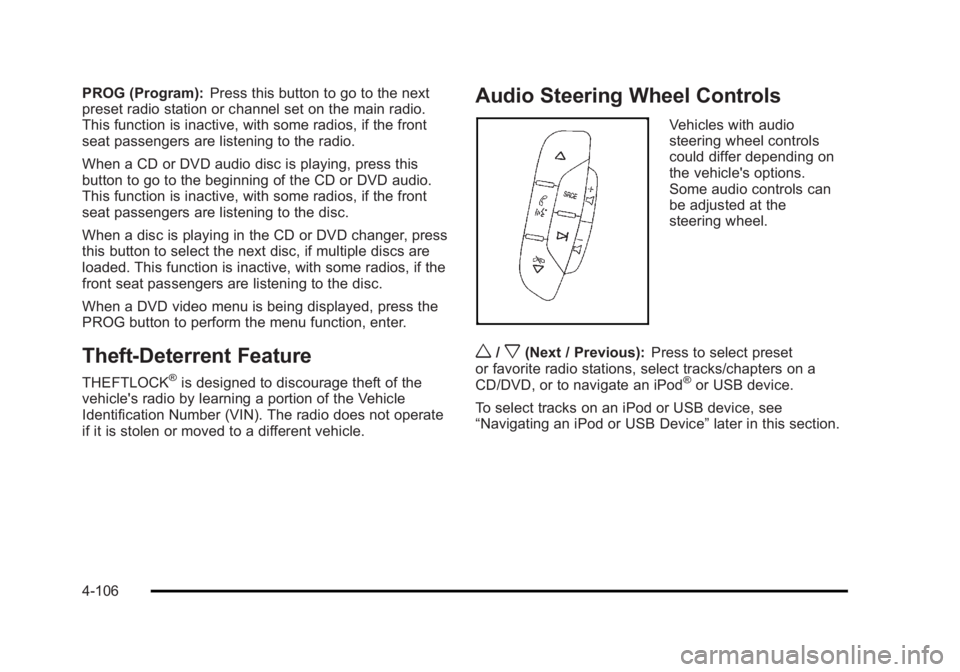
if it is stolen or moved to a different vehicle. Audio Steering Wheel Controls Vehicles with audio
steering wheel controls
could differ depending on
the vehicle's options.
Some audio controls can
be adjusted at the
steering wheel.
w /
x (Next / Previous): Press to select preset
or favorite radio stations, select tracks/chapters on a
CD/DVD, or to navigate an iPod ®
or USB device.
To select tracks on an iPod or USB device, see
“ Navigating an iPod or USB Device ” later in this section.
4-106
Page 305 of 620
Black plate (3,1)Cadillac Escalade/Escalade ESV Owner Manual - 2010
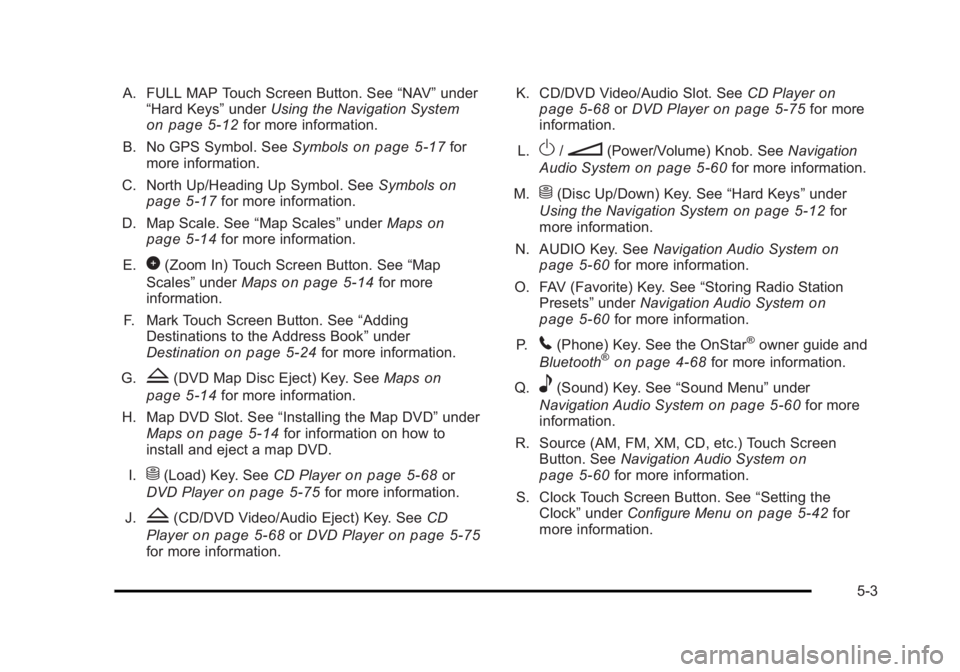
A. FULL MAP Touch Screen Button. See “ NAV ” under
“ Hard Keys ” under Using the Navigation System
on page 5 ‑ 12 for more information.
B. No GPS Symbol. See Symbols on page 5 ‑ 17 for
more information.
C. North Up/Heading Up Symbol. See Symbols
on
page 5 ‑ 17 for more information.
D. Map Scale. See “ Map Scales ” under Maps on
page 5 ‑ 14
for more information.
E.
0 (Zoom In) Touch Screen Button. See “ Map
Scales ” under Maps on page 5 ‑ 14 for more
information.
F. Mark Touch Screen Button. See “ Adding
Destinations to the Address Book ” under
Destination
on page 5 ‑ 24 for more information.
G.
Z (DVD Map Disc Eject) Key. See Maps on
page 5 ‑ 14 for more information.
H. Map DVD Slot. See “ Installing the Map DVD ” under
Maps
on page 5 ‑ 14 for information on how to
install and eject a map DVD.
I.
M (Load) Key. See CD Player on page 5 ‑ 68 or
DVD Player on page 5 ‑ 75 for more information.
J.
Z (CD/DVD Video/Audio Eject) Key. See CD
Player
on page 5 ‑ 68 or DVD Player on page 5 ‑ 75
for more information. K. CD/DVD Video/Audio Slot. See CD Player on
page 5 ‑ 68
or DVD Player on page 5 ‑ 75 for more
information.
L.
O /
n (Power/Volume) Knob. See Navigation
Audio System on page 5 ‑ 60 for more information.
M.
M (Disc Up/Down) Key. See “ Hard Keys ” under
Using the Navigation System on page 5 ‑ 12 for
more information.
N. AUDIO Key. See Navigation Audio System on
page 5 ‑ 60 for more information.
O. FAV (Favorite) Key. See “ Storing Radio Station
Presets ” under Navigation Audio System
on
page 5 ‑ 60 for more information.
P.
5 (Phone) Key. See the OnStar ®
owner guide and
Bluetooth ®
on page 4 ‑ 68 for more information.
Q.
e (Sound) Key. See “ Sound Menu ” under
Navigation Audio System
on page 5 ‑ 60 for more
information.
R. Source (AM, FM, XM, CD, etc.) Touch Screen
Button. See Navigation Audio System
on
page 5 ‑ 60 for more information.
S. Clock Touch Screen Button. See “ Setting the
Clock ” under Configure Menu on page 5 ‑ 42 for
more information.
5-3
Page 310 of 620

Black plate (8,1)Cadillac Escalade/Escalade ESV Owner Manual - 2010
Setting the Clock The navigation system time and the analog clock
operate independently. Changing the time through the
navigation system does not change the time on the
analog clock. See Analog Clock
on page 4 ‑ 20 to
change the analog clock time.
To set the time for the navigation system:
1. Press the CONFIG key to enter the configure
menu options, then press the CONFIG key
repeatedly until the time is selected or touch the
time screen button.
2. Press the Hours and Minutes − (minus) and
+ (plus) signs to decrease or to increase the time.
See “ Setting the Clock ” under Configure Menu
on
page 5 ‑ 42
for more information. Entering an Address and Point of
Interest, and Storing Preset
Destinations Entering an Address Enter a destination by inputting the city name first:
1. If the radio is already on with a map disc inserted,
skip to Step 5.
2. Press
O to turn the system on.
3. Insert the DVD map disc. See “ Installing the Map
DVD ” under Maps on page 5 ‑ 14 for more
information.
4. A caution may appear. Touch the OK screen button
to proceed.
5. Press the DEST hard key.
6. Press the
2 Address Entry screen button.
5-8
Page 355 of 620
Black plate (53,1)Cadillac Escalade/Escalade ESV Owner Manual - 2010
After selecting the INFO (information) screen button,
the type of traffic condition, the street name, and a
description of the traffic condition displays. See
“ Scrolling the Map ” under Maps
on page 5 ‑ 14 for more
information.
To display traffic events in another state or a great
distance away, scroll to the desired area, and then stop
scrolling. Wait for the traffic to update. It may take up to
two minutes before traffic in this new area can be
received and displayed.
Traffic Event Display Categories The following are traffic condition categories and
symbols that can appear on the display:
Category 1, Road Closure:
q (Road Closed): Road and/or ramps closed.
Category 2, Traffic Delayed:
o (Stopped Traffic): Traffic stopped, stop and go
traffic, delayed and congested traffic. Category 3, Incidents:
p (Alert): Object in the roadway, disabled vehicle,
or dangerous road conditions.
t (Accident): Roadway obstructed due to accident.
s (Road Works): Delayed traffic due to construction.
Category 4, Advisories:
j /
r (Road Condition): Delayed or stopped traffic,
lane blocked or closed due to a road condition.
k (Weather): Heavy rain, snow, or fog weather
condition.
m (Parking): Available parking area.
l (Information): Special event, general information,
or warning.
5-53