Page 286 of 508
286 3-4. Using the hands-free system (for cellular phone)
PRIUS_U_(OM47614U)■
Inputting a key
When using phone services such as an answering service or a
bank, you can store phone numbers and code numbers in the
phone book.
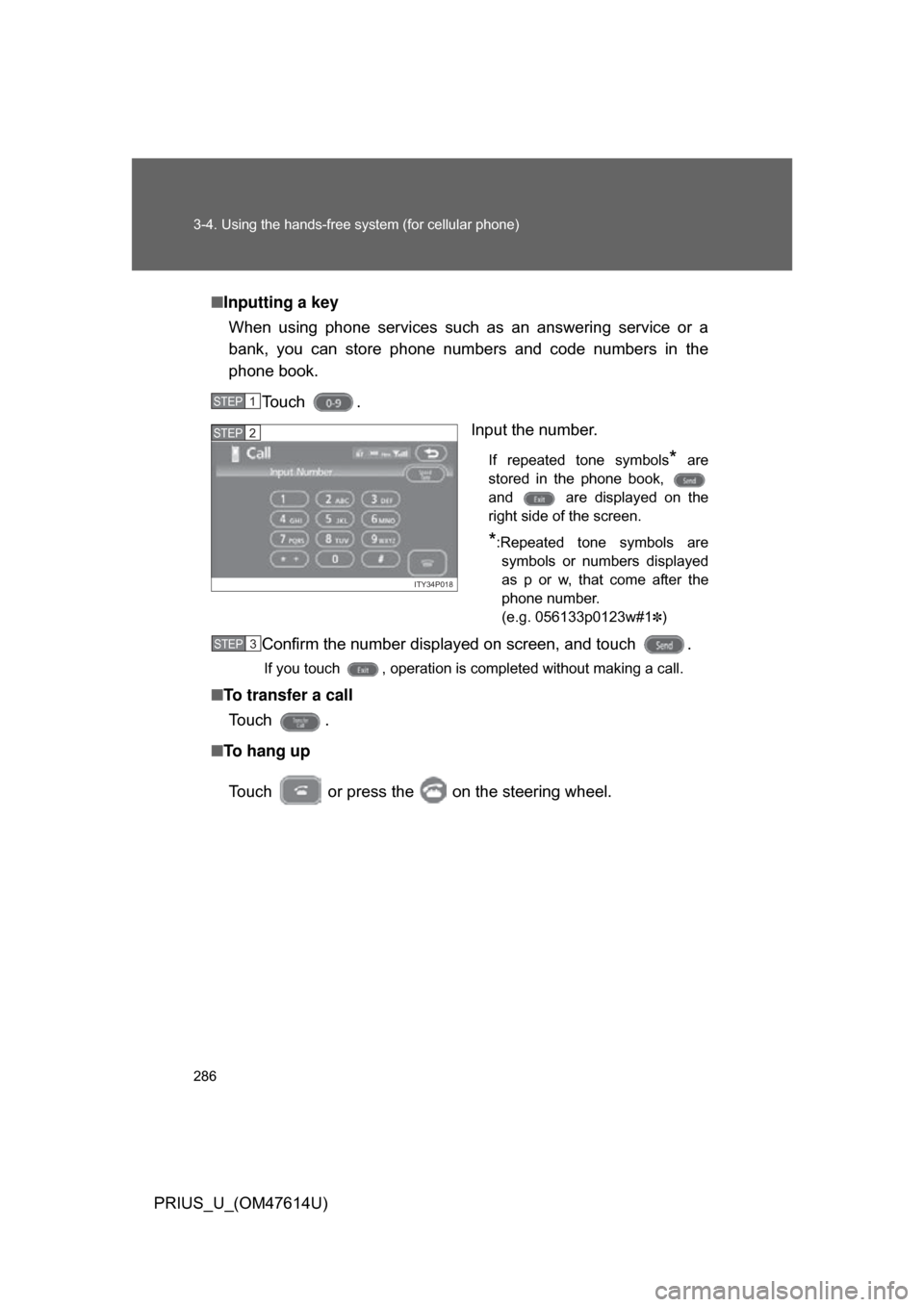
Touch . Input the number.
If repeated tone symbols* are
stored in the phone book,
and are displayed on the
right side of the screen.
*:Repeated tone symbols are symbols or numbers displayed
as p or w, that come after the
phone number.
(e.g. 056133p0123w#1
✽)
Confirm the number displayed on screen, and touch .
If you touch , operation is completed without making a call.
■ To transfer a call
To u c h .
■ To hang up
Touch or press the on the steering wheel.
STEP1
ITY34P018
STEP2
STEP3
Page 287 of 508
287
3-4. Using the hands-free
system (for cellular phone)
3
Interior features
PRIUS_U_(OM47614U)
■Transferring calls
● It is not possible to transfer from hands-free to the mobile phone while
driving.
● If you transfer from the mobile phone to hands-free, the hands-free
screen will be displayed, and you can operate the system using the
screen.
● Transfer method and operation may vary according to the mobile phone
used.
● For operation of the mobile phone in use, see the phone’s manual.
■ To send a tone by speed tone
Touch then touch . Choose the desired number from the
speed tone list displayed.
■ While driving
Key input is unavailable.
Page 288 of 508
288
3-4. Using the hands-free system (for cellular phone)
PRIUS_U_(OM47614U)
Setting the hands-free system (for cellular phone)
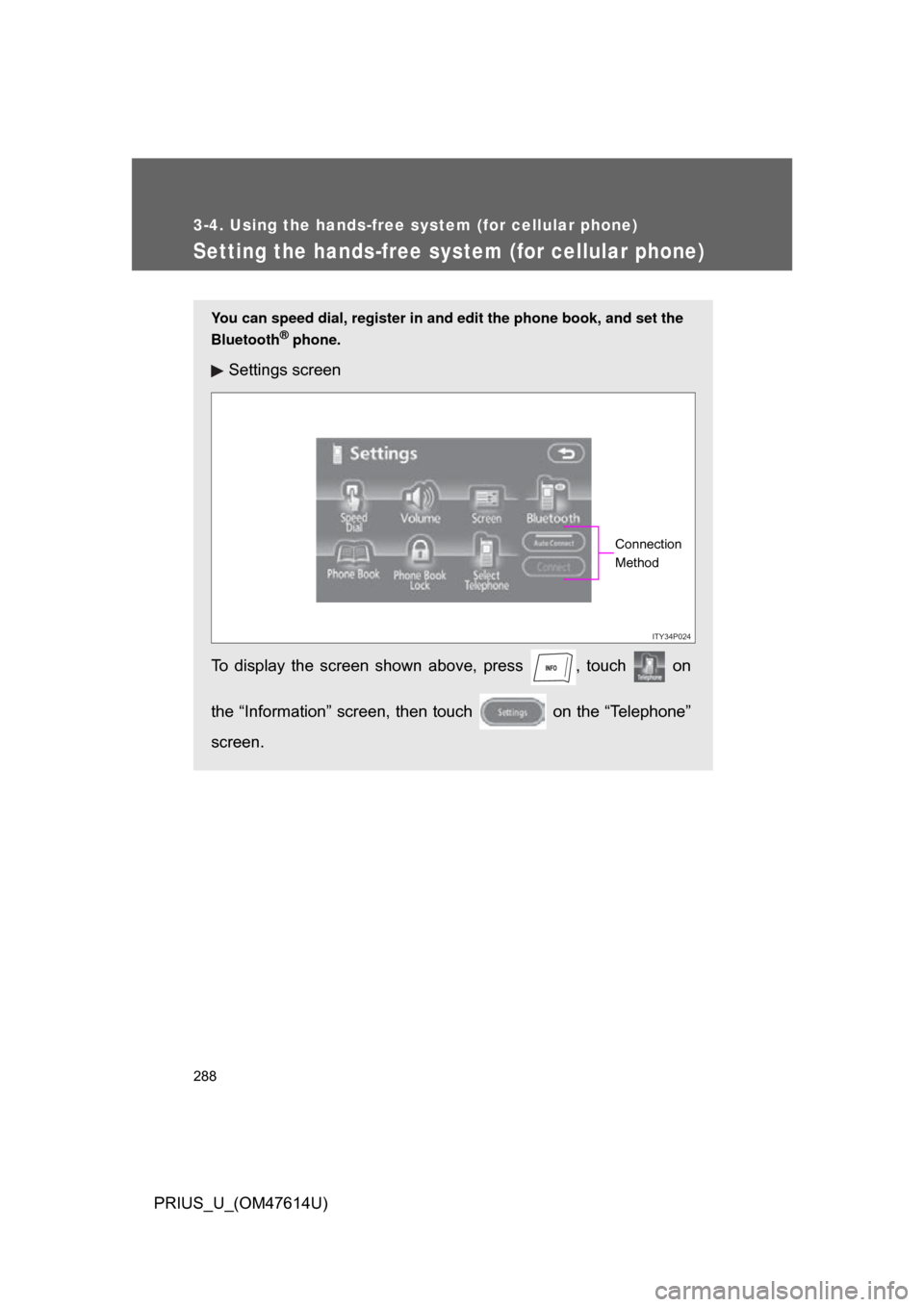
You can speed dial, register in and edit the phone book, and set the
Bluetooth
® phone.
Settings screen
To display the screen shown above, press , touch on
the “Information” screen, then touch on the “Telephone”
screen.
ITY34P024
Connection
Method
Page 291 of 508
291
3-4. Using the hands-free
system (for cellular phone)
3
Interior features
PRIUS_U_(OM47614U)
Registering/Editing/Deleting a Speed Tone
■ Registering a speed tone
You can register up to 6 items.
Press .
Touch on the “Information” screen.
Touch on the “Telephone” screen.
Touch on the “Settings” screen.
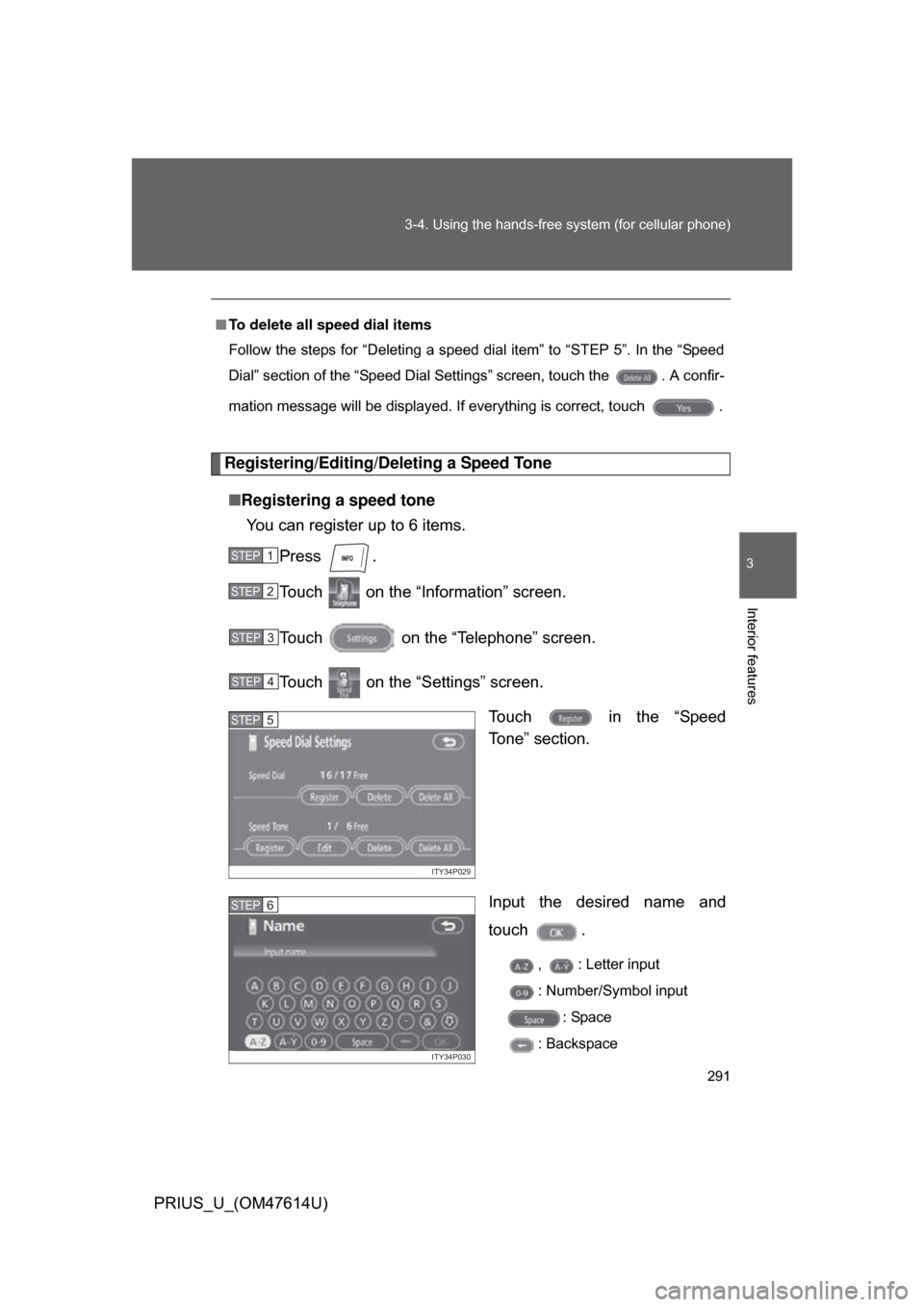
Touch in the “Speed
Tone” section.
Input the desired name and
touch .
, : Letter input
: Number/Symbol input: Space
: Backspace
■
To delete all speed dial items
Follow the steps for “Deleting a speed dial item” to “STEP 5”. In the “Speed
Dial” section of the “Speed Dial Settings” screen, touch the . A confir-
mation message will be displayed. If everything is correct, touch .
STEP1
STEP2
STEP3
STEP4
ITY34P029
STEP5
ITY34P030
STEP6
Page 293 of 508
293
3-4. Using the hands-free
system (for cellular phone)
3
Interior features
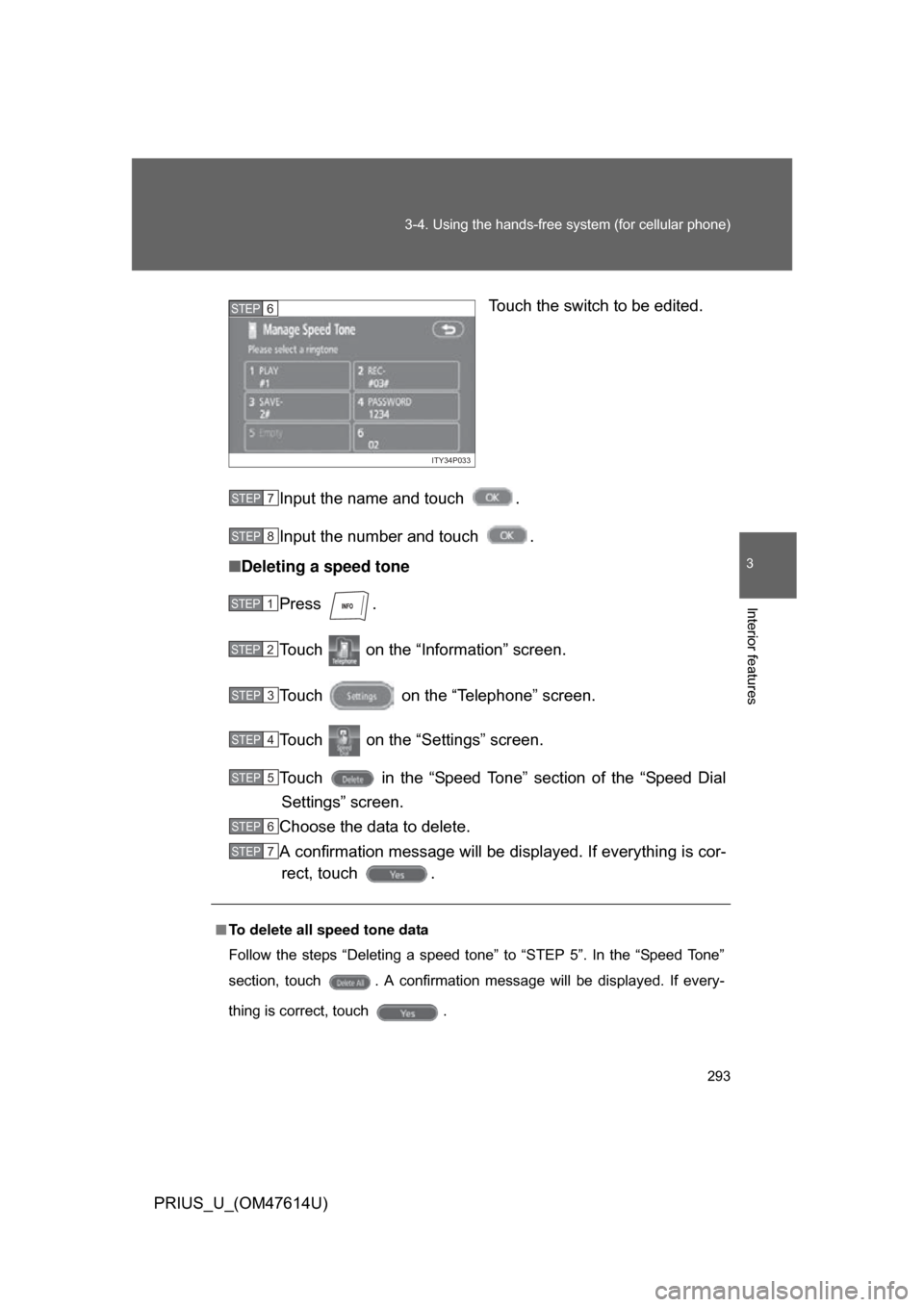
PRIUS_U_(OM47614U) Touch the switch to be edited.
Input the name and touch .
Input the number and touch .
■ Deleting a speed tone
Press .
Touch on the “Information” screen.
Touch on the “Telephone” screen.
Touch on the “Settings” screen.
Touch in the “Speed Tone” section of the “Speed DialSettings” screen.
Choose the data to delete.
A confirmation message will be di splayed. If everything is cor-
rect, touch .
ITY34P033
STEP6
■ To delete all speed tone data
Follow the steps “Deleting a speed tone” to “STEP 5”. In the “Speed Tone”
section, touch . A confirmation message will be displayed. If every-
thing is correct, touch .
STEP7
STEP8
STEP1
STEP2
STEP3
STEP4
STEP5
STEP6
STEP7
Page 295 of 508
295
3-4. Using the hands-free
system (for cellular phone)
3
Interior features
PRIUS_U_(OM47614U)
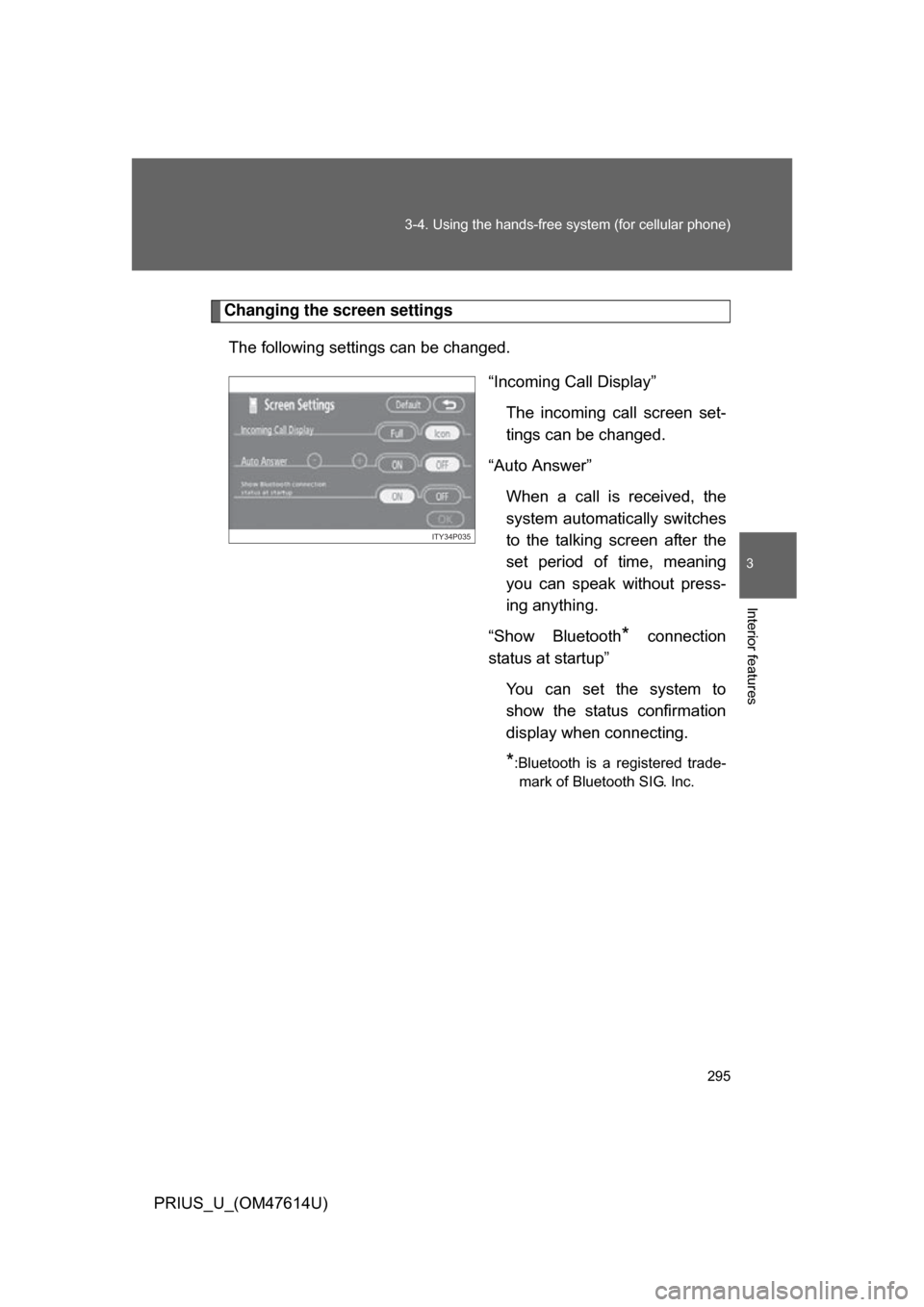
Changing the screen settings
The following settings can be changed. “Incoming Call Display”The incoming call screen set-
tings can be changed.
“Auto Answer” When a call is received, the
system automatically switches
to the talking screen after the
set period of time, meaning
you can speak without press-
ing anything.
“Show Bluetooth
* connection
status at startup”
You can set the system to
show the status confirmation
display when connecting.
*:Bluetooth is a registered trade-mark of Bluetooth SIG. Inc.
ITY34P035
Page 296 of 508
296 3-4. Using the hands-free system (for cellular phone)
PRIUS_U_(OM47614U)■
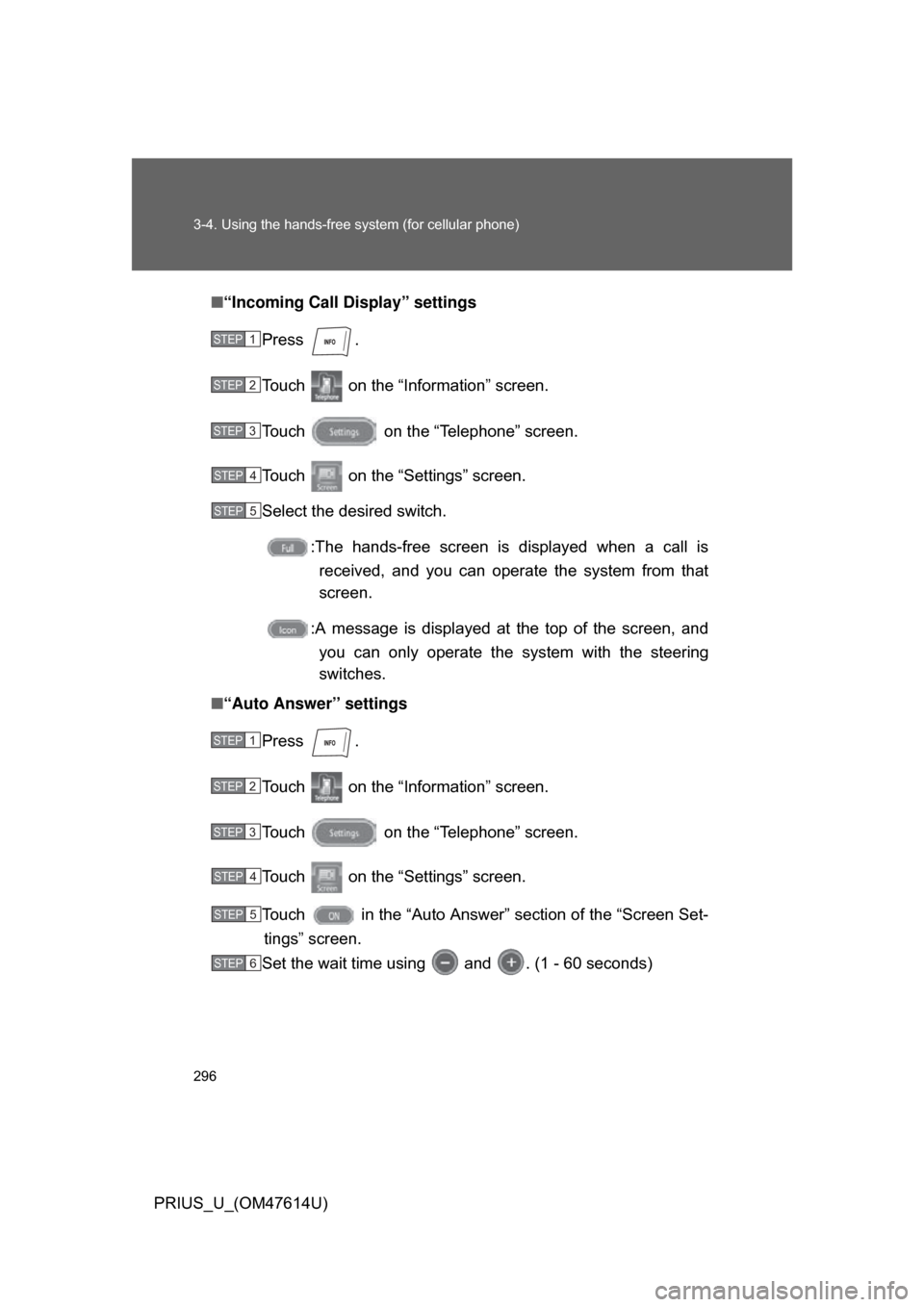
“Incoming Call Display” settings
Press .
Touch on the “Inf ormation” screen.
Touch on the “Telephone” screen.
Touch on the “Settings” screen.
Select the desired switch. :The hands-free screen is displayed when a call isreceived, and you can operate the system from that
screen.
:A message is displayed at the top of the screen, and
you can only operate the system with the steering
switches.
■ “Auto Answer” settings
Press .
Touch on the “Inf ormation” screen.
Touch on the “Telephone” screen.
Touch on the “Settings” screen.
Touch in the “Auto Answer” section of the “Screen Set- tings” screen.
Set the wait time using and . (1 - 60 seconds)
STEP1
STEP2
STEP3
STEP4
STEP5
STEP1
STEP2
STEP3
STEP4
STEP5
STEP6
Page 299 of 508
299
3-4. Using the hands-free
system (for cellular phone)
3
Interior features
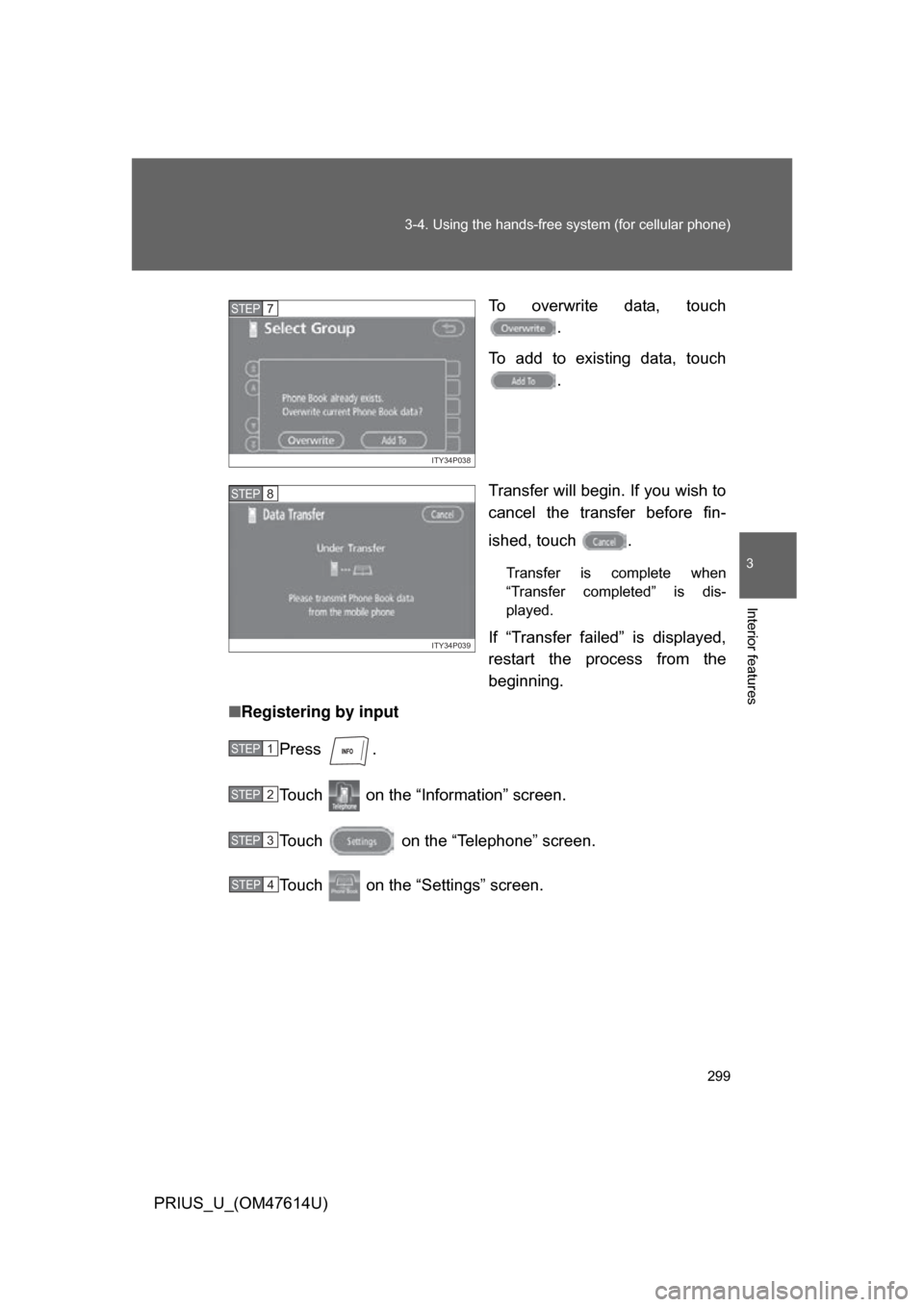
PRIUS_U_(OM47614U) To overwrite data, touch
.
To add to existing data, touch .
Transfer will begin. If you wish to
cancel the transfer before fin-
ished, touch .
Transfer is complete when
“Transfer completed” is dis-
played.
If “Transfer failed” is displayed,
restart the process from the
beginning.
■ Registering by input
Press .
Touch on the “Information” screen.
Touch on the “Telephone” screen.
Touch on the “Settings” screen.
ITY34P038
STEP7
ITY34P039
STEP8
STEP1
STEP2
STEP3
STEP4