2009 PORSCHE PANAMERA reset
[x] Cancel search: resetPage 111 of 343

Instrument Panel and Multi-Function Display
109
ATa c h o m e t e r
B Speedometer
C Multi-function display
D Engine oil temperature gauge
E Coolant temperature gauge
F Engine oil pressure gauge
G Fuel gauge
H Digital speedometer
I Upshift prompt indicator
J Odometer
K Reset button for trip counter display/
Brightness setting for instrument panel
L PDK indicator for selector-lever position/
engaged gear
Instrument Panel Canada ModelsWarning and indicator lights on the
tachometer Warning and indicator lights on the
speedometer
Emission control warning light
(Check Engine)
Air bag warning light
Seat belt warning light
PSM warning light
PSM OFF warning light
ABS warning light
Turn signal, left
Turn signal, right
Brake warning light
High beam indicator light
Electric parking brake warning light
Rear fog light indicator light
HOLD function indicator light
Low beam indicator light
Adaptive light system warning light
Tire pressure warning light
Page 114 of 343

112
Instrument Panel and Multi-Function Display
Fuel reserve warningIf less than approximately 4 US gallons (15 liters)
of fuel remains in the tank or the range on
remaining fuel falls below approx. 30 miles
(50 km) when the ignition is switched on or the
engine is running, the warning light on the multi-
function display in the instrument panel lights up.
fRefuel at the next opportunity.
Caution!
A shortage of fuel may damage the emission
control system.
f Never drive the tank dry.
f If the warning lights have come on, do not take bends at high speed.
For information on the emission control system:
f Please see the chapter “EMISSION CONTROL
SYSTEM” on page 262.
H – Digital SpeedometerThe digital speedometer H is integrated in the
tachometer on the instrument panel.
I – Upshift Prompt IndicatorThe consumption-oriented shift indicator to the
right of the digital speed display on the
tachometer helps you to develop a fuel-saving
driving style.
The upshift indicator lights up - prompting you to
shift up to the next-higher gear - depending on the
selected gear, engine speed and accelerator
pedal position.
The upshift indicator is only active when “Sport”
or “Sport Plus” mode is switched off.
On vehicles with PDK transmission, the upshift
prompt is only available in manual selection mode.
f Change to the next-higher gear when the shift
indicator lights up.J – OdometerThe displays for the total mileage and individual
trips are integrated in the speedometer on the
instrument panel.
The upper display counts the total mileage, the
lower display shows individual trips.
After exceeding 9,999 kilometers or 6,213 miles,
the trip counter returns to 0.
K – Reset Button for Trip Counter
Display/Brightness Setting for
Instrument LightingResetting trip counter displayfPress rotary switch K for approximately
1second.
The trip counter display is reset to “0”.Adjusting brightness of instrument
lightingFor information on adjusting the brightness of the
instrument lighting:
f Please see the chapter “INSTRUMENT
LIGHTING” on page 95.L – PDK Display for Selector-Lever
Position/Engaged GearWhen the engine is running, the selector-lever
position and engaged forward gear are indicated
in gates D or M.
Page 118 of 343
116
Instrument Panel and Multi-Function Display
Porsche Communication Management (PCM)
functions or multi-function display functions can be
assigned to the MFS button in the multi-function
display on the instrument panel. Audio source
selection is preset by default.
For information on individual assignment of the
MFS button:
f
Please see the chapter “CHANGING BUTTON
ASSIGNMENT ON MULTI-FUNCTION STEERING
WHEEL” on page 151.
For information on Porsche Communication
Management:
f Please refer to the separate PCM operating
instructions.
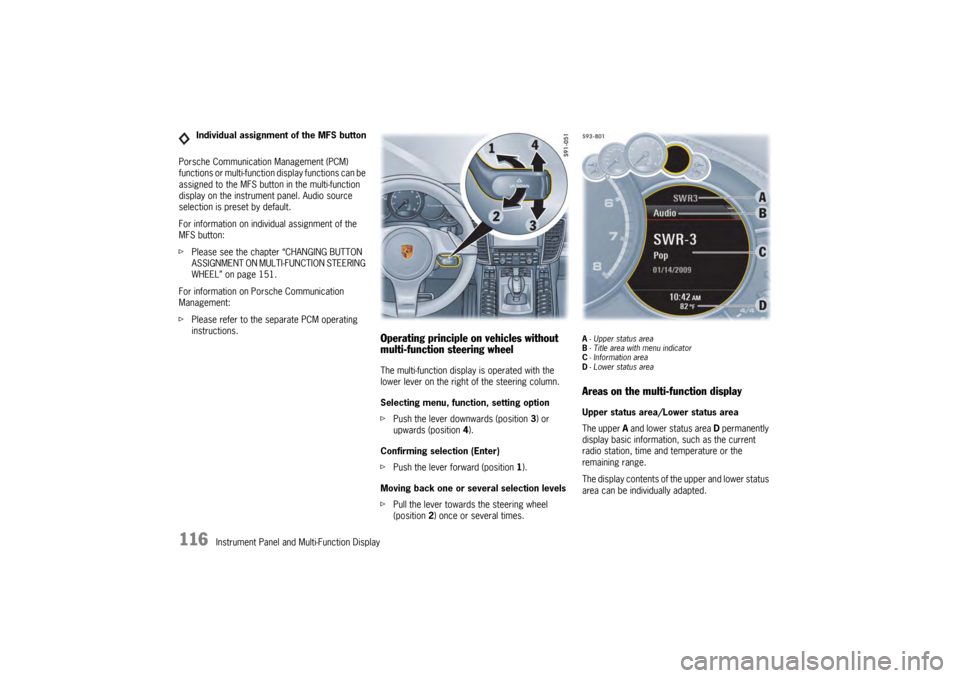
Operating principle on vehicles without
multi-function steering wheelThe multi-function display is operated with the
lower lever on the right of the steering column.
Selecting menu, function, setting option
fPush the lever downwards (position 3) or
upwards (position 4).
Confirming selection (Enter)
f Push the lever forward (position 1).
Moving back one or several selection levels
f Pull the lever towards the steering wheel
(position 2 ) once or several times.
A-Upper status area
B - Title area with menu indicator
C - Information area
D - Lower status areaAreas on the multi-function displayUpper status area/Lower status area
The upper A and lower status area D permanently
display basic information, such as the current
radio station, time and temperature or the
remaining range.
The display contents of th e upper and lower status
area can be individually adapted.
Individual assignment of the MFS button
Page 119 of 343
Instrument Panel and Multi-Function Display
117
For information on adapting the multi-function
display:
fPlease see the chapter “ADAPTING
APPEARANCE OF MULTI-FUNCTION DISPLAY”
on page 139.
Title area with menu indicator
The menu item currently selected is displayed in
the title area.
The menu indicator on the right shows the position
of the current menu item in the overall menu and
displays the number of other menu items on this
menu level.
The wider the menu indicator, the fewer menu
items the current menu contains.
Information area
The information area C displays the menu items
currently available for selection or after a menu
item is selected, information relating to this menu
item or other selection options.
Overview of menus in the multi-function
displayThe following main menu areas are available
depending on the vehicle equipment.
–“ Vehicle ”
Retrieve vehicle inform ation, check oil level,
adjust settings, adapt speed limits,
see page 119.
–“ Audio”
Display/select radio station or track,
see page 123.
–“ Navigation ”
Retrieve navigation information, enter
navigation destination, start/finish navigation,
see page 123.
–“ Map ”
Show/adapt the map display for navigation,
see page 124.
–“ Phone ”
Make telephone calls, see page 125.
–“ Tr i p”
Retrieve/reset trip information, see page 126.
–“ Tire pressure ”
Retrieve tire pressure information, modify Tire
Pressure Monitoring settings, see page 127.
–“ Sport Chrono”
Start/stop/reset stopwatch, see page 135. –“
ACC ”
Retrieve adaptive cruise control information,
seepage178.
Activating functions, opening submenus
and accessing setting options from the
main menu areasPress the rotary knob A or push the right lower
lever on the steering wheel forwards (position 1)
to access menus, other functions and setting
options regardless of the main menu area.Browsing through long listsWhen searching for an entry in long telephone and
audio lists on vehicles with PCM, you can skip
directly to other entries with the same first letter.
f Briefly press the rotary knob A or hold the
operating lever in position 3 or 4.
A letter selection screen appears.
Select the desired first letters and confirm.
The marking skips to the first list entry beginning
with the letters selected.1. Select main menu
and confirm.
2. Select function, submenu or setting option
and confirm.
Page 120 of 343

118
Instrument Panel and Multi-Function DisplayVehicle
Audio
Navigation
Map
Phone
Trip
Tire pressure
Sport Chrono
ACC
Info
Oil level
Settings
Limits
Station/track
Destination input
Start/Stop route guidance
Manual zoom
Show destination/position
Auto zoom
3D map
North up
Answer/Reject/End
Phonebook
Previous calls
Received calls
since
consecutive
to destination
Fill info
Tire info
Charge
Comfort press.
Adjust
Start
Stop
Round
IntMessages
Service intervals
Level
Ø Consumption
Display
Light/visibility
Locking
Air conditioning
Date/Time
Units
Language
Volume
Steering wheel op.
Fact. settings
Limit 1/Limit 2
Last destination
Stored destinations
POIs
Res.
Reset
Menu scope
Audio
Vehicle menu
Upper line
PCM display
Lower line
Shift request
Brightness
Exterior lights
Interior lights
Wiper
Revers. opt.
Door unlock
Door lock
Comfort Entry
Climate style
Vent. panel
Center cooler
Automatic air circ.
Time
Date
Summer time
Time Chrono
Speedometer
Temperature
Tire pressure
Boost pressure
Consumption
German/French …
ParkAssist
Warn. tones
Multif. key
Current speed
Setting the speed
Page 122 of 343

120
Instrument Panel and Multi-Function Display
Displaying service intervals
The internal mileage count
er indicates when the
next vehicle service is due.
Available service interval displays:
–“ Service ”
–“ Intermediate service ”
–“ Oil change ” Displaying the selected chassis setting
You can view information
on the current chassis
setting.
Displaying and resetting average fuel
consumption
You can display and reset the average fuel
consumption if required.
Displaying average fuel consumption Resetting average fuel consumption
Note on operation
Resetting the average fuel consumption also
resets the “
consecutive ” vehicle data display in
the “Tr i p ” menu.
For information on the driving data display:
f Please see the chapter “TRIP INFORMATION”
on page 126.
1.Select
> “Vehicle ”
> “ Info ”
2. “Service intervals”
and confirm.
3. Select the desired service interval
and confirm.
1.Select
> “Vehicle ”
> “ Info ”
2. “Level ”
and confirm.1. Select
> “Vehicle ”
> “ Info ”
> “Ø Consumption ”
and confirm.1. Select
> “Vehicle ”
> “ Info ”
> “Ø Consumption ”
2. “Consumption”
and confirm.
1. Select
> “Vehicle ”
> “Info ”
> “Ø Consumption ”
2. “Reset ”
and confirm.
Page 124 of 343
122
Instrument Panel and Multi-Function Display
The maximum permitted en
gine filling capacity
has been exceeded. Exceeding the maximum
capacity may result in blue smoke formation and
cause long-term damage to the catalytic
converters depending on the overfill quantity and
various external influences.
If too much engine oil was added, the message
“Oil level Maximum reached” appears on the
multi-function display.
f Have the oil quantity corrected at the next
opportunity.
Please contact a qualif ied specialist workshop.
We recommend that you have an authorized
Porsche dealer to do this work as they have
trained workshop personnel and the necessary
parts and tools. Measuring the oil level after topping up
engine oil or opening the hood
After opening the hood, the oil level can only
be measured after driving for at least 6 miles
(10 km).
The message “Display after short drive only”
appears on the multi-function display.
Failure
If the oil-level indicator fails, the message
“Failure Oil level measurement” appears on the
multi-function display.
Setting speed limits
If a speed limit is preset and activated on the multi-
function display, a warni
ng message appears if
the speed limit is exceeded.
A speed limit can be used to remind the driver to
keep to the maximum speed permitted for the tire
type fitted to the vehicle, for example.
Setting a speed limit
You can either adopt th e current speed of the
vehicle or specify your own speed limit.
1. Select
> “Vehicle ”
> “Limits ”
and confirm.1. Select
> “Vehicle ”
> “Limits ”
2. “Limit 1: --- ” or
“ Limit 2: --- “
and confirm.
3. Select “Current speed ” or
“ --- ”
and confirm.
Page 125 of 343
Instrument Panel and Multi-Function Display
123
Activating and deactivating speed limits
Adjusting vehicle settings
Various settings can be modified in the “Vehicle”
submenu.
For information on modifying vehicle settings:
f Please see the chapter “VEHICLE SETTINGS
ON THE MULTI-FUNCTION DISPLAY” on
page 138.
Selecting radio station or trackIn the “ Audio” main menu, you can select a radio
station either from the st ation list or the list of
stored stations, depending on the settings, or
a track from the active audio source, e.g. disc.
For information on adjusting audio menu settings:
f Please see the chapter “ADAPTING DISPLAY
CONTENTS OF AUDIO MAIN MENU” on
page 139.
Entering navigation destinations, starting
route guidance and retrieving navigation
informationIn the “ Navigation” main menu, you can enter
a navigation destination, start route guidance and
view the navigation information for an active route.
Entering navigation destination
You can enter a navigatio n destination in the
multi-function display.
Only navigation destinations from the list of
previous destinations or from the list of preset
POIs or stored destinations can be selected.
1. Select
> “Vehicle ”
> “ Limits ”
2. “Limit 1: --- ” or
“ Limit 2: --- “
and confirm.
3. Select “ Active”
4. Confirm selection.
Limit is active.
Limit is not active.1.Select
> “Vehicle ”
> “ Settings ”
and confirm.
1. Select
> “Audio”
and confirm.
2. Select the desired radio station or track
and confirm.
1.Select
> “Navigation”
and confirm.1. Select
> “Navigation”
> “ Destination input ”
2. “Last destination ” or
“ Stored destinations” or
“ POIs ”
and confirm.
3. Select desired navigation destination
and confirm.