2009 PORSCHE PANAMERA reset
[x] Cancel search: resetPage 128 of 343
126
Instrument Panel and Multi-Function Display
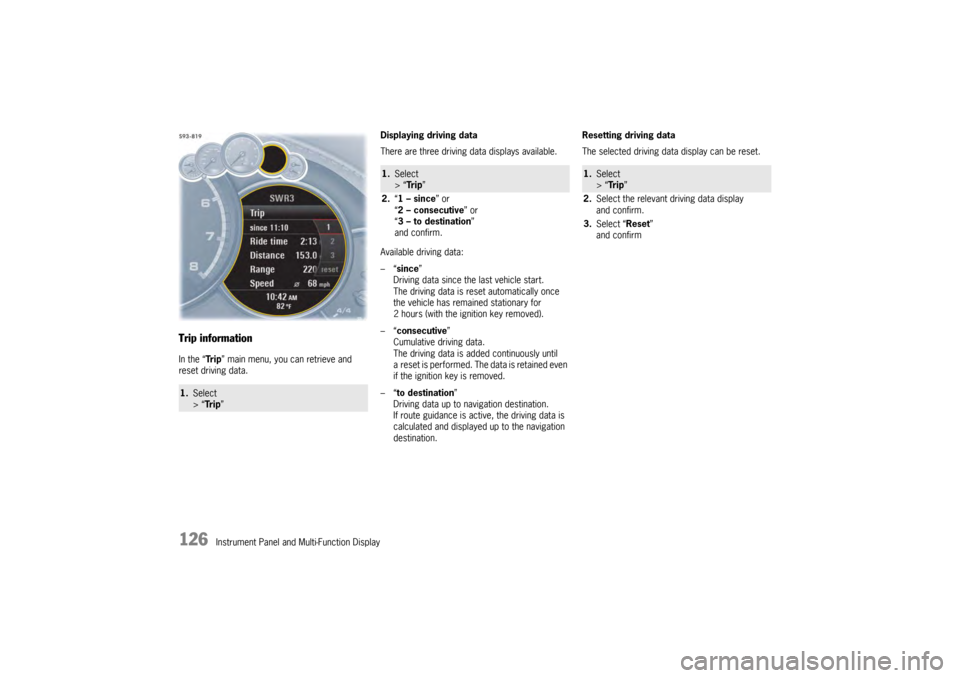
Trip informationIn the “Tr i p” main menu, you can retrieve and
reset driving data. Displaying driving data
There are three driving data displays available.
Available driving data:
–“
since ”
Driving data since the last vehicle start.
The driving data is reset automatically once
the vehicle has remained stationary for
2 hours (with the ignition key removed).
–“ consecutive ”
Cumulative driving data.
The driving data is added continuously until
a reset is performed. The data is retained even
if the ignition key is removed.
–“ to destination ”
Driving data up to navigation destination.
If route guidance is active, the driving data is
calculated and displayed up to the navigation
destination. Resetting driving data
The selected driving data display can be reset.1.
Select
> “Tr i p ”
1.Select
> “Tr i p ”
2. “1 – since ” or
“ 2 – consecutive ” or
“ 3 – to destination ”
and confirm.
1. Select
> “Tr i p ”
2. Select the relevant driving data display
and confirm.
3. Select “Reset ”
and confirm
Page 133 of 343

Instrument Panel and Multi-Function Display
131
Selecting “Comfort pressure” in the
Tire pressure menu
Available setting options:
–“Comfort ”
–“ Standard ” For speeds up to 100 mph (160 km/h), the tire
pressures can be reduced to increase driving
comfort.
The Tire Pressure Monitoring system must be set
to the applicable tire pressure (comfort pressure
or standard pressure).
If you selected “
Comfort press.”, the TPM
system automatically uses lower pressure values
when monitoring tire pressures.
The comfort tire pressures are included in the
technical data or under “Fill info” in the Tire
pressure menu, you can compare the pressure
differences (e.g. 4.4 psi (+0.3 bar)) with the
“Comfort pressures”.
For tires that have not ye t been learned, the new
required tire pressures are displayed instead of
the actual tire pressures.
For information on learning the tires:
f Please see the chapter “SYSTEM LEARNING”
on page 134.
Caution!
Tires are inflated to comfort pressure at the
factory, which is not suitable for driving at
very high speeds. Comfort pressure speed warning
If the maximum speed of the preset comfort
pressure is exceeded, a warning message
appears on the multi-function display.
Warning!
Risk of accident when exceeding the
maximum speed.
Driving at excessive speeds when the comfort
pressure is active will destroy the tires.
f Never exceed the speed specified on the
warning message.
f Always set the standard tire pressure when driving at higher speeds.
1.Select
> “Tire pressure”
2. “Comfort press. ”
and confirm.
3. Select required pressure
and confirm.
Page 138 of 343
136
Instrument Panel and Multi-Function Display
Sport Chrono on multi-function display
All stopwatch displays are started and stopped in
the “Chrono” menu on the multi-function display.
For instructions on using the multi-function
display:
f
Please see the chapter “OPERATING THE
MULTI-FUNCTION DISPLAY IN THE
INSTRUMENT PANEL” on page 115.
Notes on operation
If you exit the “Chrono ” menu while the stopwatch
is running, measurement will continue.
The stopwatch stops after the ignition is switched
off. If the ignition is switched on again within
approximately 4 minutes, the stopwatch will
continue to run.
The only way to reset th e stopwatch to zero is
by selecting “ Reset” in the “ Chrono” menu.
For information on re setting the stopwatch:
f Please see the chapter “RESETTING THE
STOPWATCH TIME” on page 137.
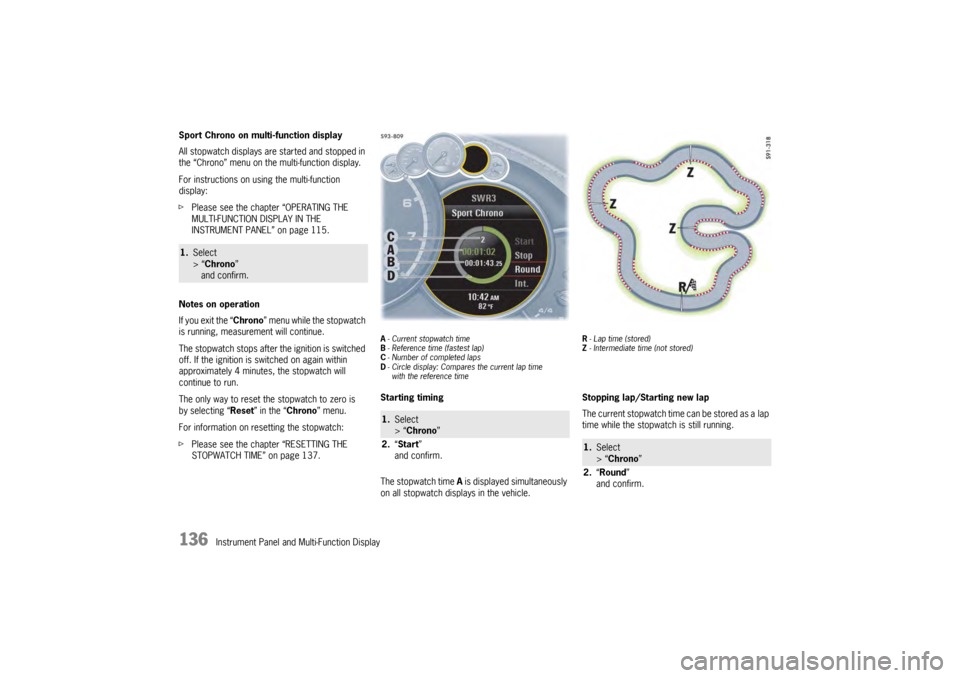
A- Current stopwatch time
B - Reference time (fastest lap)
C - Number of completed laps
D - Circle display: Compares the current lap time
with the reference timeStarting timing
The stopwatch time A is displayed simultaneously
on all stopwatch displays in the vehicle.
R - Lap time (stored)
Z - Intermediate time (not stored)Stopping lap/Starting new lap
The current stopwatch time can be stored as a lap
time while the stopwatch is still running.
1. Select
> “Chrono”
and confirm.
1. Select
> “Chrono”
2. “Start”
and confirm.
1. Select
> “Chrono ”
2. “Round ”
and confirm.
Page 139 of 343
Instrument Panel and Multi-Function Display
137
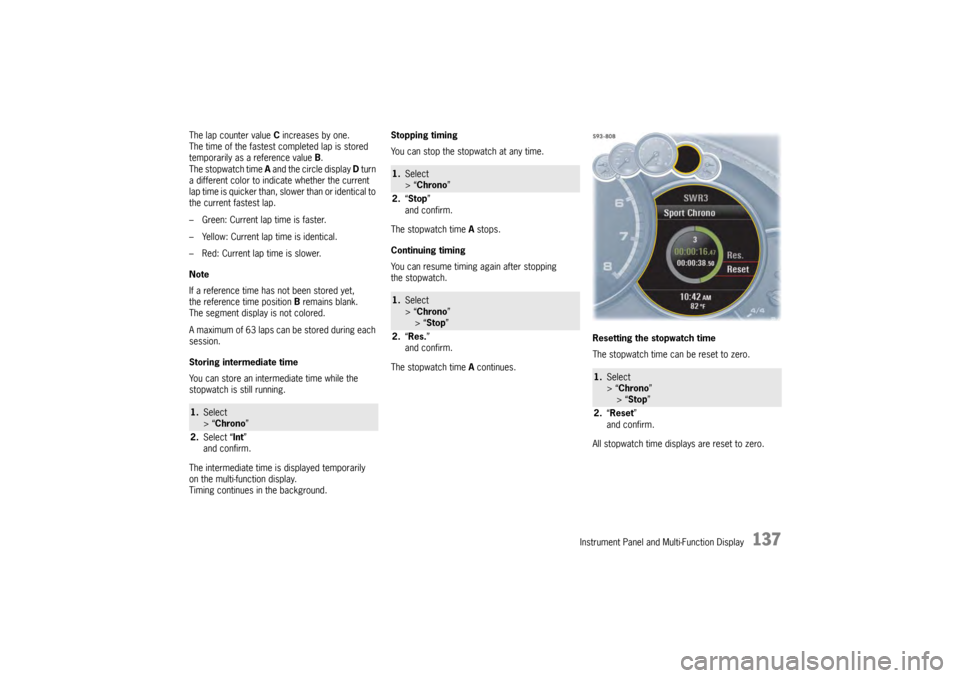
The lap counter value C increases by one.
The time of the fastest completed lap is stored
temporarily as a reference value B.
The stopwatch time A and the circle display D turn
a different color to indicate whether the current
lap time is quicker than, slower than or identical to
the current fastest lap.
– Green: Current lap time is faster.
– Yellow: Current lap time is identical.
– Red: Current lap time is slower.
Note
If a reference time has not been stored yet,
the reference time position B remains blank.
The segment display is not colored.
A maximum of 63 laps can be stored during each
session.
Storing intermediate time
You can store an intermediate time while the
stopwatch is still running.
The intermediate time is displayed temporarily
on the multi-function display.
Timing continues in the background. Stopping timing
You can stop the stopwatch at any time.
The stopwatch time
A stops.
Continuing timing
You can resume timing again after stopping
the stopwatch.
The stopwatch time A continues. Resetting the stopwatch time
The stopwatch time can be reset to zero.
All stopwatch time displays are reset to zero.1.
Select
> “Chrono”
2. Select “ Int”
and confirm.
1. Select
> “Chrono ”
2. “Stop ”
and confirm.1. Select
> “Chrono ”
> “Stop ”
2. “Res. ”
and confirm.
1. Select
> “Chrono”
> “ Stop ”
2. “Reset ”
and confirm.
Page 140 of 343

138
Instrument Panel and Multi-Function Display
Vehicle Settings on the Multi-
Function DisplayDifferent settings can be adjusted in the
multi-function display on the instrument panel
depending on the vehicle equipment.
On vehicles with comfort memory, the settings are
stored on the car key or the person buttons in the
driver’s door.
For information on the comfort memory:
fPlease see the chapter “COMFORT MEMORY”
on page 40.
Selecting settings menu
Setting optionsThe following vehicle functions can be adapted
individually:
–“ Display ”
Adapt the appearance of the multi-function
display, see page 139.
–“ Light/Visibility ”
Adjust the vehicle lighting, wipers and
reversing options, see page 142.
–“ Locking ”
Adjust the locking settings, see page 145.
–“ Air conditioning ”
Adapt the air conditioning, see page 146.
–“ Date/time ”
Set the date and time, see page 147.
–“ Units ”
Set the units of measurement on the
instruments and display, see page 149.
–“ Language”
Set the language of the multi-function display
and the instrument panel, see page 150. –“
Volume ”
Adjust the volume of the warning and
information tones, see page 150.
–“ Steering wheel operation”
Change the MFS button assignment on the
multi-function steering wheel, see page 151.
–“ Reset ”
Reset to factory settings, see page 139.
Selecting setting options or activating
vehicle functionsA symbol positioned in front of a setting option
indicates whether the option is selected or
a vehicle function is activated.
Selecting one of several options
Option is selected.
Option is not selected.
Activating and deactivating functions Function is activated.
Function is deactivated.
1.Select
> “Vehicle ”
> “ Settings ”
and confirm.
Page 141 of 343
Instrument Panel and Multi-Function Display
139
Resetting to factory settingsAll settings made in the multi-function display
can be reset to the factory settings:
Note
All personal settings that have already been stored
will be lost as a result of resetting to factory
settings.
Adapting appearance of multi-function
displayThe contents and appearance of the multi-function
display can be adapted individually.
Selecting main menu display contents
Individual elements in the main menu can be
hidden and shown as required.
The main menu items “ Audio”, “Navigation”,
“ Map ”, “Phone ”, “Tr i p ”, “Tire pressure” and
“ Sport Chrono” can be hidden or shown.
The “ Settings ” menu item cannot be hidden. Adapting display contents of audio main
menu
In the audio main menu, you can display either
a list of all radio stations currently within range or
a list of all stored radio stations.
Available display contents:
–“
Station list ”
List of stations currently within range.
–“ Preset list ”
List of stored stations.
For information on the station and preset lists:
f Please observe the separate operating manual
for the Porsche communication Management
(PCM).
1.Select
> “Vehicle ”
> “ Settings ”
2. “Fact. settings ”
and confirm.
3. Select “ Ye s”
and confirm.
1. Select
> “Vehicle ”
> “Settings ”
> “ Display ”
and confirm.1. Select
> “Vehicle ”
> “Settings ”
> “ Display ”
2. “Menu scope ”
and confirm.
3. Select the desired main menu items.
4. Confirm selection.
Menu item is displayed.
Menu item is hidden.
1.Select
> “Vehicle ”
> “ Settings ”
> “Display ”
2. “Audio”
and confirm.
3. Select the desired display contents
and confirm.
Page 148 of 343
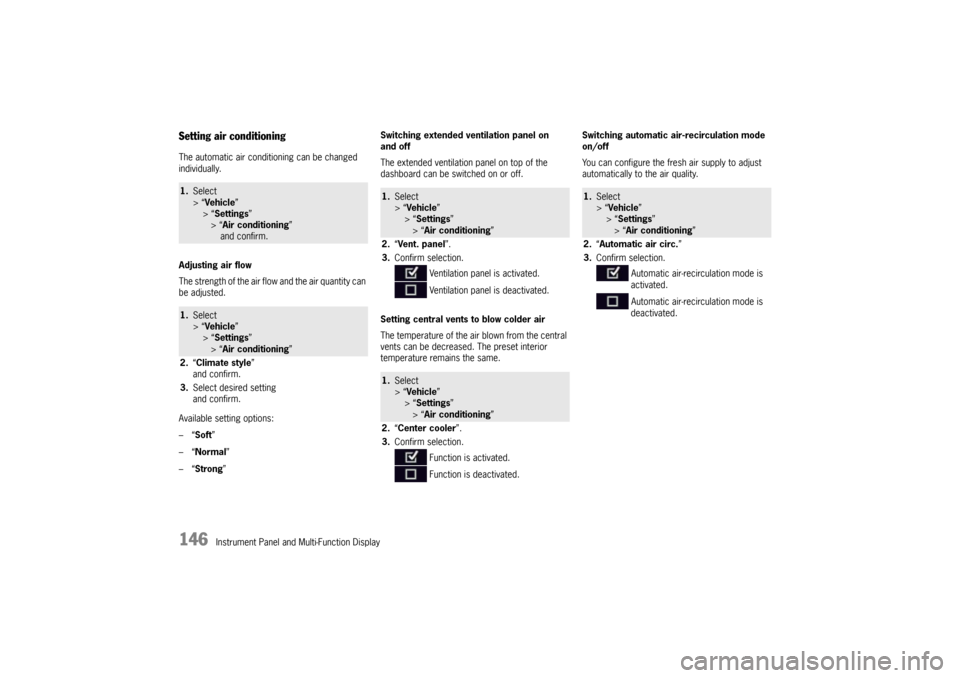
146
Instrument Panel and Multi-Function Display
Setting air conditioningThe automatic air conditioning can be changed
individually.
Adjusting air flow
The strength of the air flow and the air quantity can
be adjusted.
Available setting options:
–“ Soft ”
–“ Normal”
–“ Strong ” Switching extended ventilation panel on
and off
The extended ventilation panel on top of the
dashboard can be switched on or off.
Setting central vents
to blow colder air
The temperature of the air blown from the central
vents can be decreased. The preset interior
temperature remains the same. Switching automatic air-recirculation mode
on/off
You can configure the fresh air supply to adjust
automatically to the air quality.1.
Select
> “Vehicle ”
> “ Settings ”
> “Air conditioning ”
and confirm.1. Select
> “Vehicle ”
> “ Settings ”
> “Air conditioning ”
2. “Climate style”
and confirm.
3. Select desired setting
and confirm.
1.Select
> “Vehicle ”
> “ Settings ”
> “Air conditioning ”
2. “Vent. panel ”.
3. Confirm selection.
Ventilation panel is activated.
Ventilation panel is deactivated.1.Select
> “Vehicle ”
> “ Settings ”
> “Air conditioning ”
2. “Center cooler ”.
3. Confirm selection.
Function is activated.
Function is deactivated.
1.Select
> “Vehicle ”
> “Settings ”
> “Air conditioning ”
2. “Automatic air circ. ”
3. Confirm selection.
Automatic air-recirculation mode is
activated.
Automatic air-recirculation mode is
deactivated.
Page 162 of 343

160
Instrument Panel and Multi-Function Display
System not active
Temporary faultTemporary fault in the Tire Pressure Monitoring system.
Tire pressure is not monitored.Tire Pressure too low for speeds
greater xxx
Top speed for the preset co
mfort pressure exceeded.Tire change?
Update settings The tire settings on the multi-f
unction display must be updated
after changing a wheel.Fault Tire pressure check Fault in Tire Pressu re Monitoring system. Tire pressure is not
monitored. Have the fault corrected at a qualified specialist
workshop.*Driving light on Driving light/side light on.Parking light on Left/right parking light on.Example:
Check front left direction
indicator The reported light is faulty.
Check bulb.
Have the fault corrected at
a qualified specialist workshop.*
flashesDynamic cornering light defective Have the faul t corrected at a qualified specialist workshop.*
lights upAuto driving light control
defective Have the fault corrected at
a qualified specialist workshop.*Check static cornering light,
left/right The reported light is faulty.
Check bulb.
Have the fault corrected at
a qualified specialist workshop.*Headlight beam adjust. defective Adjust your speed and driving style. Have the fault corrected at
a qualified specialist workshop.*Rain/light sensor defective Switch on wipers/ light manually. Have the fault corrected at
a qualified specialist workshop.*
Light in
instrument
panel
Warning message on multi-function
display Meaning/Action required