Page 268 of 578
Playing the XMSatellite Radio (Models with navigation system)
264
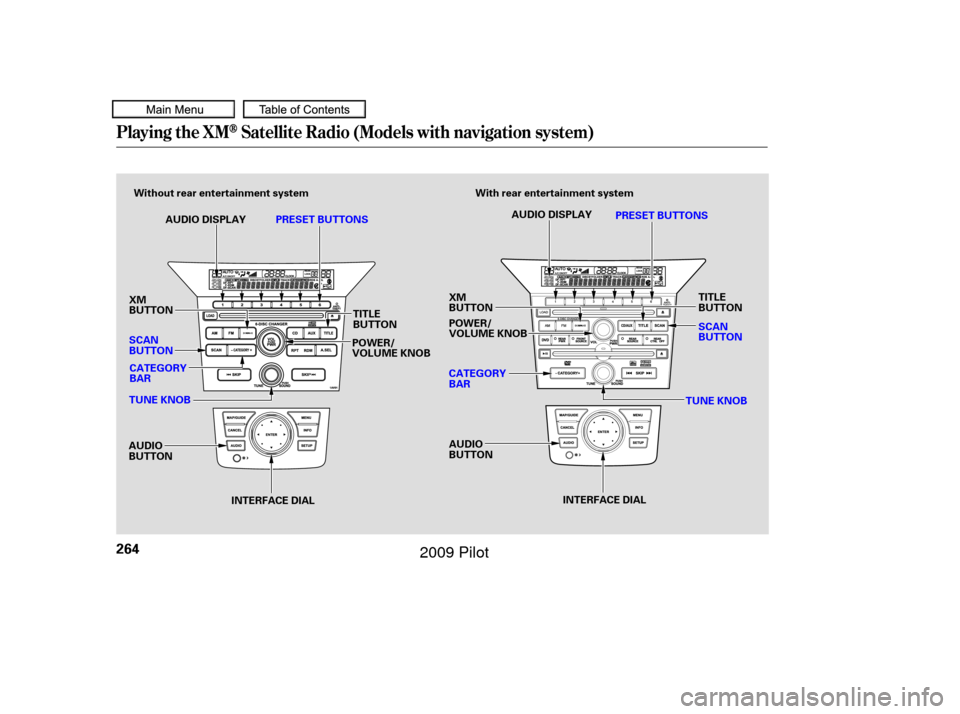
INTERFACE DIALAUDIO DISPLAY
PRESET BUTTONS
With rear entertainment system
Without rear entertainment system
INTERFACE DIAL
AUDIO DISPLAY
PRESET BUTTONS
TUNE KNOB
AUDIO
BUTTON XM
BUTTON
SCAN
BUTTON
CATEGORY
BAR POWER/
VOLUME KNOB
TUNE KNOB
CATEGORY
BAR
AUDIO
BUTTON XM
BUTTON
POWER/
VOLUME KNOB
TITLE
BUTTON TITLE
BUTTON
SCAN
BUTTON
�����—�����—�
���y�
�������������y���
�(�/���������y���������y
2009 Pilot
Page 272 of 578
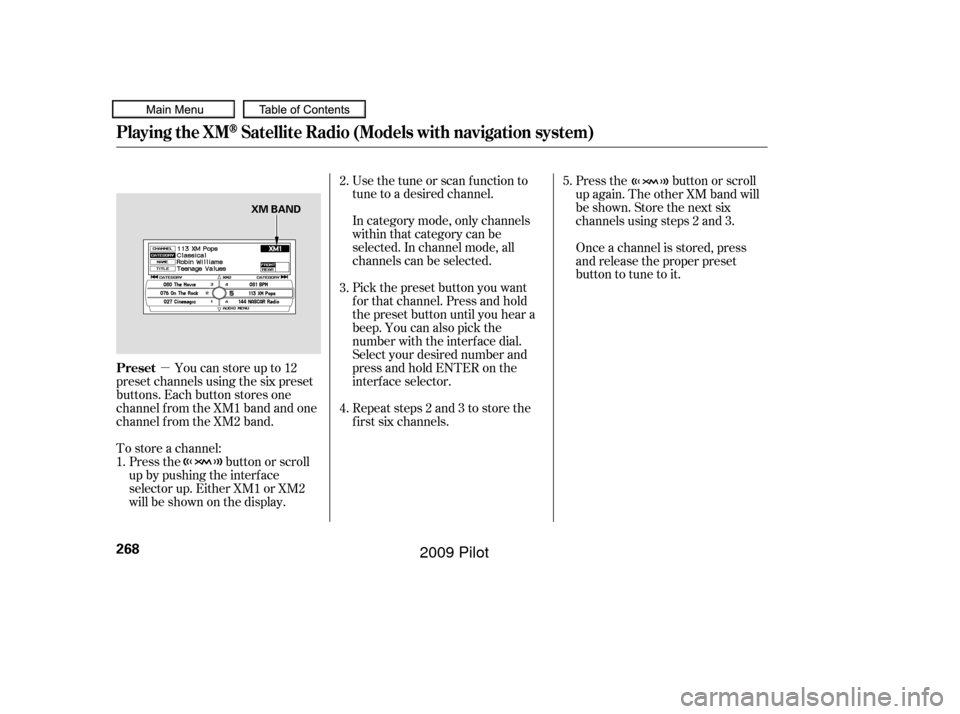
�µYoucanstoreupto12
preset channels using the six preset
buttons. Each button stores one
channel f rom the XM1 band and one
channel f rom the XM2 band.
To store a channel: In category mode, only channels
within that category can be
selected. In channel mode, all
channels can be selected. Use the tune or scan f unction to
tune to a desired channel.
Pick the preset button you want
f or that channel. Press and hold
the preset button until you hear a
beep. You can also pick the
number with the interf ace dial.
Select your desired number and
press and hold ENTER on the
interf ace selector.
Press the button or scroll
up again. The other XM band will
be shown. Store the next six
channels using steps 2 and 3.
Once a channel is stored, press
and release the proper preset
button to tune to it.
Press the button or scroll
up by pushing the interf ace
selector up. Either XM1 or XM2
will be shown on the display. Repeat steps 2 and 3 to store the
f irst six channels.
1. 2.
3.
4.
5.
Playing the XMSatellite Radio (Models with navigation system)
Preset
268
XM BAND
�����—�����—�
���y�
���������
���y���
�(�/���������y���������y
2009 Pilot
Page 276 of 578
Playing Discs (Models with navigation system)
272
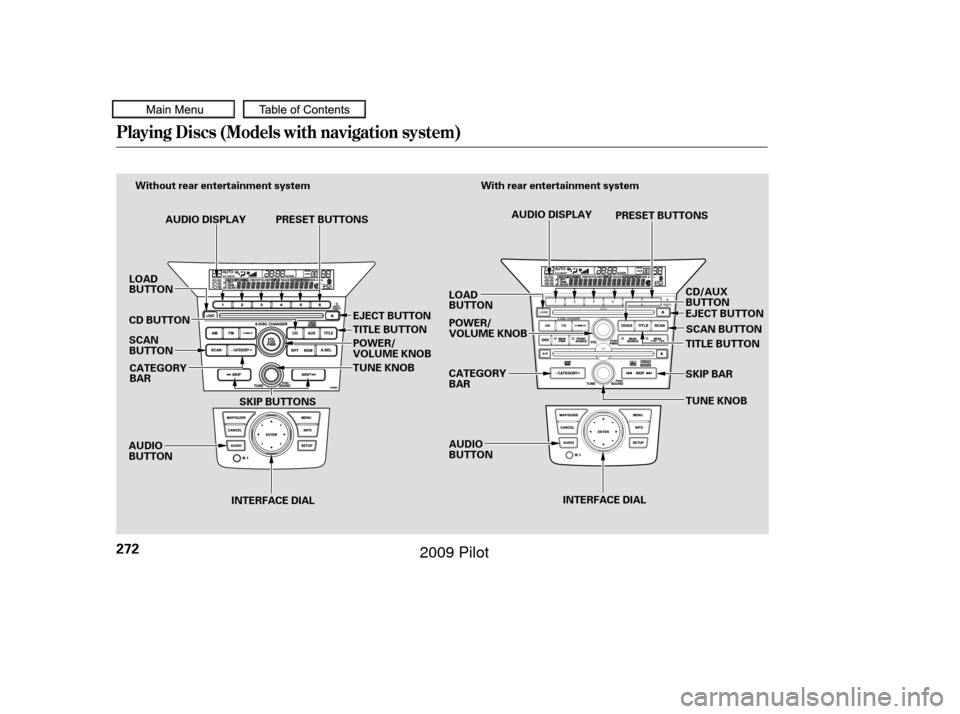
INTERFACE DIALAUDIO DISPLAY
PRESET BUTTONS
With rear entertainment system
Without rear entertainment system
INTERFACE DIAL
AUDIO DISPLAY PRESET BUTTONS
AUDIO
BUTTON SCAN
BUTTON
CATEGORY
BAR
TUNE KNOB
CATEGORY
BAR
AUDIO
BUTTON POWER/
VOLUME KNOB
TUNE KNOB TITLE BUTTON
POWER/
VOLUME KNOB
SKIP BUTTONS LOAD
BUTTON
SCAN BUTTON
CD/AUX
BUTTON
EJECT BUTTON
TITLE BUTTON
SKIP BAR
LOAD
BUTTON
CD BUTTON
EJECT BUTTON
�����—�����—�
���y�
�������������y���
�(�/���������y���������y
2009 Pilot
Page 279 of 578
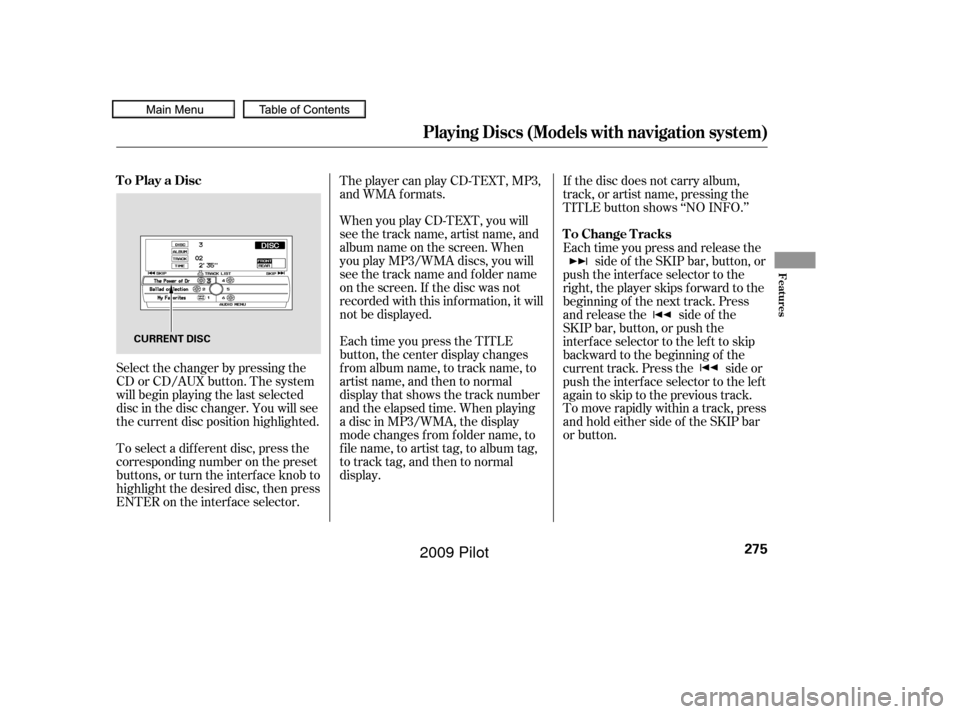
When you play CD-TEXT, you will
see the track name, artist name, and
album name on the screen. When
you play MP3/WMA discs, you will
see the track name and folder name
on the screen. If the disc was not
recorded with this inf ormation, it will
not be displayed.
To select a dif f erent disc, press the
corresponding number on the preset
buttons, or turn the interf ace knob to
highlight the desired disc, then press
ENTER on the interf ace selector. The player can play CD-TEXT, MP3,
and WMA formats.
Select the changer by pressing the
CD or CD/AUX button. The system
will begin playing the last selected
disc in the disc changer. You will see
the current disc position highlighted. Each time you press the TITLE
button, the center display changes
f rom album name, to track name, to
artist name, and then to normal
display that shows the track number
and the elapsed time. When playing
a disc in MP3/WMA, the display
mode changes f rom f older name, to
f ile name, to artist tag, to album tag,
to track tag, and then to normal
display.If the disc does not carry album,
track, or artist name, pressing the
TITLE button shows ‘‘NO INFO.’’
Each time you press and release the
side of the SKIP bar, button, or
push the interface selector to the
right, the player skips forward to the
beginning of the next track. Press
and release the side of the
SKIP bar, button, or push the
interface selector to the left to skip
backward to the beginning of the
current track. Press the side or
push the interface selector to the left
againtoskiptotheprevioustrack.
To move rapidly within a track, press
andholdeithersideof theSKIPbar
or button.
Playing Discs (Models with navigation system)
To Play a Disc
To Change Tracks
Features
275
CURRENT DISC
�����—�����—�
���y�
�������������y���
�(�/���������y���������y
2009 Pilot
Page 291 of 578
�Î
�Î
This audio system can operate the
audio f iles on the iPod
with the
same controls used f or the in-dash
disc changer. To play an iPod,
connect it to the USB adapter cable
in the console compartment by using
your dock connector, then press the
AUX button. The ignition switch
must be in the ACCESSORY (I) or
ON (II) position. The iPod will also
be recharged with the ignition switch
in these positions. The audio system reads and plays
sound f iles to be playable on the iPod.
The system cannot operate an iPod
as a mass storage device. The
system will only play songs stored on
the iPod with iTunes.
iPod and iTunes are registered
trademarks owned by Apple Inc.
You can select the AUX mode by
using the navigation system voice
control buttons, but cannot operate
theplaymodefunctions.iPods that are compatible with your
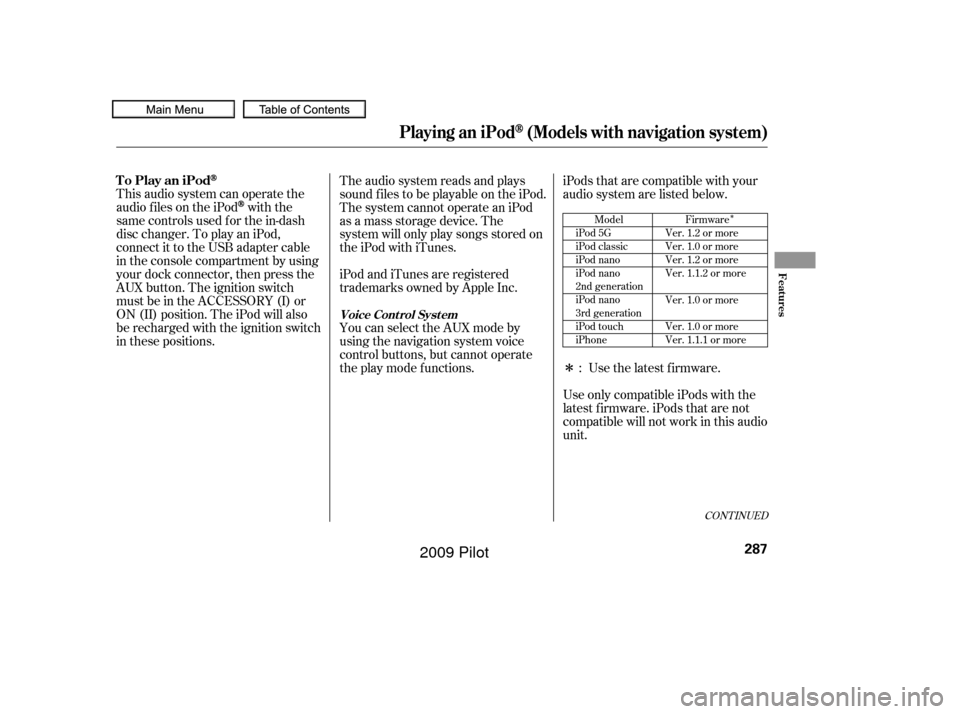
audio system are listed below.
Use the latest f irmware.
UseonlycompatibleiPodswiththe
latest f irmware. iPods that are not
compatible will not work in this audio
unit. :Model
iPod 5G
iPod classic
iPod nano
iPod nano
2nd generation
iPod nano
3rd generation
iPod touch
iPhone Firmware
Ver. 1.2 or more
Ver. 1.0 or more
Ver. 1.2 or more
Ver. 1.1.2 or more
Ver. 1.0 or more
Ver. 1.0 or more
Ver. 1.1.1 or more
CONT INUED
To Play an iPod
Voice Cont rol Syst em
Playing an iPod(Models with navigation system)
Features
287
�����—�����—�
���y�
�����������
�y���
�(�/���������y���������y
2009 Pilot
Page 301 of 578
�Î
�ΠThis audio system can operate the
audio f iles on a USB f lash memory
device with the same controls used
f or the in-dash disc changer. To play
a USB f lash memory device, connect
it to the USB adapter cable in the
console compartment, then press the
AUX button. The ignition switch
must be in the ACCESSORY (I) or
ON (II) position.Only AAC f ormat f iles recorded
with iTunes are playable on this
audio unit. Do not keep the USB f lash
memory device in the vehicle.
Direct sunlight and high heat will
damage it.
We recommend backing up your
data bef ore playing a USB f lash
memory device.
Depending on the type and
number of f iles, it may take some
time bef ore they begin to play.
Depending on the sof tware the
f iles were made with, it may not be
possibletoplaysomefiles,or
display some text data.
You can select the AUX mode by
using the navigation system voice
control buttons, but cannot operate
theplaymodefunctions.
The recommended USB f lash
memory devices are 256 Mbyte or
higher USB f lash memory devices.
Some digital audio players may be
compatible as well.
The audio system reads and plays
the audio f iles on the USB f lash
memory device in MP3, WMA or
AAC f ormats. Depending on the
f ormat, the display shows MP3,
WMA or AAC when a USB flash
memory device is playing. The USB
f lash memory device limit is up to
700 f olders or up to 65535 f iles. Some USB f lash memory device
(such as devices with security lock-
out f eatures, etc.) will not work in
this audio unit.
Do not use a device such as a card
reader or hard drive as the device
or your f iles may be damaged.
Do not connect your USB f lash
memory device using a HUB.
Do not use an extension cable to
the USB adapter cable equipped
with your vehicle.
:
CONT INUED
To Play a USB Flash Memory
Device
Voice Cont rol Syst em
Playing a USB Flash Memory Device (Models with navigation system)
Features
297
NOTE:
�����—�����—�
���y�
���������
���y���
�(�/���������y���������y
2009 Pilot
Page 315 of 578
Your vehicle’s audio system may
disable itself if it is disconnected
f rom electrical power f or any reason.
To make it work again, you must
enter a specif ic f ive-digit code with
the preset buttons. Because there
are hundreds of number
combinations possible f rom the f ive
digits, making the system work
without knowing the exact code is
nearly impossible.
Youshouldhavereceivedacardthat
lists your audio system code number
and serial number. It is best to store
this card in a saf e place at home. In
addition, you should write the audio
system’s serial number in this owner’s
manual.
If you lose the card, you must obtain
the code number f rom your dealer.
To do this, you will need the audio
system’s serial number.If you make a mistake entering the
code, do not start over; complete the
f ive-digit sequence, then enter the
correct code. You have ten tries to
enter the correct code. If you are
unsuccessful in ten attempts, you
must then leave the system on for 1
hour bef ore trying again. If your vehicle’s battery is discon-
nected or goes dead, or the radio
f use is removed, the audio system
will disable itself . If this happens,
youwillsee‘‘ ’’intheaudio
display the next time you turn on the
system. Use the preset buttons to
enter the f ive-digit code. The code is
locatedontheradiocodecard
included in your owner’s manual kit.
When it is entered correctly, the
radio will start playing.The system will retain your AM and
FM presets even if power is
disconnected.
Radio T hef t Protection
Features
311
�����—�����—�
���y�
�������������y���
�(�/���������y�����
���y
2009 Pilot
Page 321 of 578
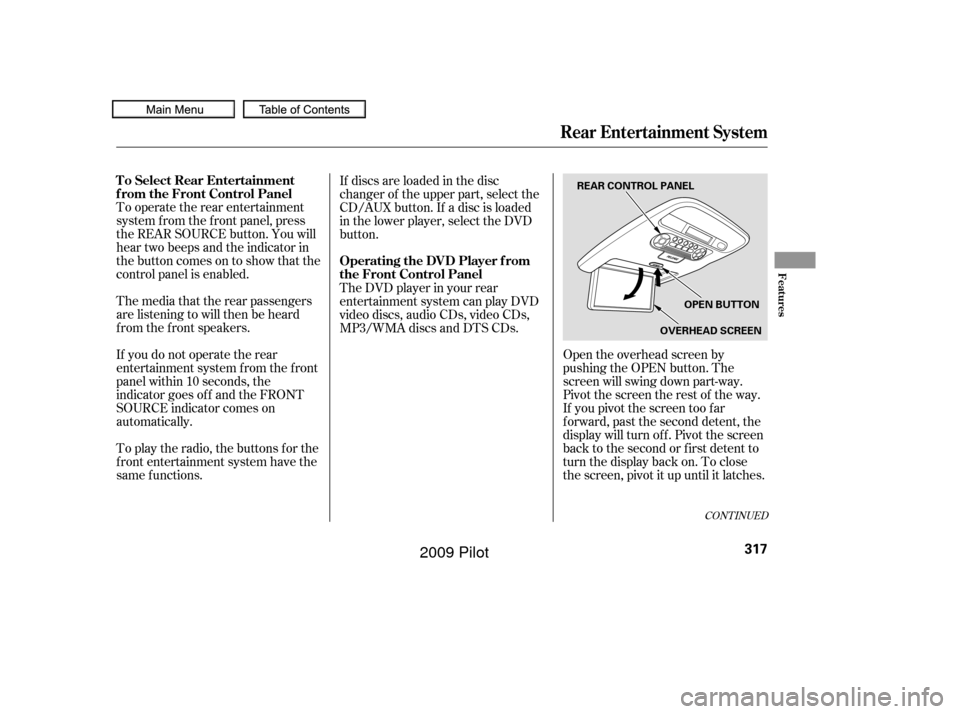
Open the overhead screen by
pushing the OPEN button. The
screen will swing down part-way.
Pivot the screen the rest of the way.
If you pivot the screen too f ar
f orward, past the second detent, the
display will turn of f . Pivot the screen
back to the second or first detent to
turn the display back on. To close
the screen, pivot it up until it latches.
To operate the rear entertainment
system f rom the f ront panel, press
the REAR SOURCE button. You will
hear two beeps and the indicator in
the button comes on to show that the
control panel is enabled.
The media that the rear passengers
are listening to will then be heard
f rom the f ront speakers.
If you do not operate the rear
entertainment system f rom the f ront
panel within 10 seconds, the
indicator goes of f and the FRONT
SOURCE indicator comes on
automatically.
To play the radio, the buttons for the
f ront entertainment system have the
same f unctions. If discs are loaded in the disc
changer of the upper part, select the
CD/AUX button. If a disc is loaded
in the lower player, select the DVD
button.
The DVD player in your rear
entertainment system can play DVD
video discs, audio CDs, video CDs,
MP3/WMA discs and DTS CDs.
CONT INUED
To Select Rear Entertainment
f rom the Front Control Panel
Operating the DVD Player f rom
the Front Control Panel
Rear Entertainment System
Features
317
REAR CONTROL PANEL
OPEN BUTTON
OVERHEAD SCREEN
�����—�����—�
���y�
�������������y���
�(�/���������y���������y
2009 Pilot