Page 216 of 578
�µ�´SOFT: Adult hits and sof t music
TOP 40: Top 40 hits
OLDIES: Nostalgia music and oldies
R & B: Rhythm and blues, and sof t
rhythm and blues
Press either side of the FOLDER bar
to select an RDS category. The
displayshowstheselectedRDS
category name f or a f ew seconds.
You can use the search or scan
function to find radio stations on the
selected RDS category. If you do
nothing while the RDS category
name is displayed, the selected
category is canceled. TRAFFIC: Traffic information INFO: News, inf ormation, sports,
talk, f oreign language, personality,
public, college, and weather JAZZ: Jazz CLASSIC: Classical music RELIGION: Religious music and
religious talk
If the system does not find a station,
‘‘NOTHING’’ will be blinking f or
about 5 seconds, then the system
goes back to the last selected station.
On the FM band selected, you can
select the program category
provided by the RDS. Press either
side of the FOLDER bar ( or )
to display and select an RDS
category. The principal RDS
categories are shown as follows;
ALL: All RDS category stations
ROCK: Rock, classic rock and sof t
rock music
COUNTRY: Country music
This f unction searches up and down
a f requency f or the strongest signal
f rom the f requencies that carry the
selected RDS category inf ormation.
This can help you to find a station in
your favorite category. To activate it,
press and release either of the SKIP
buttons ( or ). You will see
the selected RDS category name
blinking while searching it. When
the system finds a station, the
selected RDS category name will be
displayed again for about 10 seconds.
Playing the FM/AM Radio (LX model)
Radio Data System (RDS) Category
RDS Program Search
212
�����—�����—�
���y�
���������
���y���
�(�/���������y�����
���y
2009 Pilot
Page 220 of 578
Playing a Disc (L X model)
216
SKIP BUTTONS
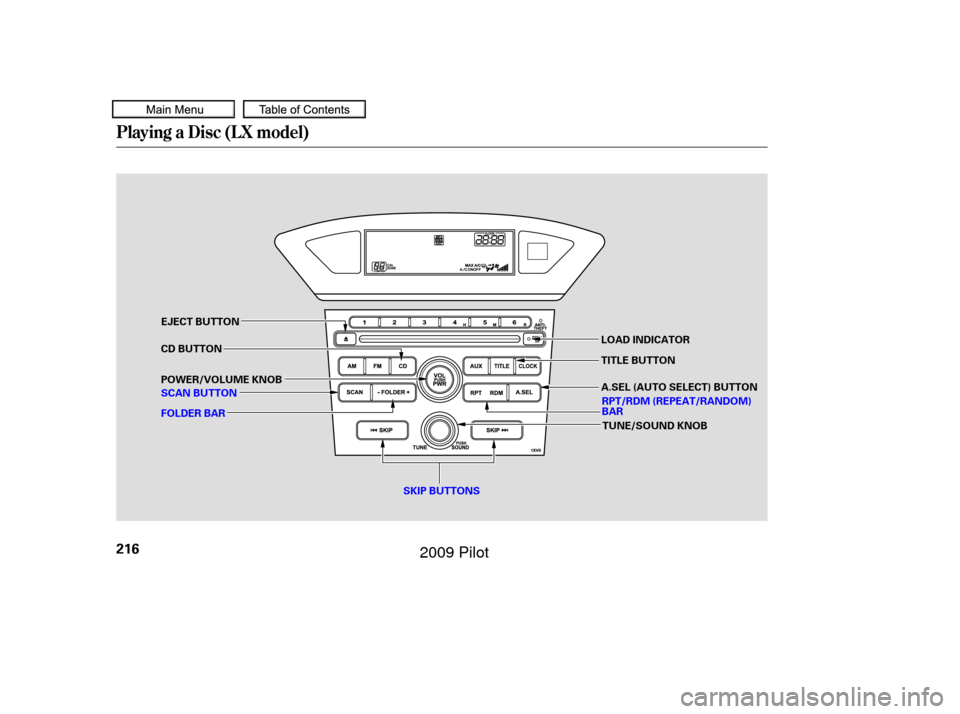
SCAN BUTTON POWER/VOLUME KNOB CD BUTTON
FOLDER BAR LOAD INDICATOR
TITLE BUTTON
EJECT BUTTON
TUNE/SOUND KNOB
RPT/RDM (REPEAT/RANDOM)
BAR
A.SEL (AUTO SELECT) BUTTON
�����—�����—�
���y�
�������������y���
�(�/���������y�������
�y
2009 Pilot
Page 223 of 578
�µ
You can use the SKIP buttons while
a disc is playing to select passages
and change tracks (files in MP3/
WMA mode).
Each time you press and
release the SKIP button, the
player skips f orward to the
beginning of the next track (f ile in
MP3 or WMA mode). Press and
release the to skip backward to
the beginning of the current track.
Press it again to skip to the
beginning of the previous track.
To move rapidly within a track, press
andholdthe or SKIP
button.
The display shows up to about 14
characters of selected text data (the
foldername,filename,etc.).If the
text data has more than 14
characters, you will see the first 14
characters and the indicator in
the display. Press and hold the
TITLE button until the next 14
characters are shown.
You will also see some text data
under these conditions:
When a new f older, f ile, or track is
selected.
When you change the audio mode
to play a disc with text data or in
MP3 or WMA.
When you insert a disc, and the
system begins to play.
When playing a CD-DA with text
data, the album and track name are
showninthedisplay.Withadiscin
MP3 or WMA, the display shows the
f older and f ile name.
If any letter is not available, it is
replaced with ‘‘ . ’’ (dot) in the display.
When the disc has no text data, you
will see ‘‘NO INFO’’ on the display.
T o Change or Select T racks/Files
SK IP
Playing a Disc (L X model)
Features
219
�����—�����—�
���y�
�������������y���
�(�/���������y���������y
2009 Pilot
Page 225 of 578
�µ
�µ �µ
In MP3 or WMA mode
In MP3 or WMA mode
The system plays the f irst f ile in the
f irst f older f or about 10 seconds. If
you do nothing, the system will then
play the f irst f iles in the remaining
f olders f or 10 seconds each. Af ter
playing the f irst f ile of the last f older,
the system plays normally.
Pressing either of the SKIP buttons
also turns off the scan feature. This
feature, when activated, samples the
f irst f ile of each f older on the disc.
To activate folder scan, press the
SCAN button twice. You will see
F-SCAN in the display.
Pressing either of the SKIP buttons,
selecting a dif f erent f older with the
FOLDER bar, or pressing the SCAN
button, also turns off the folder scan.
Each time you press and release the
SCAN button, the mode changes
from file scan to folder scan, then to
normal playing.
This
feature, when activated, plays all
f iles on the selected f older in random
order. To activate f older random,
presstheRDMsideof theRPT/
RDM bar. You will see F-RDM in the
display. The system will then select
and play f iles randomly. This
continues until you deactivate f older
random by pressing and holding the
RDM side of the bar again, or by
selecting a dif f erent f older with the
FOLDER bar.
Each time you press and release the
RDMsideof thebar,themode
changes f rom f older random play to
random play (within a disc random
play), then to normal playing. The scan f unction samples all tracks
(f iles in MP3 or WMA) on the disc in
the order they are recorded on the
disc. To activate scan, press and
release the SCAN button. You will
see SCAN in the display. You will get
a10secondsamplingof eachtrack/
f ile on the disc. Press and hold the
SCAN button until you hear a beep
to get out of scan mode and play the
last track/f ile sampled.
F-SCAN (FOLDER SCAN)
FOLDER-RANDOM SCA N (T RA CK /FIL E SCA N)
Playing a Disc (L X model)
Features
221
�����—�����—�
���y�
���������
���y���
�(�/���������y���������y
2009 Pilot
Page 228 of 578
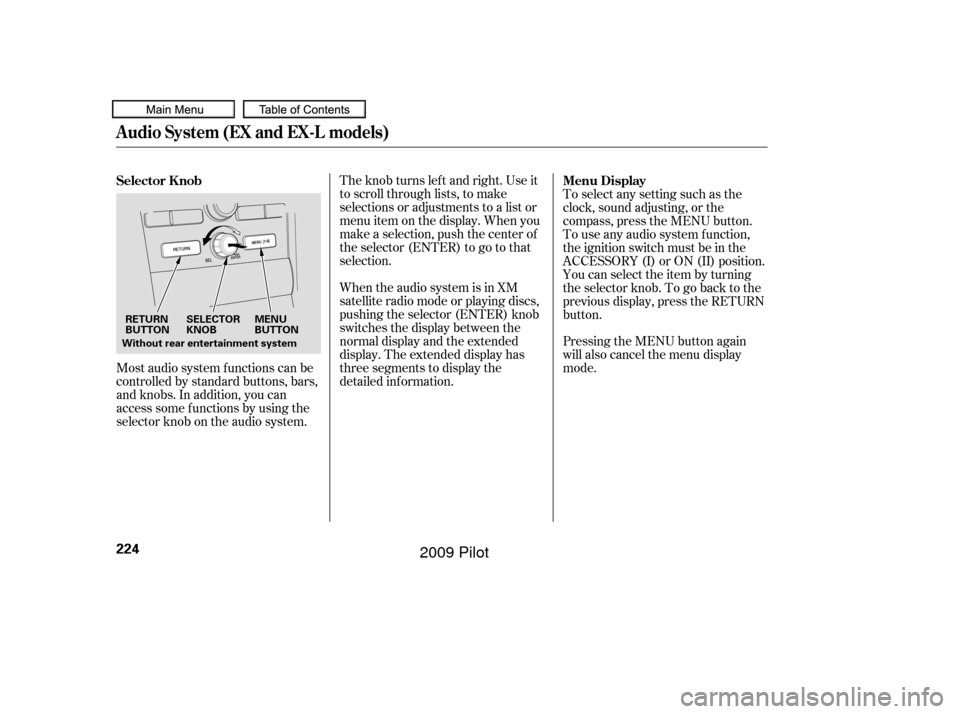
Most audio system f unctions can be
controlled by standard buttons, bars,
and knobs. In addition, you can
access some f unctions by using the
selector knob on the audio system.The knob turns lef t and right. Use it
to scroll through lists, to make
selections or adjustments to a list or
menu item on the display. When you
make a selection, push the center of
the selector (ENTER) to go to that
selection.
When the audio system is in XM
satellite radio mode or playing discs,
pushing the selector (ENTER) knob
switches the display between the
normal display and the extended
display. The extended display has
three segments to display the
detailed inf ormation.
Pressing the MENU button again
will also cancel the menu display
mode. To select any setting such as the
clock, sound adjusting, or the
compass, press the MENU button.
To use any audio system f unction,
the ignition switch must be in the
ACCESSORY (I) or ON (II) position.
You can select the item by turning
the selector knob. To go back to the
previous display, press the RETURN
button.
Selector K nob
Menu Display
Audio System (EX and EX-L models)
224
SELECTOR
KNOBMENU
BUTTON
RETURN
BUTTON
Without rear entertainment system
�����—�����—�
���y�
�������������y���
�(�/���������y���������y
2009 Pilot
Page 229 of 578
Playing the FM/AM Radio (EX and EX-L models)
Features
225
SELECTOR KNOB
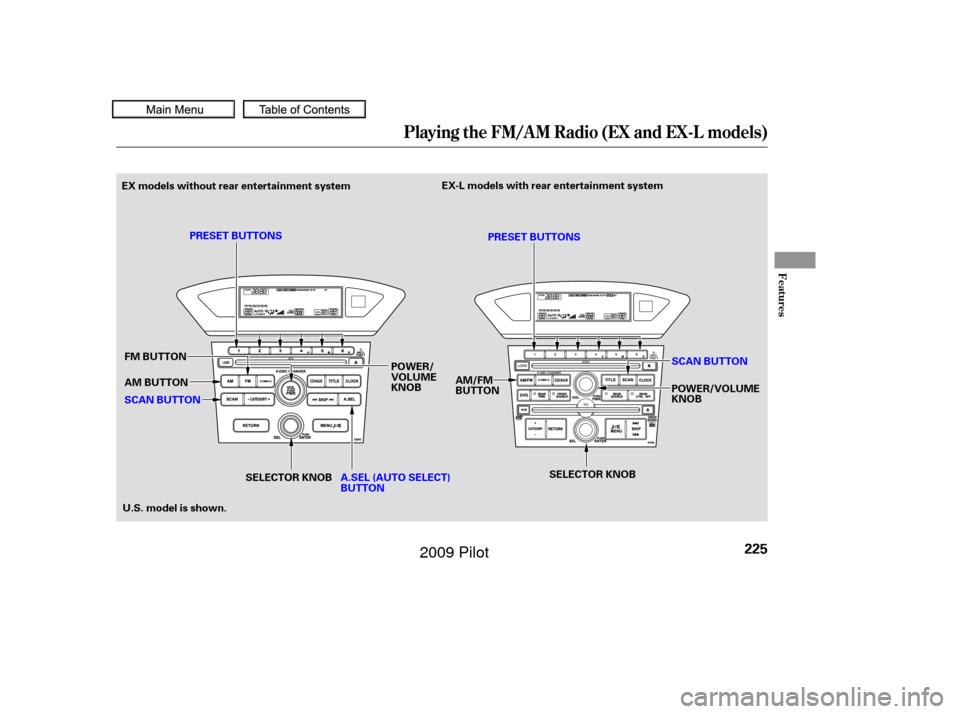
FM BUTTON
AM BUTTON
SCAN BUTTON PRESET BUTTONS
PRESET BUTTONS
SCAN BUTTON
SELECTOR KNOB
A.SEL (AUTO SELECT)
BUTTON
EX models without rear entertainment system
POWER/
VOLUME
KNOBAM/FM
BUTTON
POWER/VOLUME
KNOB
EX-L models with rear entertainment system
U.S. model is shown.
�����—�����—�
���y�
�������������y���
�(�/���������y���������y
2009 Pilot
Page 230 of 578
�µ
�µ
You can use any of f ive methods to
f ind radio stations on the selected
band: tune, seek, scan, the preset
buttons, and auto select.
On the AM band, AM noise
reduction turns on automatically. The ignition switch must be in the
ACCESSORY (I) or ON (II) position.
Turn the system on by pushing the
PWR/VOL knob. Adjust the volume
by turning the same knob.
The band and f requency that the
radio was last tuned to are displayed.
To change bands, press the AM or
FM button, or AM/FM button. On
the FM band, ST will be displayed if
the station is broadcasting in stereo.
Stereo reproduction in AM is not
available. On the FM band, you can also use
the f eatures provided by the radio
data system (RDS). For more
inf ormation on the RDS, see page
. The skip f unction searches
up and down f rom the current
f requency to f ind a station with a
strong signal. To activate it, press
and hold the or side of the
SKIP bar until you hear a beep, then
release it.
Use the selector knob to
tune the radio to a desired f requency.
Turn the knob right to tune to a
higher f requency, or lef t to tune to a
lower f requency. 228
To Select a Station
To Play the Radio SK IP
TUNE
Playing the FM/AM Radio (EX and EX-L models)
226
�����—�����—�
���y�
�������������y���
�(�/���������y�������
�y
2009 Pilot
Page 231 of 578
�µ
�µ
�µ
If you are
traveling far from home and can no
longer receive your preset stations,
you can use the auto select feature to
find stations in the local area.
Press the A. SEL button. ‘‘A. SEL’’
f lashes in the display, and the system
goes into scan mode f or several
seconds. It stores the f requencies of
six AM and twelve FM stations in
the preset buttons.
You will see a ‘‘0’’ displayed af ter
pressing a preset button if auto
select cannot f ind a strong station f or
that preset button.
If you do not like the stations auto
select has stored, you can store
other f requencies on the preset
buttons as previously described.
Each preset button can
store one f requency on AM and two
f requencies on FM.
Select the desired band, AM or
FM. FM1 and FM2 let you store
two f requencies with each preset
button.
Usethetune,skip,scan,orRDS
function to tune the radio to a
desired station.
Pick a preset button, and hold it
until you hear a beep.
Repeat steps 1 through 3 to store a
total of six stations on AM and
twelve stations on FM.
The scan f unction samples
all stations with strong signals on the
selected band. To activate it, press
the SCAN button, then release it.
You will see SCAN in the display.
The system will scan f or a station
with a strong signal. When it f inds
one, it will stop and play that station
f or about 10 seconds.
If you do nothing, the system will
scan f or the next strong station and
play it f or 10 seconds. When it plays
a station that you want to listen to,
press the SCAN button again. 1.
2.
3.
4.
On vehicles without rear entertainment
system
Playing the FM/AM Radio (EX and EX-L models)
AUTO SELECT
Preset
SCAN
Features
227
�����—�����—�
���y�
�������������y���
�(�/���������y���������y
2009 Pilot