Page 86 of 449
The UConnecttsystem is fully integrated with the vehi-
cle's audio system. The volume of the UConnecttsystem
can be adjusted either from the radio volume control
knob or from the steering wheel radio control (right
switch), if so equipped.
The radio display will be used for visual prompts from
the UConnecttsystem such as9CELL9or caller ID on
certain radios.
Operation
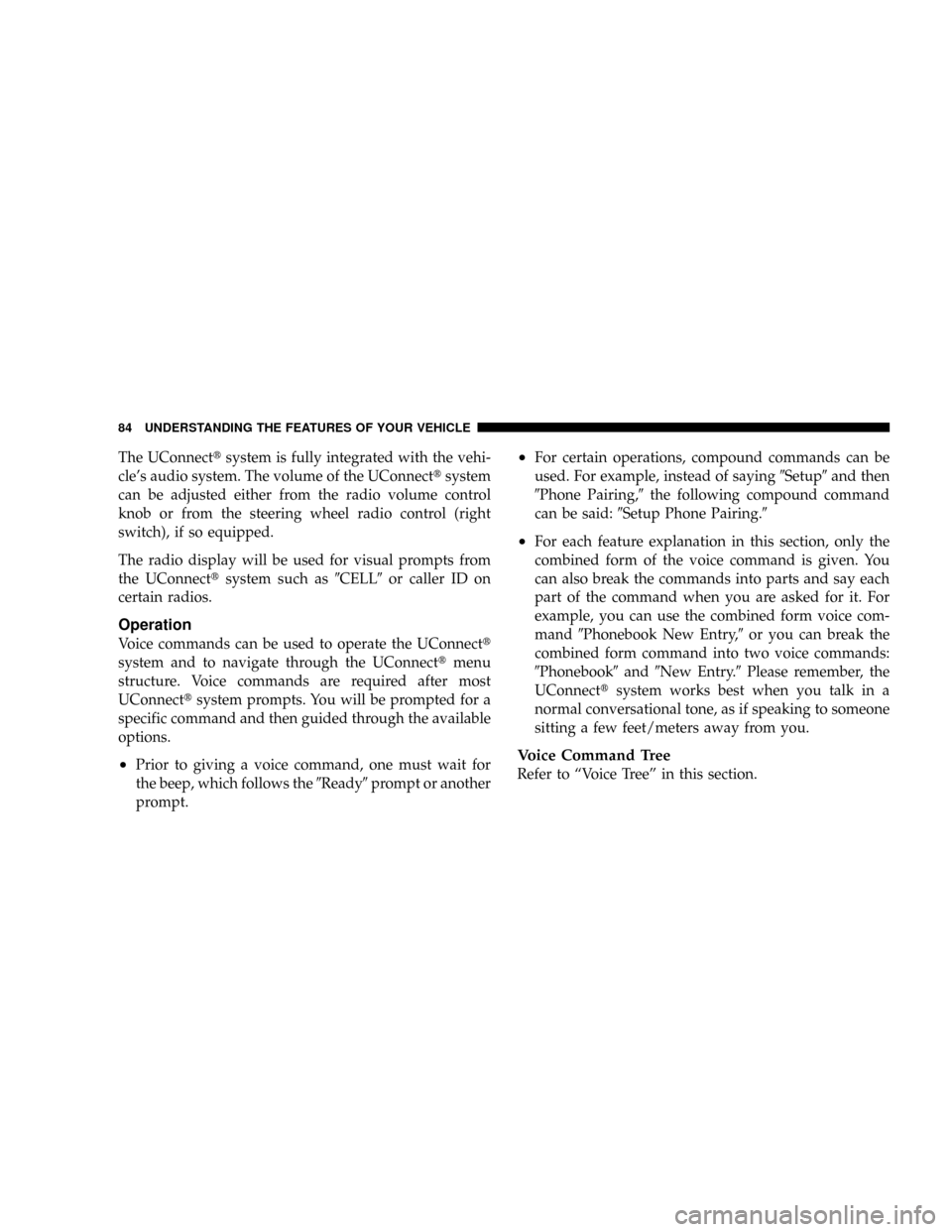
Voice commands can be used to operate the UConnectt
system and to navigate through the UConnecttmenu
structure. Voice commands are required after most
UConnecttsystem prompts. You will be prompted for a
specific command and then guided through the available
options.
²Prior to giving a voice command, one must wait for
the beep, which follows the9Ready9prompt or another
prompt.
²For certain operations, compound commands can be
used. For example, instead of saying9Setup9and then
9Phone Pairing,9the following compound command
can be said:9Setup Phone Pairing.9
²For each feature explanation in this section, only the
combined form of the voice command is given. You
can also break the commands into parts and say each
part of the command when you are asked for it. For
example, you can use the combined form voice com-
mand9Phonebook New Entry,9or you can break the
combined form command into two voice commands:
9Phonebook9and9New Entry.9Please remember, the
UConnecttsystem works best when you talk in a
normal conversational tone, as if speaking to someone
sitting a few feet/meters away from you.
Voice Command Tree
Refer to ªVoice Treeº in this section.
84 UNDERSTANDING THE FEATURES OF YOUR VEHICLE
Page 87 of 449
Help Command
If you need assistance at any prompt, or if you want to
know your options at any prompt, say9Help9following
the beep. The UConnecttsystem will play all the options
at any prompt if you ask for help.
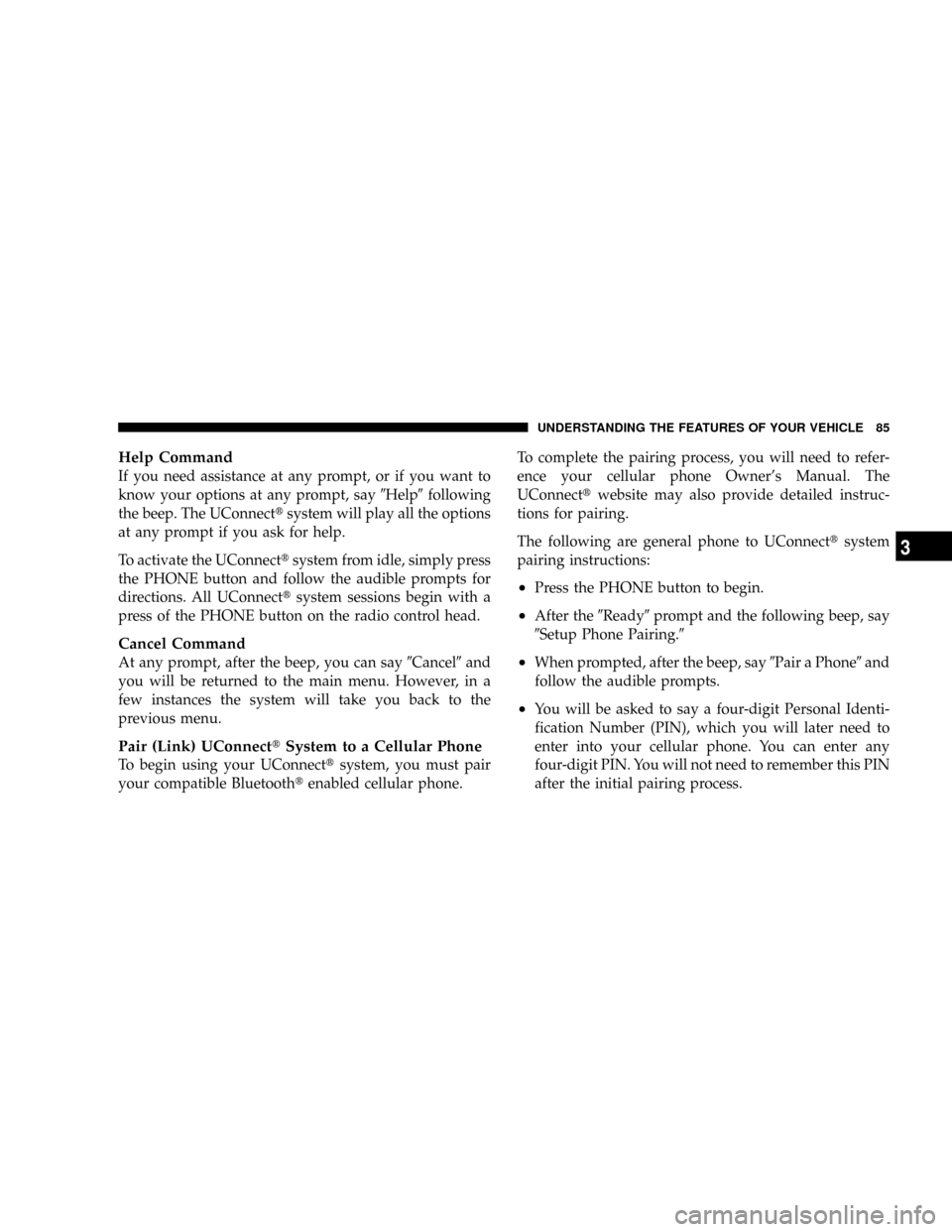
To activate the UConnecttsystem from idle, simply press
the PHONE button and follow the audible prompts for
directions. All UConnecttsystem sessions begin with a
press of the PHONE button on the radio control head.
Cancel Command
At any prompt, after the beep, you can say9Cancel9and
you will be returned to the main menu. However, in a
few instances the system will take you back to the
previous menu.
Pair (Link) UConnecttSystem to a Cellular Phone
To begin using your UConnecttsystem, you must pair
your compatible Bluetoothtenabled cellular phone.To complete the pairing process, you will need to refer-
ence your cellular phone Owner's Manual. The
UConnecttwebsite may also provide detailed instruc-
tions for pairing.
The following are general phone to UConnecttsystem
pairing instructions:
²Press the PHONE button to begin.
²After the9Ready9prompt and the following beep, say
9Setup Phone Pairing.9
²When prompted, after the beep, say9Pair a Phone9and
follow the audible prompts.
²You will be asked to say a four-digit Personal Identi-
fication Number (PIN), which you will later need to
enter into your cellular phone. You can enter any
four-digit PIN. You will not need to remember this PIN
after the initial pairing process.
UNDERSTANDING THE FEATURES OF YOUR VEHICLE 85
3
Page 102 of 449
²Following the beep, say9Mute off.9
Advanced Phone Connectivity
Transfer Call to and from Cellular Phone
The UConnecttsystem allows ongoing calls to be trans-
ferred from your cellular phone to the UConnecttsystem
without terminating the call. To transfer an ongoing call
from your UConnecttpaired cellular phone to the
UConnecttsystem or vice versa, press the ªVoice Recog-
nitionº button and say9Transfer Call.9
Connect or Disconnect Link Between the
UConnecttSystem and Cellular Phone
Your cellular phone can be paired with many different
electronic devices, but can only be actively9connected9
with one electronic device at a time.
If you would like to connect or disconnect the Bluetootht
connection between a UConnecttpaired cellular phoneand the UConnecttsystem, follow the instructions de-
scribed in your cellular phone User's Manual.
List Paired Cellular Phone Names
²
Press the PHONE button to begin.
²After the ªReadyº prompt and the following beep, say
ªSetup Phone Pairing.º
²When prompted, say9List Phones.9
²The UConnecttsystem will play the phone names of
all paired cellular phones in order from the highest to
the lowest priority. To ªselectº or ªdeleteº a paired
phone being announced, press the ªVoice Recogni-
tionº button and say ªSelectº or ªDelete.º Also, see the
next two sections for an alternate way to ªselectº or
ªdeleteº a paired phone.
100 UNDERSTANDING THE FEATURES OF YOUR VEHICLE
Page 103 of 449
Select Another Cellular Phone
This feature allows you to select and start using another
phone paired with the UConnecttsystem.
²Press the PHONE button to begin.
²After the9Ready9prompt and the following beep, say
9Setup Select Phone9and follow the prompts.
²You can also press the ªVoice Recognitionº button at
any time while the list is being played, and then
choose the phone that you wish to select.
²The selected phone will be used for the next phone
call. If the selected phone is not available, the
UConnecttsystem will return to using the highest
priority phone present in or near (approximately
within 30 ft [9 m]) the vehicle.
Delete UConnecttPaired Cellular Phones
²
Press the PHONE button to begin.
²After the9Ready9prompt and the following beep, say
9Setup Phone Pairing.9
²At the next prompt, say9Delete9and follow the
prompts.
²You can also press the ªVoice Recognitionº button at
any time while the list is being played, and then
choose the phone you wish to delete.
Things You Should Know About Your UConnectT
System
UConnecttTutorial
To hear a brief tutorial of the system features, press the
PHONE button and say ªUConnecttTutorial.º
Voice Training
For users experiencing difficulty with the system recog-
nizing their voice commands or numbers, the UConnectt
UNDERSTANDING THE FEATURES OF YOUR VEHICLE 101
3
Page 111 of 449
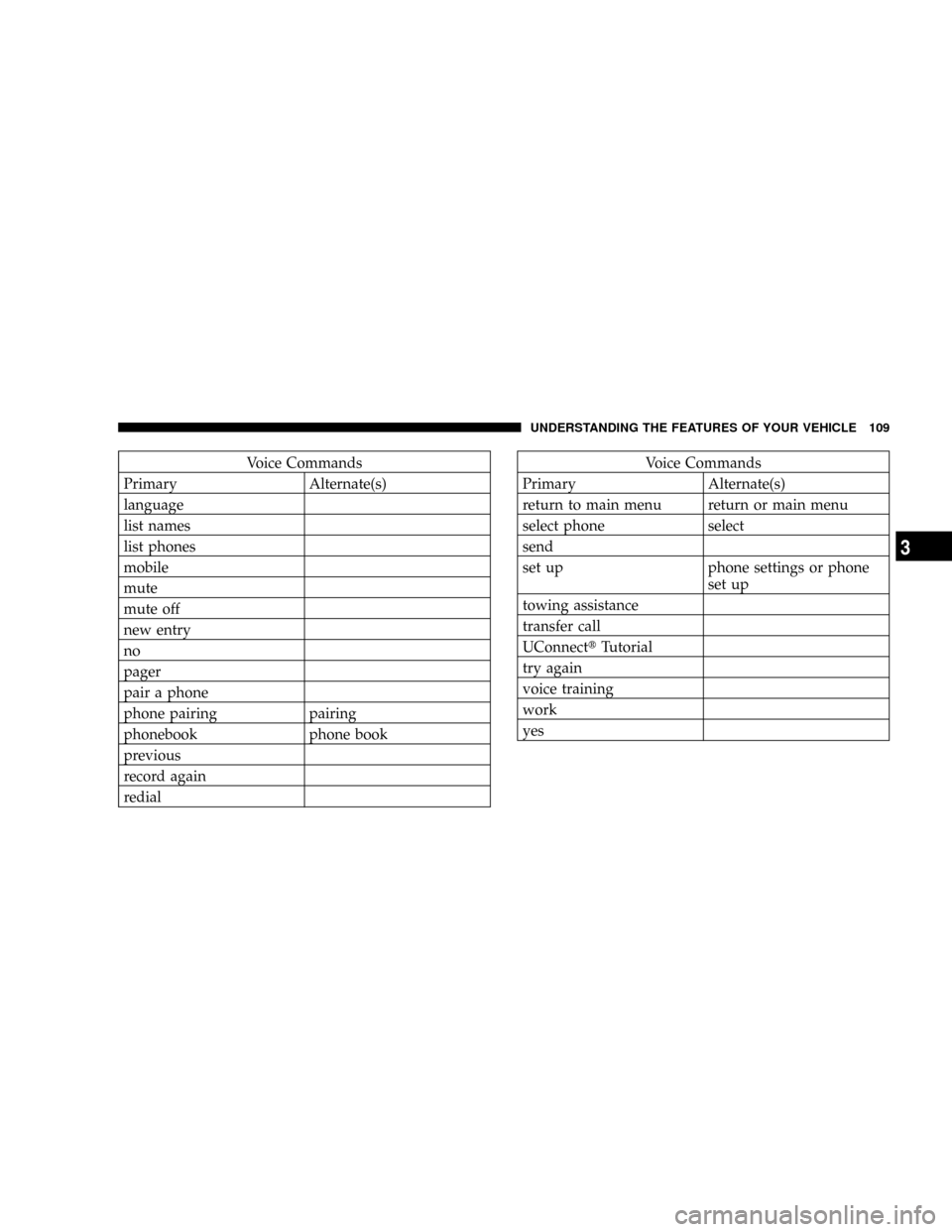
Voice Commands
Primary Alternate(s)
language
list names
list phones
mobile
mute
mute off
new entry
no
pager
pair a phone
phone pairing pairing
phonebook phone book
previous
record again
redialVoice Commands
Primary Alternate(s)
return to main menu return or main menu
select phone select
send
set up phone settings or phone
set up
towing assistance
transfer call
UConnecttTutorial
try again
voice training
work
yes
UNDERSTANDING THE FEATURES OF YOUR VEHICLE 109
3
Page 423 of 449
PUBLICATION ORDER FORMS
To order the following manuals, you may use either the
website or the phone numbers listed below. Visa, Mas-
tercard, American Express, and Discover orders are ac-
cepted. If you prefer mailing your payment, please call
for an order form.
NOTE:A street address is required when ordering
manuals (no P.O. Boxes).
²Service Manuals
These comprehensive Service Manuals provide the
information that students and professional technicians
need in diagnosing/troubleshooting, problem solving,
maintaining, servicing, and repairing Chrysler LLC
vehicles. A complete working knowledge of the ve-
hicle, system, and/or components is written in
straightforward language with illustrations, diagrams,
and charts.
²Diagnostic Procedure Manuals
Diagnostic Procedure Manuals are filled with dia-
grams, charts and detailed illustrations. These practi-
cal manuals make it easy for students and technicians
to find and fix problems on computer-controlled ve-
hicle systems and features. They show exactly how to
find and correct problems the first time, using step-by-
step troubleshooting and drivability procedures,
proven diagnostic tests and a complete list of all tools
and equipment.
²Owner's Manuals
These Owner's Manuals have been prepared with the
assistance of service and engineering specialists to
acquaint you with specific Chrysler LLC vehicles.
Included are starting, operating, emergency and main-
tenance procedures as well as specifications, capabili-
ties and safety tips.
IF YOU NEED CONSUMER ASSISTANCE 421
9